change time CHEVROLET CITY EXPRESS 2018 Infotainment System Guide
[x] Cancel search | Manufacturer: CHEVROLET, Model Year: 2018, Model line: CITY EXPRESS, Model: CHEVROLET CITY EXPRESS 2018Pages: 74, PDF Size: 0.86 MB
Page 59 of 74
Chevrolet City Express Infotainment System (GMNA-Localizing-U.S./Canada-
11683801) - 2018 - crc - 7/12/17
58 Settings
2. Touch Settings.
3. Touch System.
4. Scroll down and touch theTemperature Unit icon.
Clock Settings
This setting allows you to make
clock adjustments.
1. Press APPS
hor MENU on
the center stack.
2. Touch Settings.
3. Touch System.
4. Touch Clock.
5. Select the preferred setting item and make an adjustment.
.Time Format:
Touch to change the clock
format between 12 h and
24 h.
. Date Format:
Touch to choose one of five
available date formats. .
Clock Mode:
Select Manual to manually
set the clock with the Set
Clock Manually display
icon. Select Auto to have
the clock automatically
adjusted by the GPS
system. Select Time Zone
to have the time set to a
specific time zone.
. Set Clock Manually:
Set the clock manually. This
feature is only available if
Manual is selected for
Clock Mode.
. Daylight Savings Time:
Touch the Daylight Savings
Time display icon to switch
Daylight Savings Time on
or off. This feature is
unavailable if Clock Mode is
set to Auto.
. Time Zone:
Select and touch the time
zone of the current vehicle
location to bypass the GPS satellite. This feature is only
available if Time Zone is
selected for Clock Mode.
If Daylight Savings Time is
set to On and a time zone
is chosen for an area that
does not observe Daylight
Savings Time, the Daylight
Savings Time setting
remains On and must be
turned off manually.
6. After adjusting the desired settings, press BACK on the
center stack to return to the
previous display. Press MAP
on the center stack to return to
the previous display or the
current location map view.
Press FM, AM, CD, or AUX to
return to the audio display.
Set the Clock Manually
Adjust the hour, minute, day, month,
and year using + and −.
1. Press APPS
hor MENU on
the center stack.
2. Touch Settings.
3. Touch System.
Page 64 of 74
Chevrolet City Express Infotainment System (GMNA-Localizing-U.S./Canada-
11683801) - 2018 - crc - 7/12/17
Bluetooth Phone/Devices 63
Receiving a Call
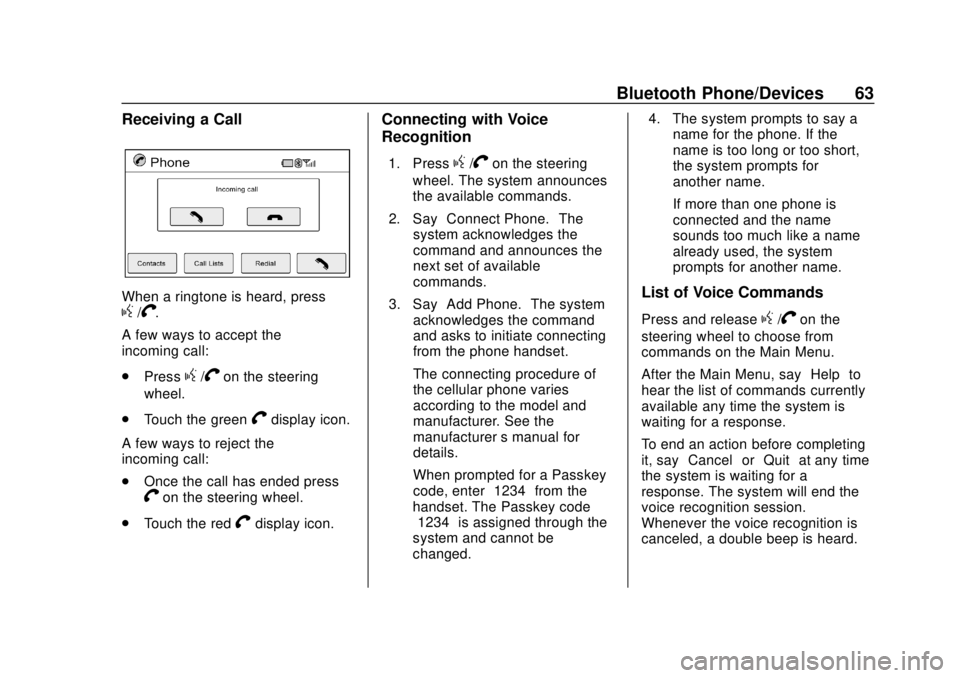
When a ringtone is heard, pressg/V.
A few ways to accept the
incoming call:
. Press
g/Von the steering
wheel.
. Touch the green
Vdisplay icon.
A few ways to reject the
incoming call:
. Once the call has ended press
Von the steering wheel.
. Touch the red
Vdisplay icon.
Connecting with Voice
Recognition
1. Pressg/Von the steering
wheel. The system announces
the available commands.
2. Say “Connect Phone.” The
system acknowledges the
command and announces the
next set of available
commands.
3. Say “Add Phone.” The system
acknowledges the command
and asks to initiate connecting
from the phone handset.
The connecting procedure of
the cellular phone varies
according to the model and
manufacturer. See the
manufacturer ’s manual for
details.
When prompted for a Passkey
code, enter “1234”from the
handset. The Passkey code
“1234” is assigned through the
system and cannot be
changed. 4. The system prompts to say a
name for the phone. If the
name is too long or too short,
the system prompts for
another name.
If more than one phone is
connected and the name
sounds too much like a name
already used, the system
prompts for another name.
List of Voice Commands
Press and releaseg/Von the
steering wheel to choose from
commands on the Main Menu.
After the Main Menu, say “Help”to
hear the list of commands currently
available any time the system is
waiting for a response.
To end an action before completing
it, say “Cancel” or“Quit” at any time
the system is waiting for a
response. The system will end the
voice recognition session.
Whenever the voice recognition is
canceled, a double beep is heard.
Page 65 of 74
Chevrolet City Express Infotainment System (GMNA-Localizing-U.S./Canada-
11683801) - 2018 - crc - 7/12/17
64 Bluetooth Phone/Devices
To go back to the previous
command, say“Go Back”or
“Correction” any time the system is
waiting for a response.
Call by Entering a Phone Number
1. Press
g/Von the steering
wheel. A tone will be heard.
2. Say “Call.”The system
acknowledges the command
and announces the next set of
available commands.
3. Say “Phone Number.” The
system acknowledges the
command and announces the
next set of available
commands.
4. Say the number to call starting with the area code in single
digit format. If the system has
trouble recognizing the correct
phone number, try entering the
number in the following groups:
three digit area code, three digit
prefix, and the last four digits.
To dial more than 10 digits or
any special characters, say
“Special Number.” 5. When finished speaking the
phone number, the system
repeats it back and announces
the available commands.
6. Say “Dial.”The system
acknowledges the command
and makes the call.
Call by Speaking the Name
If there are stored entries in the
phonebook, a number associated
with a name can be dialed.
When prompted by the system, say
the name of the phonebook entry to
be called. The system
acknowledges the name.
Once the name and location is
confirmed, the system begins
the call.
Call by Speaking the Digits
When prompted by the system, say
the number to be called. To dial
more than 10 digits or any special
characters, say “Special Number.”
When the system acknowledges the
command, the system will prompt to
speak the number. Redial
Use the Redial command to call the
last number that was dialed. The
system acknowledges the
command, repeats the number, and
begins dialing.
If the redial number does not exist,
the system announces,
“There is no
number to redial” and ends the
voice recognition session.
Hands-Free Phone
Using Bluetooth Voice
Recognition
To use voice recognition, press
g
/Von the steering wheel. Use the
commands below for the various
voice features. For additional
information, say “Help”while in a
voice recognition menu.
Making a Call
Calls can be made using the
following commands.
Dial or Call : These commands can
be used interchangeably to dial a
phone number.
Page 67 of 74
Chevrolet City Express Infotainment System (GMNA-Localizing-U.S./Canada-
11683801) - 2018 - crc - 7/12/17
66 Trademarks and License Agreements
Trademarks and
License Agreements
FCC Information
See“Radio Frequency Statement”
in the owner's manual.
"Made for iPod," and "Made for
iPhone," mean that an electronic
accessory has been designed to
connect specifically to iPod or
iPhone, respectively, and has been
certified by the developer to meet
Apple performance standards.
Apple is not responsible for the
operation of this device or its
compliance with safety and
regulatory standards. Please note
that the use of this accessory with
iPod or iPhone may affect wireless
performance. iPhone, iPod, iPod
classic, iPod nano, iPod shuffle, and iPod touch are trademarks of Apple
Inc., registered in the U.S. and other
countries.
Fees and Taxes: Subscription fee,
taxes, one time activation fee, and
other fees may apply. Subscription
fee is consumer only. All fees and
programming subject to change.
Subscriptions subject to Customer
Agreement available at
www.siriusxm.com. SiriusXM
service only available in the
48 contiguous United States and
Canada.
In Canada: Some deterioration of
service may occur in extreme
northern latitudes. This is beyond
the control of SiriusXM Satellite
Radio.
Explicit Language Notice: Channels
with frequent explicit language are
indicated with an
“XL”preceding the channel name. Channel blocking is
available for SiriusXM Satellite
Radio receivers by notifying
SiriusXM:
.
USA: 1-888-601-6296 or see
www.siriusxm.com.
. Canada: 1-877-438-9677 or see
www.siriusxm.ca.
It is prohibited to copy, decompile,
disassemble, reverse engineer,
hack, manipulate, or otherwise
make available any technology or
software incorporated in receivers
compatible with the SiriusXM
Satellite Radio System or that
support the SiriusXM website, the
Online Service or any of its content.
Furthermore, the AMBER voice
compression software included in
this product is protected by
intellectual property rights including
patent rights, copyrights, and trade
secrets of Digital Voice
Systems, Inc.
General Requirements:
1. A License Agreement from SiriusXM is required for any
product that incorporates