wheel CHEVROLET CITY EXPRESS 2018 Infotainment System Guide
[x] Cancel search | Manufacturer: CHEVROLET, Model Year: 2018, Model line: CITY EXPRESS, Model: CHEVROLET CITY EXPRESS 2018Pages: 74, PDF Size: 0.86 MB
Page 48 of 74
Chevrolet City Express Infotainment System (GMNA-Localizing-U.S./Canada-
11683801) - 2018 - crc - 7/12/17
Navigation 47
.In Another City
Select to view weather
information for a different city.
Follow the on-screen prompts
and character input display to
select the desired location.
When the weather function is
accessed for the first time of the
day, the GPS location may not be
used. If this occurs, touch Location
to update the location.
This feature can also be accessed
using the voice recognition system.
Press
g/Von the steering wheel
and when prompted, say
“Information” then“Current Weather”
or “Weather Forecast.”
Fuel Pricing
To display fuel prices at gas stations
in the surrounding area on the
display:
1. Press APPS
hor MENU on
the center stack.
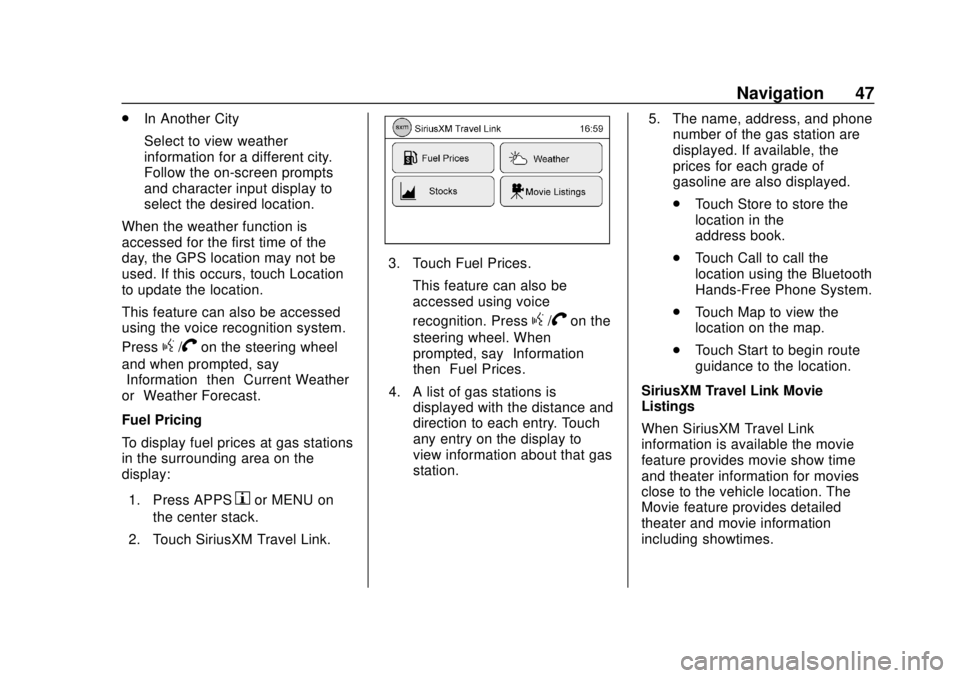
2. Touch SiriusXM Travel Link.
3. Touch Fuel Prices. This feature can also be
accessed using voice
recognition. Press
g/Von the
steering wheel. When
prompted, say “Information”
then “Fuel Prices.”
4. A list of gas stations is displayed with the distance and
direction to each entry. Touch
any entry on the display to
view information about that gas
station. 5. The name, address, and phone
number of the gas station are
displayed. If available, the
prices for each grade of
gasoline are also displayed.
.Touch Store to store the
location in the
address book.
. Touch Call to call the
location using the Bluetooth
Hands-Free Phone System.
. Touch Map to view the
location on the map.
. Touch Start to begin route
guidance to the location.
SiriusXM Travel Link Movie
Listings
When SiriusXM Travel Link
information is available the movie
feature provides movie show time
and theater information for movies
close to the vehicle location. The
Movie feature provides detailed
theater and movie information
including showtimes.
Page 53 of 74
Chevrolet City Express Infotainment System (GMNA-Localizing-U.S./Canada-
11683801) - 2018 - crc - 7/12/17
52 Voice Recognition
Voice Recognition
Voice recognition allows for
hands-free operation of the
infotainment system features.
Using Voice Recognition
1. Keep the interior of the vehicleas quiet as possible. Close the
windows to eliminate the
surrounding noises such as
traffic and vibration sounds,
which may prevent the system
from recognizing the voice
commands correctly.
2. Press
g/Von the steering
wheel. The audio system
mutes. Wait until a tone sounds
before speaking a command.
Otherwise, the command will
not be received properly.
3. Start speaking a command within 3.5 seconds after
the tone.
4. Speak in a natural voice without pausing between
words.
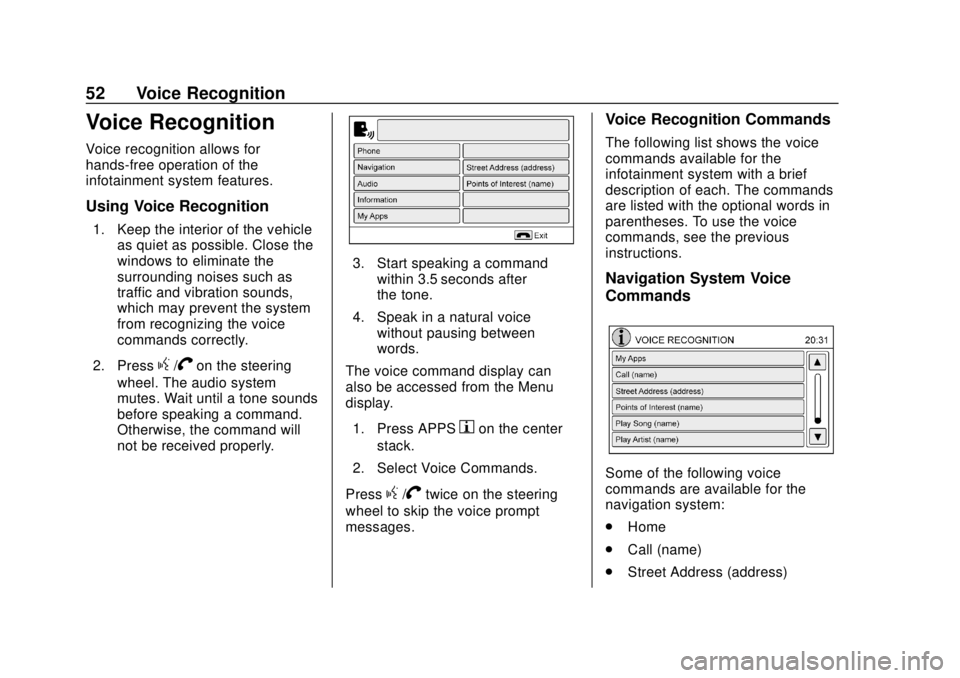
The voice command display can
also be accessed from the Menu
display.
1. Press APPS
hon the center
stack.
2. Select Voice Commands.
Press
g/Vtwice on the steering
wheel to skip the voice prompt
messages.
Voice Recognition Commands
The following list shows the voice
commands available for the
infotainment system with a brief
description of each. The commands
are listed with the optional words in
parentheses. To use the voice
commands, see the previous
instructions.
Navigation System Voice
Commands
Some of the following voice
commands are available for the
navigation system:
. Home
. Call (name)
. Street Address (address)
Page 55 of 74

Chevrolet City Express Infotainment System (GMNA-Localizing-U.S./Canada-
11683801) - 2018 - crc - 7/12/17
54 Voice Recognition
.Canada and Alaska contain
many roads with incomplete map
data. As a result, when
searching for a route, the route
may include roads with
incomplete data. In regions
where road data is not complete,
voice guidance may stop for
long periods of time. Be sure to
follow the actual traffic
restrictions while driving.
Audio System Voice
Commands
To access the audio system voice
commands:
1. Press
g/Von the steering
wheel.
2. Say “Audio.”
3. Speak a command such as: .FM: Switches the audio
system to the FM mode.
. AM: Switches the audio
system to the AM mode. .
SXM: If equipped, switches
the audio system to the
SiriusXM Satellite
Radio mode.
. CD: Switches the audio
system to the CD mode.
A CD must be inserted for
this command to be
functional.
. iPod: Switches the audio
system to the iPod mode.
An iPod must be connected
for this command to be
available and functional.
The following
sub-commands are
available for iPod:
‐Now Playing
‐ Menu
‐ Playlists
‐ Artists
‐ Albums
‐ Genres
‐ Songs
‐ Shuffle Songs ‐
Composers
‐ Audiobooks
‐ Podcasts
. Say “Next Page” to access
these commands. Say
“Previous Page” to return to
the first page of commands.
. USB: Switches the audio
system to the USB mode.
A USB device must be
inserted for this command
to be available and
functional.
. Bluetooth: Switches the
audio system to the
Bluetooth audio mode.
A compatible Bluetooth
audio device must be
connected to the system for
this command to be
functional.
. AUX: Switches the audio
system to the AUX mode.
An AUX device must be
connected for this
command to be functional.
Page 57 of 74
Chevrolet City Express Infotainment System (GMNA-Localizing-U.S./Canada-
11683801) - 2018 - crc - 7/12/17
56 Settings
Settings
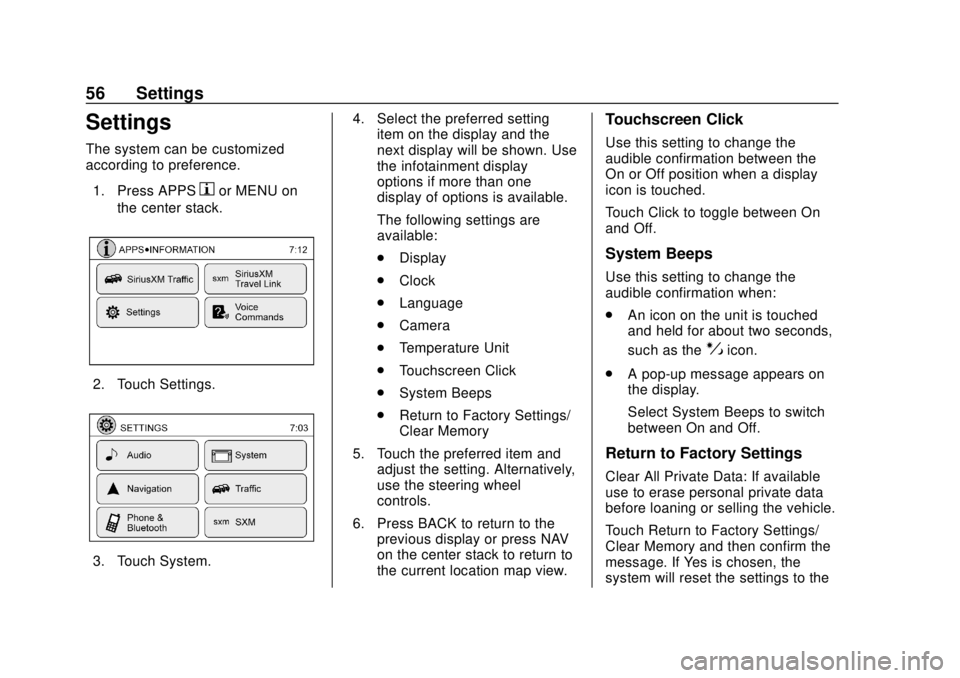
The system can be customized
according to preference.1. Press APPS
hor MENU on
the center stack.
2. Touch Settings.
3. Touch System. 4. Select the preferred setting
item on the display and the
next display will be shown. Use
the infotainment display
options if more than one
display of options is available.
The following settings are
available:
.Display
. Clock
. Language
. Camera
. Temperature Unit
. Touchscreen Click
. System Beeps
. Return to Factory Settings/
Clear Memory
5. Touch the preferred item and adjust the setting. Alternatively,
use the steering wheel
controls.
6. Press BACK to return to the previous display or press NAV
on the center stack to return to
the current location map view.
Touchscreen Click
Use this setting to change the
audible confirmation between the
On or Off position when a display
icon is touched.
Touch Click to toggle between On
and Off.
System Beeps
Use this setting to change the
audible confirmation when:
.An icon on the unit is touched
and held for about two seconds,
such as the
!icon.
. A pop-up message appears on
the display.
Select System Beeps to switch
between On and Off.
Return to Factory Settings
Clear All Private Data: If available
use to erase personal private data
before loaning or selling the vehicle.
Touch Return to Factory Settings/
Clear Memory and then confirm the
message. If Yes is chosen, the
system will reset the settings to the
Page 62 of 74
Chevrolet City Express Infotainment System (GMNA-Localizing-U.S./Canada-
11683801) - 2018 - crc - 7/12/17
Bluetooth Phone/Devices 61
the audio system speakers.
Storing the device in a different
location may reduce or eliminate
the noise.
. Refer to the cellular phone
owner ’s manual regarding the
telephone charges, cellular
phone antenna, and cellular
phone.
. The signal strength display on
the monitor will not match the
signal strength display of some
cellular phones.
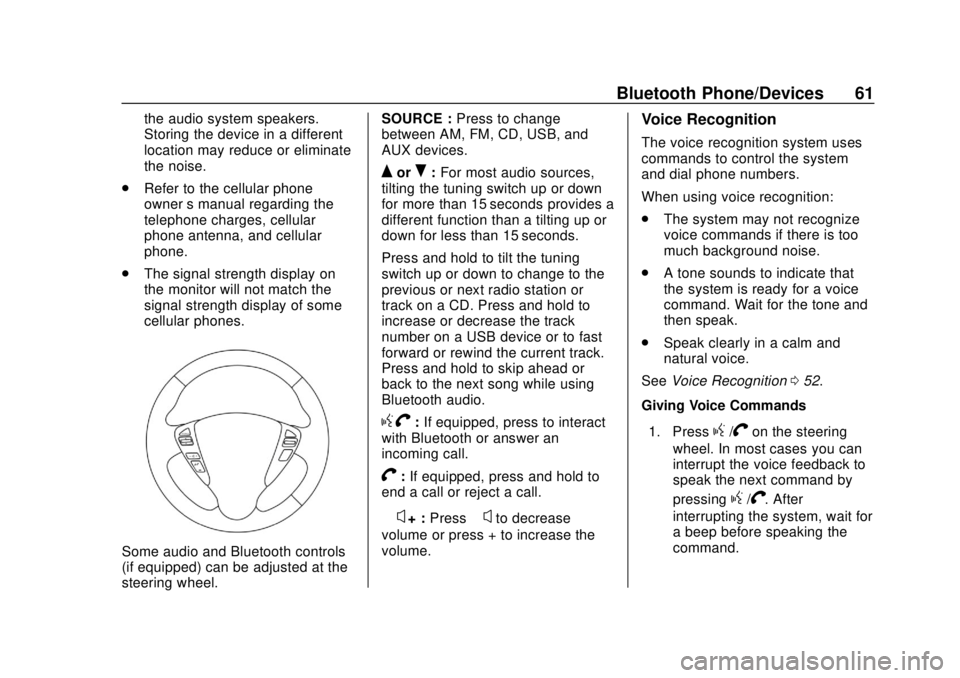
Some audio and Bluetooth controls
(if equipped) can be adjusted at the
steering wheel. SOURCE :
Press to change
between AM, FM, CD, USB, and
AUX devices.
QorR: For most audio sources,
tilting the tuning switch up or down
for more than 15 seconds provides a
different function than a tilting up or
down for less than 15 seconds.
Press and hold to tilt the tuning
switch up or down to change to the
previous or next radio station or
track on a CD. Press and hold to
increase or decrease the track
number on a USB device or to fast
forward or rewind the current track.
Press and hold to skip ahead or
back to the next song while using
Bluetooth audio.
g V:If equipped, press to interact
with Bluetooth or answer an
incoming call.
V: If equipped, press and hold to
end a call or reject a call.
−
x+ : Press −xto decrease
volume or press + to increase the
volume.
Voice Recognition
The voice recognition system uses
commands to control the system
and dial phone numbers.
When using voice recognition:
. The system may not recognize
voice commands if there is too
much background noise.
. A tone sounds to indicate that
the system is ready for a voice
command. Wait for the tone and
then speak.
. Speak clearly in a calm and
natural voice.
See Voice Recognition 052.
Giving Voice Commands
1. Press
g/Von the steering
wheel. In most cases you can
interrupt the voice feedback to
speak the next command by
pressing
g/V. After
interrupting the system, wait for
a beep before speaking the
command.
Page 64 of 74
Chevrolet City Express Infotainment System (GMNA-Localizing-U.S./Canada-
11683801) - 2018 - crc - 7/12/17
Bluetooth Phone/Devices 63
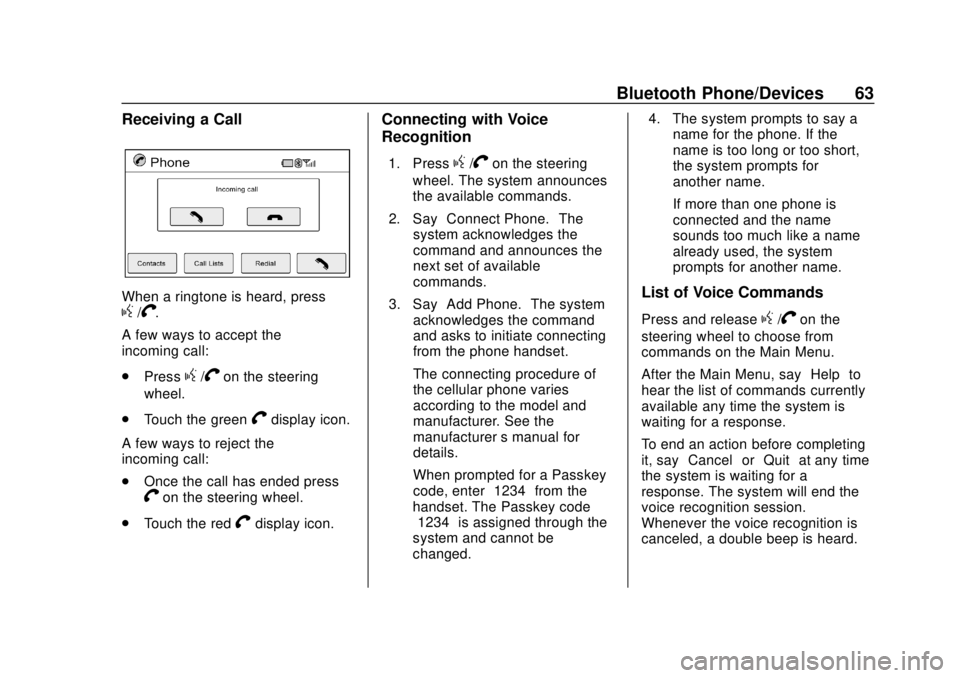
Receiving a Call
When a ringtone is heard, pressg/V.
A few ways to accept the
incoming call:
. Press
g/Von the steering
wheel.
. Touch the green
Vdisplay icon.
A few ways to reject the
incoming call:
. Once the call has ended press
Von the steering wheel.
. Touch the red
Vdisplay icon.
Connecting with Voice
Recognition
1. Pressg/Von the steering
wheel. The system announces
the available commands.
2. Say “Connect Phone.” The
system acknowledges the
command and announces the
next set of available
commands.
3. Say “Add Phone.” The system
acknowledges the command
and asks to initiate connecting
from the phone handset.
The connecting procedure of
the cellular phone varies
according to the model and
manufacturer. See the
manufacturer ’s manual for
details.
When prompted for a Passkey
code, enter “1234”from the
handset. The Passkey code
“1234” is assigned through the
system and cannot be
changed. 4. The system prompts to say a
name for the phone. If the
name is too long or too short,
the system prompts for
another name.
If more than one phone is
connected and the name
sounds too much like a name
already used, the system
prompts for another name.
List of Voice Commands
Press and releaseg/Von the
steering wheel to choose from
commands on the Main Menu.
After the Main Menu, say “Help”to
hear the list of commands currently
available any time the system is
waiting for a response.
To end an action before completing
it, say “Cancel” or“Quit” at any time
the system is waiting for a
response. The system will end the
voice recognition session.
Whenever the voice recognition is
canceled, a double beep is heard.
Page 65 of 74
Chevrolet City Express Infotainment System (GMNA-Localizing-U.S./Canada-
11683801) - 2018 - crc - 7/12/17
64 Bluetooth Phone/Devices
To go back to the previous
command, say“Go Back”or
“Correction” any time the system is
waiting for a response.
Call by Entering a Phone Number
1. Press
g/Von the steering
wheel. A tone will be heard.
2. Say “Call.”The system
acknowledges the command
and announces the next set of
available commands.
3. Say “Phone Number.” The
system acknowledges the
command and announces the
next set of available
commands.
4. Say the number to call starting with the area code in single
digit format. If the system has
trouble recognizing the correct
phone number, try entering the
number in the following groups:
three digit area code, three digit
prefix, and the last four digits.
To dial more than 10 digits or
any special characters, say
“Special Number.” 5. When finished speaking the
phone number, the system
repeats it back and announces
the available commands.
6. Say “Dial.”The system
acknowledges the command
and makes the call.
Call by Speaking the Name
If there are stored entries in the
phonebook, a number associated
with a name can be dialed.
When prompted by the system, say
the name of the phonebook entry to
be called. The system
acknowledges the name.
Once the name and location is
confirmed, the system begins
the call.
Call by Speaking the Digits
When prompted by the system, say
the number to be called. To dial
more than 10 digits or any special
characters, say “Special Number.”
When the system acknowledges the
command, the system will prompt to
speak the number. Redial
Use the Redial command to call the
last number that was dialed. The
system acknowledges the
command, repeats the number, and
begins dialing.
If the redial number does not exist,
the system announces,
“There is no
number to redial” and ends the
voice recognition session.
Hands-Free Phone
Using Bluetooth Voice
Recognition
To use voice recognition, press
g
/Von the steering wheel. Use the
commands below for the various
voice features. For additional
information, say “Help”while in a
voice recognition menu.
Making a Call
Calls can be made using the
following commands.
Dial or Call : These commands can
be used interchangeably to dial a
phone number.
Page 71 of 74

Chevrolet City Express Infotainment System (GMNA-Localizing-U.S./Canada-
11683801) - 2018 - crc - 7/12/17
70 Index
IndexA
AgreementsTrademarks and License . . . . . . . . 66
Alpha-Numeric Keyboard . . . . . . . . 31
AM . . . . . . . . . . . . . . . . . . . . . . . . . . . . . . 12
AM-FM Radio . . . . . . . . . . . . . . . . . . . . . 8
Antenna Fixed Mast . . . . . . . . . . . . . . . . . . . . . . 13
Audio Bluetooth. . . . . . . . . . . . . . . . . . . . . . . . 21
Audio Players CD . . . . . . . . . . . . . . . . . . . . . . . . . . . . . . 14
Audio System . . . . . . . . . . . . . . . . . . . . 62
Audio System Voice Commands . . . . . . . . . . . . . . . . . . . . . 54
Auxiliary Devices . . . . . . . . . . . . . . . . . . . . . . . . . 21
Avoiding Untrusted Media Devices . . . . . . . . . . . . . . . . . . . . . . . . 14
B
Bluetooth . . . . . . . . . . . . . . . . . . . . 60, 67
Bluetooth Audio . . . . . . . . . . . . . . . . . 21
Brightness . . . . . . . . . . . . . . . . . . . . . . . 57
C
CD Care and Cleaning . . . . . . . . . . 15
CD Player . . . . . . . . . . . . . . . . . . . . . . . 14
CD/MP3 Display Mode . . . . . . . . . . 15
Cellular Phone Usage . . . . . . . . . . . 13
Cleaning High Gloss Surfaces
and Vehicle Information and
Radio Displays . . . . . . . . . . . . . . . . . . 7
Clock Settings . . . . . . . . . . . . . . . . . . . 58
Connecting with Infotainment Controls . . . . . . . . . . . . . . . . . . . . . . . . 62
Connecting with Voice Recognition . . . . . . . . . . . . . . . . . . . . 63
Controls
Steering Wheel. . . . . . . . . . . . . . . . . . . 5
Coverage Explanations . . . . . . . . . . 51
D
Database Coverage Explanations . . . . . . . . . . . . . . . . . . . 51
Destination . . . . . . . . . . . . . . . . . . . . . . 30
Detailed Areas . . . . . . . . . . . . . . . . . . . 30
Devices Auxiliary. . . . . . . . . . . . . . . . . . . . . . . . . 21
USB. . . . . . . . . . . . . . . . . . . . . . . . . . . . . 17
Page 73 of 74

Chevrolet City Express Infotainment System (GMNA-Localizing-U.S./Canada-
11683801) - 2018 - crc - 7/12/17
72 Index
Setting a Destination fromPoints of Interest . . . . . . . . . . . . . . . 35
Setting a Destination from the Address Book . . . . . . . . . . . . . . . . . . 41
Setting an Intersection as a Destination . . . . . . . . . . . . . . . . . . . . . 43
Settings . . . . . . . . . . . . . . . . . . . . . . . . . 56
SiriusXM Satellite Radio . . . . . . . . . 12
Smart Favorites Preset Setup . . . 11
Steering Wheel Controls . . . . . . . . . . 5
Storing Radio Station Presets . . . 11
Supported Apple Devices . . . . . . . . 19
System
Global Positioning. . . . . . . . . . . . . . . 48
Infotainment. . . . . . . . . . . . . . . . . . . . . . 2
System Beeps . . . . . . . . . . . . . . . . . . . 56
T
Temperature Unit Settings . . . . . . . 57
Touchscreen Click . . . . . . . . . . . . . . . 56
Trademarks and License
Agreements . . . . . . . . . . . . . . . . . . . . 66
Traffic Feature . . . . . . . . . . . . . . . . . . . 44
U
Updates Map Data . . . . . . . . . . . . . . . . . . . . . . . 51
USB . . . . . . . . . . . . . . . . . . . . . . . . . . . . . 17
Using the Navigation System . . . . 23
Using the System . . . . . . . . . . . . . . . . . 6
Using Voice Recognition . . . . . . . . . 52
V
Vehicle Positioning . . . . . . . . . . . . . . 48
Voice Recognition . . . . . . . . . . . 52, 61
Voice Recognition Commands . . . 52
W
Weather Feature . . . . . . . . . . . . . . . . . 45