phone CHEVROLET CITY EXPRESS 2018 Owner's Manual
[x] Cancel search | Manufacturer: CHEVROLET, Model Year: 2018, Model line: CITY EXPRESS, Model: CHEVROLET CITY EXPRESS 2018Pages: 287, PDF Size: 4.19 MB
Page 16 of 287
Chevrolet City Express Owner Manual (GMNA-Localizing-U.S./Canada-
11683523) - 2018 - CRC - 7/10/17
In Brief 15
2. Outside Air/Recirculation AirIntake Control
3. Temperature Control
4. A/C (Air Conditioning)
5. Fan Control
6. Rear Window Defogger (If Equipped)
7. Heated Mirrors (If Equipped)
See Climate Control Systems 0129.Vehicle Features
Infotainment System
The base radio information is
included in this manual. See the
infotainment manual for information
on the uplevel radio, audio player,
phone, navigation system, and
voice recognition. There is also
information on settings.
Radio(s)
The ignition must be on or in ACC/
ACCESSORY.
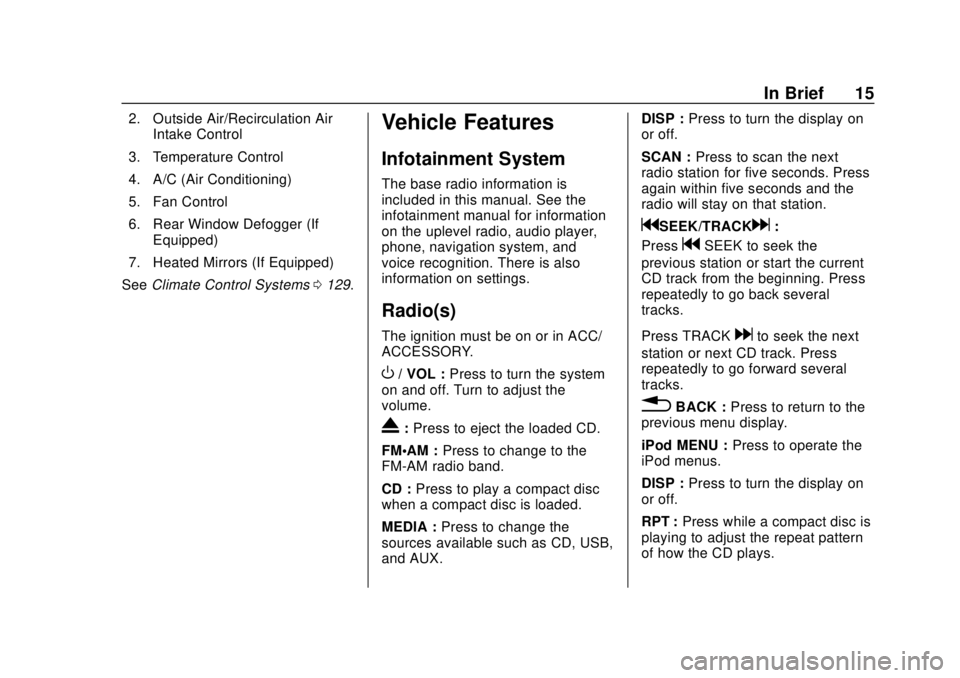
O/ VOL : Press to turn the system
on and off. Turn to adjust the
volume.
X: Press to eject the loaded CD.
FM·AM : Press to change to the
FM-AM radio band.
CD : Press to play a compact disc
when a compact disc is loaded.
MEDIA : Press to change the
sources available such as CD, USB,
and AUX. DISP :
Press to turn the display on
or off.
SCAN : Press to scan the next
radio station for five seconds. Press
again within five seconds and the
radio will stay on that station.
gSEEK/TRACKd:
Press
gSEEK to seek the
previous station or start the current
CD track from the beginning. Press
repeatedly to go back several
tracks.
Press TRACK
dto seek the next
station or next CD track. Press
repeatedly to go forward several
tracks.
0BACK : Press to return to the
previous menu display.
iPod MENU : Press to operate the
iPod menus.
DISP : Press to turn the display on
or off.
RPT : Press while a compact disc is
playing to adjust the repeat pattern
of how the CD plays.
Page 17 of 287
Chevrolet City Express Owner Manual (GMNA-Localizing-U.S./Canada-
11683523) - 2018 - CRC - 7/10/17
16 In Brief
RDM :Press while a compact disc
is playing to adjust the random
pattern of how the CD plays.
Preset Numbers 1–6 : Press to
store a favorite radio station.
ENTER/SETTING/CLOCK and
TUNE/FOLDER : Press to show the
SETTINGS display. Turn the TUNE/
FOLDER knob to navigate the
options and press ENTER/
SETTING/CLOCK to make a
selection.
Press to show the CLOCK display.
Turn the TUNE/FOLDER knob and
select Set Time to adjust the time.
Press ENTER/SETTING/CLOCK to
confirm the adjustment.
For more information about these
and other radio features, see
Infotainment 0108.
Storing a Favorite Station
Up to 18 stations (six FM1, six FM2,
and six AM), can be programmed on
the six numbered buttons.
For more information on storing a
favorite station, see Operation
0 110.
Setting the Clock
For detailed instructions on setting
the clock for your specific audio
system, see Clock083.
Portable Audio Devices
This vehicle has an AUX input jack
and USB port on the center stack.
External devices such as an iPod,
laptop computer, MP3 player,
cassette player, or CD changer can
be connected to the auxiliary port
using a 3.5 mm (1/8 in) input cable.
This input jack is not an audio
output; do not plug headphones into
the auxiliary input jack.
See Auxiliary Jack 0118.
Bluetooth®
If equipped with a Bluetooth system,
it allows users with a
Bluetooth-enabled cell phone to
make and receive hands-free calls
using the vehicle’ s audio system
and controls. The Bluetooth-enabled cell phone
must be paired with the Bluetooth
system before it can be used in the
vehicle. Not all phones will support
all functions. For more information,
see www.gm.com/bluetooth and
Bluetooth
0120.
Steering Wheel Controls
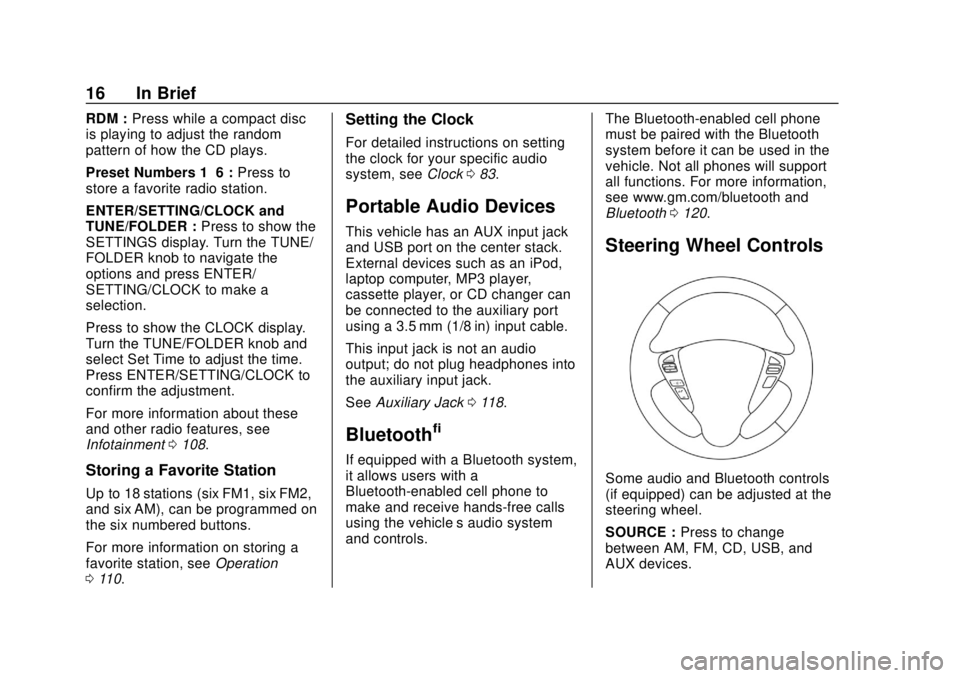
Some audio and Bluetooth controls
(if equipped) can be adjusted at the
steering wheel.
SOURCE : Press to change
between AM, FM, CD, USB, and
AUX devices.
Page 19 of 287
Chevrolet City Express Owner Manual (GMNA-Localizing-U.S./Canada-
11683523) - 2018 - CRC - 7/10/17
18 In Brief
Rear Vision
Camera (RVC)
If equipped, RVC displays a view of
the area behind the vehicle, on the
infotainment display, when the
vehicle is shifted into R (Reverse).
SeeRear Vision Camera (RVC)
0 163.
Parking Assist
If equipped, this system uses
sensors on the rear bumper to
assist with parking and avoiding
objects while in R (Reverse).
It operates at speeds less than
5 km/h (3 mph). Rear Parking Assist
(RPA) uses audible beeps to
provide distance and system
information.
Keep the sensors on the vehicle's
rear bumper clean to ensure proper
operation.
See Parking Assist 0169.
Power Outlets
The accessory power outlets can be
used to plug in electrical equipment,
such as a cell phone or an MP3
player.
The vehicle may have two
accessory power outlets:
.
Near the bottom of the center
stack.
. On the rear of the center floor
console.
Remove the cover to access and
replace when not in use.
See Power Outlets 084.
Performance and
Maintenance
Traction Control/
Electronic Stability
Control
The vehicle has a Traction Control
System (TCS) and an Electronic
Stability Control system that assists
with directional control of the vehicle
in difficult driving conditions. Both
systems turn on automatically every
time the vehicle is started.
.
To turn off the TCS and
Electronic Stability Control
systems, press and release
g
on the instrument panel to the
left of the steering wheel. The
g
indicator will come on in the
instrument cluster.
. Press and release
gagain to
turn the TCS and Electronic
Stability Control systems back
on. The
gindicator will turn off
in the instrument cluster.
Page 85 of 287
Chevrolet City Express Owner Manual (GMNA-Localizing-U.S./Canada-
11683523) - 2018 - CRC - 7/10/17
84 Instruments and Controls
5. Press ENTER SETTINGCLOCK.
6. Turn TUNE FOLDER knob to adjust hours.
7. Press ENTER SETTING CLOCK.
8. Turn TUNE FOLDER knob to adjust minutes.
9. Press ENTER SETTING CLOCK.
10. Press
0.
Radio with Navigation
To set the clock:
1. Press
BMENU on the
center stack.
2. Select
8Settings - System -
Clock Settings.
Time Format
Select to change between 12 hours
and 24 hours clock.
Date Format
Select the desired format. Clock Mode
Select between Auto and Manual.
If Auto is selected, the clock is
automatically updated through the
Global Positioning System (GPS).
If Manual is selected, see
“Set
Clock Manually” following.
Select “Time Zone” to have the time
set to a specific time. See “Time
Zone” later in this section.
Set Clock Manually
Press −or + to change any of the
settings for Hour, Minute, Day,
Month, and Year.
Daylight Savings Time
Select to turn on and off.
Time Zone
This feature is only available if
selected in Clock Mode.
Select the desired setting.
Power Outlets
The accessory power outlets can be
used to plug in electrical equipment,
such as a cell phone or an MP3
player.
The vehicle may have two
accessory power outlets:
. Near the bottom of the center
stack.
. On the rear of the center floor
console.
Remove the cover to access and
replace when not in use.
Certain power accessory plugs may
not be compatible to the accessory
power outlet and could overload
vehicle or adapter fuses. If a
problem is experienced, see your
dealer.
The outlets are rated at 12 volt,
120W (10A) maximum.
Page 86 of 287
Chevrolet City Express Owner Manual (GMNA-Localizing-U.S./Canada-
11683523) - 2018 - CRC - 7/10/17
Instruments and Controls 85
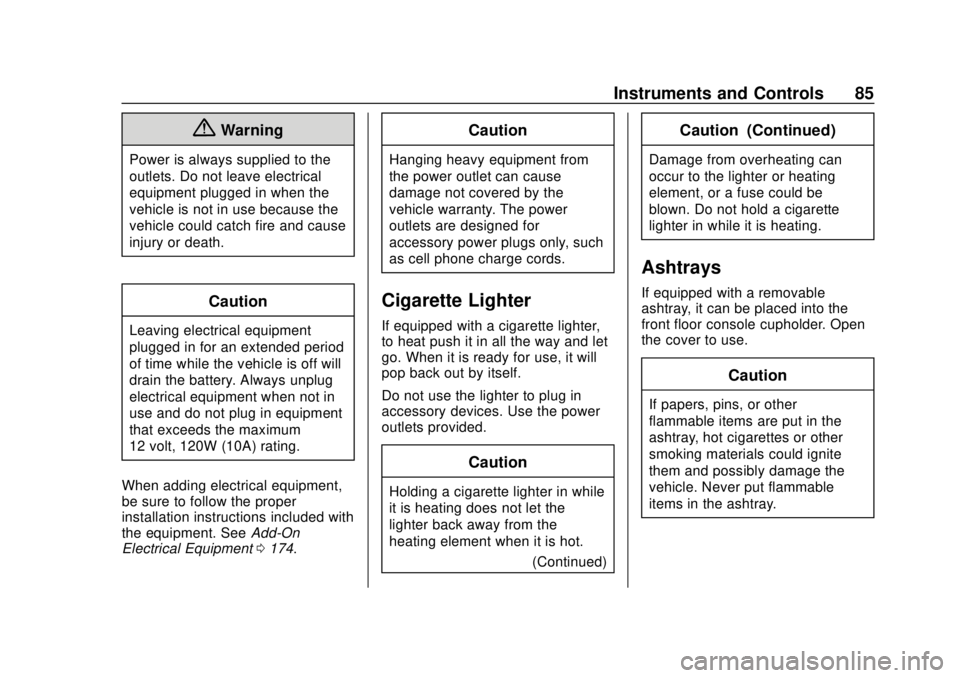
{Warning
Power is always supplied to the
outlets. Do not leave electrical
equipment plugged in when the
vehicle is not in use because the
vehicle could catch fire and cause
injury or death.
Caution
Leaving electrical equipment
plugged in for an extended period
of time while the vehicle is off will
drain the battery. Always unplug
electrical equipment when not in
use and do not plug in equipment
that exceeds the maximum
12 volt, 120W (10A) rating.
When adding electrical equipment,
be sure to follow the proper
installation instructions included with
the equipment. See Add-On
Electrical Equipment 0174.
Caution
Hanging heavy equipment from
the power outlet can cause
damage not covered by the
vehicle warranty. The power
outlets are designed for
accessory power plugs only, such
as cell phone charge cords.
Cigarette Lighter
If equipped with a cigarette lighter,
to heat push it in all the way and let
go. When it is ready for use, it will
pop back out by itself.
Do not use the lighter to plug in
accessory devices. Use the power
outlets provided.
Caution
Holding a cigarette lighter in while
it is heating does not let the
lighter back away from the
heating element when it is hot.
(Continued)
Caution (Continued)
Damage from overheating can
occur to the lighter or heating
element, or a fuse could be
blown. Do not hold a cigarette
lighter in while it is heating.
Ashtrays
If equipped with a removable
ashtray, it can be placed into the
front floor console cupholder. Open
the cover to use.
Caution
If papers, pins, or other
flammable items are put in the
ashtray, hot cigarettes or other
smoking materials could ignite
them and possibly damage the
vehicle. Never put flammable
items in the ashtray.
Page 101 of 287
Chevrolet City Express Owner Manual (GMNA-Localizing-U.S./Canada-
11683523) - 2018 - CRC - 7/10/17
100 Instruments and Controls
Vehicle
Personalization
Vehicle Personalization
(Radio with
Touchscreen Only)
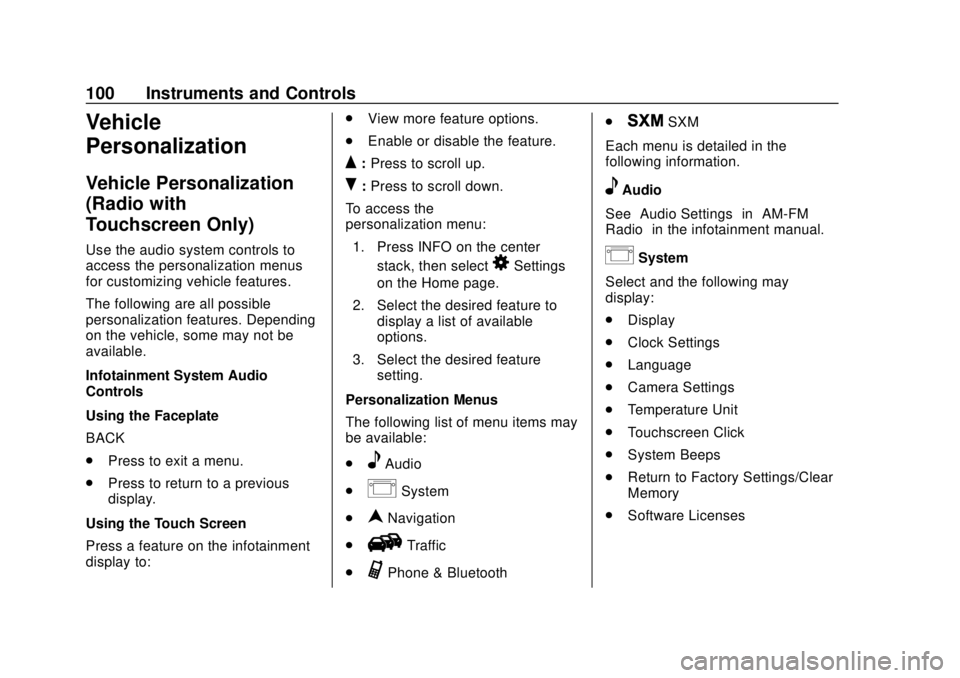
Use the audio system controls to
access the personalization menus
for customizing vehicle features.
The following are all possible
personalization features. Depending
on the vehicle, some may not be
available.
Infotainment System Audio
Controls
Using the Faceplate
BACK
.Press to exit a menu.
. Press to return to a previous
display.
Using the Touch Screen
Press a feature on the infotainment
display to: .
View more feature options.
. Enable or disable the feature.
Q:Press to scroll up.
R:Press to scroll down.
To access the
personalization menu: 1. Press INFO on the center stack, then select
8Settings
on the Home page.
2. Select the desired feature to display a list of available
options.
3. Select the desired feature setting.
Personalization Menus
The following list of menu items may
be available:
.
eAudio
.
ISystem
.
nNavigation
.
HTraffic
.
GPhone & Bluetooth .
JSXM
Each menu is detailed in the
following information.
eAudio
See “Audio Settings” in“AM-FM
Radio” in the infotainment manual.
ISystem
Select and the following may
display:
. Display
. Clock Settings
. Language
. Camera Settings
. Temperature Unit
. Touchscreen Click
. System Beeps
. Return to Factory Settings/Clear
Memory
. Software Licenses
Page 103 of 287
Chevrolet City Express Owner Manual (GMNA-Localizing-U.S./Canada-
11683523) - 2018 - CRC - 7/10/17
102 Instruments and Controls
Select Yes or No.
Software Licenses
Select to view software license
information.
nNavigation
See “Navigation” in the infotainment
manual.
HTraffic
See “Traffic” in the infotainment
manual.
GPhone & Bluetooth
See “Bluetooth” in the infotainment
manual.
JSXM
See “SXM Settings” in“AM-FM
Radio” in the infotainment manual.
Page 109 of 287
Chevrolet City Express Owner Manual (GMNA-Localizing-U.S./Canada-
11683523) - 2018 - CRC - 7/10/17
108 Infotainment System
Infotainment
System
Introduction
Infotainment . . . . . . . . . . . . . . . . . . 108
Theft-Deterrent Feature . . . . . . 109
Overview . . . . . . . . . . . . . . . . . . . . . 109
Operation . . . . . . . . . . . . . . . . . . . . . 110
Radio
AM-FM Radio . . . . . . . . . . . . . . . . . 112
Radio Reception . . . . . . . . . . . . . . 112
Fixed Mast Antenna . . . . . . . . . . 113
Audio Players
Avoiding Untrusted MediaDevices . . . . . . . . . . . . . . . . . . . . . 113
CD Player . . . . . . . . . . . . . . . . . . . . 113
USB Port . . . . . . . . . . . . . . . . . . . . . 116
Auxiliary Jack . . . . . . . . . . . . . . . . . 118
Bluetooth Audio . . . . . . . . . . . . . . 119
Phone
Bluetooth . . . . . . . . . . . . . . . . . . . . . 120
Trademarks and License
Agreements
Trademarks and License Agreements . . . . . . . . . . . . . . . . . 128
Introduction
Infotainment
Base radio information is included in
this manual. See the infotainment
manual for information on other
available infotainment systems.
Read the following pages to
become familiar with these features.
{Warning
Taking your eyes off the road for
too long or too often while using
any infotainment feature can
cause a crash. You or others
could be injured or killed. Do not
give extended attention to
infotainment tasks while driving.
Limit your glances at the vehicle
displays and focus your attention
on driving. Use voice commands
whenever possible. The infotainment system has built-in
features intended to help avoid
distraction by disabling some
functions when driving. These
functions may gray out when they
are unavailable. Many infotainment
features are also available through
the instrument cluster and steering
wheel controls.
Before driving:
.
Become familiar with the system
operation, controls on the center
stack, and infotainment display.
. Set up the audio by presetting
favorite stations, setting the
tone, and adjusting the
speakers.
. Set up phone numbers in
advance so they can be called
easily by pressing a single
control or by using a single voice
command if equipped with
Bluetooth phone capability.
See Defensive Driving 0134.
Page 113 of 287
Chevrolet City Express Owner Manual (GMNA-Localizing-U.S./Canada-
11683523) - 2018 - CRC - 7/10/17
112 Infotainment System
Radio
AM-FM Radio
Finding a Station
Manual Tuning
Turn the TUNE/FOLDER knob to
the left or right for manual tuning.
Seek Tuning
Press
gSEEK or TRACKdto
tune the radio stations and to stop
at the next broadcasting station.
Scan Tuning
Press SCAN to stop at each
broadcasting station for
five seconds. SCAN will appear on
the display while the radio is scan
tuning.
Pressing SCAN again during this
five second period will stop scan
tuning and the radio will remain
tuned to that station. If SCAN is not
pressed within five seconds, scan
tuning moves to the next station.
Storing a Favorite Station
Set up radio station favorites while
the vehicle is parked.
Up to 18 stations (six FM1, six FM2,
and six AM), can be programmed on
the six numbered presets.
To store a station as a favorite:
1. Select the desired radio band AM, FM1, or FM2.
2. Tune to the desired radio station.
3. Press and hold any of the preset numbers (1 –6) until the
preset is updated on the
infotainment display and the
sound is briefly muted.
4. The station indicator will then come on and the sound will
resume. Programming is now
complete.
5. Other controls can be set in the same manner.
Radio Reception
Frequency interference and static
can occur during normal radio
reception if items such as cell phone
chargers, vehicle convenience
accessories, and external electronic
devices are plugged into the
accessory power outlet. If there is
interference or static, unplug the
item from the accessory power
outlet.
AM
The range for most AM stations is
greater than for FM, especially at
night. The longer range can cause
station frequencies to interfere with
each other. For better radio
reception, most AM radio stations
boost the power levels during the
day, and then reduce these levels
during the night. Static can also
occur when things like storms and
power lines interfere with radio
reception. When this happens, try
reducing the treble on the radio.
Page 114 of 287
Chevrolet City Express Owner Manual (GMNA-Localizing-U.S./Canada-
11683523) - 2018 - CRC - 7/10/17
Infotainment System 113
FM Stereo
FM stereo gives the best sound, but
FM signals reach only about 16 to
65 km (10 to 40 mi). Tall buildings or
hills can interfere with FM signals,
causing the sound to fade in
and out.
Cellular Phone Usage
Cellular phone usage may cause
interference with the radio. This
interference may occur when
making or receiving phone calls,
charging the phone's battery,
or simply having the phone on. This
interference causes an increased
level of static while listening to the
radio. If static is received while
listening to the radio, unplug the cell
phone and turn it off.
Fixed Mast Antenna
The multi-band antenna is on the
roof of the vehicle. The antenna is
used for AM and FM radio stations.
Tall buildings, hills, trees, heavy
foliage, tunnels, bridges, and
garages will affect reception. Keep
the antenna clear of obstructions for
clear reception. Make sure there is
sufficient clearance when entering
garages or parking structures.
Audio Players
Avoiding Untrusted Media
Devices
When using media devices such as
CDs, DVDs, Blu-ray Discs, SD
cards, USB devices, and mobile
devices, consider the source.
Untrusted media devices could
contain files that affect system
operation or performance. Avoid use
if the content or origin cannot be
trusted.
CD Player
Care of the CD Player
Only use high quality 12 cm (4.7 in)
round discs that have the
“COMPACT disc DIGITAL AUDIO”
logo on the disc or packaging.
During cold weather or rainy days,
the player may malfunction due to
the humidity. If this occurs, remove
the CD and dehumidify or ventilate
the player completely. The CD
player may skip while driving on
rough roads. The CD player