steering CHEVROLET COLORADO 2017 2.G Owner's Manual
[x] Cancel search | Manufacturer: CHEVROLET, Model Year: 2017, Model line: COLORADO, Model: CHEVROLET COLORADO 2017 2.GPages: 419, PDF Size: 7.38 MB
Page 121 of 419
Chevrolet Colorado Owner Manual (GMNA-Localizing-U.S./Canada/Mexico-10122675) - 2017 - crc - 8/22/16
120 Instruments and Controls
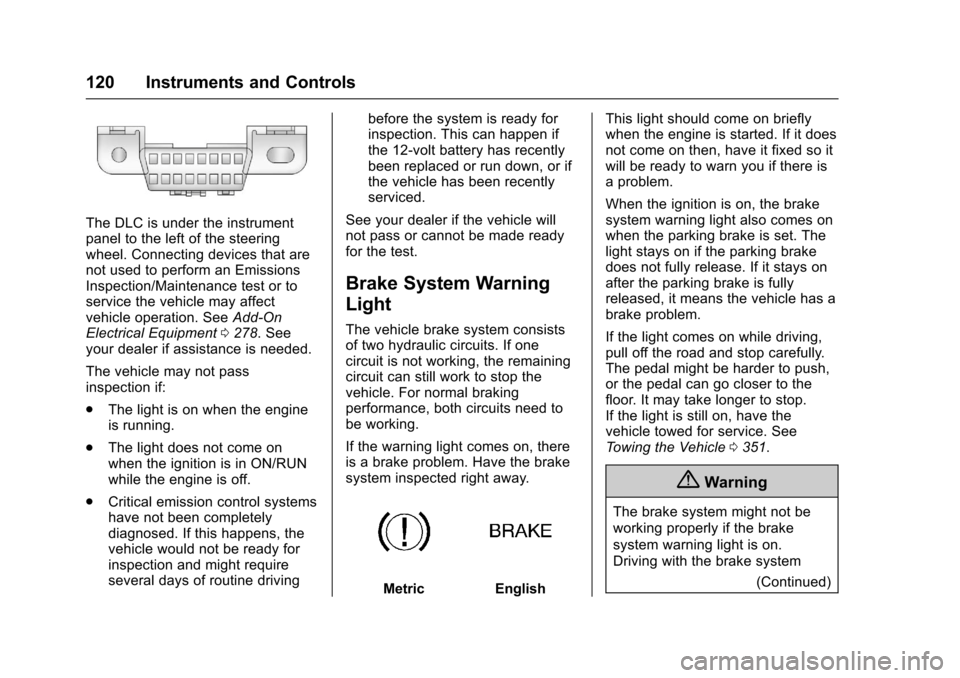
The DLC is under the instrumentpanel to the left of the steeringwheel. Connecting devices that arenot used to perform an EmissionsInspection/Maintenance test or toservice the vehicle may affectvehicle operation. SeeAdd-OnElectrical Equipment0278.Seeyour dealer if assistance is needed.
The vehicle may not passinspection if:
.The light is on when the engineis running.
.The light does not come onwhen the ignition is in ON/RUNwhile the engine is off.
.Critical emission control systemshave not been completelydiagnosed. If this happens, thevehicle would not be ready forinspection and might requireseveral days of routine driving
before the system is ready forinspection. This can happen ifthe 12-volt battery has recentlybeen replaced or run down, or ifthe vehicle has been recentlyserviced.
See your dealer if the vehicle willnot pass or cannot be made readyfor the test.
Brake System Warning
Light
The vehicle brake system consistsof two hydraulic circuits. If onecircuit is not working, the remainingcircuit can still work to stop thevehicle. For normal brakingperformance, both circuits need tobe working.
If the warning light comes on, thereis a brake problem. Have the brakesystem inspected right away.
MetricEnglish
This light should come on brieflywhen the engine is started. If it doesnot come on then, have it fixed so itwill be ready to warn you if there isaproblem.
When the ignition is on, the brakesystem warning light also comes onwhen the parking brake is set. Thelight stays on if the parking brakedoes not fully release. If it stays onafter the parking brake is fullyreleased, it means the vehicle has abrake problem.
If the light comes on while driving,pull off the road and stop carefully.The pedal might be harder to push,or the pedal can go closer to thefloor. It may take longer to stop.If the light is still on, have thevehicle towed for service. SeeTo w i n g t h e V e h i c l e0351.
{Warning
The brake system might not be
working properly if the brake
system warning light is on.
Driving with the brake system
(Continued)
Page 130 of 419
Chevrolet Colorado Owner Manual (GMNA-Localizing-U.S./Canada/Mexico-10122675) - 2017 - crc - 8/22/16
Instruments and Controls 129
The display provides feedback onhow current driving behavior in thebar graph affects the runningaverage in the top display and howwell recent driving compares to thebest that has been achieved.
Driver Information Center
(DIC) (Uplevel)
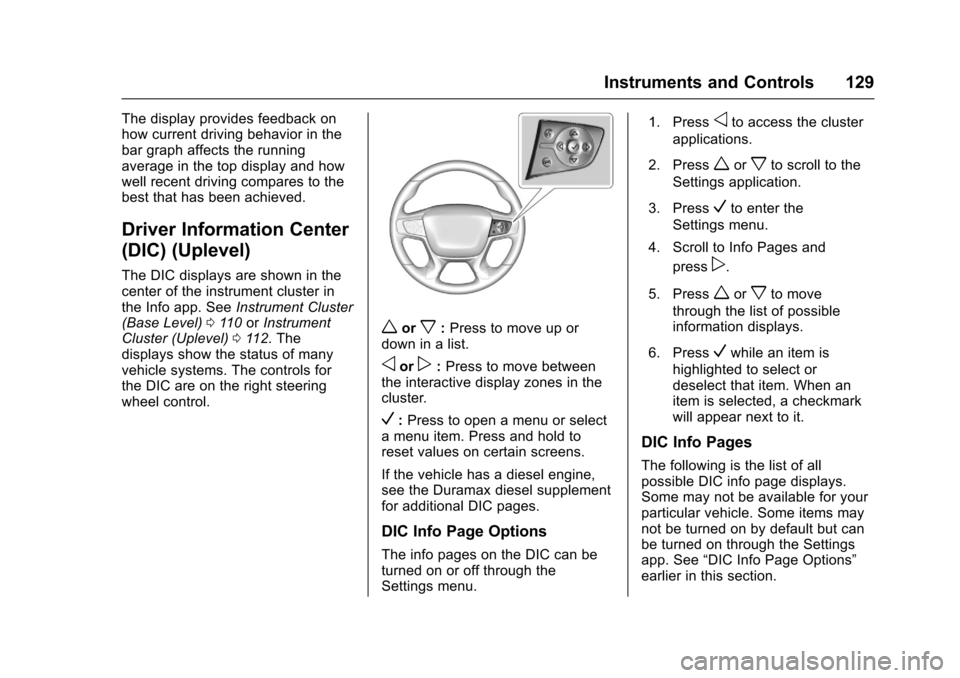
The DIC displays are shown in thecenter of the instrument cluster inthe Info app. SeeInstrument Cluster(Base Level)011 0orInstrumentCluster (Uplevel)011 2.Thedisplays show the status of manyvehicle systems. The controls forthe DIC are on the right steeringwheel control.
worx:Press to move up ordown in a list.
oorp:Press to move betweenthe interactive display zones in thecluster.
V:Press to open a menu or selectamenuitem.Pressandholdtoreset values on certain screens.
If the vehicle has a diesel engine,see the Duramax diesel supplementfor additional DIC pages.
DIC Info Page Options
The info pages on the DIC can beturned on or off through theSettings menu.
1. Pressoto access the cluster
applications.
2. Pressworxto scroll to the
Settings application.
3. PressVto enter the
Settings menu.
4. Scroll to Info Pages and
pressp.
5. Pressworxto move
through the list of possibleinformation displays.
6. PressVwhile an item is
highlighted to select ordeselect that item. When anitem is selected, a checkmarkwill appear next to it.
DIC Info Pages
The following is the list of allpossible DIC info page displays.Some may not be available for yourparticular vehicle. Some items maynot be turned on by default but canbe turned on through the Settingsapp. See“DIC Info Page Options”earlier in this section.
Page 138 of 419
Chevrolet Colorado Owner Manual (GMNA-Localizing-U.S./Canada/Mexico-10122675) - 2017 - crc - 8/22/16
Instruments and Controls 137
Restraints”in the Index forinformation about the importance ofproper restraint use.
This system may not functionproperly if the airbag readiness lightis on. SeeAirbag ReadinessLight011 7.
Security Messages
SERVICE THEFT DETERRENT
SYSTEM
This message displays when thereis a problem with the theft-deterrentsystem. The vehicle may or may notrestart, so you may want to take thevehicle to your dealer before turningoff the engine. SeeImmobilizerOperation037.
Steering System
Messages
STEERING ASSIST IS
REDUCED DRIVE WITH CARE
This message may display if aproblem occurs with the electricpower steering system. If thismessage appears, steering effort
may be slightly higher than normal.The vehicle is still safe to drive. Usecaution while in reduced assistmode. If this message is persistentor appears repeatedly, take thevehicle to your dealer for service.SeeSteering0216.
SERVICE POWER STEERING
This message displays when thereis a problem with electric powersteering. If this message displaysand a reduction in steeringperformance or loss of powersteering assistance is noticed, seeyour dealer. SeeSteering0216.
Starting the Vehicle
Messages
PRESS BRAKE TO START or
PRESS CLUTCH TO START
This message displays whenattempting to start the vehiclewithout first pressing the brake orclutch pedal.
Tire Messages
SERVICE TIRE MONITOR
SYSTEM
If equipped with the Tire PressureMonitor System (TPMS), thismessage displays if a part on thesystem is not working properly. Thetire pressure light also flashes andthen remains on during the sameignition cycle. SeeTire PressureLight0123.Severalconditionsmaycause this message to appear. SeeTire Pressure Monitor Operation0326.Ifthewarningcomesonandstays on, there may be a problemwith the TPMS. See your dealer.
TIRE LEARNING ACTIVE
If equipped with the Tire PressureMonitor System (TPMS), thismessage displays when the systemis relearning the tire positions onyour vehicle. The tire positions mustbe relearned after rotating the tiresor after replacing a tire or sensor.SeeTire Inspection0329,TireRotation0329,Tire PressureMonitor System0325,andTirePressure0323.
Page 141 of 419
Chevrolet Colorado Owner Manual (GMNA-Localizing-U.S./Canada/Mexico-10122675) - 2017 - crc - 8/22/16
140 Instruments and Controls
3. PressoBACK on the
faceplate or touch0screen
button to return to the previousmenu or exit.
Turn the vehicle to ON/RUN toaccess the Settings menu, thenselect SETTINGS from the Homepage on the infotainment display.
Personalization Menus
The following list of menu items maybe available:
.Time and Date
.Language (Language)
.Rear Seat Reminder
.Te e n D r i v e r
.Va l e t M o d e
.Radio
.Vehicle
.Bluetooth
.Apple CarPlay
.Android Auto
.Voice
.Display
.Rear Camera
.Return to Factory Settings
.Software Information
Detailed information for each menufollows.
Time and Date
Manually set the time and date. SeeClock0106.
Language (Language)
Select Language, then select fromthe available language(s).
The selected language will displayon the system, and voicerecognition will reflect the selectedlanguage.
Rear Seat Reminder
This allows for a chime and amessage“Look in Rear Seat”whenthe rear door has been openedbefore or during operation of thevehicle.
Select Off or On.
Teen Driver
See“Te e n D r i v e r”under“Settings”in the infotainment manual.
Valet Mode (If Equipped)
This will lock the infotainmentsystem and steering wheel controls.It may also limit access to vehiclestorage locations (if equipped).
To e n a b l e v a l e t m o d e :
1. Enter a four-digit code on thekeypad.
2. Select Enter to go to theconfirmation screen.
3. Re-enter the four-digit code.
To u c h L O C K o r U N L O C K t o l o c k o runlock the system. Touch Back togo back to the previous menu.
Radio
To u c h t o d i s p l a y t h e R a d i o m e n uand the following may display:
.Manage Favorites
.Number of Favorites Shown
.Audible Touch Feedback
.Auto Volume
Page 147 of 419
Chevrolet Colorado Owner Manual (GMNA-Localizing-U.S./Canada/Mexico-10122675) - 2017 - crc - 8/22/16
146 Lighting
Lighting
Exterior Lighting
Exterior Lamp Controls . . . . . . . 146Exterior Lamps OffReminder . . . . . . . . . . . . . . . . . . . 147Headlamp High/Low-BeamChanger . . . . . . . . . . . . . . . . . . . . 147Flash-to-Pass . . . . . . . . . . . . . . . . 147Daytime RunningLamps (DRL) . . . . . . . . . . . . . . . 147Automatic HeadlampSystem . . . . . . . . . . . . . . . . . . . . . . 148Hazard Warning Flashers . . . . . 149Turn and Lane-ChangeSignals . . . . . . . . . . . . . . . . . . . . . . 149Fog Lamps . . . . . . . . . . . . . . . . . . . 149
Interior Lighting
Instrument Panel IlluminationControl . . . . . . . . . . . . . . . . . . . . . . 150Cargo Lamp . . . . . . . . . . . . . . . . . . 150Dome Lamps . . . . . . . . . . . . . . . . . 151Reading Lamps . . . . . . . . . . . . . . 151
Lighting Features
Entry Lighting . . . . . . . . . . . . . . . . 151Exit Lighting . . . . . . . . . . . . . . . . . . 151Battery Load Management . . . 152Battery Power Protection . . . . . 152
Exterior Lighting
Exterior Lamp Controls
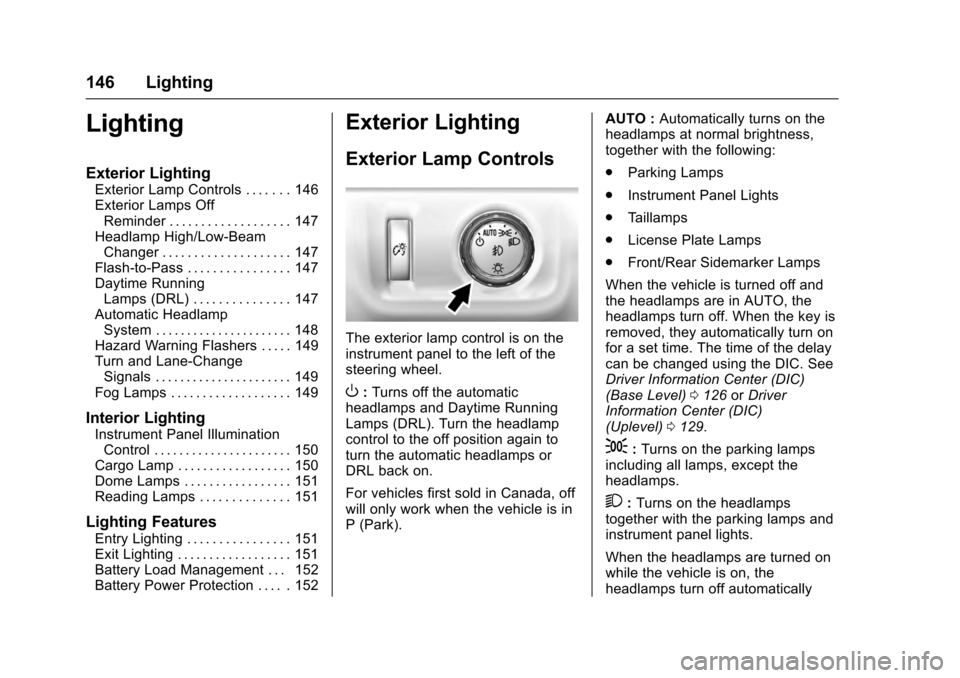
The exterior lamp control is on theinstrument panel to the left of thesteering wheel.
O:Turns off the automaticheadlamps and Daytime RunningLamps (DRL). Turn the headlampcontrol to the off position again toturn the automatic headlamps orDRL back on.
For vehicles first sold in Canada, offwill only work when the vehicle is inP(Park).
AUTO :Automatically turns on theheadlamps at normal brightness,together with the following:
.Parking Lamps
.Instrument Panel Lights
.Ta i l l a m p s
.License Plate Lamps
.Front/Rear Sidemarker Lamps
When the vehicle is turned off andthe headlamps are in AUTO, theheadlamps turn off. When the key isremoved, they automatically turn onfor a set time. The time of the delaycan be changed using the DIC. SeeDriver Information Center (DIC)(Base Level)0126orDriverInformation Center (DIC)(Uplevel)0129.
;:Turns on the parking lampsincluding all lamps, except theheadlamps.
2:Turns on the headlampstogether with the parking lamps andinstrument panel lights.
When the headlamps are turned onwhile the vehicle is on, theheadlamps turn off automatically
Page 151 of 419
Chevrolet Colorado Owner Manual (GMNA-Localizing-U.S./Canada/Mexico-10122675) - 2017 - crc - 8/22/16
150 Lighting
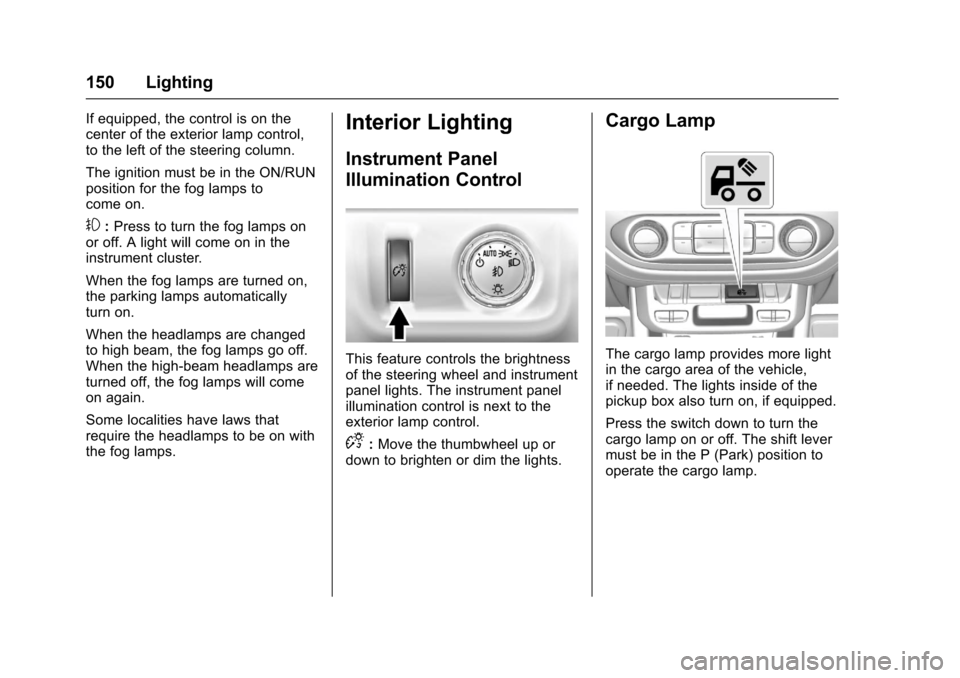
If equipped, the control is on thecenter of the exterior lamp control,to the left of the steering column.
The ignition must be in the ON/RUNposition for the fog lamps tocome on.
#:Press to turn the fog lamps onor off. A light will come on in theinstrument cluster.
When the fog lamps are turned on,the parking lamps automaticallyturn on.
When the headlamps are changedto high beam, the fog lamps go off.When the high-beam headlamps areturned off, the fog lamps will comeon again.
Some localities have laws thatrequire the headlamps to be on withthe fog lamps.
Interior Lighting
Instrument Panel
Illumination Control
This feature controls the brightnessof the steering wheel and instrumentpanel lights. The instrument panelillumination control is next to theexterior lamp control.
D:Move the thumbwheel up ordown to brighten or dim the lights.
Cargo Lamp
The cargo lamp provides more lightin the cargo area of the vehicle,if needed. The lights inside of thepickup box also turn on, if equipped.
Press the switch down to turn thecargo lamp on or off. The shift levermust be in the P (Park) position tooperate the cargo lamp.
Page 155 of 419
Chevrolet Colorado Owner Manual (GMNA-Localizing-U.S./Canada/Mexico-10122675) - 2017 - crc - 8/22/16
154 Infotainment System
The infotainment system has built-infeatures intended to help avoiddistraction by disabling somefunctions when driving. Thesefunctions may gray out when theyare unavailable. Many infotainmentfeatures are also available throughthe instrument cluster and steeringwheel controls.
Before driving:
.Become familiar with theoperation, faceplate buttons, andscreen buttons.
.Set up the audio by presettingfavorite stations, setting thetone, and adjusting thespeakers.
.Set up phone numbers inadvance so they can be calledeasily by pressing a singlebutton or by using a single voicecommand if equipped withBluetooth phone capability.
SeeDefensive Driving0215.
To p l a y t h e i n f o t a i n m e n t s y s t e m w i t hthe ignition off, seeRetainedAccessory Power (RAP)0237.
Theft-Deterrent Feature
TheftLock®is designed todiscourage theft of the vehicle'sradio by learning a portion of theVehicle Identification Number (VIN).The radio does not operate if it isstolen or moved to a differentvehicle.
Page 162 of 419
Chevrolet Colorado Owner Manual (GMNA-Localizing-U.S./Canada/Mexico-10122675) - 2017 - crc - 8/22/16
Infotainment System 161
Projection :To u c h t o a c c e s ssupported devices when connected.SeeUSB Port (Base Radio)0170orUSB Port (Base Radio withTo u c h s c r e e n )0173.
Settings :To u c h t o a c c e s s t h ePersonalization menu. SeeVehiclePersonalization0139.
Climate :To u c h t o a c c e s s t h eClimate menu. SeeClimate ControlSystems0208orAutomaticClimate Control System0210.
OnStar :If equipped, touch toaccess the OnStar menu. SeeOnStar Overview0397.
Software Updates
See the website for moreinformation.
Website Information
In the U.S., see www.chevrolet.com
In Canada, seewww.chevrolet.gm.ca
In Mexico, seewww.chevrolet.com.mx
Radio
AM-FM Radio (Base
Radio)
Playing the Radio
While on the audio main page,press the RADIO button repeatedlyto cycle through the availablesources AM, FM, and SXM (ifequipped) or press the MEDIAbutton repeatedly to cycle throughthe available sources Bluetooth®
Audio (if equipped), USB, and AUX.
The steering wheel controls canalso be used to adjust the volume.SeeSteering Wheel Controls0104.
AM, FM, or SXM (If Equipped)
To s e l e c t A M , F M , o r S X M ( i fequipped), press the RADIO buttonto toggle to the desired broadcastsource.
Press the MENU knob and thefollowing radio settings may display:
To n e S e t t i n g s :
.Bass, Midrange, and Treble:Turn the MENU knob andhighlight. Press the MENU knobto select. Turn the MENU knobto adjust.
.Balance:Turn the MENU knobto highlight. Press the MENUknob to select. Turn the MENUknob left for more sound fromthe left speakers or right formore sound from the rightspeakers. The middle positionbalances the sound between theleft and right speakers.
.Fade:Turn the MENU knob tohighlight. Press the MENU knobto select. Turn the MENU knobto the left for more sound fromthe front speakers and to theright for more sound from therear speakers. The middleposition balances the soundbetween the front and rearspeakers.
Page 182 of 419
Chevrolet Colorado Owner Manual (GMNA-Localizing-U.S./Canada/Mexico-10122675) - 2017 - crc - 8/22/16
Infotainment System 181
Voice Recognition
If equipped, voice recognition allowsfor hands-free operation within theaudio and phone applications. Thisfeature can be started by pressinggon the steering wheel or by
selectinggon the infotainment
display.
However, not all features withinthese areas are supported by voicecommands. Generally, only complextasks that require multiple manualinteractions to complete aresupported by voice commands.
For example, tasks that take morethan one or two button presses suchas selecting a song or artist to playfrom a media device would besupported by voice commands.Other tasks, like adjusting thevolume or seeking up or down areaudio features that are easilyperformed by pressing one or twobuttons, and are not supported byvoice commands.
In general there are flexible ways tospeak commands for completing thetasks. Most of them, except
destination entry and voice keypad,can be completed in a singlecommand. If the task takes morethan one command to complete, thefirst command would be to indicatethe kind of task that is to beperformed. The system replies withprompts that lead through a dialogto enter the necessary information.
Voice recognition can be used whenthe ignition is on or when RetainedAccessory Power (RAP) is active.SeeRetained Accessory Power(RAP)0237.
Using Voice Recognition
Voice recognition becomes availableonce the system has beeninitialized. This begins when theignition is turned on. Initializationmay take a few moments.
1. Pressgon the steering wheel
to activate voice recognition,
or selectgon the infotainment
display.
.If voice recognition isstarted from the steeringwheel control, the
instrument cluster displaysthe selections and visualdialog content.
.If voice recognition isstarted from theinfotainment display, theselections and visual dialogcontent appear on both theinfotainment display andthe instrument clusterdisplay.
2. The audio system mutes andthe system plays a promptfollowed by a beep.
3. Wait until after the beepcompletes, then clearly speakone of the commandsdescribed in this section.
Pressgto interrupt any voice
recognition system prompt. Forexample, if the prompt seemsto be taking too long to finish,
pressgagain and the beep
should happen right away.
There are two voice prompt modessupported:
Page 183 of 419
Chevrolet Colorado Owner Manual (GMNA-Localizing-U.S./Canada/Mexico-10122675) - 2017 - crc - 8/22/16
182 Infotainment System
.Long verbal prompts: The longerprompts provide moreinformation regarding thesupported actions.
.Short prompts: The shortprompts provide simpleinstructions about what can bestated.
If a command is not spoken, thevoice recognition system says ahelp prompt.
Prompts and Screen Displays
While a voice recognition session isactive, there will be correspondingbuttons on screens displayed.Manual interaction in the voicerecognition session is permitted.Interaction during a voice sessionmay be completed entirely usingvoice commands, or someselections may expedite a session.If a selection is made using amanual control, the dialog willprogress in the same way as if theselection was made through a voicecommand. Once the system is ableto complete the task, or the sessionis terminated, the voice recognitiondialog stops.
An example of this type of manualintervention is pressing displayednumber list entry instead ofspeaking the number associatedwith the entry desired.
Canceling Voice Recognition
.To u c h t h e H o m e s c r e e n b u t t o nto terminate the voicerecognition session which was
initiated by touchinggon the
infotainment display.
.To u c h o r s a y“Cancel”or“Exit”to terminate the voicerecognition session and displaythe screen from which voicerecognition was initiated.
.Pression the steering wheel
to terminate the voice sessionand display the screen fromwhich voice recognition wasinitiated.
Helpful Hints for Speaking
Commands
Voice recognition can understandcommands that are either naturallystated in sentence form (Englishonly), or direct commands that statethe application and the task.
For languages that do not supportnatural language commands insentence form, use the directcommands shown as examples onthe display screen.
For best results:
.Listen for the prompt and waitfor the beep before saying acommand or reply.
.Say“Help”or look at the screendisplay for commands.
.Voice recognition system promptcan be interrupted during a
prompt by pressinggagain.
For example, if the promptseems to be taking too long tofinish, or if what is beingprompted causes a need for an
immediate reply, pressgagain
and wait for the beep.