ESP CHEVROLET COLORADO 2021 Owner's Manual
[x] Cancel search | Manufacturer: CHEVROLET, Model Year: 2021, Model line: COLORADO, Model: CHEVROLET COLORADO 2021Pages: 359, PDF Size: 8.03 MB
Page 4 of 359
Chevrolet Colorado Owner Manual (GMNA-Localizing-U.S./Canada/Mexico-
14430421) - 2021 - CRC - 6/17/21
Introduction 3
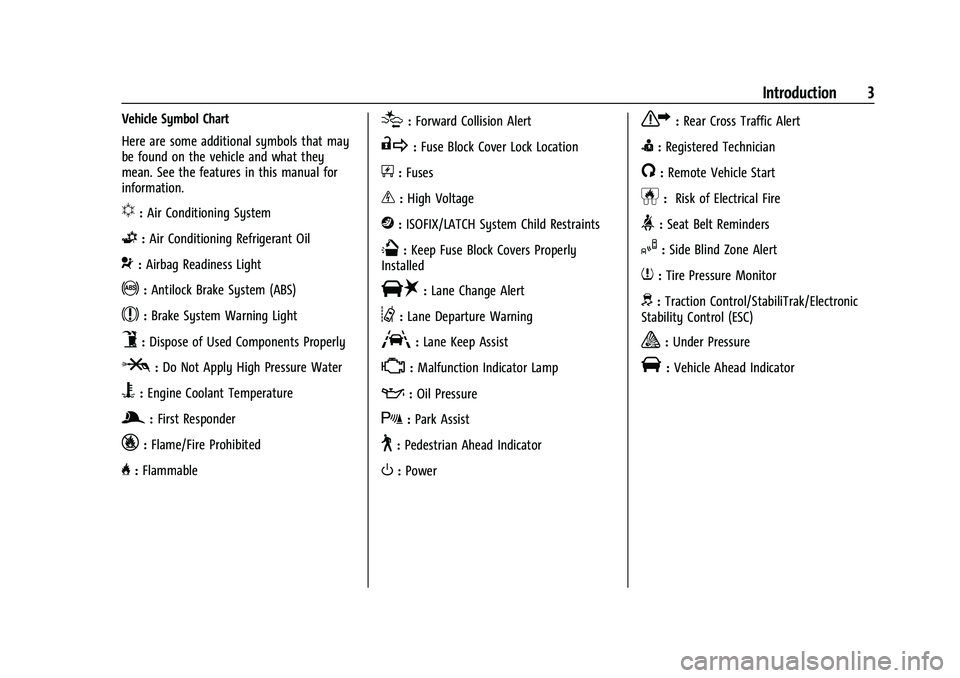
Vehicle Symbol Chart
Here are some additional symbols that may
be found on the vehicle and what they
mean. See the features in this manual for
information.
u:Air Conditioning System
G:Air Conditioning Refrigerant Oil
9:Airbag Readiness Light
!:Antilock Brake System (ABS)
$:Brake System Warning Light
9:Dispose of Used Components Properly
P:Do Not Apply High Pressure Water
B:Engine Coolant Temperature
g: First Responder
_:Flame/Fire Prohibited
H: Flammable
[:Forward Collision Alert
R:Fuse Block Cover Lock Location
+:Fuses
_:High Voltage
j:ISOFIX/LATCH System Child Restraints
Q:Keep Fuse Block Covers Properly
Installed
|: Lane Change Alert
@:Lane Departure Warning
A:Lane Keep Assist
*: Malfunction Indicator Lamp
::Oil Pressure
X:Park Assist
~:Pedestrian Ahead Indicator
O:Power
7:Rear Cross Traffic Alert
I:Registered Technician
/:Remote Vehicle Start
h: Risk of Electrical Fire
>:Seat Belt Reminders
I:Side Blind Zone Alert
7:Tire Pressure Monitor
d:Traction Control/StabiliTrak/Electronic
Stability Control (ESC)
a: Under Pressure
V: Vehicle Ahead Indicator
Page 13 of 359
Chevrolet Colorado Owner Manual (GMNA-Localizing-U.S./Canada/Mexico-
14430421) - 2021 - CRC - 2/10/20
12 Keys, Doors, and Windows
Door Locks
{Warning
Unlocked doors can be dangerous.
.Passengers, especially children, can
easily open the doors and fall out of a
moving vehicle. The doors can be
unlocked and opened while the vehicle
is moving. The chance of being thrown
out of the vehicle in a crash is
increased if the doors are not locked.
So, all passengers should wear seat
belts properly and the doors should be
locked whenever the vehicle is driven.
.Young children who get into unlocked
vehicles may be unable to get out.
A child can be overcome by extreme
heat and can suffer permanent injuries
or even death from heat stroke.
Always lock the vehicle whenever
leaving it.
.Outsiders can easily enter through an
unlocked door when you slow down
or stop the vehicle. Locking the doors
can help prevent this from happening.To lock or unlock a door from the outside
press
QorKon the Remote Keyless Entry
(RKE) transmitter or use the key in the
driver door.
To lock a door from the inside, push down
on the door lock knob. To unlock, pull the
door handle once to unlock the door and
again to unlatch it. The power door lock
switch on the interior of the door can also
be used to lock or unlock the doors from
the inside.
Free-Turning Locks
The door key lock cylinder turns freely when
either the wrong key is used, or the correct
key is not fully inserted. The free-turning
door lock feature prevents the lock from
being forced open. To reset the lock, turn it
to the vertical position with the correct key
fully inserted. Remove the key and insert it
again. If this does not reset the lock, turn
the key halfway around in the cylinder and
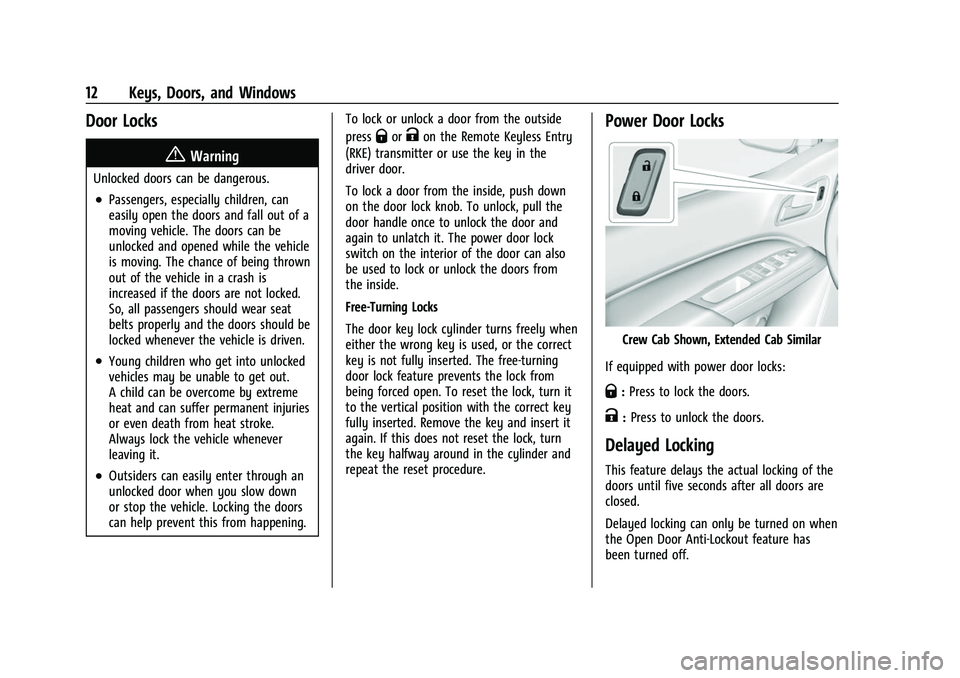
repeat the reset procedure.Power Door Locks
Crew Cab Shown, Extended Cab Similar
If equipped with power door locks:
Q: Press to lock the doors.
K:Press to unlock the doors.
Delayed Locking
This feature delays the actual locking of the
doors until five seconds after all doors are
closed.
Delayed locking can only be turned on when
the Open Door Anti-Lockout feature has
been turned off.
Page 15 of 359
Chevrolet Colorado Owner Manual (GMNA-Localizing-U.S./Canada/Mexico-
14430421) - 2021 - CRC - 2/10/20
14 Keys, Doors, and Windows
Doors
Tailgate
{Warning
It is extremely dangerous to ride on the
tailgate, even when the vehicle is
operated at low speeds. People riding on
the tailgate can easily lose their balance
and fall in response to vehicle maneuvers.
Falling from a moving vehicle may result
in serious injuries or death. Do not allow
people to ride on the tailgate. Be sure
everyone in your vehicle is in a seat and
using a seat belt properly.
On vehicles with a lock on the tailgate, use
the key to lock or unlock the tailgate.
If equipped, to lock or unlock the tailgate,
use the RKE transmitter or the key. See
Remote Keyless Entry (RKE) System
Operation 09
Open the tailgate by lifting up on its handle
while pulling the tailgate down.
To shut the tailgate, firmly push it upward
until it latches. After closing the tailgate, pull it back to be
sure it latches securely.
Vehicle Security
This vehicle has theft-deterrent features;
however, they do not make the vehicle
impossible to steal.
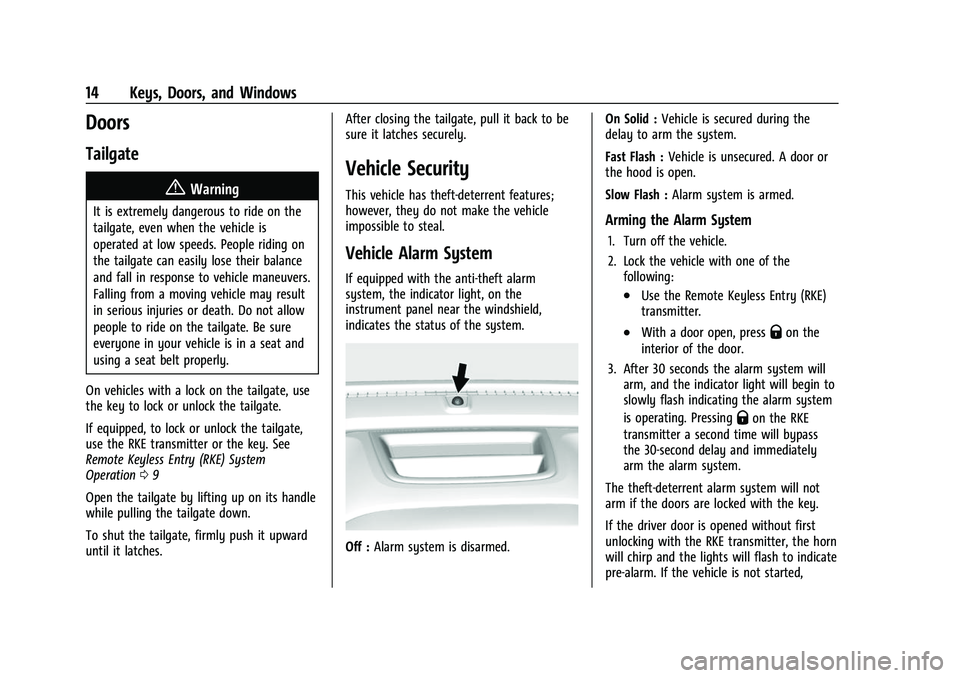
Vehicle Alarm System
If equipped with the anti-theft alarm
system, the indicator light, on the
instrument panel near the windshield,
indicates the status of the system.
Off :
Alarm system is disarmed. On Solid :
Vehicle is secured during the
delay to arm the system.
Fast Flash : Vehicle is unsecured. A door or
the hood is open.
Slow Flash : Alarm system is armed.
Arming the Alarm System
1. Turn off the vehicle.
2. Lock the vehicle with one of the
following:
.Use the Remote Keyless Entry (RKE)
transmitter.
.With a door open, pressQon the
interior of the door.
3. After 30 seconds the alarm system will arm, and the indicator light will begin to
slowly flash indicating the alarm system
is operating. Pressing
Qon the RKE
transmitter a second time will bypass
the 30-second delay and immediately
arm the alarm system.
The theft-deterrent alarm system will not
arm if the doors are locked with the key.
If the driver door is opened without first
unlocking with the RKE transmitter, the horn
will chirp and the lights will flash to indicate
pre-alarm. If the vehicle is not started,
Page 19 of 359
Chevrolet Colorado Owner Manual (GMNA-Localizing-U.S./Canada/Mexico-
14430421) - 2021 - CRC - 2/10/20
18 Keys, Doors, and Windows
Windows{
Warning
Never leave a child, a helpless adult, or a
pet alone in a vehicle, especially with the
windows closed in warm or hot weather.
They can be overcome by the extreme
heat and suffer permanent injuries or
even death from heat stroke.
The vehicle aerodynamics are designed to
improve fuel economy performance. This
may result in a pulsing sound when either
rear window is down and the front windows
are up. To reduce the sound, open either a
front window or the sunroof, if equipped.
Power Windows
{Warning
Children could be seriously injured or
killed if caught in the path of a closing
window. Never leave keys in a vehicle
with children. When there are children in
the rear seat, use the window lockout
button to prevent operation of the
windows. See Keys06.
Crew Cab Shown, Extended Cab Similar
Power windows work when the ignition is
on, in ACC/ACCESSORY, or when Retained
Accessory Power (RAP) is active. See
Retained Accessory Power (RAP) 0188. Using the window switch, press to open or
pull to close the window.
The windows may be temporarily disabled if
they are used repeatedly within a
short time.
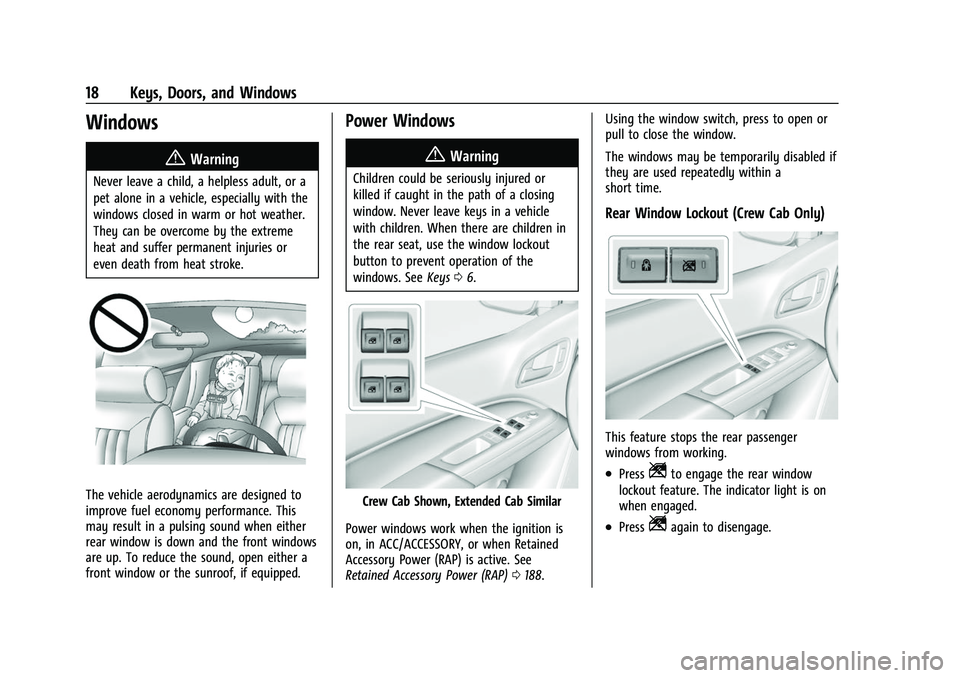
Rear Window Lockout (Crew Cab Only)
This feature stops the rear passenger
windows from working.
.PressZto engage the rear window
lockout feature. The indicator light is on
when engaged.
.PressZagain to disengage.
Page 26 of 359
Chevrolet Colorado Owner Manual (GMNA-Localizing-U.S./Canada/Mexico-
14430421) - 2021 - CRC - 2/10/20
Seats and Restraints 25
Heated Front Seats
{Warning
If temperature change or pain to the skin
cannot be felt, the seat heater may cause
burns. To reduce the risk of burns, use
care when using the seat heater,
especially for long periods of time. Do
not place anything on the seat that
insulates against heat, such as a blanket,
cushion, cover, or similar item. This may
cause the seat heater to overheat. An
overheated seat heater may cause a burn
or may damage the seat.
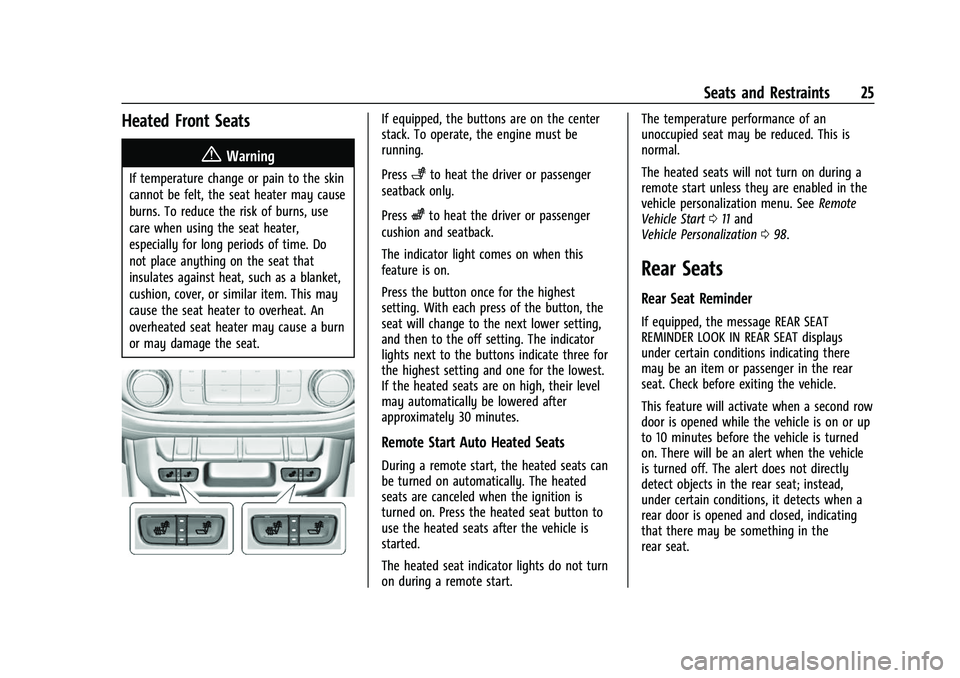
If equipped, the buttons are on the center
stack. To operate, the engine must be
running.
Press
+to heat the driver or passenger
seatback only.
Press
zto heat the driver or passenger
cushion and seatback.
The indicator light comes on when this
feature is on.
Press the button once for the highest
setting. With each press of the button, the
seat will change to the next lower setting,
and then to the off setting. The indicator
lights next to the buttons indicate three for
the highest setting and one for the lowest.
If the heated seats are on high, their level
may automatically be lowered after
approximately 30 minutes.
Remote Start Auto Heated Seats
During a remote start, the heated seats can
be turned on automatically. The heated
seats are canceled when the ignition is
turned on. Press the heated seat button to
use the heated seats after the vehicle is
started.
The heated seat indicator lights do not turn
on during a remote start. The temperature performance of an
unoccupied seat may be reduced. This is
normal.
The heated seats will not turn on during a
remote start unless they are enabled in the
vehicle personalization menu. See
Remote
Vehicle Start 011 and
Vehicle Personalization 098.
Rear Seats
Rear Seat Reminder
If equipped, the message REAR SEAT
REMINDER LOOK IN REAR SEAT displays
under certain conditions indicating there
may be an item or passenger in the rear
seat. Check before exiting the vehicle.
This feature will activate when a second row
door is opened while the vehicle is on or up
to 10 minutes before the vehicle is turned
on. There will be an alert when the vehicle
is turned off. The alert does not directly
detect objects in the rear seat; instead,
under certain conditions, it detects when a
rear door is opened and closed, indicating
that there may be something in the
rear seat.
Page 119 of 359
Chevrolet Colorado Owner Manual (GMNA-Localizing-U.S./Canada/Mexico-
14430421) - 2021 - CRC - 2/10/20
118 Infotainment System
by model and require a complete working
electrical system, cell reception, and GPS
signal. An active connected plan is required.
Reference the SiriusXM user guide for use
and subscription information.
Radio Reception
Unplug electronic devices from the accessory
power outlets if there is interference or
static in the radio.
FM
FM signals only reach about 16 to 65 km (10
to 40 mi). Although the radio has a built-in
electronic circuit that automatically works to
reduce interference, some static can occur,
especially around tall buildings or hills,
causing the sound to fade in and out.
AM
The range for most AM stations is greater
than for FM, especially at night. The longer
range can cause station frequencies to
interfere with each other. Static can also
occur when things like storms and power
lines interfere with radio reception. When
this happens, try reducing the treble on the
radio.
SiriusXM Satellite Radio Service
If equipped, SiriusXM Satellite Radio Service
provides digital radio reception. Tall
buildings or hills can interfere with satellite
radio signals, causing the sound to fade in
and out. In addition, traveling or standing
under heavy foliage, bridges, garages,
or tunnels may cause loss of the SiriusXM
signal for a period of time. Some cellular
services may interfere with SXM reception
causing loss of signal.
Mobile Device Usage
Mobile device usage, such as making or
receiving calls, charging, or just having the
mobile device on may cause static
interference in the radio. Unplug the mobile
device or turn it off if this happens.
Multi-Band Antenna
The roof antenna is for AM, FM, SXM,
OnStar, and GPS (Global Positioning System).
Keep clear of obstructions for clear
reception. If the vehicle has a sunroof, and it
is open, reception can also be affected.
Audio Players
Avoiding Untrusted Media Devices
When using media devices such as SD cards,
USB devices, and mobile devices, consider
the source. Untrusted media devices could
contain files that affect system operation or
performance. Avoid use if the content or
origin cannot be trusted.
USB Port
Audio stored on a USB device may be
listened to.
The vehicle may be equipped with two USB
ports on the center stack. These ports are
for data and charging. There may also be
two USB ports for charging only at the rear
of the center console.
Caution
To avoid vehicle damage, unplug all
accessories and disconnect all accessory
cables from the vehicle when not in use.
Accessory cables left plugged into the
vehicle, unconnected to a device, could be
damaged or cause an electrical short if
(Continued)
Page 123 of 359
Chevrolet Colorado Owner Manual (GMNA-Localizing-U.S./Canada/Mexico-
14430421) - 2021 - CRC - 2/10/20
122 Infotainment System
To play music via Bluetooth:1. Power on the device, and pair to connect the device.
2. Once paired, touch Audio from the Home Page, then touch Bluetooth from the
recent sources list on the left of the
display.
Bluetooth Sound Menu
See “Infotainment System Sound Menu”
under AM-FM Radio 0115.
Manage Bluetooth Devices
From the Home Page: 1. Touch Audio.
2. Touch More.
3. Touch Bluetooth.
4. Touch Devices to add or delete devices.
When touching Bluetooth, the radio may
not be able to launch the audio player on
the connected device to start playing. When
the vehicle is not moving, use the mobile
device to begin playback.
All devices launch audio differently. When
selecting Bluetooth as a source, the radio
may show as paused on the display. Press
play on the device or touch
pon the
display to begin playback. Browse functionality will be provided where
supported by the Bluetooth device. This
media content will not be part of the
MyMedia source mode.
Some smartphones support sending
Bluetooth music information to display on
the radio. When the radio receives this
information, it will check to see if any is
available and display it. For more
information about supported Bluetooth
features, see my.chevrolet.com/learn.
OnStar System
4G LTE
If equipped with 4G LTE, up to seven
devices, such as smartphones, tablets, and
laptops, can be connected to high-speed
Internet through the vehicle’s built-in Wi-Fi
hotspot.
Call 1-888-4ONSTAR (1-888-466-7827) to
connect to an OnStar Advisor for assistance.
See www.onstar.com for vehicle availability,
details, and system limitations. Service and
connectivity may vary by make, model,
year, carrier, availability, and conditions. 4G
LTE service is available in select markets. 4G
LTE performance is based on industry
averages and vehicle systems design. Some
services require a data plan.
The OnStar App
If equipped, the infotainment system has
OnStar controls in the embedded OnStar app
on the Home Page. Most OnStar functions
that can be performed with the buttons can
be done using the app. To open the app,
touch the OnStar icon on the Home Page.
App updates require a corresponding service
plan. Features vary by region and model.
Features are subject to change. For more
information, see my.chevrolet.com/learn or
press
Q.
Services
The Services tab displays the default view
for the app. Use this page to launch the
available OnStar services. Touch a service to
open its display. Touch Wi-Fi to launch the
connections manager. Turn-by-Turn and
Advisor Call are the other tiled options.
Page 132 of 359
Chevrolet Colorado Owner Manual (GMNA-Localizing-U.S./Canada/Mexico-
14430421) - 2021 - CRC - 2/10/20
Infotainment System 131
If the system has determined that the
destination has been reached, either because
the arrival view displayed or the destination
has been passed, the Resume Trip option
will not appear.
Favorites
The navigation favorites can have contacts,
addresses, or POIs that have been saved
through the favorite icon on the
details view.
Accessing Favorites
In the Nav application, view the Favorites
list by touching
Hin the search bar along
the top of the Nav map view. If the search
bar is closed, touch
}and selectH.
Saving Favorites
Favorites can be added from a number of
the system’s applications. Touch the
favorites icon to save content as a favorite.
Renaming Navigation Favorites 1. Touch the Settings icon on the Home Page and touch the System tab.
2. Touch Favorites to access the Manage Favorites option. 3. Touch a saved Navigation favorite to
access the edit icon. Touch the edit icon
to rename the favorite.
4. Touch Save to store the renamed favorite.
Recents
TouchHto access a list of recent
destinations.
Recenter Position Icon
Touch the Recenter Position arrow in the
middle of the map view to reset the map to
the current location.
Last Parked Location
The Last Parked Location is the last location
the vehicle engine was turned off. That
location is displayed in the first row of the
Recents list. Touching the last Parked
Location shows the Address Details view to
either save the address or drive to it. The
Last Parked Location can be deleted by
entering the Edit display. Once the Last
Parked Location is deleted, it no longer
appears in the Recents list, unless the
vehicle is started at that location again.
Show POI Icons
To see the POI categories, touch Options,
then touch Show on Map. Up to eight
categories of icons can be selected.
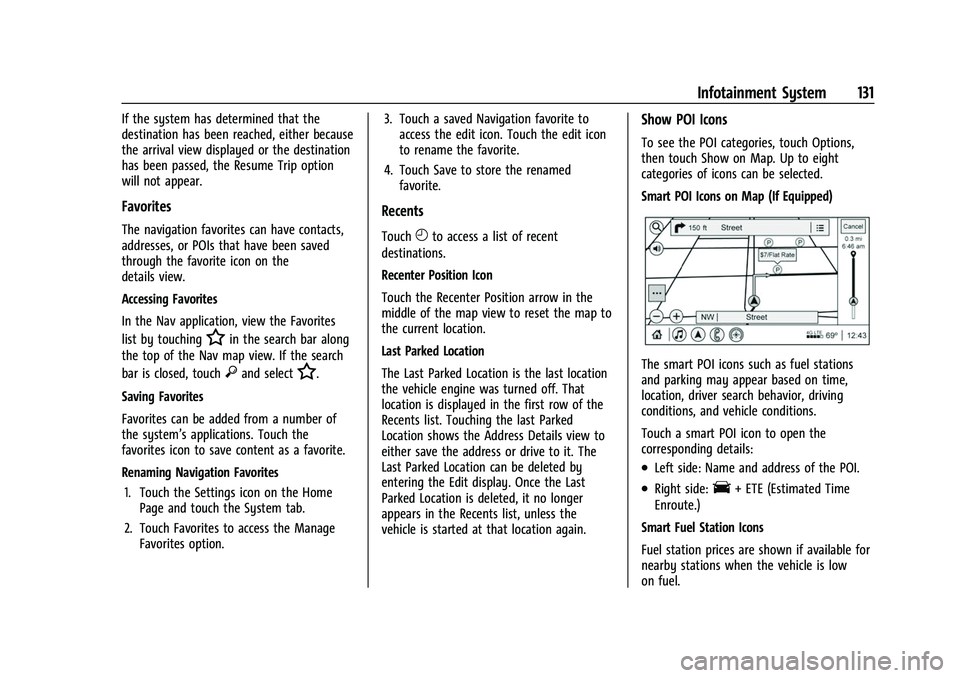
Smart POI Icons on Map (If Equipped)
The smart POI icons such as fuel stations
and parking may appear based on time,
location, driver search behavior, driving
conditions, and vehicle conditions.
Touch a smart POI icon to open the
corresponding details:
.Left side: Name and address of the POI.
.Right side:E+ ETE (Estimated Time
Enroute.)
Smart Fuel Station Icons
Fuel station prices are shown if available for
nearby stations when the vehicle is low
on fuel.
Page 136 of 359
Chevrolet Colorado Owner Manual (GMNA-Localizing-U.S./Canada/Mexico-
14430421) - 2021 - CRC - 2/10/20
Infotainment System 135
ignition cycles, stopping and starting where
it left off. The updates can be set to
download automatically.
See www.gmnavdisc.com for details on
ordering, purchasing, and installing a new or
replacement SD card. Features are subject to
change. For more information on this
feature, see my.chevrolet.com/learn.
Database Coverage Explanations
Coverage areas vary with respect to the
level of map detail available for any given
area. Some areas feature greater levels of
detail than others. If this happens, it does
not mean there is a problem with the
system. As the map data is updated, more
detail can become available for areas that
previously had limited detail. SeeMap Data
Updates 0134.
Voice Recognition
If equipped, voice recognition allows for
hands-free operation within the navigation,
audio, phone, and weather applications. This
feature can be started by pressing
gon the
steering wheel or touching
gon the
infotainment display. However, not all features within these areas
are supported by voice commands.
Generally, only complex tasks that require
multiple manual interactions to complete
are supported by voice commands.
For example, tasks that take more than one
or two touches, such as a song or artist to
play from a media device, would be
supported by voice commands. Other tasks,
like adjusting the volume or seeking up or
down, are audio features that are easily
performed by touching one or two options,
and are not supported by voice commands.
In general there are flexible ways to speak
commands for completing the tasks.
If your language supports it, try stating a
one-shot command, such as
“Directions to
address
while stating the address during the
command. Another example of a one-shot
Destination Entry command is, “Directions to
Place of Interest at
commands do not work, try saying, “Take
me to Place of Interest” or“Find address”
and the system will walk you through by
asking additional questions.
Hybrid Speech Recognition
If equipped, this feature helps distinguish
words by using Internet-based information
along with the system’s voice recognition
database. This allows you to speak more
naturally when using voice recognition.
Using Voice Recognition
Voice recognition becomes available once
the system has been initialized. This begins
when the ignition is turned on. Initialization
may take a few moments.
1. Press
gon the steering wheel controls
to activate voice recognition.
2. The audio system mutes and the system plays a prompt.
3. Clearly speak one of the commands described in this section.
A voice recognition system prompt can
be interrupted while it is playing by
pressing
gagain.
Once voice recognition is started, both the
infotainment display and instrument cluster
show the selections and visual dialog
content. These displays can be turned on or
off in the Tutorial Mode under Settings
0 146.
Page 137 of 359
Chevrolet Colorado Owner Manual (GMNA-Localizing-U.S./Canada/Mexico-
14430421) - 2021 - CRC - 2/10/20
136 Infotainment System
There are three voice prompt modes
supported:
.Informative verbal prompts: This type of
prompt will provide more information
regarding the supported actions.
.Short prompts: This type of prompt will
provide simple instructions about what
can be stated.
.Auto informative prompts: This type of
prompt plays during the first few speech
sessions, then automatically switches to
the short prompt after some experience
has been gained through using the
system.
If a command is not spoken, the voice
recognition system says a help prompt.
Prompts and Infotainment Displays
While a voice recognition session is active,
there may be corresponding options
showing on the displays. A selection can be
made by manually touching the option,
or by speaking the number for the option to
select. Manual interaction in the voice
recognition session is permitted. Interaction
during a voice session may be completed
entirely using voice commands while some
manual commands may expedite a task. If a
selection is made using a manual control, the voice recognition dialog will progress in
the same way as if the selection were made
using a voice command. Once the system
completes the task, or the session is
terminated, the voice recognition dialog
stops.
An example of this type of manual
intervention is touching an entry of a
displayed number list instead of speaking
the number associated with the entry
desired.
Canceling Voice Recognition
.Touch or say
“Cancel”or“Exit” to
terminate the voice recognition session
and show the display where voice
recognition was initiated.
.Pression the steering wheel controls
to terminate the voice recognition session
and show the display where voice
recognition was initiated.
Natural Language Commands
Most languages do not support natural
language commands in sentence form. For
those languages, use direct commands like
the examples shown on the display.
Helpful Hints for Speaking Commands
Voice recognition can understand commands
that are naturally stated in sentence form or
direct commands that state the application
and the task.
For best results:
.Listen for the prompt before saying a
command or reply.
.Speak the command naturally, not too
fast, not too slow.
.Use direct commands without a lot of
extra words. For example, “Call
at work,” “Play” followed by the artist or
song name, or “Tune”followed by the
radio station number.
.Navigation destinations can be made in a
single command using keywords. A few
examples are: “I want directions to an
address,” “I need to find a place of
interest or (POI),” or“Find contact.”
The system responds by requesting more
details. For other POIs, say the name of a
category like “Restaurants,” “Shopping
Malls,” or“Hospitals.”
.Navigating to a destination outside of the
current country takes more than one
command. The first command is to tell
the system where the navigation will take