change wheel CHEVROLET COLORADO 2021 Owner's Manual
[x] Cancel search | Manufacturer: CHEVROLET, Model Year: 2021, Model line: COLORADO, Model: CHEVROLET COLORADO 2021Pages: 359, PDF Size: 8.03 MB
Page 6 of 359
Chevrolet Colorado Owner Manual (GMNA-Localizing-U.S./Canada/Mexico-
14430421) - 2021 - CRC - 2/10/20
Introduction 5
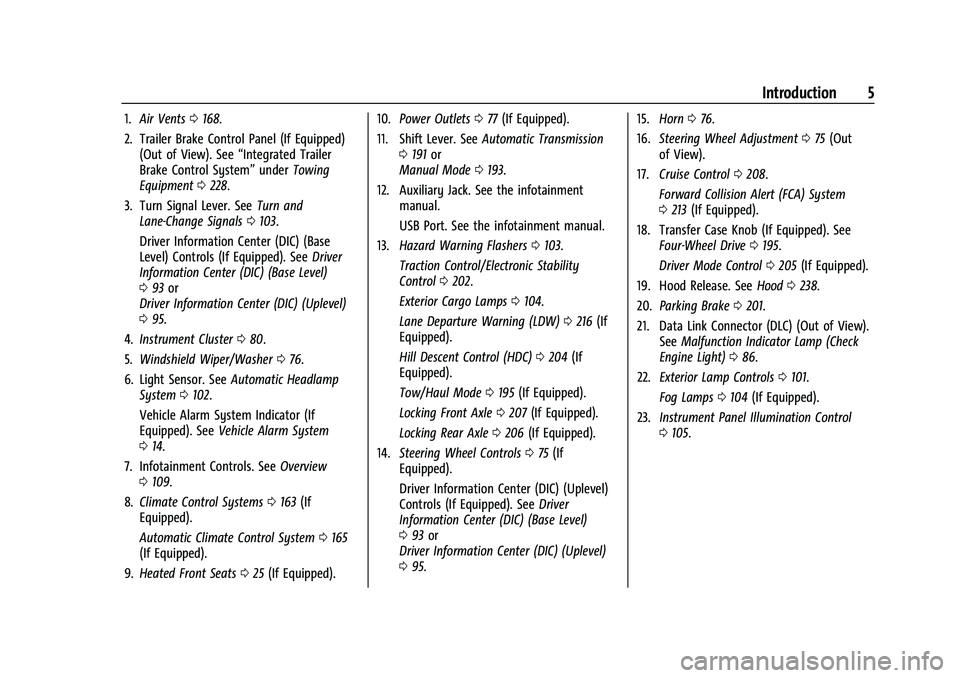
1.Air Vents 0168.
2. Trailer Brake Control Panel (If Equipped) (Out of View). See “Integrated Trailer
Brake Control System” underTowing
Equipment 0228.
3. Turn Signal Lever. See Turn and
Lane-Change Signals 0103.
Driver Information Center (DIC) (Base
Level) Controls (If Equipped). See Driver
Information Center (DIC) (Base Level)
0 93 or
Driver Information Center (DIC) (Uplevel)
0 95.
4. Instrument Cluster 080.
5. Windshield Wiper/Washer 076.
6. Light Sensor. See Automatic Headlamp
System 0102.
Vehicle Alarm System Indicator (If
Equipped). See Vehicle Alarm System
0 14.
7. Infotainment Controls. See Overview
0 109.
8. Climate Control Systems 0163 (If
Equipped).
Automatic Climate Control System 0165
(If Equipped).
9. Heated Front Seats 025 (If Equipped). 10.
Power Outlets 077 (If Equipped).
11. Shift Lever. See Automatic Transmission
0 191 or
Manual Mode 0193.
12. Auxiliary Jack. See the infotainment manual.
USB Port. See the infotainment manual.
13. Hazard Warning Flashers 0103.
Traction Control/Electronic Stability
Control 0202.
Exterior Cargo Lamps 0104.
Lane Departure Warning (LDW) 0216 (If
Equipped).
Hill Descent Control (HDC) 0204 (If
Equipped).
Tow/Haul Mode 0195 (If Equipped).
Locking Front Axle 0207 (If Equipped).
Locking Rear Axle 0206 (If Equipped).
14. Steering Wheel Controls 075 (If
Equipped).
Driver Information Center (DIC) (Uplevel)
Controls (If Equipped). See Driver
Information Center (DIC) (Base Level)
0 93 or
Driver Information Center (DIC) (Uplevel)
0 95. 15.
Horn 076.
16. Steering Wheel Adjustment 075 (Out
of View).
17. Cruise Control 0208.
Forward Collision Alert (FCA) System
0 213 (If Equipped).
18. Transfer Case Knob (If Equipped). See Four-Wheel Drive 0195.
Driver Mode Control 0205 (If Equipped).
19. Hood Release. See Hood0238.
20. Parking Brake 0201.
21. Data Link Connector (DLC) (Out of View). SeeMalfunction Indicator Lamp (Check
Engine Light) 086.
22. Exterior Lamp Controls 0101.
Fog Lamps 0104 (If Equipped).
23. Instrument Panel Illumination Control
0105.
Page 8 of 359
Chevrolet Colorado Owner Manual (GMNA-Localizing-U.S./Canada/Mexico-
14430421) - 2021 - CRC - 2/10/20
Keys, Doors, and Windows 7
{Warning
If the key is unintentionally rotated while
the vehicle is running, the ignition could
be moved out of the RUN position. This
could be caused by heavy items hanging
from the key ring, or by large or long
items attached to the key ring that could
be contacted by the driver or steering
wheel. If the ignition moves out of the
RUN position, the engine will shut off,
braking and steering power assist may be
impacted, and airbags may not deploy.
To reduce the risk of unintentional
rotation of the ignition key, do not
change the way the ignition key and
Remote Keyless Entry (RKE) transmitter,
if equipped, are connected to the
provided key rings.
The ignition key and key rings, and RKE
transmitter, if equipped, are designed to
work together as a system to reduce the
risk of unintentionally moving the key out
of the RUN position. The ignition key has a
small hole to allow attachment of the
provided key ring. It is important that any replacement ignition keys have a small hole.
See your dealer if a replacement key is
required.
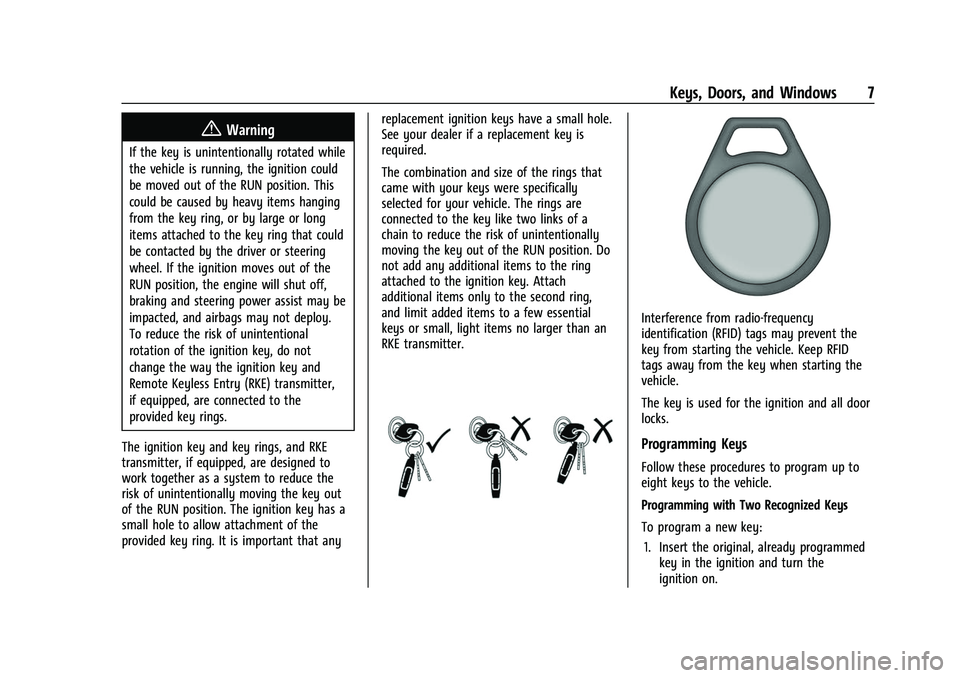
The combination and size of the rings that
came with your keys were specifically
selected for your vehicle. The rings are
connected to the key like two links of a
chain to reduce the risk of unintentionally
moving the key out of the RUN position. Do
not add any additional items to the ring
attached to the ignition key. Attach
additional items only to the second ring,
and limit added items to a few essential
keys or small, light items no larger than an
RKE transmitter.
Interference from radio-frequency
identification (RFID) tags may prevent the
key from starting the vehicle. Keep RFID
tags away from the key when starting the
vehicle.
The key is used for the ignition and all door
locks.
Programming Keys
Follow these procedures to program up to
eight keys to the vehicle.
Programming with Two Recognized Keys
To program a new key:
1. Insert the original, already programmed key in the ignition and turn the
ignition on.
Page 44 of 359
Chevrolet Colorado Owner Manual (GMNA-Localizing-U.S./Canada/Mexico-
14430421) - 2021 - CRC - 2/10/20
Seats and Restraints 43
Warning (Continued)
system. Be sure to follow proper service
procedures, and make sure the person
performing work for you is qualified to
do so.
Adding Equipment to the
Airbag-Equipped Vehicle
{Warning
If a snow plow or similar equipment is
installed on the vehicle, the airbag
system may not function properly. An
airbag could inflate when it is not
supposed to inflate. People riding in the
vehicle could be injured, and the vehicle
and/or snow plow could be damaged. Do
not install a snow plow or similar
equipment on the vehicle.
Adding accessories that change the vehicle's
frame, bumper system, height, front end,
or side sheet metal may keep the airbag
system from working properly.
The operation of the airbag system can also
be affected by changing any parts of the
front seats, seat belts, airbag sensing and diagnostic module, steering wheel,
instrument panel, inner door seals including
the speakers, any of the airbag modules,
ceiling or pillar garnish trim, overhead
console, front sensors, side impact sensors,
or airbag wiring.
Your dealer and the service manual have
information about the location of the airbag
sensors, sensing and diagnostic module, and
airbag wiring.
In addition, the vehicle has a passenger
sensing system for the front outboard
passenger position, which includes sensors
that are part of the passenger seat. The
passenger sensing system may not operate
properly if the original seat trim is replaced
with non-GM covers, upholstery, or trim; or
with GM covers, upholstery, or trim
designed for a different vehicle. Any object,
such as an aftermarket seat heater or a
comfort-enhancing pad or device, installed
under or on top of the seat fabric, could
also interfere with the operation of the
passenger sensing system. This could either
prevent proper deployment of the passenger
airbag(s) or prevent the passenger sensing
system from properly turning off the
passenger airbag(s). See
Passenger Sensing
System 039. If the vehicle has rollover roof-rail airbags,
see
Different Size Tires and Wheels 0281 for
additional important information.
If the vehicle must be modified because you
have a disability and have questions about
whether the modifications will affect the
vehicle's airbag system, or if you have
questions about whether the airbag system
will be affected if the vehicle is modified for
any other reason, call Customer Assistance.
See Customer Assistance Offices 0330.Airbag System Check
The airbag system does not need regularly
scheduled maintenance or replacement.
Make sure the airbag readiness light is
working. See Airbag Readiness Light 085.
Caution
If an airbag covering is damaged, opened,
or broken, the airbag may not work
properly. Do not open or break the airbag
coverings. If there are any opened or
broken airbag coverings, have the airbag
covering and/or airbag module replaced.
For the location of the airbags, see Where
Are the Airbags? 036. See your dealer
for service.
Page 82 of 359
Chevrolet Colorado Owner Manual (GMNA-Localizing-U.S./Canada/Mexico-
14430421) - 2021 - CRC - 2/10/20
Instruments and Controls 81
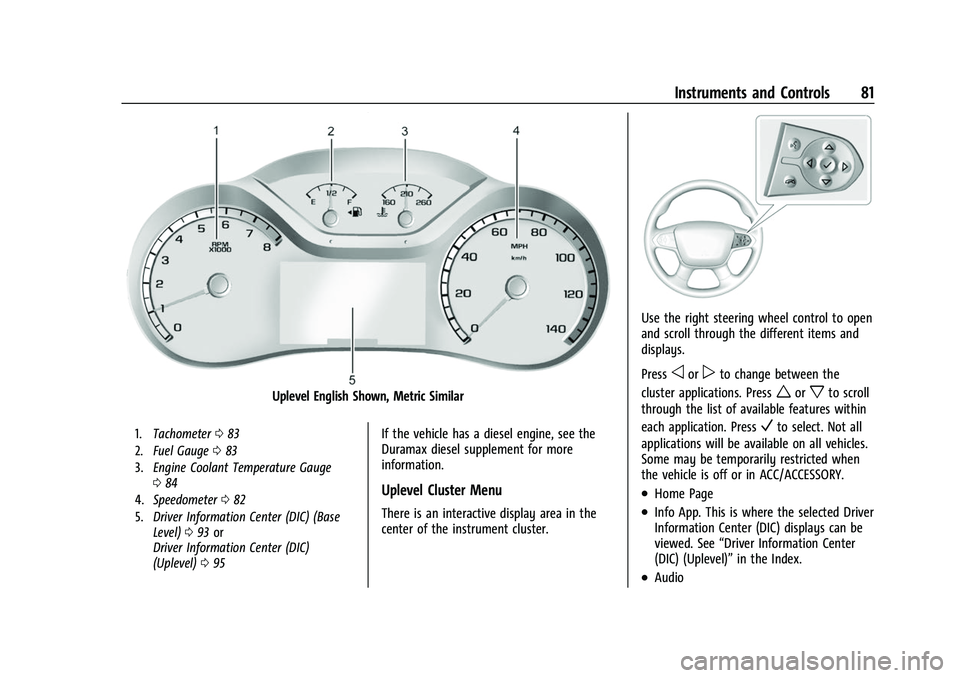
Uplevel English Shown, Metric Similar
1.Tachometer 083
2. Fuel Gauge 083
3. Engine Coolant Temperature Gauge
084
4. Speedometer 082
5. Driver Information Center (DIC) (Base
Level) 093 or
Driver Information Center (DIC)
(Uplevel) 095If the vehicle has a diesel engine, see the
Duramax diesel supplement for more
information.
Uplevel Cluster Menu
There is an interactive display area in the
center of the instrument cluster.
Use the right steering wheel control to open
and scroll through the different items and
displays.
Press
oorpto change between the
cluster applications. Press
worxto scroll
through the list of available features within
each application. Press
Vto select. Not all
applications will be available on all vehicles.
Some may be temporarily restricted when
the vehicle is off or in ACC/ACCESSORY.
.Home Page
.Info App. This is where the selected Driver
Information Center (DIC) displays can be
viewed. See “Driver Information Center
(DIC) (Uplevel)” in the Index.
.Audio
Page 88 of 359
Chevrolet Colorado Owner Manual (GMNA-Localizing-U.S./Canada/Mexico-
14430421) - 2021 - CRC - 2/10/20
Instruments and Controls 87
If the light is flashing :A malfunction has
been detected that could damage the
emission control system and increase vehicle
emissions. Diagnosis and service may be
required.
To help prevent damage, reduce vehicle
speed and avoid hard accelerations and
uphill grades. If towing a trailer, reduce the
amount of cargo being hauled as soon as
possible.
If the light continues to flash, find a safe
place to park. Turn the vehicle off and wait
at least 10 seconds before restarting the
engine. If the light is still flashing, follow
the previous guidelines and see your dealer
for service as soon as possible.
If the light is on steady : A malfunction has
been detected. Diagnosis and service may be
required.
Check the following:
.If fuel has been added to the vehicle
using the capless funnel adapter, make
sure that it has been removed. See
“Filling the Tank with a Portable Gas Can”
under Filling the Tank 0218. The
diagnostic system can detect if the
adapter has been left installed in the
vehicle, allowing fuel to evaporate into the atmosphere. A few driving trips with
the adapter removed may turn off the
light.
.Poor fuel quality can cause inefficient
engine operation and poor driveability,
which may go away once the engine is
warmed up. If this occurs, change the fuel
brand. It may require at least one full
tank of the proper fuel to turn the light
off. See
Recommended Fuel 0217.
If the light remains on, see your dealer.
Emissions Inspection and Maintenance
Programs
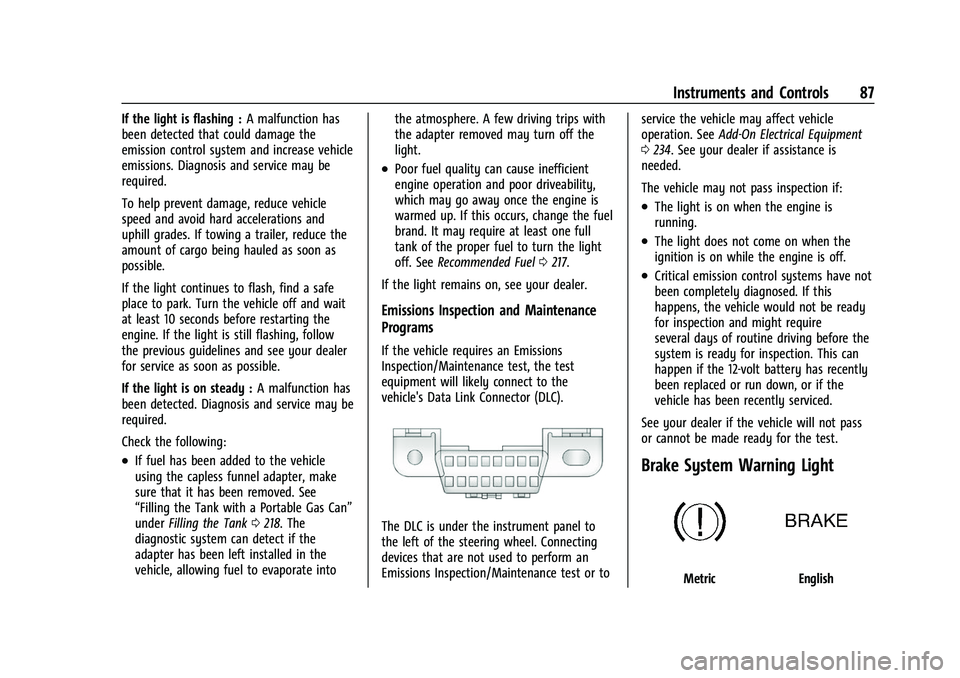
If the vehicle requires an Emissions
Inspection/Maintenance test, the test
equipment will likely connect to the
vehicle's Data Link Connector (DLC).
The DLC is under the instrument panel to
the left of the steering wheel. Connecting
devices that are not used to perform an
Emissions Inspection/Maintenance test or to service the vehicle may affect vehicle
operation. See
Add-On Electrical Equipment
0 234. See your dealer if assistance is
needed.
The vehicle may not pass inspection if:
.The light is on when the engine is
running.
.The light does not come on when the
ignition is on while the engine is off.
.Critical emission control systems have not
been completely diagnosed. If this
happens, the vehicle would not be ready
for inspection and might require
several days of routine driving before the
system is ready for inspection. This can
happen if the 12-volt battery has recently
been replaced or run down, or if the
vehicle has been recently serviced.
See your dealer if the vehicle will not pass
or cannot be made ready for the test.
Brake System Warning Light
MetricEnglish
Page 90 of 359
Chevrolet Colorado Owner Manual (GMNA-Localizing-U.S./Canada/Mexico-
14430421) - 2021 - CRC - 2/10/20
Instruments and Controls 89
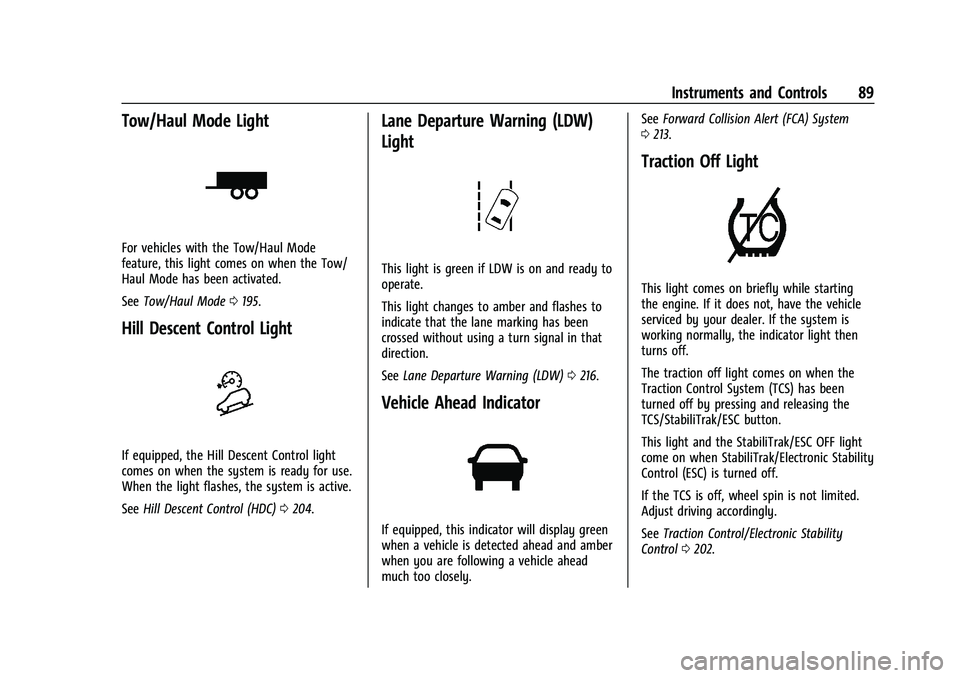
Tow/Haul Mode Light
For vehicles with the Tow/Haul Mode
feature, this light comes on when the Tow/
Haul Mode has been activated.
SeeTow/Haul Mode 0195.
Hill Descent Control Light
If equipped, the Hill Descent Control light
comes on when the system is ready for use.
When the light flashes, the system is active.
See Hill Descent Control (HDC) 0204.
Lane Departure Warning (LDW)
Light
This light is green if LDW is on and ready to
operate.
This light changes to amber and flashes to
indicate that the lane marking has been
crossed without using a turn signal in that
direction.
See Lane Departure Warning (LDW) 0216.
Vehicle Ahead Indicator
If equipped, this indicator will display green
when a vehicle is detected ahead and amber
when you are following a vehicle ahead
much too closely. See
Forward Collision Alert (FCA) System
0 213.
Traction Off Light
This light comes on briefly while starting
the engine. If it does not, have the vehicle
serviced by your dealer. If the system is
working normally, the indicator light then
turns off.
The traction off light comes on when the
Traction Control System (TCS) has been
turned off by pressing and releasing the
TCS/StabiliTrak/ESC button.
This light and the StabiliTrak/ESC OFF light
come on when StabiliTrak/Electronic Stability
Control (ESC) is turned off.
If the TCS is off, wheel spin is not limited.
Adjust driving accordingly.
See Traction Control/Electronic Stability
Control 0202.
Page 98 of 359
Chevrolet Colorado Owner Manual (GMNA-Localizing-U.S./Canada/Mexico-
14430421) - 2021 - CRC - 2/10/20
Instruments and Controls 97
select“Reset Best Score.” PressVto reset
the best average fuel economy. After reset,
the best value displays “-,-”until the
selected distance has been traveled.
The display provides information on how
current driving behavior affects the running
average and how well recent driving
compares to the best that has been
achieved for the selected distance.
Engine Hours (Hourmeter) : Shows the total
number of hours the engine has run. The
display also shows the engine idle hours.
Timer : This display can be used as a timer.
To start the timer, press
Vwhile this
display is active. The display will show the
amount of time that has passed since the
timer was last reset. To stop the timer,
press
Vbriefly while this display is active
and the timer is running. To reset the timer
to zero, press and hold
Vwhile this display
is active.
Battery Voltage : Displays the current
battery voltage, if equipped. Battery voltage
changes are normal while driving. See
Charging System Light 086. If there is a
problem with the battery charging system,
the DIC will display a message. Oil Pressure :
Oil pressure is displayed in
either kilopascal (kPa) or in pounds per
square inch (psi).
Engine Hours : Shows the total number of
hours the engine has run.
Off Road Page : This page shows the
traction, four wheel drive, and steering
angle states. When the front or rear axles
are locked, a lock icon is displayed. See
Off-Road Driving 0173.
Transmission Fluid Temperature : Shows the
temperature of the automatic transmission
fluid in either degrees Celsius (°C) or degrees
Fahrenheit (°F).
Trailer Brake (If Equipped) : TRAILER GAIN
shows the trailer gain setting. This setting
can be adjusted from 0.0 to 10.0 with either
a trailer connected or disconnected.
OUTPUT shows the power output to the
trailer anytime a trailer with electric brakes
is connected. Output is displayed as a bar
graph. Dashes may appear in the OUTPUT
display if a trailer is not connected.
Blank Page : Shows no information.
Vehicle Messages
Messages displayed on the DIC indicate the
status of the vehicle or some action that
may be needed to correct a condition.
Multiple messages may appear one after
another.
The messages that do not require
immediate action can be acknowledged and
cleared by pressing
V. The messages that
require immediate action cannot be cleared
until that action is performed.
All messages should be taken seriously;
clearing the message does not correct the
problem.
If a SERVICE message appears, see your
dealer.
Follow the instructions given in the
messages. The system displays messages
regarding the following topics:
.Service Messages
.Fluid Levels
.Vehicle Security
.Brakes
.Steering
.Ride Control Systems
.Driver Assistance Systems
Page 102 of 359
Chevrolet Colorado Owner Manual (GMNA-Localizing-U.S./Canada/Mexico-
14430421) - 2021 - CRC - 2/10/20
Lighting 101
Lighting
Exterior Lighting
Exterior Lamp Controls . . . . . . . . . . . . . . . . . 101
Exterior Lamps Off Reminder . . . . . . . . . . 102
Headlamp High/Low-Beam Changer . . . 102
Flash-to-Pass . . . . . . . . . . . . . . . . . . . . . . . . . . . 102
Daytime Running Lamps (DRL) . . . . . . . . . 102
Automatic Headlamp System . . . . . . . . . . 102
Hazard Warning Flashers . . . . . . . . . . . . . . 103
Turn and Lane-Change Signals . . . . . . . . . 103
Fog Lamps . . . . . . . . . . . . . . . . . . . . . . . . . . . . 104
Exterior Cargo Lamps . . . . . . . . . . . . . . . . . . 104
Interior Lighting
Instrument Panel IlluminationControl . . . . . . . . . . . . . . . . . . . . . . . . . . . . . . 105
Dome Lamps . . . . . . . . . . . . . . . . . . . . . . . . . . 105
Reading Lamps . . . . . . . . . . . . . . . . . . . . . . . . 105
Lighting Features
Entry Lighting . . . . . . . . . . . . . . . . . . . . . . . . . 106
Exit Lighting . . . . . . . . . . . . . . . . . . . . . . . . . . . 106
Battery Load Management . . . . . . . . . . . . 106
Battery Power Protection . . . . . . . . . . . . . . 106
Exterior Lighting Battery Saver . . . . . . . . 107
Exterior Lighting
Exterior Lamp Controls
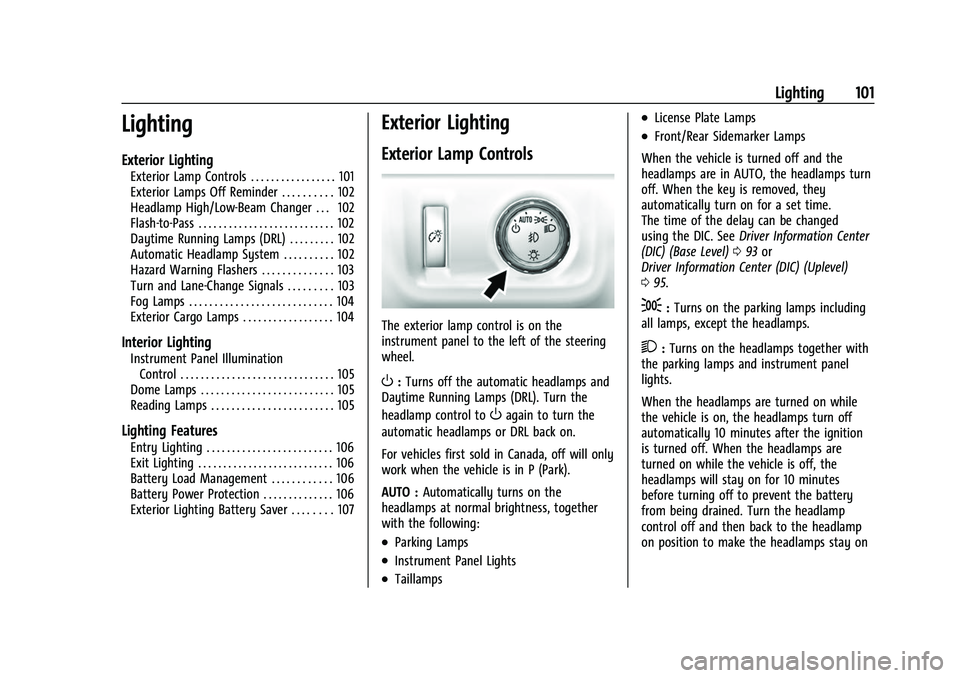
The exterior lamp control is on the
instrument panel to the left of the steering
wheel.
O: Turns off the automatic headlamps and
Daytime Running Lamps (DRL). Turn the
headlamp control to
Oagain to turn the
automatic headlamps or DRL back on.
For vehicles first sold in Canada, off will only
work when the vehicle is in P (Park).
AUTO : Automatically turns on the
headlamps at normal brightness, together
with the following:
.Parking Lamps
.Instrument Panel Lights
.Taillamps
.License Plate Lamps
.Front/Rear Sidemarker Lamps
When the vehicle is turned off and the
headlamps are in AUTO, the headlamps turn
off. When the key is removed, they
automatically turn on for a set time.
The time of the delay can be changed
using the DIC. See Driver Information Center
(DIC) (Base Level) 093 or
Driver Information Center (DIC) (Uplevel)
0 95.
;:Turns on the parking lamps including
all lamps, except the headlamps.
2: Turns on the headlamps together with
the parking lamps and instrument panel
lights.
When the headlamps are turned on while
the vehicle is on, the headlamps turn off
automatically 10 minutes after the ignition
is turned off. When the headlamps are
turned on while the vehicle is off, the
headlamps will stay on for 10 minutes
before turning off to prevent the battery
from being drained. Turn the headlamp
control off and then back to the headlamp
on position to make the headlamps stay on
Page 122 of 359
Chevrolet Colorado Owner Manual (GMNA-Localizing-U.S./Canada/Mexico-
14430421) - 2021 - CRC - 2/10/20
Infotainment System 121
Storing and Recalling Media Favorites
To store media favorites, touch Browse to
display a list of media types.
Touch one of the following Browse options
to save a favorite:
Playlists :Touch
Hnext to any playlist to
store the playlist as a favorite. Touch a
saved favorite to recall a favorite playlist.
The first song in the playlist begins to play.
Artists : Touch
Hnext to any artist to
store the artist as a favorite. Touch a saved
favorite to recall a favorite artist. The first
song in the artist list begins to play.
Songs : Touch
Hnext to any song to store
the song as a favorite. Touch a saved
favorite to recall a favorite song.
Albums : Touch
Hnext to any album to
store the album as a favorite. Touch a saved
favorite to recall a favorite album. The first
song in the album list begins to play.
Genres : Touch
Hnext to any genre to
store the genre as a favorite. Touch a saved
favorite to recall a favorite genre. The first
song of the genre begins to play. Podcasts :
Touch
Hnext to any podcast to
store the podcast as a favorite. Touch a
saved favorite to recall a favorite podcast.
The podcast begins to play.
Audiobooks : Touch
Hnext to any
audiobook to store the audiobook as a
favorite. Touch a saved favorite to recall a
favorite audiobook. The first chapter in the
audiobook begins to play.
Media Playback and Mute
USB playback will be paused if the system is
muted. If the steering wheel mute control is
pressed again, playback will resume.
If the source is changed while in mute,
playback resumes and audio will unmute.
Auxiliary Jack
If equipped, this vehicle has an auxiliary
input jack in the center stack. Possible
auxiliary audio sources include:
.Laptop computer
.Audio music player
This jack is not an audio output. Do not
plug headphones into the auxiliary input
jack. Set up an auxiliary device while the
vehicle is in P (Park). Connect a 3.5 mm (1/8 in) cable from the
auxiliary device to the auxiliary input jack.
When a device is connected, the system can
play audio from the device over the vehicle
speakers.
If an auxiliary device has already been
connected, but a different source is currently
active, touch More and then touch AUX to
make the source active.
Shuffle and Browse are not available in the
AUX source menu.
Bluetooth Audio
Music may be played from a paired
Bluetooth device. See
Bluetooth (Overview)
0 140 orBluetooth (Pairing and Using a
Phone) 0141 for help pairing a device.
Volume and song selection may be
controlled by using the infotainment
controls or the mobile device. If Bluetooth is
selected and no volume is present, check the
volume setting on the infotainment system.
Music can be launched by touching
Bluetooth from the recent sources list on
the left of the display or by touching the
More option and then touching the
Bluetooth device.
Page 136 of 359
Chevrolet Colorado Owner Manual (GMNA-Localizing-U.S./Canada/Mexico-
14430421) - 2021 - CRC - 2/10/20
Infotainment System 135
ignition cycles, stopping and starting where
it left off. The updates can be set to
download automatically.
See www.gmnavdisc.com for details on
ordering, purchasing, and installing a new or
replacement SD card. Features are subject to
change. For more information on this
feature, see my.chevrolet.com/learn.
Database Coverage Explanations
Coverage areas vary with respect to the
level of map detail available for any given
area. Some areas feature greater levels of
detail than others. If this happens, it does
not mean there is a problem with the
system. As the map data is updated, more
detail can become available for areas that
previously had limited detail. SeeMap Data
Updates 0134.
Voice Recognition
If equipped, voice recognition allows for
hands-free operation within the navigation,
audio, phone, and weather applications. This
feature can be started by pressing
gon the
steering wheel or touching
gon the
infotainment display. However, not all features within these areas
are supported by voice commands.
Generally, only complex tasks that require
multiple manual interactions to complete
are supported by voice commands.
For example, tasks that take more than one
or two touches, such as a song or artist to
play from a media device, would be
supported by voice commands. Other tasks,
like adjusting the volume or seeking up or
down, are audio features that are easily
performed by touching one or two options,
and are not supported by voice commands.
In general there are flexible ways to speak
commands for completing the tasks.
If your language supports it, try stating a
one-shot command, such as
“Directions to
address
while stating the address during the
command. Another example of a one-shot
Destination Entry command is, “Directions to
Place of Interest at
commands do not work, try saying, “Take
me to Place of Interest” or“Find address”
and the system will walk you through by
asking additional questions.
Hybrid Speech Recognition
If equipped, this feature helps distinguish
words by using Internet-based information
along with the system’s voice recognition
database. This allows you to speak more
naturally when using voice recognition.
Using Voice Recognition
Voice recognition becomes available once
the system has been initialized. This begins
when the ignition is turned on. Initialization
may take a few moments.
1. Press
gon the steering wheel controls
to activate voice recognition.
2. The audio system mutes and the system plays a prompt.
3. Clearly speak one of the commands described in this section.
A voice recognition system prompt can
be interrupted while it is playing by
pressing
gagain.
Once voice recognition is started, both the
infotainment display and instrument cluster
show the selections and visual dialog
content. These displays can be turned on or
off in the Tutorial Mode under Settings
0 146.