manual radio set CHEVROLET COLORADO 2021 Owner's Manual
[x] Cancel search | Manufacturer: CHEVROLET, Model Year: 2021, Model line: COLORADO, Model: CHEVROLET COLORADO 2021Pages: 359, PDF Size: 8.03 MB
Page 16 of 359
Chevrolet Colorado Owner Manual (GMNA-Localizing-U.S./Canada/Mexico-
14430421) - 2021 - CRC - 2/10/20
Keys, Doors, and Windows 15
or the door is not unlocked by pressingK
on the RKE transmitter during the 10-second
pre-alarm, the alarm will be activated.
If a door or the hood is opened without first
disarming the system, the turn signals will
flash and the horn will sound for about
30 seconds. The alarm system will then
re-arm to monitor for the next unauthorized
event.
Disarming the Alarm System
To disarm the alarm system or turn off the
alarm if it has been activated:
.PressKon the RKE transmitter.
.Start the vehicle.
To avoid setting off the alarm by accident:
.Lock the vehicle after all occupants have
left the vehicle and all doors are closed.
.Always unlock a door with the RKE
transmitter.
Unlocking the driver door with the key will
not disarm the system or turn off the alarm.
Detecting a Tamper Condition
IfKis pressed on the RKE transmitter and
the horn chirps three times, an alarm
occurred previously while the alarm system
was armed.
Immobilizer
See Radio Frequency Statement 0336.
Immobilizer Operation
This vehicle has a passive theft-deterrent
system.
The system does not have to be manually
armed or disarmed.
The vehicle is automatically immobilized
when the vehicle is turned off.
The system is automatically disarmed when
the ignition is turned from off to on.
The security light, in the instrument cluster,
comes on if there is a problem with arming
or disarming the theft-deterrent system. When trying to start the vehicle, the
security light comes on briefly when the
ignition is turned on.
If the engine does not start and the security
light stays on, there is a problem with the
system. Turn the ignition off and try again.
If the engine still does not start, and the
key appears to be undamaged, try another
ignition key. It may be necessary to check
the fuse. See
Fuses and Circuit Breakers
0 261. If the engine still does not start with
the other key, the vehicle needs service.
If the vehicle does start, the first key may
be faulty. See your dealer.
It is possible for the immobilizer system to
learn new or replacement keys. Up to eight
keys can be programmed for the vehicle. To
program additional transmitters, see Remote
Keyless Entry (RKE) System Operation 09.
Do not leave the transmitter or device that
disarms or deactivates the vehicle
theft-deterent system in the vehicle.
See your dealer to get a new key blank cut
exactly as the ignition key that operates the
system.
Page 83 of 359
Chevrolet Colorado Owner Manual (GMNA-Localizing-U.S./Canada/Mexico-
14430421) - 2021 - CRC - 2/10/20
82 Instruments and Controls
.Phone
.Navigation
.Options
Home
Information displayed here can be
customized from the Options menu.
Speedometer :Displays how fast the vehicle
is moving in either kilometers per hour
(km/h) or miles per hour (mph).
Speed Sign : Shows sign information, which
comes from a roadway database in the
onboard navigation, if equipped.
Time : Displays the current time.
Fuel Range : Displays the approximate
distance the vehicle can be driven without
refueling. The fuel range estimate is based
on an average of the vehicle’s fuel economy
over recent driving history and the amount
of fuel remaining in the fuel tank. Fuel
range cannot be reset.
Audio
Pressworxto scroll through radio
stations or move to the next or previous
track of a CD/USB/Bluetooth device that is connected to the vehicle. Press
Vto enter
the Audio menu to browse for music, select
from favorites, or change the audio source.
Phone
In the Phone menu, if there is no active
phone call, view recent calls, scroll through
contacts, select from the favorites, or change
the phone source. If there is an active call,
mute the phone or switch to handset
operation.
Navigation
In the Navigation menu, if there is no active
route, you can resume the last route and
turn the voice prompts on or off. If there is
an active route, press
Vto cancel route
guidance or turn the voice prompts on
or off.
Options
Pressworxto scroll through items in
the Options menu. Press
Vto select the
item. Press
oto exit the item.
Units : Choose US or Metric units. A selected
mark will be displayed next to the
selected item. Info Page Options :
Select the items to be
displayed in the Info app. A selected mark
will be displayed next to the selected item.
Home Page Options : Select the available
elements to display. Not all elements will be
available on all vehicles: Speedometer, Speed
Sign, Time, and Fuel Range.
Speed Warning : Allows the driver to set a
speed that they do not want to exceed.
Press
worxto adjust the value. PressV
to set the speed. Once the speed is set, this
feature can be turned off by pressing
V
while viewing this page. If the selected
speed limit is exceeded, a pop-up warning is
displayed with a chime.
Software Information : Displays open source
software information.
Speedometer
The speedometer shows the vehicle's speed
in either kilometers per hour (km/h) or
miles per hour (mph).
Odometer
The odometer shows how far the vehicle has
been driven, in either kilometers or miles.
Page 109 of 359
Chevrolet Colorado Owner Manual (GMNA-Localizing-U.S./Canada/Mexico-
14430421) - 2021 - CRC - 2/10/20
108 Infotainment System
Infotainment System
Introduction
Introduction . . . . . . . . . . . . . . . . . . . . . . . . . . . 108
Overview . . . . . . . . . . . . . . . . . . . . . . . . . . . . . . 109
Steering Wheel Controls . . . . . . . . . . . . . . . . 111
Using the System . . . . . . . . . . . . . . . . . . . . . . 112
Software Updates . . . . . . . . . . . . . . . . . . . . . . 115
Radio
AM-FM Radio . . . . . . . . . . . . . . . . . . . . . . . . . . 115
HD Radio Technology . . . . . . . . . . . . . . . . . . 116
Radio Data System (RDS) . . . . . . . . . . . . . . . 117
Satellite Radio . . . . . . . . . . . . . . . . . . . . . . . . . . 117
Radio Reception . . . . . . . . . . . . . . . . . . . . . . . . 118
Multi-Band Antenna . . . . . . . . . . . . . . . . . . . . 118
Audio Players
Avoiding Untrusted Media Devices . . . . . 118
USB Port . . . . . . . . . . . . . . . . . . . . . . . . . . . . . . . 118
Auxiliary Jack . . . . . . . . . . . . . . . . . . . . . . . . . . 121
Bluetooth Audio . . . . . . . . . . . . . . . . . . . . . . . 121
OnStar System
OnStar System . . . . . . . . . . . . . . . . . . . . . . . . . 122
Navigation
Using the Navigation System . . . . . . . . . . 123
Maps . . . . . . . . . . . . . . . . . . . . . . . . . . . . . . . . . . 126
Navigation Symbols . . . . . . . . . . . . . . . . . . . 126
Destination . . . . . . . . . . . . . . . . . . . . . . . . . . . . 127OnStar System . . . . . . . . . . . . . . . . . . . . . . . . . 132
Global Positioning System (GPS) . . . . . . . 133
Vehicle Positioning . . . . . . . . . . . . . . . . . . . . . 133
Problems with Route Guidance . . . . . . . . 134
If the System Needs Service . . . . . . . . . . . 134
Map Data Updates . . . . . . . . . . . . . . . . . . . . 134
Database Coverage Explanations . . . . . . . 135
Voice Recognition
Voice Recognition . . . . . . . . . . . . . . . . . . . . . . 135
Phone
Bluetooth (Overview) . . . . . . . . . . . . . . . . . . 140
Bluetooth (Pairing and Using a
Phone) . . . . . . . . . . . . . . . . . . . . . . . . . . . . . . . 141
Apple CarPlay and Android Auto . . . . . . 144
Settings
Settings . . . . . . . . . . . . . . . . . . . . . . . . . . . . . . . 146
Teen Driver . . . . . . . . . . . . . . . . . . . . . . . . . . . . 151
Trademarks and License Agreements
Trademarks and License Agreements . . . . . . . . . . . . . . . . . . . . . . . . . . 154
Introduction
Read the following pages to become familiar
with the features.
{Warning
Taking your eyes off the road for too
long or too often while using any
infotainment feature can cause a crash.
You or others could be injured or killed.
Do not give extended attention to
infotainment tasks while driving. Limit
your glances at the vehicle displays and
focus your attention on driving. Use voice
commands whenever possible.
The infotainment system has built-in
features intended to help avoid distraction
by disabling some features when driving.
These features may gray out when they are
unavailable. Many infotainment features are
also available through the instrument cluster
and steering wheel controls.
Before driving:
.Become familiar with the operation,
center stack controls, steering wheel
controls, and infotainment display.
Page 110 of 359
Chevrolet Colorado Owner Manual (GMNA-Localizing-U.S./Canada/Mexico-
14430421) - 2021 - CRC - 2/10/20
Infotainment System 109
.Set up the audio by presetting favorite
stations, setting the tone, and adjusting
the speakers.
.Set up phone numbers in advance so they
can be called easily by pressing a single
control or by using a single voice
command.
See Distracted Driving 0170.
Active Noise Cancellation (ANC)
If equipped, ANC reduces engine noise in the
vehicle’s interior. ANC requires the
factory-installed audio system, radio,
speakers, amplifier (if equipped), induction
system, and exhaust system to work
properly. Deactivation is required by your
dealer if related aftermarket equipment is
installed.
Overview
Infotainment System
The infotainment system is controlled by
using the infotainment display, controls on
the center stack, steering wheel controls,
and voice recognition.
Uplevel Radio
1.O(Power)
.Press to turn the power on.
.Press and hold to turn the
power off.
.Press to mute/unmute the system
when on.
.When the power is on and the
system is not muted, a quick
status pane will display when
Ois
pressed. Pressing
Owill mute the
system and trigger this pane to
show a long press is required to
actually power down the system.
.Turn to decrease or increase the
volume.
2.7
.Radio: Press and release to go to
the previous station or channel.
Press and hold to fast seek the
next strongest previous station or
channel. See AM-FM Radio 0115.
.USB/Bluetooth: Press to seek to
the beginning of the current or
previous track. Press and hold to
quickly reverse through a track.
Release to return to playing speed.
See USB Port 0118 or
Bluetooth Audio 0121.
Page 112 of 359
Chevrolet Colorado Owner Manual (GMNA-Localizing-U.S./Canada/Mexico-
14430421) - 2021 - CRC - 2/10/20
Infotainment System 111
pressed. PressingOwill mute the
system and trigger this pane to
show a long press is required to
actually power down the system.
.Turn to decrease or increase the
volume.
4.6
.Radio: Press and release to go to
the next station or channel. Press
and hold to fast seek the next
strongest station or channel.
.USB/Bluetooth: Press to seek the
next track. Press and hold to fast
forward through a track. Release to
return to playing speed. See USB
Port 0118 or
Bluetooth Audio 0121.
5.v
.Press and release to access the
phone display or answer an
incoming call. Home Page
The Home Page is where vehicle application
icons are accessed. Some applications are
disabled when the vehicle is moving.
The Home Page can be set up to have up to
four pages with eight icons per page.
Swipe left or right across the display to
access the pages of icons.
Managing Home Page Icons
1. Touch and hold any of the Home Page icons to enter edit mode.
2. Continue holding the icon and drag it to the desired position.
3. Release your finger to drop the icon in the desired position.
4. To move an application to another page, drag the icon to the edge of the display
toward the desired page.
5. Continue dragging and dropping application icons as desired.
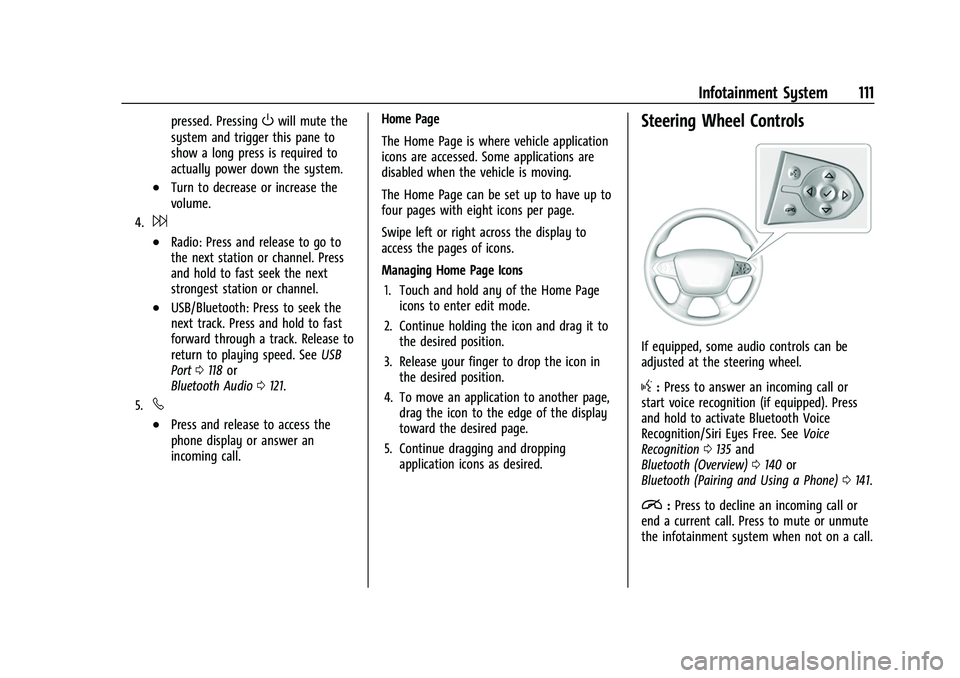
Steering Wheel Controls
If equipped, some audio controls can be
adjusted at the steering wheel.
g:Press to answer an incoming call or
start voice recognition (if equipped). Press
and hold to activate Bluetooth Voice
Recognition/Siri Eyes Free. See Voice
Recognition 0135 and
Bluetooth (Overview) 0140 or
Bluetooth (Pairing and Using a Phone) 0141.
i:Press to decline an incoming call or
end a current call. Press to mute or unmute
the infotainment system when not on a call.
Page 113 of 359
Chevrolet Colorado Owner Manual (GMNA-Localizing-U.S./Canada/Mexico-
14430421) - 2021 - CRC - 2/10/20
112 Infotainment System
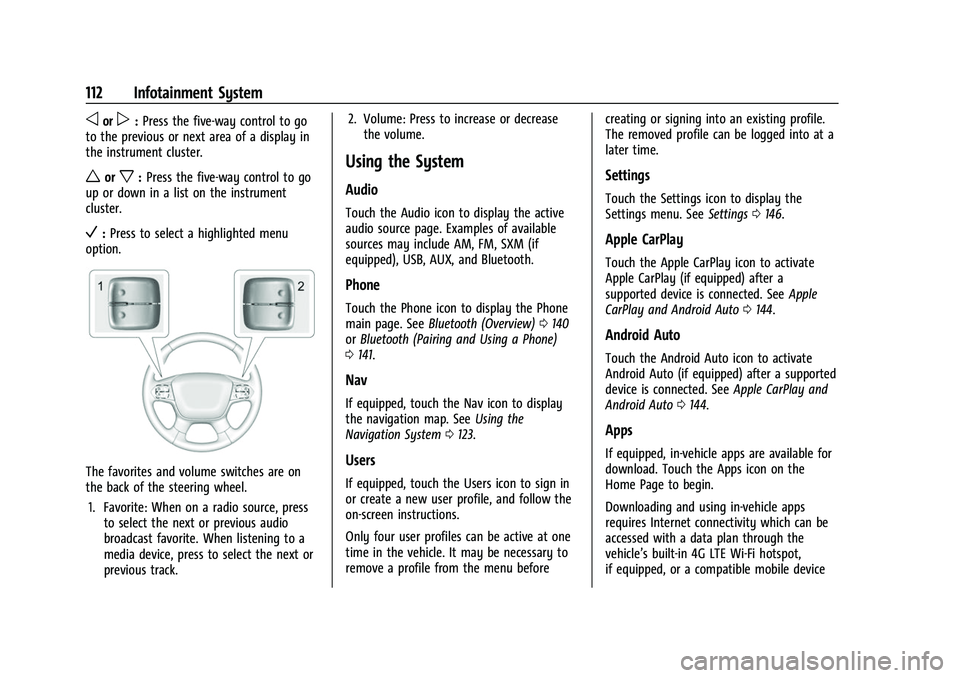
oorp:Press the five-way control to go
to the previous or next area of a display in
the instrument cluster.
worx: Press the five-way control to go
up or down in a list on the instrument
cluster.
V: Press to select a highlighted menu
option.
The favorites and volume switches are on
the back of the steering wheel.
1. Favorite: When on a radio source, press to select the next or previous audio
broadcast favorite. When listening to a
media device, press to select the next or
previous track. 2. Volume: Press to increase or decrease
the volume.
Using the System
Audio
Touch the Audio icon to display the active
audio source page. Examples of available
sources may include AM, FM, SXM (if
equipped), USB, AUX, and Bluetooth.
Phone
Touch the Phone icon to display the Phone
main page. See Bluetooth (Overview) 0140
or Bluetooth (Pairing and Using a Phone)
0 141.
Nav
If equipped, touch the Nav icon to display
the navigation map. See Using the
Navigation System 0123.
Users
If equipped, touch the Users icon to sign in
or create a new user profile, and follow the
on-screen instructions.
Only four user profiles can be active at one
time in the vehicle. It may be necessary to
remove a profile from the menu before creating or signing into an existing profile.
The removed profile can be logged into at a
later time.
Settings
Touch the Settings icon to display the
Settings menu. See
Settings0146.
Apple CarPlay
Touch the Apple CarPlay icon to activate
Apple CarPlay (if equipped) after a
supported device is connected. See Apple
CarPlay and Android Auto 0144.
Android Auto
Touch the Android Auto icon to activate
Android Auto (if equipped) after a supported
device is connected. See Apple CarPlay and
Android Auto 0144.
Apps
If equipped, in-vehicle apps are available for
download. Touch the Apps icon on the
Home Page to begin.
Downloading and using in-vehicle apps
requires Internet connectivity which can be
accessed with a data plan through the
vehicle’s built-in 4G LTE Wi-Fi hotspot,
if equipped, or a compatible mobile device
Page 116 of 359
Chevrolet Colorado Owner Manual (GMNA-Localizing-U.S./Canada/Mexico-
14430421) - 2021 - CRC - 2/10/20
Infotainment System 115
Software Updates
Over-the-Air Software Updates
See“Updates” underSettings 0146 for
details on software updates.
Radio
AM-FM Radio
Playing the Radio
From the Home Page, touch the Audio icon
to display the active audio source page.
Choose from the three most recently used
sources listed at the left side of the display
or touch the More option to display a list of
available sources. Examples of available
sources may include AM, FM, SXM (if
equipped), MyMedia, USB, AUX (if
equipped), and Bluetooth.
Infotainment System Sound Menu
From any of the audio source main pages,
touch Sound to display the following:
Equalizer : Touch to adjust Bass, Midrange,
Treble, and Surround (if equipped) using the
options on the infotainment display. Fade/Balance :
Touch to adjust by using the
controls on the infotainment display or by
tapping/dragging the crosshair.
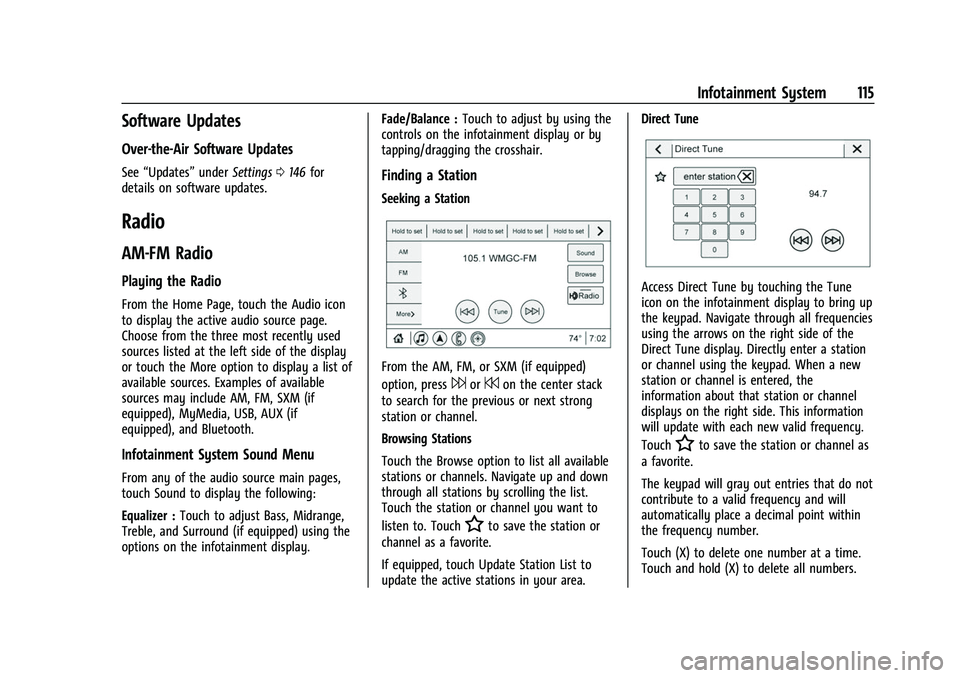
Finding a Station
Seeking a Station
From the AM, FM, or SXM (if equipped)
option, press
6or7on the center stack
to search for the previous or next strong
station or channel.
Browsing Stations
Touch the Browse option to list all available
stations or channels. Navigate up and down
through all stations by scrolling the list.
Touch the station or channel you want to
listen to. Touch
Hto save the station or
channel as a favorite.
If equipped, touch Update Station List to
update the active stations in your area. Direct Tune
Access Direct Tune by touching the Tune
icon on the infotainment display to bring up
the keypad. Navigate through all frequencies
using the arrows on the right side of the
Direct Tune display. Directly enter a station
or channel using the keypad. When a new
station or channel is entered, the
information about that station or channel
displays on the right side. This information
will update with each new valid frequency.
Touch
Hto save the station or channel as
a favorite.
The keypad will gray out entries that do not
contribute to a valid frequency and will
automatically place a decimal point within
the frequency number.
Touch (X) to delete one number at a time.
Touch and hold (X) to delete all numbers.
Page 117 of 359
Chevrolet Colorado Owner Manual (GMNA-Localizing-U.S./Canada/Mexico-
14430421) - 2021 - CRC - 2/10/20
116 Infotainment System
A valid AM or FM station will automatically
tune to the new frequency but not close the
Direct Tune display. When listening to SXM
(if equipped), touch Go after entering the
channel. Touch the Back icon on the
infotainment display or touch
zto exit out
of Direct Tune.
The tune arrows on the right side of the
Direct Tune display will tune through the
complete station or channel list one station
step at a time per touch. A touch and hold
advances through stations or channels
quickly.
If equipped, HD Radio multicast stations
cannot be tuned directly through the Direct
Tune feature. Only the analog or
HD1 station can use that feature. Use the
display arrows to adjust to the multicast
stations.
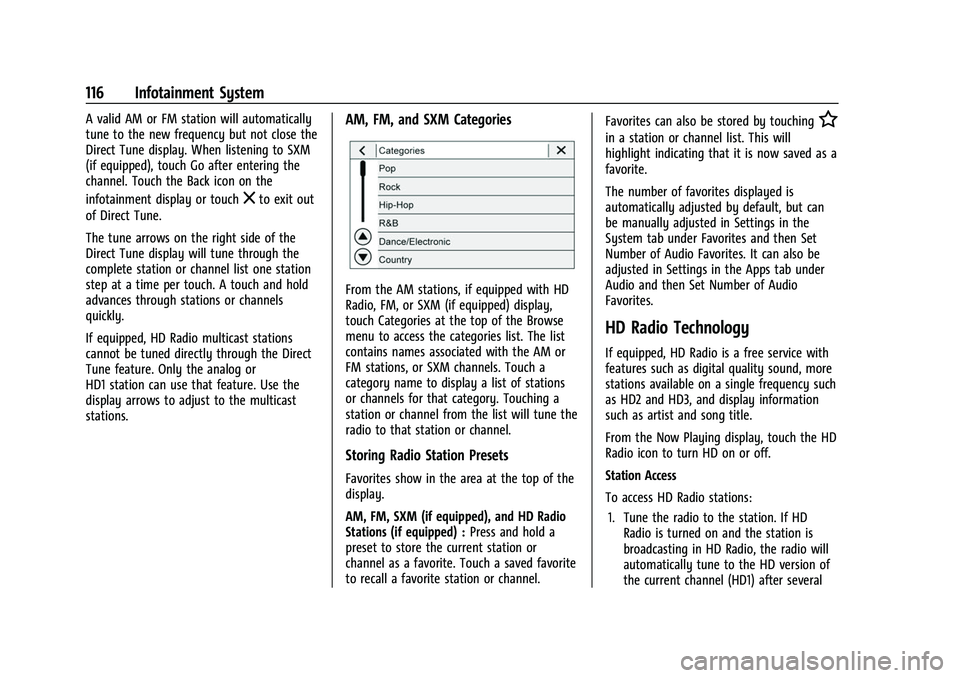
AM, FM, and SXM Categories
From the AM stations, if equipped with HD
Radio, FM, or SXM (if equipped) display,
touch Categories at the top of the Browse
menu to access the categories list. The list
contains names associated with the AM or
FM stations, or SXM channels. Touch a
category name to display a list of stations
or channels for that category. Touching a
station or channel from the list will tune the
radio to that station or channel.
Storing Radio Station Presets
Favorites show in the area at the top of the
display.
AM, FM, SXM (if equipped), and HD Radio
Stations (if equipped) : Press and hold a
preset to store the current station or
channel as a favorite. Touch a saved favorite
to recall a favorite station or channel. Favorites can also be stored by touching
H
in a station or channel list. This will
highlight indicating that it is now saved as a
favorite.
The number of favorites displayed is
automatically adjusted by default, but can
be manually adjusted in Settings in the
System tab under Favorites and then Set
Number of Audio Favorites. It can also be
adjusted in Settings in the Apps tab under
Audio and then Set Number of Audio
Favorites.
HD Radio Technology
If equipped, HD Radio is a free service with
features such as digital quality sound, more
stations available on a single frequency such
as HD2 and HD3, and display information
such as artist and song title.
From the Now Playing display, touch the HD
Radio icon to turn HD on or off.
Station Access
To access HD Radio stations:
1. Tune the radio to the station. If HD Radio is turned on and the station is
broadcasting in HD Radio, the radio will
automatically tune to the HD version of
the current channel (HD1) after several
Page 147 of 359
Chevrolet Colorado Owner Manual (GMNA-Localizing-U.S./Canada/Mexico-
14430421) - 2021 - CRC - 2/10/20
146 Infotainment System
Apple CarPlay and Android Auto can be
disabled from the infotainment system. To
do this, touch Home, Settings, and then
touch the Apps tab along the top of the
display. Use the On/Off toggled to turn off
Apple CarPlay or Android Auto.
Settings
Certain settings can be managed in the
Owner Center sites when an account is
established, and may be modified if other
users have accessed the vehicle or created
accounts. This may result in changes to the
security or functionality of the infotainment
system. Some settings may also be
transferred to a new vehicle, if equipped. For
instructions, in the U.S. see
my.chevrolet.com or in Canada see
mychevrolet.ca or monchevrolet.ca.
Refer to the User Terms and Privacy
Statement for important details. To view,
touch the Settings icon on the Home Page
of the infotainment display.
The settings menu may be organized into
three categories. Select the desired category
by touching System, Apps, or Vehicle.
Depending on the vehicle’s radio, some
features may not be available.To access the personalization menus:
1. Touch Settings on the Home Page on the infotainment display.
2. Touch the desired category to display a list of available options.
3. Touch to select the desired feature setting.
4. Touch the options on the infotainment display to disable or enable a feature.
5. Touch
zto go to the top level of the
Settings menu.
System
The menu may contain the following:
Time / Date
Use the following features to set the clock:
.Automatic Time and Date: Touch Off or
On to enable or disable automatic update
of the time and date. When this feature
is on, the time and date cannot be
manually set.
.Set Time: Touch to manually set the time
using the controls on the infotainment
display.
.Set Date: Touch to manually set the date
using the controls on the infotainment
display.
.Automatic Time Zone (If Equipped): Touch
Off or On to disable or enable automatic
update of the time zone based on vehicle
location. When this feature is on, the
time zone cannot be manually set.
.Select Time Zone: Touch to manually set
the time zone. Touch a time zone from
the list.
.Use 24-hour Format: Touch to specify the
clock format shown.
Touch Off or On to disable or enable.
Language
This will set the display language used on
the infotainment display. It may also use
the selected language for voice recognition
and audio feedback. Touch Language and
touch the appropriate language.
Phones
Touch to connect to a different cell phone or
mobile device source, disconnect a cell
phone or media device, or delete a cell
phone or media device.
Wi-Fi Networks
This will show connected and available Wi-Fi
networks.
Page 149 of 359
Chevrolet Colorado Owner Manual (GMNA-Localizing-U.S./Canada/Mexico-
14430421) - 2021 - CRC - 2/10/20
148 Infotainment System
Sounds
Touch and the following may display:
.Maximum Startup Volume: This feature
adjusts the maximum volume of the
infotainment system when you start your
vehicle. To set the maximum startup
volume, touch the controls on the
infotainment display to increase or
decrease.
.Audio Cues: This feature determines if
sounds play when the infotainment
system starts up and shuts down. This
feature can be turned off or on.
.Set Audio Cue Volume: This setting
controls the volume of Audio Cues played
on startup and shut down. Touch the
controls on the infotainment display to
increase or decrease.
.Audible Touch Feedback: This setting
determines if a sound plays when
touching the infotainment display or
radio controls. This feature can be turned
off or on.Voice
Touch and the following may display:
.Confirm More/Less: This setting specifies
how often the voice recognition system
confirms commands. Touch Confirm More
to have the system check with you more
often before acting on your commands.
.Prompt Length: This setting specifies the
amount of detail the voice recognition
system provides when giving you
feedback. Touch Auto to have the system
automatically adjust to your speech
habits. Touch Informative, Short, or Auto.
.Audio Feedback Speed: Touch Slow,
Medium, or Fast to adjust how quickly
the voice recognition system speaks.
.Friendly Prompts: This setting adjusts the
formality of voice prompts. Touch Off for
shorter prompts. Touch On to hear
prompts with more personality. Touch
Auto to have the prompt match your
command style.
.Tutorial Mode: Touch Off or On to
provide tutorial feedback on the display.
.Allow Prompt Interruptions: This setting
controls whether voice commands can be
spoken before voice prompts finish. Turn
this on to speak commands without
hearing the full prompt. Speaking while the prompt is still playing will
immediately stop playing the current
prompt and recognize your command.
Background noise may cause accidental
interruptions. Touch Off or On.
Favorites
Touch and the following may display:
.Manage Favorites: Touch to display a list
of Audio, Phone, and Navigation favorites.
Favorites can be moved, renamed,
or deleted.
To move, touch and hold the favorite, and
then drag up or down to rearrange the
position.
.Set Number of Audio Favorites: Touch to
select how many favorites pages can be
viewed from the audio application. The
Auto setting will automatically adjust this
number based on the number of favorites
you have saved. Touch Auto, 5, 10, 15, 20,
25, 30, 35, or 40.
Updates
If equipped, the vehicle can download and
install select software updates over a
wireless connection. The system will prompt
for certain updates to be downloaded and
installed. There is also an option to check
for updates manually.