audio CHEVROLET CORVETTE 2018 User Guide
[x] Cancel search | Manufacturer: CHEVROLET, Model Year: 2018, Model line: CORVETTE, Model: CHEVROLET CORVETTE 2018Pages: 358, PDF Size: 5.46 MB
Page 127 of 358
Chevrolet Corvette Owner Manual (GMNA-Localizing-U.S./Canada/Mexico-
11374030) - 2018 - CRC - 11/8/17
126 Instruments and Controls
is driven. The vehicle may be driven
while this message is on, but
maximum acceleration and speed
may be reduced. Anytime this
message stays on, or displays
repeatedly, the vehicle should be
taken to your dealer for service as
soon as possible.
Vehicle Speed Messages
SPEED LIMITED TO
XXX KM/H (MPH)
This message shows that the
vehicle speed has been limited to
the speed displayed. The limited
speed is a protection for various
propulsion and vehicle systems,
such as lubrication, thermal,
suspension, or tires.
Vehicle
Personalization
Use the audio system controls to
access the personalization menus
for customizing vehicle features.
The following are all possible
personalization features. Depending
on the vehicle, some may not be
available.
Infotainment System Audio
System Controls
To access the
personalization menu:1. Touch SETTINGS on the Home Page on the infotainment
display.
2. Touch the desired feature to display a list of available
options.
3. Touch to select the desired feature setting.
4. Press
oBACK on the center
stack or touch Back on the
infotainment display to return to
the previous menu. Personalization Menus
The following list of menu items may
be available:
.
Time and Date
. Driving Mode
. Language
. Valet Mode
. Radio
. Vehicle
. Bluetooth
. Apple CarPlay
. Android Auto
. Voice
. Display
. Rear Camera
. Return to Factory Settings
. Software Information
. Wi-Fi
Each menu is detailed in the
following information.
Page 128 of 358
Chevrolet Corvette Owner Manual (GMNA-Localizing-U.S./Canada/Mexico-
11374030) - 2018 - CRC - 11/8/17
Instruments and Controls 127
Time and Date
Manually set the time and date. See
Clock098.
Driving Mode
Select and the following may
display:
.
Engine Sound Management
. Steering
Engine Sound Management
This allows the Engine Sound
Management feature to be set
independent of the Driver Mode
Selector. See Track Events and
Competitive Driving 0159.
Select Auto (Mode Selector),
Stealth, Tour, Sport, or Track.
Steering
This allows the Steering feature to
be turned on or off.
Select Auto (Mode Selector), Tour,
Sport, or Track.
Language
Select Language, then select from
the available language(s). The selected language will display
on the system, and voice
recognition will reflect the selected
language.
Valet Mode
This will lock the infotainment
system and steering wheel controls.
It may also limit access to vehicle
storage locations.
To enable Valet Mode:
1. Enter a four-digit code on the keypad.
2. Select Enter to go to the confirmation screen.
3. Re-enter the four-digit code.
Touch Lock or Unlock to lock or
unlock the system. Touch Back to
go back to the previous menu.
Radio
Select and the following may
display:
. Manage Favorites
. Number of Favorites Shown
. Audible Touch Feedback .
Bose AudioPilot
. Maximum Start Up Volume
Manage Favorites
This allows favorites to be edited.
See “Manage Favorites” in
“Settings” under“Radio” in the
infotainment manual.
Number of Favorites Shown
Touch to set the number of favorites
to display.
Select the desired number or select
Auto and the infotainment system
will automatically adjust the number
of favorites shown.
Audible Touch Feedback
This allows Audible Touch
Feedback to be turned on or off.
Select Off or On.
Bose AudioPilot
This feature adjusts the volume
based on the noise in the vehicle.
See “Bose AudioPilot Noise
Compensation Technology” under
“Infotainment System Settings” in
the infotainment manual.
Page 132 of 358
Chevrolet Corvette Owner Manual (GMNA-Localizing-U.S./Canada/Mexico-
11374030) - 2018 - CRC - 11/8/17
Instruments and Controls 131
Apple CarPlay
Select and the following may
display:
.Apple CarPlay
. Manage Apple CarPlay Devices
Apple CarPlay
This feature allows Apple devices to
be connected to the infotainment
system through a USB port. See
“Apple CarPlay and Android Auto”
under “Phone” in the infotainment
manual.
Select Off or On.
Manage Apple CarPlay Devices
Select to manage Apple devices.
Apple CarPlay must be on for this
feature to be accessed. See “Apple
CarPlay and Android Auto” under
“Phone” in the infotainment manual.
Android Auto
Select and the following may
display:
.
Android Auto
. Manage Android Auto Devices Android Auto
This feature allows Android devices
to be connected to the infotainment
system through a USB port. See
“Apple CarPlay and Android Auto”
under
“Phone” in the infotainment
manual.
Select Off or On.
Manage Android Auto Devices
Select to manage Android devices.
Android Auto must be on for this
feature to be accessed. See “Apple
CarPlay and Android Auto” under
“Phone” in the infotainment manual.
Voice
Select and the following may
display:
.
Confidence Threshold
. Prompt Length
. Audio Feedback Speed
. Display “What Can I Say?” TipsConfidence Threshold
This feature allows the adjustment
of the sensitivity of the speech
recognition system.
Select Confirm More or
Confirm Less.
Prompt Length
This feature adjusts the voice
prompt length.
Select Short or Long.
Audio Feedback Speed
This feature adjusts the audio
feedback speed.
Select Slow, Medium, or Fast.
Display
“What Can I Say?” Tips
This feature gives tips on what to
say when using voice recognition.
Select Off or On.
Page 144 of 358
Chevrolet Corvette Owner Manual (GMNA-Localizing-U.S./Canada/Mexico-
11374030) - 2018 - CRC - 11/8/17
Infotainment System 143
Infotainment
System
Introduction
Infotainment . . . . . . . . . . . . . . . . . . 143
Performance Data
Recorder (PDR)
Performance DataRecorder (PDR) . . . . . . . . . . . . . 143
Introduction
Infotainment
See the infotainment manual for
information on the radio, audio
players, phone, navigation system,
and voice or speech recognition.
It also includes information on
settings.
Performance Data
Recorder (PDR)
If equipped, the PDR icon displays
on the Home Page.
Important Information
Use of the PDR may be prohibited
or legally restricted in certain
countries and situations. Ensure
compliance with applicable laws and
regulations, including, but not
limited to: privacy laws, laws related
to camera surveillance and
recordings, road traffic and security
laws, and laws on the protection of
publicity and personality rights.
. Do not use the PDR if it causes
distraction.
. Do not rely on camera footage to
steer the vehicle.
. Comply with any notice and
consent requirements before
capturing and/or recording the
voices or images of other
persons or before collecting
other personal data.
Page 145 of 358
Chevrolet Corvette Owner Manual (GMNA-Localizing-U.S./Canada/Mexico-
11374030) - 2018 - CRC - 11/8/17
144 Infotainment System
.Notify other drivers of your
vehicle of the above rules and
require them to comply.
. General Motors does not accept
any responsibility or liability in
connection with use that is not
permitted.
. Law enforcement authorities
may have the right to seize
video recordings and use them
as evidence of criminal/driving
offenses against you or third
parties.
The PDR records video, audio, and
vehicle data. This data is stored on
a removable SD card in the
glove box.
The recorded data is not stored
anywhere else and is only
accessible from the SD card.
To begin, insert a FAT32 formatted
SD card, Class 10 required, 8, 16,
or 32 GB recommended, into the
glove box SD card reader.
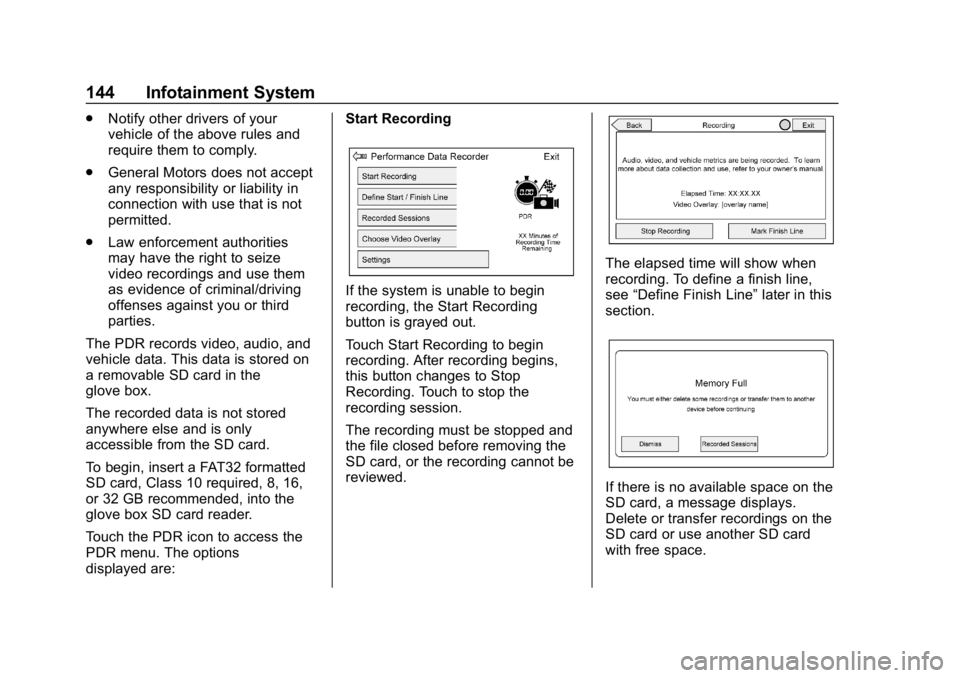
Touch the PDR icon to access the
PDR menu. The options
displayed are: Start Recording
If the system is unable to begin
recording, the Start Recording
button is grayed out.
Touch Start Recording to begin
recording. After recording begins,
this button changes to Stop
Recording. Touch to stop the
recording session.
The recording must be stopped and
the file closed before removing the
SD card, or the recording cannot be
reviewed.
The elapsed time will show when
recording. To define a finish line,
see
“Define Finish Line” later in this
section.
If there is no available space on the
SD card, a message displays.
Delete or transfer recordings on the
SD card or use another SD card
with free space.
Page 149 of 358
Chevrolet Corvette Owner Manual (GMNA-Localizing-U.S./Canada/Mexico-
11374030) - 2018 - CRC - 11/8/17
148 Infotainment System
.Throttle Position: Displays
the percentage of throttle applied
from 0–100%.
. Active Handling Active Indicator:
The graphic only displays if the
active handling systems are
activated.
Naming Convention
The recorded video file name is
stored as the recorded date and the
length of the recording.
If the recorded session was
recorded while the system was in
Valet Mode, the file name will
display the mode, date, and length
of time.
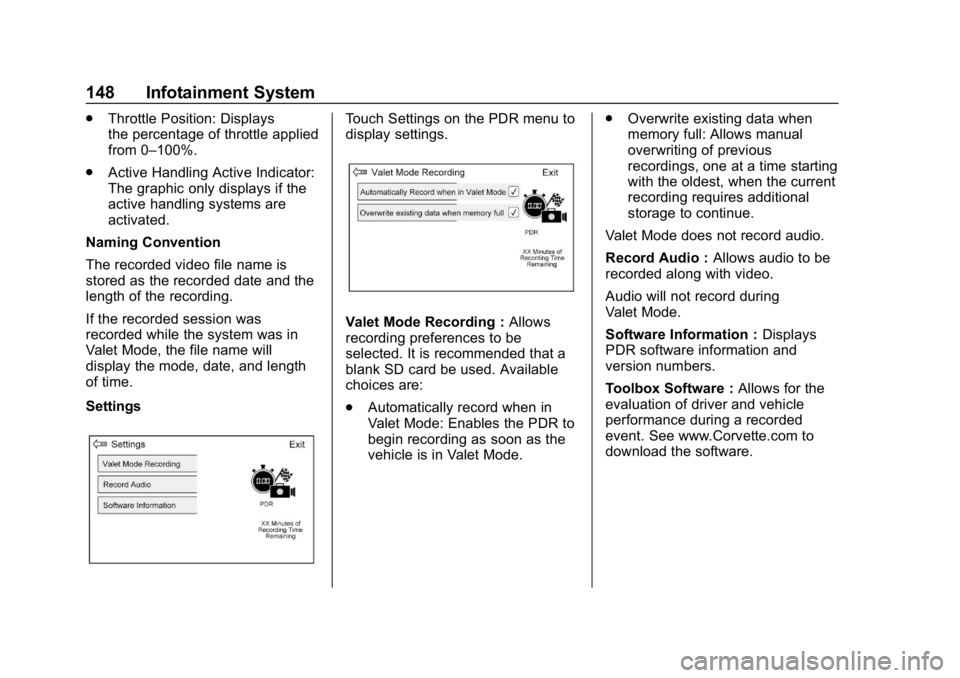
SettingsTouch Settings on the PDR menu to
display settings.
Valet Mode Recording : Allows
recording preferences to be
selected. It is recommended that a
blank SD card be used. Available
choices are:
. Automatically record when in
Valet Mode: Enables the PDR to
begin recording as soon as the
vehicle is in Valet Mode. .
Overwrite existing data when
memory full: Allows manual
overwriting of previous
recordings, one at a time starting
with the oldest, when the current
recording requires additional
storage to continue.
Valet Mode does not record audio.
Record Audio : Allows audio to be
recorded along with video.
Audio will not record during
Valet Mode.
Software Information : Displays
PDR software information and
version numbers.
Toolbox Software : Allows for the
evaluation of driver and vehicle
performance during a recorded
event. See www.Corvette.com to
download the software.
Page 181 of 358
Chevrolet Corvette Owner Manual (GMNA-Localizing-U.S./Canada/Mexico-
11374030) - 2018 - CRC - 11/8/17
180 Driving and Operating
ON/RUN/START (Green Indicator
Light) :This mode is for driving and
starting. With the ignition off, and
the brake pedal applied, pressing
the button once will place the
ignition system in ON/RUN/START.
Once engine cranking begins,
release the button. Engine cranking
will continue until the engine starts.
See Starting the Engine 0180. The
ignition will then remain in ON/RUN.
Service Mode
This power mode is available for
service and diagnostics, and to
verify the proper operation of the
malfunction indicator lamp as may
be required for emission inspection
purposes. With the vehicle off, and
the brake pedal not applied,
pressing and holding ENGINE
START/STOP for more than
five seconds will place the vehicle in
Service Mode. The instruments and
audio systems will operate as they
do in ON/RUN, but the vehicle will
not be able to be driven. The engine
will not start in Service Mode. Press
ENGINE START/STOP again to turn
the vehicle off.Starting the Engine
Place the transmission in the
proper gear.
Caution
If you add electrical parts or
accessories, you could change
the way the engine operates. Any
resulting damage would not be
covered by the vehicle warranty.
See Add-On Electrical Equipment
0 214.
Automatic Transmission
Move the shift lever to P (Park) or
N (Neutral). To restart the vehicle
when it is already moving, use
N (Neutral) only.
Caution
Do not try to shift to P (Park) if the
vehicle is moving. If you do, you
could damage the transmission.
Shift to P (Park) only when the
vehicle is stopped. Manual Transmission
The shift lever should be in Neutral
and the parking brake engaged.
Hold the clutch pedal down to the
floor and start the engine.
Starting the Vehicle
The RKE transmitter must be inside
the vehicle for the ignition to work.
Cell phone chargers can interfere
with the operation of the Keyless
Access system. Battery chargers
should not be plugged in when
starting or turning off the engine.
1. For vehicles with an automatic transmission, press the brake
pedal, then press ENGINE
START/STOP on the
instrument panel. For vehicles
with a manual transmission,
press the clutch pedal first,
then press ENGINE
START/STOP.
If there is no RKE transmitter in
the vehicle or if there is
something causing interference
Page 201 of 358
Chevrolet Corvette Owner Manual (GMNA-Localizing-U.S./Canada/Mexico-
11374030) - 2018 - CRC - 11/8/17
200 Driving and Operating
Driver Mode Selector Attributes
Affected
Instrument Cluster Display
Configures the gauge cluster
display for each mode when linked
(default):
.Tour: Modern theme which
features displays for audio and
navigation.
. Sport: Classic easy to read
Sports Car gauges.
. Track: Gauges design based on
Corvette Racing display with lap
timer.
Throttle Progression
Adjusts throttle sensitivity by
selecting how quickly or slowly the
throttle reacts to input.
Transmission Shift Mode −Paddle
Shift Automatic
. Adjusts to either a smoother or
firmer shift.
. Sport –Performance Algorithm
Liftfoot (PAL) recognizes
aggressive throttle maneuvers and holds lower gears for
greater engine braking and
enhanced vehicle control when
not using paddles. (Available in
Sport or Track Mode.)
. Track –Performance Algorithm
Shift (PAS) recognizes
aggressive cornering, heavy
braking, and high acceleration to
select and hold lower gears
when not using paddles.
Active Fuel Management (engine
cylinder shuts off)
4-Cylinder Mode
. Normal with automatic
transmission: The engine uses
8-cylinder mode when
accelerating, but changes to
4-cylinder mode when coasting.
. With manual transmission:
Active Fuel Management only
active in Eco Mode.
. Off in Manual Mode with
automatic transmission unless in
Eco Mode. .
Eco keeps the engine in
4-cylinder mode unless heavy
acceleration is needed.
Exhaust (variable mode exhaust
system)
Changes when the variable exhaust
valves open.
Steering (Assist Effort)
Adjusts from a lighter steering feel
to reduced assist for more
steering feel.
Magnetic Ride Control (if
equipped)
Adjusts the shock dampening
firmness based on driving
conditions to improve comfort and
performance.
Launch Control
Available only in Track Mode for
maximum “off-the-line” acceleration
when in Competitive or PTM modes.
Page 342 of 358
Chevrolet Corvette Owner Manual (GMNA-Localizing-U.S./Canada/Mexico-
11374030) - 2018 - CRC - 11/8/17
OnStar 341
.Proactive Alerts: Receive a
real-time e-mail or text message
regarding potential issues with
key vehicle components, such
as the battery, fuel system,
or starter system. Alerts for
potential issues appear on the
infotainment display. Proactive
Alerts are designed to help
predict specific types of issues
based on information collected
from the vehicle. Other factors
may affect vehicle performance.
Not all issues will deliver alerts.
In some cases, a dealer service
check may be required to
confirm the accuracy of the
alerts.
. Dealer Maintenance Notification:
Have the vehicle notify your
preferred dealer when it is time
for maintenance. Your dealer will
then contact you to set up an
appointment.
To begin, press
|to speak to an
Advisor, or see www.onstar.com.
OnStar Additional
Information
OnStar Smart Driver
OnStar Smart Driver provides
information about driving behavior to
help maximize overall vehicle
performance, reduce wear and tear,
and enhance fuel efficiency. An
Insurance Discounts Eligibility
feature is also offered within OnStar
Smart Driver. See www.onstar.com
for details regarding vehicle
eligibility and system limitations.
OnStar, General Motors, and their
affiliates are not insurance
providers. Obtain insurance only
from licensed insurance providers.
In-Vehicle Audio Messages
Audio messages may play important
information at the following times:
. Prior to vehicle purchase. Press
|to set up an account.
. With the OnStar Basic Plan,
every 60 days. .
After change in ownership and
at 90 days.
Transferring Service
Press|to request account transfer
eligibility information. The Advisor
can cancel or change account
information.
Selling/Transferring the
Vehicle
Call 1-888-4ONSTAR
(1-888-466-7827) immediately to
terminate your OnStar services if
the vehicle is disposed of, sold,
transferred, or if the lease ends.
Reactivation for Subsequent
Owners
Press|and follow the prompts to
speak to an Advisor as soon as
possible. The Advisor will update
vehicle records and explain OnStar
service options.
How OnStar Service Works
Automatic Crash Response,
Emergency Services, Crisis Assist,
Stolen Vehicle Assistance,