lock CHEVROLET EQUINOX 2010 2.G Owner's Guide
[x] Cancel search | Manufacturer: CHEVROLET, Model Year: 2010, Model line: EQUINOX, Model: CHEVROLET EQUINOX 2010 2.GPages: 394, PDF Size: 5.7 MB
Page 87 of 394
Instruments and Controls 4-1
Instruments and
Controls
Instrument Panel Overview
Instrument Panel Overview . . . . 4-4
Controls
Steering Wheel Adjustment . . . 4-6
Steering Wheel Controls . . . . . . 4-6
Horn . . . . . . . . . . . . . . . . . . . . . . . . . . 4-7
Windshield Wiper/Washer . . . . . 4-7
Rear Window Wiper/Washer . . . . . . . . . . . . . . . . . . . . . . 4-8
Compass . . . . . . . . . . . . . . . . . . . . . 4-8
Clock (With Date Display) . . . . . 4-9
Clock (Without Date Display) . . . . . . . . . . . . . . . . . . . . 4-10
Power Outlets . . . . . . . . . . . . . . . 4-10
Warning Lights, Gauges, and
Indicators
Warning Lights, Gauges, and Indicators . . . . . . . . . . . . . . . . . . . 4-11
Instrument Cluster . . . . . . . . . . . 4-12
Speedometer . . . . . . . . . . . . . . . . 4-13
Odometer . . . . . . . . . . . . . . . . . . . . 4-13
Tachometer . . . . . . . . . . . . . . . . . . 4-13
Fuel Gauge . . . . . . . . . . . . . . . . . . 4-13
Engine Coolant Temperature Gauge . . . . . . . . . . . . . . . . . . . . . . 4-14
Safety Belt Reminders . . . . . . . 4-14
Airbag Readiness Light . . . . . . 4-15
Passenger Airbag Status Indicator . . . . . . . . . . . . . . . . . . . . 4-15
Charging System Light . . . . . . 4-16
Malfunction Indicator Lamp . . . . . . . . . . . . . 4-16
Brake System Warning Light . . . . . . . . . . . . . . . . . . . . . . . 4-19 Antilock Brake System (ABS)
Warning Light . . . . . . . . . . . . . . 4-20
Traction Off Light . . . . . . . . . . . . 4-20
StabiliTrak®OFF Light . . . . . . . 4-20
Traction Control System
(TCS)/StabiliTrak
®Light . . . . 4-21
Tire Pressure Light . . . . . . . . . . 4-21
Engine Oil Pressure Light . . . . 4-22
Fuel Economy Light . . . . . . . . . 4-22
Low Fuel Warning Light . . . . . . 4-22
Security Light . . . . . . . . . . . . . . . . 4-23
High-Beam on Light . . . . . . . . . 4-23
Fog Lamp Light . . . . . . . . . . . . . . 4-23
Lamps on Reminder . . . . . . . . . 4-23
Cruise Control Light . . . . . . . . . 4-24
Information Displays
Driver Information Center (DIC) . . . . . . . . . . . . . . . 4-24
Page 88 of 394
4-2 Instruments and Controls
Vehicle Messages
Vehicle Messages . . . . . . . . . . . 4-27
Battery Voltage and ChargingMessages . . . . . . . . . . . . . . . . . . 4-28
Brake System Messages . . . . 4-28
Compass Messages . . . . . . . . . 4-28
Cruise Control Messages . . . . 4-28
Door Ajar Messages . . . . . . . . . 4-29
Engine Cooling System Messages . . . . . . . . . . . . . . . . . . 4-29
Engine Oil Messages . . . . . . . . 4-30
Engine Power Messages . . . . 4-30
Fuel System Messages . . . . . . 4-30
Key and Lock Messages . . . . . 4-31 Object Detection System
Messages . . . . . . . . . . . . . . . . . . 4-31
Ride Control System Messages . . . . . . . . . . . . . . . . . . 4-31
Airbag System Messages . . . . 4-32
Safety Belt Messages . . . . . . . 4-32
Anti-Theft Alarm System
Messages . . . . . . . . . . . . . . . . . . 4-32
Service Vehicle Messages . . . 4-32
Tire Messages . . . . . . . . . . . . . . . 4-33
Transmission Messages . . . . . 4-33
Vehicle Reminder Messages . . . . . . . . . . . . . . . . . . 4-34
Vehicle Personalization
Vehicle Personalization . . . . . . 4-34
OnStar®System
OnStar®System . . . . . . . . . . . . . 4-39
Page 91 of 394

Instruments and Controls 4-5
A.Air Vents on page 7‑6.
B. Turn and Lane-Change Signals
on page 5‑3.Exterior Lamp
Controlson page 5‑1. Fog
Lampson page 5‑3(If
Equipped).
C. Instrument Cluster
on
page 4‑12.
D. Windshield Wiper/Washer
on
page 4‑7. Rear Window
Wiper/Washer on page 4‑8.
E. Power Door Locks
on
page 1‑7.
F. Instrument Panel Storage
on
page 3‑1.
G. Safety Locks on page 1‑7. H.
AM-FM Radio
on page 6‑11.
Navigation System (If
Equipped). See Navigation
System Manual.
I. Cruise Control
on page 8‑44.
J. Instrument Panel Illumination
Control
on page 5‑4.
K. Steering Wheel Adjustment
on
page 4‑6.
L. Horn on page 4‑7.
M. Steering Wheel Controls
on
page 4‑6.
N. Ignition Positions on page 8‑28.
O. Climate Control Systems
on
page 7‑1or Automatic Climate
Control System on page 7‑3. P. Shift Lever. See
Shifting Into
Park on page 8‑32.
Q. Fuel Economy Mode
on
page 8‑37(If Equipped).
R. StabiliTrak System
on
page 8‑43.
S. Cupholders on page 3‑1.
T. Power Outlets on page 4‑10.
U. CD Player on page 6‑19.
V. Driver Information Center Buttons. See Driver Information
Center (DIC) on page 4‑24.
W. Hazard Warning Flashers
on
page 5‑2.
X. Glove Box on page 3‑1.
Page 92 of 394
4-6 Instruments and Controls
Controls
Steering Wheel
Adjustment
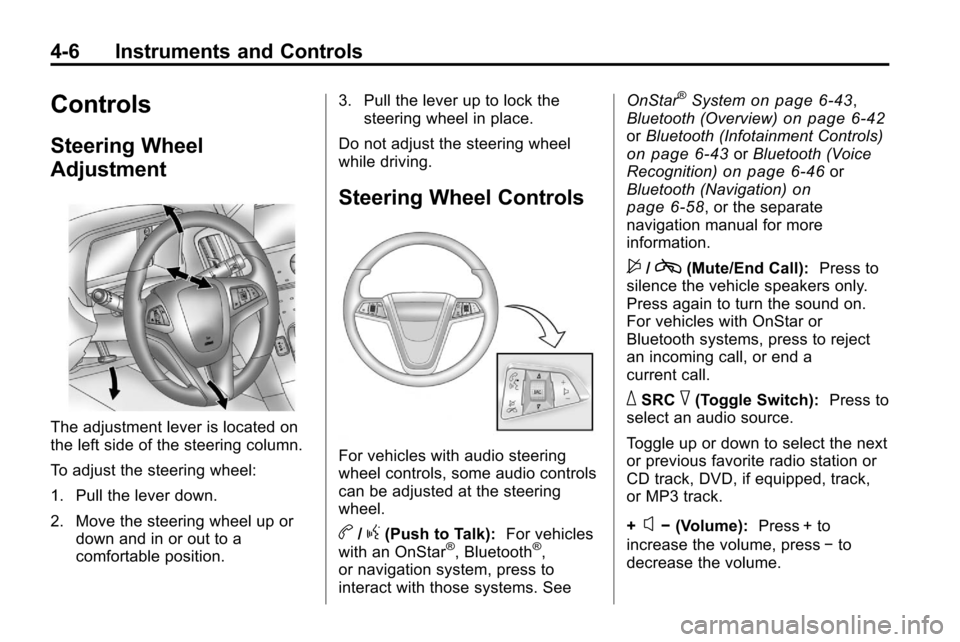
The adjustment lever is located on
the left side of the steering column.
To adjust the steering wheel:
1. Pull the lever down.
2. Move the steering wheel up ordown and in or out to a
comfortable position. 3. Pull the lever up to lock the
steering wheel in place.
Do not adjust the steering wheel
while driving.
Steering Wheel Controls
For vehicles with audio steering
wheel controls, some audio controls
can be adjusted at the steering
wheel.
b/g(Push to Talk): For vehicles
with an OnStar®, Bluetooth®,
or navigation system, press to
interact with those systems. See OnStar
®Systemon page 6‑43,
Bluetooth (Overview)on page 6‑42or Bluetooth (Infotainment Controls)on page 6‑43orBluetooth (Voice
Recognition)on page 6‑46or
Bluetooth (Navigation)on
page 6‑58, or the separate
navigation manual for more
information.
$/c(Mute/End Call): Press to
silence the vehicle speakers only.
Press again to turn the sound on.
For vehicles with OnStar or
Bluetooth systems, press to reject
an incoming call, or end a
current call.
_SRC^(Toggle Switch): Press to
select an audio source.
Toggle up or down to select the next
or previous favorite radio station or
CD track, DVD, if equipped, track,
or MP3 track.
+
x− (Volume): Press + to
increase the volume, press −to
decrease the volume.
Page 93 of 394
Instruments and Controls 4-7
Horn
Press near the horn symbols or
press on the steering wheel pad to
sound the horn.
Windshield Wiper/Washer
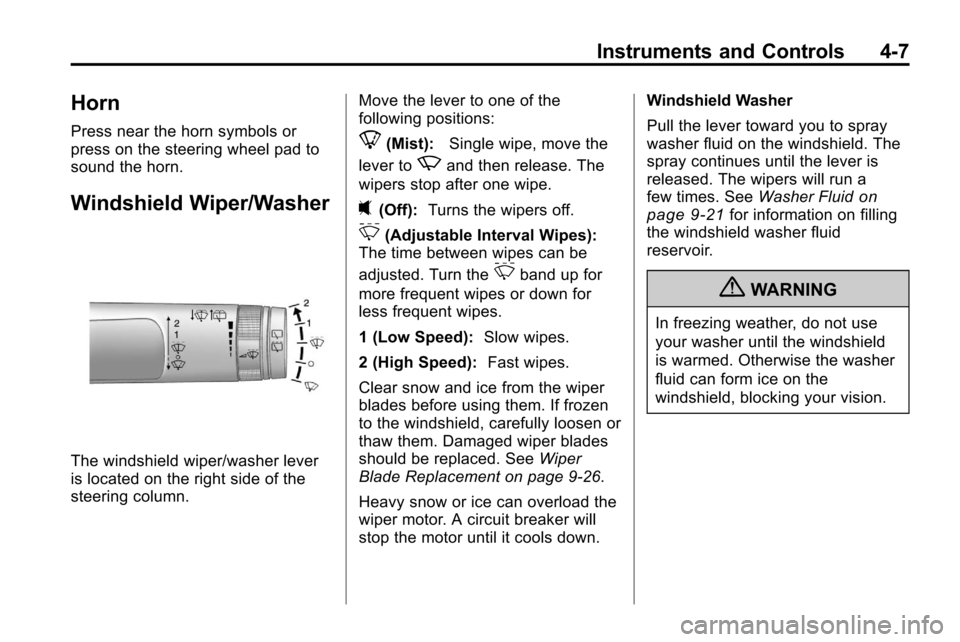
The windshield wiper/washer lever
is located on the right side of the
steering column.Move the lever to one of the
following positions:
8(Mist):
Single wipe, move the
lever to
zand then release. The
wipers stop after one wipe.
((Off): Turns the wipers off.
&(Adjustable Interval Wipes):
The time between wipes can be
adjusted. Turn the
&band up for
more frequent wipes or down for
less frequent wipes.
1 (Low Speed): Slow wipes.
2 (High Speed): Fast wipes.
Clear snow and ice from the wiper
blades before using them. If frozen
to the windshield, carefully loosen or
thaw them. Damaged wiper blades
should be replaced. See Wiper
Blade Replacement on page 9‑26.
Heavy snow or ice can overload the
wiper motor. A circuit breaker will
stop the motor until it cools down. Windshield Washer
Pull the lever toward you to spray
washer fluid on the windshield. The
spray continues until the lever is
released. The wipers will run a
few times. See
Washer Fluid
on
page 9‑21for information on filling
the windshield washer fluid
reservoir.
{WARNING
In freezing weather, do not use
your washer until the windshield
is warmed. Otherwise the washer
fluid can form ice on the
windshield, blocking your vision.
Page 94 of 394
4-8 Instruments and Controls
Rear Window Wiper/
Washer
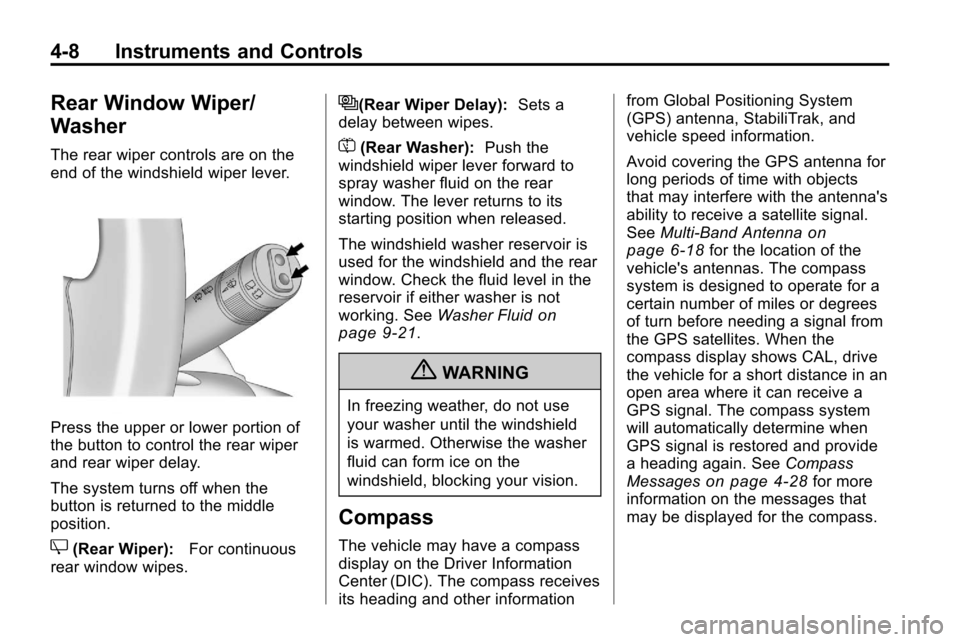
The rear wiper controls are on the
end of the windshield wiper lever.
Press the upper or lower portion of
the button to control the rear wiper
and rear wiper delay.
The system turns off when the
button is returned to the middle
position.
Z(Rear Wiper):For continuous
rear window wipes.
5(Rear Wiper Delay): Sets a
delay between wipes.
=(Rear Washer): Push the
windshield wiper lever forward to
spray washer fluid on the rear
window. The lever returns to its
starting position when released.
The windshield washer reservoir is
used for the windshield and the rear
window. Check the fluid level in the
reservoir if either washer is not
working. See Washer Fluid
on
page 9‑21.
{WARNING
In freezing weather, do not use
your washer until the windshield
is warmed. Otherwise the washer
fluid can form ice on the
windshield, blocking your vision.
Compass
The vehicle may have a compass
display on the Driver Information
Center (DIC). The compass receives
its heading and other information from Global Positioning System
(GPS) antenna, StabiliTrak, and
vehicle speed information.
Avoid covering the GPS antenna for
long periods of time with objects
that may interfere with the antenna's
ability to receive a satellite signal.
See
Multi-Band Antenna
on
page 6‑18for the location of the
vehicle's antennas. The compass
system is designed to operate for a
certain number of miles or degrees
of turn before needing a signal from
the GPS satellites. When the
compass display shows CAL, drive
the vehicle for a short distance in an
open area where it can receive a
GPS signal. The compass system
will automatically determine when
GPS signal is restored and provide
a heading again. See Compass
Messages
on page 4‑28for more
information on the messages that
may be displayed for the compass.
Page 95 of 394
Instruments and Controls 4-9
Clock (With Date Display)
The infotainment system controls,
located on the instrument panel, are
used to access the time and date
settings through the menu system.
SeeOperation
on page 6‑7for
information about how to use the
menu system.
Setting the Time and Date
1. Turn the infotainment system ON.
2. Press the CONFIG button and select Time and Date Settings.
3. Select Set Time or Set Date.
4. Turn the MENU/SEL knob to adjust the highlighted value.
5. Press the MENU/SEL knob to select the next value. 6. To save the time or date and
return to the Time and Date
Settings menu, press the
0
BACK button at any time or
press the MENU/SEL knob after
adjusting the minutes or year.
Setting the 12/24 Hour Format
1. Turn the infotainment
system ON.
2. Press the CONFIG button and select Time and Date Settings.
3. Highlight 12/24 Hour Format.
4. Press the MENU/SEL knob to select the 12 hour or 24 hour
display format.
Setting the Month & Day
Format
1. Turn the infotainment
system ON.
2. Press the CONFIG button and select Time and Date Settings. 3. Highlight Month & Day Format.
4. Press the MENU/SEL knob to
select MM/DD (month/day) or
DD/MM (day/month).
Setting the Auto Time Adjust
1. Turn the infotainmentsystem ON.
2. Press the CONFIG button and select Time and Date Settings.
3. Highlight Auto Time Adjust.
4. Press the MENU/SEL knob to turn Auto Time Adjust on or off.
5. Press the MENU/SEL knob to select Time Zone, and then
select the Time Zone.
6. Press the MENU/SEL knob to turn Daylight Savings on or off.
Page 96 of 394
4-10 Instruments and Controls
Clock (Without Date
Display)
The infotainment system controls,
located on the instrument panel, are
used to access the time and date
settings through the menu system.
SeeOperation
on page 6‑7for
information about how to use the
menu system.
Setting the Time
1. Turn the infotainment system ON.
2. Press the CONFIG button and select Time Settings, or press
the
Hbutton.
3. Select Set Time.
4. Turn the MENU/SEL knob to adjust the highlighted value.
5. Press the MENU/SEL knob to select the next value. 6. To save the time and return to
the Time Settings menu, press
the
0BACK button at any time
or press the SELECT button
after adjusting the minutes.
Setting the 12/24 Hour Format
1. Turn the infotainment system ON.
2. Press the CONFIG button and select Time Settings, or press
the
Hbutton.
3. Highlight 12/24 Hour Format.
4. Press the MENU/SEL knob to select the 12 hour or 24 hour
display format.
Power Outlets
The accessory power outlets can
be used to connect electrical
equipment, such as a cellular
phone.
There are four accessory power
outlets in the following locations,
below the CD slot, inside the center console storage, on the rear of the
center console storage, and in the
rear cargo compartment.
To use the outlets, remove the
cover. Close the outlet cover, when
not in use.
Notice:
If electrical devices are
left plugged into a power outlet,
the battery may drain causing the
vehicle not to start or damage to
the battery. This would not be
covered by the vehicle warranty.
Always unplug all electrical
devices when turning off the
vehicle.
Certain electrical accessories
may not be compatible with the
accessory power outlets and could
result in blown vehicle or adapter
fuses. If you experience a problem,
see your dealer for additional
information on the accessory power
outlet.
Page 102 of 394
4-16 Instruments and Controls
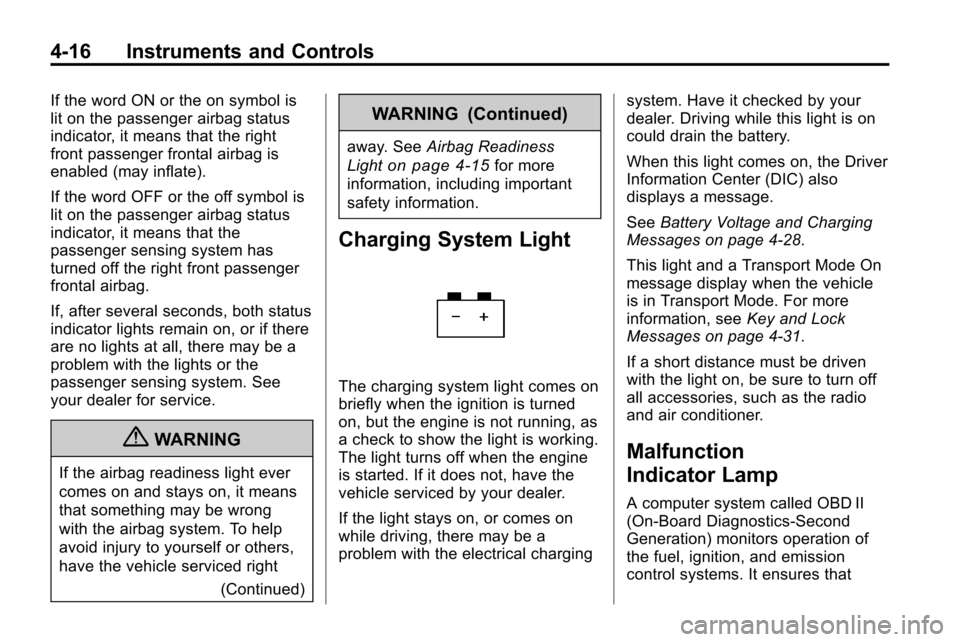
If the word ON or the on symbol is
lit on the passenger airbag status
indicator, it means that the right
front passenger frontal airbag is
enabled (may inflate).
If the word OFF or the off symbol is
lit on the passenger airbag status
indicator, it means that the
passenger sensing system has
turned off the right front passenger
frontal airbag.
If, after several seconds, both status
indicator lights remain on, or if there
are no lights at all, there may be a
problem with the lights or the
passenger sensing system. See
your dealer for service.
{WARNING
If the airbag readiness light ever
comes on and stays on, it means
that something may be wrong
with the airbag system. To help
avoid injury to yourself or others,
have the vehicle serviced right(Continued)
WARNING (Continued)
away. SeeAirbag Readiness
Light
on page 4‑15for more
information, including important
safety information.
Charging System Light
The charging system light comes on
briefly when the ignition is turned
on, but the engine is not running, as
a check to show the light is working.
The light turns off when the engine
is started. If it does not, have the
vehicle serviced by your dealer.
If the light stays on, or comes on
while driving, there may be a
problem with the electrical charging system. Have it checked by your
dealer. Driving while this light is on
could drain the battery.
When this light comes on, the Driver
Information Center (DIC) also
displays a message.
See
Battery Voltage and Charging
Messages on page 4‑28.
This light and a Transport Mode On
message display when the vehicle
is in Transport Mode. For more
information, see Key and Lock
Messages on page 4‑31.
If a short distance must be driven
with the light on, be sure to turn off
all accessories, such as the radio
and air conditioner.
Malfunction
Indicator Lamp
A computer system called OBD II
(On-Board Diagnostics-Second
Generation) monitors operation of
the fuel, ignition, and emission
control systems. It ensures that
Page 106 of 394
4-20 Instruments and Controls
Antilock Brake System
(ABS) Warning Light
For vehicles with the Antilock Brake
System (ABS), this light comes on
briefly when the engine is started.
If the light does not come on, have it
fixed so it will be ready to warn if
there is a problem.
If the ABS light stays on, turn the
ignition off. If the light comes on
while driving, stop as soon as it is
safely possible and turn the ignition
off. A chime may also sound when
the light comes on steady. Then
start the engine again to reset the
system. If the ABS light stays on,
or comes on again while driving, the
vehicle needs service. If the regular
brake system warning light is not
on, the vehicle still has brakes, butnot antilock brakes. If the regular
brake system warning light is also
on, the vehicle does not have
antilock brakes and there is a
problem with the regular brakes.
See
Brake System Warning Light
on page 4‑19.
For vehicles with a Driver
Information Center (DIC), see Driver
Information Center (DIC)
on
page 4‑24for all brake related DIC
messages.
Traction Off Light
This light comes on if the Traction
Control System (TCS) either has a
problem or is turned off. DIC
messages appear in the DIC display
to help explain. See Ride Control
System Messages
on page 4‑31for more information. See
Traction Control System (TCS)
on page 8‑41andStabiliTrak
Systemon page 8‑43for more
information.
StabiliTrak®OFF Light
This light comes on when the
StabiliTrak system is turned off.
If the Traction Control System (TCS)
is off, wheel spin is not limited. If the
StabiliTrak system is off, the system
does not assist in controlling the
vehicle. Turn on the TCS and the
StabiliTrak system and the warning
light turns off.
Check the DIC for applicable
messages. See Ride Control
System Messages
on page 4‑31for more information.