radio controls CHEVROLET EQUINOX 2018 User Guide
[x] Cancel search | Manufacturer: CHEVROLET, Model Year: 2018, Model line: EQUINOX, Model: CHEVROLET EQUINOX 2018Pages: 428, PDF Size: 6.05 MB
Page 148 of 428
Chevrolet Equinox Owner Manual (GMNA-Localizing-U.S./Canada/Mexico-
10446639) - 2018 - CRC - 8/18/17
Instruments and Controls 147
Manage Favorites
This allows favorites to be edited.
See“Manage Favorites” in
“Settings” under“Radio” in the
infotainment manual.
Number of Favorites Shown
Touch to set the number of favorites
to display.
Select the desired number or select
Auto and the infotainment system
will automatically adjust the number
of favorites shown.
Audible Touch Feedback
This allows Audible Touch
Feedback to be turned on or off.
Select Off or On.
Text Scroll
Select to see text scroll on the
screen.
Select Off or On. Tone Settings
Select to adjust the radio tone. See
Operation
0168 or“Tone Settings”
under “AM-FM Radio” in the
infotainment manual.
Auto Volume
This feature adjusts the volume
based on the vehicle speed.
Select Off, Low, Medium-Low,
Medium, Medium-High, or High.
Maximum Startup Volume
This feature sets the maximum
startup volume. If the vehicle is
started and the volume is greater
than this level, the volume is
adjusted to this level.
To set the maximum startup volume,
touch + or −to increase or
decrease.
Vehicle
Select and the following may
display:
. Climate and Air Quality
. Collision/Detection Systems .
Comfort and Convenience
. Lighting
. Power Door Locks
. Remote Lock, Unlock, Start
Climate and Air Quality
Select and the following may
display:
.Auto Fan Speed
. Auto Defog
. Auto Rear Defog
Auto Fan Speed
This feature will set the auto fan
speed.
Select Low, Medium, or High.
Auto Defog
When set to On, the front defog will
automatically react to temperature
and humidity conditions that may
cause fogging.
Select Off or On.
Page 153 of 428
Chevrolet Equinox Owner Manual (GMNA-Localizing-U.S./Canada/Mexico-
10446639) - 2018 - CRC - 8/18/17
152 Instruments and Controls
Manage Apple CarPlay Devices
Select to manage Apple devices.
Apple CarPlay must be on for this
feature to be accessed.
Android Auto
Select and the following may
display:
.Android Auto
. Manage Android Auto Devices
Android Auto
This feature allows Android devices
to be connected to the infotainment
system through a USB port.
Select Off or On.
Manage Android Auto Devices
Select to manage Android devices.
Android Auto must be on for this
feature to be accessed.
USB Auto Launch
This allows Android and Apple
CarPlay devices to automatically
connect when plugged into the
USB port.
Select Off or On.
Voice
Select and the following may
display:
. Confidence Threshold
. Prompt Length
. Audio Feedback Speed
. Display “What Can I Say?” Tips
Confidence Threshold
This feature allows the adjustment
of the sensitivity of the speech
recognition system.
Select Confirm More or
Confirm Less.
Prompt Length
This feature adjusts the voice
prompt length.
Select Short or Long.
Audio Feedback Speed
This feature adjusts the audio
feedback speed.
Select Slow, Medium, or Fast. Display
“What Can I Say?” Tips
This feature gives voice
command tips.
Select Off or On.
Display
Select and the following may
display:
. Mode
. Calibrate Touchscreen
. Turn Display Off
Mode
Select to change the infotainment
display for day or night driving.
Select Auto, Day, or Night.
Calibrate Touchscreen
Select to calibrate the touchscreen,
then follow the prompts.
Turn Display Off
Select to turn the display off. Touch
anywhere on the infotainment
display area or press any controls
on the radio center stack to turn the
display on.
Page 154 of 428
Chevrolet Equinox Owner Manual (GMNA-Localizing-U.S./Canada/Mexico-
10446639) - 2018 - CRC - 8/18/17
Instruments and Controls 153
Rear Camera
Select and the following may
display:
.Guidance Lines
. Rear Park Assist Symbols
Guidance Lines
Select to turn Off or On. See
Assistance Systems for Parking or
Backing 0245.
Rear Park Assist Symbols
Select to turn Off or On. See
Assistance Systems for Parking or
Backing 0245.
Return to Factory Settings
Select and the following may
display:
.
Restore Vehicle Settings
. Clear All Private Data
. Restore Radio Settings Restore Vehicle Settings
This allows selection of restoring
vehicle settings.
Select Restore or Cancel.
Clear All Private Data
This allows selection to clear all
private information from the vehicle.
Select Delete or Cancel.
Restore Radio Settings
This allows selection to restore
radio settings.
Select Restore or Cancel.
Software Information
Touch to view or update the version
of the infotainment system software.
Wi-Fi
Select and the following may
display:
.
Wi-Fi
. Manage Wi-Fi Networks
Wi-Fi
This feature allows Wi-Fi networks
to be turned off or on.
Select Off or On.
Manage Wi-Fi Networks
Select to manage Wi-Fi networks.
Wi-Fi must be on for this feature to
be accessed.
Page 155 of 428
Chevrolet Equinox Owner Manual (GMNA-Localizing-U.S./Canada/Mexico-
10446639) - 2018 - CRC - 8/18/17
154 Instruments and Controls
Universal Remote
System
SeeRadio Frequency Statement
0 399.
Universal Remote System
Programming
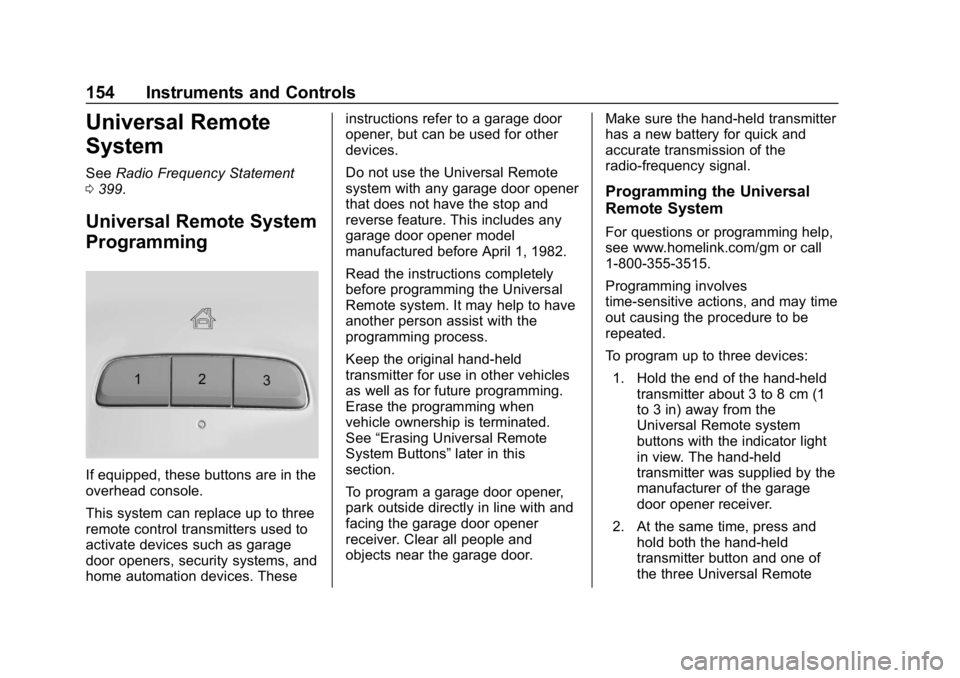
If equipped, these buttons are in the
overhead console.
This system can replace up to three
remote control transmitters used to
activate devices such as garage
door openers, security systems, and
home automation devices. These instructions refer to a garage door
opener, but can be used for other
devices.
Do not use the Universal Remote
system with any garage door opener
that does not have the stop and
reverse feature. This includes any
garage door opener model
manufactured before April 1, 1982.
Read the instructions completely
before programming the Universal
Remote system. It may help to have
another person assist with the
programming process.
Keep the original hand-held
transmitter for use in other vehicles
as well as for future programming.
Erase the programming when
vehicle ownership is terminated.
See
“Erasing Universal Remote
System Buttons” later in this
section.
To program a garage door opener,
park outside directly in line with and
facing the garage door opener
receiver. Clear all people and
objects near the garage door. Make sure the hand-held transmitter
has a new battery for quick and
accurate transmission of the
radio-frequency signal.
Programming the Universal
Remote System
For questions or programming help,
see www.homelink.com/gm or call
1-800-355-3515.
Programming involves
time-sensitive actions, and may time
out causing the procedure to be
repeated.
To program up to three devices:
1. Hold the end of the hand-held transmitter about 3 to 8 cm (1
to 3 in) away from the
Universal Remote system
buttons with the indicator light
in view. The hand-held
transmitter was supplied by the
manufacturer of the garage
door opener receiver.
2. At the same time, press and hold both the hand-held
transmitter button and one of
the three Universal Remote
Page 156 of 428
Chevrolet Equinox Owner Manual (GMNA-Localizing-U.S./Canada/Mexico-
10446639) - 2018 - CRC - 8/18/17
Instruments and Controls 155
system buttons to be used to
operate the garage door. Do
not release either button until
the indicator light goes from a
slow to a rapid flashing light.
Then release both buttons.
Some garage door openers
may require substitution of
Step 2 with the procedure
under“Radio Signals for
Canada and Some Gate
Operators” later in this section.
3. Press and hold the newly programmed Universal Remote
system button for five seconds
while watching the indicator
light and garage door
activation.
.If the indicator light stays on
continuously or the garage
door moves when the
button is pressed, then
programming is complete.
There is no need to
complete Steps 4–6.
. If the indicator light does
not come on or the garage
door does not move, a second button press may
be required. For a second
time, press and hold the
newly programmed button
for five seconds. If the light
stays on or the garage door
moves, programming is
complete.
. If the indicator light blinks
rapidly for two seconds,
then changes to a solid light
and the garage door does
not move, continue with
programming Steps 4–6.
Learn or Smart Button
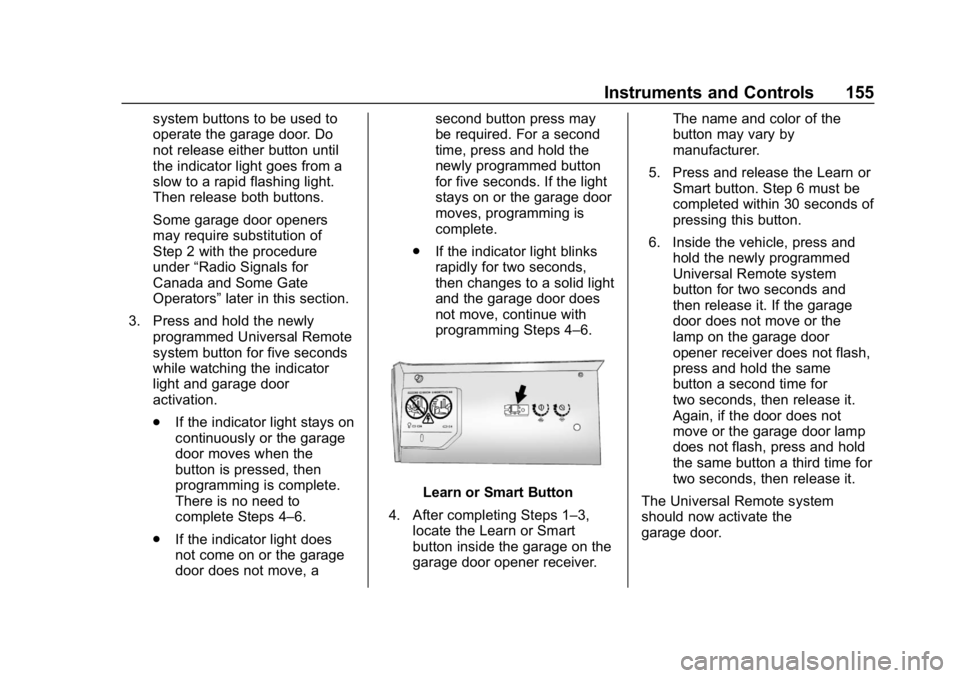
4. After completing Steps 1–3, locate the Learn or Smart
button inside the garage on the
garage door opener receiver. The name and color of the
button may vary by
manufacturer.
5. Press and release the Learn or Smart button. Step 6 must be
completed within 30 seconds of
pressing this button.
6. Inside the vehicle, press and hold the newly programmed
Universal Remote system
button for two seconds and
then release it. If the garage
door does not move or the
lamp on the garage door
opener receiver does not flash,
press and hold the same
button a second time for
two seconds, then release it.
Again, if the door does not
move or the garage door lamp
does not flash, press and hold
the same button a third time for
two seconds, then release it.
The Universal Remote system
should now activate the
garage door.
Page 157 of 428
Chevrolet Equinox Owner Manual (GMNA-Localizing-U.S./Canada/Mexico-
10446639) - 2018 - CRC - 8/18/17
156 Instruments and Controls
Repeat the process for
programming the two remaining
buttons.
Radio Signals for Canada and
Some Gate Operators
For questions or programming help,
see www.homelink.com/gm or call
1-800-355-3515.
Canadian radio-frequency laws and
some U.S. gate operators require
transmitter signals to time out or quit
after several seconds of
transmission. This may not be long
enough for the Universal Remote
system to pick up the signal during
programming.
If the programming did not work,
replace Step 2 under“Programming
the Universal Remote System” with
the following:
Press and hold the Universal
Remote system button while
pressing and releasing the
hand-held transmitter button every
two seconds until the signal has
been successfully accepted by the
Universal Remote system. The
Universal Remote system indicator light will flash slowly at first and then
rapidly. Proceed with Step 3 under
“Programming the Universal Remote
System”
to complete.
Universal Remote System
Operation
Using the Universal Remote
System
Press and hold the appropriate
Universal Remote system button for
at least one-half second. The
indicator light will come on while the
signal is being transmitted.
Erasing Universal Remote
System Buttons
Erase all programmed buttons when
vehicle ownership is terminated.
To erase:
1. Press and hold the two outside buttons until the indicator light
begins to flash. This should
take about 10 seconds.
2. Release both buttons.
Reprogramming a Single
Universal Remote System
Button
To reprogram any of the system
buttons: 1. Press and hold any one of the buttons. Do not release the
button.
2. The indicator light will begin to flash after 20 seconds. Without
releasing the button, proceed
with Step 1 under
“Programming the Universal
Remote System.”
Page 166 of 428
Chevrolet Equinox Owner Manual (GMNA-Localizing-U.S./Canada/Mexico-
10446639) - 2018 - CRC - 8/18/17
Infotainment System 165
Infotainment
System
Introduction
Infotainment . . . . . . . . . . . . . . . . . . 165
Theft-Deterrent Feature . . . . . . 166
Overview . . . . . . . . . . . . . . . . . . . . . 167
Home Page . . . . . . . . . . . . . . . . . . 168
Operation . . . . . . . . . . . . . . . . . . . . . 168
Software Updates . . . . . . . . . . . . 169
Radio
AM-FM Radio . . . . . . . . . . . . . . . . 170
Satellite Radio . . . . . . . . . . . . . . . . 171
Radio Reception . . . . . . . . . . . . . . 172
Multi-Band Antenna . . . . . . . . . . 173
Audio Players
Avoiding Untrusted MediaDevices . . . . . . . . . . . . . . . . . . . . . 173
USB Port . . . . . . . . . . . . . . . . . . . . . 173
Auxiliary Devices . . . . . . . . . . . . . 179
Phone
Bluetooth (Overview) . . . . . . . . . 180
Bluetooth (Infotainment Controls) . . . . . . . . . . . . . . . . . . . . 181
Apple CarPlay and Android Auto . . . . . . . . . . . . . . . . 185
Hands-Free Phone . . . . . . . . . . . 186
Trademarks and License
Agreements
Trademarks and License Agreements . . . . . . . . . . . . . . . . . 188
Introduction
Infotainment
Base radio information is included in
this manual. See the infotainment
manual for information on other
available infotainment systems.
Read the following pages to
become familiar with the features.
{Warning
Taking your eyes off the road for
too long or too often while using
any infotainment feature can
cause a crash. You or others
could be injured or killed. Do not
give extended attention to
infotainment tasks while driving.
Limit your glances at the vehicle
displays and focus your attention
on driving. Use voice commands
whenever possible.
Page 169 of 428
Chevrolet Equinox Owner Manual (GMNA-Localizing-U.S./Canada/Mexico-
10446639) - 2018 - CRC - 8/18/17
168 Infotainment System
4.d
.Radio: Press and release to
go to the next station or
channel. Press and hold to
fast seek the next track or
strongest station or
channel.
. USB/Music/Pictures: Press
to go to the next content.
Press and hold to fast
forward.
5.
5
. Press and release to
access the phone screen,
answer an incoming call,
or access the device home
screen.
Home Page
Touchscreen Controls
Touchscreen controls show on the
screen when available. When a
function is unavailable, the icon may
gray out. When a function is
selected, the icon may highlight.
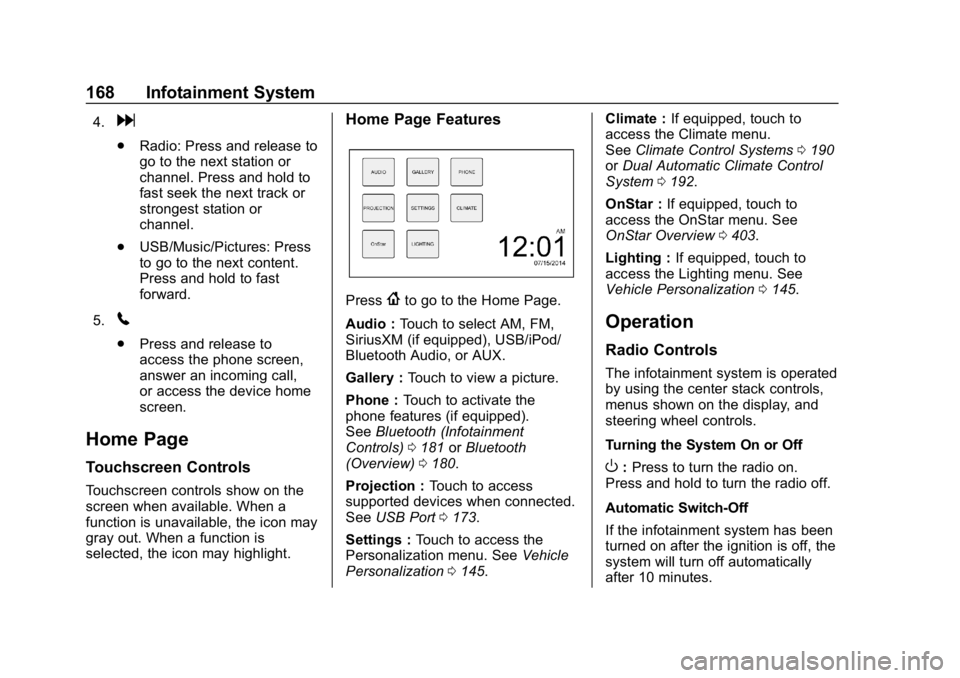
Home Page Features
Press{to go to the Home Page.
Audio : Touch to select AM, FM,
SiriusXM (if equipped), USB/iPod/
Bluetooth Audio, or AUX.
Gallery : Touch to view a picture.
Phone : Touch to activate the
phone features (if equipped).
See Bluetooth (Infotainment
Controls) 0181 orBluetooth
(Overview) 0180.
Projection : Touch to access
supported devices when connected.
See USB Port 0173.
Settings : Touch to access the
Personalization menu. See Vehicle
Personalization 0145. Climate :
If equipped, touch to
access the Climate menu.
See Climate Control Systems 0190
or Dual Automatic Climate Control
System 0192.
OnStar : If equipped, touch to
access the OnStar menu. See
OnStar Overview 0403.
Lighting : If equipped, touch to
access the Lighting menu. See
Vehicle Personalization 0145.
Operation
Radio Controls
The infotainment system is operated
by using the center stack controls,
menus shown on the display, and
steering wheel controls.
Turning the System On or Off
O:Press to turn the radio on.
Press and hold to turn the radio off.
Automatic Switch-Off
If the infotainment system has been
turned on after the ignition is off, the
system will turn off automatically
after 10 minutes.
Page 178 of 428
Chevrolet Equinox Owner Manual (GMNA-Localizing-U.S./Canada/Mexico-
10446639) - 2018 - CRC - 8/18/17
Infotainment System 177
Changing to Next/Previous Files
.Touch
lto change to the
next file.
. Touch
gwithin five seconds of
the playback time to play the
previous file.
Returning to the Beginning of the
Current File
Touch
gafter five seconds of the
playback time.
Scanning Forward or Backward
Touch and hold
gorlduring
playback to rewind or fast forward.
Release to resume playback at
normal speed.
Playing Files Randomly
Touch
Zduring playback.
. ON: Plays all files randomly.
. OFF: Returns to normal
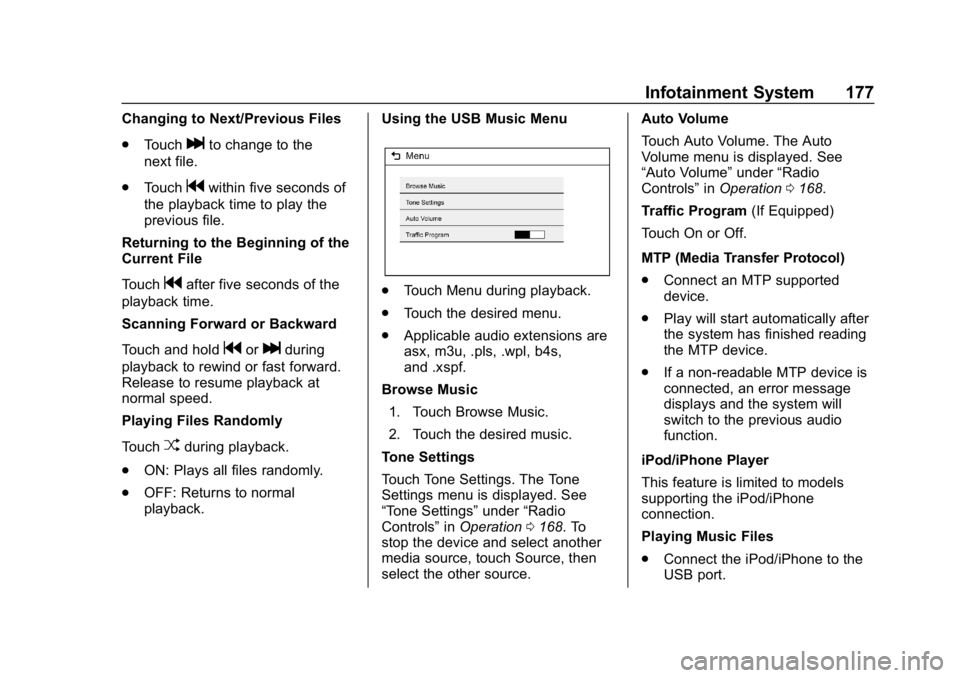
playback. Using the USB Music Menu
.
Touch Menu during playback.
. Touch the desired menu.
. Applicable audio extensions are
asx, m3u, .pls, .wpl, b4s,
and .xspf.
Browse Music 1. Touch Browse Music.
2. Touch the desired music.
Tone Settings
Touch Tone Settings. The Tone
Settings menu is displayed. See
“Tone Settings” under“Radio
Controls” inOperation 0168. To
stop the device and select another
media source, touch Source, then
select the other source. Auto Volume
Touch Auto Volume. The Auto
Volume menu is displayed. See
“Auto Volume”
under“Radio
Controls” inOperation 0168.
Traffic Program (If Equipped)
Touch On or Off.
MTP (Media Transfer Protocol)
. Connect an MTP supported
device.
. Play will start automatically after
the system has finished reading
the MTP device.
. If a non-readable MTP device is
connected, an error message
displays and the system will
switch to the previous audio
function.
iPod/iPhone Player
This feature is limited to models
supporting the iPod/iPhone
connection.
Playing Music Files
. Connect the iPod/iPhone to the
USB port.
Page 179 of 428
Chevrolet Equinox Owner Manual (GMNA-Localizing-U.S./Canada/Mexico-
10446639) - 2018 - CRC - 8/18/17
178 Infotainment System
.Play will start from the previously
played point after the system
has finished reading the USB
device.
. If a non-readable USB device is
connected, an error message
displays and the system will
switch to the previous audio
function.
If the iPod/iPhone is already
connected:
1. Press
{.
2. Touch AUDIO.
3. Touch Source.
4. Touch iPod.
To stop the device and select
another media source, touch
Source, then select the other
source.
To remove the device, select
another function, then remove the
device.
Pause
. Touch
jto pause. .
Touch
rto resume.
Changing to Next/Previous Song
. Touch
lto change to the
next song.
. Touch
gwithin two seconds of
the playback time to play the
previous file.
Returning to the Beginning of the
Current File
Touch
gafter two seconds of the
playback time.
Scanning Forward or Backward
Touch and hold
gorlduring
playback to rewind or fast forward.
Release to resume playback at
normal speed.
Playing Files Randomly
Touch
Zduring playback.
. ON: Plays all files randomly.
. OFF: Returns to normal
playback.
Using the iPod Menu
. Touch Menu during playback. .
Touch the appropriate
play mode.
Browse Music 1. Touch Browse Music.
2. Touch the desired music.
Tone Settings
Touch Tone Settings. The Tone
Settings menu is displayed. See
“Tone Settings” under“Radio
Controls” inOperation 0168.
Auto Volume
Touch Auto Volume. The Auto
Volume menu is displayed. See
“Auto Volume” under“Radio
Controls” inOperation 0168.
Picture System Information
The infotainment system can view
picture files stored on a USB
storage device and devices that
support Media Transfer
Protocol (MTP).
.
Supported file extensions: .jpg,
.bmp, .png, .gif.
. Animated GIF files are not
supported.