buttons CHEVROLET HHR 2007 1.G User Guide
[x] Cancel search | Manufacturer: CHEVROLET, Model Year: 2007, Model line: HHR, Model: CHEVROLET HHR 2007 1.GPages: 446, PDF Size: 2.43 MB
Page 200 of 446
PARKING BRAKE
This message displays if the parking brake is left
engaged. SeeParking Brake on page 127for
more information.
POWER STEERING
This message displays if a problem has been
detected with the electric power steering. Have
your vehicle serviced by your dealer immediately.
SERVICE AIR BAG
This message displays when there is a problem
with the airbag system. Have your vehicle serviced
by your dealer immediately.
DIC Vehicle Personalization
Your vehicle has personalization capabilities that
allow you to program certain features to a
preferred setting. All of the features listed may not
be available on your vehicle. Only the features
available will be displayed on the DIC.
The default settings for the features were set
when your vehicle left the factory, but may have
been changed from their default state since
that time.To change feature settings, use the following
procedure:
Entering Personalization Menu
1. Turn the ignition on while the vehicle is
stopped.
To avoid excessive drain on the battery, it is
recommended that the headlamps are
turned off.
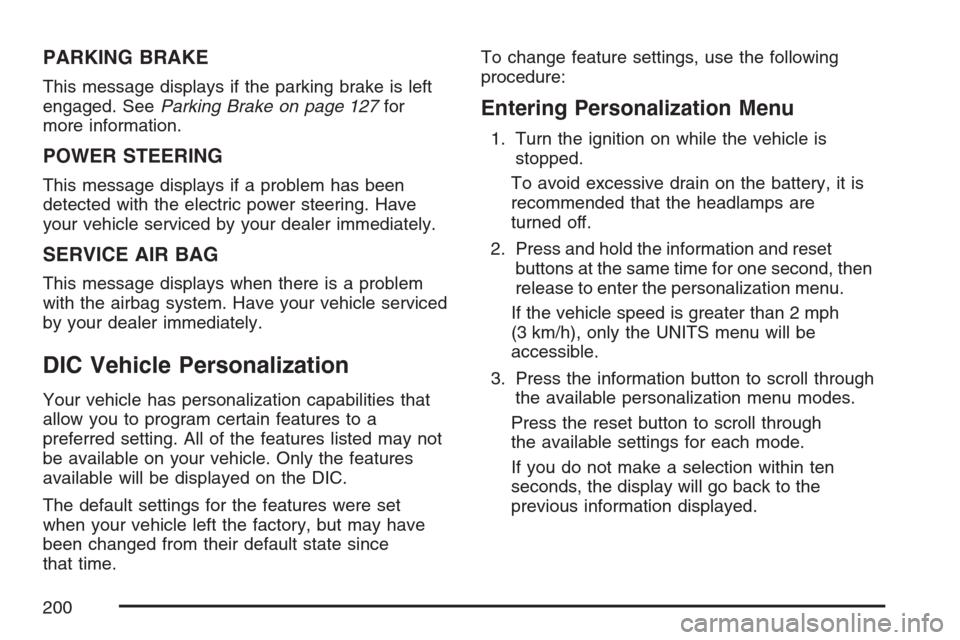
2. Press and hold the information and reset
buttons at the same time for one second, then
release to enter the personalization menu.
If the vehicle speed is greater than 2 mph
(3 km/h), only the UNITS menu will be
accessible.
3. Press the information button to scroll through
the available personalization menu modes.
Press the reset button to scroll through
the available settings for each mode.
If you do not make a selection within ten
seconds, the display will go back to the
previous information displayed.
200
Page 207 of 446
Set up your audio system by presetting your
favorite radio stations, setting the tone, and
adjusting the speakers. Then, when driving
conditions permit, you can tune to your favorite
radio stations using the presets and steering
wheel controls if the vehicle has them.
Notice:Before adding any sound equipment to
your vehicle, such as an audio system, CD
player, CB radio, mobile telephone, or two-way
radio, make sure that it can be added by
checking with your dealer. Also, check federal
rules covering mobile radio and telephone
units. If sound equipment can be added, it is
very important to do it properly. Added sound
equipment may interfere with the operation of
your vehicle’s engine, radio, or other systems,
and even damage them. Your vehicle’s systems
may interfere with the operation of sound
equipment that has been added.
Your vehicle has a feature called Retained
Accessory Power (RAP). With RAP, the audio
system can be played even after the ignition is
turned off. SeeRetained Accessory Power (RAP)
on page 119for more information.Setting the Time
(Without Date Display)
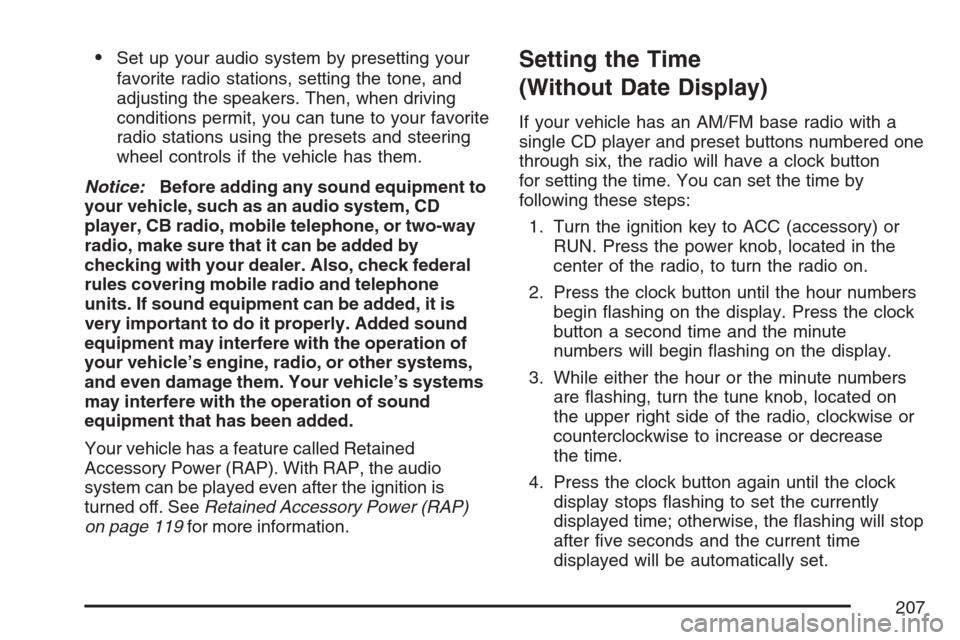
If your vehicle has an AM/FM base radio with a
single CD player and preset buttons numbered one
through six, the radio will have a clock button
for setting the time. You can set the time by
following these steps:
1. Turn the ignition key to ACC (accessory) or
RUN. Press the power knob, located in the
center of the radio, to turn the radio on.
2. Press the clock button until the hour numbers
begin ashing on the display. Press the clock
button a second time and the minute
numbers will begin ashing on the display.
3. While either the hour or the minute numbers
are ashing, turn the tune knob, located on
the upper right side of the radio, clockwise or
counterclockwise to increase or decrease
the time.
4. Press the clock button again until the clock
display stops ashing to set the currently
displayed time; otherwise, the ashing will stop
after ve seconds and the current time
displayed will be automatically set.
207
Page 211 of 446
Setting Preset Stations
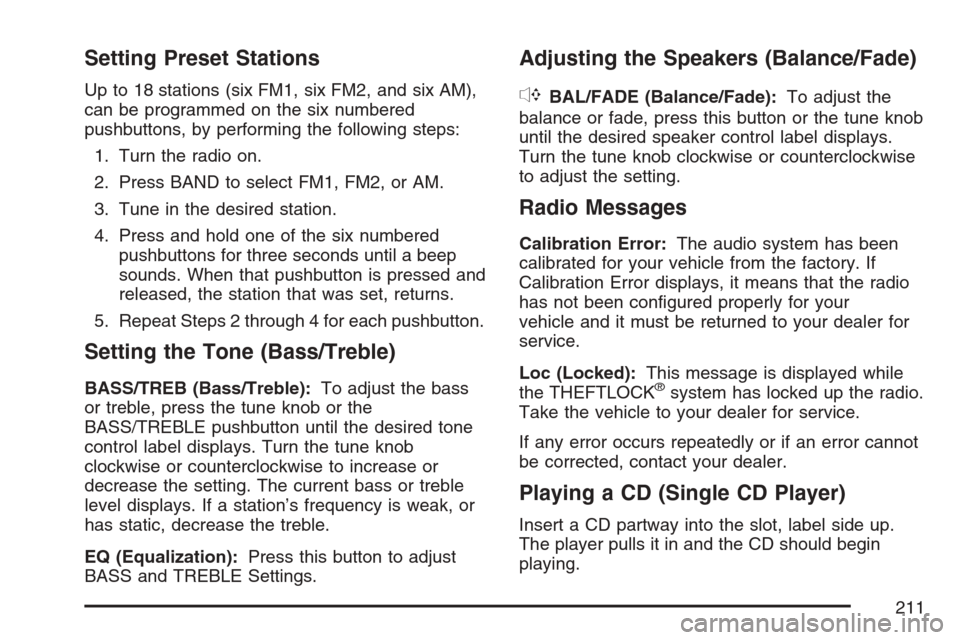
Up to 18 stations (six FM1, six FM2, and six AM),
can be programmed on the six numbered
pushbuttons, by performing the following steps:
1. Turn the radio on.
2. Press BAND to select FM1, FM2, or AM.
3. Tune in the desired station.
4. Press and hold one of the six numbered
pushbuttons for three seconds until a beep
sounds. When that pushbutton is pressed and
released, the station that was set, returns.
5. Repeat Steps 2 through 4 for each pushbutton.
Setting the Tone (Bass/Treble)
BASS/TREB (Bass/Treble):To adjust the bass
or treble, press the tune knob or the
BASS/TREBLE pushbutton until the desired tone
control label displays. Turn the tune knob
clockwise or counterclockwise to increase or
decrease the setting. The current bass or treble
level displays. If a station’s frequency is weak, or
has static, decrease the treble.
EQ (Equalization):Press this button to adjust
BASS and TREBLE Settings.
Adjusting the Speakers (Balance/Fade)
`
BAL/FADE (Balance/Fade):To adjust the
balance or fade, press this button or the tune knob
until the desired speaker control label displays.
Turn the tune knob clockwise or counterclockwise
to adjust the setting.
Radio Messages
Calibration Error:The audio system has been
calibrated for your vehicle from the factory. If
Calibration Error displays, it means that the radio
has not been congured properly for your
vehicle and it must be returned to your dealer for
service.
Loc (Locked):This message is displayed while
the THEFTLOCK
®system has locked up the radio.
Take the vehicle to your dealer for service.
If any error occurs repeatedly or if an error cannot
be corrected, contact your dealer.
Playing a CD (Single CD Player)
Insert a CD partway into the slot, label side up.
The player pulls it in and the CD should begin
playing.
211
Page 218 of 446
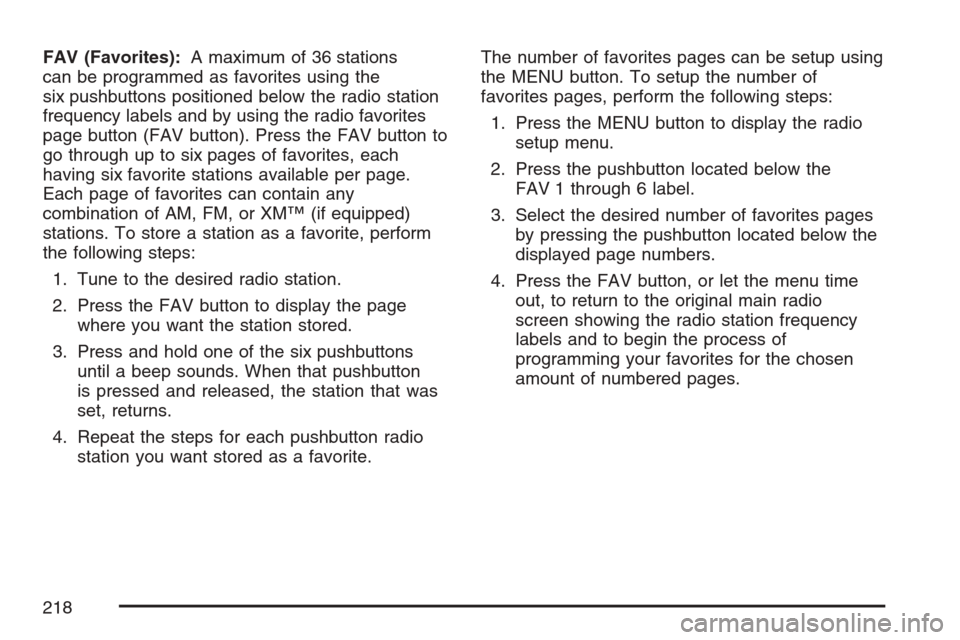
FAV (Favorites):A maximum of 36 stations
can be programmed as favorites using the
six pushbuttons positioned below the radio station
frequency labels and by using the radio favorites
page button (FAV button). Press the FAV button to
go through up to six pages of favorites, each
having six favorite stations available per page.
Each page of favorites can contain any
combination of AM, FM, or XM™ (if equipped)
stations. To store a station as a favorite, perform
the following steps:
1. Tune to the desired radio station.
2. Press the FAV button to display the page
where you want the station stored.
3. Press and hold one of the six pushbuttons
until a beep sounds. When that pushbutton
is pressed and released, the station that was
set, returns.
4. Repeat the steps for each pushbutton radio
station you want stored as a favorite.The number of favorites pages can be setup using
the MENU button. To setup the number of
favorites pages, perform the following steps:
1. Press the MENU button to display the radio
setup menu.
2. Press the pushbutton located below the
FAV 1 through 6 label.
3. Select the desired number of favorites pages
by pressing the pushbutton located below the
displayed page numbers.
4. Press the FAV button, or let the menu time
out, to return to the original main radio
screen showing the radio station frequency
labels and to begin the process of
programming your favorites for the chosen
amount of numbered pages.
218
Page 220 of 446
Finding a Category (CAT) Station
CAT (Category):The CAT button is used to nd
XM™ stations while the radio is in the XM™
mode. To nd XM™ channels within a desired
category, perform the following:
1. Press the BAND button until the XM™
frequency is displayed. Press the CAT button
to display the category labels on the radio
display. Continue pressing the CAT button
until the desired category name displays.
2. Press either of the two buttons below the
desired category label to immediately tune
to the rst XM™ station associated with that
category.
3. Turn the tune knob, press the buttons below
the right or left arrows displayed, or press the
right or left SEEK buttons to go to the next
or previous XM™ station within the selected
category.
4. To exit the category search mode, press the
FAV button or BAND button to display your
favorites again.Undesired XM™ categories can be removed
through the setup menu. To remove an undesired
category, perform the following:
1. Press the MENU button to display the radio
setup menu.
2. Press the pushbutton located below the XM
CAT label.
3. Turn the tune knob to display the category
you want removed.
4. Press the pushbutton located under the
Remove label until the category name
along with the word Removed displays.
5. Repeat the steps to remove more categories.
Removed categories can be restored by pressing
the pushbutton under the Add label when a
removed category displays or by pressing the
pushbutton under the Restore All label.
The radio does not let you to remove or add
categories while the vehicle is moving faster than
5 mph (8 km/h).
220
Page 227 of 446
Make sure playlists have a .mp3 or .wpl
extension (other le extensions may not work).
Minimize the length of the le, folder, or playlist
names. Long le, folder, or playlist names, or
a combination of a large number of les
and folders, or playlists can cause the player
to be unable to play up to the maximum
number of les, folders, playlists, or sessions.
If you wish to play a large number of les,
folders, playlists, or sessions, minimize
the length of the le, folder, or playlist name.
Long names also take up more space on
the display, and might not fully display.
Finalize the audio disc before you burn it.
Trying to add music to an existing disc can
cause the disc not to function in the player.
Change playlists by using the previous and next
folder buttons, the tuner knob, or the seek buttons.
An MP3 CD-R that was recorded using no le
folders can also be played. If a CD-R contains
more than the maximum of 50 folders, 50 playlists,
and 255 les, the player lets you access and
navigate up to the maximum, but all items over
the maximum are not accessible.
Root Directory
The root directory of the CD-R is treated as a
folder. If the root directory has compressed audio
les, the directory displays as F1 ROOT. All
les contained directly under the root directory are
accessed prior to any root directory folders.
However, playlists (Px) are always accessed
before root folders or les.
Empty Directory or Folder
If a root directory or a folder exists somewhere in
the le structure that contains only folders/
subfolders and no compressed les directly
beneath them, the player advances to the next
folder in the le structure that contains compressed
audio les. The empty folder does not display.
No Folder
When the CD-R contains only compressed les,
the les are located under the root folder. The next
and previous folder functions are not displayed
on a CD-R that was recorded without folders
or playlists. When displaying the name of the folder
the radio displays ROOT.
227
Page 228 of 446
When the CD-R contains only playlists and
compressed audio les, but no folders, all les are
located under the root folder. The folder down
and the folder up buttons search playlists (Px) rst
and then goes to the root folder. When the
radio displays the name of the folder, the radio
displays ROOT.
Order of Play
Tracks recorded to the CD-R are played in the
following order:
Play begins from the rst track in the rst
playlist and continues sequentially through
all tracks in each playlist. When the last track
of the last playlist has played, play continues
from the rst track of the rst playlist.
Play begins from the rst track in the rst
folder and continues sequentially through
all tracks in each folder. When the last track of
the last folder has played, play continues
from the rst track of the rst folder.
When play enters a new folder, the display does
not automatically show the new folder name unless
the folder mode was chosen as the default
display. The new track name displays.
File System and Naming
The song name that displays is the song name
that is contained in the ID3 tag. If the song name is
not present in the ID3 tag, then the radio displays
the le name without the extension (such
as .mp3) as the track name.
Track names longer than 32 characters or
four pages are shortened. Parts of words on the
last page of text and the extension of the lename
does not display.
Preprogrammed Playlists
Preprogrammed playlists that were created using
WinAmp™, MusicMatch™, or Real Jukebox™
software, can be accessed, however, they cannot
be edited using the radio. These playlists are
treated as special folders containing compressed
audio song les.
Playing an MP3
Insert a CD-R partway into the slot (Single CD
Player), or press the load button and wait for the
message to insert disc (Six-Disc CD Player),
label side up. The player pulls it in, and the CD-R
should begin playing.
228
Page 231 of 446
h(Music Navigator):Use the music navigator
feature to play MP3 les on the CD-R in order
by artist or album. Press the pushbutton located
below the music navigator label. The player scans
the disc to sort the les by artist and album ID3
tag information. It can take several minutes to scan
the disc depending on the number of MP3 les
recorded to the CD-R. The radio can begin playing
while it is scanning the disc in the background.
When the scan is nished, the CD-R begins
playing again.
Once the disc has been scanned, the player
defaults to playing MP3 les in order by artist. The
current artist playing is shown on the second line of
the display between the arrows. Once all songs by
that artist are played, the player moves to the next
artist in alphabetical order on the CD-R and begins
playing MP3 les by that artist. If you want to listen
to MP3 les by another artist, press the pushbutton
located below either arrow button. The CD goes to
the next or previous artist in alphabetical order.
Continue pressing either button until the desired
artist displays.To change from playback by artist to playback by
album, press the pushbutton located below the Sort
By label. From the sort screen, push one of the
buttons below the album button. Press the
pushbutton below the back label to return to the
main music navigator screen. The album name
displays on the second line between the arrows and
songs from the current album and begins to play.
Once all songs from that album are played, the
player moves to the next album in alphabetical
order on the CD-R and begins playing MP3 les
from that album.
To exit music navigator mode, press the pushbutton
below the Back label to return to normal MP3
playback.
BAND:Press this button to listen to the radio
while a CD is playing. The CD remains inside the
radio for future listening.
CD/AUX (CD/Auxiliary):Press this button to play
a CD while listening to the radio. The CD icon and a
message showing disc and/or track number
displays while a CD is in the player. Press this
button again and the system automatically
searches for an auxiliary input device such as a
portable audio player. If a portable audio player is
not connected, “No Aux Input Device” displays.
231
Page 303 of 446
How to Reset the Engine Oil Life
System
The Engine Oil Life System calculates when to
change your engine oil and lter based on vehicle
use. Anytime your oil is changed, reset the
system so it can calculate when the next oil
change is required. If a situation occurs where you
change your oil prior to a CHANGE OIL SOON
message being turned on, reset the system.
After changing the engine oil, the system must be
reset as follows:
1. Turn the ignition to RUN, with the engine off.
2. Press the information and reset buttons
on the DIC at the same time to enter the
personalization menu. SeeDIC Vehicle
Personalization on page 200.
3. Press the information button to scroll through
the available personalization menu modes
until the DIC display shows OIL-LIFE RESET.
4. Press and hold the reset button until the DIC
display shows ACKNOWLEDGED. This will
tell you the system has been reset.
5. Turn the key to LOCK.If the CHANGE OIL SOON message comes back
on when you start your vehicle, the engine oil
life system has not reset. Repeat the reset
procedure.
What to Do with Used Oil
Used engine oil contains certain elements that
may be unhealthy for your skin and could
even cause cancer. Do not let used oil stay on
your skin for very long. Clean your skin and nails
with soap and water, or a good hand cleaner.
Wash or properly dispose of clothing or rags
containing used engine oil. See the manufacturer’s
warnings about the use and disposal of oil
products.
Used oil can be a threat to the environment. If you
change your own oil, be sure to drain all the oil
from the lter before disposal. Never dispose of oil
by putting it in the trash, pouring it on the
ground, into sewers, or into streams or bodies of
water. Instead, recycle it by taking it to a place
that collects used oil. If you have a problem
properly disposing of your used oil, ask your
dealer, a service station, or a local recycling
center for help.
303
Page 370 of 446
Appearance Care
Cleaning the Inside of Your Vehicle
Your vehicle’s interior will continue to look its
best if it is cleaned often. Although not always
visible, dust and dirt can accumulate on your
upholstery. Dirt can damage carpet, fabric, leather,
and plastic surfaces. Regular vacuuming is
recommended to remove particles from your
upholstery. It is important to keep your upholstery
from becoming and remaining heavily soiled.
Soils should be removed as quickly as possible.
Your vehicle’s interior may experience extremes of
heat that could cause stains to set rapidly.
Lighter colored interiors may require more frequent
cleaning. Use care because newspapers and
garments that transfer color to your home
furnishings may also transfer color to your
vehicle’s interior.
When cleaning your vehicle’s interior, only use
cleaners specically designed for the surfaces
being cleaned. Permanent damage may result from
using cleaners on surfaces for which they were not
intended. Use glass cleaner only on glass.Remove any accidental over-spray from other
surfaces immediately. To prevent over-spray, apply
cleaner directly to the cleaning cloth.
Notice:If you use abrasive cleaners when
cleaning glass surfaces on your vehicle, you
could scratch the glass and/or cause damage
to the rear window defogger. When cleaning
the glass on your vehicle, use only a soft cloth
and glass cleaner.
Many cleaners contain solvents that may become
concentrated in your vehicle’s breathing space.
Before using cleaners, read and adhere to all safety
instructions on the label. While cleaning your
vehicle’s interior, maintain adequate ventilation by
opening your vehicle’s doors and windows.
Dust may be removed from small buttons and
knobs using a small brush with soft bristles.
Your dealer has a product for cleaning your
vehicle’s glass. Should it become necessary, you
can also obtain a product from your dealer to
remove odors from your vehicle’s upholstery.
370