display CHEVROLET HHR 2011 1.G User Guide
[x] Cancel search | Manufacturer: CHEVROLET, Model Year: 2011, Model line: HHR, Model: CHEVROLET HHR 2011 1.GPages: 430, PDF Size: 4.57 MB
Page 142 of 430
Black plate (36,1)Chevrolet HHR Owner Manual - 2011
Mirrors
Manual Rearview Mirror
Hold the inside rearview mirror in the center to move it
for a clearer view behind your vehicle. Adjust the mirror
to avoid glare from the headlamps behind you. Push the
tab forward for daytime use and pull it for nighttime use.
If the vehicle has map lamps, press the buttons located
at the bottom of the mirror to turn them on or off.
Automatic Dimming Rearview Mirror
The vehicle may have an automatic dimming inside
rearview mirror with a compass and map lights and/or
OnStar
®.
Vehicles with OnStar have three additional control
buttons located at the bottom of the mirror. See your
dealer for more information on the system and how to
subscribe to OnStar
®. See the OnStar®owners guide
for more information about the services OnStar
provides.
Press the buttons located at the bottom of the mirror to
turn the map lights on or off.
O(On/Off): Press to turn the dimming feature on or off.
Automatic Dimming Mirror Operation
Automatic dimming reduces the glare of lights from
behind the vehicle. The dimming feature comes on and
the indicator light illuminates each time the vehicle is
started.
Cleaning the Mirror
Do not spray glass cleaner directly on the mirror. Use a
soft towel dampened with water.
Compass
Compass Operation
Y
/O(On/Off): If the vehicle has one of these buttons,
press to turn the compass on or off.
With the compass feature on, each time the vehicle is
started, the compass displays the current compass
direction after a few seconds.
Compass Calibration
If after a few seconds the display does not show a
compass direction, (N for North for example), there may
be a strong magnetic field interfering with the compass.
Interference can be caused by a magnetic antenna
mount, note pad holder, or similar object. If CAL
appears in the compass window, the compass may
need to be reset or calibrated.
3-36
Page 143 of 430
Black plate (37,1)Chevrolet HHR Owner Manual - 2011
To calibrate the compass:1. Make sure CAL is displayed. If CAL is not displayed, press and hold the compass button until
CAL displays.
2. While CAL displays, drive the vehicle in circles at 5 mph (8 km/h) or less until the display reads a
direction.
Compass Variance
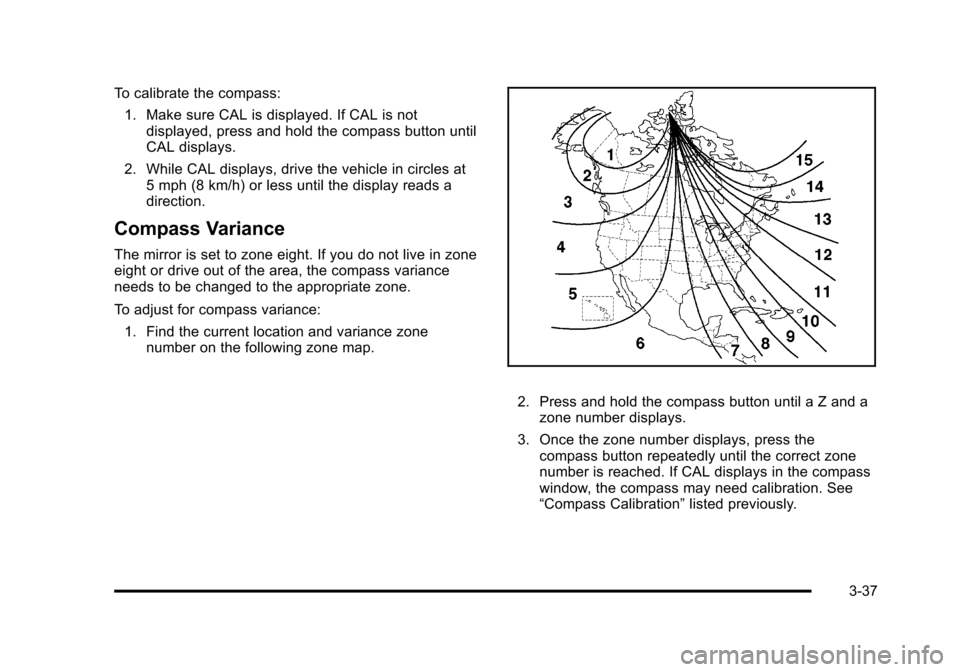
The mirror is set to zone eight. If you do not live in zone
eight or drive out of the area, the compass variance
needs to be changed to the appropriate zone.
To adjust for compass variance:
1. Find the current location and variance zone number on the following zone map.
2. Press and hold the compass button until a Z and a
zone number displays.
3. Once the zone number displays, press the compass button repeatedly until the correct zone
number is reached. If CAL displays in the compass
window, the compass may need calibration. See
“Compass Calibration” listed previously.
3-37
Page 145 of 430
Black plate (39,1)Chevrolet HHR Owner Manual - 2011
Object Detection Systems
Rear Vision Camera (RVC)
The vehicle may have a Rear Vision Camera system.
Read this entire section before using it.
{WARNING:
The Rear Vision Camera (RVC) system does not
replace driver vision. RVC does not:
.Detect objects that are outside the camera's
field of view, below the bumper, or underneath
the vehicle.
.Detect children, pedestrians, bicyclists,
or pets.
Do not back the vehicle by only looking at the
RVC screen, or use the screen during longer,
higher speed backing maneuvers or where there
could be cross-traffic. Your judged distances using
the screen will differ from actual distances.
If you do not use proper care before backing up,
you could hit a vehicle, child, pedestrian, bicyclist,
or pet, resulting in vehicle damage, injury, (Continued)
WARNING: (Continued)
or death. Even though the vehicle has the RVC
system, always check carefully before backing up
by checking behind and around the vehicle.
The rear vision camera system is designed to help the
driver when backing up by displaying a view of the area
behind the vehicle. When the key is in the ON/RUN
position and the driver shifts the vehicle into
R (Reverse), the video image automatically appears on
the inside rear view mirror. Once the driver shifts out of
R (Reverse), the video image automatically disappears
from the inside rear view mirror.
Turning the Rear Vision Camera System Off
or On
To turn off the rear vision camera system, press and
hold
z, located on the inside rearview mirror, until the
left indicator light turns off. The rear vision camera
display is now disabled.
To turn the rear vision camera system on again, press
and hold
zuntil the left indicator light illuminates. The
rear vision camera system display is now enabled and
the display will appear in the mirror normally.
3-39
Page 146 of 430
Black plate (40,1)Chevrolet HHR Owner Manual - 2011
Rear Vision Camera Location
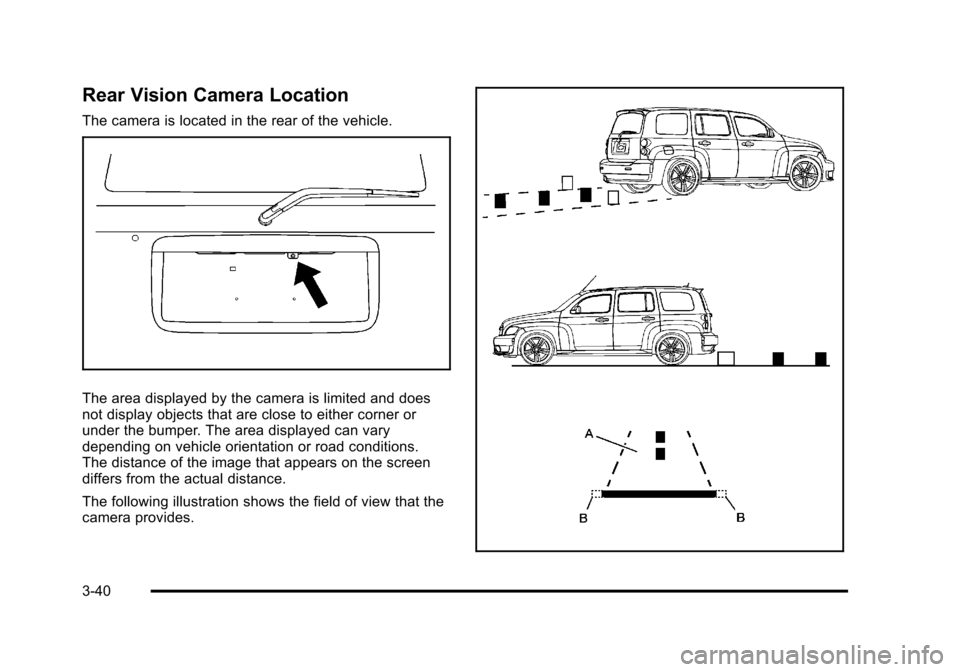
The camera is located in the rear of the vehicle.
The area displayed by the camera is limited and does
not display objects that are close to either corner or
under the bumper. The area displayed can vary
depending on vehicle orientation or road conditions.
The distance of the image that appears on the screen
differs from the actual distance.
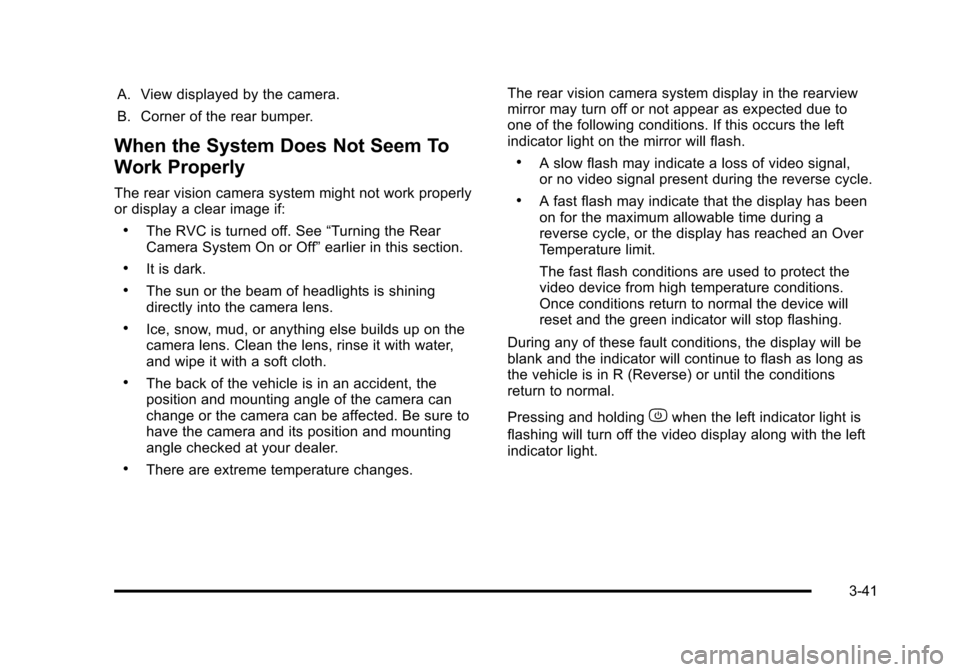
The following illustration shows the field of view that the
camera provides.
3-40
Page 147 of 430
Black plate (41,1)Chevrolet HHR Owner Manual - 2011
A. View displayed by the camera.
B. Corner of the rear bumper.
When the System Does Not Seem To
Work Properly
The rear vision camera system might not work properly
or display a clear image if:
.The RVC is turned off. See“Turning the Rear
Camera System On or Off” earlier in this section.
.It is dark.
.The sun or the beam of headlights is shining
directly into the camera lens.
.Ice, snow, mud, or anything else builds up on the
camera lens. Clean the lens, rinse it with water,
and wipe it with a soft cloth.
.The back of the vehicle is in an accident, the
position and mounting angle of the camera can
change or the camera can be affected. Be sure to
have the camera and its position and mounting
angle checked at your dealer.
.There are extreme temperature changes. The rear vision camera system display in the rearview
mirror may turn off or not appear as expected due to
one of the following conditions. If this occurs the left
indicator light on the mirror will flash.
.A slow flash may indicate a loss of video signal,
or no video signal present during the reverse cycle.
.A fast flash may indicate that the display has been
on for the maximum allowable time during a
reverse cycle, or the display has reached an Over
Temperature limit.
The fast flash conditions are used to protect the
video device from high temperature conditions.
Once conditions return to normal the device will
reset and the green indicator will stop flashing.
During any of these fault conditions, the display will be
blank and the indicator will continue to flash as long as
the vehicle is in R (Reverse) or until the conditions
return to normal.
Pressing and holding
zwhen the left indicator light is
flashing will turn off the video display along with the left
indicator light.
3-41
Page 158 of 430
Black plate (2,1)Chevrolet HHR Owner Manual - 2011
Section 4 Instrument Panel
Front Fog Lamp Light . . . . . . . . . . . . . . . . . . . . . . . . . . 4-36
Highbeam On Light . . . . . . . . . . . . . . . . . . . . . . . . . . . . 4-37
Fuel Gauge . . . . . . . . . . . . . . . . . . . . . . . . . . . . . . . . . . . . 4-37
Driver Information Center (DIC) . . . . . . . . . . . . . . . . . .4-38
DIC Operation and Displays . . . . . . . . . . . . . . . . . . . 4-38
DIC Warnings and Messages . . . . . . . . . . . . . . . . . . 4-40
DIC Vehicle Personalization . . . . . . . . . . . . . . . . . . . 4-45
Audio System(s) . . . . . . . . . . . . . . . . . . . . . . . . . . . . . . . . . . 4-50
Setting the Clock . . . . . . . . . . . . . . . . . . . . . . . . . . . . . . 4-51
Radio(s) . . . . . . . . . . . . . . . . . . . . . . . . . . . . . . . . . . . . . . . 4-53 Using an MP3 . . . . . . . . . . . . . . . . . . . . . . . . . . . . . . . . . 4-63
XM Radio Messages . . . . . . . . . . . . . . . . . . . . . . . . . . . 4-70
Bluetooth
®. . . . . . . . . . . . . . . . . . . . . . . . . . . . . . . . . . . . . 4-71
Theft-Deterrent Feature . . . . . . . . . . . . . . . . . . . . . . . . 4-79
Audio Steering Wheel Controls . . . . . . . . . . . . . . . . 4-79
Radio Reception . . . . . . . . . . . . . . . . . . . . . . . . . . . . . . . 4-80
Fixed Mast Antenna . . . . . . . . . . . . . . . . . . . . . . . . . . . 4-81
XM™ Satellite Radio Antenna System . . . . . . . . . 4-81
Chime Level Adjustment . . . . . . . . . . . . . . . . . . . . . . . 4-81
4-2
Page 167 of 430
Black plate (11,1)Chevrolet HHR Owner Manual - 2011
Headlamps
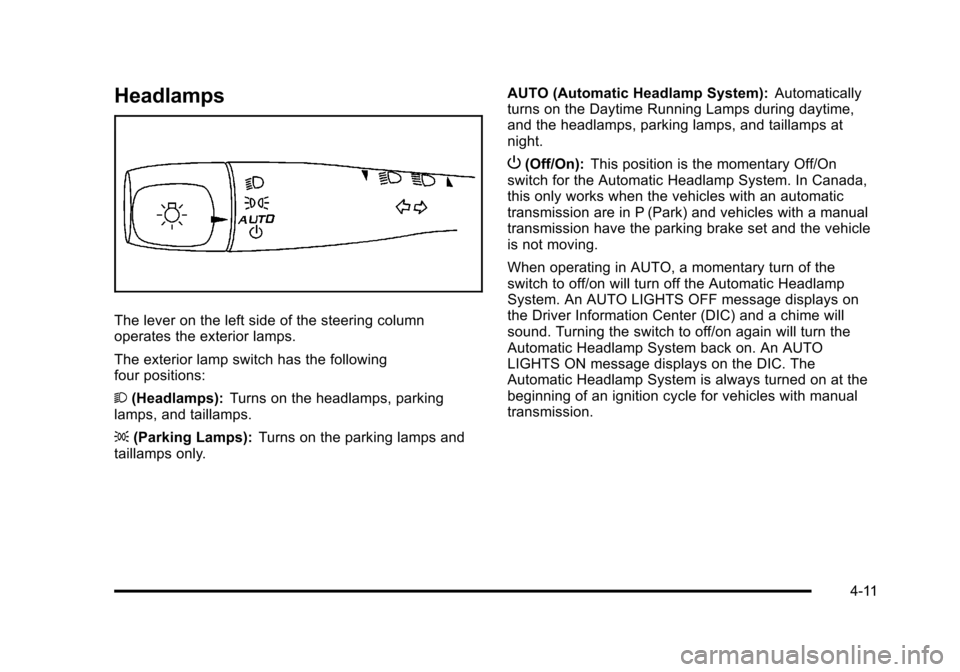
The lever on the left side of the steering column
operates the exterior lamps.
The exterior lamp switch has the following
four positions:
2(Headlamps): Turns on the headlamps, parking
lamps, and taillamps.
; (Parking Lamps): Turns on the parking lamps and
taillamps only. AUTO (Automatic Headlamp System):
Automatically
turns on the Daytime Running Lamps during daytime,
and the headlamps, parking lamps, and taillamps at
night.
P (Off/On): This position is the momentary Off/On
switch for the Automatic Headlamp System. In Canada,
this only works when the vehicles with an automatic
transmission are in P (Park) and vehicles with a manual
transmission have the parking brake set and the vehicle
is not moving.
When operating in AUTO, a momentary turn of the
switch to off/on will turn off the Automatic Headlamp
System. An AUTO LIGHTS OFF message displays on
the Driver Information Center (DIC) and a chime will
sound. Turning the switch to off/on again will turn the
Automatic Headlamp System back on. An AUTO
LIGHTS ON message displays on the DIC. The
Automatic Headlamp System is always turned on at the
beginning of an ignition cycle for vehicles with manual
transmission.
4-11
Page 171 of 430
Black plate (15,1)Chevrolet HHR Owner Manual - 2011
Electric Power Management
This vehicle has Electric Power Management (EPM), an
advanced control system. It estimates the battery's
temperature and state of charge and then adjusts the
voltage for best performance and extended life of the
battery.
When the battery's state of charge is low, the voltage is
raised slightly to quickly put the charge back in. When
the state of charge is high, the voltage is lowered
slightly to prevent overcharging. If the vehicle has a
voltmeter gauge or voltage display on the Driver
Information Center (DIC), you may see the voltage
move up or down. This is normal. If there is a problem,
an alert will be displayed.
The battery can be discharged at idle if the electrical
loads are very high. This is true for all vehicles. This is
because the generator (alternator) may not be spinning
fast enough at idle to produce all the power that is
needed for very high electrical loads.
A high electrical load occurs when several of the
following loads are on: headlamps, high beams, fog
lamps, rear window defogger, climate control fan at high
speed, heated seats, engine cooling fans, trailer loads,
and loads plugged into accessory power outlets.
EPM works to prevent excessive discharge of the
battery. It does this by balancing the generator's output
and the vehicle's electrical needs. It can increaseengine idle speed to generate more power, whenever
needed. It can temporarily reduce the power demands
of some accessories.
Normally, these actions occur in steps or levels, without
being noticeable. In rare cases at the highest levels of
corrective action, this action may be noticeable to the
driver.
Battery Run-Down Protection
The vehicle has a battery saver feature designed to
protect the vehicle's battery.
When any interior lamp is left on and the ignition is
turned off, the battery rundown protection system
automatically turns the lamp off after 20 minutes. This
prevents draining of the battery.
Accessory Power Outlet(s)
Accessory power outlets can be used to connect
electrical equipment, such as a cell phone or
MP3 player.
The accessory power outlets are located on the
instrument panel below the climate controls and at the
rear of the center console. There may be an outlet in
the rear cargo area on the passenger side.
Remove the cover to access and replace when not
in use.
4-15
Page 180 of 430
Black plate (24,1)Chevrolet HHR Owner Manual - 2011
Speedometer and Odometer
The speedometer shows the speed in both kilometers
per hour (km/h) and miles per hour (mph).
The vehicle's odometer works together with the Driver
Information Center (DIC). Trip A and Trip B can be set
on the odometer. See“Trip Information”underDIC
Operation and Displays on page 4‑38.
The vehicle does not have to be running to check the
odometer mileage. Simply open the driver's door and
the mileage briefly displays.
If the vehicle ever needs a new odometer installed, the
new one will be set to the correct total mileage of the
old odometer.
Tachometer
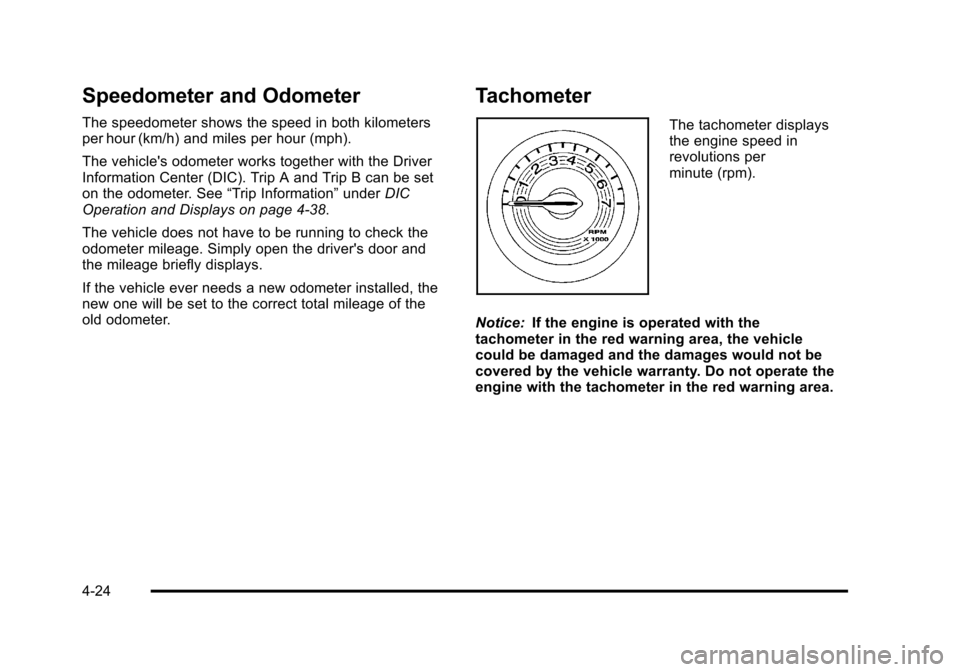
The tachometer displays
the engine speed in
revolutions per
minute (rpm).
Notice: If the engine is operated with the
tachometer in the red warning area, the vehicle
could be damaged and the damages would not be
covered by the vehicle warranty. Do not operate the
engine with the tachometer in the red warning area.
4-24
Page 194 of 430
Black plate (38,1)Chevrolet HHR Owner Manual - 2011
Driver Information Center (DIC)
Your vehicle has a Driver Information Center (DIC). The
DIC display gives you the status of many of your
vehicle's systems. The DIC is also used to display
driver personalization menu modes and warning/status
messages. All messages will appear in the DIC display,
located at the bottom of the instrument panel cluster.
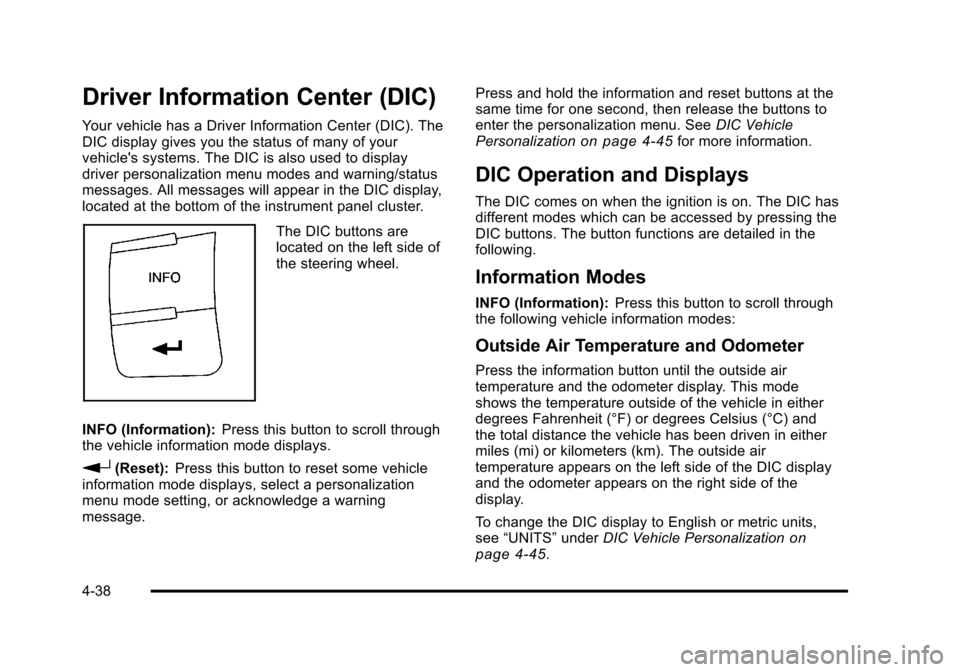
The DIC buttons are
located on the left side of
the steering wheel.
INFO (Information): Press this button to scroll through
the vehicle information mode displays.
r(Reset): Press this button to reset some vehicle
information mode displays, select a personalization
menu mode setting, or acknowledge a warning
message. Press and hold the information and reset buttons at the
same time for one second, then release the buttons to
enter the personalization menu. See
DIC Vehicle
Personalization
on page 4‑45for more information.
DIC Operation and Displays
The DIC comes on when the ignition is on. The DIC has
different modes which can be accessed by pressing the
DIC buttons. The button functions are detailed in the
following.
Information Modes
INFO (Information): Press this button to scroll through
the following vehicle information modes:
Outside Air Temperature and Odometer
Press the information button until the outside air
temperature and the odometer display. This mode
shows the temperature outside of the vehicle in either
degrees Fahrenheit (°F) or degrees Celsius (°C) and
the total distance the vehicle has been driven in either
miles (mi) or kilometers (km). The outside air
temperature appears on the left side of the DIC display
and the odometer appears on the right side of the
display.
To change the DIC display to English or metric units,
see “UNITS” underDIC Vehicle Personalization
on
page 4‑45.
4-38