lock CHEVROLET IMPALA 2010 9.G Repair Manual
[x] Cancel search | Manufacturer: CHEVROLET, Model Year: 2010, Model line: IMPALA, Model: CHEVROLET IMPALA 2010 9.GPages: 432, PDF Size: 1.89 MB
Page 208 of 432
Setting the ClockWithout Date DisplayAM/FM Base Radio with a Single CD PlayerThis radio has a
H
button for setting the time.
To set the time:
1. Press the
H
button until the hour begins flashing on
display. PressH
a second time and the minutes
begin flashing on display.
2. To increase or decrease the time, do one of the
following while the hours or minutes are flashing:
•
Turn the
f
knob.
•
Press
¨
SEEK or
©
SEEK.
•
Press
\
FWD or
s
REV.
3. Press the
H
button again until the clock display
stops flashing to set the currently displayed time,
or wait five seconds until the flashing stops and the
current time displayed is automatically set.
To change the time default setting from 12 hour to
24 hour, press theH
button until 12H or 24H is displayed.
Once 12H or 24H is displayed, turn the
f
knob to the
desired option to select the setting. Press the
H
button
again to apply the setting, or let the screen time out.
With Date DisplaySingle CD (MP3) PlayerThis radio has a
H
button for setting the time.
To set the time and date:
1. Turn the radio on.
2. Press the
H
button and the HR, MIN, MM, DD,
YYYY (hour, minute, month, day, and year)
displays.
3. Press the pushbutton located under any one of the
tabs to be changed.
4. To increase the time or date, do one of the
following:
•
Press the pushbutton below the selected tab.
•
Turn the
f
knob clockwise.
•
Press
¨
SEEK.
•
Press
\
FWD.
5. To decrease the time or date, do one of the
following:
•
Turn the
f
knob counter-clockwise.
•
Press
©
SEEK.
•
Press
s
REV.
4-58
Page 210 of 432
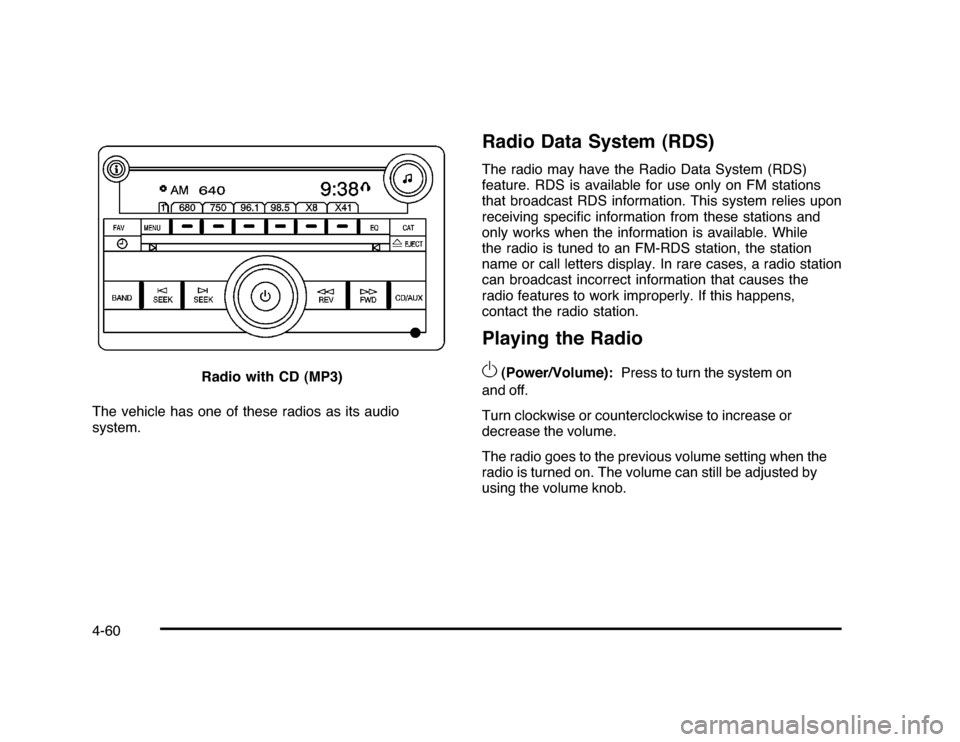
The vehicle has one of these radios as its audio
system.
Radio Data System (RDS)The radio may have the Radio Data System (RDS)
feature. RDS is available for use only on FM stations
that broadcast RDS information. This system relies upon
receiving specific information from these stations and
only works when the information is available. While
the radio is tuned to an FM-RDS station, the station
name or call letters display. In rare cases, a radio station
can broadcast incorrect information that causes the
radio features to work improperly. If this happens,
contact the radio station.Playing the Radio
O
(Power/Volume):Press to turn the system on
and off.
Turn clockwise or counterclockwise to increase or
decrease the volume.
The radio goes to the previous volume setting when the
radio is turned on. The volume can still be adjusted by
using the volume knob. Radio with CD (MP3)
4-60
Page 213 of 432
Setting the Tone
(Bass/Midrange/Treble)BASS/MID/TREB (Bass, Midrange, or Treble):The
radio may display some or all tones, such as BASS, MID,
and TREB. To adjust the tone settings, press the
f
knob
until the tone control tabs display. Press the softkey
under the desired tab, then turn the
f
knob clockwise
or counterclockwise to adjust the highlighted setting.
The highlighted setting can also be adjusted by pressing
either SEEK arrow,
\
FWD, or
s
REV button until the
desired levels are obtained. If a station’s frequency is
weak, or has static, decrease the treble.
The radio may be capable of adjusting bass, midrange, or
treble to the middle position by pressing the softkey under
the BASS, MID (midrange), or TREB (treble) tab for more
than two seconds. The radio beeps once and the level
adjusts to the middle position.
The radio may also be capable of adjusting all tone
and speaker controls to the middle position by pressing
the
f
knob for more than two seconds until the radio
beeps once.
EQ (Equalization):Press to select preset equalization
settings.To return to the manual mode, press until Manual
displays or start to manually adjust the bass and
depending on the radio, midrange, or treble by
pressing the
f
knob.
Adjusting the Speakers (Balance/Fade)
`
BAL/FADE (Balance/Fade):To adjust balance
or fade, press the
`
if the radio has this symbol, or
the
f
knob until the speaker control tabs display.
Continue pressing the
f
knob to highlight the desired
tab, or press the softkey under the desired tab. Turn
the
f
knob clockwise or counterclockwise to adjust the
setting. The setting can also be adjusted by pressing
either SEEK arrow,
\
FWD, or
s
REV until the
desired levels are obtained.
The radio may be capable of adjusting balance or fade to
the middle position by pressing the softkey under the BAL
or FADE tab for more than two seconds. The radio beeps
once and the level adjusts to the middle position.
The radio may also be capable of adjusting all speaker
and tone controls to the middle position by pressing
the
f
knob for more than two seconds until the radio
beeps once.
4-63
Page 214 of 432
Finding a Category (CAT) Station
(XM™ Satellite Radio Service Only)CAT (Category):The radio may have the CAT button
feature. To select and find a desired category:
1. Press the BAND button until the XM frequency
displays. Press the CAT button to display the
category tabs on the radio display. Continue
pressing the CAT button until the desired category
name displays.
2. Press either of the two buttons below the desired
category tab to immediately tune to the first XM
station associated with that category.
3. Turn the
f
knob, press the buttons below the right
or left arrows displayed, or press the SEEK arrows
to go to the previous or to the next XM station
within the selected category.
4. To exit the category search mode, press the FAV
button or BAND button to display favorites again.
Undesired XM categories can be removed through the
setup menu. To remove an undesired category:
1. Press the MENU button to display the radio
setup menu.
2. Press the softkey below the XM CAT tab.3. Turn the
f
knob to display the category to be
removed.
4. Press the softkey located under the Remove tab
until the category name along with the word
Removed displays.
5. Repeat the steps to remove more categories.
Removed categories can be restored by pressing the
softkey under the Add tab when a removed category
displays or by pressing the softkey under the Restore
All tab.
Categories cannot be removed or added while the
vehicle is moving faster than 5 mph (8 km/h).
Radio MessagesCalibration Error:The audio system has been
calibrated for the vehicle from the factory. If Calibration
Error displays, it means that the radio has not been
configured properly for the vehicle and it must be
returned to your dealer/retailer for service.
Loc or Locked:If Loc or Locked displays, it means
the THEFTLOCK
®
system has locked up. Take the
vehicle to your dealer/retailer for service.
If any error occurs repeatedly or if an error cannot be
corrected, contact your dealer/retailer.
4-64
Page 222 of 432

Once the disc has scanned, the player defaults to playing
MP3 files in order by artist. The current artist playing is
shown on the second line of the display between the
arrows. Once all songs by that artist are played, the
player moves to the next artist in alphabetical order on
the CD and begins playing MP3 files by that artist. If you
want to listen to MP3 files by another artist, press the
softkey below either arrow button. The CD goes to the
next or previous artist in alphabetical order. Continue
pressing either button until the desired artist displays.
To change from playback by artist to playback by album,
press the softkey below the Sort By tab. From the sort
screen, push one of the softkeys below the album button.
Press the softkey below the back tab to return to the main
music navigator screen. Now the album name displays on
the second line between the arrows and songs from the
current album begins to play. Once all songs from that
album have played, the player moves to the next album
in alphabetical order on the CD and begins playing MP3
files from that album.
To exit music navigator mode, press the softkey below
the Back tab to return to normal MP3 playback.
XM Radio MessagesXL (Explicit Language Channels):These channels,
or any others, can be blocked at a customer’s request,
by calling 1-800-852-XMXM (9696).
XM Updating:The encryption code in the receiver is
being updated, and no action is required. This process
should take no longer than 30 seconds.
No XM Signal:The system is functioning correctly,
but the vehicle is in a location that is blocking the XM™
signal. When the vehicle is moved into an open area,
the signal should return.
Loading XM:The audio system is acquiring and
processing audio and text data. No action is needed.
This message should disappear shortly.
Channel Off Air:This channel is not currently in
service. Tune in to another channel.
Channel Unauth:This channel is blocked or cannot be
received with your XM Subscription package.
4-72
Page 223 of 432

Channel Unavail:This previously assigned channel is
no longer assigned. Tune to another station. If this station
was one of the presets, choose another station for that
preset button.
No Artist Info:No artist information is available at this
time on this channel. The system is working properly.
No Title Info:No song title information is available
at this time on this channel. The system is working
properly.
No CAT Info:No category information is available
at this time on this channel. The system is working
properly.
No Information:No text or informational messages are
available at this time on this channel. The system is
working properly.
CAT Not Found:There are no channels available for
the selected category. The system is working properly.XM Theftlocked:The XM receiver in the vehicle
could have previously been in another vehicle.
For security purposes, XM receivers cannot be
swapped between vehicles. If this message is
received after having the vehicle serviced, check
with your dealer/retailer.
XM Radio ID:If tuned to channel 0, this message
alternates with the XM™ Radio 8 digit radio ID label.
This label is needed to activate the service.
Unknown:If this message is received when tuned
to channel 0, there could be a receiver fault. Consult
with your dealer/retailer.
Check Antenna:If this message does not clear within
a short period of time, the receiver or antenna could
have a fault. Consult with your dealer/retailer.
Check XM Receivr:If this message does not clear
within a short period of time, the receiver could have a
fault. Consult with your dealer/retailer.
XM Not Available:If this message does not clear
within a short period of time, the receiver could have a
fault. Consult with your dealer/retailer.
4-73
Page 234 of 432
Other InformationThe Bluetooth
®
word mark and logos are owned by
the Bluetooth
®
SIG, Inc. and any use of such marks
by General Motors is under license. Other trademarks
and trade names are those of their respective owners.
SeeRadio Frequency Statement on page 8-20for
FCC information.
Theft-Deterrent FeatureTHEFTLOCK
®
is designed to discourage theft of the
vehicle’s radio by learning a portion of the Vehicle
Identification Number (VIN). The radio does not operate
if it is stolen or moved to a different vehicle.
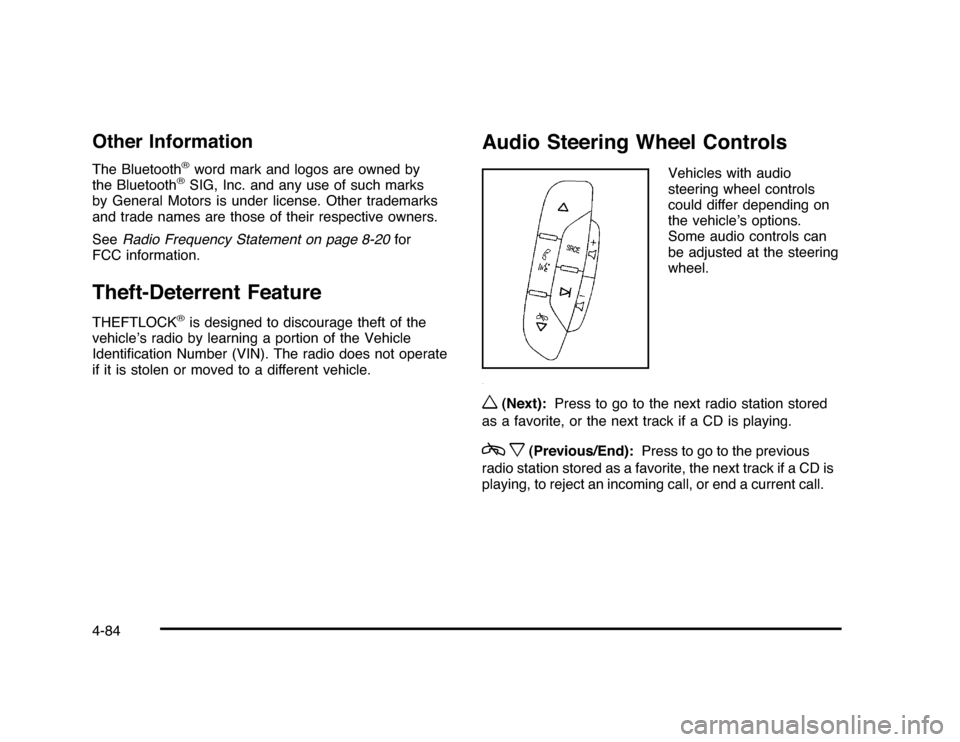
Audio Steering Wheel Controls
Vehicles with audio
steering wheel controls
could differ depending on
the vehicle’s options.
Some audio controls can
be adjusted at the steering
wheel.
w
(Next):Press to go to the next radio station stored
as a favorite, or the next track if a CD is playing.
cx
(Previous/End):Press to go to the previous
radio station stored as a favorite, the next track if a CD is
playing, to reject an incoming call, or end a current call.
4-84
Page 237 of 432
Your Driving, the Road, and the Vehicle............5-2
Defensive Driving...........................................5-2
Drunk Driving.................................................5-2
Control of a Vehicle........................................5-3
Braking . . .......................................................5-4
Antilock Brake System (ABS)...........................5-5
Braking in Emergencies...................................5-6
Electronic Stability Control (ESC)......................5-6
Traction Control System (TCS).........................5-7
Steering........................................................5-9
Off-Road Recovery.......................................5-11
Passing.......................................................5-11
Loss of Control.............................................5-11
Driving at Night............................................5-13Driving in Rain and on Wet Roads..................5-14
Before Leaving on a Long Trip.......................5-15
Highway Hypnosis........................................5-15
Hill and Mountain Roads . . ..............................5-16
Winter Driving..............................................5-17
If Your Vehicle is Stuck in Sand, Mud, Ice,
or Snow...................................................5-19
Rocking Your Vehicle to Get It Out . . . ..............5-20
Loading the Vehicle......................................5-20
Towing..........................................................5-26
Towing Your Vehicle.....................................5-26
Recreational Vehicle Towing...........................5-26
Towing a Trailer...........................................5-28
Section 5 Driving Your Vehicle
5-1
Page 241 of 432
Antilock Brake System (ABS)The vehicle might have the Antilock Brake System
(ABS), an advanced electronic braking system that helps
prevent a braking skid.
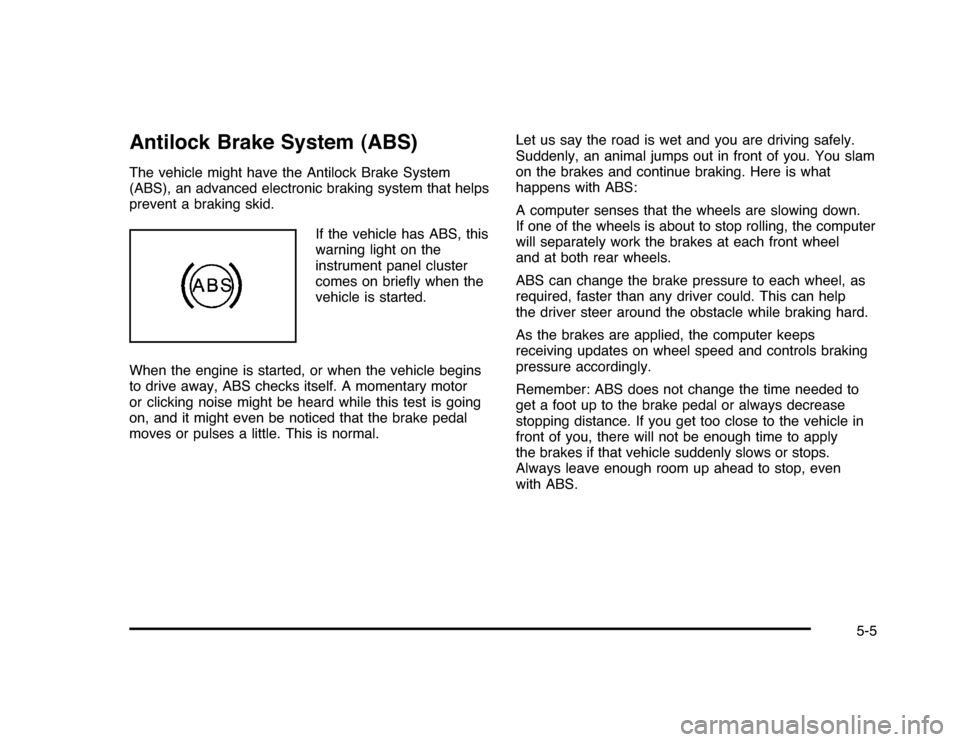
If the vehicle has ABS, this
warning light on the
instrument panel cluster
comes on briefly when the
vehicle is started.
When the engine is started, or when the vehicle begins
to drive away, ABS checks itself. A momentary motor
or clicking noise might be heard while this test is going
on, and it might even be noticed that the brake pedal
moves or pulses a little. This is normal.Let us say the road is wet and you are driving safely.
Suddenly, an animal jumps out in front of you. You slam
on the brakes and continue braking. Here is what
happens with ABS:
A computer senses that the wheels are slowing down.
If one of the wheels is about to stop rolling, the computer
will separately work the brakes at each front wheel
and at both rear wheels.
ABS can change the brake pressure to each wheel, as
required, faster than any driver could. This can help
the driver steer around the obstacle while braking hard.
As the brakes are applied, the computer keeps
receiving updates on wheel speed and controls braking
pressure accordingly.
Remember: ABS does not change the time needed to
get a foot up to the brake pedal or always decrease
stopping distance. If you get too close to the vehicle in
front of you, there will not be enough time to apply
the brakes if that vehicle suddenly slows or stops.
Always leave enough room up ahead to stop, even
with ABS.
5-5
Page 242 of 432
Using ABSDo not pump the brakes. Just hold the brake pedal
down firmly and let antilock work. A slight brake pedal
pulsation might be felt or some noise might be
heard, but this is normal.Braking in EmergenciesABS allows the driver to steer and brake at the same
time. In many emergencies, steering can help more than
even the very best braking.Electronic Stability Control (ESC)Your vehicle may have an Electronic Stability Control
(ESC) system which combines antilock brake, traction
and stability control systems and helps the driver
maintain directional control of the vehicle in most driving
conditions.
When you first start your vehicle and begin to drive
away, the system performs several diagnostic checks to
ensure there are no problems. You may hear or feel
the system working. This is normal and does not mean
there is a problem with your vehicle. The system
should initialize before the vehicle reaches 20 mph
(32 km/h).If the system fails to turn on or activate, the ESC/TCS
light will be on solid, and the SERVICE STABILITRAK
message will be displayed.
For more information, seeDriver Information Center
(DIC) on page 4-37.
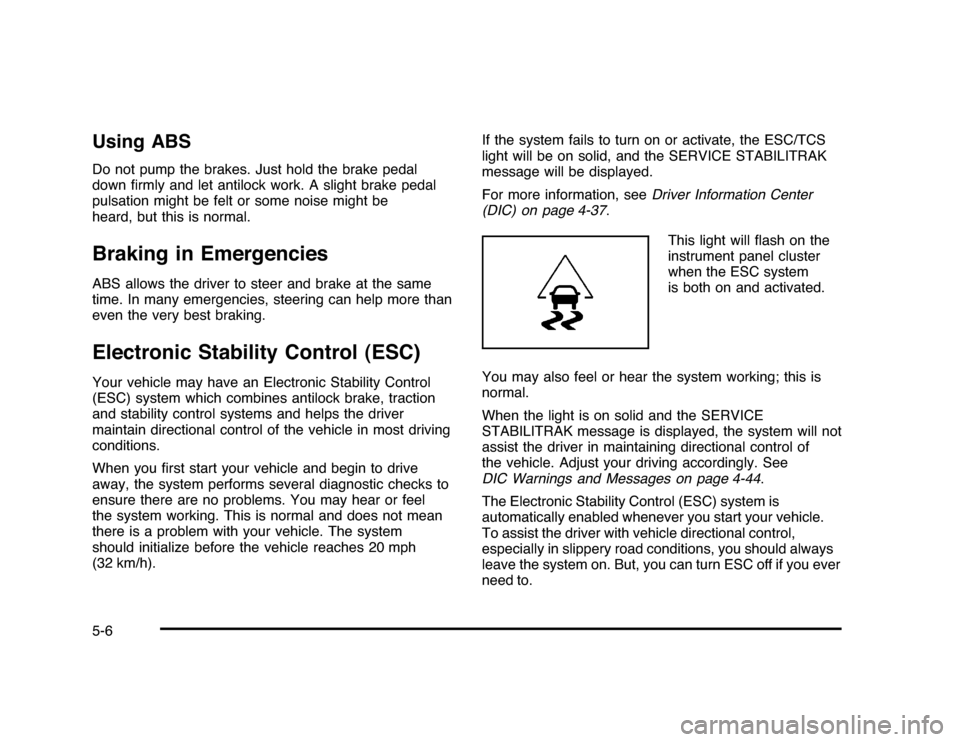
This light will flash on the
instrument panel cluster
when the ESC system
is both on and activated.
You may also feel or hear the system working; this is
normal.
When the light is on solid and the SERVICE
STABILITRAK message is displayed, the system will not
assist the driver in maintaining directional control of
the vehicle. Adjust your driving accordingly. See
DIC Warnings and Messages on page 4-44.
The Electronic Stability Control (ESC) system is
automatically enabled whenever you start your vehicle.
To assist the driver with vehicle directional control,
especially in slippery road conditions, you should always
leave the system on. But, you can turn ESC off if you ever
need to.5-6