set CHEVROLET IMPALA 2020 Infotainment System Manual
[x] Cancel search | Manufacturer: CHEVROLET, Model Year: 2020, Model line: IMPALA, Model: CHEVROLET IMPALA 2020Pages: 97, PDF Size: 1.26 MB
Page 36 of 97
Chevrolet Impala Infotainment Manual (2.6) (GMNA-Localizing-U.S./Canada-
14402255) - 2020 - CRC - 6/5/19
Navigation 35
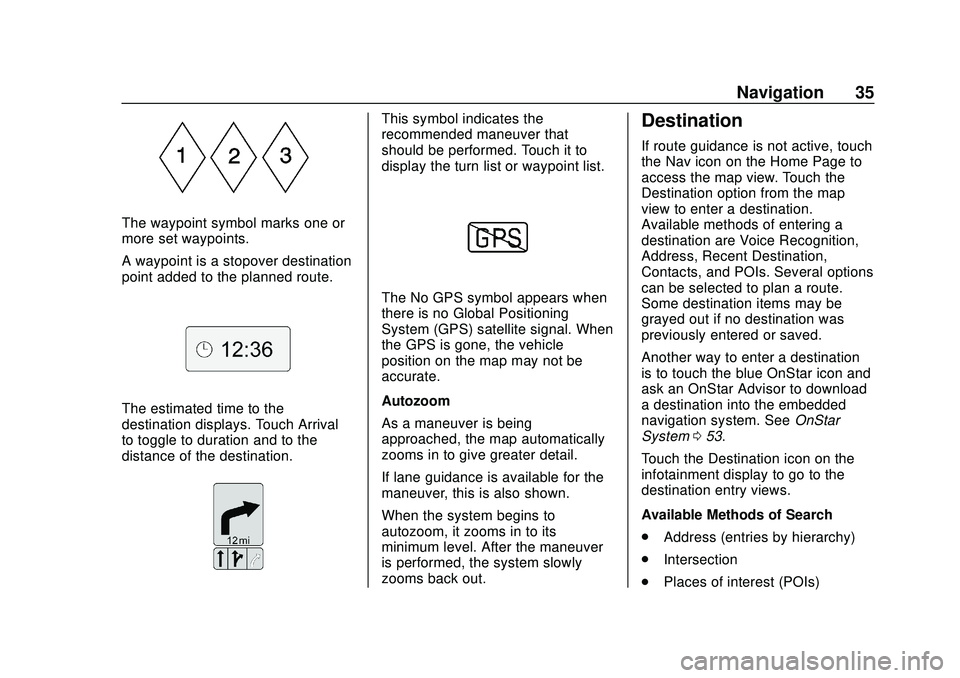
The waypoint symbol marks one or
more set waypoints.
A waypoint is a stopover destination
point added to the planned route.
The estimated time to the
destination displays. Touch Arrival
to toggle to duration and to the
distance of the destination.
This symbol indicates the
recommended maneuver that
should be performed. Touch it to
display the turn list or waypoint list.
The No GPS symbol appears when
there is no Global Positioning
System (GPS) satellite signal. When
the GPS is gone, the vehicle
position on the map may not be
accurate.
Autozoom
As a maneuver is being
approached, the map automatically
zooms in to give greater detail.
If lane guidance is available for the
maneuver, this is also shown.
When the system begins to
autozoom, it zooms in to its
minimum level. After the maneuver
is performed, the system slowly
zooms back out.
Destination
If route guidance is not active, touch
the Nav icon on the Home Page to
access the map view. Touch the
Destination option from the map
view to enter a destination.
Available methods of entering a
destination are Voice Recognition,
Address, Recent Destination,
Contacts, and POIs. Several options
can be selected to plan a route.
Some destination items may be
grayed out if no destination was
previously entered or saved.
Another way to enter a destination
is to touch the blue OnStar icon and
ask an OnStar Advisor to download
a destination into the embedded
navigation system. SeeOnStar
System 053.
Touch the Destination icon on the
infotainment display to go to the
destination entry views.
Available Methods of Search
. Address (entries by hierarchy)
. Intersection
. Places of interest (POIs)
Page 37 of 97
Chevrolet Impala Infotainment Manual (2.6) (GMNA-Localizing-U.S./Canada-
14402255) - 2020 - CRC - 6/5/19
36 Navigation
.Recent (destinations)
. Contacts
Touch the Destination icon on the
infotainment display and the last
used destination view is shown.
This mode is retained. The initial
default is Address.
Navigation Next Turn Maneuver
Alert
The navigation system may need to
get the attention of the driver in
certain situations.
If not in the navigation application
when a near maneuver prompt is
given, it is shown as an alert. The
alert contains the turn indicator and
the option to display the main
navigation view, or dismiss the alert.
The alert also contains the name of
the street to turn on and a
countdown bar.
Auto-Capitalization
The shift key is automatically
enabled when a period is entered
on the keyboard. Once the first character is typed after the period,
the next character will change to
lower-case.
Alpha-Numeric Keyboard
The keyboard is used in multiple
locations throughout the system and
can be used with many features.
The navigation system uses the
keyboard's alpha-numeric keyboard.
The keyboard can also be modified
to include characters appropriate for
the region configured in the vehicle
settings.
@:
Touch to search for the
destination details of an address or
place of interest entered in the text
field. Once
@is touched, the
activity indicator displays in the list
of possible matches.
|: Touch to display a list of
matches.
When there are multiple matches, a
dropdown arrow is shown after the
autocomplete text. This dropdown
displays an entire list of matches.
Touch the appropriate match without
having to enter more text.
z: Touch to delete the last typed
character. Touch and hold this icon
to clear the entire text field. If the
entire text field has been deleted,
this icon becomes an Undo option.
Touching Undo will restore the
deleted text.
Exit : Touch to return to the
previous Map view.
SYM : Touch to show the symbol
keyboard.
Space : Touch to enter a space
between characters or the words of
a name.
R: Touch to display the
interaction selector.
E: If equipped, touch to switch
between Alpha-Numeric Keyboard
and Character Recognition.
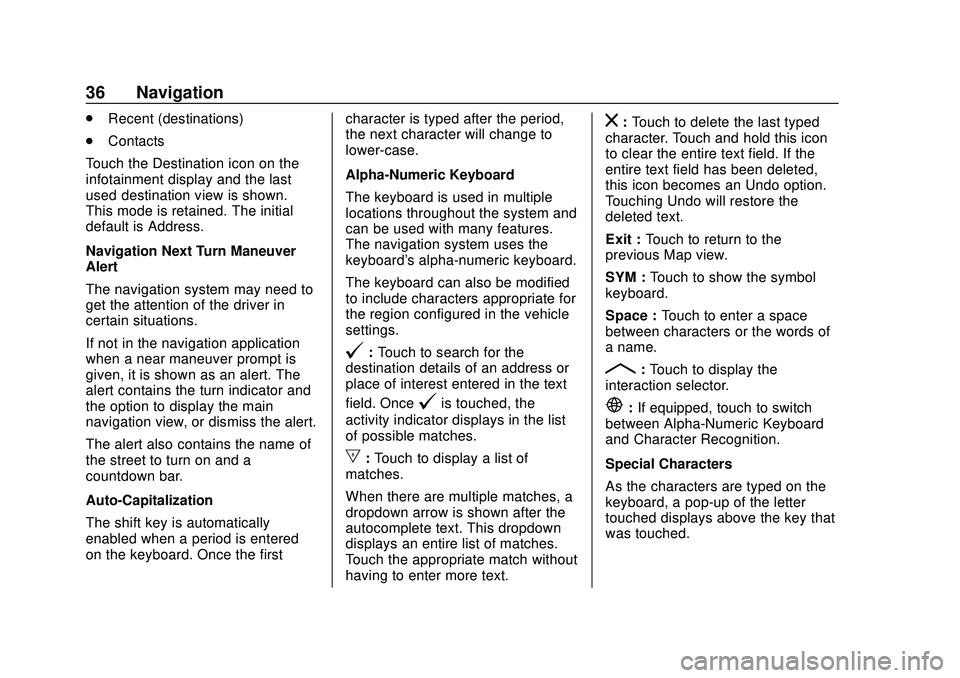
Special Characters
As the characters are typed on the
keyboard, a pop-up of the letter
touched displays above the key that
was touched.
Page 38 of 97
Chevrolet Impala Infotainment Manual (2.6) (GMNA-Localizing-U.S./Canada-
14402255) - 2020 - CRC - 6/5/19
Navigation 37
Continue to touch and hold, and any
additional special characters
associated with that letter are
displayed around the current letter.
To select one of the special
characters, slide a finger left or right
to adjust the highlight of the special
character.
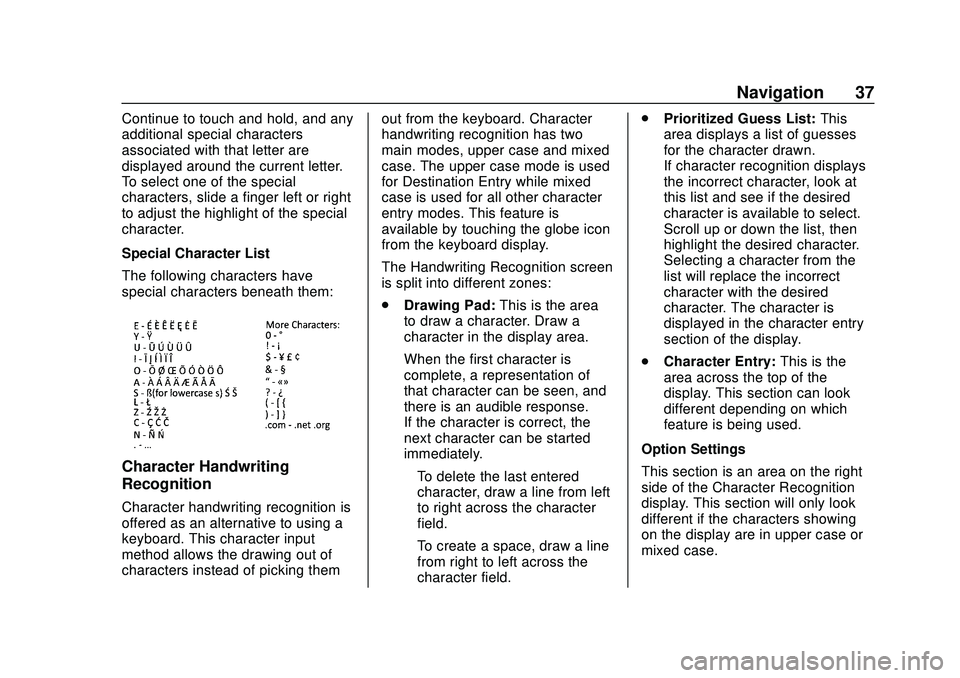
Special Character List
The following characters have
special characters beneath them:
Character Handwriting
Recognition
Character handwriting recognition is
offered as an alternative to using a
keyboard. This character input
method allows the drawing out of
characters instead of picking themout from the keyboard. Character
handwriting recognition has two
main modes, upper case and mixed
case. The upper case mode is used
for Destination Entry while mixed
case is used for all other character
entry modes. This feature is
available by touching the globe icon
from the keyboard display.
The Handwriting Recognition screen
is split into different zones:
.
Drawing Pad: This is the area
to draw a character. Draw a
character in the display area.
When the first character is
complete, a representation of
that character can be seen, and
there is an audible response.
If the character is correct, the
next character can be started
immediately.
‐ To delete the last entered
character, draw a line from left
to right across the character
field.
‐ To create a space, draw a line
from right to left across the
character field. .
Prioritized Guess List: This
area displays a list of guesses
for the character drawn.
If character recognition displays
the incorrect character, look at
this list and see if the desired
character is available to select.
Scroll up or down the list, then
highlight the desired character.
Selecting a character from the
list will replace the incorrect
character with the desired
character. The character is
displayed in the character entry
section of the display.
. Character Entry: This is the
area across the top of the
display. This section can look
different depending on which
feature is being used.
Option Settings
This section is an area on the right
side of the Character Recognition
display. This section will only look
different if the characters showing
on the display are in upper case or
mixed case.
Page 39 of 97
Chevrolet Impala Infotainment Manual (2.6) (GMNA-Localizing-U.S./Canada-
14402255) - 2020 - CRC - 6/5/19
38 Navigation
.k:Select from the infotainment
display. The draw speed setting
will adjust the speed of the
character recognition feature.
The settings are: Faster, Default,
and Slower.
. Audio Feedback: Touch to turn
Audio Feedback On or Off.
Audio feedback is an audible
response to an action that has
occurred while using the
Character Recognition.
. ABC/abc: Select from the
infotainment display to view the
available character sets. Select
a character set to change.
Multiple character sets may not
be supported by some regions.
This option also displays the
sentence case of upper or lower
case characters that are
currently active in a mixed case
mode. If only one character set
is available for the desired
region, touching the character
recognition will only open and
close the character recognition
window. If mixed case character mode is
supported, the last characters of
character recognition will be
upper and lower case.
One-Shot Search
Enter a full or partial Address,
Contact, or POI into the search bar
and the system will search and
display all of the matches.
The contacts that are searched
include both connected phone’s
contacts list and the vehicle’s
contacts list.
Search Process
The process of prioritizing the
search is to help shorten the length
of time at finding the results. If there
is a 100% match found when a
search type is carried out, the
remaining searches abort.
The system conducts the search in
the following order: 1. Vehicle Contacts List
2. Connected Phone Contacts List 3. POIs
4. Addresses
The Contacts are done first because
the list will be relatively short and
can be done quickly.
POIs are done next because the
amount of time it takes to search for
the average POI is consistent. The
less deviation during a search would
mean an average of less time taken.
The Addresses are last because the
standard deviation for an address
search is very large. Some address
searches are very quick, but others
may take very long. Because of this,
the address search would not be
conducted unless a good match
could not be found in either
Contacts or POIs.
Autocomplete
The autocomplete is preloaded with
all recent destinations and POI
category names. Previous POI
name searches are remembered.
Page 42 of 97
Chevrolet Impala Infotainment Manual (2.6) (GMNA-Localizing-U.S./Canada-
14402255) - 2020 - CRC - 6/5/19
Navigation 41
2. Select a POI category todisplay subcategories.
3. If a selected subcategory has no results in the surrounding
area, the search is expanded
until a result is found.
4. If a high-level category is selected, such as restaurants,
the map zooms in to the region
near the vehicle’s position to
show the nearest matches.
When a list appears, it can be
filtered for a particular type by
touching the filter along the top
of the display. If there are no
particular results for a selected
filter type, it is indicated in
the list.
5. Pan or zoom the map using the finger gestures to minimize the
POI list and to interact with the
map. The icons that were
shown before continue to be
displayed and updated. The list
is also updated based on
where the map was panned or
zoomed. The search for POIs
is constrained to where the
map has been moved. 6. If the search map is touched to
recenter, the crosshairs are
shown to indicate the center of
the new search location. If a
POI icon is touched on while in
the full expanded map, a
callout for that location
appears. Touch the callout to
display the Destination
Details view.
7. Touch the map reset option to return the map to automatic
zooming and searching. It is
recentered around the vehicle’s
position, the route, the
destination, or another location
that was specified for the
search. The map Reset option
is only displayed if the map
was manually adjusted.
If multiple types of matches are
found, the All list is shown with the
results sorted by confidence order
with the highest confidence result at
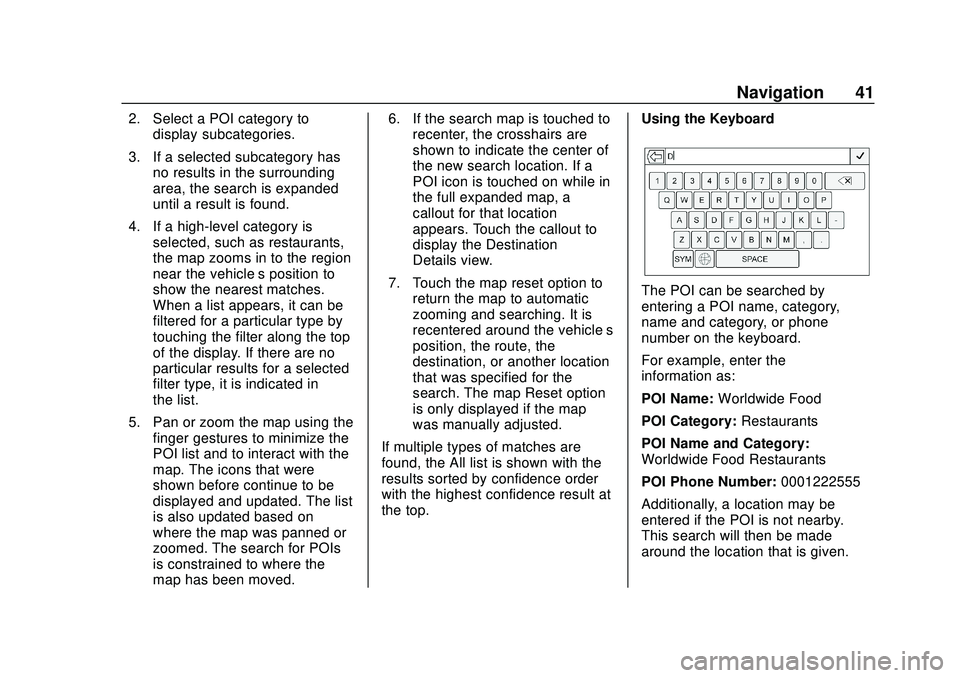
the top. Using the Keyboard
The POI can be searched by
entering a POI name, category,
name and category, or phone
number on the keyboard.
For example, enter the
information as:
POI Name:
Worldwide Food
POI Category: Restaurants
POI Name and Category:
Worldwide Food Restaurants
POI Phone Number: 0001222555
Additionally, a location may be
entered if the POI is not nearby.
This search will then be made
around the location that is given.
Page 43 of 97
Chevrolet Impala Infotainment Manual (2.6) (GMNA-Localizing-U.S./Canada-
14402255) - 2020 - CRC - 6/5/19
42 Navigation
For example, enter the
information as:
POI Name and Location:
Worldwide Food Chicago IL
The POI keyboard search results
will display in the order in which
they were found.
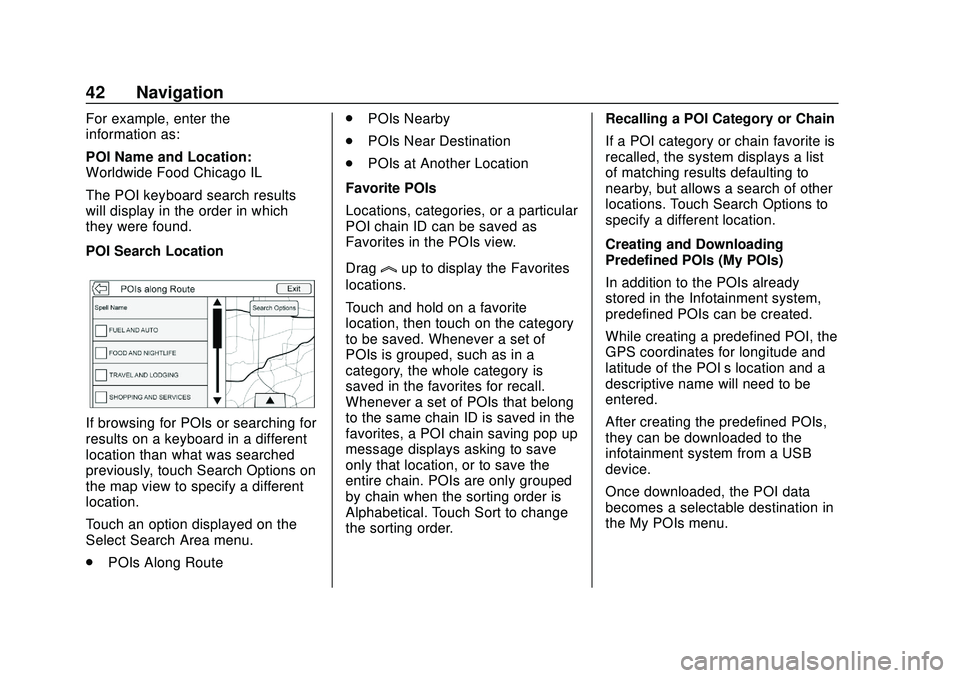
POI Search Location
If browsing for POIs or searching for
results on a keyboard in a different
location than what was searched
previously, touch Search Options on
the map view to specify a different
location.
Touch an option displayed on the
Select Search Area menu.
.POIs Along Route .
POIs Nearby
. POIs Near Destination
. POIs at Another Location
Favorite POIs
Locations, categories, or a particular
POI chain ID can be saved as
Favorites in the POIs view.
Drag
lup to display the Favorites
locations.
Touch and hold on a favorite
location, then touch on the category
to be saved. Whenever a set of
POIs is grouped, such as in a
category, the whole category is
saved in the favorites for recall.
Whenever a set of POIs that belong
to the same chain ID is saved in the
favorites, a POI chain saving pop up
message displays asking to save
only that location, or to save the
entire chain. POIs are only grouped
by chain when the sorting order is
Alphabetical. Touch Sort to change
the sorting order. Recalling a POI Category or Chain
If a POI category or chain favorite is
recalled, the system displays a list
of matching results defaulting to
nearby, but allows a search of other
locations. Touch Search Options to
specify a different location.
Creating and Downloading
Predefined POIs (My POIs)
In addition to the POIs already
stored in the Infotainment system,
predefined POIs can be created.
While creating a predefined POI, the
GPS coordinates for longitude and
latitude of the POI’s location and a
descriptive name will need to be
entered.
After creating the predefined POIs,
they can be downloaded to the
infotainment system from a USB
device.
Once downloaded, the POI data
becomes a selectable destination in
the My POIs menu.
Page 46 of 97
Chevrolet Impala Infotainment Manual (2.6) (GMNA-Localizing-U.S./Canada-
14402255) - 2020 - CRC - 6/5/19
Navigation 45
Favorite Destinations
.Destinations can be saved as
Favorites for recall later.
Depending on the favorite, when
an address or POI favorite is
recalled, the Destination Details
view is shown.
. When a favorite address is being
routed to, it is shown active.
Touch on the active favorite, to
suspend that route.
. Save locations as Favorites for
recall later in the Destination
Details view.
. Save trips from the
Address Book.
Storing Favorites from the Contact
Details List
A contact name or any of the
contact’ s information such as phone
number or address from Contact
Details can be stored as a Favorite.
. Touch and hold on the favorite
location while viewing a contact
on the Contact Details List. The
contact name and all contact
information can be stored. .
Touch to save as a favorite. The
favorite label will be the name of
the contact.
. Touch on the Favorite to display
the destination view.
Storing Favorites from Map
Favorite locations can be stored
from the Map View.
If not under route guidance, the
current vehicle location will be
saved as a Favorite. If under route
guidance, the final destination will
be saved.
Drag up from near the bottom of the
display to reveal Favorites. Touch
and hold a preset to save the
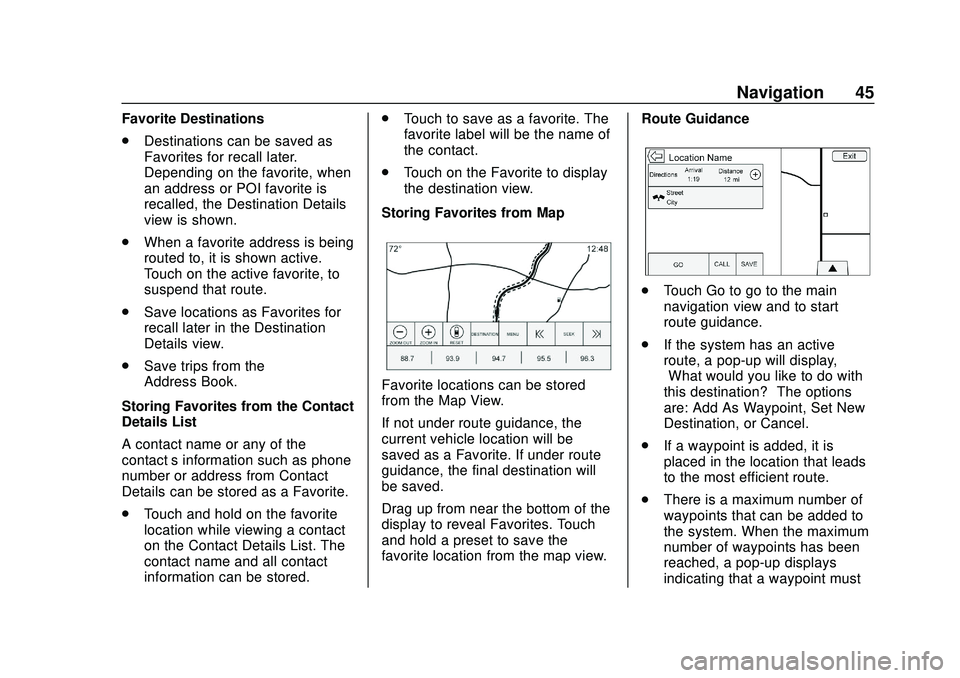
favorite location from the map view. Route Guidance
.
Touch Go to go to the main
navigation view and to start
route guidance.
. If the system has an active
route, a pop-up will display,
“What would you like to do with
this destination?” The options
are: Add As Waypoint, Set New
Destination, or Cancel.
. If a waypoint is added, it is
placed in the location that leads
to the most efficient route.
. There is a maximum number of
waypoints that can be added to
the system. When the maximum
number of waypoints has been
reached, a pop-up displays
indicating that a waypoint must
Page 49 of 97
Chevrolet Impala Infotainment Manual (2.6) (GMNA-Localizing-U.S./Canada-
14402255) - 2020 - CRC - 6/5/19
48 Navigation
always highlighted upon entry
into the Turn List to quickly show
what the next maneuver is.
. Each maneuver indicates the
distance between it and the
previous maneuver or the
vehicle’s current location. The
next maneuver at the top will
count down until the maneuver
is reached, and then the next
maneuver will begin to
count down.
. Each maneuver has an
estimated time of arrival based
on the current driving conditions.
Saved Trips
Waypoint trips can be saved for
later recall. Touch Add in the
waypoints list to save the trip to the
Saved Trips list in the vehicle’ s
contacts list. When trips are saved,
they are given a default title of the
final destination. Saved trips can be
edited by selecting the Edit list
option to access the edit display for
the saved entry. The only field that
can be edited is the name field.
Touch the name field to access the keyboard view. Type the name
change. This change is
automatically saved when executed
by the keyboard.
The saved trip can also be deleted
from the edit mode. Touch Delete
and a delete confirmation pop-up
will display.
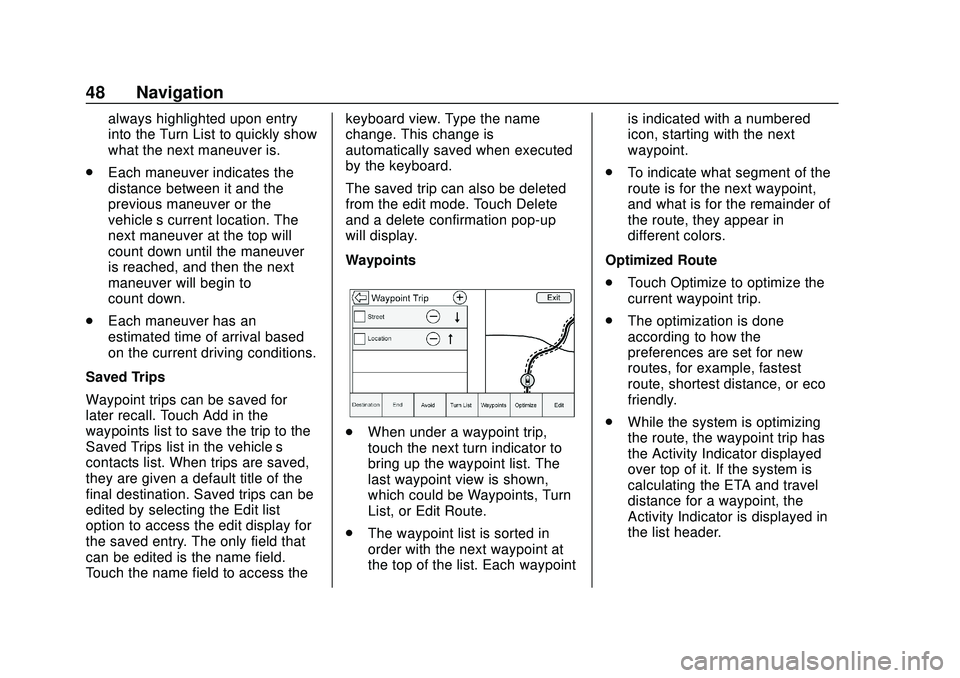
Waypoints
.
When under a waypoint trip,
touch the next turn indicator to
bring up the waypoint list. The
last waypoint view is shown,
which could be Waypoints, Turn
List, or Edit Route.
. The waypoint list is sorted in
order with the next waypoint at
the top of the list. Each waypoint is indicated with a numbered
icon, starting with the next
waypoint.
. To indicate what segment of the
route is for the next waypoint,
and what is for the remainder of
the route, they appear in
different colors.
Optimized Route
. Touch Optimize to optimize the
current waypoint trip.
. The optimization is done
according to how the
preferences are set for new
routes, for example, fastest
route, shortest distance, or eco
friendly.
. While the system is optimizing
the route, the waypoint trip has
the Activity Indicator displayed
over top of it. If the system is
calculating the ETA and travel
distance for a waypoint, the
Activity Indicator is displayed in
the list header.
Page 51 of 97
Chevrolet Impala Infotainment Manual (2.6) (GMNA-Localizing-U.S./Canada-
14402255) - 2020 - CRC - 6/5/19
50 Navigation
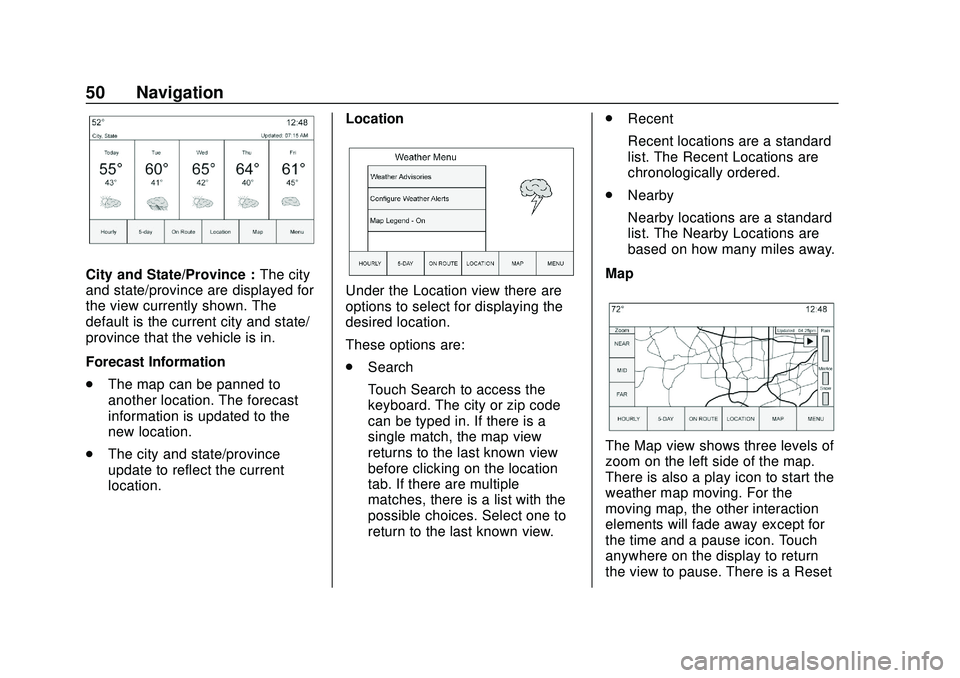
City and State/Province :The city
and state/province are displayed for
the view currently shown. The
default is the current city and state/
province that the vehicle is in.
Forecast Information
. The map can be panned to
another location. The forecast
information is updated to the
new location.
. The city and state/province
update to reflect the current
location. Location
Under the Location view there are
options to select for displaying the
desired location.
These options are:
.
Search
Touch Search to access the
keyboard. The city or zip code
can be typed in. If there is a
single match, the map view
returns to the last known view
before clicking on the location
tab. If there are multiple
matches, there is a list with the
possible choices. Select one to
return to the last known view. .
Recent
Recent locations are a standard
list. The Recent Locations are
chronologically ordered.
. Nearby
Nearby locations are a standard
list. The Nearby Locations are
based on how many miles away.
Map
The Map view shows three levels of
zoom on the left side of the map.
There is also a play icon to start the
weather map moving. For the
moving map, the other interaction
elements will fade away except for
the time and a pause icon. Touch
anywhere on the display to return
the view to pause. There is a Reset
Page 52 of 97
Chevrolet Impala Infotainment Manual (2.6) (GMNA-Localizing-U.S./Canada-
14402255) - 2020 - CRC - 6/5/19
Navigation 51
option in the lower left corner of the
map. Touch Reset to go back to the
current vehicle position.
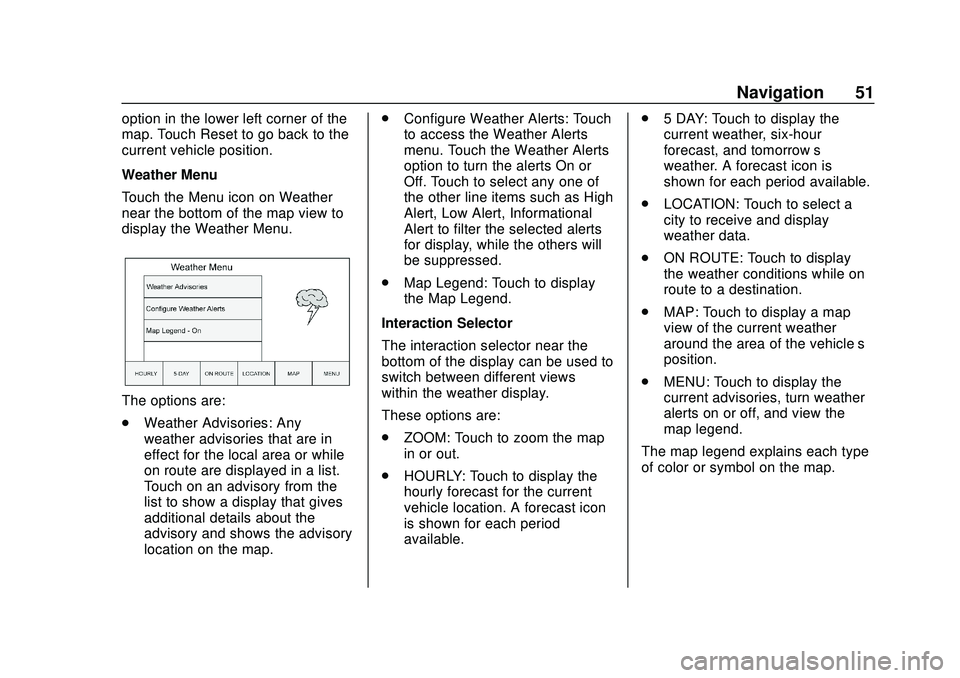
Weather Menu
Touch the Menu icon on Weather
near the bottom of the map view to
display the Weather Menu.
The options are:
.Weather Advisories: Any
weather advisories that are in
effect for the local area or while
on route are displayed in a list.
Touch on an advisory from the
list to show a display that gives
additional details about the
advisory and shows the advisory
location on the map. .
Configure Weather Alerts: Touch
to access the Weather Alerts
menu. Touch the Weather Alerts
option to turn the alerts On or
Off. Touch to select any one of
the other line items such as High
Alert, Low Alert, Informational
Alert to filter the selected alerts
for display, while the others will
be suppressed.
. Map Legend: Touch to display
the Map Legend.
Interaction Selector
The interaction selector near the
bottom of the display can be used to
switch between different views
within the weather display.
These options are:
. ZOOM: Touch to zoom the map
in or out.
. HOURLY: Touch to display the
hourly forecast for the current
vehicle location. A forecast icon
is shown for each period
available. .
5 DAY: Touch to display the
current weather, six-hour
forecast, and tomorrow’s
weather. A forecast icon is
shown for each period available.
. LOCATION: Touch to select a
city to receive and display
weather data.
. ON ROUTE: Touch to display
the weather conditions while on
route to a destination.
. MAP: Touch to display a map
view of the current weather
around the area of the vehicle’s
position.
. MENU: Touch to display the
current advisories, turn weather
alerts on or off, and view the
map legend.
The map legend explains each type
of color or symbol on the map.