set CHEVROLET IMPALA 2020 Infotainment System Manual
[x] Cancel search | Manufacturer: CHEVROLET, Model Year: 2020, Model line: IMPALA, Model: CHEVROLET IMPALA 2020Pages: 97, PDF Size: 1.26 MB
Page 18 of 97
Chevrolet Impala Infotainment Manual (2.6) (GMNA-Localizing-U.S./Canada-
14402255) - 2020 - CRC - 6/5/19
Audio Players 17
Use the following controls to play
the disc:
g:
. Press to seek to the beginning of
the current or previous track.
If the track has been playing for
less than five seconds, it seeks
to the previous track. If longer
than five seconds, the current
track starts from the beginning.
. Press and hold to fast reverse
through a track. Release to
return to playing speed. Elapsed
time displays.
d:
. Press to seek to the next track.
. Press and hold to fast forward
through a track. Release to
return to playing speed. Elapsed
time displays.
Z:Touch the shuffle icon near the
bottom of the infotainment display to
shuffle through the available media.
/: Touch the replay icon near the
bottom of the infotainment display to
show the time bar. Move the time
bar to interact with the currently
playing song.
TONE : Touch Tone near the bottom
of the infotainment display to access
the Tone Settings display. Set the
Bass, Midrange, Treble, Balance,
and Fade.
For vehicles equipped with Rear
Seat Infotainment (RSI), use the
Video application to play Blu-ray or
DVD discs.
Storing Media Favorites
To store media favorites, touch and
hold a favorite preset to display a
list of media types for the currently
playing item. Select from this list.
The lists that may display are:
Genres : Touch and hold a preset
to store the current genre as a
favorite. Touch a saved favorite to
recall a favorite genre. The first
song of the genre begins to play. Artists :
Touch and hold a preset to
store the current artist as a favorite.
Touch a saved favorite to recall a
favorite artist. The first song in the
artist list begins to play.
Albums : Touch and hold a preset
to store the current album as a
favorite. Touch a saved favorite to
recall a favorite album. The first
song in the album list begins to play.
Playlists : Touch and hold a preset
to store the current playlist. Touch a
saved favorite to recall a favorite
playlist. The first song in the playlist
begins to play.
Songs : Touch and hold a preset to
store the current song as a favorite.
Touch a saved favorite to recall a
favorite song.
Podcasts or Podcast Episode :
Touch and hold a preset to store the
current podcast as a favorite. Touch
a saved favorite to recall a favorite
podcast or podcast episode. The
podcast or podcast episode begins
to play.
Page 19 of 97
Chevrolet Impala Infotainment Manual (2.6) (GMNA-Localizing-U.S./Canada-
14402255) - 2020 - CRC - 6/5/19
18 Audio Players
Audiobooks :Touch and hold a
preset to store the current
audiobook as a favorite. Touch a
saved favorite to recall a favorite
audiobook. The first chapter begins
to play.
Videos : Touch and hold a preset to
store the current video as a favorite.
Touch a saved favorite to recall a
favorite video. Not all formats are
supported.
Error Messages
If Disc Error displays and/or the disc
comes out, it could be for one of the
following reasons:
. The disc has an invalid or
unknown format.
. The road is very rough. Try the
disc again when the road is
smoother.
. The disc is dirty, scratched, wet,
or upside down.
. The air is very humid. Try the
disc again later.
. There was a problem while
burning the disc. .
The label is caught in the CD
player.
If Disc Player Error displays, it could
be for one of the following reasons:
. The player temperature is
too high.
. There are load or eject errors.
If the CD is not playing correctly, for
any other reason, try a known
good CD.
If any error continues, contact your
dealer.
Playing an MP3 CD
To play an MP3 CD, follow the same
instructions as “Playing an
Audio CD.”
The following guidelines must be
met when creating an MP3 disc,
otherwise the CD might not play:
. Sampling rate: 16 kHz,
22.05 kHz, 24 kHz, 32 kHz,
44.1 kHz, and 48 kHz. .
Bit rates supported: 8, 16, 24,
32, 40, 48, 56, 64, 80, 96, 112,
128, 144, 160, 192, 224, 256,
and 320 kbps.
. Recorded on a CD-R or CD-RW.
MP3 CD playback is unavailable
when both screens in the rear seat
area are in use. Turn off one of the
rear screens to allow MP3 playback.
MP3 Music Menu
Touch the Menu icon on the
infotainment display while that
source is active to access the menu.
Touch any of the following options
on the MP3 Menu:
Shuffle : Touch to play the tracks
randomly. Touch again to stop
shuffle.
Tone Settings : Touch + or–to
adjust Bass, Midrange, Treble,
or Surround. See AM-FM Radio
0 10.
Auto Volume (If Equipped) : This
feature adjusts the volume based on
vehicle speed. See AM-FM Radio
0 10.
Page 21 of 97
Chevrolet Impala Infotainment Manual (2.6) (GMNA-Localizing-U.S./Canada-
14402255) - 2020 - CRC - 6/5/19
20 Audio Players
2. Press MEDIA on the centerstack until the connected
device is shown.
Use the following when playing an
active USB source:
r: Touch to play the current media
source.
j: Touch to pause playback of the
current media source.
g:
. Press to seek to the beginning of
the current or previous track.
. Press and hold to reverse
quickly through playback.
Release to return to playing
speed. Elapsed time displays.
d:
. Press to seek to the next track.
. Press and hold to advance
quickly through playback.
Release to return to playing
speed. Elapsed time displays. Shuffle :
Touch the shuffle icon to
play music in random order.
USB Menu
Touch the Menu icon to display the
USB menu. The following may be
available:
Shuffle : Touch to play the tracks
randomly. Touch again to stop
shuffle.
Tone : Touch + or –to adjust the
tone settings. See AM-FM Radio
0 10.
Auto Volume (If Equipped) : This
feature adjusts the volume based on
the vehicle speed. See AM-FM
Radio 010.
Bose AudioPilot Noise
Compensation Technology (If
Equipped : This feature adjusts the
volume based on the noise in the
vehicle and speed. See AM-FM
Radio 010. USB Browse Menu
When a list of songs, albums,
artists, or other types of media
displays, the up and down arrows
and A-Z appear on the left side.
Select A-Z to view a display that will
show all letters of the alphabet and
select the letter to go to.
Touch anywhere between the top
and bottom menus or touch the
Browse option on the infotainment
display to view the Browse menu
and the following options are
displayed near the bottom of the
display:
Playlists:
1. Touch to view the playlists stored on the USB.
2. Touch a playlist to view the list of all songs in that playlist.
3. Touch a song from the list to begin playback.
Supported Playlist extensions are
m3u, pls, and wpl.
Page 23 of 97
Chevrolet Impala Infotainment Manual (2.6) (GMNA-Localizing-U.S./Canada-
14402255) - 2020 - CRC - 6/5/19
22 Audio Players
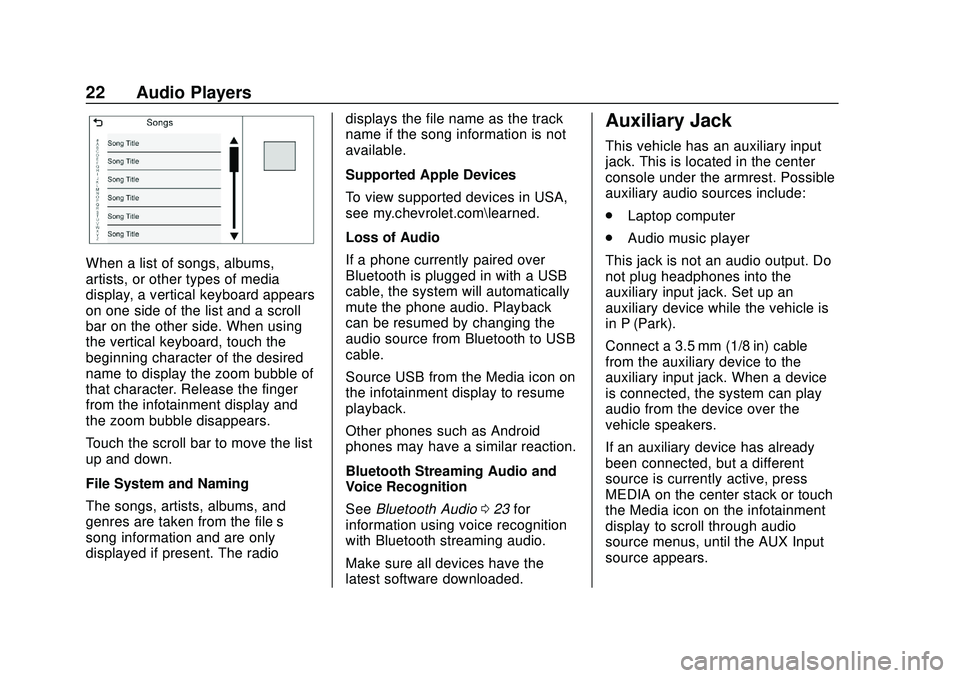
When a list of songs, albums,
artists, or other types of media
display, a vertical keyboard appears
on one side of the list and a scroll
bar on the other side. When using
the vertical keyboard, touch the
beginning character of the desired
name to display the zoom bubble of
that character. Release the finger
from the infotainment display and
the zoom bubble disappears.
Touch the scroll bar to move the list
up and down.
File System and Naming
The songs, artists, albums, and
genres are taken from the file’s
song information and are only
displayed if present. The radiodisplays the file name as the track
name if the song information is not
available.
Supported Apple Devices
To view supported devices in USA,
see my.chevrolet.com\learned.
Loss of Audio
If a phone currently paired over
Bluetooth is plugged in with a USB
cable, the system will automatically
mute the phone audio. Playback
can be resumed by changing the
audio source from Bluetooth to USB
cable.
Source USB from the Media icon on
the infotainment display to resume
playback.
Other phones such as Android
phones may have a similar reaction.
Bluetooth Streaming Audio and
Voice Recognition
See
Bluetooth Audio 023 for
information using voice recognition
with Bluetooth streaming audio.
Make sure all devices have the
latest software downloaded.
Auxiliary Jack
This vehicle has an auxiliary input
jack. This is located in the center
console under the armrest. Possible
auxiliary audio sources include:
. Laptop computer
. Audio music player
This jack is not an audio output. Do
not plug headphones into the
auxiliary input jack. Set up an
auxiliary device while the vehicle is
in P (Park).
Connect a 3.5 mm (1/8 in) cable
from the auxiliary device to the
auxiliary input jack. When a device
is connected, the system can play
audio from the device over the
vehicle speakers.
If an auxiliary device has already
been connected, but a different
source is currently active, press
MEDIA on the center stack or touch
the Media icon on the infotainment
display to scroll through audio
source menus, until the AUX Input
source appears.
Page 24 of 97
Chevrolet Impala Infotainment Manual (2.6) (GMNA-Localizing-U.S./Canada-
14402255) - 2020 - CRC - 6/5/19
Audio Players 23
Playing from the AUX Port
An auxiliary device is played
through the audio system and
controlled through the device itself.
AUX Menu
Press MENU on the center stack to
display the AUX Input menu and the
following may display:
Tone Settings :Touch to adjust
Bass, Midrange, Treble, Balance,
Fade, and EQ (Equalizer). See
AM-FM Radio 010.
Auto Volume (If Equipped) : This
feature adjusts the volume based on
the vehicle speed. See AM-FM
Radio 010.
Bose AudioPilot Noise
Compensation Technology (If
Equipped) : This feature adjusts
the volume based on the noise in
the vehicle and speed. See “Bose
AudioPilot” inAM-FM Radio 010.Bluetooth Audio
If equipped, music may be played
from a paired Bluetooth device. See
Bluetooth (Overview) 065 or
Bluetooth (Infotainment Controls)
0 66 or
Bluetooth (Voice Recognition) 070
for help pairing a device.
The music can be controlled by
either the infotainment controls or
the controls on the device.
Music can be launched by pressing
MEDIA on the center stack or go
into the audio application from the
Home Page or through the
applications tray. Touch the Media
icon until Bluetooth displays.
To play music via Bluetooth:
1. Power on the device, and pair to connect the device.
2. Once paired, go into the audio application from the Home
Page or through the
applications tray. Touch the
Media icon until Bluetooth
displays. Bluetooth Audio Menu
Touch the Menu icon on the
infotainment display or MENU on
the center stack to display the
Bluetooth Audio menu. The
following may be available:
Tone Settings :
Touch + or–to
adjust the tone settings. See AM-FM
Radio 010.
Auto Volume (If Equipped) : This
feature adjusts the volume based on
the vehicle speed. See AM-FM
Radio 010.
Bose AudioPilot Noise
Compensation Technology (If
Equipped) : This feature adjusts
the volume based on the noise in
the vehicle and speed. See AM-FM
Radio 010.
Touch the Back icon on the
infotainment display to go back to
the previous menu.
Page 27 of 97
Chevrolet Impala Infotainment Manual (2.6) (GMNA-Localizing-U.S./Canada-
14402255) - 2020 - CRC - 6/5/19
26 Navigation
Navigation
Using the Navigation
System
Touch the NAV icon on the Home
Page or the Nav icon on the
applications tray to access the
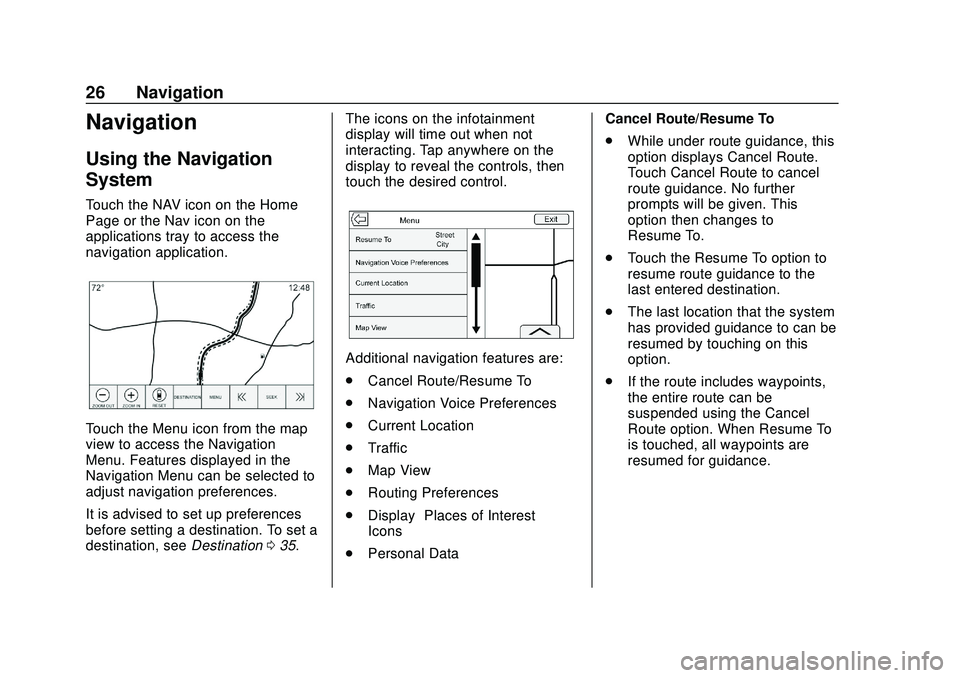
navigation application.
Touch the Menu icon from the map
view to access the Navigation
Menu. Features displayed in the
Navigation Menu can be selected to
adjust navigation preferences.
It is advised to set up preferences
before setting a destination. To set a
destination, seeDestination035. The icons on the infotainment
display will time out when not
interacting. Tap anywhere on the
display to reveal the controls, then
touch the desired control.
Additional navigation features are:
.
Cancel Route/Resume To
. Navigation Voice Preferences
. Current Location
. Traffic
. Map View
. Routing Preferences
. Display “Places of Interest”
Icons
. Personal Data Cancel Route/Resume To
.
While under route guidance, this
option displays Cancel Route.
Touch Cancel Route to cancel
route guidance. No further
prompts will be given. This
option then changes to
Resume To.
. Touch the Resume To option to
resume route guidance to the
last entered destination.
. The last location that the system
has provided guidance to can be
resumed by touching on this
option.
. If the route includes waypoints,
the entire route can be
suspended using the Cancel
Route option. When Resume To
is touched, all waypoints are
resumed for guidance.
Page 28 of 97
Chevrolet Impala Infotainment Manual (2.6) (GMNA-Localizing-U.S./Canada-
14402255) - 2020 - CRC - 6/5/19
Navigation 27
Navigation Voice Preferences
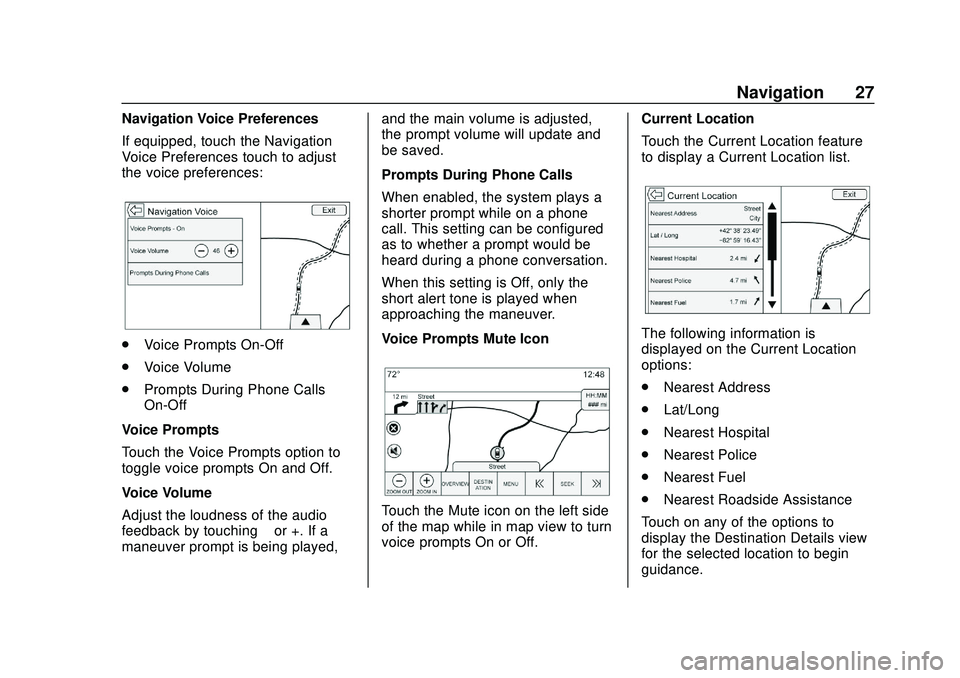
If equipped, touch the Navigation
Voice Preferences touch to adjust
the voice preferences:
.Voice Prompts On-Off
. Voice Volume
. Prompts During Phone Calls
On-Off
Voice Prompts
Touch the Voice Prompts option to
toggle voice prompts On and Off.
Voice Volume
Adjust the loudness of the audio
feedback by touching –or +. If a
maneuver prompt is being played, and the main volume is adjusted,
the prompt volume will update and
be saved.
Prompts During Phone Calls
When enabled, the system plays a
shorter prompt while on a phone
call. This setting can be configured
as to whether a prompt would be
heard during a phone conversation.
When this setting is Off, only the
short alert tone is played when
approaching the maneuver.
Voice Prompts Mute Icon
Touch the Mute icon on the left side
of the map while in map view to turn
voice prompts On or Off.
Current Location
Touch the Current Location feature
to display a Current Location list.
The following information is
displayed on the Current Location
options:
.
Nearest Address
. Lat/Long
. Nearest Hospital
. Nearest Police
. Nearest Fuel
. Nearest Roadside Assistance
Touch on any of the options to
display the Destination Details view
for the selected location to begin
guidance.
Page 29 of 97
Chevrolet Impala Infotainment Manual (2.6) (GMNA-Localizing-U.S./Canada-
14402255) - 2020 - CRC - 6/5/19
28 Navigation
Touch Nearest Address and then
the Save option to store the current
location to the Address Book.
Traffic (If Equipped)
Touch to browse the traffic in the
area as well as adjust the traffic
settings. Where traffic information is
available, it is displayed on the map.
Where live traffic flow data is
available, it is displayed as a solid
line adjacent to the road. The road
is displayed in colors to show the
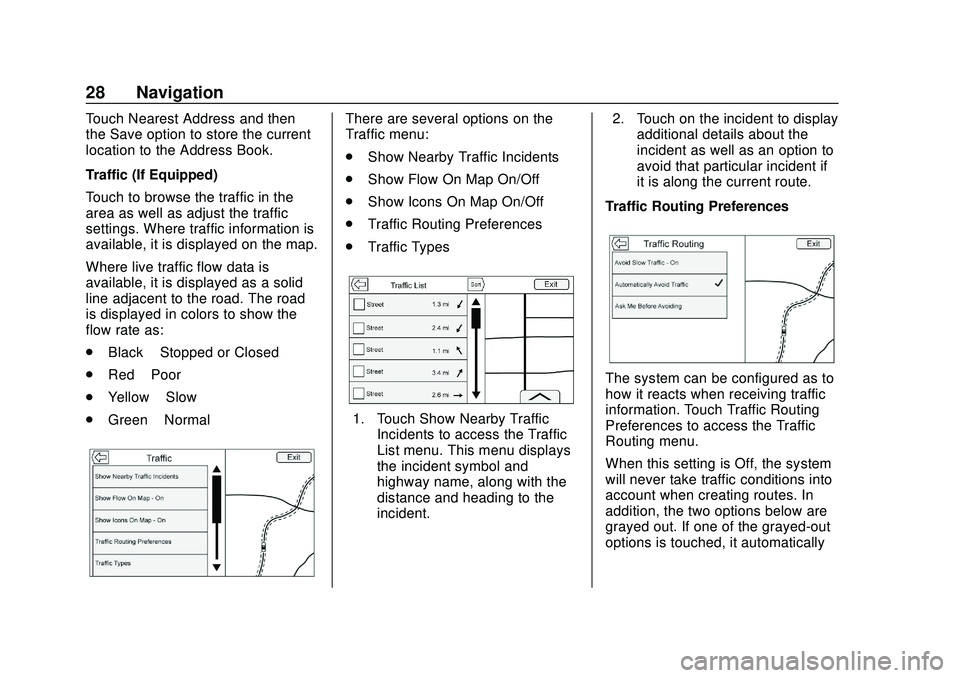
flow rate as:
.Black –Stopped or Closed
. Red –Poor
. Yellow –Slow
. Green –NormalThere are several options on the
Traffic menu:
.
Show Nearby Traffic Incidents
. Show Flow On Map On/Off
. Show Icons On Map On/Off
. Traffic Routing Preferences
. Traffic Types
1. Touch Show Nearby Traffic
Incidents to access the Traffic
List menu. This menu displays
the incident symbol and
highway name, along with the
distance and heading to the
incident. 2. Touch on the incident to display
additional details about the
incident as well as an option to
avoid that particular incident if
it is along the current route.
Traffic Routing Preferences
The system can be configured as to
how it reacts when receiving traffic
information. Touch Traffic Routing
Preferences to access the Traffic
Routing menu.
When this setting is Off, the system
will never take traffic conditions into
account when creating routes. In
addition, the two options below are
grayed out. If one of the grayed-out
options is touched, it automatically
Page 32 of 97
Chevrolet Impala Infotainment Manual (2.6) (GMNA-Localizing-U.S./Canada-
14402255) - 2020 - CRC - 6/5/19
Navigation 31
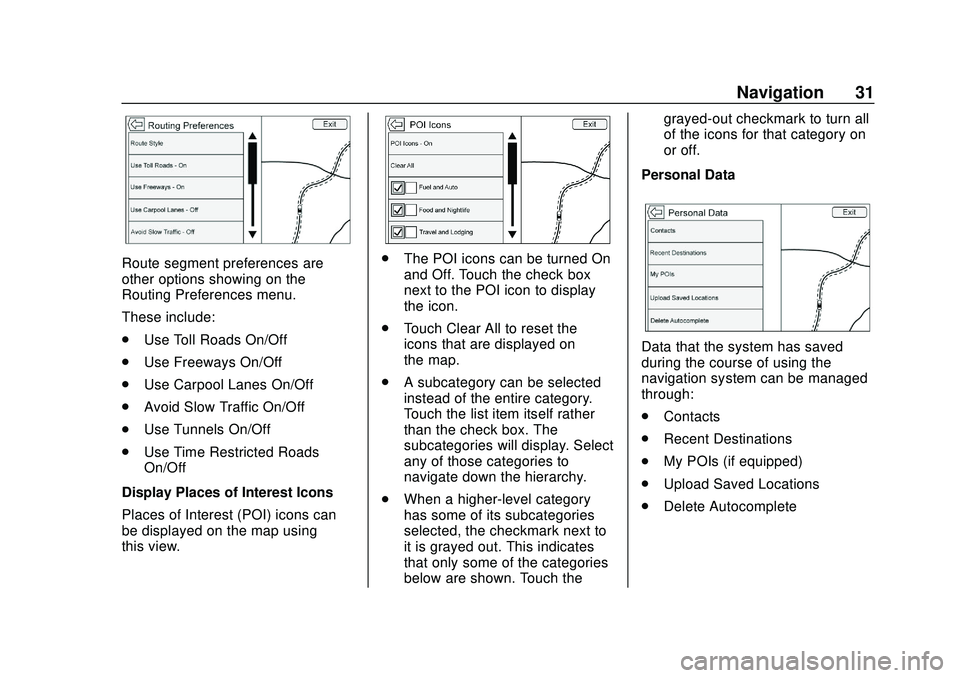
Route segment preferences are
other options showing on the
Routing Preferences menu.
These include:
.Use Toll Roads On/Off
. Use Freeways On/Off
. Use Carpool Lanes On/Off
. Avoid Slow Traffic On/Off
. Use Tunnels On/Off
. Use Time Restricted Roads
On/Off
Display Places of Interest Icons
Places of Interest (POI) icons can
be displayed on the map using
this view.. The POI icons can be turned On
and Off. Touch the check box
next to the POI icon to display
the icon.
. Touch Clear All to reset the
icons that are displayed on
the map.
. A subcategory can be selected
instead of the entire category.
Touch the list item itself rather
than the check box. The
subcategories will display. Select
any of those categories to
navigate down the hierarchy.
. When a higher-level category
has some of its subcategories
selected, the checkmark next to
it is grayed out. This indicates
that only some of the categories
below are shown. Touch the grayed-out checkmark to turn all
of the icons for that category on
or off.
Personal Data
Data that the system has saved
during the course of using the
navigation system can be managed
through:
. Contacts
. Recent Destinations
. My POIs (if equipped)
. Upload Saved Locations
. Delete Autocomplete
Page 34 of 97
Chevrolet Impala Infotainment Manual (2.6) (GMNA-Localizing-U.S./Canada-
14402255) - 2020 - CRC - 6/5/19
Navigation 33
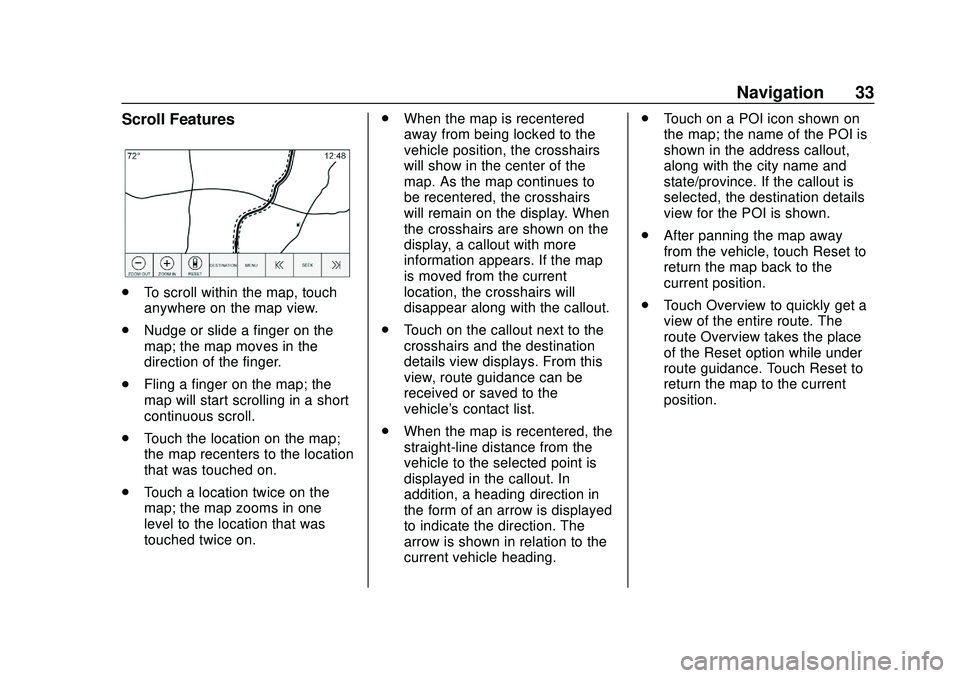
Scroll Features
.To scroll within the map, touch
anywhere on the map view.
. Nudge or slide a finger on the
map; the map moves in the
direction of the finger.
. Fling a finger on the map; the
map will start scrolling in a short
continuous scroll.
. Touch the location on the map;
the map recenters to the location
that was touched on.
. Touch a location twice on the
map; the map zooms in one
level to the location that was
touched twice on. .
When the map is recentered
away from being locked to the
vehicle position, the crosshairs
will show in the center of the
map. As the map continues to
be recentered, the crosshairs
will remain on the display. When
the crosshairs are shown on the
display, a callout with more
information appears. If the map
is moved from the current
location, the crosshairs will
disappear along with the callout.
. Touch on the callout next to the
crosshairs and the destination
details view displays. From this
view, route guidance can be
received or saved to the
vehicle's contact list.
. When the map is recentered, the
straight-line distance from the
vehicle to the selected point is
displayed in the callout. In
addition, a heading direction in
the form of an arrow is displayed
to indicate the direction. The
arrow is shown in relation to the
current vehicle heading. .
Touch on a POI icon shown on
the map; the name of the POI is
shown in the address callout,
along with the city name and
state/province. If the callout is
selected, the destination details
view for the POI is shown.
. After panning the map away
from the vehicle, touch Reset to
return the map back to the
current position.
. Touch Overview to quickly get a
view of the entire route. The
route Overview takes the place
of the Reset option while under
route guidance. Touch Reset to
return the map to the current
position.