reset CHEVROLET KODIAK 2004 User Guide
[x] Cancel search | Manufacturer: CHEVROLET, Model Year: 2004, Model line: KODIAK, Model: CHEVROLET KODIAK 2004Pages: 366, PDF Size: 6.87 MB
Page 157 of 366
Setting Preset Stations
The six numbered pushbuttons let you return to
your favorite stations. You can set up to 18 stations
(six FM1, six FM2, and six AM) by performing the
following steps:
1. Turn the radio on.
2. Press AM FM to select FM1, FM2, or AM.
3. Tune in the desired station.
4. Press and hold one of the six numbered
pushbuttons until you hear a beep. Whenever you
press that numbered pushbutton, the station
you set will return.
5. Repeat the steps for each pushbutton.
Setting the Tone (Bass/Treble)
AUDIO:To adjust bass and treble, press and release
AUDIO until BAS or TRE appears on the display.
Then press and hold the up or the down arrow to
increase or to decrease. If a station is weak or noisy,
you may want to decrease the treble.
To adjust bass or treble to the middle position, select
BAS or TRE. Then press and hold AUDIO for more than
two seconds until you hear a beep. B and a zero or T
and a zero will appear on the display.To adjust both tone controls and both speaker controls
to the middle position, end out of audio by waiting
for the display to change to the time display. Then press
and hold AUDIO for more than two seconds until you
hear a beep. CEN will appear on the display.
Adjusting the Speakers (Balance/Fade)
AUDIO:To adjust the balance between the right
and the left speakers, press and release AUDIO until
BAL appears on the display. Then press and hold the up
or the down arrow to move the sound toward the right
or the left speakers.
To adjust the fade between the front and the rear
speakers, press and release AUDIO until FAD appears
on the display. Then press and hold the up or the
down arrow to move the sound toward the front or the
rear speakers.
To adjust balance or fade to the middle position, select
BAL or FAD. Then press and hold AUDIO for more
than two seconds until you hear a beep. L and a zero
or F and a zero will appear on the display.
3-47
Page 159 of 366
Finding a Station
AM FM:Press this button to switch between AM, FM1
and FM2. The display will show your selection.
TUNE:Turn this knob to choose radio stations.
oSEEKp:Press the right or the left arrow to seek
to the next or to the previous station and stay there.
To scan stations, press and hold one of the SEEK
arrows for two seconds until you hear a beep. The radio
will go to a station, play for a few seconds and flash
the station frequency, then go on to the next station.
Press one of the SEEK arrows again to stop scanning.
To scan preset stations, press and hold one of the
SEEK arrows for more than four seconds until you hear
two beeps. The radio will go to the first preset station
stored on the pushbuttons, play for a few seconds
and flash the station frequency, then go on to the next
preset station. Press one of the SEEK arrows again
to stop scanning presets.
The radio will seek and scan only to stations that are in
the selected band and only to those with a strong
signal.
Setting Preset Stations
The six numbered pushbuttons let you return to
your favorite stations. You can set up to 18 stations
(six AM, six FM1 and six FM2) by performing the
following steps:
1. Turn the radio on.
2. Press AM FM to select AM, FM1 or FM2.
3. Tune in the desired station.
4. Press and hold one of the six numbered
pushbuttons until you hear a beep. Whenever you
press that numbered pushbutton, the station
you set will return.
5. Repeat the steps for each pushbutton.
Setting the Tone (Bass/Treble)
AUDIO:To adjust bass and treble, press and release
AUDIO until BAS or TRE appears on the display.
Then press and hold the up or the down arrow to
increase or to decrease. If a station is weak or noisy,
you may want to decrease the treble.
To adjust bass or treble to the middle position, select
BAS or TRE. Then press and hold AUDIO for more than
two seconds until you hear a beep. B and a zero or
T and a zero will appear on the display.
3-49
Page 161 of 366
If an error appears on the display, see “Cassette Tape
Messages” later in this section.
1 PREV (Previous):Your tape must have at least three
seconds of silence between each selection for previous
to work. Press this pushbutton to go to the previous
selection on the tape if the current selection has been
playing for less than 3 seconds. If pressed when
the current selection has been playing from 3 to
13 seconds, it will go to the beginning of the previous
selection or the beginning of the current selection,
depending on the position on the tape. If pressed when
the current selection has been playing for more than
13 seconds, it will go to the beginning of the current
selection. Pressing this pushbutton multiple times will
increase the number of selections to be searched back,
up to -9. Pressing the NEXT pushbutton will cancel
the selections.
2 NEXT:Your tape must have at least three seconds of
silence between each selection for next to work.
Press this pushbutton to go to the next selection on the
tape. Pressing this pushbutton multiple times in the
next mode will increase the number of selections
to searched forward. Pressing the PREV pushbutton will
cancel the selections.3 REV (Reverse):Press this pushbutton to reverse the
tape rapidly. FR will appear on the display. Press it
again to return to playing the tape. The radio will play
while the tape reverses. You may select stations during
reverse operation by using the TUNE or SEEK
controls or by using the scan or preset scan features.
4 FWD (Forward):Press this pushbutton to advance
quickly to another part of the tape. FF will appear on the
display. Press this pushbutton again to return to
playing the tape. The radio will play while the tape
advances. You may select stations during forward
operation by using the TUNE or SEEK controls or by
using the scan or preset scan features.
5 SIDE:Press this pushbutton to play the other side of
the tape.
6 RPT (Repeat):Your tape must have at least three
seconds of silence between each selection for repeat to
work. Press this pushbutton once to hear a selection
over again. RPT will appear on the display. Press
this button again to turn off repeated play. OFF will
appear on the display.
3-51
Page 163 of 366
Radio with CD
Playing the Radio
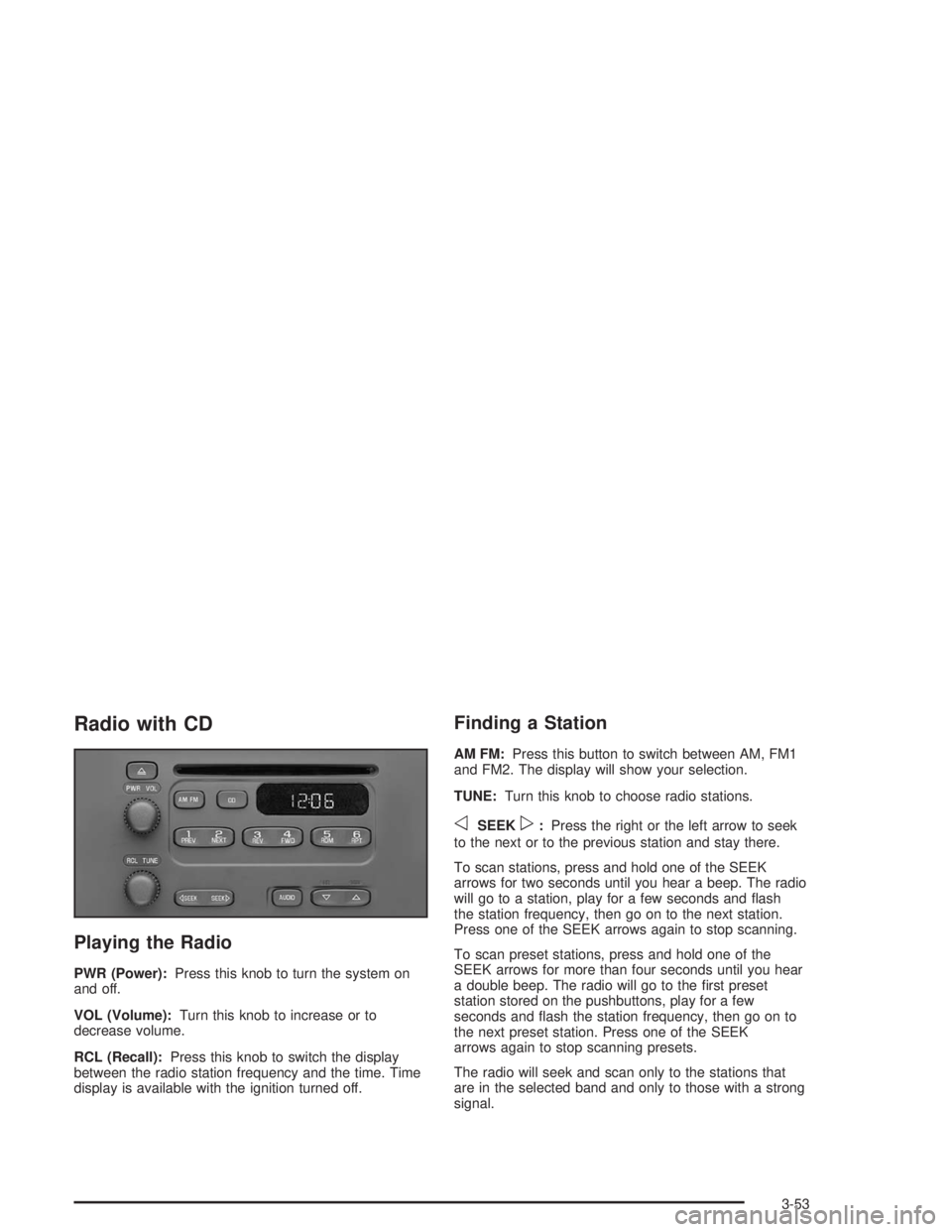
PWR (Power):Press this knob to turn the system on
and off.
VOL (Volume):Turn this knob to increase or to
decrease volume.
RCL (Recall):Press this knob to switch the display
between the radio station frequency and the time. Time
display is available with the ignition turned off.
Finding a Station
AM FM:Press this button to switch between AM, FM1
and FM2. The display will show your selection.
TUNE:Turn this knob to choose radio stations.
oSEEKp:Press the right or the left arrow to seek
to the next or to the previous station and stay there.
To scan stations, press and hold one of the SEEK
arrows for two seconds until you hear a beep. The radio
will go to a station, play for a few seconds and flash
the station frequency, then go on to the next station.
Press one of the SEEK arrows again to stop scanning.
To scan preset stations, press and hold one of the
SEEK arrows for more than four seconds until you hear
a double beep. The radio will go to the first preset
station stored on the pushbuttons, play for a few
seconds and flash the station frequency, then go on to
the next preset station. Press one of the SEEK
arrows again to stop scanning presets.
The radio will seek and scan only to the stations that
are in the selected band and only to those with a strong
signal.
3-53
Page 164 of 366
Setting Preset Stations
The six numbered pushbuttons let you return to
your favorite stations. You can set up to 18 stations
(six AM, six FM1 and six FM2) by performing the
following steps:
1. Turn the radio on.
2. Press AM FM to select AM, FM1 or FM2.
3. Tune in the desired station.
4. Press and hold one of the six numbered
pushbuttons until you hear a beep. Whenever you
press that numbered pushbutton, the station
you set will return.
5. Repeat the steps for each pushbutton.
Setting the Tone (Bass/Treble)
AUDIO:To adjust the bass and treble, press and
release AUDIO until BAS or TRE appears on the
display. Then press and hold the up or the down arrow
to increase or to decrease. If a station is weak or
noisy, you may want to decrease the treble.
To adjust bass or treble to the middle position, select
BAS or TRE. Then press and hold AUDIO for more than
two seconds until you hear a beep. B and a zero or
T and a zero will appear on the display.To adjust both tone controls and both speaker controls
to the middle position, end out of audio mode by
waiting for the display to change to the time display.
Then press and hold AUDIO for more than two seconds
until you hear a beep. CEN will appear on the display.
Adjusting the Speakers (Balance/Fade)
AUDIO:To adjust the balance between the right
and the left speakers, press and release AUDIO until
BAL appears on the display. Then press and hold the up
or the down arrow to move the sound toward the right
or the left speakers.
To adjust the fade between the front and rear speakers,
press and release AUDIO until FAD appears on the
display. Then press and hold the up or the down arrow to
move the sound toward the front or the rear speakers.
To adjust balance or fade to the middle position, select
BAL or FAD. Then press and hold AUDIO for more than
two seconds until you hear a beep. L and a zero or F and
a zero will appear on the display.
To adjust both tone controls and both speaker controls to
the middle position, end out of audio mode by waiting for
the display to change to the time display. Then press and
hold AUDIO for more than two seconds until you hear a
beep. CEN will appear on the display.
Fade may not be available if you have a regular
cab model.
3-54
Page 167 of 366

Theft-Deterrent Feature
(Non-RDS Radios)
THEFTLOCK®is designed to discourage theft of your
radio. The feature works automatically by learning
a portion of the Vehicle Identification Number (VIN). If
the radio is moved to a different vehicle, it will not
operate and LOC will appear on the display.
With THEFTLOCK
®activated, your radio will not
operate if stolen.
Radio Reception
AM
The range for most AM stations is greater than for FM,
especially at night. The longer range, however, can
cause stations to interfere with each other. AM can pick
up noise from things like storms and power lines. Try
reducing the treble to reduce this noise.
FM
FM stereo will give you the best sound, but FM signals
will reach only about 10 to 40 miles (16 to 65 km).
Tall buildings or hills can interfere with FM signals,
causing the sound to come and go.
Care of Your Cassette Tape Player
A tape player that is not cleaned regularly can cause
reduced sound quality, ruined cassettes or a damaged
mechanism. Cassette tapes should be stored in their
cases away from contaminants, direct sunlight and
extreme heat. If they aren’t, they may not operate
properly or may cause failure of the tape player.
Your tape player should be cleaned regularly after every
50 hours of use. Your radio may display CLN to
indicate that you have used your tape player for
50 hours without resetting the tape clean timer. If this
message appears on the display, your cassette
tape player needs to be cleaned. It will still play tapes,
but you should clean it as soon as possible to
prevent damage to your tapes and player. If you notice
a reduction in sound quality, try a known good
cassette to see if the tape or the tape player is at fault.
If this other cassette has no improvement in sound
quality, clean the tape player.
For best results, use a scrubbing action, non-abrasive
cleaning cassette with pads which scrub the tape
head as the hubs of the cleaner cassette turn. The
recommended cleaning cassette is available through
your dealer (GM Part No. 12344789).
3-57
Page 168 of 366
The cut tape detection feature of your cassette tape
player may identify the cleaning cassette as a damaged
tape. To prevent the cleaning cassette from being
ejected, use the following steps:
1. Turn the ignition on.
2. Turn the radio off.
3. Press and hold the TAPE button for two seconds
until the radio produces one beep. CAS will flash
on the display for five seconds.
4. Insert the scrubbing action cleaning cassette.
5. Eject the cleaning cassette after the manufacturer’s
recommended cleaning time.
After the cleaning cassette is ejected, the cut tape
detection feature will be active again.You may also choose a non-scrubbing action, wet-type
cleaner which uses a cassette with a fabric belt to
clean the tape head. This type of cleaning cassette will
not eject on its own. A non-scrubbing action cleaner
may not clean as thoroughly as the scrubbing type
cleaner. The use of a non-scrubbing action, dry-type
cleaning cassette is not recommended.
After you clean the player, press and hold the eject
button for three seconds to reset the CLN indicator. The
radio will display --- to show the indicator was reset.
Cassettes are subject to wear and the sound quality may
degrade over time. Always make sure the cassette
tape is in good condition before you have your
tape player serviced.
3-58
Page 230 of 366
When to Change Engine Oil (GM Oil
Life System)
Your vehicle has a computer system that lets you know
when to change the engine oil and filter. This is
based on engine revolutions and engine temperature,
and not on mileage. Based on driving conditions,
the mileage at which an oil change will be indicated can
vary considerably. For the oil life system to work
properly, you must reset the system every time the oil is
changed.
When the system has calculated that oil life has been
diminished, it will indicate that an oil change is
necessary. A change engine oil light will come on.
Change your oil as soon as possible within the next two
times you stop for fuel. It is possible that, if you are
driving under the best conditions, the oil life system may
not indicate that an oil change is necessary for over a
year. However, your engine oil and filter must be
changed at least once a year and at this time the system
must be reset. Your dealer has GM-trained service
people who will perform this work using genuine GM
parts and reset the system. It is also important to check
your oil regularly and keep it at the proper level.
If the system is ever reset accidentally, you must change
your oil at 3,000 miles (5 000 km) since your last oil
change. Remember to reset the oil life system whenever
the oil is changed.
How to Reset the Change Engine Oil Light
The GM Oil Life System calculates when to change
your engine oil and filter based on vehicle use. Anytime
your oil is changed, reset the system so it can
calculate when the next oil change is required. If a
situation occurs where you change your oil prior to a
change engine oil light being turned on, reset the
system.
To reset the change engine oil light, do the following:
1. Turn the ignition key to RUN with the engine off.
2. Fully press and release the accelerator pedal slowly
three times within 10 seconds.
If the change engine oil light flashes for five
seconds, the system is resetting.
3. Turn the key to OFF.
If the change engine oil light comes back on when you
start your vehicle, the engine oil life system has not
reset. Repeat the procedure.
5-24
Page 236 of 366
Engine Air Cleaner/Filter
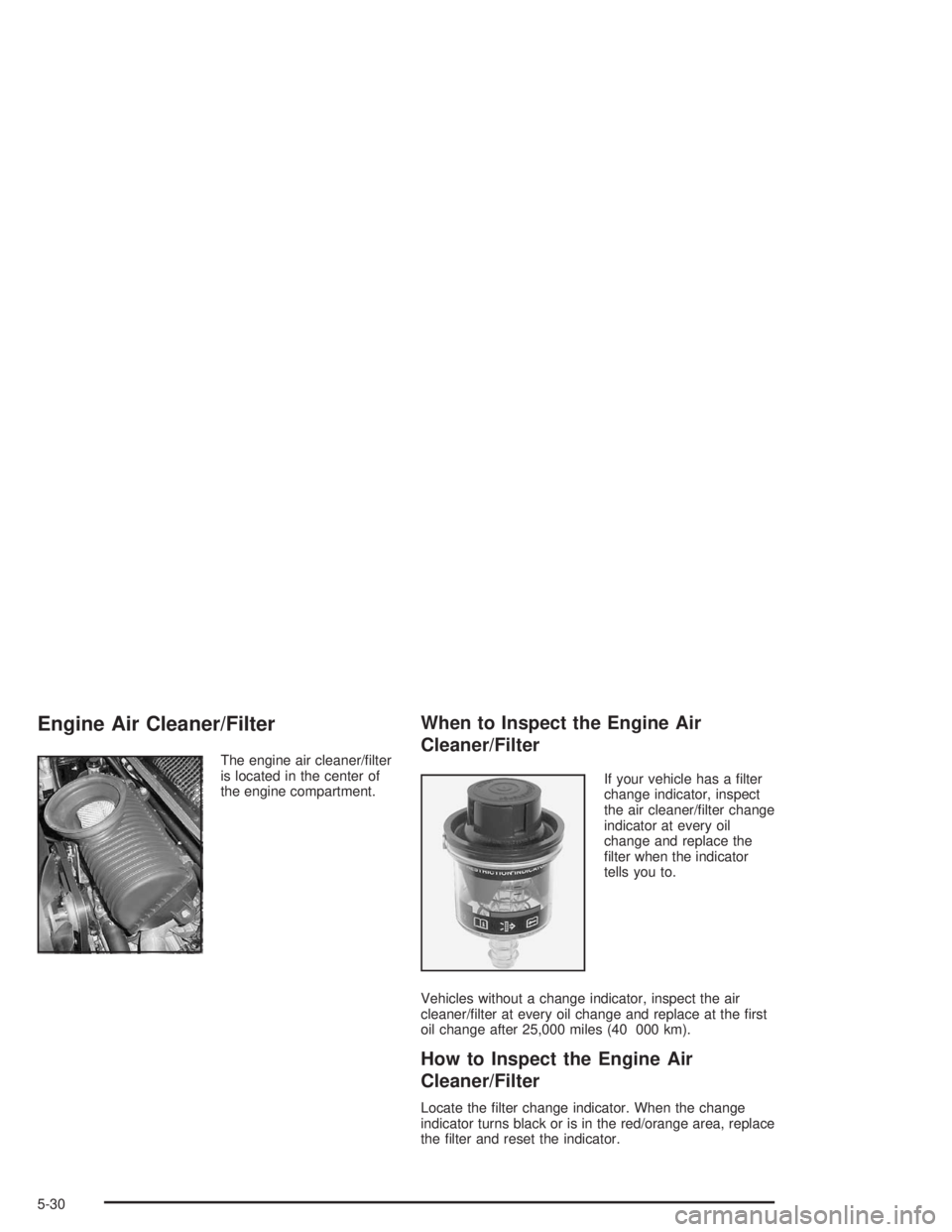
The engine air cleaner/filter
is located in the center of
the engine compartment.
When to Inspect the Engine Air
Cleaner/Filter
If your vehicle has a filter
change indicator, inspect
the air cleaner/filter change
indicator at every oil
change and replace the
filter when the indicator
tells you to.
Vehicles without a change indicator, inspect the air
cleaner/filter at every oil change and replace at the first
oil change after 25,000 miles (40 000 km).
How to Inspect the Engine Air
Cleaner/Filter
Locate the filter change indicator. When the change
indicator turns black or is in the red/orange area, replace
the filter and reset the indicator.
5-30
Page 250 of 366
If your power steering fluid level is low, this can cause
the brake or service brake soon warning lights to
come on. In addition, the steering effort and emergency
brake distance could increase.
If either light remains on after you have added power
steering fluid to the proper level, then shut off the engine
for 10 seconds. This should reset the brake warning
lights. If one or both lights stay on though, see
“Hydraulic Brake System Warning Lights” underBrake
System Warning Light on page 3-31for more
information.
What to Use
To determine what kind of fluid to use, seePart C:
Recommended Fluids and Lubricants on page 6-29.
Notice:When adding power steering uid or
making a complete uid change, always use the
proper uid. Failure to use the proper uid can
cause leaks and damage hoses and seals.
Windshield Washer Fluid
What to Use
When you need windshield washer fluid, be sure to read
the manufacturer’s instructions before use. If you will
be operating your vehicle in an area where the
temperature may fall below freezing, use a fluid that has
sufficient protection against freezing.
Adding Washer Fluid
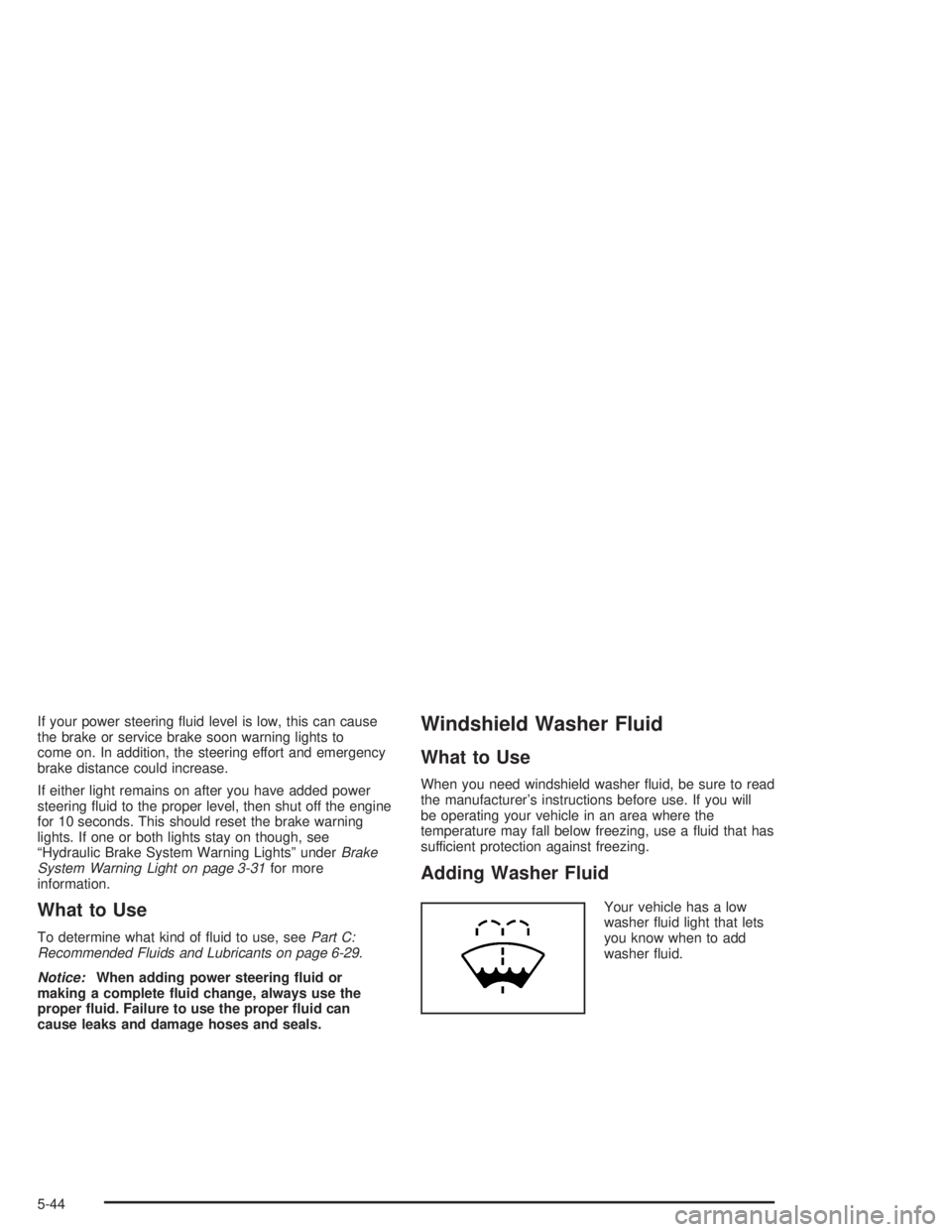
Your vehicle has a low
washer fluid light that lets
you know when to add
washer fluid.
5-44