ABS CHEVROLET MALIBU 2012 7.G User Guide
[x] Cancel search | Manufacturer: CHEVROLET, Model Year: 2012, Model line: MALIBU, Model: CHEVROLET MALIBU 2012 7.GPages: 398, PDF Size: 6.06 MB
Page 160 of 398
Black plate (10,1)Chevrolet Malibu Owner Manual - 2012
7-10 Infotainment System
Finding an XM Channel
BAND:Press to switch between
AM, FM, or XM™, if equipped.
f(Tune): Turn to manually select
an XM channel.
©SEEK: Press to go to the
previous XM channel.
.To scan stations, press and
hold
©SEEK for a few seconds
until the radio beeps once. The
radio goes to a cahnnel, plays
for a few seconds, then goes to
the next station. Press
©SEEK
again to stop scanning.
¨SEEK: Press to go to the next
XM channel.
.To scan stations, press and
hold
¨SEEK for a few seconds
until the radio beeps once.
The radio goes to a station,
plays for a few seconds,
then goes to the next station.
Press
¨SEEK again to stop
scanning.
sREV: Press to go to the
previous XM category.
\FWD: Press to go to the next
XM category.
Finding a Category (CAT)
Channel
To find XM channels in a category:
1. Press the CAT button to display
the category tabs. Continue
pressing the CAT button until the
desired category name displays.
.Radios with CD and DVD
can also navigate the
category list by pressing
the
\FWD or thesREV
button.
2. Press either of the two softkeys below the desired category tab
to immediately tune to the first
XM station in that category. To go to the previous or next XM
station in the selected category,
do one of the following:
.Turn thefknob.
.Press the softkey below the
right or left arrows in the
category tab.
.Press©SEEK or¨SEEK.
3. To exit the category search mode, press the FAV button or
BAND button to display the
favorites again.
Adding and Removing Categories
Categories cannot be added or
removed while the vehicle is moving
faster than 8 km/h (5 mph).
To add or remove a category:
1. Press the MENU button.
2. Press the softkey located below the XM CAT tab.
Page 161 of 398
Black plate (11,1)Chevrolet Malibu Owner Manual - 2012
Infotainment System 7-11
3. Turn thefknob to display the
category you want to add or
remove.
4. Press the softkey located under the Add or Remove tab.
To restore all removed
categories, press the softkey
under the Restore All tab.
5. Repeat the steps to remove more categories.
Storing XM Channels
Drivers are encouraged to store
radio station while the vehicle is
parked, see Defensive Driving on
page 9‑3. Tune to stored radio
stations using the presets, favorites
button, and steering wheel controls,
if the vehicle has this feature.
Up to 36 stations can be
programmed as favorites using the
six softkeys below the radio station
frequency tabs and by using the FAV button. Press the FAV button
to go through up to six pages of
favorites, each having six favorite
stations available per page. Each
page of favorites can contain any
combination of AM, FM, or XM,
if equipped, stations.
Storing an XM Channel as a
Favorite
To store a station as a favorite:
1. Tune to an XM channel.
2. Press the FAV button to display
the page where the station will
be stored.
3. Press and hold one of the six softkeys until a beep sounds.
4. Repeat Steps 1 through 3 to store additional radio stations. The number of favorites pages can
be setup using the MENU button.
To setup the number of favorites
pages:
1. Press the MENU button.
2. Press the softkey located below
the FAV 1-6 tab.
3. Select the number of favorites pages by pressing the softkey
located below the displayed
page numbers.
4. Press the FAV button, or let the menu time out, to return to the
original main radio screen
showing the radio station
frequency tabs and to begin
the process of programming
favorites.
Page 166 of 398
Black plate (16,1)Chevrolet Malibu Owner Manual - 2012
7-16 Infotainment System
Playing a CD
When a CD is inserted into the
player the CD symbol displays, and
as each new track starts to play the
track number displays.
If the ignition or radio is turned off
when a CD is in the player, the CD
stays in the player. If the ignition or
radio is turned on when a CD is in
the player, the CD starts to play
where it stopped, if it was the last
selected audio source.
Buttons and Knobs
The buttons and knobs on the radio
control the following features.
f(Tune):Turn to select tracks on
the CD.
©SEEK: Press to go to the start of
the current track, if more than ten
seconds have played. Press and
hold or press multiple times to
continue moving backward through
the tracks on the CD.
¨SEEK: Press to go to the next
track. Press and hold or press
multiple times to continue moving
forward through the tracks on
the CD.
sREV (Reverse): Press and hold
to reverse playback quickly within a
track. Sound is heard at a reduced
volume and the elapsed time of the
track displays. Release to resume
playing the track.
\FWD (Fast Forward): Press
and hold to advance playback
quickly within a track. Sound is
heard at a reduced volume and the
elapsed time of the track displays.
Release to resume playing the
track.
4(Information): Press to display
available additional information
about the current track.
BAND: Press to listen to the radio
while a CD is playing. The CD
remains inside the CD player. CD/AUX (CD/Auxiliary):
Press to
play a CD while listening to the
radio or a portable audio device.
Press this button again and the
system automatically searches for
an auxiliary input device, such as a
portable audio player. If a portable
audio player is not connected,
No Aux Input Device Found may
display.
Softkeys
The five softkeys below the radio
display are used to control functions
that display as tabs.
The softkeys below the radio display
control the following features.
RDM (Random): Tracks can be
listened to in random, rather than
sequential order.
To use random:
1. Press the softkey below RDM
tab until Random Current Disc
displays.
2. Press the softkey again to turn off random play.
Page 169 of 398
Black plate (19,1)Chevrolet Malibu Owner Manual - 2012
Infotainment System 7-19
Softkeys
The five softkeys below the radio
display are used to control functions
that display as tabs.
The softkeys below the radio display
control the following features.
Sc(Previous Folder): Press
the softkey below
S cto go to the
first track in the previous folder.
cT (Next Folder): Press the
softkey below
cT to go to the first
track in the next folder.
RDM (Random): MP3 files can be
listened to on a CD in random,
rather than sequential order.
To use random:
1. Press the softkey under the RDM tab until Random Current
Disc displays to play songs from
the current CD in random order.
2. Press the same softkey again to turn off random play.
h(Music Navigator): Press the
softkey below
hto have the files
played in order by artist or album.
The player scans the disc to sort the
files by artist and album ID3 tag
information. It can take several
minutes to scan the disc depending
on the number of files on the disc.
The radio may begin playing while it
is scanning in the background.
When the scan is finished, the disc
begins playing files in order by
artist. The current artist playing is
shown on the second line of the
display. Once all songs by that artist
are played, the player moves to the
next artist in alphabetical order and
begins playing files by that artist.
To listen to files by another artist,
press the softkey located below
either arrow tab. The disc goes to
the next or previous artist in
alphabetical order. Continue
pressing either softkey below the
arrow tab until the desired artist
displays. To change from playback by artist to
playback by album:
1. Press the softkey located below
the Sort By tab.
2. Press one of the softkeys below the album tab from the sort
screen.
3. Press the softkey below the back tab to return to the main
music navigator screen.
The album name displays on the
second line between the arrows
and songs from the current album
begins to play. Once all songs
from that album have played, the
player moves to the next album in
alphabetical order on the disc and
begins playing MP3 files from that
album.
To exit music navigator mode, press
the softkey below the Back tab to
return to normal MP3 playback.
Page 173 of 398
Black plate (23,1)Chevrolet Malibu Owner Manual - 2012
Infotainment System 7-23
¨SEEK:Press to go to the next
track. Press and hold
¨SEEK or
press it multiple times to continue
moving forward through tracks.
sREV (Reverse): Press and hold
to reverse playback quickly. Sound
is heard at a reduced volume.
Release
sREV to resume playing.
\FWD (Fast Forward): Press
and hold to advance playback
quickly. Sound is heard at a reduced
volume. Release
\FWD to
resume playing.
4(Information): Press to display
additional information about the
selected track.
Softkeys
The five softkeys below the radio
display are used to control functions
that display as tabs.
To use the softkeys, press a softkey
below any tab that is displayed,
or if no tabs are displayed, press the
first or last softkey below the radio
display to display the tabs. The softkeys below the radio display
control the following features.
j(Pause):
Press the softkey
below
jto pause the track.
The tab appears raised when pause
is being used. Press the softkey
below
jagain to resume playback.
Back: Press the softkey below the
back tab to go back to the main
display screen on an iPod, or the
root directory on a USB storage
device.
c(Folder View): Press the
softkey below
cto view the
contents of the current folder on the
USB drive.
To browse and select files:
1. Press the softkey below
c.
2. Turn
fto scroll through the list
of folders. 3. Press
fto select the desired
folder. If there is more then one
folder, repeat Steps 1 and 2 until
the desired folder is reached.
4. Turn
fto scroll through the files
in the selected folder.
5. Press
fto select the desired file
to be played.
To skip through large lists, the five
softkeys can be used to navigate in
the following order:
.First softkey, first item in the list.
.Second softkey, 1% through the
list each time the softkey is
pressed.
.Third softkey, 5% through the list
each time the softkey is pressed.
.Fourth softkey, 10% through the
list each time the softkey is
pressed.
.Fifth softkey, end of the list.
Page 193 of 398
Black plate (1,1)Chevrolet Malibu Owner Manual - 2012
Driving and Operating 9-1
Driving and
Operating
Driving Information
Distracted Driving . . . . . . . . . . . . . 9-2
Defensive Driving . . . . . . . . . . . . . 9-3
Drunk Driving . . . . . . . . . . . . . . . . . 9-3
Control of a Vehicle . . . . . . . . . . . 9-3
Braking . . . . . . . . . . . . . . . . . . . . . . . 9-3
Steering . . . . . . . . . . . . . . . . . . . . . . . 9-4
Off-Road Recovery . . . . . . . . . . . . 9-5
Loss of Control . . . . . . . . . . . . . . . . 9-6
Driving on Wet Roads . . . . . . . . . 9-6
Highway Hypnosis . . . . . . . . . . . . 9-7
Hill and Mountain Roads . . . . . . 9-8
Winter Driving . . . . . . . . . . . . . . . . . 9-8
If the Vehicle Is Stuck . . . . . . . . 9-10
Vehicle Load Limits . . . . . . . . . . 9-11
Starting and Operating
New Vehicle Break-In . . . . . . . . 9-16
Ignition Positions . . . . . . . . . . . . 9-16
Starting the Engine . . . . . . . . . . 9-18
Engine Heater . . . . . . . . . . . . . . . 9-20
Retained AccessoryPower (RAP) . . . . . . . . . . . . . . . 9-21 Shifting Into Park . . . . . . . . . . . . 9-21
Shifting out of Park . . . . . . . . . . 9-22
Parking over Things
That Burn . . . . . . . . . . . . . . . . . . 9-23
Engine Exhaust
Engine Exhaust . . . . . . . . . . . . . . 9-23
Running the Vehicle WhileParked . . . . . . . . . . . . . . . . . . . . . 9-24
Automatic Transmission
Automatic Transmission . . . . . 9-24
Manual Mode . . . . . . . . . . . . . . . . 9-26
Brakes
Antilock BrakeSystem (ABS) . . . . . . . . . . . . . . 9-28
Parking Brake . . . . . . . . . . . . . . . 9-29
Brake Assist . . . . . . . . . . . . . . . . . 9-29
Ride Control Systems
Traction Control System (TCS) . . . . . . . . . . . . . . 9-30
Electronic Stability Control (ESC) . . . . . . . . . . . . . . 9-32
Cruise Control
Cruise Control . . . . . . . . . . . . . . . 9-33
Fuel
Fuel . . . . . . . . . . . . . . . . . . . . . . . . . 9-36
Recommended Fuel . . . . . . . . . 9-36
Gasoline Specifications(U.S. and Canada Only) . . . . 9-37
California Fuel
Requirements . . . . . . . . . . . . . . 9-37
Fuels in Foreign Countries . . . 9-37
Fuel Additives . . . . . . . . . . . . . . . 9-37
Fuel E85 (85% Ethanol) . . . . . 9-39
Filling the Tank . . . . . . . . . . . . . . 9-40
Filling a Portable Fuel Container . . . . . . . . . . . . . . . . . . . 9-41
Towing
General TowingInformation . . . . . . . . . . . . . . . . . 9-42
Driving Characteristics and
Towing Tips . . . . . . . . . . . . . . . . 9-42
Trailer Towing . . . . . . . . . . . . . . . . 9-46
Towing Equipment . . . . . . . . . . . 9-47
Conversions and Add-Ons
Add-On Electrical Equipment . . . . . . . . . . . . . . . . . 9-48
Page 197 of 398
Black plate (5,1)Chevrolet Malibu Owner Manual - 2012
Driving and Operating 9-5
Hydraulic Power Steering
If your vehicle has hydraulic
power steering, it may require
maintenance. See Power Steering
FluidPower Steering Fluid on
page 10‑22.
If power steering assist is lost
because the engine stops or the
power steering system is not
functioning, the vehicle can be
steered but may require increased
effort. See your dealer if there is a
problem.
Curve Tips
.Take curves at a reasonable
speed.
.Reduce speed before entering
a curve.
.Maintain a reasonable steady
speed through the curve
.Wait until the vehicle is out of
the curve before accelerating
gently into the straightaway.
Steering in Emergencies
.There are some situations when
steering around a problem may
be more effective than braking.
.Holding both sides of the
steering wheel allows you to turn
180 degrees without removing
a hand.
.Antilock Brake System (ABS)
allows steering while braking.
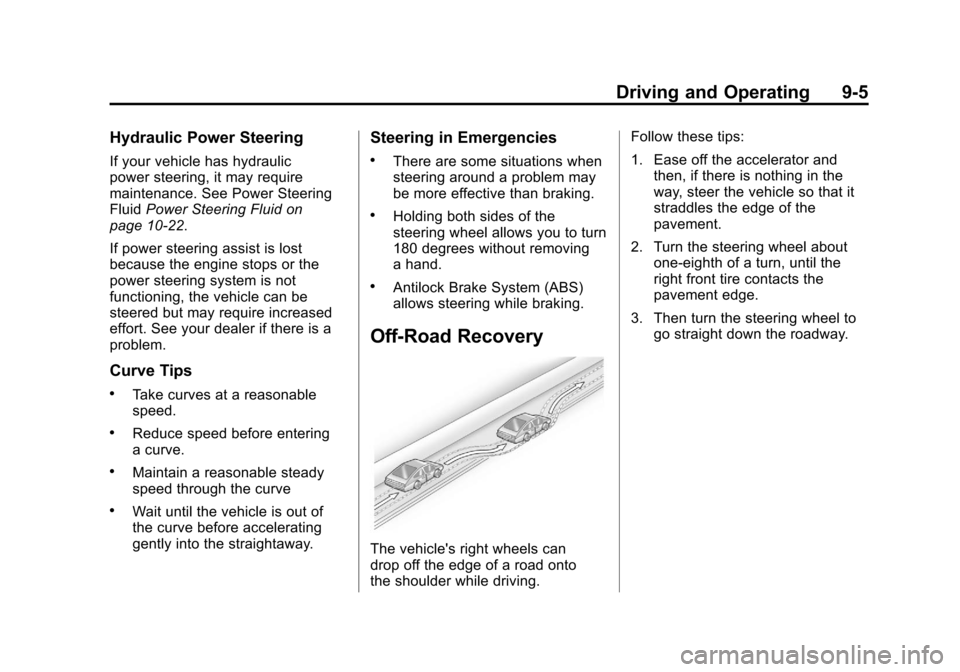
Off-Road Recovery
The vehicle's right wheels can
drop off the edge of a road onto
the shoulder while driving. Follow these tips:
1. Ease off the accelerator and
then, if there is nothing in the
way, steer the vehicle so that it
straddles the edge of the
pavement.
2. Turn the steering wheel about one-eighth of a turn, until the
right front tire contacts the
pavement edge.
3. Then turn the steering wheel to go straight down the roadway.
Page 201 of 398
Black plate (9,1)Chevrolet Malibu Owner Manual - 2012
Driving and Operating 9-9
TheAntilock Brake System (ABS)
on page 9‑28 improves vehicle
stability during hard stops on
slippery roads, but apply the brakes
sooner than when on dry pavement.
Allow greater following distance on
any slippery road and watch for
slippery spots. Icy patches can
occur on otherwise clear roads in
shaded areas. The surface of a
curve or an overpass can remain icy
when the surrounding roads are
clear. Avoid sudden steering
maneuvers and braking while
on ice.
Turn off cruise control on slippery
surfaces.
Blizzard Conditions
Being stuck in snow can be a
serious situation. Stay with the
vehicle unless there is help nearby.
If possible, use the Roadside
Assistance Program (U.S. and
Canada) on page 13‑7 orRoadside Assistance Program (Mexico) on
page 13‑10. To get help and keep
everyone in the vehicle safe:
.Turn on the hazard warning
flashers.
.Tie a red cloth to an outside
mirror.
{WARNING
Snow can trap engine exhaust
under the vehicle. This may
cause exhaust gases to get
inside. Engine exhaust contains
carbon monoxide (CO) which
cannot be seen or smelled. It can
cause unconsciousness and even
death.
If the vehicle is stuck in the snow:
.Clear away snow from around
the base of your vehicle,
especially any that is blocking
the exhaust pipe.
(Continued)
WARNING (Continued)
.Check again from time to
time to be sure snow does
not collect there.
.Open a window about 5 cm
(2 in) on the side of the
vehicle that is away from the
wind to bring in fresh air.
.Fully open the air outlets
on or under the instrument
panel.
.Adjust the climate control
system to a setting that
circulates the air inside the
vehicle and set the fan
speed to the highest setting.
See“Climate Control System”
in the Index.
For more information about
carbon monoxide, see Engine
Exhaust on page 9‑23.
Page 220 of 398
Black plate (28,1)Chevrolet Malibu Owner Manual - 2012
9-28 Driving and Operating
Brakes
Antilock Brake
System (ABS)
This vehicle has the Antilock Brake
System (ABS), an advanced
electronic braking system that helps
prevent a braking skid.
When the engine is started and the
vehicle begins to drive away, ABS
checks itself. A momentary motor or
clicking noise might be heard while
this test is going on, and it might
even be noticed that the brake
pedal moves a little. This is normal.
If there is a problem with ABS, this
warning light stays on. SeeAntilock
Brake System (ABS) Warning Light
on page 5‑19. If driving safely on a wet road and it
becomes necessary to slam on the
brakes and continue braking to
avoid a sudden obstacle, a
computer senses that the wheels
are slowing down. If one of the
wheels is about to stop rolling, the
computer will separately work the
brakes at each wheel.
ABS can change the brake pressure
to each wheel, as required, faster
than any driver could. This can help
the driver steer around the obstacle
while braking hard.
As the brakes are applied, the
computer keeps receiving updates
on wheel speed and controls
braking pressure accordingly.
Remember: ABS does not change
the time needed to get a foot up to
the brake pedal or always decrease
stopping distance. If you get too
close to the vehicle in front of you,
there will not be enough time to
apply the brakes if that vehicle
suddenly slows or stops. Always
leave enough room up ahead to
stop, even with ABS.
Using ABS
Do not pump the brakes. Just hold
the brake pedal down firmly and let
ABS work. You might hear the ABS
pump or motor operating and feel
the brake pedal pulsate, but this is
normal.
Braking in Emergencies
ABS allows the driver to steer and
brake at the same time. In many
emergencies, steering can help
more than even the very best
braking.
Page 221 of 398
Black plate (29,1)Chevrolet Malibu Owner Manual - 2012
Driving and Operating 9-29
Parking Brake
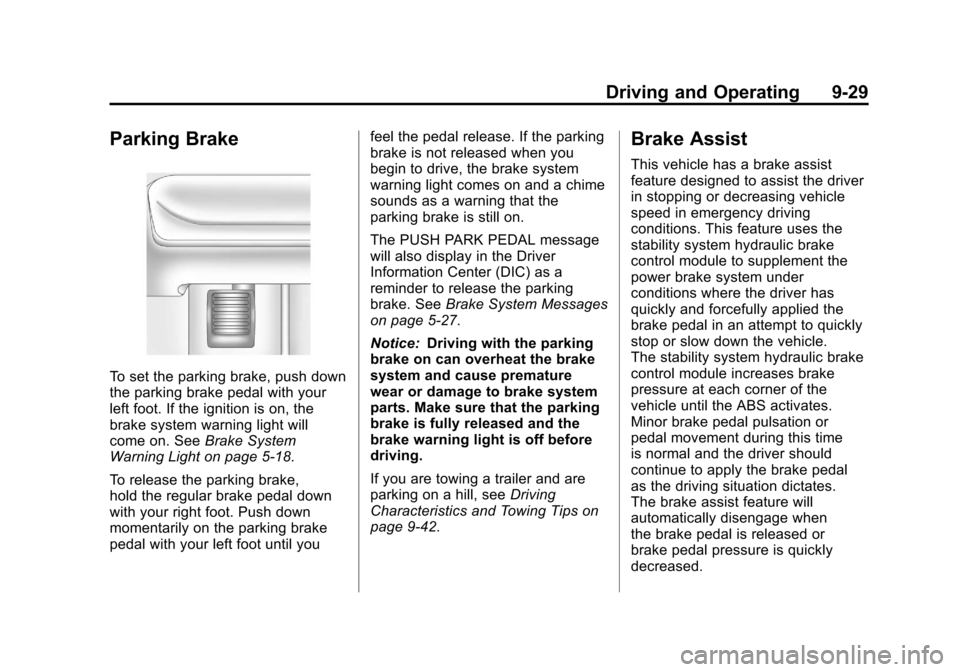
To set the parking brake, push down
the parking brake pedal with your
left foot. If the ignition is on, the
brake system warning light will
come on. SeeBrake System
Warning Light on page 5‑18.
To release the parking brake,
hold the regular brake pedal down
with your right foot. Push down
momentarily on the parking brake
pedal with your left foot until you feel the pedal release. If the parking
brake is not released when you
begin to drive, the brake system
warning light comes on and a chime
sounds as a warning that the
parking brake is still on.
The PUSH PARK PEDAL message
will also display in the Driver
Information Center (DIC) as a
reminder to release the parking
brake. See
Brake System Messages
on page 5‑27.
Notice: Driving with the parking
brake on can overheat the brake
system and cause premature
wear or damage to brake system
parts. Make sure that the parking
brake is fully released and the
brake warning light is off before
driving.
If you are towing a trailer and are
parking on a hill, see Driving
Characteristics and Towing Tips on
page 9‑42.
Brake Assist
This vehicle has a brake assist
feature designed to assist the driver
in stopping or decreasing vehicle
speed in emergency driving
conditions. This feature uses the
stability system hydraulic brake
control module to supplement the
power brake system under
conditions where the driver has
quickly and forcefully applied the
brake pedal in an attempt to quickly
stop or slow down the vehicle.
The stability system hydraulic brake
control module increases brake
pressure at each corner of the
vehicle until the ABS activates.
Minor brake pedal pulsation or
pedal movement during this time
is normal and the driver should
continue to apply the brake pedal
as the driving situation dictates.
The brake assist feature will
automatically disengage when
the brake pedal is released or
brake pedal pressure is quickly
decreased.