display CHEVROLET MALIBU 2017 9.G Repair Manual
[x] Cancel search | Manufacturer: CHEVROLET, Model Year: 2017, Model line: MALIBU, Model: CHEVROLET MALIBU 2017 9.GPages: 419, PDF Size: 7.81 MB
Page 183 of 419
Chevrolet Malibu Owner Manual (GMNA-Localizing-U.S./Canada/Mexico-10122664) - 2017 - crc - 5/23/16
182 Infotainment System
Listening to Preset Channels
1. TouchSorTrepeatedly to
select the desiredfavorites page.
2. Touch the preset button tolisten to the channel.
Using the SiriusXM Menu
Operation
1. Touch MENU on the SXM radioscreen.
2. Touch the menu to select thedesired item or to display thedetail menu item.
3. Touch0to return to the
previous menu.
Channel List
1. Touch Channel List from theSXM menu. The channel list isdisplayed.
2. TouchQorRto find the
desired channel. Touch thechannel to select it.
Tone Settings
1. Touch Tone Settings. See“To n e S e t t i n g s”underOperation0176.
2. Touch0.
Auto Volume
1. Touch Auto Volume. See“AutoVolume”underOperation0176.
2. Touch0.
Categories
1. Touch Categories.
2. TouchQorRto find the
desired category. Touch thecategory to select it.
Explicit Content Filter
When on, only a filtered list ofchannels will be received. When off,all regular SXM programmingsubscribed to will be received.
1. Touch SXM Explicit Filter.
2. Select to enable or disable.
Radio Reception
Frequency interference and staticcan occur during normal radioreception if items such as cell phonechargers, vehicle convenienceaccessories, and external electronicdevices are plugged into theaccessory power outlet. If there isinterference or static, unplug theitem from the accessory poweroutlet.
FM
FM signals only reach about 16 to65 km (10 to 40 mi). Although theradio has a built-in electronic circuitthat automatically works to reduceinterference, some static can occur,especially around tall buildings orhills, causing the sound to fade inand out.
AM
The range for most AM stations isgreater than for FM, especially atnight. The longer range can causestation frequencies to interfere witheach other. Static can occur whenthings like storms and power lines
Page 187 of 419
Chevrolet Malibu Owner Manual (GMNA-Localizing-U.S./Canada/Mexico-10122664) - 2017 - crc - 5/23/16
186 Infotainment System
.Do not use the USB terminal tocharge USB accessoryequipment. The heat generatedmay cause performance issuesor damage.
.Music files to which Digital RightManagement (DRM) is appliedcannot be played.
.USB storage device that has acapacity limit of no more than5,000 files, such as music,photo, video, 15 levels of folderstructure. Normal usage cannotbe guaranteed for a storagedevice that exceeds this limit.The iPod/iPhone can play allmusic files that are supported.The music file lists will onlydisplay up to 5,000 files on thescreen. These files are sorted inalphabetical order.
.Some iPod/iPhone productmodels may not support theconnectivity or functionality ofthis product.
.Only connect the iPod/iPhonewith connection cablessupported by iPod/iPhoneproducts. Other connectioncables cannot be used.
.The iPod/iPhone may bedamaged if it is connected to thevehicle with the ignition on.When not in use, disconnect theiPod/iPhone.
.When the iPod/iPhone isconnected to the USB port byusing the iPod/iPhone cable, theBluetooth music is notsupported.
.The iPod/iPhone playbackfunctions and the informationdisplayed may be different whenplayed on the infotainmentsystem.
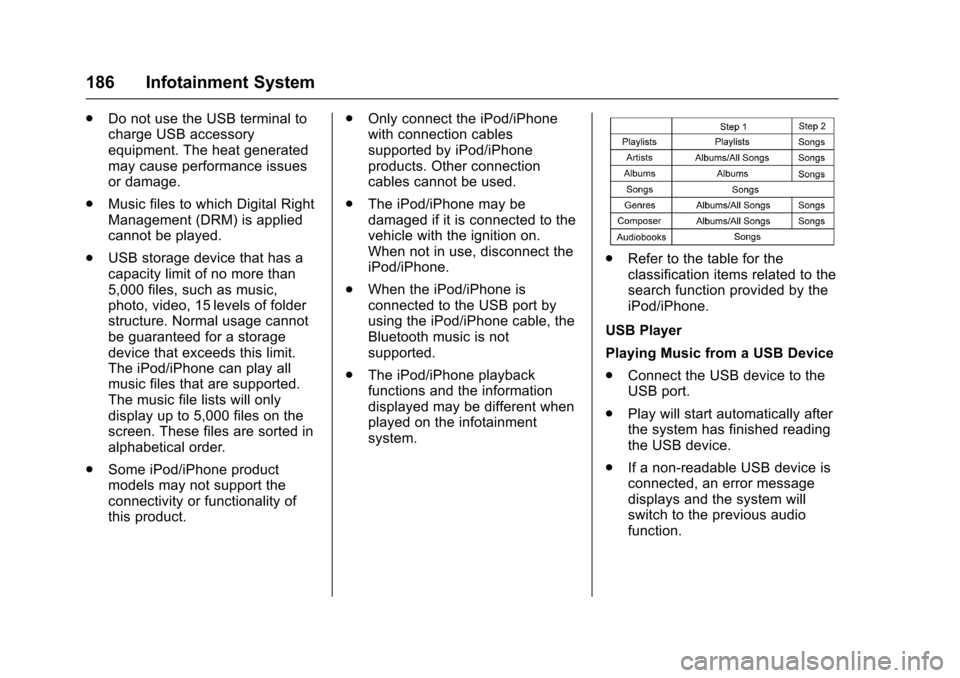
.Refer to the table for theclassification items related to thesearch function provided by theiPod/iPhone.
USB Player
Playing Music from a USB Device
.Connect the USB device to theUSB port.
.Play will start automatically afterthe system has finished readingthe USB device.
.If a non-readable USB device isconnected, an error messagedisplays and the system willswitch to the previous audiofunction.
Page 188 of 419
Chevrolet Malibu Owner Manual (GMNA-Localizing-U.S./Canada/Mexico-10122664) - 2017 - crc - 5/23/16
Infotainment System 187
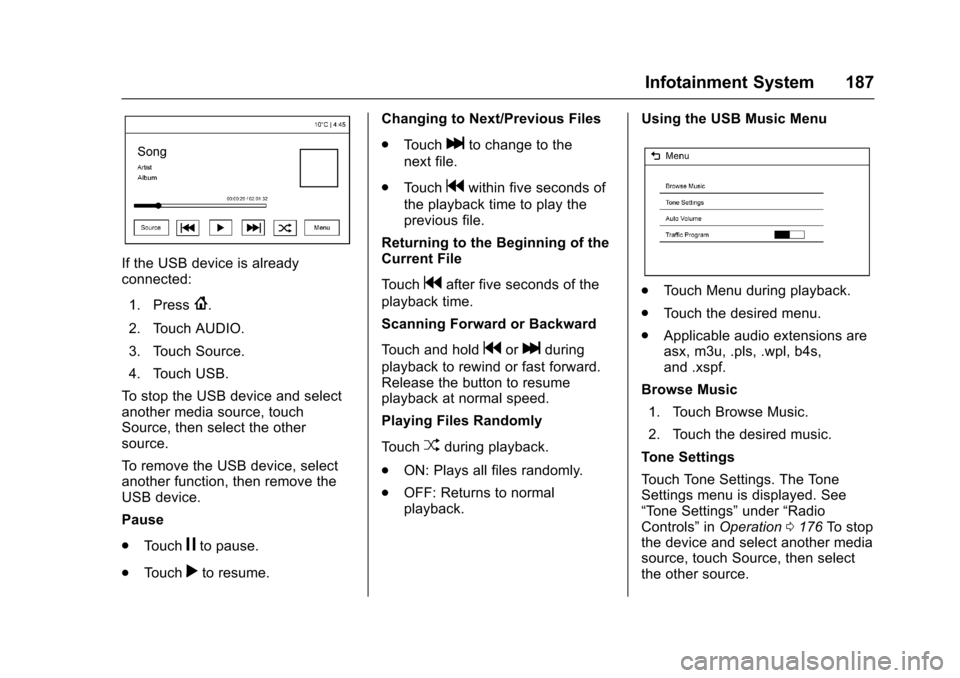
If the USB device is alreadyconnected:
1. Press{.
2. Touch AUDIO.
3. Touch Source.
4. Touch USB.
To s t o p t h e U S B d e v i c e a n d s e l e c tanother media source, touchSource, then select the othersource.
To r e m o v e t h e U S B d e v i c e , s e l e c tanother function, then remove theUSB device.
Pause
.To u c hjto pause.
.To u c hrto resume.
Changing to Next/Previous Files
.To u c hlto change to the
next file.
.To u c hgwithin five seconds of
the playback time to play theprevious file.
Returning to the Beginning of theCurrent File
To u c hgafter five seconds of the
playback time.
Scanning Forward or Backward
To u c h a n d h o l dgorlduring
playback to rewind or fast forward.Release the button to resumeplayback at normal speed.
Playing Files Randomly
To u c hZduring playback.
.ON: Plays all files randomly.
.OFF: Returns to normalplayback.
Using the USB Music Menu
.To u c h M e n u d u r i n g p l a y b a c k .
.To u c h t h e d e s i r e d m e n u .
.Applicable audio extensions areasx, m3u, .pls, .wpl, b4s,and .xspf.
Browse Music
1. Touch Browse Music.
2. Touch the desired music.
To n e S e t t i n g s
To u c h To n e S e t t i n g s . T h e To n eSettings menu is displayed. See“To n e S e t t i n g s”under“RadioControls”inOperation0176To s t o pthe device and select another mediasource, touch Source, then selectthe other source.
Page 189 of 419
Chevrolet Malibu Owner Manual (GMNA-Localizing-U.S./Canada/Mexico-10122664) - 2017 - crc - 5/23/16
188 Infotainment System
Auto Volume
To u c h A u t o V o l u m e . T h e A u t oVolume menu is displayed. See“Auto Volume”under“RadioControls”inOperation0176
Tr a f f i c P r o g r a m(If Equipped)
To u c h O n o r O f f .
MTP (Media Transfer Protocol)
.Connect an MTP supporteddevice.
.Play will start automatically afterthe system has finished readingthe MTP device.
.If a non-readable MTP device isconnected, an error messagedisplays and the system willswitch to the previous audiofunction.
iPod/iPhone Player
This feature is limited to modelssupporting the iPod/iPhoneconnection.
Playing Music Files
.Connect the iPod/iPhone to theUSB port.
.Play will start from the previouslyplayed point after the systemhas finished reading the USBdevice.
.If a non-readable USB device isconnected, an error messagedisplays and the system willswitch to the previous audiofunction.
If the iPod/iPhone is alreadyconnected:
1. Press{.
2. Touch AUDIO.
3. Touch Source.
4. Touch iPod.
To s t o p t h e d e v i c e a n d s e l e c tanother media source, touchSource, then select the othersource.
To r e m o v e t h e d e v i c e , s e l e c tanother function, then remove thedevice.
Pause
.To u c hjto pause.
.To u c hrto resume.
Changing to Next/Previous Song
.To u c hlto change to the
next song.
.To u c hgwithin two seconds of
the playback time to play theprevious file.
Returning to the Beginning of theCurrent File
To u c hgafter two seconds of the
playback time.
Scanning Forward or Backward
To u c h a n d h o l dgorlduring
playback to rewind or fast forward.Release the button to resumeplayback at normal speed.
Playing Files Randomly
To u c hZduring playback.
.ON: Plays all files randomly.
.OFF: Returns to normalplayback.
Using the iPod Menu
.To u c h M e n u d u r i n g p l a y b a c k .
.To u c h t h e a p p r o p r i a t eplay mode.
Page 190 of 419
Chevrolet Malibu Owner Manual (GMNA-Localizing-U.S./Canada/Mexico-10122664) - 2017 - crc - 5/23/16
Infotainment System 189
Browse Music
1. Touch Browse Music.
2. Touch the desired music.
To n e S e t t i n g s
To u c h To n e S e t t i n g s . T h e To n eSettings menu is displayed. See“To n e S e t t i n g s”under“RadioControls”inOperation0176
Auto Volume
To u c h A u t o V o l u m e . T h e A u t oVolume menu is displayed. See“Auto Volume”under“RadioControls”inOperation0176.
Picture System Information
The infotainment system can viewpicture files stored on a USBstorage device and devices thatsupport Media TransferProtocol (MTP).
.Supported file extensions: .jpg,.bmp, .png, .gif.
.Animated GIF files are notsupported.
.Some files may not operate dueto a different recording format orthe condition of the file.
Viewing Pictures
1. Connect the USB device to theUSB port.
2. Touch the screen to open to fullscreen. Touch the screen againto return to the previousscreen.
If the USB device is alreadyconnected:
1. Press{.
2. Touch GALLERY.
Some features are disabled whilethe vehicle is in motion.
Viewing a Slide Show
1. Touchzfrom the picture
screen.
2. Touch the screen to cancel theslide show during the slideshow playback.
Viewing a Previous or NextPicture
To u c hSorTfrom the picture
screen.
Rotating a Picture
To u c hwfrom the picture screen.
Enlarging a Picture
To u c hxfrom the picture screen.
Using the USB Picture Menu
1. Touch MENU from the picturescreen.
2. Touch the appropriate menu:
.Slide Show Time: Allowsselection of the slide showinterval.
.Clock, Temp. Display:Allows selection of On orOff to show the clock andtemperature on the fullscreen.
.Display Settings: Adjustsfor Brightness and Contrast.
3. Touch0to exit.
Page 192 of 419
Chevrolet Malibu Owner Manual (GMNA-Localizing-U.S./Canada/Mexico-10122664) - 2017 - crc - 5/23/16
Infotainment System 191
There may be restrictions on usingBluetooth wireless technology insome locations.
Due to the variety of Bluetoothdevices and their firmware versions,the device may respond differentlywhen performing over Bluetooth.
On a current phone call, an imageof the current contact from thephone's contact list may bedisplayed. Not all phones arecompatible with this feature.
Refer to the cell phonemanufacturer’suserguideforquestions about the phone'sBluetooth functionality.
Bluetooth Controls
If equipped with Bluetooth capability,use the buttons on the infotainmentsystem and the steering wheel tooperate the system.
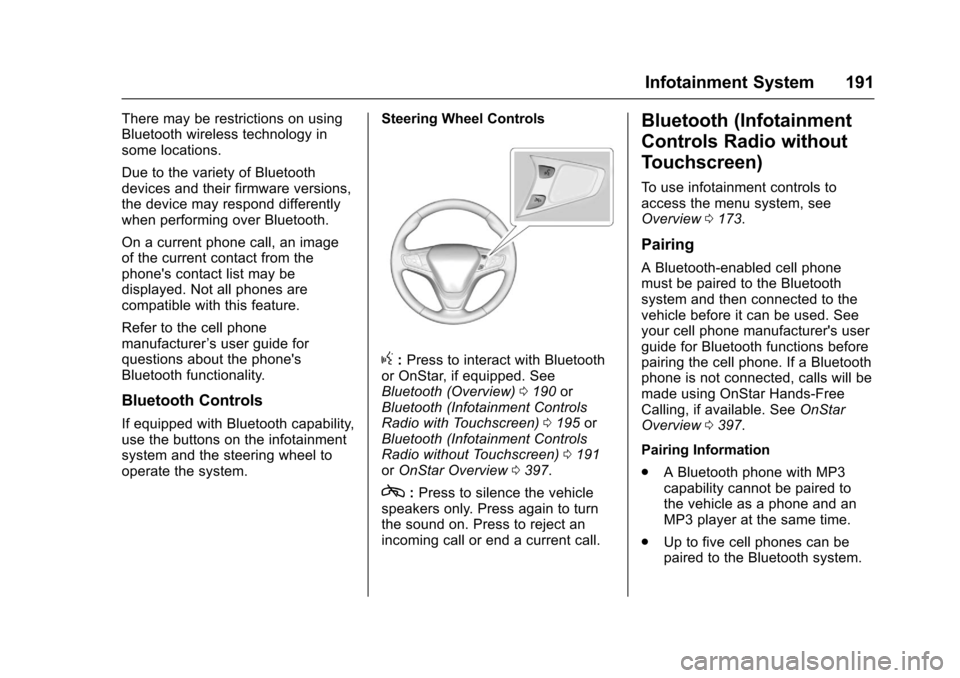
Steering Wheel Controls
g:Press to interact with Bluetoothor OnStar, if equipped. SeeBluetooth (Overview)0190orBluetooth (Infotainment ControlsRadio with Touchscreen)0195orBluetooth (Infotainment ControlsRadio without Touchscreen)0191orOnStar Overview0397.
c:Press to silence the vehiclespeakers only. Press again to turnthe sound on. Press to reject anincoming call or end a current call.
Bluetooth (Infotainment
Controls Radio without
Touchscreen)
To u s e i n f o t a i n m e n t c o n t r o l s t oaccess the menu system, seeOverview0173.
Pairing
ABluetooth-enabledcellphonemust be paired to the Bluetoothsystem and then connected to thevehicle before it can be used. Seeyour cell phone manufacturer's userguide for Bluetooth functions beforepairing the cell phone. If a Bluetoothphone is not connected, calls will bemade using OnStar Hands-FreeCalling, if available. SeeOnStarOverview0397.
Pairing Information
.ABluetoothphonewithMP3capability cannot be paired tothe vehicle as a phone and anMP3 player at the same time.
.Up to five cell phones can bepaired to the Bluetooth system.
Page 193 of 419
Chevrolet Malibu Owner Manual (GMNA-Localizing-U.S./Canada/Mexico-10122664) - 2017 - crc - 5/23/16
192 Infotainment System
.The pairing process is disabledwhen the vehicle is moving.
.Pairing only needs to becompleted once, unless thepairing information on the cellphone changes or the cell phoneis deleted from the system.
.Only one paired cell phone canbe connected to the Bluetoothsystem at a time.
.If multiple paired cell phones arewithin range of the system, thesystem connects to the firstavailable paired cell phone in theorder that they were first paired.
When the Bluetooth device andinfotainment system aresuccessfully paired, the phone bookis downloaded automatically. This isdependent on the type of phonepaired. If the automatic downloaddoes not occur, proceed with thephone book download on thephone.
Pairing a Phone–SSP and NoPaired Device
When there is no paired device onthe infotainment system and SimpleSecure Pairing (SSP) is supported:
1. Press PHONE or pressgon
the steering wheel withoutOnStar.
2. Press Pair to search forBluetooth Devices.
3. When the Bluetooth device andinfotainment system aresuccessfully paired, the phonescreen is displayed on theinfotainment system.
Pairing a Phone–SSP and PairedDevice
When a paired device is on theinfotainment system and SSP issupported:
1. Press PHONE or pressgon
the steering wheel withoutOnStar.
2. Press MENU, then selectBluetooth Devices.
3. Turn MENU to the desireddevice to pair.
4. Press MENU to select thedesired device to pair.
5. When the Bluetooth device andinfotainment system aresuccessfully paired, the phonescreen is displayed on theinfotainment system. If nodesired device is available goto Step 6.
6. Press Add to search for thedesired device.
.The connected phone is
highlighted by5.
.Z/5indicates the hands-free
and phone music functions areenabled.
.5indicates only the hands-free
function is enabled.
.Zindicates only Bluetooth
music is enabled.
Page 194 of 419
Chevrolet Malibu Owner Manual (GMNA-Localizing-U.S./Canada/Mexico-10122664) - 2017 - crc - 5/23/16
Infotainment System 193
Pairing a Phone–No SSP and NoPaired Device
When there is no paired device onthe infotainment system and SSP isnot supported:
1. Press PHONE or pressgon
the steering wheel withoutOnStar.
2. Press Pair to search forBluetooth Devices.
3. Input the PersonalIdentification Number (PIN)code (default: 1234) to theBluetooth device. When theBluetooth device andinfotainment system aresuccessfully paired, thePHONE screen is displayed onthe infotainment system.
When the connection fails, a failuremessage is displayed on theinfotainment system.
If a Bluetooth device was previouslyconnected, the infotainment systemexecutes the auto connection.However, if the Bluetooth setting on
the Bluetooth device is turned off, afailure message is displayed on theinfotainment system.
Pairing a Phone–No SSP andPaired Device
When a paired device is on theinfotainment system and SSP is notsupported:
1. Press PHONE or pressgon
the steering wheel withoutOnStar.
2. Press MENU, then selectBluetooth Devices.
3. Turn MENU to the desireddevice to pair.
4. Press MENU to select thedesired device to pair.
5. Input the PersonalIdentification Number (PIN)code (default: 1234) to theBluetooth device. When theBluetooth device andinfotainment system are
successfully paired,Z/5is
displayed on the pair devicescreen. If no desired device isavailable go to Step 6.
6. Press Add to search for thedesired device.
.The connected phone is
highlighted by5.
.Z/5indicates the hands-free
and phone music functions areenabled.
.5indicates only the hands-free
function is enabled.
.Zindicates only Bluetooth
music is enabled.
Checking the BluetoothConnection
1. Press PHONE.
2. Turn MENU to highlightBluetooth Devices.
3. Press MENU to selectBluetooth Devices.
4. The paired device will show.
Disconnecting a Bluetooth Device
1. Press PHONE.
2. Turn MENU to highlightBluetooth Devices.
Page 197 of 419
Chevrolet Malibu Owner Manual (GMNA-Localizing-U.S./Canada/Mexico-10122664) - 2017 - crc - 5/23/16
196 Infotainment System
Pairing Information
.ABluetoothphonewithMP3capability cannot be paired tothe vehicle as a phone and anMP3 player at the same time.
.Up to 10 cell phones can bepaired to the Bluetooth system.
.The pairing process is disabledwhen the vehicle is moving.
.Pairing only needs to becompleted once, unless thepairing information on the cellphone changes or the cell phoneis deleted from the system.
.Only one paired cell phone canbe connected to the Bluetoothsystem at a time.
.If multiple paired cell phones arewithin range of the system, thesystem connects to the firstavailable paired cell phone in theorder that they were first paired.
When the Bluetooth device andinfotainment system aresuccessfully paired, the phone bookis downloaded automatically. This isdependent on the type of phonepaired. If the automatic download
does not occur, proceed with thephone book download on thephone.
Pairing a Phone–SSP and NoPaired Device
When there is no paired device onthe infotainment system and SimpleSecure Pairing (SSP) is supported:
1. Press{.
2. Touch PHONE, press5on the
faceplate, or pressgon the
steering wheel without OnStar.
3. Touch Search Device.
4. Touch the desired device topair on the searched listscreen.
5. Touch Yes on the pop-upscreen of the Bluetooth deviceand infotainment system.
6. When the Bluetooth device andinfotainment system aresuccessfully paired, the phonescreen is displayed on theinfotainment system.
Pairing a Phone–SSP and PairedDevice
When a paired device is on theinfotainment system and SSP issupported:
1. Press{.
2. Touch SETTINGS.
3. Touch Bluetooth, then DeviceManagement.
4. Touch the desired device topair. When the Bluetoothdevice and infotainment system
are successfully paired,Z/5
is displayed on the pair devicescreen. If no desired device isavailable go to Step 5.
5. Touch Search Device to searchfor the desired device.
6. Touch the desired device topair on the searched listscreen.
7. Touch Yes on the pop-upscreen of the Bluetooth deviceand infotainment system.
.The connected phone is
highlighted by5.
Page 198 of 419
Chevrolet Malibu Owner Manual (GMNA-Localizing-U.S./Canada/Mexico-10122664) - 2017 - crc - 5/23/16
Infotainment System 197
.Z/5indicates the hands-free
and phone music functions areenabled.
.5indicates only the hands-free
function is enabled.
.Zindicates only Bluetooth
music is enabled.
Pairing a Phone–No SSP and NoPaired Device
When there is no paired device onthe infotainment system and SSP isnot supported:
1. Press{.
2. Touch PHONE, press5on the
faceplate, or pressgon the
steering wheel without OnStar.
3. Touch Search Device.
4. Touch the desired device topair on the searched listscreen.
5. Input the PersonalIdentification Number (PIN)code (default: 1234) to theBluetooth device. When theBluetooth device and
infotainment system aresuccessfully paired, thePHONE screen is displayed onthe infotainment system.
When the connection fails, a failuremessage is displayed on theinfotainment system.
If a Bluetooth device was previouslyconnected, the infotainment systemexecutes the auto connection.However, if the Bluetooth setting onthe Bluetooth device is turned off, afailure message is displayed on theinfotainment system.
Pairing a Phone–No SSP andPaired Device
When a paired device is on theinfotainment system and SSP is notsupported:
1. Press{.
2. Touch SETTINGS.
3. Touch Bluetooth, then DeviceManagement.
4. Touch the desired device topair. When the Bluetoothdevice and infotainment system
are successfully paired,Z/5
is displayed on the pair devicescreen. If no desired device isavailable go to Step 5.
5. Touch Search Device to searchfor the desired device.
6. Touch the desired device topair on the searched listscreen.
7. Input the PersonalIdentification Number (PIN)code (default: 1234) to theBluetooth device. When theBluetooth device andinfotainment system are
successfully paired,Z/5is
displayed on the pair devicescreen.
.The connected phone is
highlighted by5.
.Z/5indicates the hands-free
and phone music functions areenabled.
.5indicates only the hands-free
function is enabled.