USB CHEVROLET MALIBU 2018 User Guide
[x] Cancel search | Manufacturer: CHEVROLET, Model Year: 2018, Model line: MALIBU, Model: CHEVROLET MALIBU 2018Pages: 413, PDF Size: 5.92 MB
Page 177 of 413
Chevrolet Malibu Owner Manual (GMNA-Localizing-U.S./Canada/Mexico-
11348460) - 2018 - crc - 5/3/17
176 Infotainment System
Audio Players
Avoiding Untrusted Media
Devices
When using media devices such as
CDs, DVDs, Blu-ray Discs, SD
cards, USB devices, and mobile
devices, consider the source.
Untrusted media devices could
contain files that affect system
operation or performance. Avoid use
if the content or origin cannot be
trusted.
USB Port
Using the USB Port
The infotainment system can play
music by connecting an auxiliary
device to the USB port.
USB Support
The USB port is in the center stack
and use the USB 2.0 standard.
If equipped, there is a USB charge
port in the rear of the center
console.USB Supported Devices
.
USB Flash Drives
. iPods/iPhones
. Portable USB Hard Drives
Not all iPods and USB drives are
compatible with the USB port.
Make sure the iPod has the latest
firmware from Apple for proper
operation. iPod firmware can be
updated using the latest iTunes
application. See www.apple.com/
itunes.
For help with identifying your iPod,
go to www.apple.com/support.
The USB port can play both lower
and upper case .mp3, .wma, .ogg,
and .wav files stored on a USB
storage device.
Supported Apple Devices
To view supported devices in the
U.S., see www.my.chevrolet.com/
learn.
To view supported devices in
Canada, see
www.chevroletowner.ca. To view supported devices in
Mexico, see your dealer.
USB Supported File and Folder
Structure
The infotainment system supports:
.
FAT16
. FAT32
. exFAT
Connecting a USB Storage
Device or iPod/iPhone
To connect a USB storage device,
connect the device to the USB port.
To connect an iPod/iPhone, connect
one end of the device’ s cable to the
iPod/iPhone and the other end to
the USB port.
The iPod/iPhone charges while it is
connected to the vehicle if the
vehicle is on or in ACC/
ACCESSORY. See Ignition
Positions 0216. When the vehicle is
turned off, the iPod/iPhone
automatically powers off and will not
charge or draw power from the
vehicle's battery.
Page 178 of 413
Chevrolet Malibu Owner Manual (GMNA-Localizing-U.S./Canada/Mexico-
11348460) - 2018 - crc - 5/3/17
Infotainment System 177
For more information on USB
usage, see“Audio System
Information” following.
Audio System Information
The infotainment system can play
the music files contained in the USB
storage device or iPod/iPhone
products.
Using MP3/WMA/OGG/WAV Files
.
Music files with .mp3, .wma,
.ogg, and .wav file name
extensions can be played.
. MP3 files that can be played: Bit
rate: 8 kbps to 320 kbps.
Sampling frequency: 48 kHz,
44.1 kHz, 32 kHz, 24 kHz, 22.05
kHz, and 16 kHz.
. Files with a bit rate above
128 kbps will result in higher
quality sound.
. ID3 Tag information for MP3
files, such as the album name
and the artist, can be played.
. To display album title, track title,
and artist information, the file
should be compatible with the
ID3 Tag V1 and V2 formats. Using USB Storage Devices or
iPod/iPhone
.
Use a USB or flash memory type
storage device. Do not connect
using a USB adaptor.
. Do not connect and reconnect
the USB device repeatedly in a
short time, as this may cause
static electricity and problems
using the device.
. Use a USB device with a metal
connecting terminal.
. Connection with i-Stick Type
USB storage devices may be
faulty due to vehicle vibration.
. Do not touch the USB
connecting terminal.
. Only USB storage devices
formatted in FAT16/32 or exFAT
file systems are recognized.
NTFS and other file systems are
not recognized.
. The time it takes to process files
will depend on the USB storage
device type and capacity, and
the type of files stored. .
Some USB storage device files
may not be compatible.
. Up to two USB devices and one
iPod can be played through a
USB hub. All devices may not be
supported, depending on the
performance of the USB hub.
If there is not enough power
supply, it may not operate
normally.
. Do not disconnect the USB
storage device while it is playing.
This may cause damage to the
product or affect the
performance of the USB device.
. Disconnect the USB storage
device when the ignition is
turned off. If the ignition is turned
on while the USB device is
connected, the USB device may
be damaged or may not operate
normally.
. USB storage devices can only
be connected for playing music,
viewing photo files,
or upgrading.
Page 179 of 413
Chevrolet Malibu Owner Manual (GMNA-Localizing-U.S./Canada/Mexico-
11348460) - 2018 - crc - 5/3/17
178 Infotainment System
.Do not use the USB terminal to
charge USB accessory
equipment. The heat generated
may cause performance issues
or damage.
. Music files to which Digital Right
Management (DRM) is applied
cannot be played.
. USB storage device that has a
capacity limit of no more than
5,000 files, such as music,
photo, video, 15 levels of folder
structure. Normal usage cannot
be guaranteed for a storage
device that exceeds this limit.
The iPod/iPhone can play all
music files that are supported.
The music file lists will only
display up to 5,000 files on the
screen. These files are sorted in
alphabetical order.
. Some iPod/iPhone product
models may not support the
connectivity or functionality of
this product. .
Only connect the iPod/iPhone
with connection cables
supported by iPod/iPhone
products. Other connection
cables cannot be used.
. The iPod/iPhone may be
damaged if it is connected to the
vehicle with the ignition on.
When not in use, disconnect the
iPod/iPhone.
. When the iPod/iPhone is
connected to the USB port by
using the iPod/iPhone cable, the
Bluetooth music is not
supported.
. The iPod/iPhone playback
functions and the information
displayed may be different when
played on the infotainment
system.
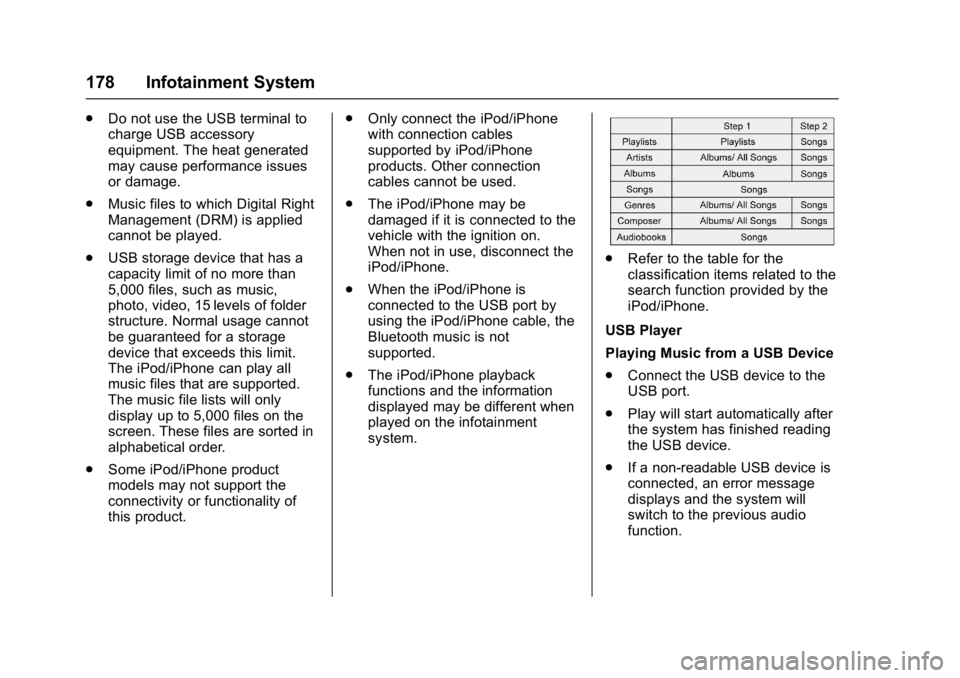
.Refer to the table for the
classification items related to the
search function provided by the
iPod/iPhone.
USB Player
Playing Music from a USB Device
. Connect the USB device to the
USB port.
. Play will start automatically after
the system has finished reading
the USB device.
. If a non-readable USB device is
connected, an error message
displays and the system will
switch to the previous audio
function.
Page 180 of 413
Chevrolet Malibu Owner Manual (GMNA-Localizing-U.S./Canada/Mexico-
11348460) - 2018 - crc - 5/3/17
Infotainment System 179
If the USB device is already
connected:1. Press
{.
2. Touch AUDIO.
3. Touch Source.
4. Touch USB.
To stop the USB device and select
another media source, touch
Source, then select the other
source.
To remove the USB device, select
another function, then remove the
USB device.
Pause
. Touch
jto pause.
. Touch
rto resume. Changing to Next/Previous Files
.
Touch
lto change to the
next file.
. Touch
gwithin five seconds of
the playback time to play the
previous file.
Returning to the Beginning of the
Current File
Touch
gafter five seconds of the
playback time.
Scanning Forward or Backward
Touch and hold
gorlduring
playback to rewind or fast forward.
Release to resume playback at
normal speed.
Playing Files Randomly
Touch
Zduring playback.
. ON: Plays all files randomly.
. OFF: Returns to normal
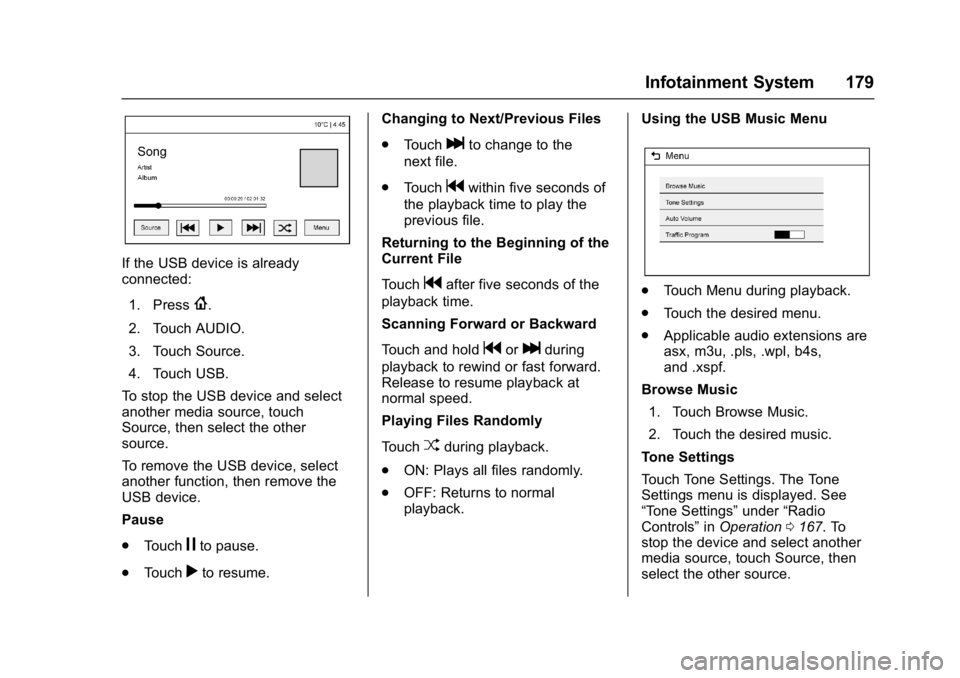
playback. Using the USB Music Menu
.
Touch Menu during playback.
. Touch the desired menu.
. Applicable audio extensions are
asx, m3u, .pls, .wpl, b4s,
and .xspf.
Browse Music 1. Touch Browse Music.
2. Touch the desired music.
Tone Settings
Touch Tone Settings. The Tone
Settings menu is displayed. See
“Tone Settings” under“Radio
Controls” inOperation 0167. To
stop the device and select another
media source, touch Source, then
select the other source.
Page 181 of 413
Chevrolet Malibu Owner Manual (GMNA-Localizing-U.S./Canada/Mexico-
11348460) - 2018 - crc - 5/3/17
180 Infotainment System
Auto Volume
Touch Auto Volume. The Auto
Volume menu is displayed. See
“Auto Volume”under“Radio
Controls” inOperation 0167.
Traffic Program (If Equipped)
Touch On or Off.
MTP (Media Transfer Protocol)
. Connect an MTP supported
device.
. Play will start automatically after
the system has finished reading
the MTP device.
. If a non-readable MTP device is
connected, an error message
displays and the system will
switch to the previous audio
function.
iPod/iPhone Player
This feature is limited to models
supporting the iPod/iPhone
connection.
Playing Music Files
. Connect the iPod/iPhone to the
USB port. .
Play will start from the previously
played point after the system
has finished reading the USB
device.
. If a non-readable USB device is
connected, an error message
displays and the system will
switch to the previous audio
function.
If the iPod/iPhone is already
connected:
1. Press
{.
2. Touch AUDIO.
3. Touch Source.
4. Touch iPod.
To stop the device and select
another media source, touch
Source, then select the other
source.
To remove the device, select
another function, then remove the
device.
Pause
. Touch
jto pause.
. Touch
rto resume. Changing to Next/Previous Song
.
Touch
lto change to the
next song.
. Touch
gwithin two seconds of
the playback time to play the
previous file.
Returning to the Beginning of the
Current File
Touch
gafter two seconds of the
playback time.
Scanning Forward or Backward
Touch and hold
gorlduring
playback to rewind or fast forward.
Release to resume playback at
normal speed.
Playing Files Randomly
Touch
Zduring playback.
. ON: Plays all files randomly.
. OFF: Returns to normal
playback.
Using the iPod Menu
. Touch Menu during playback.
. Touch the appropriate
play mode.
Page 182 of 413
Chevrolet Malibu Owner Manual (GMNA-Localizing-U.S./Canada/Mexico-
11348460) - 2018 - crc - 5/3/17
Infotainment System 181
Browse Music1. Touch Browse Music.
2. Touch the desired music.
Tone Settings
Touch Tone Settings. The Tone
Settings menu is displayed. See
“Tone Settings” under“Radio
Controls” inOperation 0167.
Auto Volume
Touch Auto Volume. The Auto
Volume menu is displayed. See
“Auto Volume” under“Radio
Controls” inOperation 0167.
Picture System Information
The infotainment system can view
picture files stored on a USB
storage device and devices that
support Media Transfer
Protocol (MTP).
.
Supported file extensions: .jpg,
.bmp, .png, .gif.
. Animated GIF files are not
supported.
. Some files may not operate due
to a different recording format or
the condition of the file. Viewing Pictures
1. Connect the USB device to the USB port.
2. Touch the screen to open to full screen. Touch the screen again
to return to the previous
screen.
If the USB device is already
connected:
1. Press
{.
2. Touch GALLERY.
Some features are disabled while
the vehicle is in motion.
Viewing a Slide Show
1. Touch
zfrom the picture
screen.
2. Touch the screen to cancel the slide show during the slide
show playback.
Viewing a Previous or Next
Picture
Touch
SorTfrom the picture
screen. Rotating a Picture
Touch
wfrom the picture screen.
Enlarging a Picture
Touch
xfrom the picture screen.
Using the USB Picture Menu 1. Touch MENU from the picture screen.
2. Touch the appropriate menu: .Slide Show Time: Allows
selection of the slide show
interval.
. Clock, Temp. Display:
Allows selection of On or
Off to show the clock and
temperature on the full
screen.
. Display Settings: Adjusts
for Brightness and Contrast.
3. Touch Back on the infotainment display to exit.
Page 192 of 413
Chevrolet Malibu Owner Manual (GMNA-Localizing-U.S./Canada/Mexico-
11348460) - 2018 - crc - 5/3/17
Infotainment System 191
Playing Music Randomly
Touch
Zduring playback. Touch
again to return to normal play.
This function may not be supported
depending on the Bluetooth device.
Do not change the track too quickly
when playing Bluetooth music.
Conditions that may occur when
playing Bluetooth music:
. It takes time to transmit data
from the Bluetooth device to the
infotainment system.
. If the cell phone or Bluetooth
device is not in the waiting
screen mode, it may not
automatically play.
. The infotainment system
transmits the order to play from
the Bluetooth device in the
Bluetooth music play mode.
If this is done in a different
mode, then the device transmits
the order to stop. Depending on
the Bluetooth device options,
this order to play/stop may take
time to activate. .
If the Bluetooth music playback
is not functioning, then check to
see if the Bluetooth device is in
the waiting screen mode.
. Sounds may be cut off during
the Bluetooth music playback.
. The infotainment system outputs
the audio from the cell phone or
Bluetooth device as it is
transmitted.
Apple CarPlay and
Android Auto
If equipped, Android Auto and/or
Apple CarPlay capability may be
available through a compatible
smartphone. If available,
PROJECTION will appear on the
Home Page of the infotainment
display.
To use Android Auto and/or Apple
CarPlay:
1. Download the Android Auto app to your phone from the
Google Play store. No app is
required for Apple CarPlay. 2. Connect an Android phone or
iPhone by using the compatible
phone USB cable and plugging
into a USB data port. For best
performance, use the device’ s
factory-provided USB cable.
Aftermarket or third-party
cables may not work.
3. When the phone is first connected to activate Apple
CarPlay or Android Auto, the
message “Device Projection
Privacy Consent” will appear.
. Select Continue to launch
Apple CarPlay or
Android Auto.
. Select Disable to remove
Apple CarPlay and Android
Auto capability from the
vehicle Settings menu.
Other functions may
still work.
PROJECTION on the Home Page
will change to Android Auto or Apple
CarPlay depending on the phone.
Android Auto and/or Apple CarPlay
may automatically launch upon USB
connection. If not, touch the
Page 408 of 413

Chevrolet Malibu Owner Manual (GMNA-Localizing-U.S./Canada/Mexico-
11348460) - 2018 - crc - 5/3/17
Index 407
OrderingService Publications . . . . . . . . . . 384
Outlets Power . . . . . . . . . . . . . . . . . . . . . . . . 109
Overheating, Engine . . . . . . . . . . . . 288
Overview . . . . . . . . . . . . . . . . . . . . . . . 164
P
Park Shifting Into . . . . . . . . . . . . . . . . . . . 221
Shifting Out of . . . . . . . . . . . . . . . . 222
Parking
Brake . . . . . . . . . . . . . . . . . . . . . . . . . 227
Brake and P (Park)Mechanism Check . . . . . . . . . . 294
Extended . . . . . . . . . . . . . . . . . . . . . 222
Over Things That Burn . . . . . . . 222
Parking Assist . . . . . . . . . . . . . . . . . . 243
Parking or Backing Assistance Systems . . . . . . . . . . 243
Passenger Airbag Status
Indicator . . . . . . . . . . . . . . . . . . . . . . 121
Passenger Compartment Air Filter . . . . . . . . . . . . . . . . . . . . . . . . . . 203
Passenger Sensing System . . . . . 78
Pedestrian Ahead Indicator . . . . . 126
Perchlorate Materials Requirements, California . . . . . . 270 Personalization
Vehicle . . . . . . . . . . . . . . . . . . . . . . . 138
Phone Apple CarPlay andAndroid Auto . . . . . . . . . . . . . . . . 191
Bluetooth . . . . . . . . . . . 182, 183, 187
Hands-Free . . . . . . . . . . . . . . . . . . . 192
Port USB . . . . . . . . . . . . . . . . . . . . . . . . . . 176
Power Door Locks . . . . . . . . . . . . . . . . . . . . . 42
Flows . . . . . . . . . . . . . . . . . . . . . . . . . 130
Indicator Gauge . . . . . . . . . . . . . . .119
Mirrors . . . . . . . . . . . . . . . . . . . . . . . . . . 49
Outlets . . . . . . . . . . . . . . . . . . . . . . . 109
Protection, Battery . . . . . . . . . . . . 161
Retained Accessory (RAP) . . . 221
Seat Adjustment . . . . . . . . . . . . . . . . 57
Windows . . . . . . . . . . . . . . . . . . . . . . . 50
Pregnancy, Using Seat Belts . . . . 70
Privacy Vehicle Data Recording . . . . . . . 387
Program Courtesy Transportation . . . . . . 381
Proposition
65 Warning,
California . . . . . . . . . . . .269, 291, 343, Back Cover
R
Radio Frequency Statement . . . . 385
Radio Reception . . . . . . . . . . . . . . . . 174
RadiosAM-FM Radio . . . . . . . . . . . . . . . . . 170
Satellite . . . . . . . . . . . . . . . . . . . . . . . 173
Reading Lamps . . . . . . . . . . . . . . . . . 159
Ready Indicator . . . . . . . . . . . . . . . . . 129
Rear Seat Armrest . . . . . . . . . . . . . . . 65
Rear Seats . . . . . . . . . . . . . . . . . . . . . . 63
Rear Vision Camera (RVC) . . . . . 243
Rearview Mirrors . . . . . . . . . . . . . . . . 50 Automatic Dimming . . . . . . . . . . . . . 50
Reclining Seatbacks . . . . . . . . . . . . . 57
Recommended Fluids and
Lubricants . . . . . . . . . . . . . . . . . . . . . 369
Records Maintenance . . . . . . . . . . . . . . . . . . 371
Recreational Vehicle Towing . . . . 347
Regenerative Braking . . . . . . . . . . . 230
Reimbursement Program,
GM Mobility . . . . . . . . . . . . . . . . . . . 379
Remote Keyless Entry (RKE) System . . . . . . . . . . . . . . . . . . . . . . . . . 32
Remote Vehicle Start . . . . . . . . . . . . 38
Replacement Parts Airbags . . . . . . . . . . . . . . . . . . . . . . . . . 84
Maintenance . . . . . . . . . . . . . . . . . . 370
Page 411 of 413

Chevrolet Malibu Owner Manual (GMNA-Localizing-U.S./Canada/Mexico-
11348460) - 2018 - crc - 5/3/17
410 Index
Towing (cont'd)Equipment . . . . . . . . . . . . . . . . . . . . 266
General Information . . . . . . . . . . 261
Recreational Vehicle . . . . . . . . . . 347
Trailer . . . . . . . . . . . . . . . . . . . . . . . . 265
Vehicle . . . . . . . . . . . . . . . . . . . . . . . 346
Traction Control System (TCS)/StabiliTrak Light . . . . . . . . . . . . . 127
Off Light . . . . . . . . . . . . . . . . . . . . . . 126
Traction Control/Electronic Stability Control . . . . . . . . . . . . . . . 231
Trademarks and License Agreements . . . . . . . . . . . . . . . . . . . 194
Trailer Towing . . . . . . . . . . . . . . . . . . . . . . . . 265
Transmission Automatic . . . . . . . . . . . . . . . . . . . . . 224
Fluid, Automatic . . . . . . . . . . . . . . 282
Transportation Program, Courtesy . . . . . . . . . . . . . . . . . . . . . . 381
Trip Odometer . . . . . . . . . . . . . . . . . . 117
Trunk . . . . . . . . . . . . . . . . . . . . . . . . . . . . 44
Turn and Lane-Change Signals . . . . . . . . . . . . . . . . . . . . . . . . 158
Turn Signal Bulb Replacement . . . . . . . 298, 299U
Umbrella Storage . . . . . . . . . . . . . . . 103
Uniform Tire Quality Grading . . . 326
Universal Remote System . . . . . . 150Operation . . . . . . . . . . . . . . . . . . . . . 153
Programming . . . . . . . . . . . . . . . . . 150
Updates Software . . . . . . . . . . . . . . . . . . . . . . 169
USB Port . . . . . . . . . . . . . . . . . . . . . . . 176
Using This Manual . . . . . . . . . . . . . . . . 2
V
Vehicle Alarm System . . . . . . . . . . . . . . . . . . 46
Canadian Owners . . . . . . . . . . . . . . . 2
Control . . . . . . . . . . . . . . . . . . . . . . . 207
Identification Number (VIN) . . . 372
Load Limits . . . . . . . . . . . . . . . . . . . 212
Messages . . . . . . . . . . . . . . . . . . . . 137
Personalization . . . . . . . . . . . . . . . 138
Remote Start . . . . . . . . . . . . . . . . . . . 38
Security . . . . . . . . . . . . . . . . . . . . . . . . 46
Speed Messages . . . . . . . . . . . . . 138
Towing . . . . . . . . . . . . . . . . . . . . . . . . 346
Vehicle Ahead Indicator . . . . . . . . 126
Vehicle Care Storing the Tire Sealantand Compressor Kit . . . . . . . . . 337 Vehicle Care (cont'd)
Tire Pressure . . . . . . . . . . . . . . . . . 316
Vehicle Data Recording and Privacy . . . . . . . . . . . . . . . . . . . . . . . . 387
Vehicle Ready Light . . . . . . . . . . . . 129
Ventilation, Air . . . . . . . . . . . . . . . . . . 203
Visors . . . . . . . . . . . . . . . . . . . . . . . . . . . 52
Voltage Devices and Wiring . . . . 300
W
Warning Brake System Light . . . . . . . . . . . 124
Caution and Danger . . . . . . . . . . . . . 2
Lane Departure (LDW) . . . . . . . 255
Warning Lights, Gauges, and Indicators . . . . . . . . . . . . . . . . . . . . . 111
Warnings Hazard Flashers . . . . . . . . . . . . . . 157
Washer Fluid . . . . . . . . . . . . . . . . . . . 289
Wheels
Alignment and Tire Balance . . 327
Different Size . . . . . . . . . . . . . . . . . 325
Replacement . . . . . . . . . . . . . . . . . 328
When It Is Time for New
Tires . . . . . . . . . . . . . . . . . . . . . . . . . . 323
Where to Put the Restraint . . . . . . 90
Wi-Fi . . . . . . . . . . . . . . . . . . . . . . . . . . . 392
Windows . . . . . . . . . . . . . . . . . . . . . . . . 50 Power . . . . . . . . . . . . . . . . . . . . . . . . . . 50