ECO mode CHEVROLET OPTRA 5 2007 1.G User Guide
[x] Cancel search | Manufacturer: CHEVROLET, Model Year: 2007, Model line: OPTRA 5, Model: CHEVROLET OPTRA 5 2007 1.GPages: 422, PDF Size: 2.39 MB
Page 186 of 422
Drivers are encouraged to set up any auxiliary
device while the vehicle is in PARK (P). See
Defensive Driving on page 206for more
information on driver distraction.
To use a portable audio player, connect a 3.5 mm
(1/8 inch) cable to the radio’s front auxiliary
input jack. While a device is connected, turn the
portable audio player on and press the radio
CD/AUX button to hear audio from the device over
the vehicle speakers.
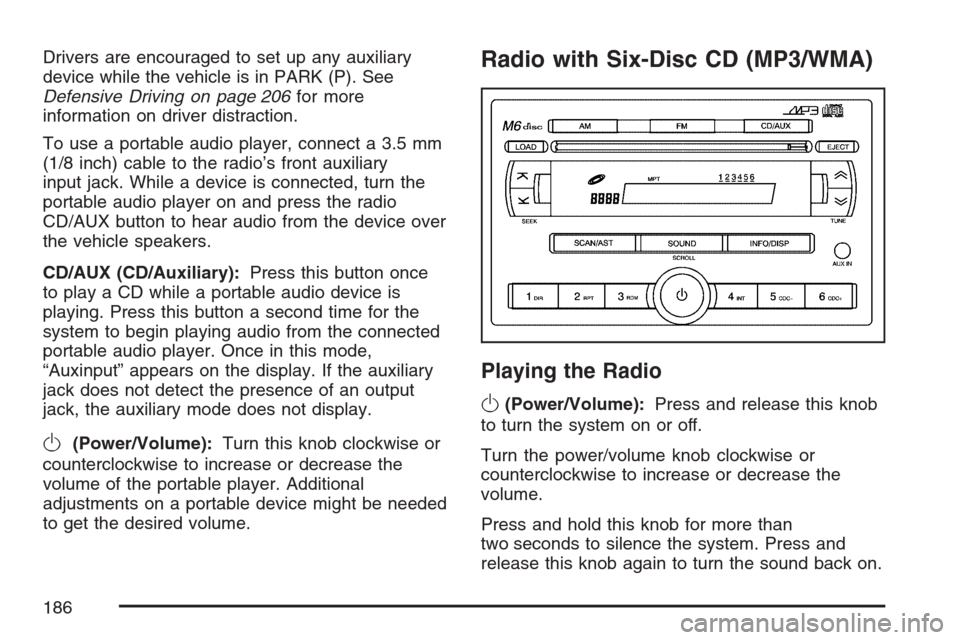
CD/AUX (CD/Auxiliary):Press this button once
to play a CD while a portable audio device is
playing. Press this button a second time for the
system to begin playing audio from the connected
portable audio player. Once in this mode,
“Auxinput” appears on the display. If the auxiliary
jack does not detect the presence of an output
jack, the auxiliary mode does not display.
O(Power/Volume):Turn this knob clockwise or
counterclockwise to increase or decrease the
volume of the portable player. Additional
adjustments on a portable device might be needed
to get the desired volume.
Radio with Six-Disc CD (MP3/WMA)
Playing the Radio
O
(Power/Volume):Press and release this knob
to turn the system on or off.
Turn the power/volume knob clockwise or
counterclockwise to increase or decrease the
volume.
Press and hold this knob for more than
two seconds to silence the system. Press and
release this knob again to turn the sound back on.
186
Page 193 of 422
Using the Auxiliary Input Jack
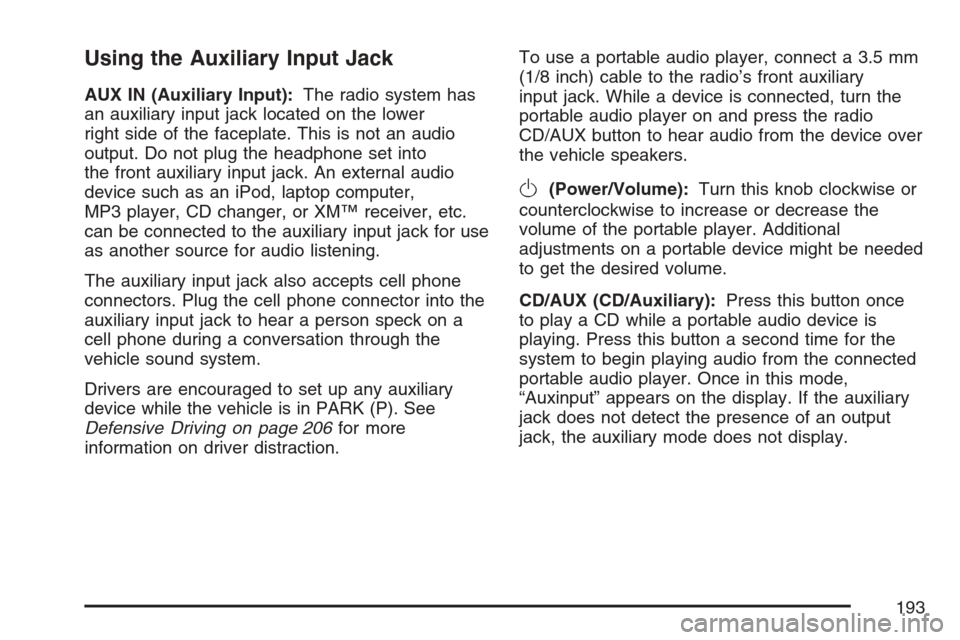
AUX IN (Auxiliary Input):The radio system has
an auxiliary input jack located on the lower
right side of the faceplate. This is not an audio
output. Do not plug the headphone set into
the front auxiliary input jack. An external audio
device such as an iPod, laptop computer,
MP3 player, CD changer, or XM™ receiver, etc.
can be connected to the auxiliary input jack for use
as another source for audio listening.
The auxiliary input jack also accepts cell phone
connectors. Plug the cell phone connector into the
auxiliary input jack to hear a person speck on a
cell phone during a conversation through the
vehicle sound system.
Drivers are encouraged to set up any auxiliary
device while the vehicle is in PARK (P). See
Defensive Driving on page 206for more
information on driver distraction.To use a portable audio player, connect a 3.5 mm
(1/8 inch) cable to the radio’s front auxiliary
input jack. While a device is connected, turn the
portable audio player on and press the radio
CD/AUX button to hear audio from the device over
the vehicle speakers.
O(Power/Volume):Turn this knob clockwise or
counterclockwise to increase or decrease the
volume of the portable player. Additional
adjustments on a portable device might be needed
to get the desired volume.
CD/AUX (CD/Auxiliary):Press this button once
to play a CD while a portable audio device is
playing. Press this button a second time for the
system to begin playing audio from the connected
portable audio player. Once in this mode,
“Auxinput” appears on the display. If the auxiliary
jack does not detect the presence of an output
jack, the auxiliary mode does not display.
193
Page 197 of 422
All of the CD functions work the same while
playing an MP3/WMA, except for those listed here.
See “Playing a CD” earlier for more information.
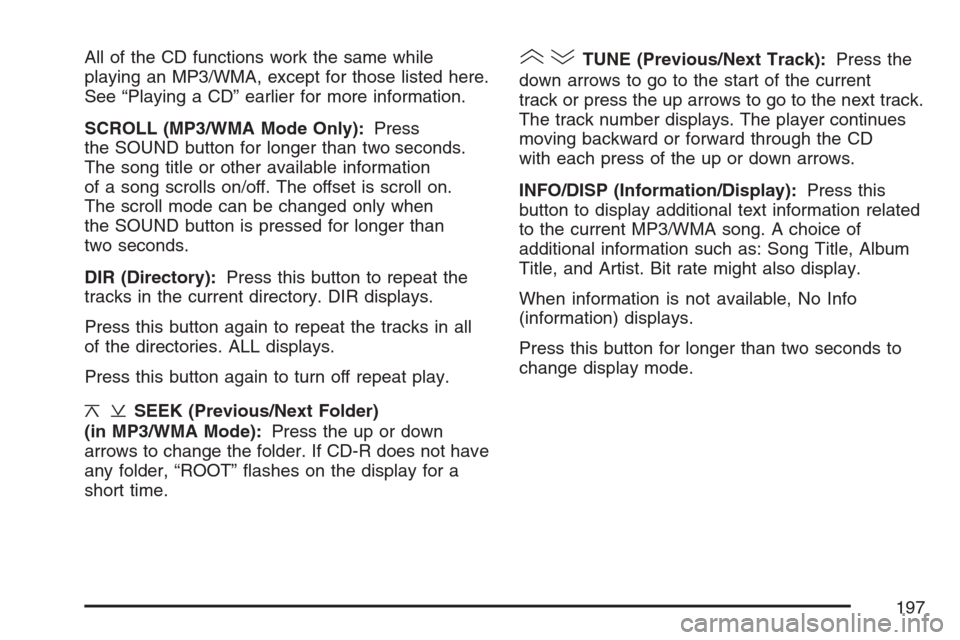
SCROLL (MP3/WMA Mode Only):Press
the SOUND button for longer than two seconds.
The song title or other available information
of a song scrolls on/off. The offset is scroll on.
The scroll mode can be changed only when
the SOUND button is pressed for longer than
two seconds.
DIR (Directory):Press this button to repeat the
tracks in the current directory. DIR displays.
Press this button again to repeat the tracks in all
of the directories. ALL displays.
Press this button again to turn off repeat play.
¦¥SEEK (Previous/Next Folder)
(in MP3/WMA Mode):Press the up or down
arrows to change the folder. If CD-R does not have
any folder, “ROOT” flashes on the display for a
short time.
()TUNE (Previous/Next Track):Press the
down arrows to go to the start of the current
track or press the up arrows to go to the next track.
The track number displays. The player continues
moving backward or forward through the CD
with each press of the up or down arrows.
INFO/DISP (Information/Display):Press this
button to display additional text information related
to the current MP3/WMA song. A choice of
additional information such as: Song Title, Album
Title, and Artist. Bit rate might also display.
When information is not available, No Info
(information) displays.
Press this button for longer than two seconds to
change display mode.
197
Page 201 of 422
All of the CD functions work the same while
playing an MP3/WMA, except for those listed here.
See “Playing a CD” earlier for more information.
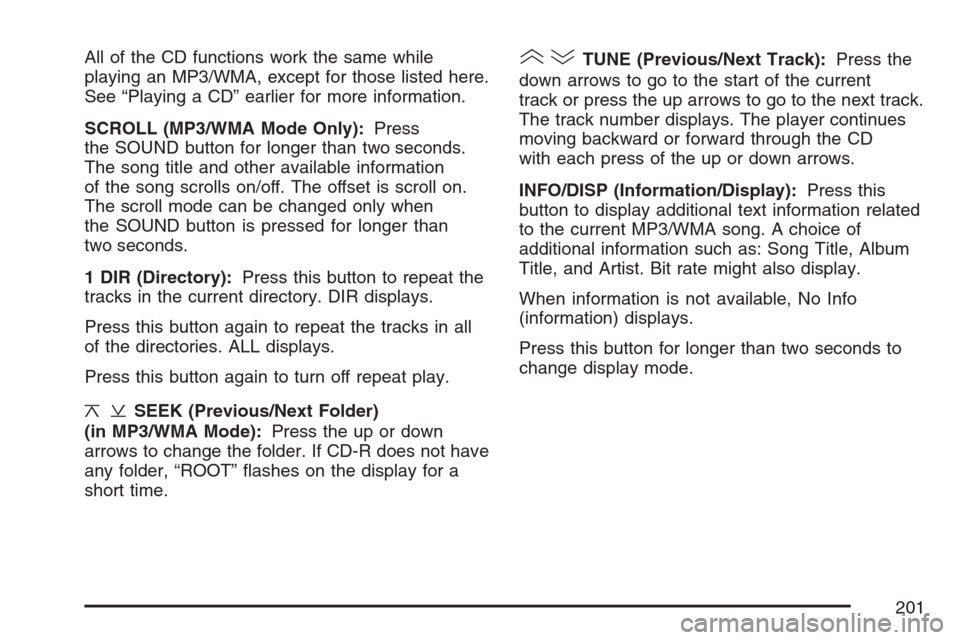
SCROLL (MP3/WMA Mode Only):Press
the SOUND button for longer than two seconds.
The song title and other available information
of the song scrolls on/off. The offset is scroll on.
The scroll mode can be changed only when
the SOUND button is pressed for longer than
two seconds.
1 DIR (Directory):Press this button to repeat the
tracks in the current directory. DIR displays.
Press this button again to repeat the tracks in all
of the directories. ALL displays.
Press this button again to turn off repeat play.
¦¥SEEK (Previous/Next Folder)
(in MP3/WMA Mode):Press the up or down
arrows to change the folder. If CD-R does not have
any folder, “ROOT” flashes on the display for a
short time.
()TUNE (Previous/Next Track):Press the
down arrows to go to the start of the current
track or press the up arrows to go to the next track.
The track number displays. The player continues
moving backward or forward through the CD
with each press of the up or down arrows.
INFO/DISP (Information/Display):Press this
button to display additional text information related
to the current MP3/WMA song. A choice of
additional information such as: Song Title, Album
Title, and Artist. Bit rate might also display.
When information is not available, No Info
(information) displays.
Press this button for longer than two seconds to
change display mode.
201
Page 202 of 422
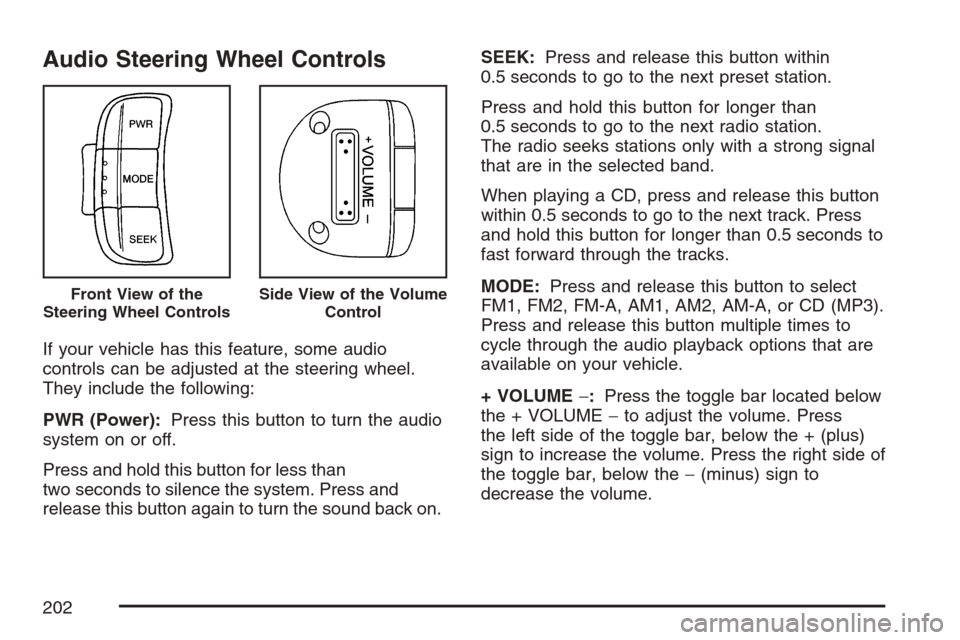
Audio Steering Wheel Controls
If your vehicle has this feature, some audio
controls can be adjusted at the steering wheel.
They include the following:
PWR (Power):Press this button to turn the audio
system on or off.
Press and hold this button for less than
two seconds to silence the system. Press and
release this button again to turn the sound back on.SEEK:Press and release this button within
0.5 seconds to go to the next preset station.
Press and hold this button for longer than
0.5 seconds to go to the next radio station.
The radio seeks stations only with a strong signal
that are in the selected band.
When playing a CD, press and release this button
within 0.5 seconds to go to the next track. Press
and hold this button for longer than 0.5 seconds to
fast forward through the tracks.
MODE:Press and release this button to select
FM1, FM2, FM-A, AM1, AM2, AM-A, or CD (MP3).
Press and release this button multiple times to
cycle through the audio playback options that are
available on your vehicle.
+ VOLUME−:Press the toggle bar located below
the + VOLUME−to adjust the volume. Press
the left side of the toggle bar, below the + (plus)
sign to increase the volume. Press the right side of
the toggle bar, below the−(minus) sign to
decrease the volume.
Front View of the
Steering Wheel ControlsSide View of the Volume
Control
202
Page 237 of 422
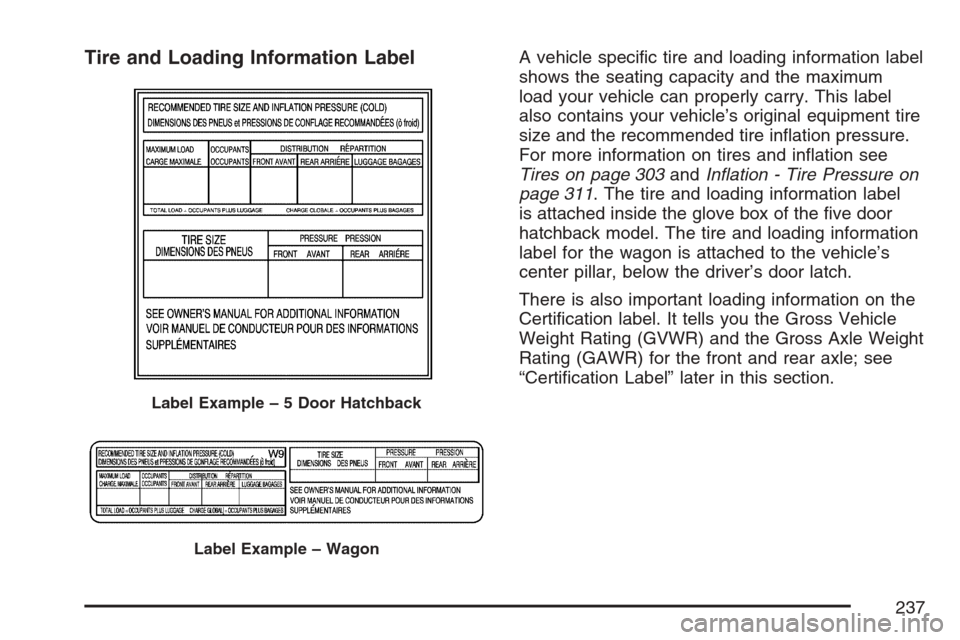
Tire and Loading Information LabelA vehicle specific tire and loading information label
shows the seating capacity and the maximum
load your vehicle can properly carry. This label
also contains your vehicle’s original equipment tire
size and the recommended tire inflation pressure.
For more information on tires and inflation see
Tires on page 303andInflation - Tire Pressure on
page 311. The tire and loading information label
is attached inside the glove box of the five door
hatchback model. The tire and loading information
label for the wagon is attached to the vehicle’s
center pillar, below the driver’s door latch.
There is also important loading information on the
Certification label. It tells you the Gross Vehicle
Weight Rating (GVWR) and the Gross Axle Weight
Rating (GAWR) for the front and rear axle; see
“Certification Label” later in this section.
Label Example–5DoorHatchback
Label Example – Wagon
237
Page 290 of 422
Headlamp Aiming
Headlamp aim has been preset at the factory and
should need no further adjustment.
However, if your vehicle is damaged in an accident,
the headlamp aim may be affected. Aim adjustment
to the low-beam headlamps may be necessary if it
is difficult to see the lane markers (for horizontal
aim), or if oncoming drivers flash their high-beam
headlamps at you (for vertical aim).
If you believe your headlamps need to be
re-aimed, it is recommend that you take the vehicle
to your dealer for service.
Bulb Replacement
For the proper type of replacement bulbs, see
Replacement Bulbs on page 301.
For any bulb changing procedure not listed in this
section, contact your dealer.
Halogen Bulbs
{CAUTION:
Halogen bulbs have pressurized gas
inside and can burst if you drop or
scratch the bulb. You or others could be
injured. Be sure to read and follow the
instructions on the bulb package.
Headlamps
To replace a headlamp bulb, do the following:
1. Open the hood. SeeHood Release on
page 257for more information.
2. For wagon models, remove the two bolts from
the top of the headlamp assembly and one
nut on the inside that retains the headlamp
assembly.
For hatchback models, remove the four screws
and the radiator grill. Then remove the
three bolts and the headlamp assembly.
290
Page 309 of 422
Maximum Load Rating:The load rating for a tire
at the maximum permissible inflation pressure
for that tire.
Maximum Loaded Vehicle Weight:The sum of
curb weight, accessory weight, vehicle capacity
weight, and production options weight.
Normal Occupant Weight:The number of
occupants a vehicle is designed to seat multiplied
by 150 lbs (68 kg). SeeLoading Your Vehicle
on page 236.
Occupant Distribution:Designated seating
positions.
Outward Facing Sidewall:The side of an
asymmetrical tire that has a particular side that
faces outward when mounted on a vehicle.
The side of the tire that contains a whitewall, bears
white lettering, or bears manufacturer, brand,
and/or model name molding that is higher
or deeper than the same moldings on the other
sidewall of the tire.Passenger (P-Metric) Tire:A tire used on
passenger cars and some light duty trucks and
multipurpose vehicles.
Recommended Ination Pressure:Vehicle
manufacturer’s recommended tire inflation
pressure as shown on the tire placard.
SeeInflation - Tire Pressure on page 311and
Loading Your Vehicle on page 236.
Radial Ply Tire:A pneumatic tire in which the
ply cords that extend to the beads are laid at
90 degrees to the centerline of the tread.
Rim:A metal support for a tire and upon which
the tire beads are seated.
Sidewall:The portion of a tire between the tread
and the bead.
Speed Rating:An alphanumeric code assigned
to a tire indicating the maximum speed at
which a tire can operate.
309
Page 328 of 422
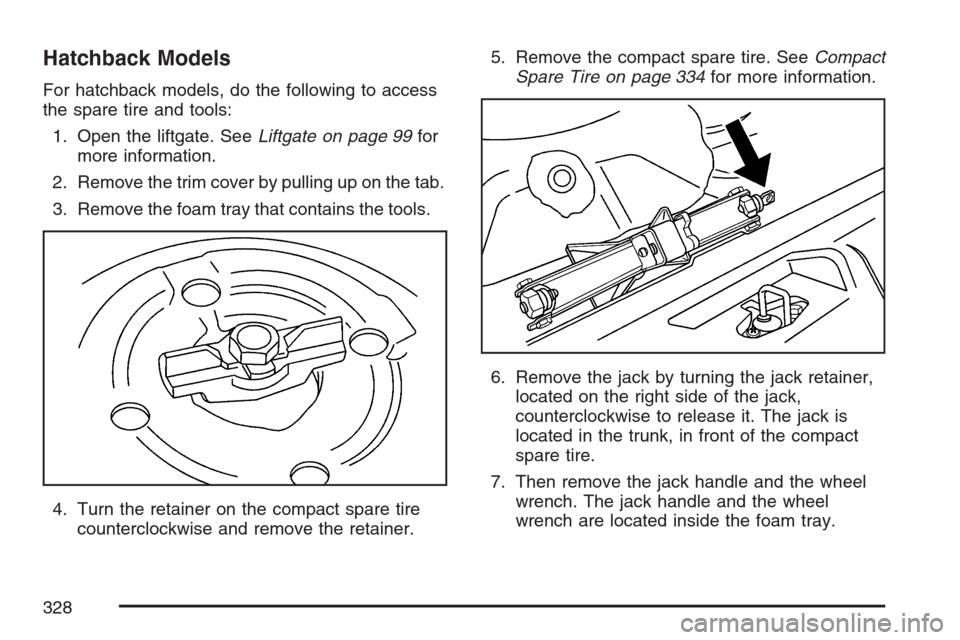
Hatchback Models
For hatchback models, do the following to access
the spare tire and tools:
1. Open the liftgate. SeeLiftgate on page 99for
more information.
2. Remove the trim cover by pulling up on the tab.
3. Remove the foam tray that contains the tools.
4. Turn the retainer on the compact spare tire
counterclockwise and remove the retainer.5. Remove the compact spare tire. SeeCompact
Spare Tire on page 334for more information.
6. Remove the jack by turning the jack retainer,
located on the right side of the jack,
counterclockwise to release it. The jack is
located in the trunk, in front of the compact
spare tire.
7. Then remove the jack handle and the wheel
wrench. The jack handle and the wheel
wrench are located inside the foam tray.
328
Page 397 of 422
For prompt and efficient assistance when calling,
please provide the following to the Roadside
Assistance Representative:
•Your name, home address, and home
telephone number.
•Telephone number of your location.
•Location of the vehicle.
•Model, year, color, and license plate number.
•Odometer reading, Vehicle Identification
Number (VIN), and delivery date of the vehicle.
•Description of the problem.
While we hope you never have the occasion to
use our service, it is added security while traveling
for you and your family. Remember, we are
only a phone call away. U.S. customers call
Chevrolet Roadside Assistance:1-800-CHEV-USA
(1-800-243-8872), text telephone (TTY) users,
call1-888-889-2438, Canadian customers
call1-800-268-6800.Chevrolet and General Motors of Canada Limited
reserve the right to limit services or reimbursement
to an owner or driver when, in their sole discretion,
the claims become excessive in frequency or type
of occurrence.
Roadside Assistance is not part of or included in
the coverage provided by the New Vehicle Limited
Warranty. Chevrolet and General Motors of
Canada Limited reserve the right to make any
changes or discontinue the Roadside Assistance
program at any time without notification.Towing and Road Service Exclusions
Specifically excluded from Roadside Assistance
coverage are towing or services for vehicles
operated on a non-public roadway or highway,
fines, impound towing caused by a violation
of local, Municipal, State, Provincial, or Federal
law, and mounting, dismounting or changing
of snow tires, chains, or other traction devices.
397