remote control CHEVROLET SILVERADO 2003 1.G Owners Manual
[x] Cancel search | Manufacturer: CHEVROLET, Model Year: 2003, Model line: SILVERADO, Model: CHEVROLET SILVERADO 2003 1.GPages: 556, PDF Size: 3.56 MB
Page 89 of 556

Keys...............................................................2-3
Remote Keyless Entry System.........................2-4
Remote Keyless Entry System Operation...........2-5
Doors and Locks.............................................2-7
Door Locks....................................................2-7
Power Door Locks..........................................2-8
Delayed Locking.............................................2-9
Programmable Automatic Door Locks..............2-10
Rear Door Security Locks
(Crew Cab)...............................................2-12
Lockout Protection........................................2-12
Rear Doors..................................................2-13
Tailgate.......................................................2-13
Windows........................................................2-15
Manual Windows..........................................2-15
Power Windows............................................2-16
Swing-Out Windows......................................2-17
Sun Visors...................................................2-17
Theft-Deterrent Systems..................................2-18
Content Theft-Deterrent.................................2-18
Passlock
ž....................................................2-19Starting and Operating Your Vehicle................2-20
New Vehicle Break-In....................................2-20
Ignition Positions..........................................2-20
Starting Your Engine.....................................2-22
Engine Coolant Heater..................................2-24
Automatic Transmission Operation...................2-25
Manual Transmission Operation......................2-29
Four-Wheel Drive..........................................2-33
All-Wheel Drive............................................2-44
Parking Brake..............................................2-44
Shifting Into Park (P).....................................2-46
Shifting Out of Park (P).................................2-49
Parking Your Vehicle.....................................2-49
Parking Over Things That Burn.......................2-50
Engine Exhaust............................................2-51
Running Your Engine While You Are Parked. . . .2-52
Mirrors...........................................................2-53
Manual Rearview Mirror.................................2-53
Automatic Dimming Rearview Mirror with
OnStar
ž, Compass and Temperature
Display....................................................2-53
Section 2 Features and Controls
2-1
Page 154 of 556
Vehicle Personalization
Memory Seat
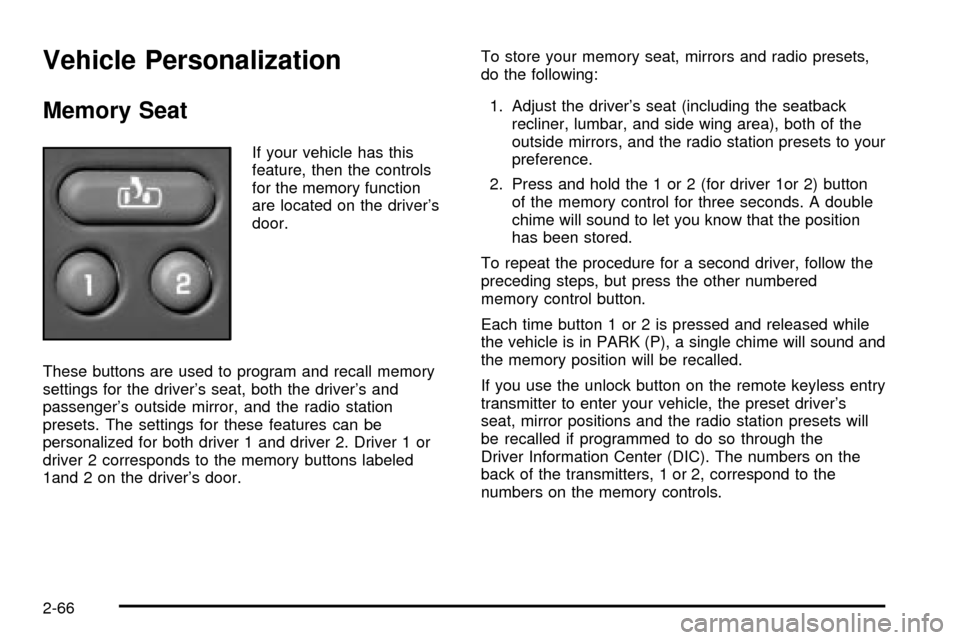
If your vehicle has this
feature, then the controls
for the memory function
are located on the driver's
door.
These buttons are used to program and recall memory
settings for the driver's seat, both the driver's and
passenger's outside mirror, and the radio station
presets. The settings for these features can be
personalized for both driver 1 and driver 2. Driver 1 or
driver 2 corresponds to the memory buttons labeled
1and 2 on the driver's door.To store your memory seat, mirrors and radio presets,
do the following:
1. Adjust the driver's seat (including the seatback
recliner, lumbar, and side wing area), both of the
outside mirrors, and the radio station presets to your
preference.
2. Press and hold the 1 or 2 (for driver 1or 2) button
of the memory control for three seconds. A double
chime will sound to let you know that the position
has been stored.
To repeat the procedure for a second driver, follow the
preceding steps, but press the other numbered
memory control button.
Each time button 1 or 2 is pressed and released while
the vehicle is in PARK (P), a single chime will sound and
the memory position will be recalled.
If you use the unlock button on the remote keyless entry
transmitter to enter your vehicle, the preset driver's
seat, mirror positions and the radio station presets will
be recalled if programmed to do so through the
Driver Information Center (DIC). The numbers on the
back of the transmitters, 1 or 2, correspond to the
numbers on the memory controls.
2-66
Page 267 of 556
Rear Seat Entertainment System
Your vehicle may have the optional Digital Versatile Disc
(DVD) Rear Seat Entertainment (RSE) system. The RSE
system includes a DVD player, a video display screen,
two sets of wireless headphones, and a remote control.
Before You Drive
The RSE system is for rear seat passengers. The driver
cannot safely view the video screen while driving and
should not try to do so.
DVD Player
The DVD player is located in the overhead console. The
DVD player can be controlled by the buttons on the DVD
player and by the buttons on the remote control. See
ªRemote Controlº later in this section for more
information.
The DVD player power may be turned on when the
ignition is in RUN, ACCESSORY, or when Retained
Accessory Power (RAP) is active.
The RSE system DVD player is only compatible with
DVDs of the appropriate DVD region code for the
country that the vehicle was sold in. The DVD region
code is printed on the jacket of most DVDs.
The DVD player will also play audio CDs. Home
recorded CDs (CD-R or CD-RW formats) will not play in
this DVD player.If an error message appears on the video screen, see
ªDVD Messagesº later in this section.
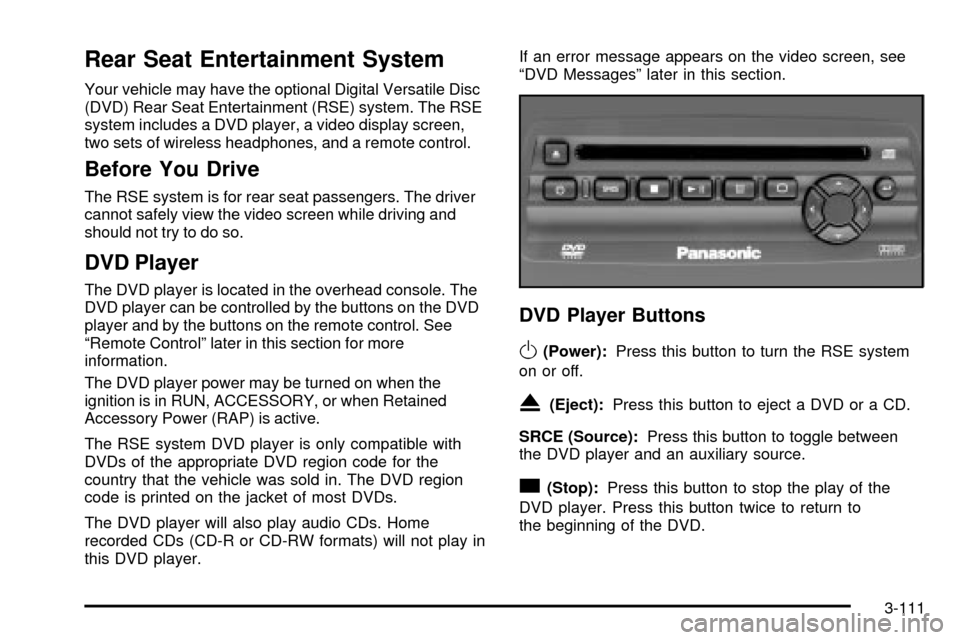
DVD Player Buttons
O(Power):Press this button to turn the RSE system
on or off.
X(Eject):Press this button to eject a DVD or a CD.
SRCE (Source):Press this button to toggle between
the DVD player and an auxiliary source.
c(Stop):Press this button to stop the play of the
DVD player. Press this button twice to return to
the beginning of the DVD.
3-111
Page 268 of 556

k(Play/Pause):Press this button to turn the DVD
player on, to start play of a DVD or CD and to
toggle between play and pause of a DVD or CD.
y(Menu):Press this button to access the DVD menu.
This button only operates with a DVD.
z(Display Menu):Press this button to modify the
video screen display characteristics.
n,q,p,o(Menu Navigation):Use the arrow
keys to navigate through a menu.
r(Enter):Press this button to select items within
a menu.
Playing a Disc
To play a disc, gently insert the disc with the label side up
into the loading slot. The DVD player will continue loading
the disc and the player will automatically start, if the
vehicle ignition is in RUN, ACCESSORY, or when RAP is
active.
If a disc is already in the player, press the play/pause
button on the face of the DVD player or on the remote
control.Some DVDs will not allow you to fast forward or skip the
copyright or previews. Some DVDs will begin playing
after the previews have ®nished. If the DVD does not
begin to play the main title, refer to the on-screen
instructions, as the DVD may be displaying its main
title menu.
Stopping and Resume Playback
To stop a disc, press and release the stop button on the
DVD player or the remote control. To resume playback,
press the play/pause button on the DVD player or
the remote control. As long as the disc has not been
ejected and the stop button has not been pressed twice,
the movie should resume play from where it was last
stopped. If the disc has been ejected, or if the stop
button has been pressed twice, the disc will resume play
at the beginning.
Ejecting a Disc
Press the eject button on the DVD player to eject the disc.
If a disc is ejected from the player, but is not removed,
the DVD player will reload the disc within 25 to
30 seconds. The disc will then be stored in the DVD
player. The DVD player will not resume play of this disc
automatically.
3-112
Page 269 of 556

DVD Messages
The following errors may be displayed on the video
screen:
·Disc Format Error:This message will be displayed
if a disc is inserted upside down, if the disc is not
able to be read or if the disc format is not
compatible with the DVD player.
·Load/Eject Error:This message will be displayed if
the disc is not properly loaded or ejected.
·Disc Play Error:This message will be displayed if
the DVD player can not play the disc. Severely
damaged discs will cause this error.
·Region Code Error:This message will be
displayed if the region code of the DVD is not
compatible with the DVD player.
·No Disc:This message will be displayed if the
PLAY button is pressed and no disc is in the player.
Parental Control Button:This button is located on the
front of the DVD console, behind the video screen,
near the driver of the vehicle. Press this button while a
DVD or CD is playing to freeze the video and mute
the audio. The video screen will display Parental Control
ON and the power indicator light on the DVD player
will ¯ash. It will also disable all other button operations
from the remote control and the DVD player, with
the exception of the eject button. The driver will then beable to gain the attention of the rear seat passengers.
Press this button again to restore normal operation
of the DVD player.
This button may also be used to turn the DVD player
power on and automatically resume play if the vehicle is
in an enabled power mode.
Video Screen
The video screen is located in the overhead console. To
use the video screen, push forward on the release
latch and the screen will fold down. Adjust the screen's
position as desired. When the video screen is not in
use, push it up into its latched position.
The DVD player and display will continue to operate
when the screen is in either the up or the down position.
The video screen contains the infrared transmitters for
the wireless headphones and the infrared receiver
for the remote control. If the screen is in the closed
position, the infrared signals will not be available for the
operation of the headphones and the remote control.
Notice:Avoid directly touching the video screen, as
damage may occur. SeeCleaning the Video Screen
on page 3-125for more information.
3-113
Page 270 of 556
Remote Control
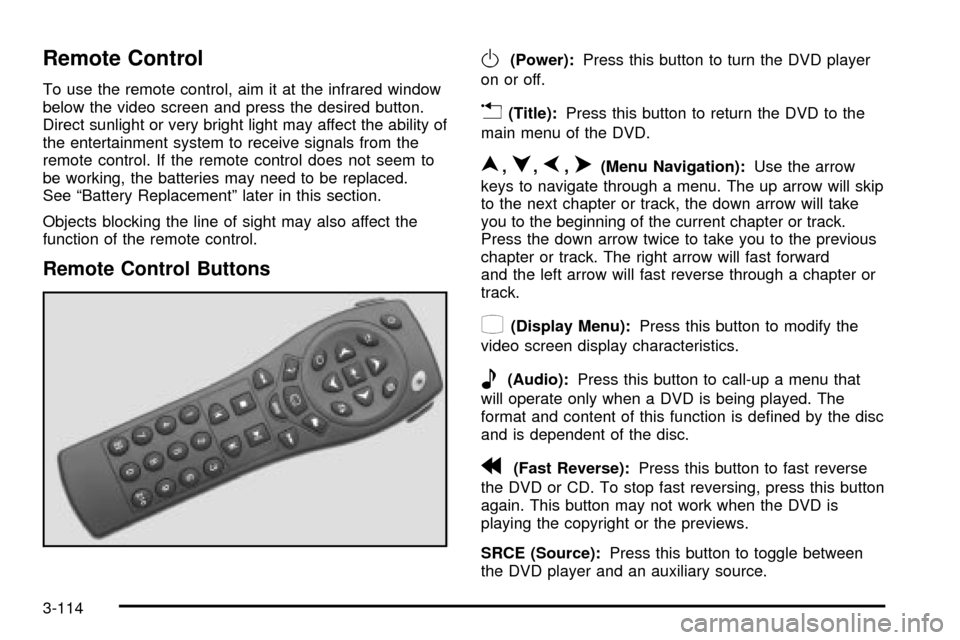
To use the remote control, aim it at the infrared window
below the video screen and press the desired button.
Direct sunlight or very bright light may affect the ability of
the entertainment system to receive signals from the
remote control. If the remote control does not seem to
be working, the batteries may need to be replaced.
See ªBattery Replacementº later in this section.
Objects blocking the line of sight may also affect the
function of the remote control.
Remote Control Buttons
O(Power):Press this button to turn the DVD player
on or off.
v(Title):Press this button to return the DVD to the
main menu of the DVD.
n,q,p,o(Menu Navigation):Use the arrow
keys to navigate through a menu. The up arrow will skip
to the next chapter or track, the down arrow will take
you to the beginning of the current chapter or track.
Press the down arrow twice to take you to the previous
chapter or track. The right arrow will fast forward
and the left arrow will fast reverse through a chapter or
track.
z(Display Menu):Press this button to modify the
video screen display characteristics.
e(Audio):Press this button to call-up a menu that
will operate only when a DVD is being played. The
format and content of this function is de®ned by the disc
and is dependent of the disc.
r(Fast Reverse):Press this button to fast reverse
the DVD or CD. To stop fast reversing, press this button
again. This button may not work when the DVD is
playing the copyright or the previews.
SRCE (Source):Press this button to toggle between
the DVD player and an auxiliary source.
3-114
Page 271 of 556

c(Stop):Press this button to stop the play of a DVD
or CD. Press this button twice to return to the beginning
of the DVD.
t(Previous Track/Chapter):Press this button to
return to the start of the current track or chapter. Press
this button again to return to the previous track or
chapter. This button may not work when the DVD is
playing the copyright or the previews.
1 through 0 (Numeric Keypad):The remote control
numeric keypad provides you with the capability of direct
chapter, title and track number selection.
Press the button, located on the bottom left of the
numeric key pad, within 3 seconds of inputting a numeric
selection to clear all numeric inputs.
Press the button, located on the bottom left of the
numeric key pad, to select chapter, title, and track
numbers greater than 9.
P(Illumination):Press this button to turn the remote
control backlight on.
y(Menu):Press this button to access the DVD menu
(this button only operates with a DVD).
r(Enter):Press this button to select items within
a menu.
q(Return):Press this button to exit the current
active menu and return to the previous menu. This
button will operate only when a DVD is being played
and a menu is active.
|(Angle):Press this button to call-up a menu that
will operate only when a DVD is being played. The
format and content of this function is de®ned by the disc
and is dependent of the disc.
{(Subtitle):Press this button to call-up a menu that
will operate only when a DVD is being played. The
format and content of this function is de®ned by the disc
and is dependent of the disc.
[(Fast Forward):Press this button to fast forward
the DVD or CD. To stop fast forwarding, press this
button again. This button may not work when the DVD
is playing the copyright or the previews.
s(Play/Pause):Press this button to turn the DVD
player on, to start play of a DVD or CD and to toggle
between play and pause of a DVD or CD.
Slow Play:When the DVD is playing, press the pause
button then press the fast forward button. The DVD
will continue playing in a slow play mode. To cancel slow
play mode, press the play/pause button.
3-115
Page 272 of 556

u(Next Track/Chapter):Press this button to advance
to the beginning of the next track or chapter. This
button may not work when the DVD is playing the
copyright or the previews.
Battery Replacement
To change the batteries, do the following:
1. Remove the battery compartment door located on
the bottom of the remote control.
2. Replace the two AA batteries in the compartment.
Make sure that they are installed correctly.
3. Close the battery door securely.
Notice:Do not store the remote control in heat or
direct sunlight. This could damage the remote
control and it would not be covered by your vehicles
warranty. Keep the remote control stored in a cool,
dry place.
If the remote control is to be stored for a long period of
time, remove the batteries and keep them in a cool,
dry place.
Headphones
The RSE system includes two sets of wireless infrared
headphones.
Each set of headphones has an ON/OFF control. An
indicator light will illuminate on the headphones when
they are on. If the light does not illuminate, the batteries
may need to be replaced. See ªBattery Replacementº
later in this section for more information. To turn the
headphones OFF activate the ON/OFF control.
Each set of headphones has a volume knob. To adjust
the volume, adjust this knob.
The headphones will automatically turn off if they lose the
infrared signal from the system after approximately four
minutes in order to preserve their battery power. The
signal may be lost if the system is turned off or if the
headphones are out of range of the infrared signal
transmitters that are located below the video display
screen.
Battery Replacement
To change the batteries, do the following:
1. Loosen the screw on the battery compartment door
located on the left side of the headphone earpiece.
2. Replace the two AAA batteries in the compartment.
Make sure that they are installed correctly.
3. Tighten the screw to close the compartment door.
3-116
Page 273 of 556

Notice:Do not store the headphones in heat or
direct sunlight. This could damage the headphones
and repairs would not be covered by your warranty.
Keep the headphones stored in a cool, dry place.
If the headphones are to be stored for a long period of
time, remove the batteries and keep them in a cool,
dry place.
Stereo RCA Jacks
The RCA jacks are located behind the video screen on
the front of the DVD console. The RCA jacks allow you to
connect audio and video from an auxiliary device such as
a camcorder or a video game unit to your RSE system
just as you would to a standard television. Standard RCA
cables are needed to connect the auxiliary device to the
RCA jacks. The yellow connector inputs video and the
red and white connectors input right and left stereo audio.
Refer to the manufacturer's instructions for proper
connection of your auxiliary device.
To use the auxiliary inputs on the RSE system, connect
an external auxiliary device to the color-coded RCA
jacks and turn both the auxiliary device and the
RSE system power on. If the RSE system had been
previously in the DVD player mode, you will need
to press the SRCE button on the faceplate or the remote
control to change to the auxiliary mode. Pressing the
SRCE button will toggle the RSE system between
the auxiliary device and the DVD player.
How to Change the Video Format when in
the Auxiliary Mode
The auxiliary input video format is preset to NTSC. In
some countries, the video format may be in PAL system.
To change the video format, perform the following:
1. Press the display menu button.
2. Press the navigation down arrow key to scroll down
to Video Format.
3. Press the enter button to select Video Format.
4. Press the navigation key to select the PAL video
format.
5. Press the enter button to accept the change.
Audio Output
Audio from the DVD player or auxiliary inputs may be
heard through the following possible sources:
·Wireless Headphones
·Vehicle Speakers
·Vehicle wired headphone jacks on the Rear Seat
Audio system (if equipped)
The RSE system will always transmit the audio signal
by infrared to the wireless headphones, if there is audio
available. See ªHeadphonesº previously for more
information.
3-117
Page 274 of 556

The RSE system is capable of outputting audio to the
vehicle speakers by using the radio. The RSE system
may be selected as an audio source on the radio if the
RSE system power is on. Once the RSE system is
selected as an audio source on the radio you may adjust
the speaker volume on the radio. If the RSE system
power is not on, the RSE system will not be an available
source on the radio. Refer to the radio information for the
radio that your vehicle has for more information.
The RSE system is capable of outputting audio to the
wired headphone jacks on the Rear Seat Audio system
(if equipped). The RSE system may be selected as
an audio source on the Rear Seat Audio system if the
RSE system power is on. Refer to
Rear Seat Audio
(RSA) on page 3-120for more information.
Problem Recommended Action
No power. The ignition might not be
in on or accessory.
The parental control
button might have been
pressed. (The power
indicator light will ¯ash.)
Disc will not play. The system might be off.
The parental control
button might have been
pressed. (The power
indicator light will ¯ash.)
The system might be in
auxiliary source mode.
Press the SRCE button
to toggle between the
DVD player and the
auxiliary source.
The disc is upside down
or is not compatible.
The picture does not ®ll
the screen. There are
black borders on the top
and bottom or on both
sides or it looks
stretched out.Press the Display button
on the DVD player or on
the remote control.
Change the display mode.
The disc was ejected, but
it was pulled back into the
DVD player.The disc is being stored in
the DVD player. Press the
eject button again to eject
the disc.
3-118