radio controls CHEVROLET SILVERADO 2011 2.G Owner's Manual
[x] Cancel search | Manufacturer: CHEVROLET, Model Year: 2011, Model line: SILVERADO, Model: CHEVROLET SILVERADO 2011 2.GPages: 588, PDF Size: 7.99 MB
Page 237 of 588
Black plate (11,1)Chevrolet Silverado Owner Manual - 2011
Infotainment System 7-11
3. To exit the category searchmode, press the FAV button
or BAND button to display the
favorites again.
Adding and Removing Categories
Categories cannot be added or
removed while the vehicle is moving
faster than 8 km/h (5 mph).
To add or remove a category:
1. Press the MENU button.
2. Press the softkey located below the XM CAT tab.
3. Turn the
fknob to display the
category to add or remove.
4. Press the softkey located under the Add or Remove tab.
To restore all removed
categories, press the softkey
under the Restore All tab.
5. Repeat the steps to remove more categories.
Storing XM Channels
Drivers are encouraged to store
XM channels while the vehicle is
parked; see Defensive Driving
on
page 9‑2. Tune to stored radio
stations using the presets, favorites
button, and steering wheel controls,
if the vehicle has this feature.
Up to 36 stations can be
programmed as favorites using
the six softkeys below the radio
station frequency tabs and by using
the FAV button. Press the FAV
button to go through up to six pages
of favorites, each having six favorite
stations available per page. Each
page of favorites can contain any
combination of AM, FM, or XM,
if equipped, stations.
Storing an XM Channel as a
Favorite
To store a station as a favorite:
1. Tune to an XM channel.
2. Press the FAV button to display the page where the station will
be stored. 3. Press and hold one of the six
softkeys until a beep sounds.
4. Repeat Steps 1 through 3 to store additional radio stations.
The number of favorites pages can
be set up using the MENU button.
To set up the number of favorites
pages:
1. Press the MENU button.
2. Press the softkey located below the FAV 1-6 tab.
3. Select the number of favorites pages by pressing the softkey
located below the displayed
page numbers.
4. Press the FAV button, or let the menu time out, to return
to the original main radio screen
showing the radio station
frequency tabs and to begin
the process of programming
favorites.
Page 257 of 588
Black plate (31,1)Chevrolet Silverado Owner Manual - 2011
Infotainment System 7-31
q(Return):Press to exit the
current active menu and return to
the previous menu. This button
operates only when a DVD is
playing and a menu is active.
The rear seat passenger can
navigate the DVD-V and DVD-A
menus and controls through the
remote control. See “Remote
Control” underRear Seat
Entertainment (RSE) System
on
page 7‑38for more information.
The video screen automatically
turns on when the DVD-V is
inserted into the DVD slot, and does
not automatically power on when
the DVD-A is inserted into the DVD
slot. It must be manually turned on
by the rear seat occupant through
the remote control power button. Using Softkeys to Play a DVD-A
(Audio)
Once a DVD-A is inserted, the radio
display menu shows several tab
options for playback. Press the
softkey located under any tab
option during DVD-A playback.
r/j(Play/Pause):
Press either
the play or pause icon displayed on
the radio, to toggle between pausing
or restarting playback of a DVD.
If the forward arrow is showing on
the display, the system is in pause
mode. If the pause tab is showing
on the display, the system is in
playback mode.
qGroupr: Press to cycle
through musical groupings on the
DVD-A disc.
Nav (Navigate): Press to display
directional arrows for navigating
through the menus.
e(Audio Stream): Press to
cycle through audio stream
formats located on the DVD-A disc.
The video screen shows the audio
stream changing.
The rear seat passenger can
navigate the DVD-V and DVD-A
menus and controls through the
remote control. See “Remote
Control” underRear Seat
Entertainment (RSE) System
on
page 7‑38for more information.
The video screen automatically
turns on when the DVD-V is
inserted into the DVD slot, and does
not automatically power on when
the DVD-A is inserted into the DVD
slot. It must be manually turned on
by the rear seat occupant through
the remote control power button.
Page 274 of 588
Black plate (48,1)Chevrolet Silverado Owner Manual - 2011
7-48 Infotainment System
Depending on the audio system,
the rear speakers may continue to
play when the RSA audio is active
through the headphones.
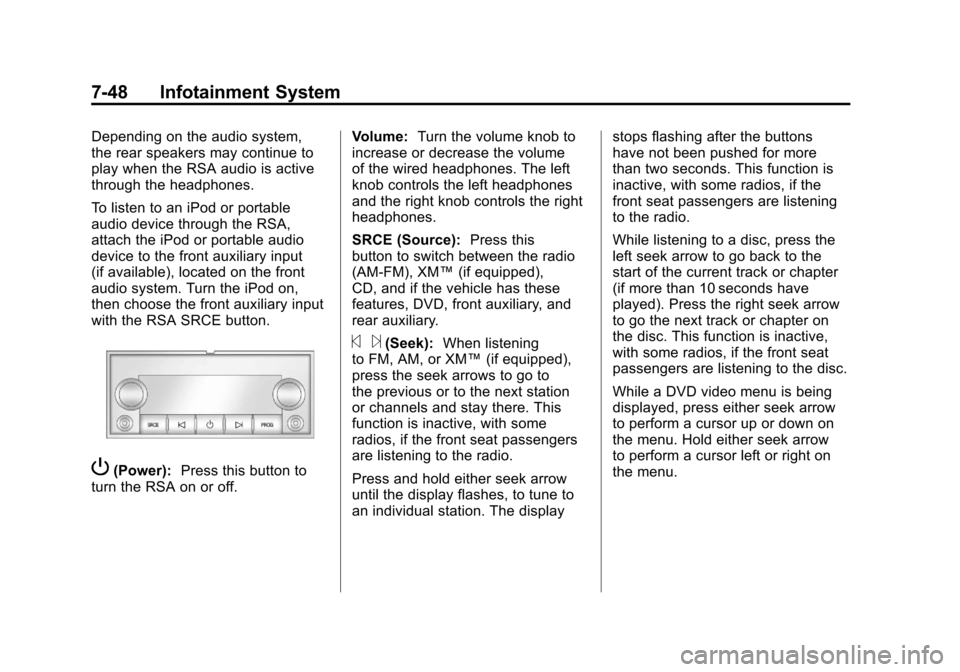
To listen to an iPod or portable
audio device through the RSA,
attach the iPod or portable audio
device to the front auxiliary input
(if available), located on the front
audio system. Turn the iPod on,
then choose the front auxiliary input
with the RSA SRCE button.
P(Power):Press this button to
turn the RSA on or off. Volume:
Turn the volume knob to
increase or decrease the volume
of the wired headphones. The left
knob controls the left headphones
and the right knob controls the right
headphones.
SRCE (Source): Press this
button to switch between the radio
(AM‐FM), XM™ (if equipped),
CD, and if the vehicle has these
features, DVD, front auxiliary, and
rear auxiliary.
© ¨(Seek): When listening
to FM, AM, or XM™ (if equipped),
press the seek arrows to go to
the previous or to the next station
or channels and stay there. This
function is inactive, with some
radios, if the front seat passengers
are listening to the radio.
Press and hold either seek arrow
until the display flashes, to tune to
an individual station. The display stops flashing after the buttons
have not been pushed for more
than two seconds. This function is
inactive, with some radios, if the
front seat passengers are listening
to the radio.
While listening to a disc, press the
left seek arrow to go back to the
start of the current track or chapter
(if more than 10 seconds have
played). Press the right seek arrow
to go the next track or chapter on
the disc. This function is inactive,
with some radios, if the front seat
passengers are listening to the disc.
While a DVD video menu is being
displayed, press either seek arrow
to perform a cursor up or down on
the menu. Hold either seek arrow
to perform a cursor left or right on
the menu.