phone CHEVROLET SILVERADO 2014 2.G Owners Manual
[x] Cancel search | Manufacturer: CHEVROLET, Model Year: 2014, Model line: SILVERADO, Model: CHEVROLET SILVERADO 2014 2.GPages: 546, PDF Size: 8.08 MB
Page 1 of 546

Black plate (1,1)Chevrolet Silverado Owner Manual (GMNA-Localizing-U.S./Canada/Mexico-
5853506) - 2014 - crc 2nd - 5/15/13
2014 Chevrolet Silverado Owner ManualM
In Brief. . . . . . . . . . . . . . . . . . . . . . . . 1-1
Instrument Panel . . . . . . . . . . . . . . 1-2
Initial Drive Information . . . . . . . . 1-4
Vehicle Features . . . . . . . . . . . . . 1-22
Performance and Maintenance . . . . . . . . . . . . . . . . 1-28
Keys, Doors, and Windows . . . . . . . . . . . . . . . . . . . . 2-1
Keys and Locks . . . . . . . . . . . . . . . 2-1
Doors . . . . . . . . . . . . . . . . . . . . . . . . 2-10
Vehicle Security . . . . . . . . . . . . . . 2-11
Exterior Mirrors . . . . . . . . . . . . . . . 2-14
Interior Mirrors . . . . . . . . . . . . . . . . 2-18
Windows . . . . . . . . . . . . . . . . . . . . . 2-19
Roof . . . . . . . . . . . . . . . . . . . . . . . . . . 2-22
Seats and Restraints . . . . . . . . . 3-1
Head Restraints . . . . . . . . . . . . . . . 3-2
Front Seats . . . . . . . . . . . . . . . . . . . . 3-3
Rear Seats . . . . . . . . . . . . . . . . . . . 3-10
Safety Belts . . . . . . . . . . . . . . . . . . 3-12
Airbag System . . . . . . . . . . . . . . . . 3-21
Child Restraints . . . . . . . . . . . . . . 3-37 Storage
. . . . . . . . . . . . . . . . . . . . . . . 4-1
Storage Compartments . . . . . . . . 4-1
Additional Storage Features . . . 4-4
Instruments and Controls . . . . 5-1
Controls . . . . . . . . . . . . . . . . . . . . . . . 5-2
Warning Lights, Gauges, and
Indicators . . . . . . . . . . . . . . . . . . . . 5-9
Information Displays . . . . . . . . . . 5-30
Vehicle Messages . . . . . . . . . . . . 5-35
Vehicle Personalization . . . . . . . 5-46
Universal Remote System . . . . 5-52
Lighting . . . . . . . . . . . . . . . . . . . . . . . 6-1
Exterior Lighting . . . . . . . . . . . . . . . 6-1
Interior Lighting . . . . . . . . . . . . . . . . 6-6
Lighting Features . . . . . . . . . . . . . . 6-8
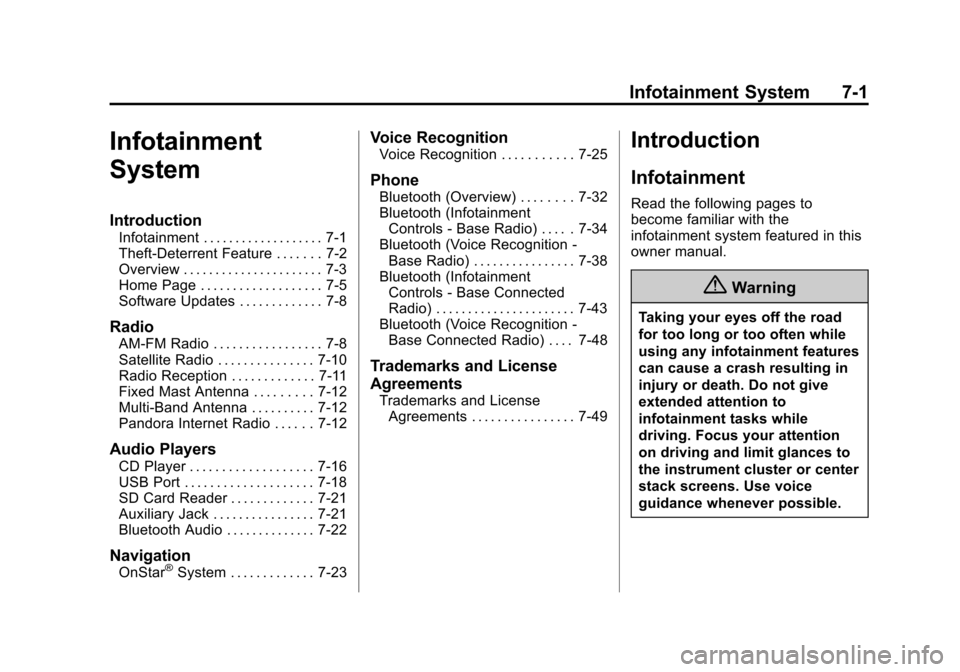
Infotainment System . . . . . . . . . 7-1
Introduction . . . . . . . . . . . . . . . . . . . . 7-1
Radio . . . . . . . . . . . . . . . . . . . . . . . . . . 7-8
Audio Players . . . . . . . . . . . . . . . . 7-16
Navigation . . . . . . . . . . . . . . . . . . . . 7-23
Voice Recognition . . . . . . . . . . . . 7-25
Phone . . . . . . . . . . . . . . . . . . . . . . . . 7-32 Trademarks and License
Agreements . . . . . . . . . . . . . . . . . 7-49
Climate Controls . . . . . . . . . . . . . 8-1
Climate Control Systems . . . . . . 8-1
Air Vents . . . . . . . . . . . . . . . . . . . . . . . 8-8
Maintenance . . . . . . . . . . . . . . . . . . . 8-9
Driving and Operating . . . . . . . . 9-1
Driving Information . . . . . . . . . . . . . 9-2
Starting and Operating . . . . . . . 9-24
Engine Exhaust . . . . . . . . . . . . . . 9-33
Automatic Transmission . . . . . . 9-34
Manual Transmission . . . . . . . . . 9-40
Drive Systems . . . . . . . . . . . . . . . . 9-42
Brakes . . . . . . . . . . . . . . . . . . . . . . . 9-54
Ride Control Systems . . . . . . . . 9-57
Cruise Control . . . . . . . . . . . . . . . . 9-60
Driver Assistance Systems . . . 9-63
Fuel . . . . . . . . . . . . . . . . . . . . . . . . . . 9-72
Trailer Towing . . . . . . . . . . . . . . . . 9-77
Conversions and
Add-Ons . . . . . . . . . . . . . . . . . . . 9-102
Page 29 of 546
Black plate (23,1)Chevrolet Silverado Owner Manual (GMNA-Localizing-U.S./Canada/Mexico-
5853506) - 2014 - crc 2nd - 5/15/13
In Brief 1-23
Storing Radio Station Presets
Up to 25 preset stations from all
bands can be stored in the favorite
lists in any order. Up to five stations
can be stored in each favorite page
and the number of favorite pages
can be set.
To store the station to a position in
the list, while on the active source
main page, such as AM, FM,
or SiriusXM (If Equipped), press and
hold a Favorites/Soft Key button on
the faceplate.
See“Storing Radio Station Presets”
under AM-FM Radio on page 7-8.
Setting the Clock
SeeClock on page 5-5.
Satellite Radio
Vehicles with a SiriusXM®satellite
radio tuner and a valid SiriusXM
satellite radio subscription can
receive SiriusXM programming.
SiriusXM Satellite Radio
Service
SiriusXM is a satellite radio service
based in the 48 contiguous United
States and 10 Canadian provinces.
SiriusXM satellite radio has a wide
variety of programming and
commercial-free music, coast to
coast, and in digital-quality sound.
A fee is required to receive the
SiriusXM service.
For more information refer to:
.www.siriusxm.com or call
1-866-635-2349 (U.S.).
.www.xmradio.ca or call
1-877-209-0079 (Canada).
See Satellite Radio on page 7-10.
Portable Audio Devices
This vehicle has a 3.5 mm (1/8 in)
auxiliary input jack, SD card reader,
and USB ports in the center
console. External devices such as
iPods
®, laptop computers, MP3
players, CD changers, and USB
storage devices may be connected,
depending on the audio system.
See USB Port on page 7-18, SD
Card Reader on page 7-21,
Auxiliary Jack on page 7-21.
Bluetooth®
The Bluetooth®system allows users
with a Bluetooth-enabled cell phone
to make and receive hands-free
calls using the vehicle audio system
and controls.
The Bluetooth-enabled cell phone
must be paired with the in-vehicle
Bluetooth system before it can be
used in the vehicle. Not all phones
will support all functions.
Page 31 of 546
Black plate (25,1)Chevrolet Silverado Owner Manual (GMNA-Localizing-U.S./Canada/Mexico-
5853506) - 2014 - crc 2nd - 5/15/13
In Brief 1-25
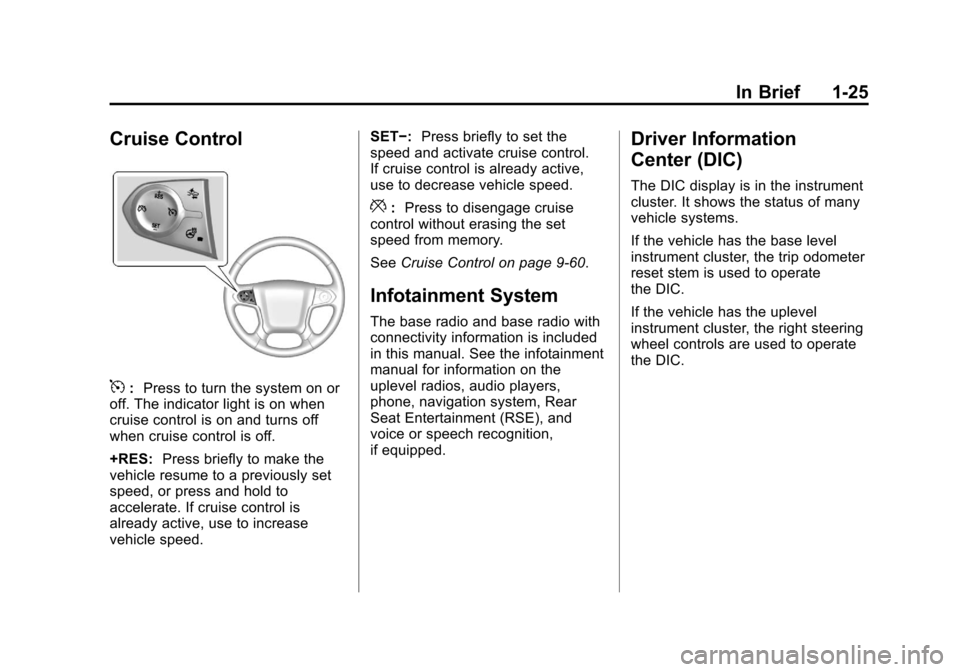
Cruise Control
5:Press to turn the system on or
off. The indicator light is on when
cruise control is on and turns off
when cruise control is off.
+RES: Press briefly to make the
vehicle resume to a previously set
speed, or press and hold to
accelerate. If cruise control is
already active, use to increase
vehicle speed. SET−:
Press briefly to set the
speed and activate cruise control.
If cruise control is already active,
use to decrease vehicle speed.
*: Press to disengage cruise
control without erasing the set
speed from memory.
See Cruise Control on page 9-60.
Infotainment System
The base radio and base radio with
connectivity information is included
in this manual. See the infotainment
manual for information on the
uplevel radios, audio players,
phone, navigation system, Rear
Seat Entertainment (RSE), and
voice or speech recognition,
if equipped.
Driver Information
Center (DIC)
The DIC display is in the instrument
cluster. It shows the status of many
vehicle systems.
If the vehicle has the base level
instrument cluster, the trip odometer
reset stem is used to operate
the DIC.
If the vehicle has the uplevel
instrument cluster, the right steering
wheel controls are used to operate
the DIC.
Page 33 of 546
Black plate (27,1)Chevrolet Silverado Owner Manual (GMNA-Localizing-U.S./Canada/Mexico-
5853506) - 2014 - crc 2nd - 5/15/13
In Brief 1-27
to provide the object distance. In
addition, multiple beeps or seat
pulses may occur if very close to an
object.
The vehicle may also have the Front
Parking Assist system.
SeeAssistance Systems for Parking
or Backing on page 9-64.
Power Outlets
Accessory power outlets can be
used to plug in electrical equipment,
such as a cell phone, MP3
player, etc.
The vehicle may have up to four
accessory power outlets.
Vehicle with Center Console
.One or two in front of the cup
holders on the center console.
.One inside the center storage
console.
.One on the rear of the center
storage console. Vehicle with Bench Seats
.One on the center stack below
the climate control system.
.One or two in the storage area
on the bench seat.
Lift the cover to access and replace
when not in use.
See Power Outlets on page 5-6.
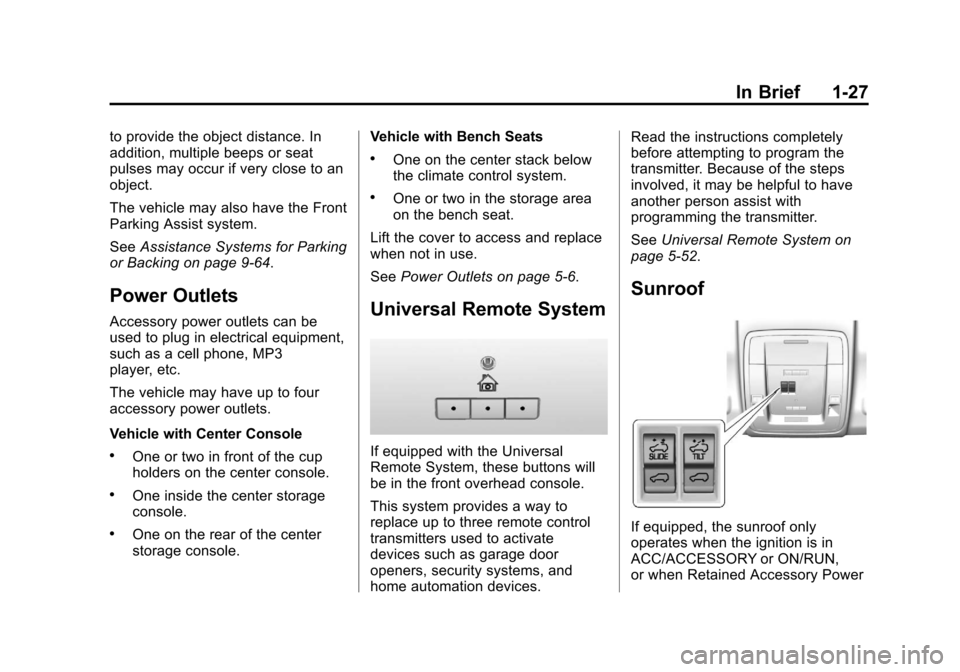
Universal Remote System
If equipped with the Universal
Remote System, these buttons will
be in the front overhead console.
This system provides a way to
replace up to three remote control
transmitters used to activate
devices such as garage door
openers, security systems, and
home automation devices. Read the instructions completely
before attempting to program the
transmitter. Because of the steps
involved, it may be helpful to have
another person assist with
programming the transmitter.
See
Universal Remote System on
page 5-52.
Sunroof
If equipped, the sunroof only
operates when the ignition is in
ACC/ACCESSORY or ON/RUN,
or when Retained Accessory Power
Page 141 of 546
Black plate (3,1)Chevrolet Silverado Owner Manual (GMNA-Localizing-U.S./Canada/Mexico-
5853506) - 2014 - crc 2nd - 5/15/13
Instruments and Controls 5-3
2. Pull the lever (2) toward you tomove the steering wheel up or
down, then release lever to lock
the wheel in place.
Do not adjust the steering wheel
while driving.
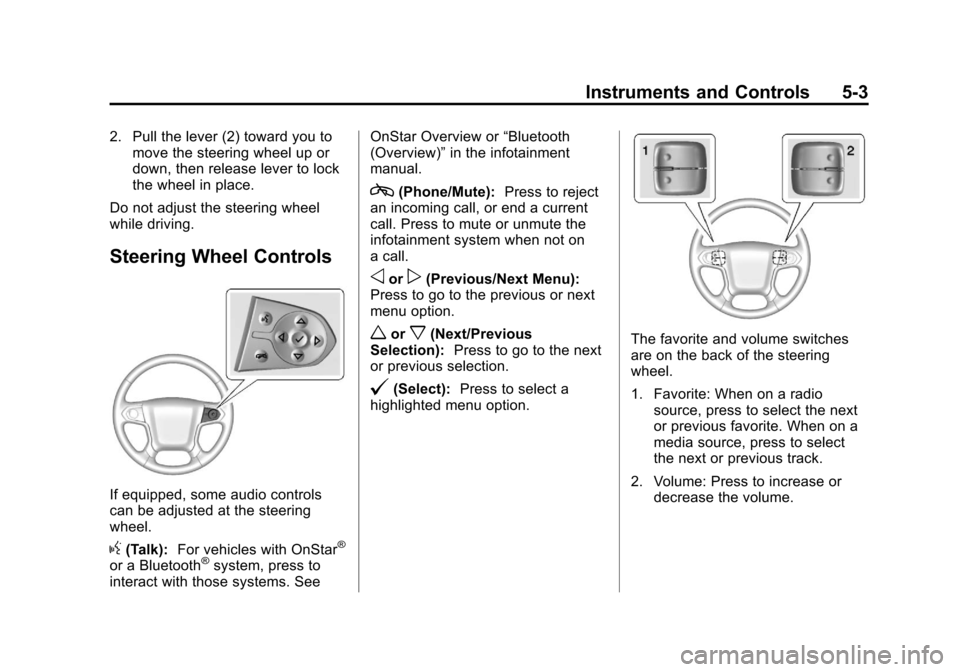
Steering Wheel Controls
If equipped, some audio controls
can be adjusted at the steering
wheel.
g(Talk): For vehicles with OnStar®
or a Bluetooth®system, press to
interact with those systems. See OnStar Overview or
“Bluetooth
(Overview)” in the infotainment
manual.
c(Phone/Mute): Press to reject
an incoming call, or end a current
call. Press to mute or unmute the
infotainment system when not on
a call.
oorp(Previous/Next Menu):
Press to go to the previous or next
menu option.
worx(Next/Previous
Selection): Press to go to the next
or previous selection.
@(Select): Press to select a
highlighted menu option.
The favorite and volume switches
are on the back of the steering
wheel.
1. Favorite: When on a radio source, press to select the next
or previous favorite. When on a
media source, press to select
the next or previous track.
2. Volume: Press to increase or decrease the volume.
Page 144 of 546
Black plate (6,1)Chevrolet Silverado Owner Manual (GMNA-Localizing-U.S./Canada/Mexico-
5853506) - 2014 - crc 2nd - 5/15/13
5-6 Instruments and Controls
To set the clock display:
1. Select SETTINGS from theHome Page, then select Time
and Date.
2. Select Clock Display.
3. Turn the MENU knob to Off or On.
4. Press the MENU knob to select.
Press
oBACK to go to the last
menu and save the changes.
Setting the Time and Date With
Touchscreen Controls
To set the time:
1. Press the SETTINGS screen button from the Home Page,
then press Time and Date.
2. Press Set Time and press
«or
ªto increase or decrease
hours, minutes, and AM or PM.
Press 12Hr or 24Hr for 12 or
24 hour clock.
3. Press the
}screen button to go
back to the previous menu. If auto timing is set, the time
displayed on the clock may not
update immediately when driving
into a new time zone.
To set the date:
1. Press the SETTINGS screen
button from the Home Page,
then press Time and Date.
2. Press Set Date and press
«or
ªto increase or decrease
month, day, or year.
3. Press the
}screen button to go
back to the previous menu.
To set the clock display:
1. Press the SETTINGS screen button and press Time and Date.
2. Press Clock Display and press OFF or ON to turn the clock
display off or on.
3. Press the
}screen button to go
back to the previous menu.
Power Outlets
Accessory power outlets can be
used to plug in electrical equipment,
such as a cell phone, MP3
player, etc.
The vehicle may have up to four
accessory power outlets.
Vehicle with Center Console
.One or two in front of the cup
holders on the center console.
.One inside the center storage
console.
.One on the rear of the center
storage console.
Vehicle with Bench Seats
.One on the center stack below
the climate control system.
.One or two in the storage area
on the bench seat.
Lift the cover to access and replace
when not in use.
Page 145 of 546
Black plate (7,1)Chevrolet Silverado Owner Manual (GMNA-Localizing-U.S./Canada/Mexico-
5853506) - 2014 - crc 2nd - 5/15/13
Instruments and Controls 5-7
The power outlets on the center
stack and in front of the cup holders
are powered at all times. The power
outlets inside the storage area and
on the rear of the console are
powered when the ignition is in ON/
RUN or ACC/ACCESSORY,
or when RAP is active.
{Warning
Power is always supplied to the
outlets. Do not leave electrical
equipment plugged in when the
vehicle is not in use because the
vehicle could catch fire and cause
injury or death.
{Caution
Leaving electrical equipment
plugged in for an extended period
of time while the vehicle is off will
drain the battery. Always unplug
electrical equipment when not in
use and do not plug in equipment
that exceeds the maximum
15 amp rating.
Certain power accessory plugs may
not be compatible with the
accessory power outlet and could
overload vehicle or adapter fuses.
If a problem is experienced, see
your dealer. When adding electrical equipment,
be sure to follow the proper
installation instructions included with
the equipment. See
Add-On
Electrical Equipment on page 9-102.
{Caution
Hanging heavy equipment from
the power outlet can cause
damage not covered by the
vehicle warranty. The power
outlets are designed for
accessory power plugs only, such
as cell phone charge cords.
Page 150 of 546
Black plate (12,1)Chevrolet Silverado Owner Manual (GMNA-Localizing-U.S./Canada/Mexico-
5853506) - 2014 - crc 2nd - 5/15/13
5-12 Instruments and Controls
Cluster Menu (Uplevel Cluster)
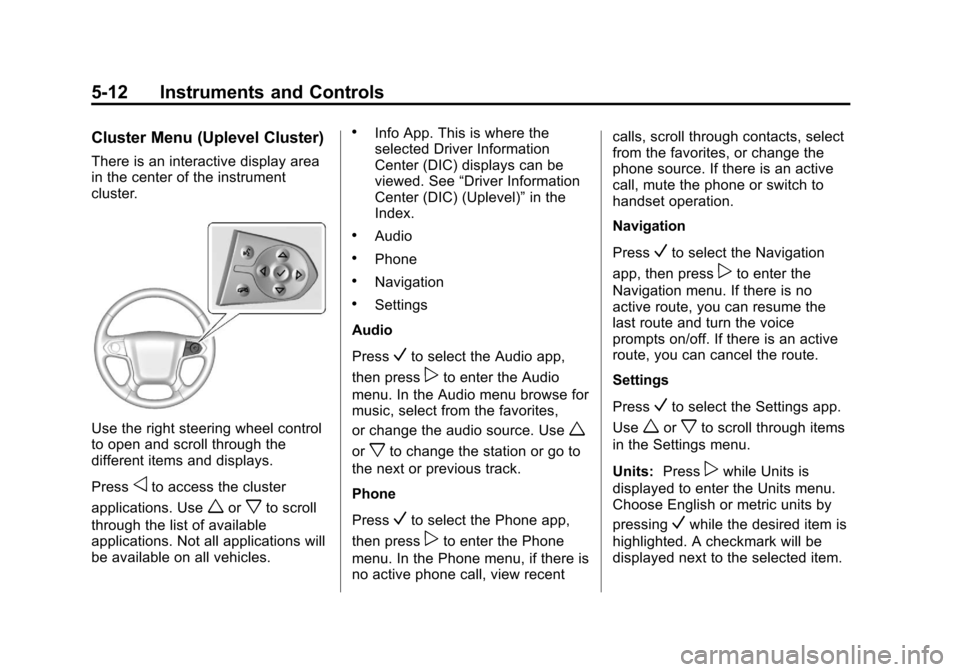
There is an interactive display area
in the center of the instrument
cluster.
Use the right steering wheel control
to open and scroll through the
different items and displays.
Press
oto access the cluster
applications. Use
worxto scroll
through the list of available
applications. Not all applications will
be available on all vehicles.
.Info App. This is where the
selected Driver Information
Center (DIC) displays can be
viewed. See “Driver Information
Center (DIC) (Uplevel)” in the
Index.
.Audio
.Phone
.Navigation
.Settings
Audio
Press
Vto select the Audio app,
then press
pto enter the Audio
menu. In the Audio menu browse for
music, select from the favorites,
or change the audio source. Use
w
orxto change the station or go to
the next or previous track.
Phone
Press
Vto select the Phone app,
then press
pto enter the Phone
menu. In the Phone menu, if there is
no active phone call, view recent calls, scroll through contacts, select
from the favorites, or change the
phone source. If there is an active
call, mute the phone or switch to
handset operation.
Navigation
Press
Vto select the Navigation
app, then press
pto enter the
Navigation menu. If there is no
active route, you can resume the
last route and turn the voice
prompts on/off. If there is an active
route, you can cancel the route.
Settings
Press
Vto select the Settings app.
Use
worxto scroll through items
in the Settings menu.
Units: Press
pwhile Units is
displayed to enter the Units menu.
Choose English or metric units by
pressing
Vwhile the desired item is
highlighted. A checkmark will be
displayed next to the selected item.
Page 188 of 546
Black plate (50,1)Chevrolet Silverado Owner Manual (GMNA-Localizing-U.S./Canada/Mexico-
5853506) - 2014 - crc 2nd - 5/15/13
5-50 Instruments and Controls
Select All Doors or Driver
Door Only.
Passive Door Lock
This feature can be turned on or off,
or can be used to select feedback
when using the button on the driver
door to lock the vehicle. See
Remote Keyless Entry (RKE)
System Operation on page 2-3.
Select Off, On with Horn
Chirp, or On.
Remote Left in Vehicle Alert
This feature sounds an alert when
the RKE transmitter is left in the
vehicle.
Select Off or On.
Bluetooth
Select and the following may
display:
.Pair New Device
.Device Management
.Ringtones
.Voice Mail NumbersPair New Device
Select to pair a new device. See
“Pairing”
in“Infotainment Controls”
under Bluetooth (Infotainment
Controls - Base Radio) on
page 7-34 orBluetooth (Voice
Recognition - Base Radio) on
page 7-38 orBluetooth (Overview)
on page 7-32 orBluetooth
(Infotainment Controls - Base
Connected Radio) on page 7-43 or
Bluetooth (Voice Recognition - Base
Connected Radio) on page 7-48 or
“Pairing” in“Infotainment Controls”
under Bluetooth in the infotainment
manual.
Device Management
Select to connect to a different
phone source, disconnect a phone,
or delete a phone.
Ringtones
Press to change the ring tone for
the specific phone. The phone does
not need to be connected to change
the ring. Voice Mail Numbers
This feature displays the voice mail
number for all connected phones.
The voice mail number may be
changed by selecting EDIT or
pressing the EDIT button and typing
in a new number, then select SAVE
or press the SAVE button.
Voice
Select and the following may
display:
.Prompt Length
.Audio Feedback Speed
Prompt Length
This feature adjusts the voice
prompt length.
Select Short or Long.
Audio Feedback Speed
This feature adjusts the audio
feedback speed.
Select Slow, Medium, or Fast.
Page 205 of 546
Black plate (1,1)Chevrolet Silverado Owner Manual (GMNA-Localizing-U.S./Canada/Mexico-
5853506) - 2014 - crc 2nd - 5/15/13
Infotainment System 7-1
Infotainment
System
Introduction
Infotainment . . . . . . . . . . . . . . . . . . . 7-1
Theft-Deterrent Feature . . . . . . . 7-2
Overview . . . . . . . . . . . . . . . . . . . . . . 7-3
Home Page . . . . . . . . . . . . . . . . . . . 7-5
Software Updates . . . . . . . . . . . . . 7-8
Radio
AM-FM Radio . . . . . . . . . . . . . . . . . 7-8
Satellite Radio . . . . . . . . . . . . . . . 7-10
Radio Reception . . . . . . . . . . . . . 7-11
Fixed Mast Antenna . . . . . . . . . 7-12
Multi-Band Antenna . . . . . . . . . . 7-12
Pandora Internet Radio . . . . . . 7-12
Audio Players
CD Player . . . . . . . . . . . . . . . . . . . 7-16
USB Port . . . . . . . . . . . . . . . . . . . . 7-18
SD Card Reader . . . . . . . . . . . . . 7-21
Auxiliary Jack . . . . . . . . . . . . . . . . 7-21
Bluetooth Audio . . . . . . . . . . . . . . 7-22
Navigation
OnStar®System . . . . . . . . . . . . . 7-23
Voice Recognition
Voice Recognition . . . . . . . . . . . 7-25
Phone
Bluetooth (Overview) . . . . . . . . 7-32
Bluetooth (InfotainmentControls - Base Radio) . . . . . 7-34
Bluetooth (Voice Recognition - Base Radio) . . . . . . . . . . . . . . . . 7-38
Bluetooth (Infotainment Controls - Base Connected
Radio) . . . . . . . . . . . . . . . . . . . . . . 7-43
Bluetooth (Voice Recognition - Base Connected Radio) . . . . 7-48
Trademarks and License
Agreements
Trademarks and LicenseAgreements . . . . . . . . . . . . . . . . 7-49
Introduction
Infotainment
Read the following pages to
become familiar with the
infotainment system featured in this
owner manual.
{Warning
Taking your eyes off the road
for too long or too often while
using any infotainment features
can cause a crash resulting in
injury or death. Do not give
extended attention to
infotainment tasks while
driving. Focus your attention
on driving and limit glances to
the instrument cluster or center
stack screens. Use voice
guidance whenever possible.