audio CHEVROLET SILVERADO 2017 3.G User Guide
[x] Cancel search | Manufacturer: CHEVROLET, Model Year: 2017, Model line: SILVERADO, Model: CHEVROLET SILVERADO 2017 3.GPages: 509, PDF Size: 8.87 MB
Page 163 of 509
Chevrolet Silverado Owner Manual (GMNA-Localizing-U.S./Canada/Mexico-9956065) - 2017 - CRC - 4/29/16
162 Instruments and Controls
Radio
Select and the following maydisplay:
.Manage Favorites
.Number of Favorites Shown
.Audible Touch Feedback
.Te x t S c r o l l
.To n e S e t t i n g s
.Auto Volume
.Maximum Startup Volume
.Audio Cue Volume
Manage Favorites
This allows favorites to be edited.See“Manage Favorites”in“RadioSetup”underHome Page (BaseRadio)0186orHome Page (BaseRadio with Touchscreen)0188or“Manage Favorites”in“Settings”under“Radio”in the infotainmentmanual.
Number of Favorites Shown
Select to set the number of favoritesto display.
Select the desired number or selectAuto and the infotainment systemwill automatically adjust the numberof favorites shown.
Audible Touch Feedback
This allows Audible TouchFeedback to be turned on or off.
Select Off or On.
Text Scroll
Select to see text scroll on thescreen.
Select Off or On.
Tone Settings
Select to adjust the radio tone. See“To n e S e t t i n g s”inAM-FM Radio(Base Radio with Touchscreen)0191orAM-FM Radio (BaseRadio)0189.
Auto Volume
This feature adjusts the volumebased on vehicle speed andambient noise.
Select Off, Low, Medium-Low,Medium, Medium-High, or High.
Maximum Startup Volume
This feature sets the maximumstartup volume. If the vehicle isstarted and the volume is greaterthan this level, the volume isadjusted to this level. To set themaximum startup volume, turn theMENU knob or press + or✓toincrease or decrease.
Audio Cue Volume
This feature sets the volume ofaudio files played at system startupand shutdown.
Select On, then press + or✓toincrease or decrease the volume.
Vehicle
Select and the following maydisplay:
.Climate and Air Quality
.Collision/Detection Systems
.Comfort and Convenience
.Lighting
.Power Door Locks
.Remote Lock, Unlock, Start
Page 167 of 509
Chevrolet Silverado Owner Manual (GMNA-Localizing-U.S./Canada/Mexico-9956065) - 2017 - CRC - 4/29/16
166 Instruments and Controls
Device Management
Select to connect to a differentphone source, disconnect a phone,or delete a phone.
Ringtones
Select to change the ring tone forthe specific phone. The phone doesnot need to be connected to changethe ring tones.
Voice Mail Numbers
This feature displays the voice mailnumber for all connected phones.To c h a n g e t h e v o i c e m a i l n u m b e r ,select EDIT. Type a new number,then select SAVE.
Text Message Alerts
This allows the feature to be turnedon or off.
Select Off or On.
Apple CarPlay™
Select and the following maydisplay:
.Apple CarPlay
.Manage Apple CarPlay Devices
Apple CarPlay
This feature allows Apple devices tobe connected to the infotainmentsystem through a USB port.
Select Off or On.
Manage Apple CarPlay Devices
Select to manage Apple devices.Apple CarPlay must be on for thisfeature to be accessed.
Android Auto
Select and the following maydisplay:
.Android Auto
.Manage Android Auto Devices
Android Auto
This feature allows Android devicesto be connected to the infotainmentsystem through a USB port.
Select Off or On.
Manage Android Auto Devices
Select to manage Android devices.Android Auto must be on for thisfeature to be accessed.
USB Auto Launch
This allows Android and AppleCarPlay devices to automaticallyconnect when plugged into theUSB port.
Select Off or On.
Voice
Select and the following maydisplay:
.Prompt Length
.Audio Feedback Speed
Prompt Length
This feature adjusts the voiceprompt length.
Select Short or Long.
Audio Feedback Speed
This feature adjusts the audiofeedback speed.
Select Slow, Medium, or Fast.
Page 168 of 509
Chevrolet Silverado Owner Manual (GMNA-Localizing-U.S./Canada/Mexico-9956065) - 2017 - CRC - 4/29/16
Instruments and Controls 167
Voice
Select and the following maydisplay:
.Prompt Length
.Audio Feedback Speed
Prompt Length
This feature adjusts the voiceprompt length.
Select Short or Long.
Audio Feedback Speed
This feature adjusts the audiofeedback speed.
Select Slow, Medium, or Fast.
Display
Select and the following maydisplay:
.Calibrate Touchscreen
.Turn Display Off
Calibrate Touchscreen
Select to calibrate the touchscreen,then follow the prompts.
Turn Display Off
Select to turn the display off. Pressanywhere on the display area or anyfaceplate button to turn thedisplay on.
Rear Camera
Select and the following maydisplay:
.Guidance Lines
.Rear Park Assist Symbols
Guidance Lines
Select to turn Off or On. SeeAssistance Systems for Parking orBacking0302.
Rear Park Assist Symbols
Select to turn Off or On. SeeAssistance Systems for Parking orBacking0302.
Return to Factory Settings
Select and the following maydisplay:
.Restore Vehicle Settings
.Clear All Private Data
.Restore Radio Settings
Restore Vehicle Settings
This allows selection of restoringvehicle settings.
Select Restore or Cancel.
Clear All Private Data
This allows selection to clear allprivate information from the vehicle.
Select Delete or Cancel.
Restore Radio Settings
This allows selection to restoreradio settings.
Select Restore or Cancel.
Software Information
Select to view the infotainmentsystem current software information.
Page 182 of 509
Chevrolet Silverado Owner Manual (GMNA-Localizing-U.S./Canada/Mexico-9956065) - 2017 - CRC - 4/29/16
Infotainment System 181
Infotainment
System
Introduction
Infotainment . . . . . . . . . . . . . . . . . . 181Theft-Deterrent Feature . . . . . . 182Overview (Base Radio withTo u c h s c r e e n ) . . . . . . . . . . . . . . . 1 8 3Overview (Base Radio) . . . . . . . 184Home Page (Base Radio) . . . . 186Home Page (Base Radio withTo u c h s c r e e n ) . . . . . . . . . . . . . . . 1 8 8Software Updates . . . . . . . . . . . . 189
Radio
AM-FM Radio (BaseRadio) . . . . . . . . . . . . . . . . . . . . . . 189AM-FM Radio (Base Radiowith Touchscreen) . . . . . . . . . . . 191Satellite Radio (BaseRadio) . . . . . . . . . . . . . . . . . . . . . . 193Satellite Radio (Base Radiowith Touchscreen) . . . . . . . . . . . 193Radio Reception . . . . . . . . . . . . . . 195Fixed Mast Antenna . . . . . . . . . . 195Multi-Band Antenna . . . . . . . . . . 196
Audio Players
Avoiding Untrusted MediaDevices . . . . . . . . . . . . . . . . . . . . . 196CD Player . . . . . . . . . . . . . . . . . . . . 196USB Port (Base Radio) . . . . . . . 199USB Port (Base Radio withTo u c h s c r e e n ) . . . . . . . . . . . . . . . 2 0 1Auxiliary Jack . . . . . . . . . . . . . . . . 207Bluetooth Audio . . . . . . . . . . . . . . 208
Voice Recognition
Voice Recognition . . . . . . . . . . . . 209
Phone
Bluetooth (Overview) . . . . . . . . . 216Bluetooth (InfotainmentControls - Base Radio) . . . . . . 217Bluetooth (Voice Recognition -Base Radio) . . . . . . . . . . . . . . . . 221Bluetooth (InfotainmentControls - Base Radio withTo u c h s c r e e n ) . . . . . . . . . . . . . . . 2 2 6Apple CarPlay andAndroid Auto . . . . . . . . . . . . . . . . 230
Trademarks and License
Agreements
Trademarks and LicenseAgreements . . . . . . . . . . . . . . . . . 231
Introduction
Infotainment
Base radio information is included inthis manual. See the infotainmentmanual for information on otheravailable infotainment systems.
Read the following pages tobecome familiar with the BaseRadio features.
{Warning
Ta k i n g y o u r e y e s o f f t h e r o a d f o r
too long or too often while using
any infotainment feature can
cause a crash. You or others
could be injured or killed. Do not
give extended attention to
infotainment tasks while driving.
Limit your glances at the vehicle
displays and focus your attention
on driving. Use voice commands
whenever possible.
Page 183 of 509
Chevrolet Silverado Owner Manual (GMNA-Localizing-U.S./Canada/Mexico-9956065) - 2017 - CRC - 4/29/16
182 Infotainment System
The infotainment system has built-infeatures intended to help avoiddistraction by disabling somefunctions when driving. Thesefunctions may gray out when theyare unavailable. Many infotainmentfeatures are also available throughthe instrument cluster and steeringwheel controls.
Before driving:
.Become familiar with theoperation, faceplate buttons, andscreen buttons.
.Set up the audio by presettingfavorite stations, setting thetone, and adjusting thespeakers.
.Set up phone numbers inadvance so they can be calledeasily by pressing a singlebutton or by using a single voicecommand if equipped withBluetooth phone capability.
SeeDefensive Driving0248.
To p l a y t h e i n f o t a i n m e n t s y s t e m w i t hthe ignition off, seeRetainedAccessory Power (RAP)0271.
Theft-Deterrent Feature
TheftLock®is designed todiscourage theft of the vehicle'sradio by learning a portion of theVehicle Identification Number (VIN).The radio does not operate if it isstolen or moved to a differentvehicle.
Page 186 of 509
Chevrolet Silverado Owner Manual (GMNA-Localizing-U.S./Canada/Mexico-9956065) - 2017 - CRC - 4/29/16
Infotainment System 185
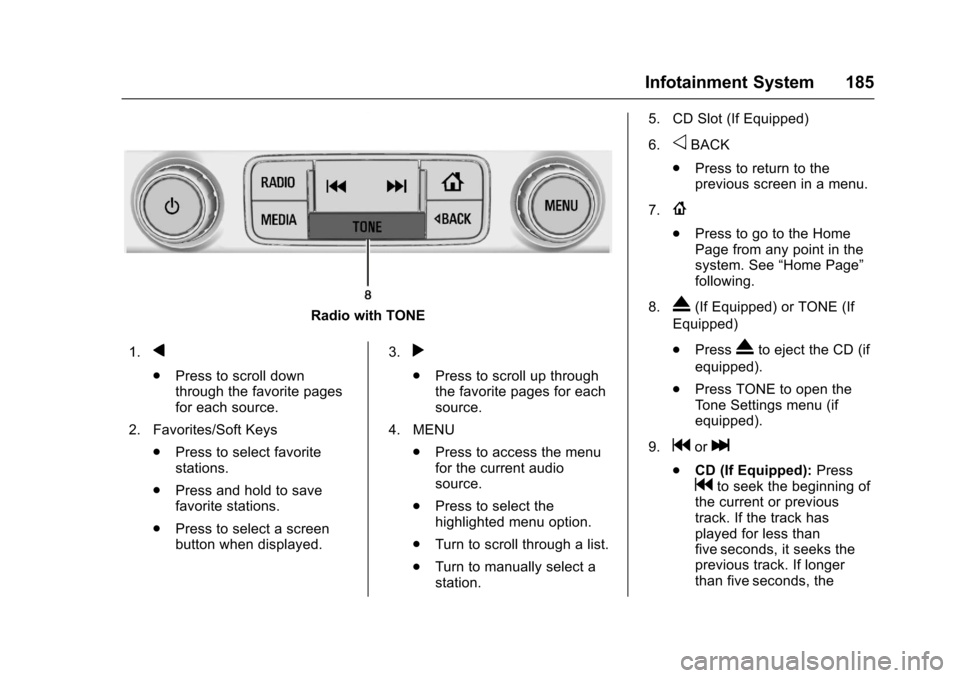
Radio with TONE
1.q
.Press to scroll downthrough the favorite pagesfor each source.
2. Favorites/Soft Keys
.Press to select favoritestations.
.Press and hold to savefavorite stations.
.Press to select a screenbutton when displayed.
3.r
.Press to scroll up throughthe favorite pages for eachsource.
4. MENU
.Press to access the menufor the current audiosource.
.Press to select thehighlighted menu option.
.Turn to scroll through a list.
.Turn to manually select astation.
5. CD Slot (If Equipped)
6.oBACK
.Press to return to theprevious screen in a menu.
7.{
.Press to go to the HomePage from any point in thesystem. See“Home Page”following.
8.X(If Equipped) or TONE (If
Equipped)
.PressXto eject the CD (if
equipped).
.Press TONE to open theTo n e S e t t i n g s m e n u ( i fequipped).
9.gorl
.CD (If Equipped):Pressgto seek the beginning ofthe current or previoustrack. If the track hasplayed for less thanfive seconds, it seeks theprevious track. If longerthan five seconds, the
Page 187 of 509
Chevrolet Silverado Owner Manual (GMNA-Localizing-U.S./Canada/Mexico-9956065) - 2017 - CRC - 4/29/16
186 Infotainment System
current track will start from
the beginning. Presslto
seek the next track.
.AM, FM, or SiriusXM (If
Equipped):Pressgorl
to seek to the previous ornext strong station.
.CD (If Equipped):Press
and holdgto quickly
reverse through a track.Release the button to returnto playing speed. Press and
holdlto fast forward
through a track. Releasethe button to return toplaying speed.
10. RADIO
.Press to change the audiosource between AM, FM,or SiriusXM, if equipped.
11 . M E D I A
.Press to change the audiosource between CD, USB,AUX, and Bluetooth Audio,if equipped.
12.O
.Press to turn the audio on.
.Press and hold to turn it off.
.When on, press to mute thesystem. Press again tounmute.
.Turn to increase ordecrease the volume.
Home Page (Base Radio)
Home Page Features
The infotainment system displays aHome Page that makes it easy toaccess all of the applications. Turnthe MENU knob to highlight featureicons. Press the MENU knob toaccess the feature’soptions.
Va r i o u s f u n c t i o n s a r e d i s a b l e d w h e nthe vehicle is moving.
AUDIO :Select the AUDIO screenicon to display the active sourcepage. The sources available areAM, FM, SiriusXM®(if equipped),USB/iPod, AUX Input, and BluetoothAudio (if equipped). SeeAM-FMRadio (Base Radio withTo u c h s c r e e n )0191orAM-FMRadio (Base Radio)0189,SatelliteRadio (Base Radio)0193orSatellite Radio (Base Radio withTo u c h s c r e e n )0193,,Auxiliary Jack0207,andBluetooth Audio0208.
PHONE :Select the PHONE screenicon to display the Phone mainpage. SeeBluetooth (VoiceRecognition - Base Radio)0221orBluetooth (Infotainment Controls -Base Radio)0217orBluetooth(Overview)0216orBluetooth(Infotainment Controls - Base Radiowith Touchscreen)0226.
NAV (Navigation, If Equipped) :Select the NAV screen icon todisplay the OnStar Turn-by-TurnNavigation. SeeOnStar Overview0486,ifequipped.
Page 189 of 509
Chevrolet Silverado Owner Manual (GMNA-Localizing-U.S./Canada/Mexico-9956065) - 2017 - CRC - 4/29/16
188 Infotainment System
Audible Touch Feedback (IfEquipped) :Select Audible TouchFeedback to turn feedback off or on.
Auto Volume (If Equipped) :Thisfeature adjusts the volume based onvehicle speed. The options are Off,Low, Medium-Low, Medium,Medium-High, or High. Select thedesired volume.
Maximum Startup Volume :Thisfeature sets the maximum startupvolume. If the vehicle is started andthe volume is greater than this level,the volume is adjusted to this level.To s e t t h e m a x i m u m s t a r t u p v o l u m e ,Turn the MENU knob to increase ordecrease startup volume.
Rear Camera (If Equipped)
From the Rear Camera screenbutton, the following may display:
Return to Factory Settings
Select Return to Factory Settingsand the following may display:
Restore Vehicle Settings :Thisoption will restore factory vehiclepersonalization settings. SelectRestore Vehicle Settings. A screen
displays stating all vehiclecustomization settings will berestored to the factory settings.Select Cancel or Confirm.
Clear All Private Data (IfEquipped) :This option clears allprivate information from the vehicle.Select Clear All Private Data. SelectCancel or Confirm.
Restore Radio Settings :Thisoption will restore factory radiosettings. Select Restore RadioSettings. A screen displays statingall personalized radio settings willbe restored back to the factorysettings. Select Cancel or Confirm.
English and Metric Unit
Conversion
To c h a n g e t h e d i s p l a y u n i t s b e t w e e nEnglish and metric units, seeDriverInformation Center (DIC) (BaseLevel)0145orDriver InformationCenter (DIC) (Uplevel)0147orInstrument Cluster0128.
Home Page (Base Radio
with Touchscreen)
Touchscreen Buttons
To u c h s c r e e n b u t t o n s s h o w o n t h escreen when available. When afunction is unavailable, the buttonmay gray out. When a function isselected, the button may highlight.
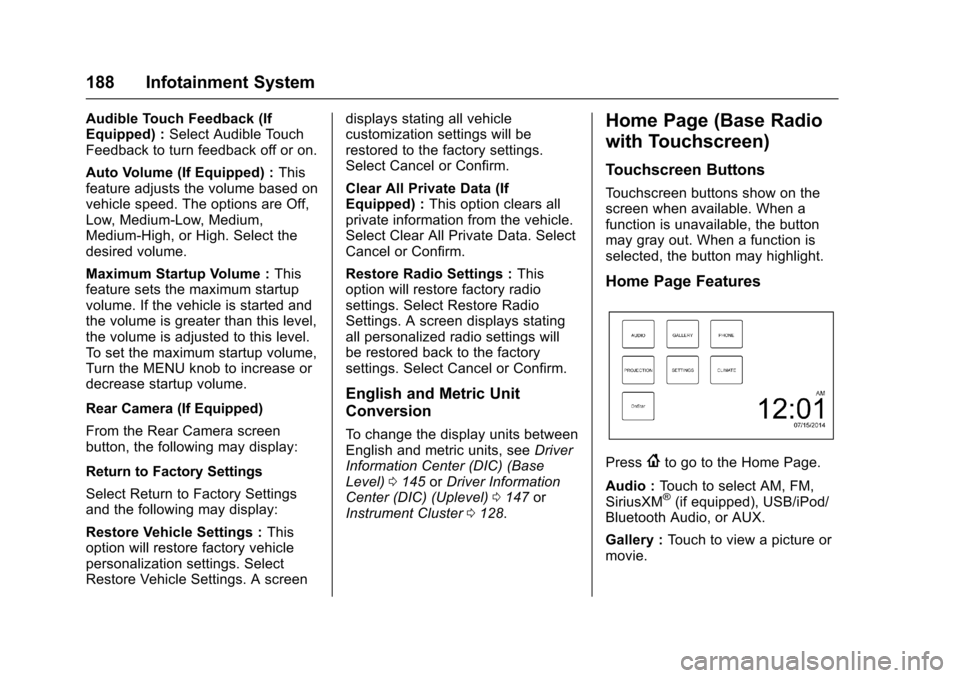
Home Page Features
Press{to go to the Home Page.
Audio :To u c h t o s e l e c t A M , F M ,SiriusXM®(if equipped), USB/iPod/Bluetooth Audio, or AUX.
Gallery :To u c h t o v i e w a p i c t u r e o rmovie.
Page 190 of 509
Chevrolet Silverado Owner Manual (GMNA-Localizing-U.S./Canada/Mexico-9956065) - 2017 - CRC - 4/29/16
Infotainment System 189
Phone :To u c h t o a c t i v a t e t h ephone features (if equipped). SeeBluetooth (Voice Recognition - BaseRadio)0221orBluetooth(Infotainment Controls - BaseRadio)0217orBluetooth(Overview)0216orBluetooth(Infotainment Controls - Base Radiowith Touchscreen)0226.
Projection :To u c h t o a c c e s ssupported devices when connected.SeeUSB Port (Base Radio)0199orUSB Port (Base Radio withTo u c h s c r e e n )0201.
Settings :To u c h t o a c c e s s t h ePersonalization menu. SeeVehiclePersonalization0160.
Climate :To u c h t o a c c e s s t h eClimate menu. SeeDual AutomaticClimate Control System0240.
OnStar :If equipped, touch toaccess the OnStar menu. SeeOnStar Overview0486.
Software Updates
See the website for moreinformation.
Website Information
In the U.S., see www.chevrolet.com
In Canada, seewww.chevrolet.gm.ca
In Mexico, seewww.chevrolet.com.mx
Radio
AM-FM Radio (Base
Radio)
Playing the Radio
While on the audio main page,press the RADIO button repeatedlyto cycle through the availablesources AM, FM, and SiriusXM®(ifequipped) or press the MEDIAbutton repeatedly to cycle throughthe available sources Bluetooth®
Audio (if equipped), USB, and AUX.
The steering wheel controls canalso be used to adjust the volume.SeeSteering Wheel Controls0121.
AM, FM, or SiriusXM (If Equipped)
To s e l e c t A M , F M , o r S i r i u s X M ( i fequipped), press the RADIO buttonto toggle to the desired broadcastsource.
Page 191 of 509
Chevrolet Silverado Owner Manual (GMNA-Localizing-U.S./Canada/Mexico-9956065) - 2017 - CRC - 4/29/16
190 Infotainment System
Press the MENU knob and thefollowing radio settings may display:
To n e S e t t i n g s :
.Bass, Midrange, and Treble:Turn the MENU knob andhighlight. Press the MENU knobto select. Turn the MENU knobto adjust.
.Balance:Turn the MENU knobto highlight. Press the MENUknob to select. Turn the MENUknob left for more sound fromthe left speakers or right formore sound from the rightspeakers. The middle positionbalances the sound between theleft and right speakers.
.Fade:Turn the MENU knob tohighlight. Press the MENU knobto select. Turn the MENU knobto the left for more sound fromthe front speakers and to theright for more sound from therear speakers. The middleposition balances the soundbetween the front and rearspeakers.
.DSP:IfequippedwithaBose Surround®sound system,it will have three DSP modesincluding:
⇣Normal: Adjusts the audio toprovide the best sound for allseating positions.
⇣Driver: Adjusts the audio toprovide the best sound for thedriver.
⇣Centerpoint: Creates asurround sound from nearlyany audio source.
.EQ (Equalizer):Ifequippedwith a Bose sound system, turnthe MENU knob to highlight.Turn the MENU knob to scrollthrough the options. Press theMENU knob to select. Press
theoBACK button to go to the
previous menu.
Station List :Select to displayalistofAMorFMstations.
PressoBACK to go to the
previous menu.
Auto Volume :If equipped, thisfeature adjusts the volume based onthe vehicle speed. Select the levelbetween Off, Low, Medium-Low,Medium, Medium-High, and High.
PressoBACK to go to the
previous menu.
EQ (Equalizer) Settings :In certainconfigurations, the available choicesare Manual and Talk.
Options for SiriusXM Only (IfEquipped)
SXM View :SXM view allows thechannel list to be viewed by channelname, artist playing on channel,or song playing on channel. Turnthe MENU knob to highlight andpress the MENU knob to select.
PressoBACK to go to the
previous menu.
Channel List :Select to display alist of SiriusXM channels. Turn theMENU knob to highlight and pressthe MENU knob to select.
PressoBACK to go to the
previous menu.