buttons CHEVROLET SILVERADO 2017 3.G User Guide
[x] Cancel search | Manufacturer: CHEVROLET, Model Year: 2017, Model line: SILVERADO, Model: CHEVROLET SILVERADO 2017 3.GPages: 509, PDF Size: 8.87 MB
Page 183 of 509
Chevrolet Silverado Owner Manual (GMNA-Localizing-U.S./Canada/Mexico-9956065) - 2017 - CRC - 4/29/16
182 Infotainment System
The infotainment system has built-infeatures intended to help avoiddistraction by disabling somefunctions when driving. Thesefunctions may gray out when theyare unavailable. Many infotainmentfeatures are also available throughthe instrument cluster and steeringwheel controls.
Before driving:
.Become familiar with theoperation, faceplate buttons, andscreen buttons.
.Set up the audio by presettingfavorite stations, setting thetone, and adjusting thespeakers.
.Set up phone numbers inadvance so they can be calledeasily by pressing a singlebutton or by using a single voicecommand if equipped withBluetooth phone capability.
SeeDefensive Driving0248.
To p l a y t h e i n f o t a i n m e n t s y s t e m w i t hthe ignition off, seeRetainedAccessory Power (RAP)0271.
Theft-Deterrent Feature
TheftLock®is designed todiscourage theft of the vehicle'sradio by learning a portion of theVehicle Identification Number (VIN).The radio does not operate if it isstolen or moved to a differentvehicle.
Page 185 of 509
Chevrolet Silverado Owner Manual (GMNA-Localizing-U.S./Canada/Mexico-9956065) - 2017 - CRC - 4/29/16
184 Infotainment System
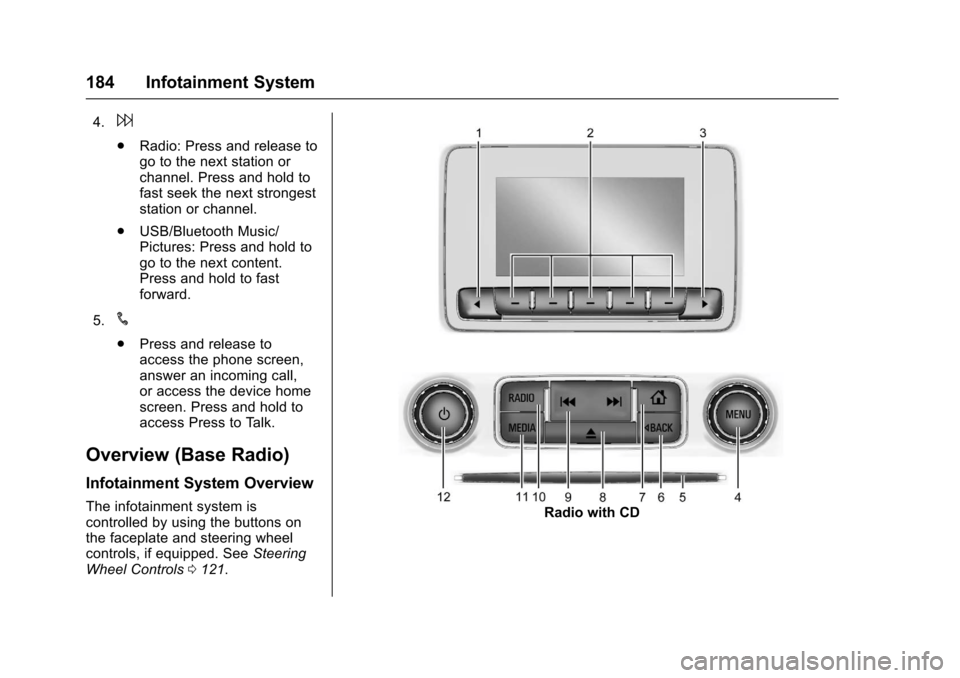
4.6
.Radio: Press and release togo to the next station orchannel. Press and hold tofast seek the next strongeststation or channel.
.USB/Bluetooth Music/Pictures: Press and hold togo to the next content.Press and hold to fastforward.
5.#
.Press and release toaccess the phone screen,answer an incoming call,or access the device homescreen. Press and hold toaccess Press to Talk.
Overview (Base Radio)
Infotainment System Overview
The infotainment system iscontrolled by using the buttons onthe faceplate and steering wheelcontrols, if equipped. SeeSteeringWheel Controls0121.
Radio with CD
Page 189 of 509
Chevrolet Silverado Owner Manual (GMNA-Localizing-U.S./Canada/Mexico-9956065) - 2017 - CRC - 4/29/16
188 Infotainment System
Audible Touch Feedback (IfEquipped) :Select Audible TouchFeedback to turn feedback off or on.
Auto Volume (If Equipped) :Thisfeature adjusts the volume based onvehicle speed. The options are Off,Low, Medium-Low, Medium,Medium-High, or High. Select thedesired volume.
Maximum Startup Volume :Thisfeature sets the maximum startupvolume. If the vehicle is started andthe volume is greater than this level,the volume is adjusted to this level.To s e t t h e m a x i m u m s t a r t u p v o l u m e ,Turn the MENU knob to increase ordecrease startup volume.
Rear Camera (If Equipped)
From the Rear Camera screenbutton, the following may display:
Return to Factory Settings
Select Return to Factory Settingsand the following may display:
Restore Vehicle Settings :Thisoption will restore factory vehiclepersonalization settings. SelectRestore Vehicle Settings. A screen
displays stating all vehiclecustomization settings will berestored to the factory settings.Select Cancel or Confirm.
Clear All Private Data (IfEquipped) :This option clears allprivate information from the vehicle.Select Clear All Private Data. SelectCancel or Confirm.
Restore Radio Settings :Thisoption will restore factory radiosettings. Select Restore RadioSettings. A screen displays statingall personalized radio settings willbe restored back to the factorysettings. Select Cancel or Confirm.
English and Metric Unit
Conversion
To c h a n g e t h e d i s p l a y u n i t s b e t w e e nEnglish and metric units, seeDriverInformation Center (DIC) (BaseLevel)0145orDriver InformationCenter (DIC) (Uplevel)0147orInstrument Cluster0128.
Home Page (Base Radio
with Touchscreen)
Touchscreen Buttons
To u c h s c r e e n b u t t o n s s h o w o n t h escreen when available. When afunction is unavailable, the buttonmay gray out. When a function isselected, the button may highlight.
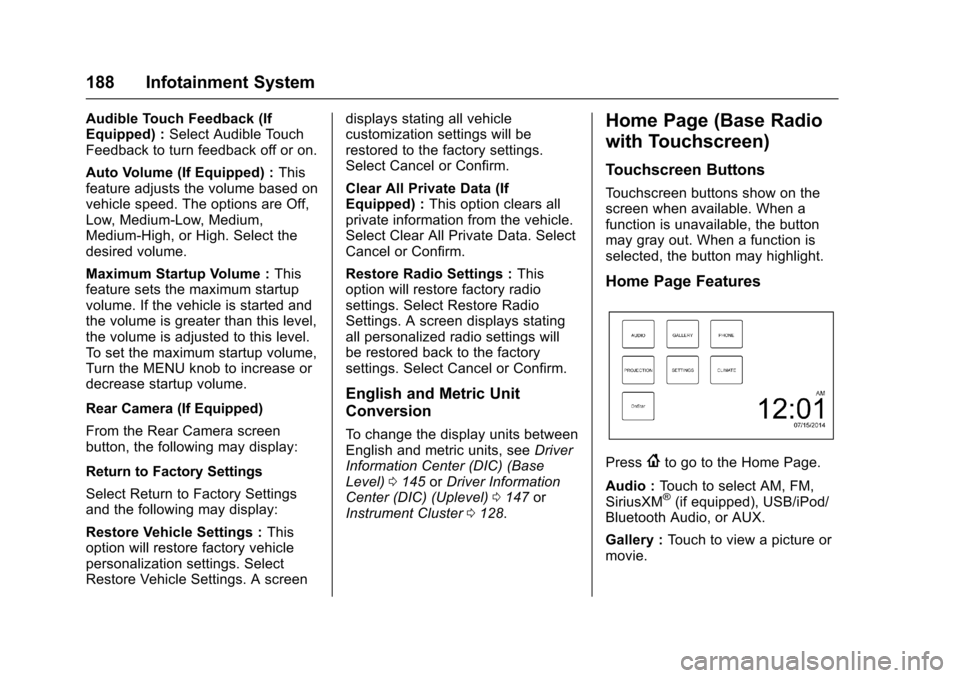
Home Page Features
Press{to go to the Home Page.
Audio :To u c h t o s e l e c t A M , F M ,SiriusXM®(if equipped), USB/iPod/Bluetooth Audio, or AUX.
Gallery :To u c h t o v i e w a p i c t u r e o rmovie.
Page 194 of 509
Chevrolet Silverado Owner Manual (GMNA-Localizing-U.S./Canada/Mexico-9956065) - 2017 - CRC - 4/29/16
Infotainment System 193
3. Touch and hold down any ofthe preset buttons to save thecurrent radio station to thatbutton of the selectedfavorites page.
To c h a n g e a p r e s e t b u t t o n , t u n e t othe new desired radio station andtouch and hold the preset button.
Satellite Radio (Base
Radio)
SiriusXM®Satellite Radio
Service (If Equipped)
Vehicles with a SiriusXM satelliteradio tuner and a valid SiriusXMsatellite radio subscription canreceive SiriusXM programming.
SiriusXM is a satellite radio servicebased in the 48 contiguous UnitedStates and 10 Canadian provinces.SiriusXM satellite radio has a widevariety of programming andcommercial-free music, coast tocoast, and in digital-quality sound.Aservicefeeisrequiredtoreceivethe SiriusXM service. Seewww.siriusxm.com or call
1-888-601-6296 (U.S.); or seewww.siriusxm.ca or call1-877-438-9677 (Canada).
When SiriusXM is active, thechannel name and number,category name, song title, and artistdisplay on the screen.
Browsing SiriusXM Channels
(If Equipped)
To b r o w s e t h e S i r i u s X M c h a n n e l s :
1. Press the MENU knob.
2. Turn the MENU knob tohighlight SXM Channel List.
3. Turn the MENU knob tohighlight the desired SXMChannels.
Satellite Radio (Base
Radio with Touchscreen)
Vehicles with an SXM SatelliteRadio tuner and a valid SiriusXM®
Satellite Radio subscription canreceive SiriusXM programming.
SiriusXM Satellite Radio
Service (If Equipped)
SiriusXM is a satellite radio servicebased in the 48 contiguous UnitedStates and 10 Canadian provinces.SiriusXM Satellite Radio has a widevariety of programming andcommercial-free music, coast tocoast, and in digital-quality sound.Aservicefeeisrequiredtoreceivethe SiriusXM service. For moreinformation, contact SiriusXM atwww.siriusxm.com or1-866-635-2349 (U.S.), andwww.xmradio.ca or 1-877-209-0079(Canada).
Listening to SiriusXM Radio (If
Equipped)
1. Press{.
2. Touch AUDIO.
3. Touch Source.
4. Touch SXM and the mostrecent listened to SiriusXMchannel will display.
To u c h0to return to the
HOME menu.
Page 195 of 509
Chevrolet Silverado Owner Manual (GMNA-Localizing-U.S./Canada/Mexico-9956065) - 2017 - CRC - 4/29/16
194 Infotainment System
Selecting a Category
From Menu, touch Categories, thentouch the desired category or from
Categories, touchQorRto find the
desired channel. Touch the channelto select it.
Selecting a Channel
To u c huortand the previous or
next channel will be selected.
To u c h a n d h o l duortto jump
four channels backward or forward,then release the button at thedesired channel.
Using the Preset Buttons
Up to seven favorites pages can besaved, and each page can store upto five channels.
To c h a n g e a p r e s e t b u t t o n , t u n e t othe new desired channel and holdthe button.
Listening to Preset Channels
1. Continue touchingSorTto
select the desiredfavorites page.
2. Touch the preset button tolisten to the channel saved tothat button.
Using the SiriusXM Menu
Operation
1. Touch MENU on the SXM radioscreen.
2. Touch the menu to select thedesired item or to display thedetail menu item.
3. Touch0to return to the
previous menu.
Channel List
1. Touch Channel List from theSXM menu. The channel list isdisplayed.
2. TouchQorRto find the
desired channel. Tune to thechannel by selecting it.
Tone Settings
From the tone settings menu, thesound features can be set up forSiriusXM audio and each audioplayer’sfunctions.
1. Touch Tone Settings. The tonesettings screen is displayed.See“To n e S e t t i n g s”under“Base Radio with Touchscreen”inAM-FM Radio (Base Radiowith Touchscreen)0191orAM-FM Radio (BaseRadio)0189.
2. Touch OK.
Auto Volume
1. Touch Auto Volume. See“AutoVolume”under“Base Radiowith Touchscreen”inAM-FMRadio (Base Radio withTo u c h s c r e e n )0191orAM-FMRadio (Base Radio)0189.
2. Touch OK.
Categories
1. Touch Categories.
2. TouchQorRto find the
desired category. Touch thecategory to select it.
Page 210 of 509
Chevrolet Silverado Owner Manual (GMNA-Localizing-U.S./Canada/Mexico-9956065) - 2017 - CRC - 4/29/16
Infotainment System 209
2. Once paired, go into the audioapplication from the HomePage or via the application tray.Select MEDIA until Bluetoothdisplays.
Bluetooth Audio Menu
Press the MENU screen button todisplay the Bluetooth Audio menu.The following may be available:
To n e :Turn the MENU knob toadjust the tone settings.
PressoBACK to go back to the
previous menu.
Manage Bluetooth Devices:Selectto go to the Bluetooth page to addor delete devices.
When selecting Bluetooth Audio, theradio may not be able to launch theaudio player on the connecteddevice to start playing. When thevehicle is not moving, use thephone to begin playback.
All devices launch audio differently.When selecting Bluetooth Audio asasource,theradiomayshowaspaused on the screen. Press play
on the device or pressrto begin
playback.
Some phones support sendingBluetooth music information todisplay on the radio. When the radioreceives this information, it willcheck to see if any is available anddisplay it. For more informationabout supported Bluetooth features,see www.gm.com/bluetooth for U.S.and Canada only.
Voice Recognition
If equipped, voice recognition allowsfor hands-free operation within theaudio and phone applications. Thisfeature can be started by pressing
either thegbutton on the steering
wheel or by selecting thegon the
screen display.
However, not all features withinthese areas are supported by voicecommands. Generally, only complextasks that require multiple manualinteractions to complete aresupported by voice commands.
For example, tasks that take morethan one or two button presses suchas selecting a song or artist to playfrom a media device would besupported by voice commands.Other tasks, like adjusting thevolume or seeking up or down areaudio features that are easilyperformed by pressing one or twobuttons, and are not supported byvoice commands.
In general there are flexible ways tospeak commands for completing thetasks. Most of them, except
Page 211 of 509
Chevrolet Silverado Owner Manual (GMNA-Localizing-U.S./Canada/Mexico-9956065) - 2017 - CRC - 4/29/16
210 Infotainment System
destination entry and voice keypad,can be completed in a singlecommand. If the task takes morethan one command to complete, thefirst command would be to indicatethe kind of task that is to beperformed. The system replies withprompts that lead through a dialogto enter the necessary information.
Voice recognition can be used whenthe ignition is on or when RetainedAccessory Power (RAP) is active.SeeRetained Accessory Power(RAP)0271.
Using Voice Recognition
Voice recognition becomes availableonce the system has beeninitialized. This begins when theignition is turned on. Initializationmay take a few moments.
1. Pressgon the steering wheel
control to activate voice
recognition, or selectgon the
infotainment screen on thecenter stack.
.If voice recognition isstarted from the steeringwheel control, the
instrument cluster displaysthe selections and visualdialog content.
.If voice recognition isstarted from theinfotainment screen, theselections and visual dialogcontent are displayed onboth the center stackdisplay and the instrumentcluster display.
2. The audio system mutes andthe system plays a promptfollowed by a beep.
3. Wait until after the beepcompletes, then clearly speakone of the commandsdescribed in this section.
Pressgto interrupt any voice
recognition system prompt. Forexample, if the prompt seemsto be taking too long to finish,
pressgagain and the beep
should happen right away.
There are two voice prompt modessupported:
.Long verbal prompts: The longerprompts provide moreinformation regarding thesupported actions.
.Short prompts: The shortprompts provide simpleinstructions about what can bestated.
If a command is not spoken, thevoice recognition system says ahelp prompt.
Prompts and Screen Displays
While a voice recognition session isactive, there will be correspondingbuttons on screens displayed.Manual interaction in the voicerecognition session is permitted.Interaction during a voice sessionmay be completed entirely usingvoice commands, or someselections may expedite a session.If a selection is made using amanual control, the dialog willprogress in the same way as if theselection was made through a voicecommand. Once the system is able
Page 217 of 509
Chevrolet Silverado Owner Manual (GMNA-Localizing-U.S./Canada/Mexico-9956065) - 2017 - CRC - 4/29/16
216 Infotainment System
Phone
Bluetooth (Overview)
Instructions for using the cell phonemay differ between infotainmentsystems. The base radio and baseradio with touchscreen instructionsare included in this manual. See theinfotainment manual for instructionson the uplevel radios.
Bluetooth-capable systems caninteract with many cell phones,allowing:
.Placement and receipt of calls inahands-freemode.
.Sharing of the cell phone’saddress book or contact list withthe vehicle.
To m i n i m i z e d r i v e r d i s t r a c t i o n ,before driving, and with the vehicleparked:
.Become familiar with thefeatures of the cell phone.Organize the phone book andcontact lists clearly and delete
duplicate or rarely used entries.If possible, program speed dialor other shortcuts.
.Review the controls andoperation of the infotainmentsystem.
.Pair cell phone(s) to the vehicle.The system may not work withall cell phones. See“Pairing”inthis section.
.If the cell phone has voicedialing capability, learn to usethat feature to access theaddress book or contact list.
.See“Deleting a Paired Phone”and/or“Deleting a BluetoothDevice”in this section.
{Warning
When using a cell phone, it can
be distracting to look too long or
too often at the screen of the
phone or the infotainment system.
Ta k i n g y o u r e y e s o f f t h e r o a d t o o
long or too often could cause a
crash resulting in injury or death.
Focus your attention on driving.
Vehicles with a Bluetooth systemcan use a Bluetooth-capable cellphone with a Hands-Free Profile tomake and receive phone calls. Theinfotainment system and voicerecognition are used to control thesystem. The system can be usedwhile in ON/RUN or ACC/ACCESSORY. The range of theBluetooth system can be up to 9.1 m(30 ft). Not all phones support allfunctions and not all phones workwith the Bluetooth system. For U.S.and Canada only, see www.gm.com/bluetooth for more information aboutcompatible phones.
Bluetooth Controls
Use the buttons on the instrumentpanel, faceplate, and the steeringwheel to operate the Bluetoothsystem.
Steering Wheel Controls
g:Press to answer incoming calls,confirm system information, andstart voice recognition.
Page 272 of 509
Chevrolet Silverado Owner Manual (GMNA-Localizing-U.S./Canada/Mexico-9956065) - 2017 - CRC - 4/29/16
Driving and Operating 271
gasoline. Try pushing theaccelerator pedal all the way tothe floor and holding it therewhile holding the key in STARTfor up to 15 seconds. Wait atleast 15 seconds between eachtry, to allow the cranking motorto cool down. When the enginestarts, let go of the key andaccelerator. If the vehicle startsbriefly but then stops again, dothe same thing. This clears theextra gasoline from the engine.Do not race the engineimmediately after starting it.Operate the engine andtransmission gently until the oilwarms up and lubricates allmoving parts.
Fast Idle System
If equipped, this feature is availableonly with cruise control. The manualfast idle switch is operated using thecruise control buttons on the leftside of the steering wheel.
This system can be used toincrease engine idle speedwhenever the following conditionsare met:
.The parking brake is set.
.The brake pedal is not pressed.
.The vehicle must not be movingand the accelerator must not bepressed.
To c o n t r o l t h e f a s t i d l e :
.To e n a b l e t h e F a s t I d l e S y s t e m ,press and release the cruisecontrol on/off button and ensurethat the switch indicator lightis lit.
.Press and release the cruisecontrol SET- button. Enginespeed will be held atapproximately 1200 rpm.
One of the following actions will turnoff the fast idle:
.Pressing the brake.
.Selecting the cruise controlcancel button.
.Releasing the parking brake.
.Moving the transmission shiftlever out of P (Park) orN(Neutral).
.Selecting the cruise control on/off button when it waspreviously on.
.Pressing the cruise control SET-button a second time.
.Pressing the accelerator morethan one-quarter of theway down.
.Turning the ignition switch to theLOCK/OFF position.
Retained Accessory
Power (RAP)
The following vehicle accessoriescan be used for up to 10 minutesafter the engine is turned off:
.Audio System
.Power Windows
.OnStar System (if equipped)
.Sunroof (if equipped)
These features work when the keyis in ON/RUN or ACC/ACCESSORY. Once the key is
Page 281 of 509
Chevrolet Silverado Owner Manual (GMNA-Localizing-U.S./Canada/Mexico-9956065) - 2017 - CRC - 4/29/16
280 Driving and Operating
To d i s a b l e o r e n a b l e N o r m a l M o d eGrade Braking within the currentignition key cycle, press and holdthe Tow/Haul button forfive seconds. When the button isreleased, the requested modechange is made. A DIC messagedisplays. SeeTr a n s m i s s i o nMessages0157.
For other forms of grade braking,seeTo w / H a u l M o d e0282andCruise Control0298.
Kickdown Mode
If equipped, the accelerator pedalprovides an additional downshiftafter pressing through the kickdownfeature.
It requires extra pedal pressure nearthe end of its travel to engage.
Manual Mode
Range Selection Mode
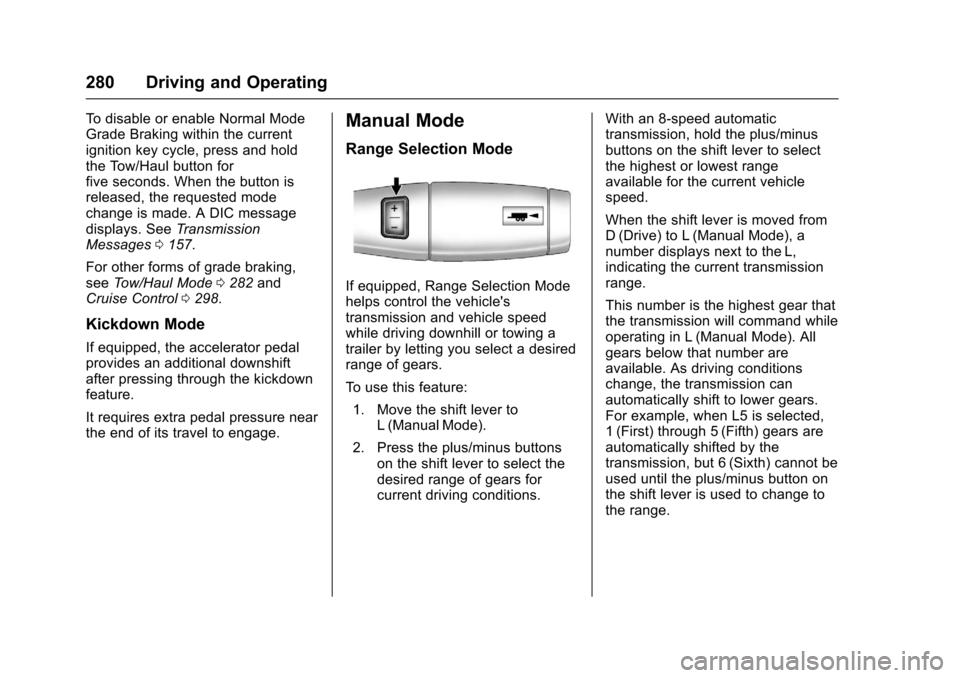
If equipped, Range Selection Modehelps control the vehicle'stransmission and vehicle speedwhile driving downhill or towing atrailer by letting you select a desiredrange of gears.
To u s e t h i s f e a t u r e :
1. Move the shift lever toL(ManualMode).
2. Press the plus/minus buttonson the shift lever to select thedesired range of gears forcurrent driving conditions.
With an 8-speed automatictransmission, hold the plus/minusbuttons on the shift lever to selectthe highest or lowest rangeavailable for the current vehiclespeed.
When the shift lever is moved fromD(Drive) to L(Manual Mode), anumber displays next to the L,indicating the current transmissionrange.
This number is the highest gear thatthe transmission will command whileoperating in L (Manual Mode). Allgears below that number areavailable. As driving conditionschange, the transmission canautomatically shift to lower gears.For example, when L5 is selected,1(First) through 5(Fifth) gears areautomatically shifted by thetransmission, but 6 (Sixth) cannot beused until the plus/minus button onthe shift lever is used to change tothe range.