phone CHEVROLET SILVERADO 2017 3.G User Guide
[x] Cancel search | Manufacturer: CHEVROLET, Model Year: 2017, Model line: SILVERADO, Model: CHEVROLET SILVERADO 2017 3.GPages: 509, PDF Size: 8.87 MB
Page 182 of 509
Chevrolet Silverado Owner Manual (GMNA-Localizing-U.S./Canada/Mexico-9956065) - 2017 - CRC - 4/29/16
Infotainment System 181
Infotainment
System
Introduction
Infotainment . . . . . . . . . . . . . . . . . . 181Theft-Deterrent Feature . . . . . . 182Overview (Base Radio withTo u c h s c r e e n ) . . . . . . . . . . . . . . . 1 8 3Overview (Base Radio) . . . . . . . 184Home Page (Base Radio) . . . . 186Home Page (Base Radio withTo u c h s c r e e n ) . . . . . . . . . . . . . . . 1 8 8Software Updates . . . . . . . . . . . . 189
Radio
AM-FM Radio (BaseRadio) . . . . . . . . . . . . . . . . . . . . . . 189AM-FM Radio (Base Radiowith Touchscreen) . . . . . . . . . . . 191Satellite Radio (BaseRadio) . . . . . . . . . . . . . . . . . . . . . . 193Satellite Radio (Base Radiowith Touchscreen) . . . . . . . . . . . 193Radio Reception . . . . . . . . . . . . . . 195Fixed Mast Antenna . . . . . . . . . . 195Multi-Band Antenna . . . . . . . . . . 196
Audio Players
Avoiding Untrusted MediaDevices . . . . . . . . . . . . . . . . . . . . . 196CD Player . . . . . . . . . . . . . . . . . . . . 196USB Port (Base Radio) . . . . . . . 199USB Port (Base Radio withTo u c h s c r e e n ) . . . . . . . . . . . . . . . 2 0 1Auxiliary Jack . . . . . . . . . . . . . . . . 207Bluetooth Audio . . . . . . . . . . . . . . 208
Voice Recognition
Voice Recognition . . . . . . . . . . . . 209
Phone
Bluetooth (Overview) . . . . . . . . . 216Bluetooth (InfotainmentControls - Base Radio) . . . . . . 217Bluetooth (Voice Recognition -Base Radio) . . . . . . . . . . . . . . . . 221Bluetooth (InfotainmentControls - Base Radio withTo u c h s c r e e n ) . . . . . . . . . . . . . . . 2 2 6Apple CarPlay andAndroid Auto . . . . . . . . . . . . . . . . 230
Trademarks and License
Agreements
Trademarks and LicenseAgreements . . . . . . . . . . . . . . . . . 231
Introduction
Infotainment
Base radio information is included inthis manual. See the infotainmentmanual for information on otheravailable infotainment systems.
Read the following pages tobecome familiar with the BaseRadio features.
{Warning
Ta k i n g y o u r e y e s o f f t h e r o a d f o r
too long or too often while using
any infotainment feature can
cause a crash. You or others
could be injured or killed. Do not
give extended attention to
infotainment tasks while driving.
Limit your glances at the vehicle
displays and focus your attention
on driving. Use voice commands
whenever possible.
Page 183 of 509
Chevrolet Silverado Owner Manual (GMNA-Localizing-U.S./Canada/Mexico-9956065) - 2017 - CRC - 4/29/16
182 Infotainment System
The infotainment system has built-infeatures intended to help avoiddistraction by disabling somefunctions when driving. Thesefunctions may gray out when theyare unavailable. Many infotainmentfeatures are also available throughthe instrument cluster and steeringwheel controls.
Before driving:
.Become familiar with theoperation, faceplate buttons, andscreen buttons.
.Set up the audio by presettingfavorite stations, setting thetone, and adjusting thespeakers.
.Set up phone numbers inadvance so they can be calledeasily by pressing a singlebutton or by using a single voicecommand if equipped withBluetooth phone capability.
SeeDefensive Driving0248.
To p l a y t h e i n f o t a i n m e n t s y s t e m w i t hthe ignition off, seeRetainedAccessory Power (RAP)0271.
Theft-Deterrent Feature
TheftLock®is designed todiscourage theft of the vehicle'sradio by learning a portion of theVehicle Identification Number (VIN).The radio does not operate if it isstolen or moved to a differentvehicle.
Page 185 of 509
Chevrolet Silverado Owner Manual (GMNA-Localizing-U.S./Canada/Mexico-9956065) - 2017 - CRC - 4/29/16
184 Infotainment System
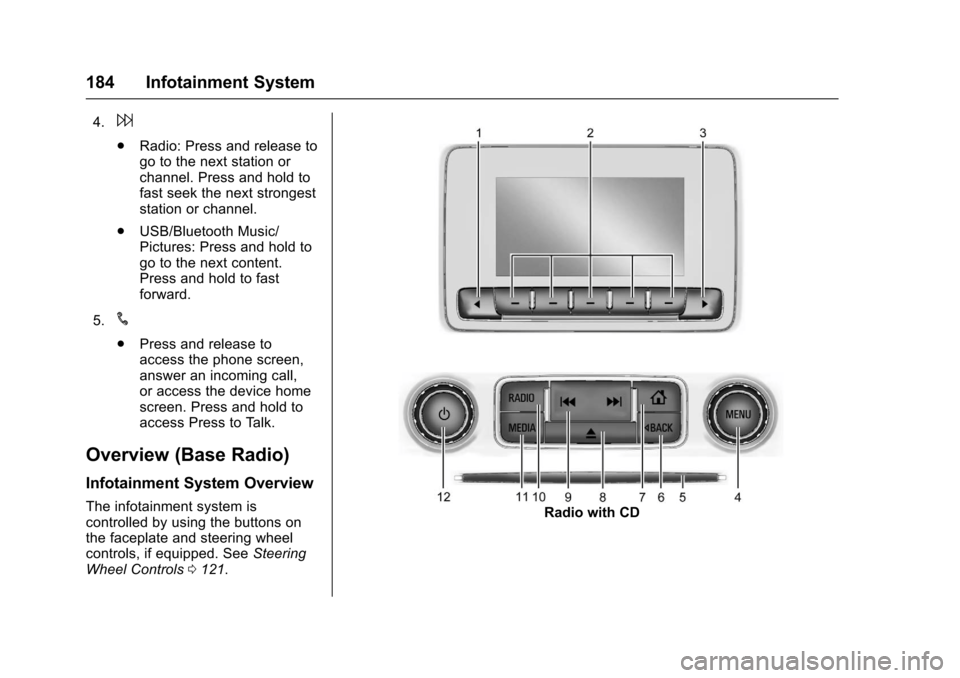
4.6
.Radio: Press and release togo to the next station orchannel. Press and hold tofast seek the next strongeststation or channel.
.USB/Bluetooth Music/Pictures: Press and hold togo to the next content.Press and hold to fastforward.
5.#
.Press and release toaccess the phone screen,answer an incoming call,or access the device homescreen. Press and hold toaccess Press to Talk.
Overview (Base Radio)
Infotainment System Overview
The infotainment system iscontrolled by using the buttons onthe faceplate and steering wheelcontrols, if equipped. SeeSteeringWheel Controls0121.
Radio with CD
Page 187 of 509
Chevrolet Silverado Owner Manual (GMNA-Localizing-U.S./Canada/Mexico-9956065) - 2017 - CRC - 4/29/16
186 Infotainment System
current track will start from
the beginning. Presslto
seek the next track.
.AM, FM, or SiriusXM (If
Equipped):Pressgorl
to seek to the previous ornext strong station.
.CD (If Equipped):Press
and holdgto quickly
reverse through a track.Release the button to returnto playing speed. Press and
holdlto fast forward
through a track. Releasethe button to return toplaying speed.
10. RADIO
.Press to change the audiosource between AM, FM,or SiriusXM, if equipped.
11 . M E D I A
.Press to change the audiosource between CD, USB,AUX, and Bluetooth Audio,if equipped.
12.O
.Press to turn the audio on.
.Press and hold to turn it off.
.When on, press to mute thesystem. Press again tounmute.
.Turn to increase ordecrease the volume.
Home Page (Base Radio)
Home Page Features
The infotainment system displays aHome Page that makes it easy toaccess all of the applications. Turnthe MENU knob to highlight featureicons. Press the MENU knob toaccess the feature’soptions.
Va r i o u s f u n c t i o n s a r e d i s a b l e d w h e nthe vehicle is moving.
AUDIO :Select the AUDIO screenicon to display the active sourcepage. The sources available areAM, FM, SiriusXM®(if equipped),USB/iPod, AUX Input, and BluetoothAudio (if equipped). SeeAM-FMRadio (Base Radio withTo u c h s c r e e n )0191orAM-FMRadio (Base Radio)0189,SatelliteRadio (Base Radio)0193orSatellite Radio (Base Radio withTo u c h s c r e e n )0193,,Auxiliary Jack0207,andBluetooth Audio0208.
PHONE :Select the PHONE screenicon to display the Phone mainpage. SeeBluetooth (VoiceRecognition - Base Radio)0221orBluetooth (Infotainment Controls -Base Radio)0217orBluetooth(Overview)0216orBluetooth(Infotainment Controls - Base Radiowith Touchscreen)0226.
NAV (Navigation, If Equipped) :Select the NAV screen icon todisplay the OnStar Turn-by-TurnNavigation. SeeOnStar Overview0486,ifequipped.
Page 190 of 509
Chevrolet Silverado Owner Manual (GMNA-Localizing-U.S./Canada/Mexico-9956065) - 2017 - CRC - 4/29/16
Infotainment System 189
Phone :To u c h t o a c t i v a t e t h ephone features (if equipped). SeeBluetooth (Voice Recognition - BaseRadio)0221orBluetooth(Infotainment Controls - BaseRadio)0217orBluetooth(Overview)0216orBluetooth(Infotainment Controls - Base Radiowith Touchscreen)0226.
Projection :To u c h t o a c c e s ssupported devices when connected.SeeUSB Port (Base Radio)0199orUSB Port (Base Radio withTo u c h s c r e e n )0201.
Settings :To u c h t o a c c e s s t h ePersonalization menu. SeeVehiclePersonalization0160.
Climate :To u c h t o a c c e s s t h eClimate menu. SeeDual AutomaticClimate Control System0240.
OnStar :If equipped, touch toaccess the OnStar menu. SeeOnStar Overview0486.
Software Updates
See the website for moreinformation.
Website Information
In the U.S., see www.chevrolet.com
In Canada, seewww.chevrolet.gm.ca
In Mexico, seewww.chevrolet.com.mx
Radio
AM-FM Radio (Base
Radio)
Playing the Radio
While on the audio main page,press the RADIO button repeatedlyto cycle through the availablesources AM, FM, and SiriusXM®(ifequipped) or press the MEDIAbutton repeatedly to cycle throughthe available sources Bluetooth®
Audio (if equipped), USB, and AUX.
The steering wheel controls canalso be used to adjust the volume.SeeSteering Wheel Controls0121.
AM, FM, or SiriusXM (If Equipped)
To s e l e c t A M , F M , o r S i r i u s X M ( i fequipped), press the RADIO buttonto toggle to the desired broadcastsource.
Page 196 of 509
Chevrolet Silverado Owner Manual (GMNA-Localizing-U.S./Canada/Mexico-9956065) - 2017 - CRC - 4/29/16
Infotainment System 195
Explicit Content Filter
When on, only a filtered list ofchannels will be received. When off,all regular SXM programmingsubscribed to will be received.
1. Touch SXM Explicit Filter.
2. Select On or Off.
Radio Reception
Frequency interference and staticcan occur during normal radioreception if items such as phonechargers, vehicle convenienceaccessories, and external electronicdevices are plugged into theaccessory power outlet. If there isinterference or static, unplug theitem from the accessory poweroutlet.
FM
FM signals only reach about 16 to65 km (10 to 40 mi). Although theradio has a built-in electronic circuitthat automatically works to reduceinterference, some static can occur,
especially around tall buildings orhills, causing the sound to fade inand out.
AM
The range for most AM stations isgreater than for FM, especially atnight. The longer range can causestation frequencies to interfere witheach other. Static can also occurwhen things like storms and powerlines interfere with radio reception.When this happens, try reducing thetreble on the radio.
SiriusXM Satellite Radio
Service
If equipped, SiriusXM SatelliteRadio Service provides digital radioreception. Tall buildings or hills caninterfere with satellite radio signals,causing the sound to fade in andout. In addition, traveling or standingunder heavy foliage, bridges,garages, or tunnels may cause lossof the SiriusXM signal for a periodof time.
Cell Phone Usage
Cell phone usage, such as makingor receiving phone calls, charging,or just having the phone on maycause static interference in theradio. Unplug the phone or turn it offif this happens.
Fixed Mast Antenna
The fixed mast antenna will gothrough most car washes as long asit is securely attached. If theantenna becomes slightly bent,straighten it out by hand. If it isbadly bent, replace it.
Occasionally check that the antennais tight at the base. If tightening isrequired, protect the paint fromdamage.
Page 200 of 509
Chevrolet Silverado Owner Manual (GMNA-Localizing-U.S./Canada/Mexico-9956065) - 2017 - CRC - 4/29/16
Infotainment System 199
USB Port (Base Radio)
Playing from a USB
AUSBmassstoragedeviceorMedia Transfer Protocol (MTP)device can be connected to theUSB port.
The vehicle may have USB ports inthe front of the center console,armrest, or one in the upper glovebox. SeeCenter Console Storage011 6andGlove Box011 5.
USB MP3 Player and USB Drives
.The USB MP3 players and USBdrives connected must complywith the USB Mass StorageClass specification (USB MSC).
.Hard disk drives are notsupported.
.Supported file system is FAT32.
To p l a y a U S B d e v i c e :
.Connect the USB.
.Press MEDIA on the faceplateuntil the connected device isshown.
While the USB source is active,press the corresponding faceplatebutton for the icons on the screen tooperate USB function:
.t
.u
.j/r
.Z
For information on how to use thescreen icons, see“Playing anAudio CD.”
USB Menu
Press MENU to display the USBmenu and the following may display:
Browse :Select to display the filesand folders on the USB device.
To n e S e t t i n g s :Select to adjustBass, Midrange, Treble, Balance,Fade, and EQ (Equalizer). See“To n e S e t t i n g s”inAM-FM Radio(Base Radio with Touchscreen)0191orAM-FM Radio (BaseRadio)0189.
Auto Volume :If equipped, see“Auto Volume”inAM-FM Radio(Base Radio with Touchscreen)0191orAM-FM Radio (BaseRadio)0189.
EQ (Equalizer) :If equipped, thisfeature adjusts the equalizersettings. See“EQ (Equalizer)Settings”inAM-FM Radio (BaseRadio with Touchscreen)0191orAM-FM Radio (Base Radio)0189.
Playing from an iPod®/iPad®/
iPhone®
This feature supports the followingdevices:
.iPod nano®(1st, 2nd, 3rd, and4th generation)
.iPod with video (5.0 and 5.5generation)
.iPod classic®(6th generation)
.iPod touch®(1st and 2ndgeneration)
.iPad
.iPhone 3G, iPhone 3GS,iPhone 4
Page 203 of 509
Chevrolet Silverado Owner Manual (GMNA-Localizing-U.S./Canada/Mexico-9956065) - 2017 - CRC - 4/29/16
202 Infotainment System
The USB port can play both lowerand upper case .mp3, .wma, .ogg,and .wav files stored on a USBstorage device.
Supported Apple®Devices
To v i e w s u p p o r t e d d e v i c e s i n U . S . ,see www.my.chevrolet.com\learn.
To v i e w s u p p o r t e d d e v i c e s i nCanada, seewww.chevroletowner.ca.
To v i e w s u p p o r t e d d e v i c e s i nMexico, see your dealer for details.
USB Supported File and FolderStructure
The infotainment system supports:
.FAT 1 6 .
.FAT 3 2 .
.exFAT.
Connecting a USB Storage
Device or iPod/iPhone
To c o n n e c t a U S B s t o r a g e d e v i c e ,connect the device to the USB port.
To c o n n e c t a n i P o d / i P h o n e , c o n n e c tone end of the device’scabletotheiPod/iPhone and the other end tothe USB port.
The iPod/iPhone charges while it isconnected to the vehicle if thevehicle is in ACC/ACCESSORY orON/RUN. SeeIgnition Positions0268.Whenthevehicleisturnedoff, the iPod/iPhone automaticallypowers off and will not charge ordraw power from the vehicle'sbattery.
For more information on USBusage, see“Audio SystemInformation”following.
Audio System Information
The infotainment system can playthe music files contained in the USBstorage device or iPod/iPhoneproducts.
Using MP3/WMA/OGG/WAV Files
.Music files with .mp3, .wma,.ogg, and .wav file nameextensions can be played.
.MP3 files that can be played: Bitrate: 8 kbps to 320 kbps.Sampling frequency: 48 kHz,44.1 kHz, 32 kHz, 24 kHz,22.05 kHz, and 16 kHz.
.Files with a bit rate above128 kbps will result in higherquality sound.
.ID3 Tag information for MP3files, such as the album nameand the artist, can be played.
.To d i s p l a y a l b u m t i t l e , t r a c k t i t l e ,and artist information, the fileshould be compatible with theID3 Tag V1 and V2 formats.
Using USB Storage Devices andiPod/iPhone
.Use a USB or flash memory typestorage device. Do not connectusing a USB adaptor.
.Do not connect and reconnectthe USB device repeatedly in ashort time, as this may causestatic electricity and problemsusing the device.
.Use a USB device with a metalconnecting terminal.
Page 204 of 509

Chevrolet Silverado Owner Manual (GMNA-Localizing-U.S./Canada/Mexico-9956065) - 2017 - CRC - 4/29/16
Infotainment System 203
.Connection with i-Stick TypeUSB storage devices may befaulty due to vehicle vibration.
.Do not touch the USBconnecting terminal.
.Only USB storage devicesformatted in FAT16/32 or exFATfile systems are recognized.NTFS and other file systems arenot recognized.
.The time it takes to process fileswill depend on the USB storagedevice type and capacity, andthe type of files stored.
.Some USB storage device filesmay not be compatible.
.Up to two USB devices and oneiPod can be played through aUSB hub. All devices may not besupported, depending on theperformance of the USB hub.If there is not enough powersupply, it may not operatenormally.
.Do not disconnect the USBstorage device while it is playing.This may cause damage to theproduct or affect theperformance of the USB device.
.Disconnect the USB storagedevice when the ignition isturned off. If the ignition is turnedon while the USB device isconnected, the USB device maybe damaged or may not operatenormally.
.USB storage devices can onlybe connected for playing music,viewing photo files,or upgrading.
.Do not use the USB terminal tocharge USB accessoryequipment. The heat generatedmay cause performance issuesor damage.
.Music files to which Digital RightManagement (DRM) is appliedcannot be played.
.USB storage device that are incapacity with a limit of 5,000files, such as music, photo,video, 15 stages of folder
structure. Normal usage cannotbe guaranteed for a storagedevice that exceeds this limit.The iPod/iPhone can play allmusic files that are supported.The music file lists will onlydisplay up to 5,000 files on thescreen. These files are sorted inalphabetical order.
.Some iPod/iPhone productmodels may not support theconnectivity or functionality ofthis product.
.Only connect the iPod/iPhonewith connection cablessupported by iPod/iPhoneproducts. Other connectioncables cannot be used.
.The iPod/iPhone may bedamaged if it is connected to thevehicle with the ignition on.When not in use, disconnect theiPod/iPhone.
.When the iPod/iPhone isconnected to the USB port byusing the iPod/iPhone cable, theBluetooth music is notsupported.
Page 205 of 509
Chevrolet Silverado Owner Manual (GMNA-Localizing-U.S./Canada/Mexico-9956065) - 2017 - CRC - 4/29/16
204 Infotainment System
.The iPod/iPhone playbackfunctions and the informationdisplayed may be different whenplayed on the infotainmentsystem.
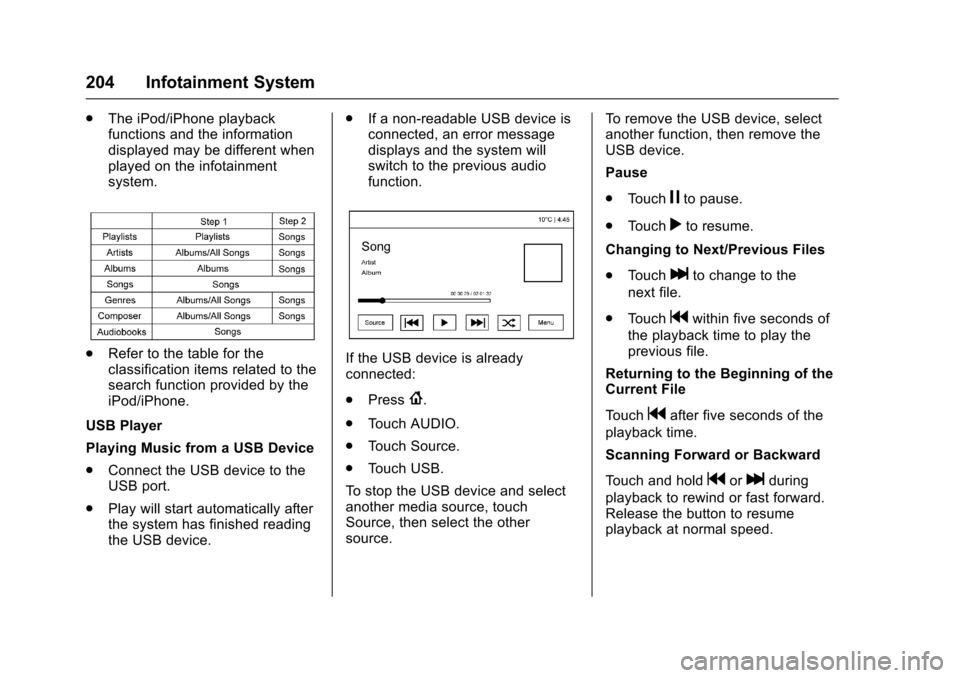
.Refer to the table for theclassification items related to thesearch function provided by theiPod/iPhone.
USB Player
Playing Music from a USB Device
.Connect the USB device to theUSB port.
.Play will start automatically afterthe system has finished readingthe USB device.
.If a non-readable USB device isconnected, an error messagedisplays and the system willswitch to the previous audiofunction.
If the USB device is alreadyconnected:
.Press{.
.To u c h A U D I O .
.To u c h S o u r c e .
.To u c h U S B .
To s t o p t h e U S B d e v i c e a n d s e l e c tanother media source, touchSource, then select the othersource.
To r e m o v e t h e U S B d e v i c e , s e l e c tanother function, then remove theUSB device.
Pause
.To u c hjto pause.
.To u c hrto resume.
Changing to Next/Previous Files
.To u c hlto change to the
next file.
.To u c hgwithin five seconds of
the playback time to play theprevious file.
Returning to the Beginning of theCurrent File
To u c hgafter five seconds of the
playback time.
Scanning Forward or Backward
To u c h a n d h o l dgorlduring
playback to rewind or fast forward.Release the button to resumeplayback at normal speed.