radio CHEVROLET SILVERADO 2017 3.G User Guide
[x] Cancel search | Manufacturer: CHEVROLET, Model Year: 2017, Model line: SILVERADO, Model: CHEVROLET SILVERADO 2017 3.GPages: 509, PDF Size: 8.87 MB
Page 139 of 509
Chevrolet Silverado Owner Manual (GMNA-Localizing-U.S./Canada/Mexico-9956065) - 2017 - CRC - 4/29/16
138 Instruments and Controls
Warning (Continued)
with the airbag system. To help
avoid injury to yourself or others,
have the vehicle serviced right
away. SeeAirbag Readiness
Light0135for more information,
including important safety
information.
Charging System Light
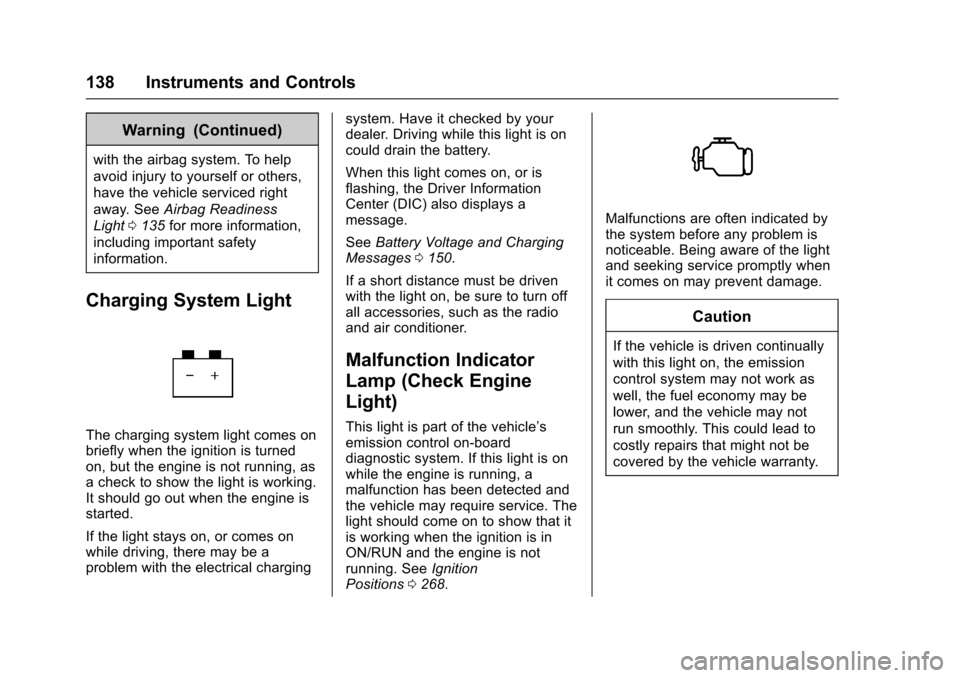
The charging system light comes onbriefly when the ignition is turnedon, but the engine is not running, asachecktoshowthelightisworking.It should go out when the engine isstarted.
If the light stays on, or comes onwhile driving, there may be aproblem with the electrical charging
system. Have it checked by yourdealer. Driving while this light is oncould drain the battery.
When this light comes on, or isflashing, the Driver InformationCenter (DIC) also displays amessage.
SeeBattery Voltage and ChargingMessages0150.
If a short distance must be drivenwith the light on, be sure to turn offall accessories, such as the radioand air conditioner.
Malfunction Indicator
Lamp (Check Engine
Light)
This light is part of the vehicle’semission control on-boarddiagnostic system. If this light is onwhile the engine is running, amalfunction has been detected andthe vehicle may require service. Thelight should come on to show that itis working when the ignition is inON/RUN and the engine is notrunning. SeeIgnitionPositions0268.
Malfunctions are often indicated bythe system before any problem isnoticeable. Being aware of the lightand seeking service promptly whenit comes on may prevent damage.
Caution
If the vehicle is driven continually
with this light on, the emission
control system may not work as
well, the fuel economy may be
lower, and the vehicle may not
run smoothly. This could lead to
costly repairs that might not be
covered by the vehicle warranty.
Page 161 of 509
Chevrolet Silverado Owner Manual (GMNA-Localizing-U.S./Canada/Mexico-9956065) - 2017 - CRC - 4/29/16
160 Instruments and Controls
This message clears itself afterseveral seconds. This message alsoclears if you acknowledge it. Afterthis message clears, the TRAILERGAIN and OUTPUT displays appearin the DIC.
SeeDriver Information Center (DIC)(Base Level)0145orDriverInformation Center (DIC) (Uplevel)0147and“Integrated Trailer BrakeControl System”underTo w i n gEquipment0335.
Vehicle Speed Messages
REDUCE SPEED FOR HILL
DESCENT CONTROL
This message displays whenattempting to enable Hill DescentControl (HDC) when the vehiclespeed is too high. SeeHill DescentControl (HDC)0297.
Washer Fluid Messages
WASHER FLUID LOW ADD
FLUID
This message displays when thewindshield washer fluid is low. Fillthe windshield washer fluid reservoiras soon as possible. SeeEngineCompartment Overview0354forthe location of the windshieldwasher fluid reservoir. Also, seeWasher Fluid0375for moreinformation.
Vehicle
Personalization
Use the audio system controls toaccess the personalization menusfor customizing vehicle features.
The following are all possiblepersonalization features. Dependingon the vehicle, some may not beavailable.
Base Radio Audio SystemControls
MENU :Press to enter menus andselect menu items. Turn to scrollthrough the menus.
oBACK :Press to return to theprevious menu or exit.
Base Radio with TouchscreenAudio System Controls
{:Press to access the HomePage Menu.
QorR:To u c h t o s c r o l l t h r o u g h t h emenus or setup items.
0:To u c h t o e x i t o r r e t u r n t o t h eprevious screen or menu.
Page 162 of 509
Chevrolet Silverado Owner Manual (GMNA-Localizing-U.S./Canada/Mexico-9956065) - 2017 - CRC - 4/29/16
Instruments and Controls 161
Uplevel Radio Audio SystemControls
1. Touch the desired feature todisplay a list of availableoptions.
2. Touch to select the desiredfeature setting.
3. PressoBACK on the
faceplate or the0screen
button to return to the previousmenu or exit.
Turn the vehicle to ON/RUN toaccess the Settings menu, thenselect SETTINGS from the Homepage on the infotainment systemdisplay.
Personalization Menus
The following list of menu items maybe available:
.Time and Date
.Language (Language)
.Rear Seat Reminder
.Te e n D r i v e r
.Va l e t M o d e
.Radio
.Vehicle
.Bluetooth
.Apple CarPlay
.Android Auto
.USB Auto Launch
.Voice
.Display
.Rear Camera
.Return to Factory Settings
.Software Information
Detailed information for each menufollows.
Time and Date
Manually set the time and date. SeeClock0123.
Language (Language)
Select Language, then select fromthe available language(s).
The selected language will displayon the system, and voicerecognition will reflect the selectedlanguage.
Rear Seat Reminder
This allows for a chime and amessage‘Look in Rear Seat’whenthe rear door has been openedbefore or during operation of thevehicle.
Select Off or On.
Teen Driver
See“Te e n D r i v e r”under“Settings”in the infotainment manual.
Valet Mode
This will lock the infotainmentsystem and steering wheel controls.It may also limit access to vehiclestorage locations (if equipped).
To e n a b l e v a l e t m o d e :
1. Enter a four-digit code on thekeypad.
2. Select Enter to go to theconfirmation screen.
3. Re-enter the four-digit code.
Press LOCK or UNLOCK to lock orunlock the system. Press Back to goback to the previous menu.
Page 163 of 509
Chevrolet Silverado Owner Manual (GMNA-Localizing-U.S./Canada/Mexico-9956065) - 2017 - CRC - 4/29/16
162 Instruments and Controls
Radio
Select and the following maydisplay:
.Manage Favorites
.Number of Favorites Shown
.Audible Touch Feedback
.Te x t S c r o l l
.To n e S e t t i n g s
.Auto Volume
.Maximum Startup Volume
.Audio Cue Volume
Manage Favorites
This allows favorites to be edited.See“Manage Favorites”in“RadioSetup”underHome Page (BaseRadio)0186orHome Page (BaseRadio with Touchscreen)0188or“Manage Favorites”in“Settings”under“Radio”in the infotainmentmanual.
Number of Favorites Shown
Select to set the number of favoritesto display.
Select the desired number or selectAuto and the infotainment systemwill automatically adjust the numberof favorites shown.
Audible Touch Feedback
This allows Audible TouchFeedback to be turned on or off.
Select Off or On.
Text Scroll
Select to see text scroll on thescreen.
Select Off or On.
Tone Settings
Select to adjust the radio tone. See“To n e S e t t i n g s”inAM-FM Radio(Base Radio with Touchscreen)0191orAM-FM Radio (BaseRadio)0189.
Auto Volume
This feature adjusts the volumebased on vehicle speed andambient noise.
Select Off, Low, Medium-Low,Medium, Medium-High, or High.
Maximum Startup Volume
This feature sets the maximumstartup volume. If the vehicle isstarted and the volume is greaterthan this level, the volume isadjusted to this level. To set themaximum startup volume, turn theMENU knob or press + or✓toincrease or decrease.
Audio Cue Volume
This feature sets the volume ofaudio files played at system startupand shutdown.
Select On, then press + or✓toincrease or decrease the volume.
Vehicle
Select and the following maydisplay:
.Climate and Air Quality
.Collision/Detection Systems
.Comfort and Convenience
.Lighting
.Power Door Locks
.Remote Lock, Unlock, Start
Page 166 of 509
Chevrolet Silverado Owner Manual (GMNA-Localizing-U.S./Canada/Mexico-9956065) - 2017 - CRC - 4/29/16
Instruments and Controls 165
Select Off, Lights and Horn, LightsOnly, or Horn Only.
Remote Door Unlock
This allows selection of which doors
will unlock when pressingKon the
RKE transmitter.
Select All Doors or Driver Door.
Remote Start Auto Cool Seats
If equipped and turned on, thisfeature will turn the ventilated seatson when using remote start onwarm days.
Select Off or On.
Remote Start Auto Heat Seats
If equipped and turned on, thisfeature will turn the heated seats onwhen using remote start oncold days.
Select Off or On.
Remote Window Operation
This feature enables the window toopen by using the RKE transmitter.SeeRemote Keyless Entry (RKE)System Operation036.
Select Off or On.
Passive Door Unlock
This allows the selection of whatdoors will unlock when using thebutton on the driver door to unlockthe vehicle. SeeRemote KeylessEntry (RKE) System Operation036.
Select All Doors or DriverDoor Only.
Passive Door Lock
This feature can be turned on or off,or can be used to select feedbackwhen using the button on the driverdoor to lock the vehicle. SeeRemote Keyless Entry (RKE)System Operation036.
Select Off, On with HornChirp, or On.
Remote Left in Vehicle Alert
This feature sounds an alert whenthe RKE transmitter is left in thevehicle.
Select Off or On.
Bluetooth
Select and the following maydisplay:
.Pair New Device
.Discoverable
.Device Management
.Ringtones
.Voice Mail Numbers
.Te x t M e s s a g e A l e r t s
Pair New Device
Select to pair a new device. See“Pairing”underBluetooth (VoiceRecognition - Base Radio)0221orBluetooth (Infotainment Controls -Base Radio)0217orBluetooth(Overview)0216orBluetooth(Infotainment Controls - Base Radiowith Touchscreen)0226or“Pairing”in“Infotainment Controls”under“Bluetooth”in the infotainmentmanual.
Discoverable
This allows the system to find adevice.
Select Off or On.
Page 168 of 509
Chevrolet Silverado Owner Manual (GMNA-Localizing-U.S./Canada/Mexico-9956065) - 2017 - CRC - 4/29/16
Instruments and Controls 167
Voice
Select and the following maydisplay:
.Prompt Length
.Audio Feedback Speed
Prompt Length
This feature adjusts the voiceprompt length.
Select Short or Long.
Audio Feedback Speed
This feature adjusts the audiofeedback speed.
Select Slow, Medium, or Fast.
Display
Select and the following maydisplay:
.Calibrate Touchscreen
.Turn Display Off
Calibrate Touchscreen
Select to calibrate the touchscreen,then follow the prompts.
Turn Display Off
Select to turn the display off. Pressanywhere on the display area or anyfaceplate button to turn thedisplay on.
Rear Camera
Select and the following maydisplay:
.Guidance Lines
.Rear Park Assist Symbols
Guidance Lines
Select to turn Off or On. SeeAssistance Systems for Parking orBacking0302.
Rear Park Assist Symbols
Select to turn Off or On. SeeAssistance Systems for Parking orBacking0302.
Return to Factory Settings
Select and the following maydisplay:
.Restore Vehicle Settings
.Clear All Private Data
.Restore Radio Settings
Restore Vehicle Settings
This allows selection of restoringvehicle settings.
Select Restore or Cancel.
Clear All Private Data
This allows selection to clear allprivate information from the vehicle.
Select Delete or Cancel.
Restore Radio Settings
This allows selection to restoreradio settings.
Select Restore or Cancel.
Software Information
Select to view the infotainmentsystem current software information.
Page 169 of 509
Chevrolet Silverado Owner Manual (GMNA-Localizing-U.S./Canada/Mexico-9956065) - 2017 - CRC - 4/29/16
168 Instruments and Controls
Universal Remote
System
SeeRadio FrequencyStatement0482.
Universal Remote System
Programming
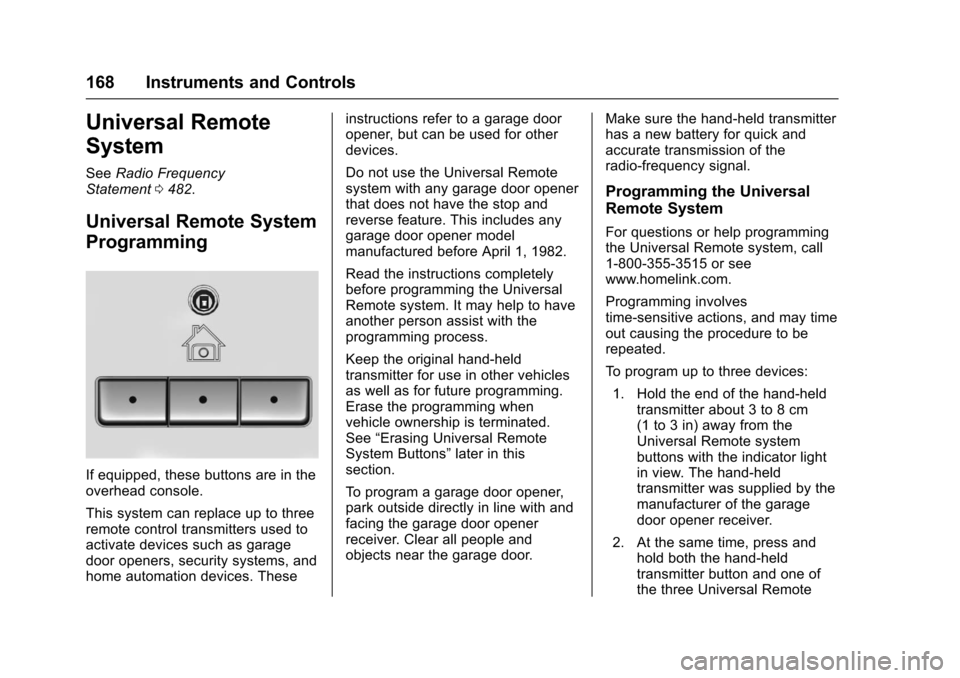
If equipped, these buttons are in theoverhead console.
This system can replace up to threeremote control transmitters used toactivate devices such as garagedoor openers, security systems, andhome automation devices. These
instructions refer to a garage dooropener, but can be used for otherdevices.
Do not use the Universal Remotesystem with any garage door openerthat does not have the stop andreverse feature. This includes anygarage door opener modelmanufactured before April 1, 1982.
Read the instructions completelybefore programming the UniversalRemote system. It may help to haveanother person assist with theprogramming process.
Keep the original hand-heldtransmitter for use in other vehiclesas well as for future programming.Erase the programming whenvehicle ownership is terminated.See“Erasing Universal RemoteSystem Buttons”later in thissection.
To p r o g r a m a g a r a g e d o o r o p e n e r ,park outside directly in line with andfacing the garage door openerreceiver. Clear all people andobjects near the garage door.
Make sure the hand-held transmitterhas a new battery for quick andaccurate transmission of theradio-frequency signal.
Programming the Universal
Remote System
For questions or help programmingthe Universal Remote system, call1-800-355-3515 or seewww.homelink.com.
Programming involvestime-sensitive actions, and may timeout causing the procedure to berepeated.
To p r o g r a m u p t o t h r e e d e v i c e s :
1. Hold the end of the hand-heldtransmitter about 3 to 8 cm(1 to 3 in) away from theUniversal Remote systembuttons with the indicator lightin view. The hand-heldtransmitter was supplied by themanufacturer of the garagedoor opener receiver.
2. At the same time, press andhold both the hand-heldtransmitter button and one ofthe three Universal Remote
Page 170 of 509
Chevrolet Silverado Owner Manual (GMNA-Localizing-U.S./Canada/Mexico-9956065) - 2017 - CRC - 4/29/16
Instruments and Controls 169
system buttons to be used tooperate the garage door. Donot release either button untilthe indicator light goes from aslow to a rapid flashing light.Then release both buttons.
Some garage door openersmay require substitution ofStep 2 with the procedureunder“Radio Signals forCanada and Some GateOperators”later in this section.
3. Press and hold the newlyprogrammed Universal Remotesystem button for five secondswhile watching the indicatorlight and garage dooractivation.
.If the indicator light stays oncontinuously or the garagedoor moves when thebutton is pressed, thenprogramming is complete.There is no need tocomplete Steps 4–6.
.If the indicator light doesnot come on or the garagedoor does not move, asecond button press may
be required. For a secondtime, press and hold thenewly programmed buttonfor five seconds. If the lightstays on or the garage doormoves, programming iscomplete.
.If the indicator light blinksrapidly for two seconds,then changes to a solid lightand the garage door doesnot move, continue withprogramming Steps 4–6.
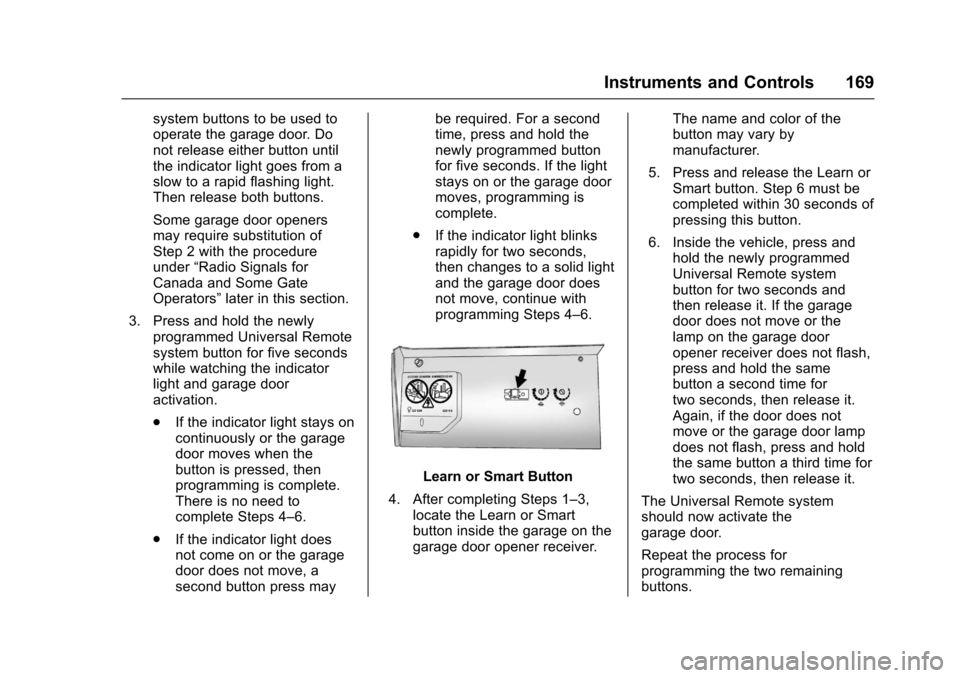
Learn or Smart Button
4. After completing Steps 1–3,locate the Learn or Smartbutton inside the garage on thegarage door opener receiver.
The name and color of thebutton may vary bymanufacturer.
5. Press and release the Learn orSmart button. Step 6 must becompleted within 30 seconds ofpressing this button.
6. Inside the vehicle, press andhold the newly programmedUniversal Remote systembutton for two seconds andthen release it. If the garagedoor does not move or thelamp on the garage dooropener receiver does not flash,press and hold the samebutton a second time fortwo seconds, then release it.Again, if the door does notmove or the garage door lampdoes not flash, press and holdthe same button a third time fortwo seconds, then release it.
The Universal Remote systemshould now activate thegarage door.
Repeat the process forprogramming the two remainingbuttons.
Page 171 of 509
Chevrolet Silverado Owner Manual (GMNA-Localizing-U.S./Canada/Mexico-9956065) - 2017 - CRC - 4/29/16
170 Instruments and Controls
Radio Signals for Canada and
Some Gate Operators
For questions or programming help,call 1-800-355-3515 or seewww.homelink.com.
Canadian radio-frequency laws andsome U.S. gate operators requiretransmitter signals to time out or quitafter several seconds oftransmission. This may not be longenough for the Universal Remotesystem to pick up the signal duringprogramming.
If the programming did not work,replace Step 2 under“Programmingthe Universal Remote System”withthe following:
Press and hold the UniversalRemote system button whilepressing and releasing thehand-held transmitter button everytwo seconds until the signal hasbeen successfully accepted by theUniversal Remote system. TheUniversal Remote system indicatorlight will flash slowly at first and thenrapidly. Proceed with Step 3 under“Programming the Universal RemoteSystem”to complete.
Universal Remote System
Operation
Using the Universal Remote
System
Press and hold the appropriateUniversal Remote system button forat least one-half second. Theindicator light will come on while thesignal is being transmitted.
Erasing Universal Remote
System Buttons
Erase all programmed buttons whenvehicle ownership is terminated.
To e r a s e :
1. Press and hold the two outsidebuttons until the indicator lightbegins to flash. This shouldtake about 10 seconds.
2. Release both buttons.
Reprogramming a Single
Universal Remote System
Button
To r e p r o g r a m a n y o f t h e s y s t e mbuttons:
1. Press and hold any one of thebuttons. Do not release thebutton.
2. The indicator light will begin toflash after 20 seconds. Withoutreleasing the button, proceedwith Step 1 under“Programming the UniversalRemote System.”
Page 182 of 509
Chevrolet Silverado Owner Manual (GMNA-Localizing-U.S./Canada/Mexico-9956065) - 2017 - CRC - 4/29/16
Infotainment System 181
Infotainment
System
Introduction
Infotainment . . . . . . . . . . . . . . . . . . 181Theft-Deterrent Feature . . . . . . 182Overview (Base Radio withTo u c h s c r e e n ) . . . . . . . . . . . . . . . 1 8 3Overview (Base Radio) . . . . . . . 184Home Page (Base Radio) . . . . 186Home Page (Base Radio withTo u c h s c r e e n ) . . . . . . . . . . . . . . . 1 8 8Software Updates . . . . . . . . . . . . 189
Radio
AM-FM Radio (BaseRadio) . . . . . . . . . . . . . . . . . . . . . . 189AM-FM Radio (Base Radiowith Touchscreen) . . . . . . . . . . . 191Satellite Radio (BaseRadio) . . . . . . . . . . . . . . . . . . . . . . 193Satellite Radio (Base Radiowith Touchscreen) . . . . . . . . . . . 193Radio Reception . . . . . . . . . . . . . . 195Fixed Mast Antenna . . . . . . . . . . 195Multi-Band Antenna . . . . . . . . . . 196
Audio Players
Avoiding Untrusted MediaDevices . . . . . . . . . . . . . . . . . . . . . 196CD Player . . . . . . . . . . . . . . . . . . . . 196USB Port (Base Radio) . . . . . . . 199USB Port (Base Radio withTo u c h s c r e e n ) . . . . . . . . . . . . . . . 2 0 1Auxiliary Jack . . . . . . . . . . . . . . . . 207Bluetooth Audio . . . . . . . . . . . . . . 208
Voice Recognition
Voice Recognition . . . . . . . . . . . . 209
Phone
Bluetooth (Overview) . . . . . . . . . 216Bluetooth (InfotainmentControls - Base Radio) . . . . . . 217Bluetooth (Voice Recognition -Base Radio) . . . . . . . . . . . . . . . . 221Bluetooth (InfotainmentControls - Base Radio withTo u c h s c r e e n ) . . . . . . . . . . . . . . . 2 2 6Apple CarPlay andAndroid Auto . . . . . . . . . . . . . . . . 230
Trademarks and License
Agreements
Trademarks and LicenseAgreements . . . . . . . . . . . . . . . . . 231
Introduction
Infotainment
Base radio information is included inthis manual. See the infotainmentmanual for information on otheravailable infotainment systems.
Read the following pages tobecome familiar with the BaseRadio features.
{Warning
Ta k i n g y o u r e y e s o f f t h e r o a d f o r
too long or too often while using
any infotainment feature can
cause a crash. You or others
could be injured or killed. Do not
give extended attention to
infotainment tasks while driving.
Limit your glances at the vehicle
displays and focus your attention
on driving. Use voice commands
whenever possible.