ESP CHEVROLET SILVERADO 2017 3.G Owner's Manual
[x] Cancel search | Manufacturer: CHEVROLET, Model Year: 2017, Model line: SILVERADO, Model: CHEVROLET SILVERADO 2017 3.GPages: 509, PDF Size: 8.87 MB
Page 223 of 509
Chevrolet Silverado Owner Manual (GMNA-Localizing-U.S./Canada/Mexico-9956065) - 2017 - CRC - 4/29/16
222 Infotainment System
5. Locate the device named“Yo u rVehicle”in the list on the cellphone. Follow the instructionson the cell phone to enter thePIN provided in Step 3. Thesystem may respond with a sixdigit code to be confirmed onthe cell phone (instead ofentering a four digit code),check that the same digits areshown on the cell phone andsay "Yes" to confirm. SelectConfirm on the cell phone aswell. After the PIN issuccessfully entered, thesystem prompts you to provideanameforthepairedcellphone. This name will be usedto indicate which phones arepaired and connected to thevehicle. The system respondswith“
6. Repeat Steps 1✓5topairadditional phones.
Listing All Paired and ConnectedPhones
The system can list all cell phonespaired to it. If a paired cell phone isalso connected to the vehicle, thesystem responds with“is connected”after that phone name.
1. Pressg.Thesystemresponds
“Ready,”followed by a tone.
2. Say“Bluetooth.”
3. Say“List.”
Deleting a Paired Phone
If the phone name to delete isunknown, see“Listing All Pairedand Connected Phones.”
1. Pressg.Thesystemresponds
“Ready,”followed by a tone.
2. Say“Bluetooth.”
3. Say“Delete.”The system asksfor which phone to delete.
4. Say the name of the phone todelete.
Connecting to a Different Phone
To c o n n e c t t o a d i f f e r e n t c e l l p h o n e ,the Bluetooth system looks for thenext available cell phone in theorder in which all available cellphones were paired. This may needto be repeated depending on howmany cell phones have beenconnected.
1. Pressg.Thesystemresponds
“Ready,”followed by a tone.
2. Say“Bluetooth.”
3. Say“Change phone.”
.If another cell phone isfound, the response will be“
This can be repeated toconnect any of the up tofive paired phones.
.If another cell phone is notfound, the original phoneremains connected.
Page 224 of 509
Chevrolet Silverado Owner Manual (GMNA-Localizing-U.S./Canada/Mexico-9956065) - 2017 - CRC - 4/29/16
Infotainment System 223
Storing and Deleting Phone
Numbers
The following commands are usedto delete and store phone numbers.
Store :This command will store aphone number, or a group ofnumbers as a name tag.
Digit Store :This command allowsaphonenumbertobestoredasaname tag by entering the digits oneat a time.
Delete :This command is used todelete individual name tags.
Delete All Name Tags :Thiscommand deletes all stored nametags in the Hands-Free CallingDirectory and the DestinationsDirectory.
Using the“Store”Command
1. Pressg.Thesystemresponds
“Ready,”followed by a tone.
2. Say“Store.”
3. Say the entire phone numberor a group of digits all at oncewith no pauses, then follow the
directions given by the systemto save a name tag for thisnumber.
Using the“Digit Store”Command
If an unwanted number isrecognized by the system, say“Correction”at any time to clear thelast number.
To h e a r a l l o f t h e d i g i t s r e c o g n i z e dby the system, say“Ve r i f y”atany time.
1. Pressg.Thesystemresponds
“Ready,”followed by a tone.
2. Say“Digit Store.”
3. Say each digit, one at a time.After each digit is entered, thesystem repeats back the digit itheard followed by a tone. Afterthe last digit has been entered,say“Store,”and then follow thedirections given by the systemto save a name tag for thisnumber.
Using the“Delete”Command
1. Pressg.Thesystemresponds
“Ready,”followed by a tone.
2. Say“Delete.”
3. Say the name tag you want todelete.
Using the“Delete All Name Tags”Command
This command deletes all storedname tags in the Hands-FreeCalling Directory and theDestinations Directory.
To d e l e t e a l l n a m e t a g s :
1. Pressg.Thesystemresponds
“Ready,”followed by a tone.
2. Say“Delete all name tags.”
Listing Stored Numbers
The list command will list all thestored numbers and name tags.
Using the“List”Command
1. Pressg.Thesystemresponds
“Ready,”followed by a tone.
2. Say“Directory.”
3. Say“Hands-Free Calling.”
4. Say“List.”
Page 225 of 509
Chevrolet Silverado Owner Manual (GMNA-Localizing-U.S./Canada/Mexico-9956065) - 2017 - CRC - 4/29/16
224 Infotainment System
Making a Call
Calls can be made using thefollowing commands.
Dial or Call :The dial or callcommand can be usedinterchangeably to dial a phonenumber or a stored name tag.
Digit Dial :This command allows aphone number to be dialed byentering the digits one at a time.
Re-dial :This command is used todial the last number used on the cellphone.
Using the“Dial”or“Call”Command
1. Pressg.Thesystemresponds
“Ready,”followed by a tone.
2. Say“Dial”or“Call.”
3. Say the entire number withoutpausing or say the name tag.
Once connected, the person calledwill be heard through the audiospeakers.
Calling Emergency
1. Pressg.Thesystemresponds
“Ready,”followed by a tone.
2. Say“Dial”or“Call.”
3. Say [emergency number].
4. Say“Dial”or“Call.”
Using the“Digit Dial”Command
The digit dial command allows aphone number to be dialed byentering the digits one at a time.After each digit is entered, thesystem repeats back the digit itheard followed by a tone.
If an unwanted number isrecognized by the system, say“Correction”at any time to clear thelast number.
To h e a r a l l o f t h e n u m b e r srecognized by the system, say“Ve r i f y”at any time.
1. Pressg.Thesystemresponds
“Ready,”followed by a tone.
2. Say“Digit Dial.”
3. Say each digit, one at a time.After each digit is entered, thesystem repeats back the digit itheard followed by a tone. Afterthe last digit has been entered,say“Dial.”
Once connected, the person calledwill be heard through the audiospeakers.
Using the“Re-dial”Command
1. Pressg.Thesystemresponds
“Ready,”followed by a tone.
2. After the tone, say“Re-dial.”The system dials the lastnumber called from theconnected cell phone.
Once connected, the person calledwill be heard through the audiospeakers.
Receiving a Call
When an incoming call is received,the audio system mutes and a ringtone is heard in the vehicle.
.Pressgto answer the call.
.Pressito ignore a call.
Page 226 of 509
Chevrolet Silverado Owner Manual (GMNA-Localizing-U.S./Canada/Mexico-9956065) - 2017 - CRC - 4/29/16
Infotainment System 225
Call Waiting
Call waiting must be supported onthe cell phone and enabled by thewireless service carrier.
.Pressgto answer an incoming
call when another call is active.The original call is placedon hold.
.Pressgagain to return to the
original call.
.To i g n o r e t h e i n c o m i n g c a l l , n oaction is required.
.Pressito disconnect the
current call and switch to the callon hold.
Three-Way Calling
Three-way calling must besupported on the cell phone andenabled by the wireless servicecarrier.
1. While on a call, pressg.
2. Say“Three-way call.”
3. Use the“Dial”or“Call”command to dial the number ofthe third party to be called.
4. Once the call is connected,
pressgto link all callers
together.
Ending a Call
Pressito end a call.
Transferring a Call
Audio can be transferred betweenthe Bluetooth system and the cellphone.
The cell phone must be paired andconnected with the Bluetoothsystem before a call can betransferred. The connection processcan take up to two minutes after theignition is turned to ON/RUN.
To Transfer Audio from theBluetooth System to a Cell Phone
During a call with the audio in thevehicle:
1. Pressg.
2. Say“Transfer Call.”
To Transfer Audio to the BluetoothSystem from a Cell Phone
During a call with the audio on the
cell phone, pressg.Theaudio
transfers to the vehicle. If the audiodoes not transfer to the vehicle, usethe audio transfer feature on the cellphone. See your cell phonemanufacturer's user guide for moreinformation.
Voice Pass-Thru
Voice pass-thru allows access to thevoice recognition commands on thecell phone. See your cell phonemanufacturer's user guide to see ifthe cell phone supports this feature.
To a c c e s s c o n t a c t s s t o r e d i n t h e c e l lphone:
1. Pressg.Thesystemresponds
“Ready,”followed by a tone.
2. Say“Bluetooth.”
3. Say“Vo i c e .”The systemresponds“OK, accessing
Page 227 of 509
Chevrolet Silverado Owner Manual (GMNA-Localizing-U.S./Canada/Mexico-9956065) - 2017 - CRC - 4/29/16
226 Infotainment System
The cell phone's normal promptmessages will go through their cycleaccording to the phone's operatinginstructions.
Dual Tone Multi-Frequency
(DTMF) Tones
The Bluetooth system can sendnumbers and the numbers stored asname tags during a call. You canuse this feature when calling amenu-driven phone system.Account numbers can also bestored for use.
Sending a Number or Name TagDuring a Call
1. Pressg.Thesystemresponds
“Ready,”followed by a tone.
2. Say“Dial.”
3. Say the number or name tagto send.
Clearing the System
Unless information is deleted out ofthe in-vehicle Bluetooth system, itwill be retained indefinitely. Thisincludes all phone pairing
information. For information on howto delete this information, see“Deleting a Paired Phone.”
Bluetooth (Infotainment
Controls - Base Radio
with Touchscreen)
To u s e i n f o t a i n m e n t c o n t r o l s t oaccess the menu system, seeOverview (Base Radio withTo u c h s c r e e n )0183orOverview(Base Radio)0184.
Pairing
ABluetooth-enabledcellphonemust be paired to the Bluetoothsystem and then connected to thevehicle before it can be used. Seeyour cell phone manufacturer's userguide for Bluetooth functions beforepairing the cell phone. If a Bluetoothphone is not connected, calls will bemade using OnStar Hands-FreeCalling, if available. SeeOnStarOverview0486.
Pairing Information
.ABluetoothphonewithMP3capability cannot be paired tothe vehicle as a phone and anMP3 player at the same time.
.Up to 10 cell phones can bepaired to the Bluetooth system.
.The pairing process is disabledwhen the vehicle is moving.
.Pairing only needs to becompleted once, unless thepairing information on the cellphone changes or the cell phoneis deleted from the system.
.Only one paired cell phone canbe connected to the Bluetoothsystem at a time.
.If multiple paired cell phones arewithin range of the system, thesystem connects to the firstavailable paired cell phone in theorder that they were first pairedto the system.
When the Bluetooth device andinfotainment system aresuccessfully paired, the phone bookis downloaded automatically. This isdependent on the type of the phone
Page 232 of 509
Chevrolet Silverado Owner Manual (GMNA-Localizing-U.S./Canada/Mexico-9956065) - 2017 - CRC - 4/29/16
Infotainment System 231
Android Auto is provided by Googleand is subject to Google’stermsand privacy policy. CarPlay isprovided by Apple and is subject toApple’stermsandprivacypolicy.For Android Auto support seehttps://support.google.com/androidauto or Apple CarPlaysupport at https://www.apple.com/ios/carplay/. Apple or Google maychange or suspend availability atany time. Android Auto is atrademark of Google Inc.; AppleCarPlay is a trademark of Apple Inc.
Trademarks and
License Agreements
FCC Information
SeeRadio FrequencyStatement0482.
"Made for iPod" and "Made foriPhone" mean that an electronicaccessory has been designed toconnect specifically to iPod oriPhone and has been certified bythe developer to meet Appleperformance standards. Apple is notresponsible for the operation of thisdevice or its compliance with safetyand regulatory standards. Pleasenote that the use of this accessorywith iPod or iPhone may affectwireless performance. iPhone®,iPod®,iPodclassic®,iPodnano®,
iPod shuffle®,andiPodtouch®aretrademarks of Apple Inc., registeredin the U.S. and other countries.
Fees and Taxes: Subscription fee,taxes, one time activation fee, andother fees may apply. Subscriptionfee is consumer only. All fees andprogramming subject to change.Subscriptions subject to CustomerAgreement available atwww.siriusxm.com. SiriusXM®
service only available in the48 contiguous United States andCanada.
In Canada: Some deterioration ofservice may occur in extremenorthern latitudes. This is beyondthe control of SiriusXM®SatelliteRadio.
Explicit Language Notice: Channelswith frequent explicit language areindicated with an“XL”preceding the
Page 233 of 509
Chevrolet Silverado Owner Manual (GMNA-Localizing-U.S./Canada/Mexico-9956065) - 2017 - CRC - 4/29/16
232 Infotainment System
channel name. Channel blocking isavailable for SiriusXM SatelliteRadio receivers by notifyingSiriusXM:
.USA Customers—Seewww.siriusxm.com or call1-866-635–2349.
.Canadian Customers—Seewww.xmradio.ca or call1-877-209-0079.
It is prohibited to copy, decompile,disassemble, reverse engineer,hack, manipulate, or otherwisemake available any technology orsoftware incorporated in receiverscompatible with the SiriusXM®
Satellite Radio System or thatsupport the SiriusXM website, theOnline Service or any of its content.Furthermore, the AMBER voicecompression software included inthis product is protected byintellectual property rights includingpatent rights, copyrights, and tradesecrets of Digital VoiceSystems, Inc.
General Requirements:
1. A License Agreement fromSiriusXM®is required for anyproduct that incorporatesSiriusXM Technology and/or foruse of any of the SiriusXMmarks to be manufactured,distributed, or marketed in theSiriusXM Service Area.
2. For products to be distributed,marketed, and/or sold inCanada, a separate agreementis required with CanadianSatellite Radio Inc. (operatingas SiriusXM Canada).
Other Information
The Bluetooth®word mark andlogos are owned by the Bluetooth®
SIG, Inc. and any use of such marksby General Motors is under license.Other trademarks and trade namesare those of their respective owners.
Schedule I: Gracenote EULA
Music recognition technology andrelated data are provided byGracenote®.Gracenoteistheindustry standard in musicrecognition technology and relatedcontent delivery. For moreinformation visitwww.gracenote.com.
Music-related data from Gracenote,Inc., copyright © 2000 to presentGracenote. Gracenote Software,copyright © 2000 to presentGracenote. One or more patentsowned by Gracenote may apply tothis product and service. See theGracenote website for anon-exhaustive list of applicableGracenote patents. Gracenote,CDDB, MusicID, MediaVOCS, theGracenote logo and logotype, andthe "Powered by Gracenote" logo
Page 234 of 509

Chevrolet Silverado Owner Manual (GMNA-Localizing-U.S./Canada/Mexico-9956065) - 2017 - CRC - 4/29/16
Infotainment System 233
are either registered trademarks ortrademarks of Gracenote in theUnited States and/or othercountries.
Gracenote Terms of Use
This application or device containssoftware from Gracenote, Inc. ofEmeryville, California ("Gracenote").The software from Gracenote (the"Gracenote Software") enables thisapplication to do disc or fileidentification and obtainmusic-related information, includingname, artist, track, and titleinformation ("Gracenote Data") fromonline servers or embeddeddatabases (collectively, "GracenoteServers") and to perform otherfunctions. You may use GracenoteData only by means of the intendedEnd-User functions of thisapplication or device.
This application or device maycontain content belonging toGracenote’sproviders.Ifso,allofthe restrictions set forth herein withrespect to Gracenote Data shallalso apply to such content and suchcontent providers shall be entitled to
all of the benefits and protectionsset forth herein that are available toGracenote.
Yo u a g r e e t h a t y o u w i l l u s eGracenote Data, the GracenoteSoftware, and Gracenote Serversfor your own personalnon-commercial use only. You agreenot to assign, copy, transfer ortransmit the Gracenote Software orany Gracenote Data to any thirdparty. YOU AGREE NOT TO USEOR EXPLOIT GRACENOTE DATA,THE GRACENOTE SOFTWARE,OR GRACENOTE SERVERS,EXCEPT AS EXPRESSLYPERMITTED HEREIN.
Yo u a g r e e t h a t y o u r n o n - e x c l u s i v elicense to use the Gracenote Data,the Gracenote Software, andGracenote Servers will terminate ifyou violate these restrictions. If yourlicense terminates, you agree tocease any and all use of theGracenote Data, the GracenoteSoftware, and Gracenote Servers.Gracenote reserves all rights inGracenote Data, the GracenoteSoftware, and the GracenoteServers, including all ownership
rights. Under no circumstances willGracenote become liable for anypayment to you for any informationthat you provide. You agree thatGracenote may enforce its rightsunder this Agreement against youdirectly in its own name.
The Gracenote service uses aunique identifier to track queries forstatistical purposes. The purpose ofarandomlyassignednumericidentifier is to allow the Gracenoteservice to count queries withoutknowing anything about who youare. For more information, see theweb page for the Gracenote PrivacyPolicy for the Gracenote service.
The Gracenote Software and eachitem of Gracenote Data are licensedto you "AS IS." Gracenote makes norepresentations or warranties,express or implied, regarding theaccuracy of any Gracenote Data.Gracenote reserves the right todelete data from the GracenoteServers or to change datacategories for any cause thatGracenote deems sufficient. Nowarranty is made that the GracenoteSoftware or Gracenote Servers are
Page 237 of 509
Chevrolet Silverado Owner Manual (GMNA-Localizing-U.S./Canada/Mexico-9956065) - 2017 - CRC - 4/29/16
236 Infotainment System
For more information on theSoftware, including any open sourcesoftware license terms (andavailable source code) as well ascopyright attributions applicable tothe Runtime Configuration indicatedabove, please contact theManufacturer or contact QSSC at175 Terence Matthews Crescent,Kanata, Ontario, Canada K2M 1W8([email protected]).
END USER NOTICE
The marks of companies displayedby this product to indicate businesslocations are the marks of theirrespective owners. The use of suchmarks in this product does not implyany sponsorship, approval,or endorsement by such companiesof this product.
Page 251 of 509
Chevrolet Silverado Owner Manual (GMNA-Localizing-U.S./Canada/Mexico-9956065) - 2017 - CRC - 4/29/16
250 Driving and Operating
Curve Tips
.Ta k e c u r v e s a t a r e a s o n a b l espeed.
.Reduce speed before entering acurve.
.Maintain a reasonable steadyspeed through the curve.
.Wait until the vehicle is out ofthe curve before acceleratinggently into the straightaway.
Steering in Emergencies
.There are some situations whensteering around a problem maybe more effective than braking.
.Holding both sides of thesteering wheel allows you to turn180 degrees without removingahand.
.Antilock Brake System (ABS)allows steering while braking.
Off-Road Recovery
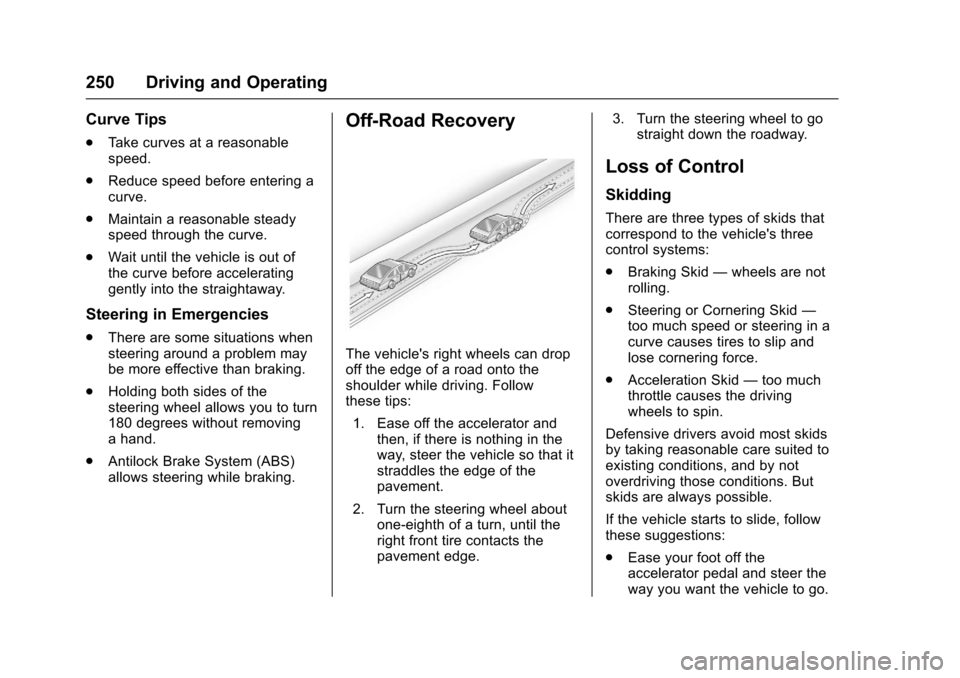
The vehicle's right wheels can dropoff the edge of a road onto theshoulder while driving. Followthese tips:
1. Ease off the accelerator andthen, if there is nothing in theway, steer the vehicle so that itstraddles the edge of thepavement.
2. Turn the steering wheel aboutone-eighth of a turn, until theright front tire contacts thepavement edge.
3. Turn the steering wheel to gostraight down the roadway.
Loss of Control
Skidding
There are three types of skids thatcorrespond to the vehicle's threecontrol systems:
.Braking Skid—wheels are notrolling.
.Steering or Cornering Skid—too much speed or steering in acurve causes tires to slip andlose cornering force.
.Acceleration Skid—too muchthrottle causes the drivingwheels to spin.
Defensive drivers avoid most skidsby taking reasonable care suited toexisting conditions, and by notoverdriving those conditions. Butskids are always possible.
If the vehicle starts to slide, followthese suggestions:
.Ease your foot off theaccelerator pedal and steer theway you want the vehicle to go.