key CHEVROLET SILVERADO 2017 3.G Service Manual
[x] Cancel search | Manufacturer: CHEVROLET, Model Year: 2017, Model line: SILVERADO, Model: CHEVROLET SILVERADO 2017 3.GPages: 509, PDF Size: 8.87 MB
Page 173 of 509
Chevrolet Silverado Owner Manual (GMNA-Localizing-U.S./Canada/Mexico-9956065) - 2017 - CRC - 4/29/16
172 Lighting
roof marker lamps (if equipped),front/rear sidemarker lamps, andlicense plate lamps.
When the vehicle is turned off andthe headlamps are in AUTO, theheadlamps turn off. When the key isremoved, they automatically turn onfor a set time. The time of the delaycan be changed using the DIC. SeeDriver Information Center (DIC)(Base Level)0145orDriverInformation Center (DIC)(Uplevel)0147.
;:Turns on the parking lampsincluding all lamps, except theheadlamps.
2:Turns on the headlampstogether with the parking lamps andinstrument panel lights.
When the headlamps are turned onwhile the vehicle is on, theheadlamps turn off automatically10 minutes after the ignition isturned off. When the headlamps areturned on while the vehicle is off,the headlamps will stay on for10 minutes before turning off toprevent the battery from beingdrained. Turn the headlamp control
off and then back to the headlampon position to make the headlampsstay on for an additional 10 minutes.To k e e p t h e l a m p s o n f o r m o r e t h a n10 minutes, the ignition must be inthe ACC/ACCESSORY or ON/RUNposition.
#:If equipped, turns on the foglamps. SeeFog Lamps0176.
IntelliBeam®System
If equipped, this system turns thevehicle's high-beam headlamps onand off according to surroundingtraffic conditions.
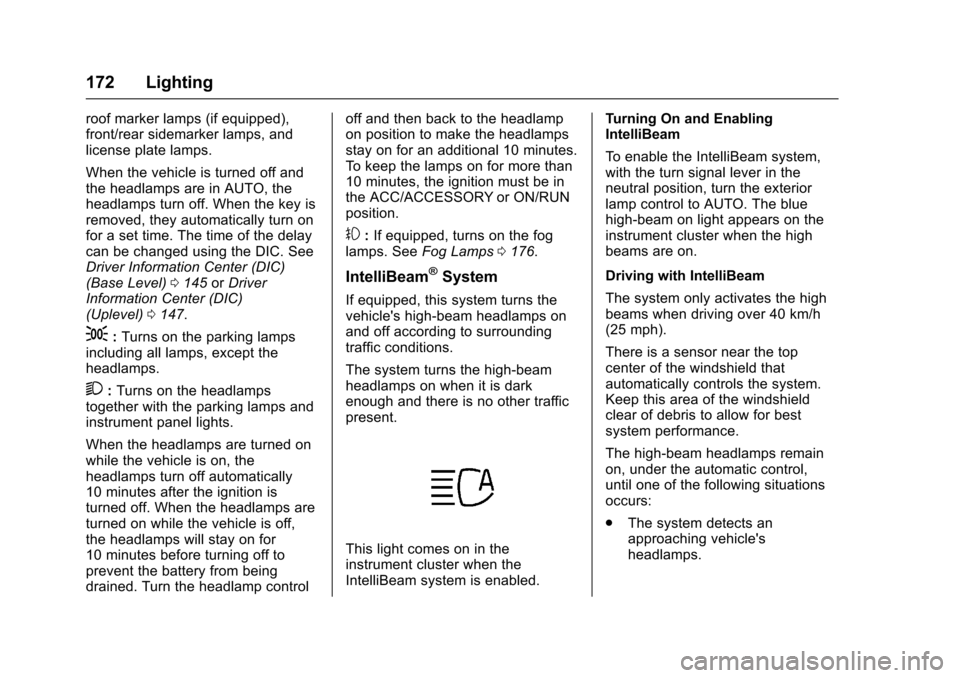
The system turns the high-beamheadlamps on when it is darkenough and there is no other trafficpresent.
This light comes on in theinstrument cluster when theIntelliBeam system is enabled.
Turning On and EnablingIntelliBeam
To e n a b l e t h e I n t e l l i B e a m s y s t e m ,with the turn signal lever in theneutral position, turn the exteriorlamp control to AUTO. The bluehigh-beam on light appears on theinstrument cluster when the highbeams are on.
Driving with IntelliBeam
The system only activates the highbeams when driving over 40 km/h(25 mph).
There is a sensor near the topcenter of the windshield thatautomatically controls the system.Keep this area of the windshieldclear of debris to allow for bestsystem performance.
The high-beam headlamps remainon, under the automatic control,until one of the following situationsoccurs:
.The system detects anapproaching vehicle'sheadlamps.
Page 180 of 509
Chevrolet Silverado Owner Manual (GMNA-Localizing-U.S./Canada/Mexico-9956065) - 2017 - CRC - 4/29/16
Lighting 179
Lighting Features
Entry Lighting
Some exterior lamps and the interiorlamps turn on briefly at night, or in
areas with limited lighting, whenK
is pressed on the Remote KeylessEntry (RKE) transmitter. When adoor is opened, the interior lampscome on if the dome lamp control isin the DOOR position. After about30 seconds the exterior lamps turnoff. Entry lighting can be disabledmanually by changing the ignitionout of the OFF position, or by
pressing the RKE transmitterQ
button.
This feature can be changed. See“Ve h i c l e L o c a t o r L i g h t s”underVehicle Personalization0160.
Exit Lighting
Some exterior lamps and the interiorlamps come on at night, or in areaswith limited lighting when the key isremoved from the ignition. Theexterior and interior lamps remainon for a set amount of time and then
automatically turn off. The interiorlamps do not come on if the domelamp control is in the Off position.
The exterior lamps turn offimmediately by turning the exteriorlamps control off.
This feature can be changed. SeeVehicle Personalization0160.
Battery Load
Management
The vehicle has Electric PowerManagement (EPM), whichestimates the battery's temperatureand state of charge. It then adjuststhe voltage for best performanceand extended life of the battery.
When the battery's state of chargeis low, the voltage is raised slightlyto quickly bring the charge back up.When the state of charge is high,the voltage is lowered slightly toprevent overcharging. The voltmetergauge or the voltage display on theDriver Information Center (DIC),if equipped, may show the voltage
moving up or down. This is normal.If there is a problem, an alert will bedisplayed.
The battery can be discharged atidle if the electrical loads are veryhigh. This is true for all vehicles.This is because the generator(alternator) may not be spinning fastenough at idle to produce all thepower that is needed for very highelectrical loads.
Ahighelectricalloadoccurswhenseveral of the following are on, suchas: headlamps, high beams, foglamps, rear window defogger,climate control fan at high speed,heated seats, engine cooling fans,trailer loads, and loads plugged intoaccessory power outlets.
EPM works to prevent excessivedischarge of the battery. It does thisby balancing the generator's outputand the vehicle's electrical needs.It can increase engine idle speed togenerate more power, wheneverneeded. It can temporarily reducethe power demands of someaccessories.
Page 186 of 509
Chevrolet Silverado Owner Manual (GMNA-Localizing-U.S./Canada/Mexico-9956065) - 2017 - CRC - 4/29/16
Infotainment System 185
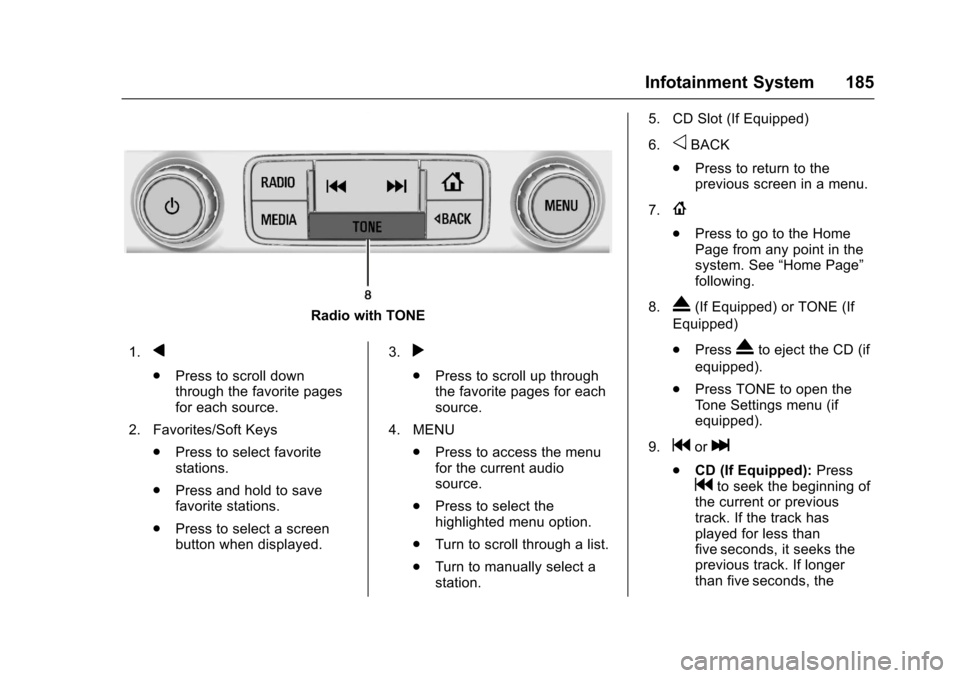
Radio with TONE
1.q
.Press to scroll downthrough the favorite pagesfor each source.
2. Favorites/Soft Keys
.Press to select favoritestations.
.Press and hold to savefavorite stations.
.Press to select a screenbutton when displayed.
3.r
.Press to scroll up throughthe favorite pages for eachsource.
4. MENU
.Press to access the menufor the current audiosource.
.Press to select thehighlighted menu option.
.Turn to scroll through a list.
.Turn to manually select astation.
5. CD Slot (If Equipped)
6.oBACK
.Press to return to theprevious screen in a menu.
7.{
.Press to go to the HomePage from any point in thesystem. See“Home Page”following.
8.X(If Equipped) or TONE (If
Equipped)
.PressXto eject the CD (if
equipped).
.Press TONE to open theTo n e S e t t i n g s m e n u ( i fequipped).
9.gorl
.CD (If Equipped):Pressgto seek the beginning ofthe current or previoustrack. If the track hasplayed for less thanfive seconds, it seeks theprevious track. If longerthan five seconds, the
Page 188 of 509
Chevrolet Silverado Owner Manual (GMNA-Localizing-U.S./Canada/Mexico-9956065) - 2017 - CRC - 4/29/16
Infotainment System 187
SETTINGS :Select the SETTINGSscreen icon to display the Settingsmain page. See“Setting RadioPreferences”following.
Setting Radio Preferences
Select the SETTINGS screen iconto display the Settings menu andthe following may display:
Time and Date :SeeClock0123.
Language (Current Language) :This will set the display language inthe radio and instrument cluster.Select to display a list of languages.
SelectoBACK to go back to the
previous menu.
Valet Mode:
Using the circular numeric keypad,enter a four-digit code:
1. Turn the MENU knob tohighlight a number.
2. Press the MENU knob to selectit. Do this for each one of thefour digits. Select Enter to go tothe confirmation screen.
3. Re-enter the four-digit code.Select LOCK to lock thesystem.
4. Enter the four-digit code tounlock the system.
SelectoBACK to go back to
the previous menu.
Radio :See“Radio Setup”later inthis section.
Vehicle :SeeVehiclePersonalization0160.
Display :Press the MENU knob toturn the display on or off.
Return to Factory Settings :See“Return to Factory Settings”later inthis section.
Software Information (IfEquipped) :Press the MENU knobto select Save Vehicle Info to USB.Press the MENU knob again to startdownloading the vehicle informationto the USB.
Radio Setup
Press the RADIO button and thefollowing may display:
Manage Favorites:
.Turn the MENU knob and pressto select a favorite.
.To d e l e t e a f a v o r i t e , p r e s sthe button just below theDELETE screen button.
.To m o v e a f a v o r i t e , p r e s s t h eMOVE screen button. Turnthe MENU knob to select anew location, then press theDROP screen button toselect the new location.
.SelectoBACK to go back to
the previous menu.
Number of Favorites Shown :Select Auto and the system willautomatically adjust the number offavorite pages when favorites areadded and removed, or select anumber from 5–25 to manuallyadjust the number of favoritesshown.
Page 192 of 509
Chevrolet Silverado Owner Manual (GMNA-Localizing-U.S./Canada/Mexico-9956065) - 2017 - CRC - 4/29/16
Infotainment System 191
Also see the radio settings commonfor all sources earlier in this section.
Finding a Station
Seeking a Station
Pressgorlto search for the
previous or next strongest station.
Tuning a Station
Turn the MENU knob to manuallyfind a station.
Storing Radio Station Presets
Up to 25 preset stations from allbands can be stored in the favoritelists in any order. Up to five stationscan be stored in each favorite pageand the number of favorites canbe set.
AM, FM, or SiriusXM (IfEquipped) :While on the activesource main page, such as AM, FM,or SiriusXM (if equipped), press andhold a favorites/soft key button onthe faceplate.
Mixed-Audio Favorites
Media (if equipped) and Broadcastfavorites can be stored.
To d i s p l a y t h e f a v o r i t e s p a g e ,
pressqorron the radio faceplate.
To m a n a g e f a v o r i t e s , s e e“ManageFavorites”underHome Page (BaseRadio)0186orHome Page (BaseRadio with Touchscreen)0188.
AM-FM Radio (Base
Radio with Touchscreen)
Playing the Radio
Audio Source Menu
{:Press to go to the Home Page.
O:Press to turn on, mute,or unmute the system. Press andhold to turn off the system.
Selecting a Band
Press{,thentouchAUDIO,
Source, then select AM, FM,or SXM, if equipped. The last stationthat was playing starts playingagain.
System Settings
Auto Volume
This feature automatically adjuststhe radio volume to compensate forroad and wind noise.
The level of volume compensationcan be selected, or the feature canbe turned off.
1. Touch MENU from a sourcescreen.
2. Select Auto Volume.
3. Select the desired setting.
4. Touch3to go back to the
source screen.
Tone Settings
The tone settings can be set foreach radio band and each audioplayer source.
Preset Tone Settings
.To u c h M E N U .
.To u c h To n e S e t t i n g s .
.Select a preset tone setting.
.Bass, Midrange, or Treble:To u c h✓or +.
Page 211 of 509
Chevrolet Silverado Owner Manual (GMNA-Localizing-U.S./Canada/Mexico-9956065) - 2017 - CRC - 4/29/16
210 Infotainment System
destination entry and voice keypad,can be completed in a singlecommand. If the task takes morethan one command to complete, thefirst command would be to indicatethe kind of task that is to beperformed. The system replies withprompts that lead through a dialogto enter the necessary information.
Voice recognition can be used whenthe ignition is on or when RetainedAccessory Power (RAP) is active.SeeRetained Accessory Power(RAP)0271.
Using Voice Recognition
Voice recognition becomes availableonce the system has beeninitialized. This begins when theignition is turned on. Initializationmay take a few moments.
1. Pressgon the steering wheel
control to activate voice
recognition, or selectgon the
infotainment screen on thecenter stack.
.If voice recognition isstarted from the steeringwheel control, the
instrument cluster displaysthe selections and visualdialog content.
.If voice recognition isstarted from theinfotainment screen, theselections and visual dialogcontent are displayed onboth the center stackdisplay and the instrumentcluster display.
2. The audio system mutes andthe system plays a promptfollowed by a beep.
3. Wait until after the beepcompletes, then clearly speakone of the commandsdescribed in this section.
Pressgto interrupt any voice
recognition system prompt. Forexample, if the prompt seemsto be taking too long to finish,
pressgagain and the beep
should happen right away.
There are two voice prompt modessupported:
.Long verbal prompts: The longerprompts provide moreinformation regarding thesupported actions.
.Short prompts: The shortprompts provide simpleinstructions about what can bestated.
If a command is not spoken, thevoice recognition system says ahelp prompt.
Prompts and Screen Displays
While a voice recognition session isactive, there will be correspondingbuttons on screens displayed.Manual interaction in the voicerecognition session is permitted.Interaction during a voice sessionmay be completed entirely usingvoice commands, or someselections may expedite a session.If a selection is made using amanual control, the dialog willprogress in the same way as if theselection was made through a voicecommand. Once the system is able
Page 220 of 509
Chevrolet Silverado Owner Manual (GMNA-Localizing-U.S./Canada/Mexico-9956065) - 2017 - CRC - 4/29/16
Infotainment System 219
2. Turn the MENU knob andpress to select ManagePhones.
Deleting a Paired Phone
1. From the Home Page, turn theMENU knob, then press toselect the PHONE screenbutton.
2. Turn the MENU knob andpress to select ManagePhones.
3. Turn the MENU knob tohighlight the phone to bedeleted.
4. Press the button below theDELETE screen button todelete the highlighted device.
5. A confirmation screen isdisplayed. Press the button justbelow the DELETE screenbutton to confirm deletion.
Connecting to a Different Phone
1. From the Home Page, turn theMENU knob, then press toselect the PHONE screenbutton.
2. Turn the MENU knob andpress to select ManagePhones.
3. Turn the MENU knob tohighlight the phone to beconnected.
4. Press the button just below theCONNECT screen button toconnect to the highlighteddevice.
Phone Menu
Once a phone is connected andselected, the following may display:
Recent Calls :Turn the MENUknob to highlight Recent Calls andpress to select.
Contacts :Turn the MENU knob tohighlight Contacts and press toselect.
Keypad :Turn the MENU knob tohighlight Keypad and press toselect.
Active Call :Turn the MENU knobto highlight Active Call and press toselect and display the active callscreen.
Manage Phones :Turn the MENUknob to highlight Manage Phonesand press to select.
Making a Call Using Contacts
and Recent Calls
For cell phones that support theContacts and Recent Calls feature,the Bluetooth system can use thecontacts stored on your cell phoneto make calls. See your cell phonemanufacturer’suserguideorcontact your wireless provider tofind out if this feature is supportedby your phone.
If the phone prompts to allow phonebook download during the pairingprocess, select Always Accept andAllow. The phone book may not beavailable if not accepted.
When a cell phone supports thephone book feature, the Contactsand Recent Calls menus areautomatically available.
The Contacts menu allows you toaccess the phone book stored in thecell phone to make a call.
Page 221 of 509
Chevrolet Silverado Owner Manual (GMNA-Localizing-U.S./Canada/Mexico-9956065) - 2017 - CRC - 4/29/16
220 Infotainment System
The Recent Calls menu allows youto access the phone numbers fromthe Incoming Calls, Outgoing Calls,and Missed Calls menus on the cellphone to make a call.
To m a k e a c a l l u s i n g t h eContacts menu:
1. From the Home Page, turn theMENU knob, then press toselect the PHONE screenbutton.
2. Turn the MENU knob tohighlight Contacts and press toselect.
3. Turn the MENU knob tohighlight the letter group andpress to select.
4. Turn the MENU knob tohighlight the contact and pressto select.
5. Turn the MENU knob tohighlight the desired number,then press the MENU knob tocall the contact.
To m a k e a c a l l u s i n g t h e R e c e n tCalls menu:
1. From the Home Page, turn theMENU knob, then press toselect the PHONE screenbutton.
2. Turn the MENU knob tohighlight Recent Calls andpress to select.
If necessary, select betweenMissed, Recent, and Sent callsby pressing the button belowthe appropriate screen button.
3. Turn the MENU knob tohighlight the contact or thephone number.
4. Press the MENU knob to callthe contact.
Making a Call Using the
Keypad
To m a k e a c a l l :
1. From the Home Page, turn theMENU knob, then press toselect the PHONE screenbutton.
2. Turn the MENU knob andpress to select Keypad.
3. Turn the MENU knob tohighlight the first digit andpress to select. Continue thisprocess through the number.To c a l l , p r e s s t h e b u t t o n j u s tbelow the CALL screen button.
Accepting or Declining a Call
When an incoming call is received,the infotainment system mutes andaringtoneisheardinthevehicle.
Accepting a Call
To a c c e p t a c a l l , d o o n e o f t h efollowing:
.Press the button just below theANSWER screen button.
.Pressgon the steering wheel
controls.
Declining a Call
To d e c l i n e a c a l l , d o o n e o f t h efollowing:
.Press the button just below theIGNORE screen button.
Page 222 of 509
Chevrolet Silverado Owner Manual (GMNA-Localizing-U.S./Canada/Mexico-9956065) - 2017 - CRC - 4/29/16
Infotainment System 221
.Pression the steering wheel
controls.
.Do nothing.
Call Waiting
Call waiting must be supported onthe Bluetooth phone and enabled bythe wireless service carrier to work.
Accepting a Call Waiting Call
To a c c e p t a c a l l w a i t i n g c a l l , d o o n eof the following:
.Press the button just below theSWITCH screen button.
.Pressgon the steering wheel
controls.
Declining a Call Waiting Call
To d e c l i n e a c a l l w a i t i n g c a l l , d o o n eof the following:
.Press the button just below theIGNORE screen button.
.Pression the steering wheel
controls.
.Do nothing.
Ending a Call
To e n d a c a l l , d o o n e o f t h efollowing:
.Press the button just below theEND screen button.
.Pression the steering wheel
controls.
Dual Tone Multi-Frequency
(DTMF) Tones
The in-vehicle Bluetooth system cansend numbers during a call. This isused when calling a menu-drivenphone system.
1. When a call is active, press thebutton just below the KEYPADscreen button.
2. Turn the MENU knob tohighlight the first digit andpress to select.
If not initially in the phoneapplication, from the Home Page,turn the MENU knob, then press toselect the PHONE screen button.From the PHONE main menu, turnthe MENU knob to highlight ActiveCall and press to select.
Bluetooth (Voice
Recognition - Base
Radio)
Using Voice Recognition
To u s e v o i c e r e c o g n i t i o n , p r e s sg
on the steering wheel. Use thecommands below for the variousvoice features. For additionalinformation, say“Help”while youare in a voice recognition menu.
Pairing
Pairing a Phone
1. Pressg.Thesystemresponds
“Ready,”followed by a tone.
2. Say“Bluetooth.”
3. Say“Pair.”The systemresponds with instructions andafour-digitPersonalIdentification Number (PIN).The PIN is used in Step 5.
4. Start the pairing process on thecell phone that you want topair. For help with this process,see your cell phonemanufacturer's user guide.
Page 269 of 509
Chevrolet Silverado Owner Manual (GMNA-Localizing-U.S./Canada/Mexico-9956065) - 2017 - CRC - 4/29/16
268 Driving and Operating
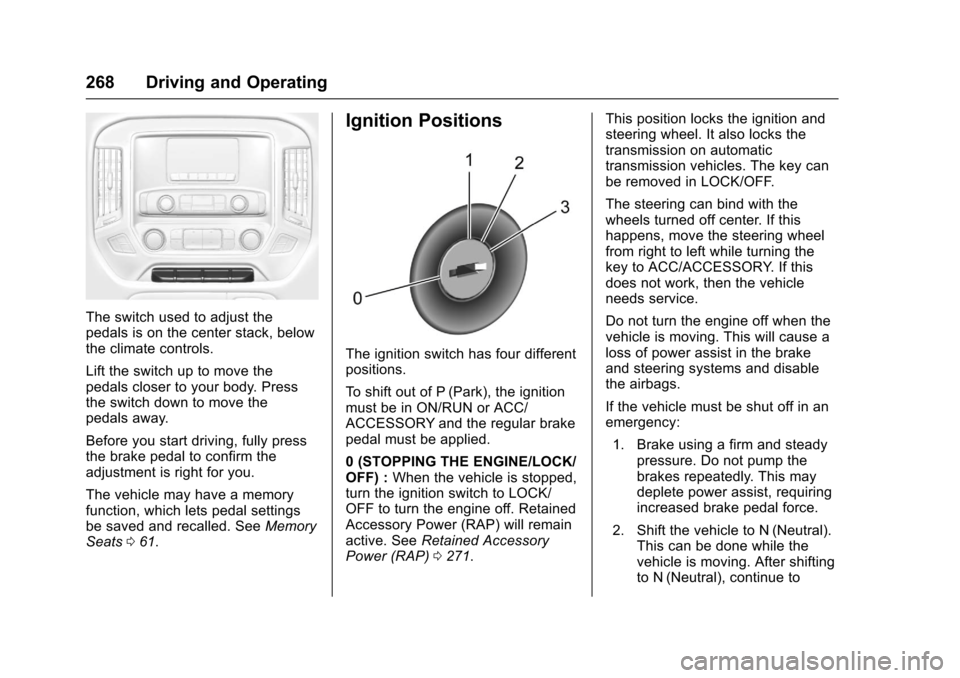
The switch used to adjust thepedals is on the center stack, belowthe climate controls.
Lift the switch up to move thepedals closer to your body. Pressthe switch down to move thepedals away.
Before you start driving, fully pressthe brake pedal to confirm theadjustment is right for you.
The vehicle may have a memoryfunction, which lets pedal settingsbe saved and recalled. SeeMemorySeats061.
Ignition Positions
The ignition switch has four differentpositions.
To s h i f t o u t o f P ( P a r k ) , t h e i g n i t i o nmust be in ON/RUN or ACC/ACCESSORY and the regular brakepedal must be applied.
0(STOPPINGTHEENGINE/LOCK/OFF) :When the vehicle is stopped,turn the ignition switch to LOCK/OFF to turn the engine off. RetainedAccessory Power (RAP) will remainactive. SeeRetained AccessoryPower (RAP)0271.
This position locks the ignition andsteering wheel. It also locks thetransmission on automatictransmission vehicles. The key canbe removed in LOCK/OFF.
The steering can bind with thewheels turned off center. If thishappens, move the steering wheelfrom right to left while turning thekey to ACC/ACCESSORY. If thisdoes not work, then the vehicleneeds service.
Do not turn the engine off when thevehicle is moving. This will cause aloss of power assist in the brakeand steering systems and disablethe airbags.
If the vehicle must be shut off in anemergency:
1. Brake using a firm and steadypressure. Do not pump thebrakes repeatedly. This maydeplete power assist, requiringincreased brake pedal force.
2. Shift the vehicle to N (Neutral).This can be done while thevehicle is moving. After shiftingto N (Neutral), continue to