infotainment CHEVROLET SILVERADO EV 2024 Owners Manual
[x] Cancel search | Manufacturer: CHEVROLET, Model Year: 2024, Model line: SILVERADO EV, Model: CHEVROLET SILVERADO EV 2024Pages: 429, PDF Size: 8.98 MB
Page 321 of 429
Chevrolet Silverado EV Owner Manual (GMNA-Localizing-U.S./Canada-
16702912) - 2024 - CRC - 1/17/23
320 Driving and Operating
Delete/Remove Trailer
Touch to remove the Trailer Profile and all
of its settings.
On the pop-up, touch Remove to delete the
Trailer Profile. Touch Cancel to dismiss the
pop-up and return to the previous view.
When selecting Remove, it will display if
there is a connected OnStar plan active with
the vehicle. Removing a trailer profile
deletes the profile from the vehicle but the
profile still associates with the user account.
However, if there is not a connected OnStar
plan and Remove is selected, DELETE
displays and the profile deletes
permanently.
Set as Default Trailer
Touch Set as Default Trailer to select the
current profile as the default trailer profile.
The default trailer profile automatically is
selected each time a new connection is
detected. The Trailer Detection Alert will no
longer appear on the infotainment screen.
If this setting is turned off, the current
trailer profile is not the default trailer.GCW Alerts
Touch GCW Alert to enable/disable the GCW
Alert for the selected profile. These alerts
are based on the Trailer Profile, so the
settings for each Trailer Profile must be
turned on or off.
Turn this setting off to stop receiving GCW
Alerts when that Trailer Profile is active.
Theft Alert
If Theft Alerts are enabled, an alarm will
sound anytime the trailer is disconnected
from the vehicle while the vehicle is off.
Touch Theft Alert to enable/disable Theft
Alerts for the selected profile. These alerts
are based on the Trailer Profile, so the
settings for each Trailer Profile must be
turned on or off.
This setting defaults for each Trailer Profile,
including the Guest Trailer Profile.
A smartphone receives a notification that
the trailer related to the selected Trailer
Profile is disconnected from the vehicle,
if the setting is on for the active Trailer
Profile, the vehicle has an OnStar or
connected service plan and the smartphone
number has been added to the account for
this notification.If the setting is turned off for a given Trailer
Profile, the smartphone will not receive this
security notification even if the Trailer
Profile is active.
Tow/Haul Mode Reminder
When the vehicle detects a new trailer
connection, and if the Tow/Haul Mode
Reminder setting is enabled, a courtesy
message displays reminding you to turn on
Tow/Haul mode if appropriate. See
Driver
Mode Control 0209.
Touch Tow/Haul Mode Reminder to turn on/
off for the selected profile. The status of
Tow/Haul Mode Reminder Alerts are specific
to each trailer profile. You must specify
whether you want to enable theft alerts for
each trailer profile.
If Tow/Haul mode is off and Tow/Haul
Mode Reminder is on for a Trailer Profile,
each time the vehicle is turned on, a
reminder appears to turn on Tow/Haul
Mode when the Trailer Profile is active.
If Tow/Haul mode is on and Tow/Haul Mode
Reminder is on for a Trailer Profile, the
reminder does not appear when the Trailer
Profile is active.
Page 322 of 429
Chevrolet Silverado EV Owner Manual (GMNA-Localizing-U.S./Canada-
16702912) - 2024 - CRC - 1/17/23
Driving and Operating 321
Conversions and Add-Ons
Add-On Electrical Equipment
{Warning
The Data Link Connector (DLC) is used for
vehicle service and Emission Inspection/
Maintenance testing. SeeService Vehicle
Soon Light (Propulsion System Failure)
0 115. A device connected to the DLC —
such as an aftermarket fleet or
driver-behavior tracking device —may
interfere with vehicle systems. This could
affect vehicle operation and cause a
crash. Such devices may also access
information stored in the vehicle’s
systems.
Caution
Some electrical equipment can damage
the vehicle or cause components to not
work and would not be covered by the
vehicle warranty. Always check with your
dealer before adding electrical equipment. Add-on equipment can drain the vehicle's
12-volt battery, even if the vehicle is not
operating.
When adding electrical equipment, it should
only be connected using the accessory
power outlets. The maximum power that
can be supplied by one accessory power
outlet or spread across all three is 200 watts
or 15 amps. Exceeding 200 watts or 15 amps
may cause erratic vehicle operation.
The vehicle has an airbag system. Before
attempting to add anything electrical to the
vehicle, see
Servicing the Airbag-Equipped
Vehicle 068 and
Adding Equipment to the Airbag-Equipped
Vehicle 068.
Auxiliary Switches
On-screen auxiliary switches, if equipped, are
quick-touch icons that appear within the
infotainment system, giving you easy access
to some of the features of certain
aftermarket accessories installed on the
vehicle (off-road lighting, light bars, etc.). To access the on-screen auxiliary switches,
select Controls > Aux Switches. Six on-screen
auxiliary switches are available.
Use of the on-screen switches requires
installation of an auxiliary switch interface
module, which is mounted under the hood.
See your dealer for purchase and installation
of the necessary components. When an
aftermarket accessory is installed onto the
vehicle, it should be hard-wired to the
auxiliary switch interface module to the
numbered connection that corresponds with
the numbered on-screen auxiliary switch.
See
Accessories and Modifications 0324.
If you touch an on-screen auxiliary switch
but the auxiliary switch interface module is
not installed or has no accessory wired at
that connection, a message “No accessory
connected to this switch” displays.
Customizing the On-Screen Auxiliary
Switches
After a purchased accessory is installed,
create a text label for the corresponding
on-screen auxiliary switch and choose an
icon to represent the installed accessory.
1. While the vehicle is in P (Park), touch the Controls icon on the infotainment
home page.
Page 397 of 429
Chevrolet Silverado EV Owner Manual (GMNA-Localizing-U.S./Canada-
16702912) - 2024 - CRC - 1/13/23
396 Customer Information
Customer Information
Customer Information
Customer Satisfaction Procedure . . . . . . 396
Customer Assistance Offices . . . . . . . . . . . 398
Customer Assistance for Text Telephone(TTY) Users . . . . . . . . . . . . . . . . . . . . . . . . . . 398
Online Account . . . . . . . . . . . . . . . . . . . . . . . . 398
GM Mobility Reimbursement Program . . . . . . . . . . . . . . . . . . . . . . . . . . . . . 399
Roadside Assistance Program . . . . . . . . . . 399
Scheduling Service Appointments . . . . . . 401
Courtesy Transportation Program . . . . . 401
Collision Damage Repair . . . . . . . . . . . . . . 402
Publication Ordering Information . . . . . 404
Radio Frequency Statement . . . . . . . . . . . 404
Reporting Safety Defects
Reporting Safety Defects to the United States Government . . . . . . . . . . . . . . . . . . 404
Reporting Safety Defects to the Canadian Government . . . . . . . . . . . . . . . 405
Reporting Safety Defects to General Motors . . . . . . . . . . . . . . . . . . . . . . . . . . . . . . 405
Vehicle Data Recording and Privacy
Vehicle Data Recording and Privacy . . . 405
Cybersecurity . . . . . . . . . . . . . . . . . . . . . . . . . 406
Event Data Recorders . . . . . . . . . . . . . . . . . 406
OnStar . . . . . . . . . . . . . . . . . . . . . . . . . . . . . . . . 407
Infotainment System . . . . . . . . . . . . . . . . . . 407Customer Information
Customer Satisfaction Procedure
Your satisfaction and goodwill are important
to your dealer and to Chevrolet. Normally,
any concerns with the sales transaction or
the operation of the vehicle will be resolved
by your dealer's sales or service
departments. Sometimes, however, despite
the best intentions of all concerned,
misunderstandings can occur. If your concern
has not been resolved to your satisfaction,
the following steps should be taken:
STEP ONE : Discuss your concern with a
member of dealership management.
Normally, concerns can be quickly resolved
at that level. If the matter has already been
reviewed with the sales, service, or parts
manager, contact the owner of your
dealership or the general manager.
STEP TWO : If after contacting a member of
dealership management, it appears your
concern cannot be resolved by your
dealership without further help, in the U.S.,
call the Chevrolet Customer Assistance
Center at 1-800-222-1020. In Canada, call
General Motors of Canada Customer Care
Centre at 1-800-263-3777 (English),
or 1-800-263-7854 (French).
Page 408 of 429
Chevrolet Silverado EV Owner Manual (GMNA-Localizing-U.S./Canada-
16702912) - 2024 - CRC - 1/13/23
Customer Information 407
OnStar
If the vehicle is equipped with OnStar and
has an active service plan, additional data
may be collected and transmitted through
the OnStar system. This includes information
about the vehicle’s operation; collisions
involving the vehicle; the use of the vehicle
and its features, including infotainment; and
the location and approximate GPS speed of
the vehicle. Refer to the OnStar Terms and
Conditions and Privacy Statement on the
OnStar website.
SeeOnStar Additional Information 0410.
Infotainment System
If the vehicle is equipped with a navigation
system as part of the infotainment system,
use of the system may result in the storage
of destinations, addresses, telephone
numbers, and other trip information. See the
infotainment section for information on
stored data and for deletion instructions.
Page 409 of 429
Chevrolet Silverado EV Owner Manual (GMNA-Localizing-U.S./Canada-
16702912) - 2024 - CRC - 1/13/23
408 OnStar
OnStar
OnStar Overview
OnStar Overview . . . . . . . . . . . . . . . . . . . . . . 408
OnStar Services
Emergency . . . . . . . . . . . . . . . . . . . . . . . . . . . . 409
Security . . . . . . . . . . . . . . . . . . . . . . . . . . . . . . . 409
OnStar Additional Information
OnStar Additional Information . . . . . . . . . 410
OnStar Overview
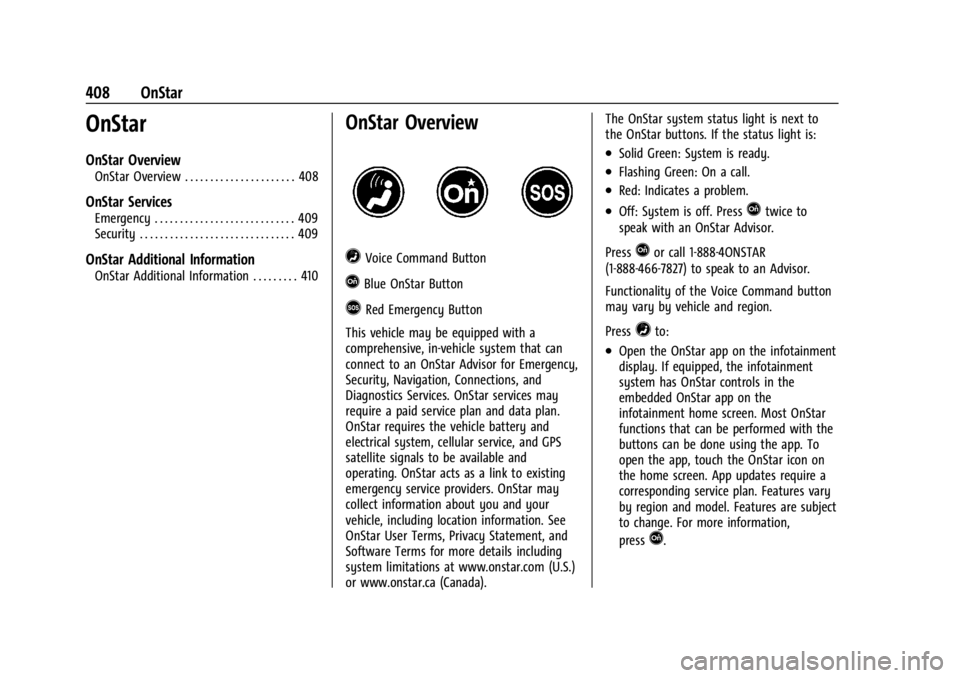
=Voice Command Button
QBlue OnStar Button
>Red Emergency Button
This vehicle may be equipped with a
comprehensive, in-vehicle system that can
connect to an OnStar Advisor for Emergency,
Security, Navigation, Connections, and
Diagnostics Services. OnStar services may
require a paid service plan and data plan.
OnStar requires the vehicle battery and
electrical system, cellular service, and GPS
satellite signals to be available and
operating. OnStar acts as a link to existing
emergency service providers. OnStar may
collect information about you and your
vehicle, including location information. See
OnStar User Terms, Privacy Statement, and
Software Terms for more details including
system limitations at www.onstar.com (U.S.)
or www.onstar.ca (Canada). The OnStar system status light is next to
the OnStar buttons. If the status light is:
.Solid Green: System is ready.
.Flashing Green: On a call.
.Red: Indicates a problem.
.Off: System is off. PressQtwice to
speak with an OnStar Advisor.
Press
Qor call 1-888-4ONSTAR
(1-888-466-7827) to speak to an Advisor.
Functionality of the Voice Command button
may vary by vehicle and region.
Press
=to:
.Open the OnStar app on the infotainment
display. If equipped, the infotainment
system has OnStar controls in the
embedded OnStar app on the
infotainment home screen. Most OnStar
functions that can be performed with the
buttons can be done using the app. To
open the app, touch the OnStar icon on
the home screen. App updates require a
corresponding service plan. Features vary
by region and model. Features are subject
to change. For more information,
press
Q.
Page 412 of 429
Chevrolet Silverado EV Owner Manual (GMNA-Localizing-U.S./Canada-
16702912) - 2024 - CRC - 1/13/23
OnStar 411
the TTY system provides in-vehicle access to
all OnStar services, except Virtual Advisor
and OnStar Turn-by-Turn Navigation.
Turn your vehicle on and keep it in P (Park).
Access TTY by touching Settings > Apps >
Phone > TTY > Enable OnStar TTY mode
from the infotainment home screen. When
TTY mode is active, you can make and
receive phone calls using the infotainment
display.
OnStar Personal Identification
Number (PIN)
A PIN is needed to access some OnStar
services. The PIN will need to be changed
the first time when speaking with an
Advisor. To change the OnStar PIN, contact
an OnStar Advisor by pressing
Qor calling
1-888-4ONSTAR.
Warranty
OnStar equipment may be warranted as part
of the vehicle warranty.
Languages
The vehicle can be programmed to respond
in multiple languages. Press
Qand ask for
an Advisor. Advisors are available in English,
Spanish, and French. Available languages
may vary by country.
Potential Issues
OnStar cannot perform Remote Door Unlock
or Stolen Vehicle Assistance after the vehicle
has been off continuously for an extended
period of time without being started. To
find out the duration of time that applies
for the vehicle, contact an OnStar Advisor by
pressing
Qor calling 1-888-4ONSTAR. If the
vehicle has not been started for an extended
period of time, OnStar can contact Roadside
Assistance or a locksmith to help gain access
to the vehicle.
Global Positioning System (GPS)
.Obstruction of the GPS can occur in a
large city with tall buildings; in parking
garages; around airports; in tunnels and
underpasses; or in an area with very
dense trees. If GPS signals are not
available, the OnStar system should still operate to call OnStar. However, OnStar
could have difficulty identifying the exact
location.
.In emergency situations, OnStar can use
the last stored GPS location to send to
emergency responders.
A temporary loss of GPS can cause loss of
the ability to send a Turn-by-Turn
Navigation route. The Advisor may give a
verbal route or may ask for a call back after
the vehicle is driven into an open area.
Cellular and GPS Antennas
Cellular reception is required for OnStar to
send remote signals to the vehicle. Do not
place items over or near the antenna to
prevent blocking cellular and GPS signal
reception.
Unable to Connect to OnStar Message
If there is limited cellular coverage or the
cellular network has reached maximum
capacity, this message may come on. Press
Qto try the call again or try again after
driving a few miles into another
cellular area.
Page 414 of 429
Chevrolet Silverado EV Owner Manual (GMNA-Localizing-U.S./Canada-
16702912) - 2024 - CRC - 1/13/23
Connected Services 413
Connected Services
Connected Services
Navigation . . . . . . . . . . . . . . . . . . . . . . . . . . . . . 413
Connections . . . . . . . . . . . . . . . . . . . . . . . . . . . 413
Diagnostics . . . . . . . . . . . . . . . . . . . . . . . . . . . . 415
Connected Services
Navigation
Navigation requires a specific OnStar or
connected service plan.
Press
Qto receive Turn-by-Turn directions
or have them sent to the vehicle’s
navigation screen, if equipped. Select
Turn-by-Turn Directions from the Services
tab of the OnStar app to call an Advisor or
select a recent or favorite destination. Touch
the navigation icons to select home, address,
or place. A destination transfer from OnStar
will show the detail view of the destination
when it is transferred from OnStar to the
Navigation application. See www.onstar.com
for a coverage map. Services vary by model.
Map coverage is available in the United
States and Canada.
Turn-by-Turn Navigation
1. PressQto connect to an Advisor.
2. Request directions to be downloaded to the vehicle.
3. Follow the voice-guided commands.
Using Voice Commands During a
Planned Route
Functionality of the Voice Command button,
if equipped, may vary by vehicle and region.
For some vehicles, press
=to open the
OnStar app on the infotainment display.
Send Destination to Vehicle
Directions can be sent to the vehicle’s
navigation screen, if equipped.
Press
Q, then ask the Advisor to download
directions to the vehicle’s navigation system,
if equipped. After the call ends, the
navigation screen will provide prompts to
begin driving directions. Routes that are sent
to the navigation screen can only be
canceled through the navigation system.
See www.onstar.com (U.S.) or www.onstar.ca
(Canada).
Connections
The following services help with staying
connected.
For coverage maps, see www.onstar.com
(U.S.) or www.onstar.ca (Canada).
Page 415 of 429
Chevrolet Silverado EV Owner Manual (GMNA-Localizing-U.S./Canada-
16702912) - 2024 - CRC - 1/13/23
414 Connected Services
Ensuring Security
.Change the default passwords for the
Wi-Fi hotspot and myChevrolet mobile
application. Make these passwords
different from each other and use a
combination of letters and numbers to
increase the security.
.Change the default name of the SSID
(Service Set Identifier). This is your
network’s name that is visible to other
wireless devices. Choose a unique name
and avoid family names or vehicle
descriptions.
Wi-Fi Hotspot (If Equipped)
The vehicle may have a built-in Wi-Fi
hotspot that provides access to the Internet
and web content at 4G LTE speed. Up to
seven mobile devices can be connected.
A data plan is required. Use the in-vehicle
controls only when it is safe to do so. 1. To retrieve Wi-Fi hotspot information, press
=to open the OnStar app on the
infotainment display, then select Wi-Fi
Hotspot. On some vehicles, touch Wi-Fi
or Wi-Fi Settings on the screen.
2. The Wi-Fi settings will display the Wi-Fi hotspot name (SSID), password, and on
some vehicles, the connection type (no Internet connection, 3G, 4G, 4G LTE), and
signal quality (poor, good, excellent). The
LTE icon shows connection to Wi-Fi. It is
possible that the icon may not illuminate
even though the vehicle has an active
connection.
3. To change the SSID or password, press
Qor call 1-888-4ONSTAR to connect
with an Advisor. On some vehicles, the
SSID and password can be changed in
the Wi-Fi Hotspot menu.
After initial set-up, your vehicle’s Wi-Fi
hotspot will connect automatically to your
mobile devices. Manage data usage by
turning Wi-Fi on or off on your mobile
device, using the myChevrolet mobile app,
or by contacting an OnStar Advisor. On
some vehicles, Wi-Fi can also be managed
from the Wi-Fi Hotspot menu.
MyChevrolet Mobile App (If Available)
Download the myChevrolet mobile app to
compatible Apple and Android smartphones.
Chevrolet users can access the following
services from a smartphone:
.Remotely start/stop the vehicle,
if factory-equipped.
.Lock/unlock doors, if equipped with
automatic locks.
.Activate the horn and lamps.
.Check the vehicle’s energy level, range or
tire pressure, if factory-equipped with the
Tire Pressure Monitor System.
.Send destinations to the vehicle.
.Locate the vehicle on a map
(U.S. market only).
.Turn the vehicle's Wi-Fi hotspot on/off,
manage settings, and monitor data
consumption, if equipped.
.Locate a dealer and schedule service.
.Request Roadside Assistance.
.Set a parking reminder with pin drop,
take a photo, make a note, and set a
timer.
.Connect with Chevrolet on social media.
Features are subject to change. For
myChevrolet mobile app information and
compatibility, see www.chevrolet.com.
An active OnStar or connected service plan
may be required. A compatible device,
factory-installed remote start, and power
locks are required. Data rates apply. See
www.onstar.com for details and system
limitations.
Page 419 of 429

Chevrolet Silverado EV Owner Manual (GMNA-Localizing-U.S./Canada-
16702912) - 2024 - CRC - 1/13/23
418 Index
Cargo (cont'd)Tie-Downs . . . . . . . . . . . . . . . . . . . . . . . . . . . . . . 94
Caution, Danger, and Warning . . . . . . . . . . . . . .2
Chains, Tire . . . . . . . . . . . . . . . . . . . . . . . . . . . . . . 361
Charge Cord . . . . . . . . . . . . . . . . . . . . . . . . . . . . . . . . . . . 286
Charge Cord Connected Light . . . . . . . . . . . . . 114
Charging . . . . . . . . . . . . . . . . . . . . . . . . . . . . . . . . . . 123
Delay Override . . . . . . . . . . . . . . . . . . . . . . . . . 282
Plug-In . . . . . . . . . . . . . . . . . . . . . . . . . . . . . . . . . 278
Status Feedback . . . . . . . . . . . . . . . . . . . . . . . 283
System Light . . . . . . . . . . . . . . . . . . . . . . . . . . . 114
Utility Interruption . . . . . . . . . . . . . . . . . . . . 293
Wireless . . . . . . . . . . . . . . . . . . . . . . . . . . . . . . . 104
Child Restraints Infants and Young Children . . . . . . . . . . . . . . 71
Lower Anchors and Tethers for
Children . . . . . . . . . . . . . . . . . . . . . . . . . . . . . . . 76
Older Children . . . . . . . . . . . . . . . . . . . . . . . . . . 70
Securing . . . . . . . . . . . . . . . . . . . . . . . . . . . . 86, 88
Systems . . . . . . . . . . . . . . . . . . . . . . . . . . . . . . . . 73
Child Safety Locks . . . . . . . . . . . . . . . . . . . . . . . . . 17
Circuit Breakers . . . . . . . . . . . . . . . . . . . . . . . . . . 337
Cleaning Exterior Care . . . . . . . . . . . . . . . . . . . . . . . . . . . 379
Interior Care . . . . . . . . . . . . . . . . . . . . . . . . . . . 384
Climate Control Systems Dual Automatic . . . . . . . . . . . . . . . . . . . . . . . . 174 Clock . . . . . . . . . . . . . . . . . . . . . . . . . . . . . . . . . . . . . 99
Cluster, Instrument . . . . . . . . . . . . . . . . . .107, 109
Collision Alert
Forward (FCA) System . . . . . . . . . . . . . . . . . 261
Collision Damage Repair . . . . . . . . . . . . . . . . . 402
Compartment Underhood . . . . . . . . . . . . . . . . . . . . . . . . . . . . 325
Compartments Storage . . . . . . . . . . . . . . . . . . . . . . . . . . . . . . . . . 91
Compressor Kit, Tire Sealant . . . . . . . . . . . . . 363
Connected Services Connections . . . . . . . . . . . . . . . . . . . . . . . . . . . 413
Diagnostics . . . . . . . . . . . . . . . . . . . . . . . . . . . . 415
Navigation . . . . . . . . . . . . . . . . . . . . . . . . . . . . . 413
Connections Connected Services . . . . . . . . . . . . . . . . . . . . 413
Control Traction and Electronic Stability . . . . . . . 207
Control of a Vehicle . . . . . . . . . . . . . . . . . . . . . .183
Controls On-Screen . . . . . . . . . . . . . . . . . . . . . . . . . . . . . . 107
Steering Wheel . . . . . . . . . . . . . . . . . . . . . . . . 149
Cooling . . . . . . . . . . . . . . . . . . . . . . . . . . . . . . . . . . .174
Cooling System . . . . . . . . . . . . . . . . . . . . . . . . . . 327
Courtesy Transportation Program . . . . . . . . 401
Cruise Control . . . . . . . . . . . . . . . . . . . . . . . . . . . . 213 Adaptive . . . . . . . . . . . . . . . . . . . . . . . . . . . . . . . . 217
Light . . . . . . . . . . . . . . . . . . . . . . . . . . . . . . . . . . . 122 Cruise Control (cont'd)
Super . . . . . . . . . . . . . . . . . . . . . . . . . . . . . . . . . . 227
Cupholders . . . . . . . . . . . . . . . . . . . . . . . . . . . . . . . .91
Customer Assistance Offices . . . . . . . . . . . . . . . . . . . . . . . . . . . . . . . . . 398
Text Telephone (TTY) Users . . . . . . . . . . . . 398
Customer Information
Publications Ordering Information . . . . . 404
Customer Satisfaction Procedure . . . . . . . . . 396
Cybersecurity . . . . . . . . . . . . . . . . . . . . . . . . . . . . 406
D
Damage Repair, Collision . . . . . . . . . . . . . . . . . 402
Danger, Warning, and Caution . . . . . . . . . . . . . .2
Dashboard . . . . . . . . . . . . . . . . . . . . . . . . . . . . . . . . . 4
Data Collection Infotainment System . . . . . . . . . . . . . . . . . . 407
OnStar . . . . . . . . . . . . . . . . . . . . . . . . . . . . . . . . . 407
Data Recorders, Event . . . . . . . . . . . . . . . . . . . 406
Daytime Running Lamps (DRL) . . . . . . . . . . . . 141
Defensive Driving . . . . . . . . . . . . . . . . . . . . . . . . .183
Delayed Charging Override . . . . . . . . . . . . . . 282
Delayed Locking . . . . . . . . . . . . . . . . . . . . . . . . . . .16
Destination . . . . . . . . . . . . . . . . . . . . . . . . . . . . . . . 157
Diagnostics Connected Services . . . . . . . . . . . . . . . . . . . . 415
Differential, Limited-Slip . . . . . . . . . . . . . . . . . . 211
Page 422 of 429

Chevrolet Silverado EV Owner Manual (GMNA-Localizing-U.S./Canada-
16702912) - 2024 - CRC - 1/13/23
Index 421
InformationPublication Ordering . . . . . . . . . . . . . . . . . . . 404
Infotainment Using the System . . . . . . . . . . . . . . . . . . . . . . 149
Infotainment System . . . . . . . . . . . . . . . . . . . . 407
Inspection Multi-Point Vehicle . . . . . . . . . . . . . . . . . . . . 390
Instrument Cluster . . . . . . . . . . . . . . . . . . .107, 109
Instrument Panel Overview . . . . . . . . . . . . . . . . 4
Interior Rearview Mirrors . . . . . . . . . . . . . . . . . 36
Introduction . . . . . . . . . . . . . . . . . . . . . . . . . . . 2, 147
J
Jump Starting - North America . . . . . . . . . . . . . . . 375
K
Keys . . . . . . . . . . . . . . . . . . . . . . . . . . . . . . . . . . . . . . . 8Digital . . . . . . . . . . . . . . . . . . . . . . . . . . . . . . . . . . 18
Remote . . . . . . . . . . . . . . . . . . . . . . . . . . . . . . . . . . 9
Remote Operation . . . . . . . . . . . . . . . . . . . . . . . 9
L
Labeling, Tire Sidewall . . . . . . . . . . . . . . . . . . . 346
LampsDaytime Running (DRL) . . . . . . . . . . . . . . . . . 141
Dome . . . . . . . . . . . . . . . . . . . . . . . . . . . . . . . . . . 144
Exterior Cargo . . . . . . . . . . . . . . . . . . . . . . . . . 143
Exterior Controls . . . . . . . . . . . . . . . . . . . . . . . 140 Lamps (cont'd)
Exterior Lamps Off Reminder . . . . . . . . . . . 141
Exterior Lighting Battery Saver . . . . . . . . 146
Flash-to-Pass . . . . . . . . . . . . . . . . . . . . . . . . . . . . 141
High/Low Beam Changer . . . . . . . . . . . . . . . 141
On Reminder . . . . . . . . . . . . . . . . . . . . . . . . . . . 121
Reading . . . . . . . . . . . . . . . . . . . . . . . . . . . . . . . . 144
Lane Keep Assist Light . . . . . . . . . . . . . . . . . . . . . . . 117
Lap-Shoulder Belt . . . . . . . . . . . . . . . . . . . . . . . . . 56
LATCH System Replacing Parts after a Crash . . . . . . . . . . . 85
LATCH, Lower Anchors and Tethers for Children . . . . . . . . . . . . . . . . . . . . . . . . . . . . . . . . . 76
LED Lighting . . . . . . . . . . . . . . . . . . . . . . . . . . . . . 335
Lighting Entry . . . . . . . . . . . . . . . . . . . . . . . . . . . . . . . . . . 144
Exit . . . . . . . . . . . . . . . . . . . . . . . . . . . . . . . . . . . . 145
Illumination Control . . . . . . . . . . . . . . . . . . . 143
LED . . . . . . . . . . . . . . . . . . . . . . . . . . . . . . . . . . . . 335
Lights
Air Suspension . . . . . . . . . . . . . . . . . . . . . . . . . . 119
Airbag Readiness . . . . . . . . . . . . . . . . . . . . . . . 113
Antilock Brake System (ABS)Warning . . . . . . . . . . . . . . . . . . . . . . . . . . . . . . 116
Automatic Emergency Braking (AEB)
Disabled . . . . . . . . . . . . . . . . . . . . . . . . . . . . . . 117
Battery Fault . . . . . . . . . . . . . . . . . . . . . . . . . . . 115 Lights (cont'd)
Brake System Warning . . . . . . . . . . . . . . . . . 115
Charge Cord Connected . . . . . . . . . . . . . . . . . 114
Charging System . . . . . . . . . . . . . . . . . . . . . . . 114
Cruise Control Light . . . . . . . . . . . . . . . . . . . . 122
Door Ajar . . . . . . . . . . . . . . . . . . . . . . . . . . . . . . 122
Driver Attention Assist . . . . . . . . . . . . . . . . . 122
Driver Mode Control . . . . . . . . . . . . . . . . . . . . 119
Electric Parking Brake . . . . . . . . . . . . . . . . . . . 116
Electronic Stability Control
(ESC), Off . . . . . . . . . . . . . . . . . . . . . . . . . . . . . 119
Four-Wheel Steering . . . . . . . . . . . . . . . . . . . . 119
Four-Wheel-Drive . . . . . . . . . . . . . . . . . . . . . . . 117
Gauges and Indicators . . . . . . . . . . . . . . . . . 107
High-Beam On . . . . . . . . . . . . . . . . . . . . . . . . . . 121
Lane Keep Assist . . . . . . . . . . . . . . . . . . . . . . . . 117
Low State of Charge . . . . . . . . . . . . . . . . . . . . 114
One-Pedal Driving . . . . . . . . . . . . . . . . . . . . . . . 121
Seat Belt Reminders . . . . . . . . . . . . . . . . . . . . 112
Security . . . . . . . . . . . . . . . . . . . . . . . . . . . . . . . . . 121
Service Electric Parking Brake . . . . . . . . . . . 116
Service Vehicle Soon . . . . . . . . . . . . . . . . . . . . 115
Tire Pressure . . . . . . . . . . . . . . . . . . . . . . . . . . . 120
Traction Control System
(TCS)/Electronic Stability Control
Light . . . . . . . . . . . . . . . . . . . . . . . . . . . . . . . . . . 118
Traction Off . . . . . . . . . . . . . . . . . . . . . . . . . . . . . 118
Vehicle Ready . . . . . . . . . . . . . . . . . . . . . . . . . . 121