infotainment CHEVROLET SILVERADO EV 2024 Manual Online
[x] Cancel search | Manufacturer: CHEVROLET, Model Year: 2024, Model line: SILVERADO EV, Model: CHEVROLET SILVERADO EV 2024Pages: 429, PDF Size: 8.98 MB
Page 249 of 429
Chevrolet Silverado EV Owner Manual (GMNA-Localizing-U.S./Canada-
16702912) - 2024 - CRC - 1/17/23
248 Driving and Operating
Touch the camera view icons along the
bottom of the infotainment display to
access each view:
1. Front/Rear Standard View
Displays an image of the area in front
or behind the vehicle. To select, touch
Front/Rear Standard View on the
infotainment display when a camera
view is active.
When the hitch guidance is selected,
Rear Standard View will remain visible
across gear changes, otherwise the
view will toggle between Front and
Rear Standard View based on gear
position.
The front view camera also displays
when the Park Assist system detects
an object within 30 cm (12 in).
To access this view when in a forward
gear above 12 km/h (8 mph), select
CAMERA on the infotainment display
and select Rear Standard View. The
view will close after eight seconds and
can be closed early by selecting X,
Home, or Back.
2. Front/Rear Top-Down View
Displays a front or rear overhead view
of the vehicle. To view, select
Front/Rear Top-Down View on the
infotainment display when the camera
app is active.
3. Front/Rear Side View
Displays a view that shows objects
next to the front or rear sides of the
vehicle. To select, touch Front/Rear
Side View on the infotainment display
when a camera view is active. Touch
the button to toggle between front
and rear camera views. Park Assist and
Rear Cross Traffic Alert (RCTA) overlays
are not available when Front/Rear Side
View is active.
4. Hitch View
Displays a zoomed-in view of the hitch
area to assist with aligning the
vehicle’s hitch ball with the trailer
coupler and monitoring the trailer
connection. To view, select Hitch View
on the infotainment display when the
camera app is active. To access this
view when in a forward gear above
12 km/h (8 mph), select CAMERA on
the infotainment display and select
Hitch View. The view will close aftereight seconds and can be closed early
by selecting X, Home, or Back. Shifting
into P (Park) while in this view will
automatically engage the Electric
Parking Brake (EPB).
5. Surround View
Displays an image of the area
surrounding the vehicle. Surround
View is displayed alongside the
currently selected view when below
12 km/h (8 mph). Surround View is
disabled when above 12 km/h (8 mph).
6. Camera App Guidance Lines
The camera app supports three
possible guidance modes: No
Guidance, Vehicle Guidance, and
Trailering Guidance. To change
guidance mode, select the appropriate
guidance icon. Depending on the
guidance mode and view selected,
different guidance lines may appear.
A grayed-out icon indicates that
guidance lines are not available.
Certain views do not support guidance
lines.
.Standard Guidance Lines are
available in Front/Rear Standard
Views, Front/Rear Top-Down Views,
and Surround View when the
Page 250 of 429
Chevrolet Silverado EV Owner Manual (GMNA-Localizing-U.S./Canada-
16702912) - 2024 - CRC - 1/17/23
Driving and Operating 249
Vehicle Guidance mode is selected.
Standard Guidance Lines show
current and intended vehicle path.
.Hitch Guidance Line is available in
Rear Standard View when the
Trailering Guidance mode is
selected. Hitch Guidance displays a
single centered guidance line on
the infotainment display to assist
with aligning the vehicle’s hitch
with a trailer coupler. Align the
Hitch Guidance Line with the
trailer coupler by continuously
steering the vehicle to keep the
guidance line centered on the
coupler when backing. Park Assist
overlays will not display when the
Hitch Guidance Line is active.
.Rear Trailer Guidance Lines are
available in the Rear Trailer View
when the Trailering Guidance
mode is selected and the rear
trailer camera calibration has been
successfully completed. Rear Trailer
Guidance Lines show the intended
path (yellow) and the current path
(blue) of the trailer. The current
path guidance lines will converge
with the intended path guidance
lines.
7. Camera App Guidance Lines
8. Transparent Trailer View
Displays a view that allows the driver
to virtually“see through” the trailer.
The feature is available when a
compatible trailer is connected, a valid
profile is selected and the vehicle is
not in R (Reverse). The feature
requires user installation of an
accessory trailer camera on the rear
exterior surface of the trailer per the
accessory trailer camera installation
instructions. See your dealer for
accessory trailer camera(s) and
information. To view, select
Transparent Trailer View on the
infotainment display when the camera
app is active. To access this view
when in a forward gear above
12 km/h (8 mph), select CAMERA on
the infotainment display and select
Transparent Trailer View. The view will
close after eight seconds and can be
closed early by selecting X, Home,
or Back.
To calibrate the system, a minimum
clearance of 61 cm (24 in) is required. When the system is calibrated and
trailer position is known, one of three
views will be shown; Transparent
Trailer View, Left Transparent Trailer
View, or Right Transparent Trailer
View. The Transparent Trailer View is
shown when the position of the trailer
is relatively straight behind the
vehicle. The Left or Right Transparent
Trailer view is shown when the
position of the trailer is too far to the
left or right. When the system is not
calibrated or trailer position is not
known, the Transparent Trailer
Picture-in-Picture View will be shown.
9. Rear Trailer Views
.Rear Trailer View
Displays a view of the area behind
the trailer when a trailer is
connected. The feature requires
user installation of an accessory
trailer camera on the rear exterior
surface of the trailer per the
accessory trailer camera
installation instructions. See your
dealer for accessory trailer
camera(s) and information. To
view, select Rear Trailer View on
the infotainment display when the
camera app is active. To access this
Page 251 of 429
Chevrolet Silverado EV Owner Manual (GMNA-Localizing-U.S./Canada-
16702912) - 2024 - CRC - 1/17/23
250 Driving and Operating
view when in a forward gear
above 12 km/h (8 mph), select
CAMERA on the infotainment
display and select Rear Trailer
View. The view can be closed by
selecting X, Home, or Back.
.Rear Side View with Available
Articulation Functionality
Displays a rearward split view of
the left and right sides of the
vehicle and trailer, when a trailer is
connected. The view will
automatically pan to show more of
the left or right side based on the
position of the trailer when a
compatible profile is configured
and selected via the Trailering App.
To view, select Rear Side View with
Available Articulation Functionality
on the infotainment display when
the camera app is active. To access
this view when in a forward gear
above 12 km/h (8 mph), select
CAMERA on the infotainment
display and select Rear Side View
with Available Articulation
Functionality. The view can be
closed by selecting X, Home,
or Back.
.Picture-in-Picture Side View
Displays a rearward split view of
the left and right sides of the
vehicle and trailer with an overlay
view of the area behind the trailer
when a trailer is connected. The
feature requires user installation of
an accessory trailer camera on the
rear exterior surface of the trailer
per the accessory trailer camera
installation instructions. See your
dealer for accessory trailer
camera(s) and information. To
view, select Picture-in-Picture Side
View on the infotainment display
when the camera app is active. To
access this view when in a forward
gear above 12 km/h (8 mph), select
CAMERA on the infotainment
display and select Picture-in-Picture
Side View. The view can be closed
by selecting X, Home, or Back.
10. Cargo Bed View
Use the plus and minus icons on the
infotainment display to zoom in
or out.
Displays a view of the truck bed and
the area behind the vehicle to assist
in cargo or hitch monitoring orhitching to a fifth wheel or gooseneck
trailer. To view, select Cargo Bed View
on the infotainment display when the
camera app is active. To access this
view when in a forward gear above
12 km/h (8 mph), select CAMERA on
the infotainment display and select
Cargo Bed View. The view will close
after eight seconds and can be closed
early by selecting X, Home, or Back.
When the Cargo Bed View is selected
when not in D (Drive) the cargo bed
lighting is turned on automatically.
The feature can be enabled or
disabled. To view available settings
from the infotainment screen, touch
Settings > Vehicle > Collision/
Detection Systems.
Additional Views and Alerts
.Turn Signal Activated Views
Displays a rearward view of the left or
right side of the vehicle and trailer when
a trailer is connected. Views are provided
based on turn signal activation with the
right-side view being shown when the
right turn signal is active and the left side
view being shown when the left turn
signal is active. The feature can be
enabled or disabled. To view available
Page 252 of 429
Chevrolet Silverado EV Owner Manual (GMNA-Localizing-U.S./Canada-
16702912) - 2024 - CRC - 1/17/23
Driving and Operating 251
settings from the infotainment screen,
touch Settings > Vehicle > Collision/
Detection Systems. The view can be
closed early by selecting X, Home,
or Back.
A Trailer Length Indicator Overlay is
available in the Turn Signal Activated
Views when the trailer is relatively
straight behind the vehicle and a
compatible profile is configured and
selected via the Trailering App. The
overlay will not be visible when the
position of the trailer is too far to the left
or right. The overlay can be enabled or
disabled. To view available settings from
the infotainment screen, touch Settings >
Vehicle > Collision/Detection Systems.
.Jack-Knife Detection and Alert
The vehicle may be equipped with
Jack-Knife Detection. The system will track
the position of the trailer relative to the
vehicle. As the front of the trailer
approaches the rear of the vehicle, a
warning or an alert will be displayed.
A warning indicates to the driver to
proceed with caution and an alert
indicates that a collision is imminent.
Based on vehicle equipment and user
settings, the visual warning or alert may
be accompanied by audible or safety alertseat notifications. To view available
settings from the infotainment screen,
touch Settings > Vehicle > Collision/
Detection Systems.
.Trailer Angle Indicator
The vehicle may be equipped with a
Trailer Angle Indicator. The Trailer Angle
Indicator gives the driver a visual
representation of the trailer’s position
relative to the vehicle. Available only in
R (Reverse), Guidelines On, or Rear
Trailering Views.
.When driving Off-Road the system will
allow camera usage at higher speeds to
improve safety and awareness. To
activate place the vehicle drive mode in
Off-Road. In this mode all Camera Views
in the infotainment display will be
available at higher speeds.
{Warning
Use Hitch Guidance only to help back the
vehicle to a trailer hitch or, when
traveling above 12 km/h (8 mph), to
briefly check the status of your trailer. Do
not use for any other purpose, such as
making lane change decisions. Before
making a lane change, always check the
(Continued)
Warning (Continued)
mirrors and glance over your shoulder.
Improper use could result in serious
injury to you or others.
HD Surround Vision with Trailer Camera
Provisions
The system shows multiple views in the
infotainment display using five cameras
mounted around the vehicle and up to two
additional accessory cameras that can be
mounted on or in a trailer. This feature
provides additional views to aid in
trailering/towing. The front camera is in the
grille under the front emblem, the side
cameras are on the bottom of the outside
mirrors, the rear camera is in the tailgate
handle and the bed camera is mounted on
the rear of the cab.
Additionally, up to two accessory cameras
can be mounted to the rear and/or interior
of the trailer. See your dealer for accessory
trailer cameras. To access, touch CAMERA on
the infotainment display or shift to
R (Reverse). To return to the previous screen
when not in R (Reverse), touch the Home or
Back buttons on the infotainment display.
Page 256 of 429
Chevrolet Silverado EV Owner Manual (GMNA-Localizing-U.S./Canada-
16702912) - 2024 - CRC - 1/17/23
Driving and Operating 255
Turning the Features On or Off
PressXon the center stack to turn on or
off the Front and Rear Park Assist. The
indicator light next to the button comes on
when the features are on and turns off
when the features have been disabled.
Front and Rear Park Assist can be turned Off
or On. There is also a Park Assist Towbar
that can be turned Off or On. To view
available settings from the infotainment
screen, touch Settings > Vehicle >
Collision/Detection Systems > Park Assist.
If Park Assist is turned off through vehicle
personalization, the Park Assist button will
be disabled. To turn Park Assist on again,
select On in vehicle personalization. Setting
Park Assist Towbar to On allows Park Assist
to work properly with a trailer hitch. Some
larger trailer hitches may not be compatible.
Turn off Park Assist when towing a trailer.
Automatic Parking Assist (APA)
Enhanced Automatic Parking Assist (APA)
If equipped, under certain conditions APA
with Braking can use sensors based on sonar
technology along the vehicle’s front, rear
and sides to detect a parking spot, and
automatically park or unpark the vehicle
with some driver assistance. The vehicle will
automatically maneuver into a detected spot
moving at or near idle speed. It does this by
automatically steering, braking, accelerating,
and gear shifting. The driver must always be
prepared to apply braking or additional
acceleration, as needed. A display and
audible beeps help to guide the parking
maneuvers.
{Warning
APA may not always detect objects in the
parking space, objects that are not rigid
(e.g. shrubs and chain-link fences), objects
below the bumper, objects high off the
ground (e.g. flatbed trucks), hanging
objects, objects below ground level
(e.g. large potholes), or moving objects
(e.g. pedestrians, cyclists, vehicles).
Always verify that the parking space is
(Continued)
Warning (Continued)
appropriate for parking a vehicle. APA
may not respond to changes in the
parking space, such as movement of an
adjacent vehicle, or a person or object
entering the parking space. APA does not
detect or avoid traffic that is behind or
alongside of the vehicle. Always be
prepared to stop the vehicle during the
parking maneuver.
How to Activate Automatic Parking
To activate APA, press
Oon the
infotainment screen for the system to begin
searching for a parking space while driving
forward at no greater than
30 km/h (18 mph). APA searches for parking
spaces, to the left or right of the vehicle, up
to the sensors’ ranges of 1.5 m (5 ft). To
search for a parking space to the left, turn
on the left turn signal or, if available,
change the side selection in the
infotainment display. To choose or change
the parking mode, make a selection on the
infotainment display.
Page 257 of 429
Chevrolet Silverado EV Owner Manual (GMNA-Localizing-U.S./Canada-
16702912) - 2024 - CRC - 1/17/23
256 Driving and Operating
APA cannot park in all empty parking spots.
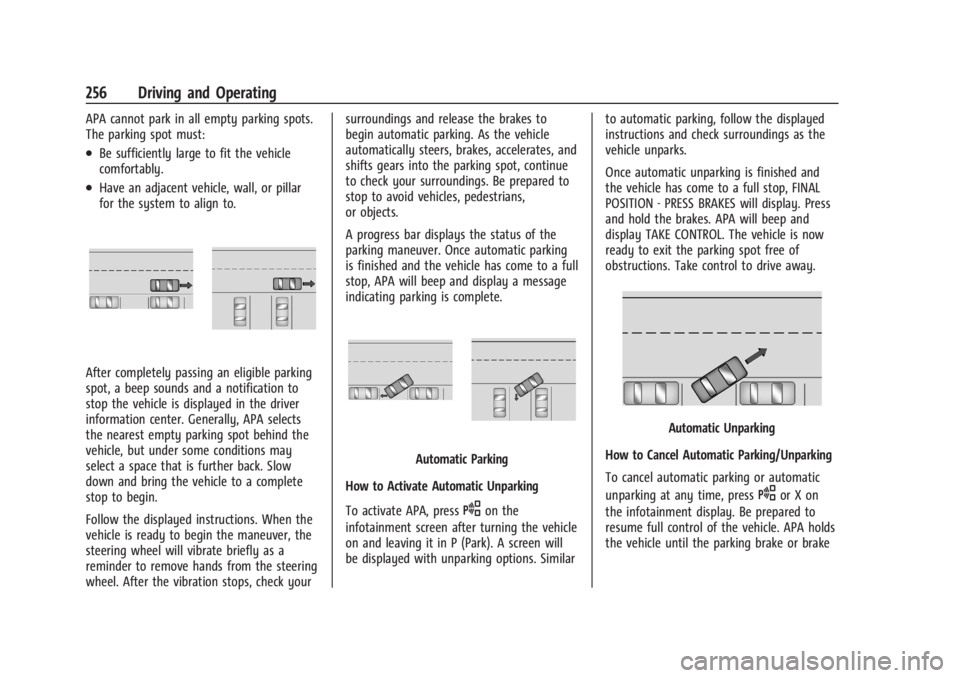
The parking spot must:
.Be sufficiently large to fit the vehicle
comfortably.
.Have an adjacent vehicle, wall, or pillar
for the system to align to.
After completely passing an eligible parking
spot, a beep sounds and a notification to
stop the vehicle is displayed in the driver
information center. Generally, APA selects
the nearest empty parking spot behind the
vehicle, but under some conditions may
select a space that is further back. Slow
down and bring the vehicle to a complete
stop to begin.
Follow the displayed instructions. When the
vehicle is ready to begin the maneuver, the
steering wheel will vibrate briefly as a
reminder to remove hands from the steering
wheel. After the vibration stops, check yoursurroundings and release the brakes to
begin automatic parking. As the vehicle
automatically steers, brakes, accelerates, and
shifts gears into the parking spot, continue
to check your surroundings. Be prepared to
stop to avoid vehicles, pedestrians,
or objects.
A progress bar displays the status of the
parking maneuver. Once automatic parking
is finished and the vehicle has come to a full
stop, APA will beep and display a message
indicating parking is complete.
Automatic Parking
How to Activate Automatic Unparking
To activate APA, press
Oon the
infotainment screen after turning the vehicle
on and leaving it in P (Park). A screen will
be displayed with unparking options. Similar to automatic parking, follow the displayed
instructions and check surroundings as the
vehicle unparks.
Once automatic unparking is finished and
the vehicle has come to a full stop, FINAL
POSITION - PRESS BRAKES will display. Press
and hold the brakes. APA will beep and
display TAKE CONTROL. The vehicle is now
ready to exit the parking spot free of
obstructions. Take control to drive away.
Automatic Unparking
How to Cancel Automatic Parking/Unparking
To cancel automatic parking or automatic
unparking at any time, press
Oor X on
the infotainment display. Be prepared to
resume full control of the vehicle. APA holds
the vehicle until the parking brake or brake
Page 258 of 429
Chevrolet Silverado EV Owner Manual (GMNA-Localizing-U.S./Canada-
16702912) - 2024 - CRC - 1/17/23
Driving and Operating 257
is applied, or the vehicle is shifted into
P (Park). To start driving away, press the
brakes and shift into D (Drive).
Certain vehicle conditions and driver
interferences may also cancel automatic
parking:
.The driver manually steers the vehicle.
.The maximum allowed speed is exceeded.
.There is a failure with the APA system.
.Electronic stability control or antilock
brakes are activated.
.The parking brake is applied.
.Driver unbuckles the seat belt and opens
the door.
System Limitations
Automatic Parking Assist has certain
limitations. The system cannot:
.Continue to operate if the maneuver
speed exceeds 5 km/h (3 mph).
.Detect whether a parking space is legal or
restricted.
.Detect pavement markings or lines.
.Park the vehicle closely lined up with the
vehicle next to it, particularly if the spot
is approached at an angle or if the
parking space is angled.
.Park exactly centered in a very large spot.
.Always detect short curbs.
.Operate while towing any trailer.
.Function the vehicle is raised or lowered
by air suspension,if equipped.
When the System Does Not Seem to Work
Properly
If the vehicle does not reverse into the
expected parking space, the system could be
maneuvering the vehicle into a previously
detected space.
Remote Auto Parking
If equipped, the vehicle can complete the
automatic parking maneuvers while the
driver authorizes the maneuver via the
myChevrolet app on a compatible mobile
phone outside of the vehicle. The driver can
also activate an automatic parallel or
perpendicular unparking maneuver via the
myChevrolet app. The driver must always be
prepared to cancel the automatic maneuver
if necessary.
Remote Auto Parking works the same way
and has the same limitations as the
standard APA feature described above. The
main difference is that you must instead
exit the vehicle and use the
myChevrolet app.
{Warning
When using the remote parking feature,
stay within a short distance and visually
monitor the vehicle until parking is
complete. Do not leave the vehicle
unsupervised during remote parking.
How to Activate Remote Auto Parking
To activate Remote Auto Parking, press
O
on the infotainment screen for the system
to begin searching for a parking space while
driving forward at no greater than
30 km/h (18 mph). APA searches for parking
spaces to the left or right of the vehicle up
to the sensors’ ranges of 1.5 m (5 ft). To
choose or change the parking mode or side,
make a selection in the infotainment
display.
After completely passing an eligible parking
spot, a beep sounds and a notification to
stop the vehicle is displayed in the driver
information center. Generally, Remote Auto
Parking selects the nearest empty parking
spot behind the vehicle, but under some
conditions may select a space that is further
back. Slow down and bring the vehicle to a
complete stop to begin.
Page 259 of 429
Chevrolet Silverado EV Owner Manual (GMNA-Localizing-U.S./Canada-
16702912) - 2024 - CRC - 1/17/23
258 Driving and Operating
Follow the instructions in the vehicle’s
infotainment display. Select the option to
supervise the maneuver remotely. When
prompted, check all your belongings and
exit the vehicle. Press and hold the
authorization button on the myChevrolet
app to allow the maneuver to complete. As
the vehicle automatically steers, brakes,
accelerates, and shifts gears into the parking
spot, stay in close proximity of the vehicle,
and check surroundings. Be prepared to
release the authorization button, or cancel
the maneuver, to avoid vehicles, pedestrians,
or objects.
Once automatic parking is finished and the
vehicle has come to a full stop, a message
will be displayed indicating parking is
complete.
How to Activate Remote Unparking
To activate the unparking maneuver
remotely, launch Remote Auto Parking from
the myChevrolet app. A screen will be
displayed for unparking options. Similar to
automatic parking, follow the displayed
instructions, press and hold the
authorization button, check surroundings as
the vehicle unparks.Once automatic unparking is finished and
the vehicle has come to a full stop, a
message will be displayed indicating
unparking is complete. The vehicle is now
positioned such that the path to exit the
parking spot is free of obstructions. Enter
the vehicle to start driving away.
How to Cancel Remote Automatic Parking or
Automatic Unparking
To cancel automatic parking or automatic
unparking at any time, press the cancel
button on the myChevrolet app. Remote
Auto Parking applies the parking brake and
shifts into P (Park) to hold the vehicle.
Reverse Automatic Braking (RAB)
Backing Warning and Reverse Automatic
Braking (RAB)
Vehicles with Adaptive Cruise Control (ACC)
have the Backing Warning System and
Reverse Automatic Braking (RAB) system.
When in R (Reverse), Backing Warning alerts
of rear objects at vehicle speeds greater
than 8 km/h (5 mph), and RAB may
automatically brake hard at speeds between
1-32 km/h (0.5-20 mph).
The Backing Warning System will beep once
from the rear when an object is first
detected, or pulse twice on both sides of the
Safety Alert Seat. When the system detects
a potential crash, beeps will be heard from
the rear, or five pulses will be felt on both
sides of the Safety Alert Seat. There may
also be a brief, sharp application of the
brakes.
{Warning
The Backing Warning System only
operates at speeds greater than 8 km/h
(5 mph). It does not detect children,
pedestrians, bicyclists, animals, or objects
below the bumper or that are too close
or too far from the vehicle. In some
situations, such as at higher backing
speeds, there may not be enough time
for the short, sharp application of the
vehicle brake system to occur. To prevent
injury, death, or vehicle damage, even
with the Backing Warning System, always
check the area around the vehicle and
check all mirrors before backing.
Page 260 of 429
Chevrolet Silverado EV Owner Manual (GMNA-Localizing-U.S./Canada-
16702912) - 2024 - CRC - 1/17/23
Driving and Operating 259
When the vehicle is in R (Reverse), if the
system detects the vehicle is backing too
fast to avoid a crash with a detected object
behind your vehicle in your path, it may
automatically brake hard to a stop to help
avoid or reduce the harm caused by a
backing crash.
{Warning
RAB may not avoid many types of
backing crashes. Do not wait for the
automatic braking to apply. This system
is not designed to replace driver braking
and only works in R (Reverse) when an
object is detected directly behind the
vehicle. It may not brake or stop in time
to avoid a crash. It will not brake for
objects when the vehicle is moving at
very low speeds. It does not detect
children, pedestrians, bicyclists, animals,
or objects below the bumper or that are
too close or too far from the vehicle. To
prevent injury, death, or vehicle damage,
even with RAB, always check the area
around the vehicle before and while
backing.Pressing the brake pedal after the vehicle
comes to a stop will release RAB. If the
brake pedal is not pressed soon after the
stop, the Electric Parking Brake (EPB) may be
set. When it is safe, press the accelerator
pedal firmly at any time to override RAB.
{Warning
There may be instances where
unexpected or undesired automatic
braking occurs. If this happens, either
press the brake pedal or firmly press the
accelerator pedal to release the brakes
from the RAB system. Before releasing
the brakes, check the RVC and check the
area around the vehicle to make sure it is
safe to proceed.
Unexpected braking events are possible with
a static installed accessory, such as a bike
rack or hitch-mounted cargo carrier.
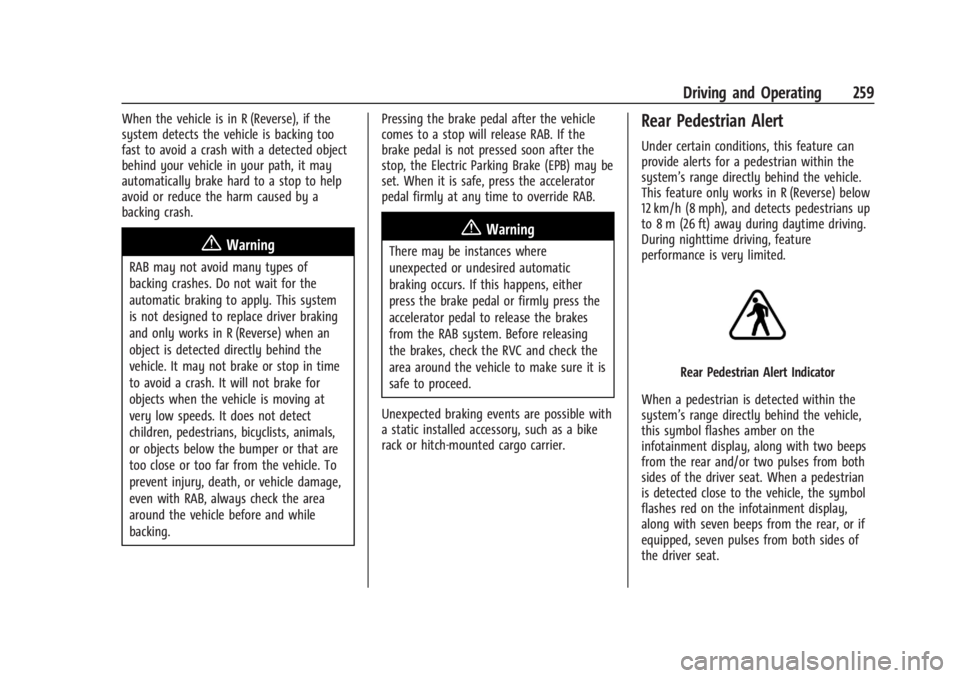
Rear Pedestrian Alert
Under certain conditions, this feature can
provide alerts for a pedestrian within the
system’s range directly behind the vehicle.
This feature only works in R (Reverse) below
12 km/h (8 mph), and detects pedestrians up
to 8 m (26 ft) away during daytime driving.
During nighttime driving, feature
performance is very limited.
Rear Pedestrian Alert Indicator
When a pedestrian is detected within the
system’s range directly behind the vehicle,
this symbol flashes amber on the
infotainment display, along with two beeps
from the rear and/or two pulses from both
sides of the driver seat. When a pedestrian
is detected close to the vehicle, the symbol
flashes red on the infotainment display,
along with seven beeps from the rear, or if
equipped, seven pulses from both sides of
the driver seat.
Page 261 of 429
Chevrolet Silverado EV Owner Manual (GMNA-Localizing-U.S./Canada-
16702912) - 2024 - CRC - 1/17/23
260 Driving and Operating
{Warning
Rear Pedestrian Alert does not
automatically brake the vehicle. It also
does not provide an alert unless it
detects a pedestrian, and it may not
detect all pedestrians if:
.The pedestrian is not directly behind
the vehicle, fully visible to the Rear
Vision Camera (RVC), or standing
upright.
.The pedestrian is part of a group.
.The pedestrian is a child.
.Visibility is poor, including nighttime
conditions, fog, rain, or snow.
.The RVC is blocked by dirt, snow,
or ice.
.The RVC, taillamps, or back-up lamps
are not cleaned or in proper working
condition.
.The vehicle is not in R (Reverse).
To help avoid death or injury, always
check for pedestrians around the vehicle
before backing up. Be ready to take (Continued)
Warning (Continued)
action and apply the brakes. See
Defensive Driving0183. Keep the RVC,
taillamps, and back-up lamps clean and in
good repair.
Rear Pedestrian Alert can be set to Off or
Alert. To view available settings from the
infotainment screen, touch Settings >
Vehicle > Collision/Detection Systems.
Alerts can be set to beeps or seat pulses. To
view available settings from the
infotainment screen, touch Settings >
Vehicle > Collision/Detection Systems.
Rear Cross Traffic Alert (RCTA)
System
If equipped, Rear Cross Traffic Alert (RCTA)
displays a red warning triangle with a left
or right pointing arrow on the infotainment
display to warn of traffic coming from the
left or right. This system detects objects
coming from up to 20 m (65 ft) from the left
or right side of the vehicle. When an object
is detected, either three beeps sound from
the left or right, or three Safety Alert Seat pulses occur on the left or right side,
depending on the direction of the detected
vehicle.
Use caution while backing up when towing
a trailer, as the RCTA detection zones that
extend out from the back of the vehicle do
not move farther back when a trailer is
attached to the vehicle.
Rear Cross Traffic Braking (RCTB)
If equipped, RCTB displays a red warning
triangle with a left or right pointing arrow
on the infotainment screen to warn of
traffic coming from the left or right. The
system detects objects coming from up to
20 m (65 ft) from the left or right side of
the vehicle. When an object is detected,
three beeps sounds from the left or right,
depending on the direction of the detected
vehicle. RCTB will bring the vehicle to a full
stop if a collision is imminent.
Driving With a Trailer
Use caution while backing up when towing
a trailer. RCTA and RCTB are automatically
disabled when a trailer is attached to the
vehicle.