infotainment CHEVROLET SILVERADO EV 2024 Manual PDF
[x] Cancel search | Manufacturer: CHEVROLET, Model Year: 2024, Model line: SILVERADO EV, Model: CHEVROLET SILVERADO EV 2024Pages: 429, PDF Size: 8.98 MB
Page 217 of 429
Chevrolet Silverado EV Owner Manual (GMNA-Localizing-U.S./Canada-
16702912) - 2024 - CRC - 1/17/23
216 Driving and Operating
In Auto mode, you can adjust the set speed
with an offset above or below the identified
speed limit using the steering wheel
controls. See "Turning Speed Limiter On and
Off" later in this section.
{Warning
In Auto mode, Speed Limiter may not
prompt for set speed changes when
encountering conditional speed limit
signs, for example time frames or when
construction workers are present. To
avoid a crash, personal injury, or death,
always pay attention to posted signs and
follow applicable traffic laws.
Manual Speed Limiter
Speed Limiter can also be used in Manual
mode. In Manual mode, all changes to the
set speed are controlled by the driver.
Selecting the Speed Limiter Mode
To enable Speed Limiter, select a Speed
Limiter mode. From the infotainment
home screen touch Controls > Drive
(Drive & Park) > Speed Limiter. The
following options are available:
.Off
.Manual
.Auto
When a Speed Limiter mode is selected,
s
will be lit white in the instrument cluster.
Setting Speed Limiter
Press the thumbwheel down to −SET to
activate Speed Limiter and use the current
vehicle speed as the set speed. When Speed
Limiter is active,
swill be lit green in the
instrument cluster.
Increasing the Set Speed
While Speed Limiter is active, move the
thumbwheel up to +RES to increase the set
speed (Manual mode), or to increase the
offset from the area speed limit
(Auto mode).
.Briefly move the thumbwheel up to +RES
and release it. For each press, the set
speed increases by 1 km/h (1 mph).
.Press and hold the thumbwheel up to
+RES to increase the set speed by 5 km/h
(5 mph). Release the thumbwheel when
the desired set speed is displayed in the
instrument cluster.
When using Speed Limiter in Auto mode,
there is a predefined maximum allowed
value of offset beyond which the set speed
cannot be increased. Decreasing the Set Speed
While Speed Limiter is active, move the
thumbwheel down to
−SET to decrease the
set speed (Manual mode), or to decrease the
offset from the area speed limit
(Auto mode).
.Briefly move the thumbwheel down to
−SET and release it. For each press, the
set speed decreases by 1 km/h (1 mph).
.Press and hold the thumbwheel down to
−SET to decrease the set speed by 5 km/h
(5 mph). Release the thumbwheel when
the desired set speed is displayed in the
instrument cluster.
When using Speed Limiter in Auto mode,
there is a predefined minimum allowed
value of offset beyond which the set speed
cannot be decreased.
Accept or Decline Automatic Set Speed
Changes (Auto)
When Speed Limiter is in Auto mode, is
active, and a new speed limit sign is
detected, it will propose a new set speed
based on the detected speed limit sign. The
proposed new set speed will be displayed as
a message in the instrument cluster.
Page 218 of 429
Chevrolet Silverado EV Owner Manual (GMNA-Localizing-U.S./Canada-
16702912) - 2024 - CRC - 1/17/23
Driving and Operating 217
.To accept the new set speed, briefly
move the thumbwheel down to−SET and
release it.
.To decline the new set speed, briefly
move the thumbwheel up to +RES and
release it.
If you do not accept or decline the new
proposed set speed, there is no change to
the set speed.
Conditions Affecting Automatic Speed
Limiter (Auto)
.There are changes in brightness, such as
entering and exiting tunnels, bridges, and
overpasses.
.There are low sun angles.
.Ambient lighting is poor in the evening or
early morning.
.There are multiple changes in brightness
or there are shadows along the roadway.
.There are conditions associated with low
visibility such as fog, rain, snow, or road
spray.
.The on-board camera’s view of the road is
blocked by leaves, snow, or other debris.
If Automatic Speed Limiter becomes
temporarily unavailable, change to
Manual mode. Resuming Speed Limiter
If Speed Limiter was active but then
*was
pressed, Speed Limiter can be resumed using
the previous set speed. Briefly move the
thumbwheel up to +RES and release it to
activate Speed Limiter using the previous set
speed.
If Speed Limiter was turned off because
cruise control, ACC, or Super Cruise was
turned on, to use Speed Limiter again:
1. Turn off cruise control, ACC, or Super Cruise.
2. On the infotainment home screen, touch Controls > Drive (Drive & Park) > Speed
Limiter.
3. Select Manual or Auto.
Overriding Speed Limiter
When Speed Limiter is active, the set speed
can be temporarily overridden only when
you fully apply the accelerator pedal. You
can control vehicle acceleration again when
the vehicle speed is below the set speed.
Turning Off Speed Limiter
To turn off Speed Limiter, from the
infotainment home screen, touch Controls >
Drive (Drive & Park) > Speed Limiter > Off.
Adaptive Cruise Control
(Advanced)
If equipped, Adaptive Cruise Control (ACC)
allows the cruise control set speed and
following gap to be selected. Read this
entire section before using this system. The
following gap is the following time (or
distance) between your vehicle and a vehicle
detected directly ahead in your path,
moving in the same direction. If no vehicle
is detected in your path, ACC works like
regular cruise control. ACC uses a camera
and radar sensor(s) to detect other vehicles.
See Radio Frequency Statement 0404.
If a vehicle is detected in your path, ACC can
apply acceleration or limited, moderate
braking to maintain the selected following
gap. To disengage ACC, apply the brake
pedal or press
*. If ACC is controlling the
vehicle speed when the Traction Control
System (TCS) or StabiliTrak/Electronic
Stability Control (ESC) system activates, ACC
may disengage. See Traction Control/
Electronic Stability Control 0207. When road
conditions allow ACC to be safely used, ACC
can be turned back on.
Page 224 of 429
Chevrolet Silverado EV Owner Manual (GMNA-Localizing-U.S./Canada-
16702912) - 2024 - CRC - 1/17/23
Driving and Operating 223
Courtesy Gap
You can temporarily increase the follow
distance gap between your vehicle and the
vehicle ahead of you to allow more space
for merging traffic.
.When your vehicle is moving, press and
hold
[on the steering wheel to
temporarily increase the gap distance.
When you release
[, ACC may
accelerate to resume the ACC set speed
while maintaining the normal gap
distance setting.
.When your vehicle is stopped, press and
hold
[to prevent ACC from
automatically resuming the set speed,
which can allow for merging traffic to
merge between your vehicle and the
vehicle ahead of you. When you are
ready to resume ACC, briefly press and
release the thumbwheel up to +RES,
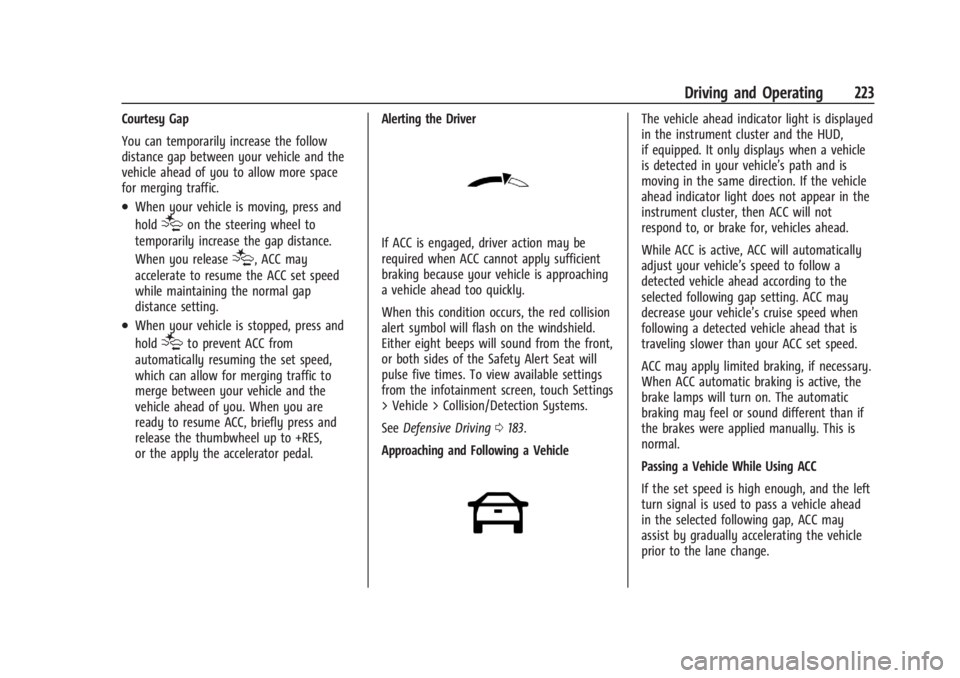
or the apply the accelerator pedal. Alerting the Driver
If ACC is engaged, driver action may be
required when ACC cannot apply sufficient
braking because your vehicle is approaching
a vehicle ahead too quickly.
When this condition occurs, the red collision
alert symbol will flash on the windshield.
Either eight beeps will sound from the front,
or both sides of the Safety Alert Seat will
pulse five times. To view available settings
from the infotainment screen, touch Settings
> Vehicle > Collision/Detection Systems.
See
Defensive Driving 0183.
Approaching and Following a Vehicle
The vehicle ahead indicator light is displayed
in the instrument cluster and the HUD,
if equipped. It only displays when a vehicle
is detected in your vehicle’s path and is
moving in the same direction. If the vehicle
ahead indicator light does not appear in the
instrument cluster, then ACC will not
respond to, or brake for, vehicles ahead.
While ACC is active, ACC will automatically
adjust your vehicle’s speed to follow a
detected vehicle ahead according to the
selected following gap setting. ACC may
decrease your vehicle’s cruise speed when
following a detected vehicle ahead that is
traveling slower than your ACC set speed.
ACC may apply limited braking, if necessary.
When ACC automatic braking is active, the
brake lamps will turn on. The automatic
braking may feel or sound different than if
the brakes were applied manually. This is
normal.
Passing a Vehicle While Using ACC
If the set speed is high enough, and the left
turn signal is used to pass a vehicle ahead
in the selected following gap, ACC may
assist by gradually accelerating the vehicle
prior to the lane change.
Page 225 of 429
Chevrolet Silverado EV Owner Manual (GMNA-Localizing-U.S./Canada-
16702912) - 2024 - CRC - 1/17/23
224 Driving and Operating
{Warning
When using ACC to pass a vehicle or
perform a lane change, the following
distance to the vehicle being passed may
be reduced. ACC may not apply sufficient
acceleration or braking when passing a
vehicle or performing a lane change.
Always be ready to manually accelerate
or brake to complete the pass or lane
change.
Stationary or Very Slow-Moving Objects
{Warning
ACC may not detect and react to stopped
or slow-moving vehicles ahead of you. For
example, the system may not brake for a
vehicle it has never detected moving. This
can occur in stop-and-go traffic or when a
vehicle suddenly appears due to a vehicle
ahead changing lanes. Your vehicle may
not stop and could cause a crash. Use
caution when using ACC. Your complete
attention is always required while driving
and you should be ready to take action
and apply the brakes. Irregular Objects Affecting ACC
ACC may have difficulty detecting the
following objects:
.Vehicles with cargo extending from the
back end.
.Non-standard shaped vehicles, such as
vehicle transport, vehicles with a side car
fitted, or horse carriages.
.Objects that are close to the front of your
vehicle.
ACC Automatically Disengages
ACC may automatically disengage and the
driver will need to manually apply the
brakes to slow the vehicle if:
.The sensors are blocked.
.The Traction Control System (TCS) or
StabiliTrak/ESC system has activated or
has been disabled.
.If equipped with Air Suspension, the
vehicle ride height is outside normal
operating range. See Air Suspension0211.
.There is a fault in the system.
.The radar falsely reports a blockage when
driving in a remote area with no other
vehicles or roadside objects.
A DIC message may display to indicate that
ACC is temporarily unavailable. The ACC indicator light will turn white when
ACC is disengaged.
In some cases, when ACC is temporarily
unavailable, regular cruise control may be
used. See
“Switching Between ACC and
Regular Cruise Control” previously in this
section. Always consider driving conditions
before using either cruise control mode.
Notification to Resume ACC
ACC will maintain a follow distance gap
behind a detected vehicle, and will slow
down your vehicle to a stop behind that
vehicle.
If the stopped vehicle ahead has driven
away and ACC has not resumed, the vehicle
ahead indicator will flash as a reminder to
check traffic ahead before proceeding. In
addition, the left and right sides of the
Safety Alert Seat will pulse three times,
or three beeps will sound. To view available
settings from the infotainment screen, touch
Settings > Vehicle > Collision/Detection
Systems > Alert Type > Adaptive Cruise Go
Notifier.
If equipped with Driver Attention System
(DAS) located on top of the steering column,
when the vehicle ahead drives away, and
the DAS determines that the driver's
Page 233 of 429
Chevrolet Silverado EV Owner Manual (GMNA-Localizing-U.S./Canada-
16702912) - 2024 - CRC - 1/17/23
232 Driving and Operating
Super Cruise Lane Change
Super Cruise can steer to perform a single
lane change under certain conditions when
requested by the driver or initiated by the
Super Cruise System.
On Demand Lane Changes
To request a lane change:1. Verify the lane next to your vehicle is clear and conditions are safe to make a
lane change.
2. Use the turn signal lever to activate the turn signal in the direction of the desired
lane change.
3. Return the turn signal lever to the neutral position after the lane change.
See Turn and Lane-Change Signals 0143.
4. To cancel a lane change, return the turn signal lever to the neutral position, move
the lever in the opposite direction of the
lane change, or steer manually at
any time. Automatic Lane Changes
If equipped, the Super Cruise System may
initiate a single lane change when enabled
through vehicle settings under following
conditions:
.The Super Cruise System may initiate a
lane change to the left to pass a slower
moving vehicle ahead and a subsequent
lane change to right to return to your
original lane.
.The Super Cruise System may initiate an
automatic lane change to left or right
when the current lane is ending ahead.
.To cancel a Super Cruise automatic lane
change, move the turn signal lever or
steer manually at any time.
.Super Cruise may initiate an automatic
lane change to left or right when a
slower moving vehicle is detected in the
adjacent ending lane to provide space for
merging vehicle.
If Super Cruise detects that traffic is clear,
Super Cruise will steer the vehicle to
perform the lane change. A message appears
on the Driver Information Center (DIC)
during the lane change to provide more
information on the status of the lane
change.
Super Cruise Lane Change functionality is
only available on Super Cruise capable
Divided Roads.
Super Cruise Lane Change functionality is
not available when a construction zone is
detected.
Super Cruise Lane Change may be disabled
when a trailer or other accessories (e.g. bike
rack, cargo tray, etc.) are detected. Do not
use Super Cruise Lane Change when towing
a trailer.
The Super Cruise Lane Change feature can
be customized to be Off, On Demand Lane
Change, or On Demand Lane Change &
Automatic Lane Change through the vehicle
personalization menu. To view available
settings from the infotainment screen, touch
Settings > Vehicle > Super Cruise Lane
Change.
Page 234 of 429
Chevrolet Silverado EV Owner Manual (GMNA-Localizing-U.S./Canada-
16702912) - 2024 - CRC - 1/17/23
Driving and Operating 233
{Warning
Super Cruise Lane Change may not detect
a vehicle in an adjacent lane. Always
supervise the driving task and monitor
traffic conditions when using the Super
Cruise Lane Change feature. Only request
a lane change when traffic conditions are
safe for a lane change, and always be
ready to manually steer the vehicle. See
“Steering Manually and Changing Lanes”
listed previously in this section.
Super Cruise Navigation Route Follow Using
In-Vehicle Google Maps
If equipped, when an active route is selected
using in-vehicle Google Maps, on Super
Cruise-enabled roads when Super Cruise is
active, Super Cruise may take the following
actions to follow the route:
.Initiate an automatic lane change to left
or right.
.Select the direction of travel at a lane
split.
.Maintain the current lane of travel when
following a slower moving vehicle. The driver must always remain prepared to
take control of the vehicle to follow the
route. In some scenarios Super Cruise may
not perform the required lane change.
Super Cruise will not perform the required
lane change if Automatic Lane Change is
unavailable or disabled.
Take Over Alert
{Warning
Super Cruise will not maintain the
vehicle’s speed while the steering wheel
light bar is flashing red. If the steering
wheel light bar flashes red, immediately
resume manual steering to prevent
serious injury or death. If you do not
resume manual steering, the vehicle will
begin to slow in the same lane and
eventually come to a complete stop on
the road.
Any time the steering wheel light bar
flashes red, resume manual steering
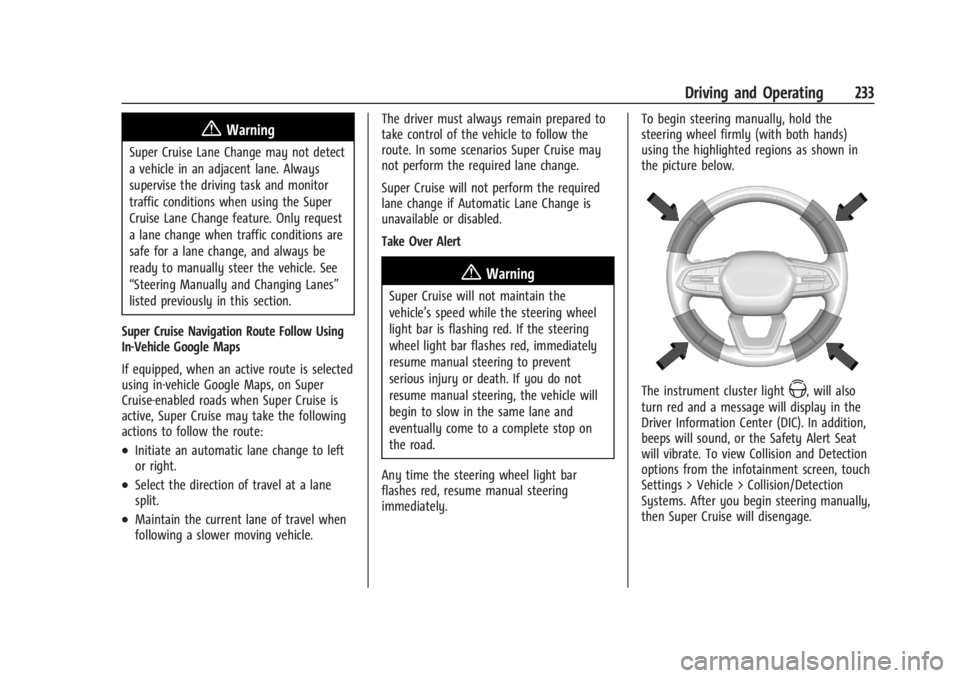
immediately. To begin steering manually, hold the
steering wheel firmly (with both hands)
using the highlighted regions as shown in
the picture below.
The instrument cluster lightZ, will also
turn red and a message will display in the
Driver Information Center (DIC). In addition,
beeps will sound, or the Safety Alert Seat
will vibrate. To view Collision and Detection
options from the infotainment screen, touch
Settings > Vehicle > Collision/Detection
Systems. After you begin steering manually,
then Super Cruise will disengage.
Page 237 of 429
Chevrolet Silverado EV Owner Manual (GMNA-Localizing-U.S./Canada-
16702912) - 2024 - CRC - 1/17/23
236 Driving and Operating
First Alert
.If the steering wheel light bar flashes green, the system has detected that your head and eyes may not
be directed toward the road.
.The flashing will stop when the system detects that your head and eyes appear to be directed toward
the road.
Second Alert
.If the steering wheel light bar flashes green for too long, Super Cruise will alert the driver to take
control of steering immediately by flashing the light bar red. Also, either beeps will sound or the Safety
Alert Seat will vibrate. To view available settings from the infotainment screen, touch Settings > Vehicle,
then touch “Alert Type” or“Collision/Detection Systems.”
.Take over steering, then Super Cruise may disengage or the steering wheel light bar will flash blue to
indicate the need for a driver override. Do not take hands off the steering wheel until the steering
wheel light bar is green.
.To re-engage Super Cruise after disengagement, pressZ. See “Using Super Cruise” previously in this
section.
Third Alert
.If the steering wheel light bar flashes red for too long, a voice command will tell you to take control of
the vehicle.
.Take control of the steering immediately; ACC and Super Cruise will disengage.
.A DIC message will indicate that Super Cruise is locked out. Super Cruise cannot be re-engaged until the
next time you start the vehicle.
.Continued failure to take over steering will cause the vehicle to brake to a stop and OnStar will be
called. The brake lamps and hazard warning flashers will come on.
.Take control of the vehicle and continue driving.
Page 246 of 429
Chevrolet Silverado EV Owner Manual (GMNA-Localizing-U.S./Canada-
16702912) - 2024 - CRC - 1/17/23
Driving and Operating 245
Warning (Continued)
Under many conditions, these systems
will not:
.Detect children, pedestrians, bicyclists,
or animals.
.Detect vehicles or objects outside the
area monitored by the system.
.Work at all driving speeds.
.Warn you or provide you with enough
time to avoid a crash.
.Work under poor visibility or bad
weather conditions.
.Work if the detection sensor is not
cleaned or is covered by ice, snow,
mud, or dirt.
.Work if the detection sensor is
covered up, such as with a sticker,
magnet, or metal plate.
.Work if the area surrounding the
detection sensor is damaged or not
properly repaired.
Complete attention is always required
while driving, and you should be ready to
take action and apply the brakes and/or
steer the vehicle to avoid crashes. Audible or Safety Alert Seat
Some driver assistance features alert the
driver of obstacles by beeping. To view
available settings from the infotainment
screen, touch Settings > Vehicle > Comfort
and Convenience.
If equipped with the Safety Alert Seat, the
driver seat cushion may provide a vibrating
pulse alert instead of beeping. To view
available settings from the infotainment
screen, touch Settings > Vehicle >
Collision/Detection Systems.
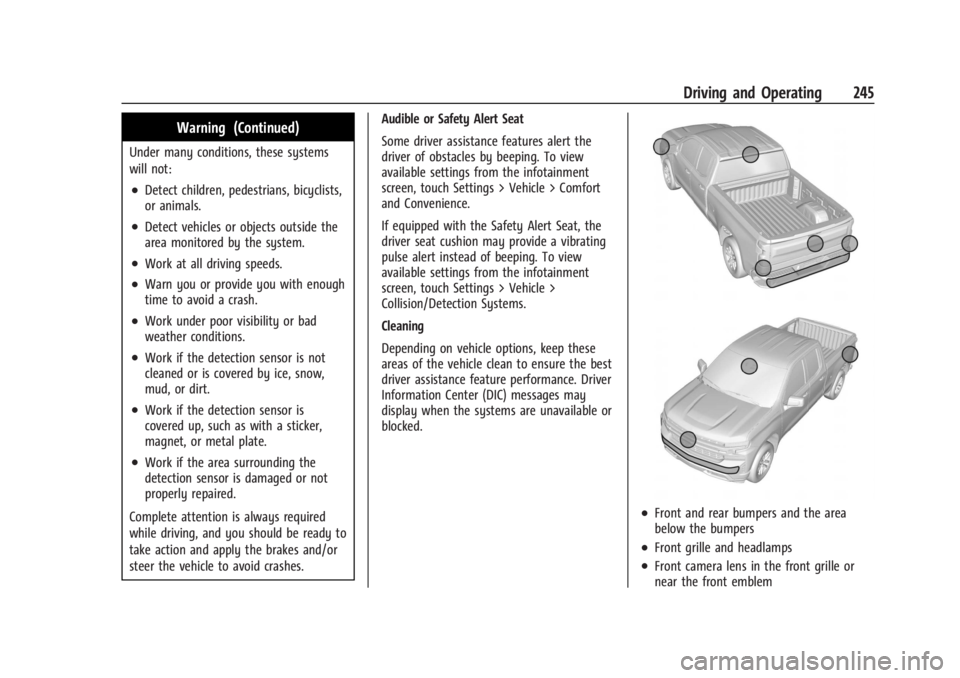
Cleaning
Depending on vehicle options, keep these
areas of the vehicle clean to ensure the best
driver assistance feature performance. Driver
Information Center (DIC) messages may
display when the systems are unavailable or
blocked.
.Front and rear bumpers and the area
below the bumpers
.Front grille and headlamps
.Front camera lens in the front grille or
near the front emblem
Page 247 of 429
Chevrolet Silverado EV Owner Manual (GMNA-Localizing-U.S./Canada-
16702912) - 2024 - CRC - 1/17/23
246 Driving and Operating
.Front side and rear side panels
.Outside of the windshield in front of the
rearview mirror
.Side camera lens on the bottom of the
outside mirrors
.Rear side corner bumpers
.Rear Vision Camera in the tailgate handle
.Rear Camera Mirror and Cargo View
Camera in the Center High-Mounted
Stoplamp
Radio Frequency
This vehicle may be equipped with driver
assistance systems that operate using radio
frequency. See Radio Frequency Statement
0 404.
Assistance Systems for Parking or
Backing
The Rear Vision Camera (RVC), Surround
Vision, Rear Park Assist (RPA), Front and Rear
Park Assist (FRPA), and Rear Cross Traffic
Alert (RCTA) may help the driver park or
avoid objects. Always check around the
vehicle when parking or backing.
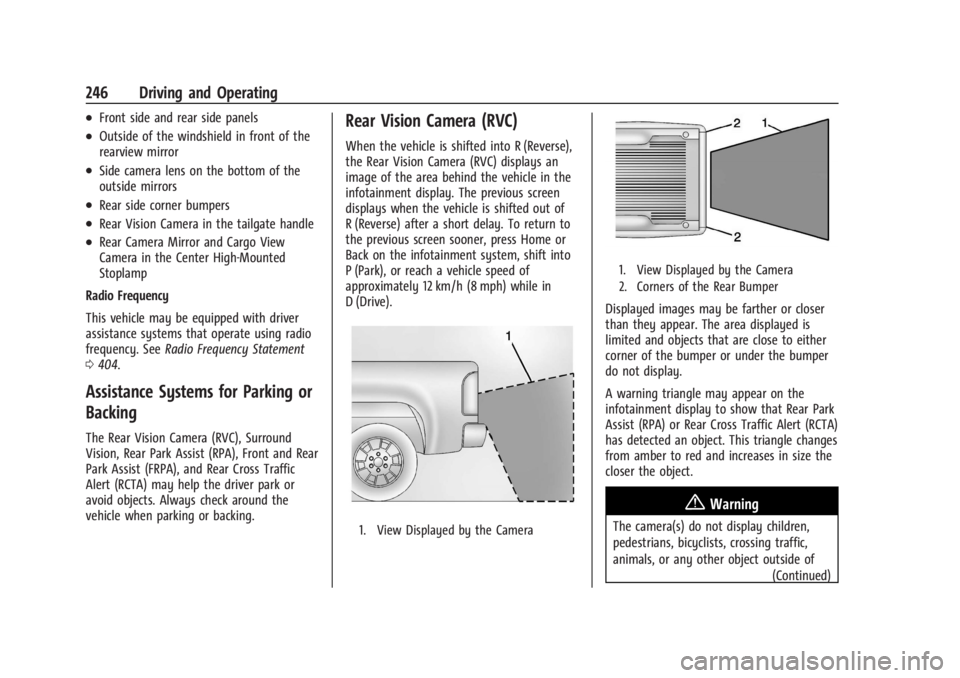
Rear Vision Camera (RVC)
When the vehicle is shifted into R (Reverse),
the Rear Vision Camera (RVC) displays an
image of the area behind the vehicle in the
infotainment display. The previous screen
displays when the vehicle is shifted out of
R (Reverse) after a short delay. To return to
the previous screen sooner, press Home or
Back on the infotainment system, shift into
P (Park), or reach a vehicle speed of
approximately 12 km/h (8 mph) while in
D (Drive).
1. View Displayed by the Camera
1. View Displayed by the Camera
2. Corners of the Rear Bumper
Displayed images may be farther or closer
than they appear. The area displayed is
limited and objects that are close to either
corner of the bumper or under the bumper
do not display.
A warning triangle may appear on the
infotainment display to show that Rear Park
Assist (RPA) or Rear Cross Traffic Alert (RCTA)
has detected an object. This triangle changes
from amber to red and increases in size the
closer the object.
{Warning
The camera(s) do not display children,
pedestrians, bicyclists, crossing traffic,
animals, or any other object outside of
(Continued)
Page 248 of 429
Chevrolet Silverado EV Owner Manual (GMNA-Localizing-U.S./Canada-
16702912) - 2024 - CRC - 1/17/23
Driving and Operating 247
Warning (Continued)
the cameras’field of view, below the
bumper, or under the vehicle. Shown
distances may be different from actual
distances. Do not drive or park the
vehicle using only these camera(s).
Always check behind and around the
vehicle before driving. Failure to use
proper care may result in injury, death,
or vehicle damage.
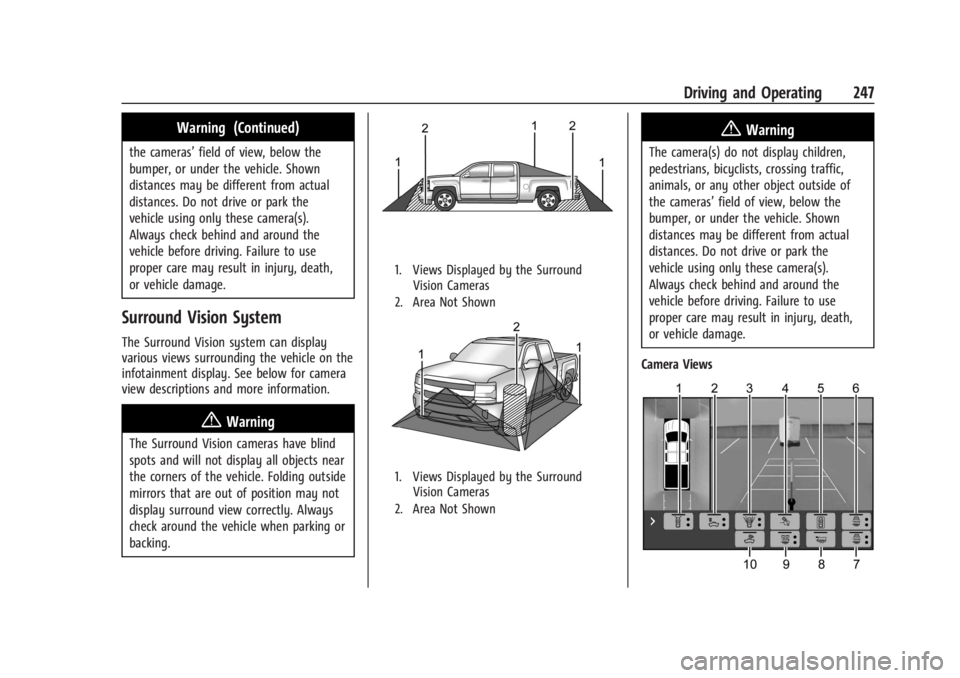
Surround Vision System
The Surround Vision system can display
various views surrounding the vehicle on the
infotainment display. See below for camera
view descriptions and more information.
{Warning
The Surround Vision cameras have blind
spots and will not display all objects near
the corners of the vehicle. Folding outside
mirrors that are out of position may not
display surround view correctly. Always
check around the vehicle when parking or
backing.
1. Views Displayed by the Surround Vision Cameras
2. Area Not Shown
1. Views Displayed by the Surround Vision Cameras
2. Area Not Shown
{Warning
The camera(s) do not display children,
pedestrians, bicyclists, crossing traffic,
animals, or any other object outside of
the cameras’ field of view, below the
bumper, or under the vehicle. Shown
distances may be different from actual
distances. Do not drive or park the
vehicle using only these camera(s).
Always check behind and around the
vehicle before driving. Failure to use
proper care may result in injury, death,
or vehicle damage.
Camera Views