reset CHEVROLET SILVERADO EV 2024 User Guide
[x] Cancel search | Manufacturer: CHEVROLET, Model Year: 2024, Model line: SILVERADO EV, Model: CHEVROLET SILVERADO EV 2024Pages: 429, PDF Size: 8.98 MB
Page 132 of 429

Chevrolet Silverado EV Owner Manual (GMNA-Localizing-U.S./Canada-
16702912) - 2024 - CRC - 1/13/23
Instruments and Controls 131
DIC Information Displays
The following is the list of all possible DIC
information displays and their locations.
Some of the information displays may not
be available for your particular vehicle.
Left Zone
Trip 1 or Trip 2 and Average Efficiency :The
Trip display shows the current distance
traveled, in either kilometers (km) or
miles (mi), since the trip odometer was last
reset. To reset the current trip, touch and
hold the touchscreen display when trip
odometer is displayed on the vehicle status
screen.
The Average Efficiency shows the
approximate average kWh per
100 kilometers (kWh/100 km), kilometers
per kilowatt hour kWh (km/kWh), or miles
per kilowatt hour kWh(mi/kWh). This
number is calculated based on the number
of kWh/100 km, km/kWh, or mi/kWh
recorded since the last time this menu item
was reset. This number only reflects the
approximate average electrical energy
economy that the vehicle has at that
moment, and changes as driving conditions
change. Current Trip :
Displays distance driven,
average efficiency, and time elapsed since
vehicle startup. It resets when you turn your
vehicle off.
Time/Date : Displays current date and time
information.
Tire Pressure : Shows the approximate
pressures of all four tires. Tire pressure is
displayed in either kilopascal (kPa) or in
pounds per square inch (psi). If the pressure
is low, the value for that tire is shown in
amber. See Tire Pressure Monitor System
0 351 and
Tire Pressure Monitor Operation 0351.
If equipped, Tire Temperature is located
below the tire pressure graphic. Tire
Temperature shows overall temperature as
either Cold, Cool, Normal, Warm, or Hot.
Normal is typical for normal driving while
Warm is typical for spirited driving.
Unknown displays when tire temperature
information is unavailable.
Trailer Brake : On vehicles with the
Integrated Trailer Brake Control (ITBC)
system, the trailer brake display appears in
the DIC. TRAILER GAIN shows the trailer gain setting.
This setting can be adjusted from 0.0 to 10.0
with either a trailer connected or
disconnected.
TRAILER OUTPUT shows the power output to
the trailer any time a trailer with electric
brakes is connected. Output is displayed as a
bar graph. Dotted lines may appear in the
OUTPUT display if a trailer is not connected.
Trailer Tire Pressure :
If equipped, shows the
approximate pressures of all trailer tires. Tire
pressure is displayed in either
kilopascal (kPa) or in pounds per square
inch (psi). If the pressure is low, the value
for that tire is shown in amber. See
Trailering App 0310.
Trailer Tire Temperature is located below the
tire pressure. Trailer Tire Temperature shows
each trailer tire temperature in either
degrees Celsius (°C) or degrees Fahrenheit
(°F).
Energy Usage : Shows energy usage of the
Driving, Remote Start, Climate and
Conditioning vehicle systems as percentages
of overall vehicle energy use.
Energy Efficiency : Shows a graph showing
the energy efficiency that has been used by
the vehicle over a recently driven distance.
Page 133 of 429
Chevrolet Silverado EV Owner Manual (GMNA-Localizing-U.S./Canada-
16702912) - 2024 - CRC - 1/13/23
132 Instruments and Controls
Off :Allows for no information to be
displayed in the cluster info display areas.
Right Zone
Auto Lane Change : Displays the status of a
driver-requested lane change when Super
Cruise is active. See Super Cruise0227.
Audio Now Playing : Displays the actively
playing audio.
Navigation : Displays a variety of navigation
information.
Phone : Displays a variety of call
information.
Off : Allows for no information to be
displayed in the cluster info display areas.
Vehicle Status
The following are all possible vehicle status
features.
To access the vehicle status menu touch
A
from the list of home page icons displayed
on the left side of the infotainment display.
Vehicle status content is shown on cards
that are grouped together in option tabs
that are displayed on the infotainment
display. Touching a card on the infotainment display
opens up a dialog box for that card. To
select a desired option within a dialog box,
touch the option and follow any message or
alerts that may display. Some options may
be unavailable while driving.
Touch Add to Driver Display to send the
desired card to the Driver Information
Center (DIC) on the instrument cluster.
Touch Remove from Driver Display to
remove the selected card from the
instrument cluster. See
Driver Information
Center (DIC) (Base Level) 0129 or
Driver Information Center (DIC) (Uplevel)
0 130.
Options
The following is the list of all possible cards
and their locations. Some of the cards may
not be available for your particular vehicle.
Overview
Displays an interactive 3-D rendered image
of your vehicle that shows performance and
health information.
Tire Pressure
Displays the approximate pressures of all
four tires. Tire pressure is displayed in either
kilopascal (kPa) or in pounds per square inch (psi). If the pressure is low, the value
for that tire is shown in amber. See
Tire
Pressure Monitor System 0351 and
Tire Pressure Monitor Operation 0351.
If equipped, Tire Temperature is located
below the tire pressure graphic. Tire
Temperature shows overall temperature as
either Cold, Cool, Normal, Warm, or Hot.
Normal is typical for normal driving while
Warm is typical for spirited driving.
Unknown displays when tire temperature
information is unavailable.
When selected, the following options may
be chosen in the dialog: Relearn Tire
Pressure, Turn Off/On Leak Detection, Reset
Leak Detection, and Add to Driver Display.
When enabled, you will receive alerts when
a fast and/or slow tire leak is detected. The
Leak Detection speeds shown are either Tire
Leak or Fast Leak. When disabled, you will
still receive low tire pressure alerts.
However, you will stop receiving additional
alerts when a tire is leaking air.
Energy Info
Energy Usage : Displays how energy is
being used for the current drive since the
last time the vehicle was started.
Percentages of the Driving, Remote Climate,
and Climate and Prep vehicle systems as
Page 134 of 429

Chevrolet Silverado EV Owner Manual (GMNA-Localizing-U.S./Canada-
16702912) - 2024 - CRC - 1/13/23
Instruments and Controls 133
overall vehicle energy use are shown. When
selected, distance driven, total energy,
energy usage bar diagram, and selectable
categories are displayed. Select a category
to learn more about how your vehicle uses
energy from the battery.
When selected, Add to Driver Display may
be chosen in the dialog.
Energy Efficiency :Displays a graph showing
the energy efficiency that has been used by
the vehicle over a recently driven distance.
When selected, regenerated range, and
instant efficiency is shown along with
average efficiency in the dialog.
When selected, Add to Driver Display may
be chosen in the dialog.
Trip
Trip Information : Trip 1 or 2 displays the
current distance traveled, in either
kilometers (km) or miles (mi), since the trip
odometer was last reset.
If equipped, Average Efficiency shows the
approximate average kilometers per kilowatt
hour kWh (km/kWh) or miles per kilowatt
hour kWh (mi/kWh). This number is
calculated based on the number of km/kWh
or mi/kWh recorded since the last time this
menu item was reset. This number only reflects the approximate average electrical
energy economy that the vehicle has at that
moment, and changes as driving conditions
change.
To reset these values, touch reset on the
touchscreen display when the Trip
Information dialog is selected.
When selected, the following options may
be chosen in the dialog: Reset Trip 1, Reset
Trip 2, and Add to Driver Display.
Current Trip :
Displays distance driven,
average efficiency, and time elapsed since
vehicle startup. It resets when you turn your
vehicle off.
When selected, Add to Driver Display may
be chosen in the dialog.
Head-Up Display (HUD)
{Warning
If the HUD image is too bright or too
high in your field of view, it may take
you more time to see things you need to
see when it is dark outside. Be sure to
keep the HUD image dim and placed low
in your field of view. If equipped, some vehicle information can be
projected as an image on the windshield via
the HUD lens on top of the instrument
panel.
Caution
If you try to use the HUD image as a
parking aid, you may misjudge the
distance and damage your vehicle. Do not
use the HUD image as a parking aid.
HUD information can be displayed in various
languages. The speedometer reading and
other numerical values can be displayed in
either English or metric units.
The language selection is changed through
the radio, and the units of measurement are
changed through the infotainment display.
See Settings 0166.
Page 149 of 429
Chevrolet Silverado EV Owner Manual (GMNA-Localizing-U.S./Canada-
16702912) - 2024 - CRC - 1/13/23
148 Infotainment System
.Set up the audio by presetting favorite
stations, setting the tone, and adjusting
the speakers.
.Set up phone numbers in advance so they
can be called easily by pressing a single
control or by using a single voice
command.
See Distracted Driving 0182.
Overview
Infotainment System
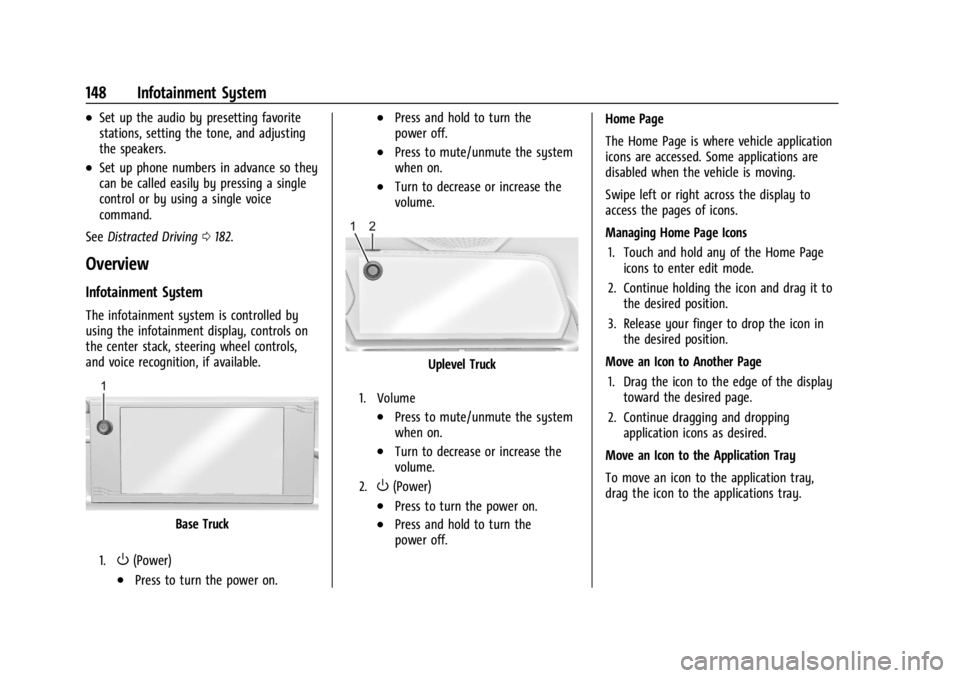
The infotainment system is controlled by
using the infotainment display, controls on
the center stack, steering wheel controls,
and voice recognition, if available.
Base Truck
1.O(Power)
.Press to turn the power on.
.Press and hold to turn the
power off.
.Press to mute/unmute the system
when on.
.Turn to decrease or increase the
volume.
Uplevel Truck
1. Volume
.Press to mute/unmute the system
when on.
.Turn to decrease or increase the
volume.
2.O(Power)
.Press to turn the power on.
.Press and hold to turn the
power off. Home Page
The Home Page is where vehicle application
icons are accessed. Some applications are
disabled when the vehicle is moving.
Swipe left or right across the display to
access the pages of icons.
Managing Home Page Icons
1. Touch and hold any of the Home Page icons to enter edit mode.
2. Continue holding the icon and drag it to the desired position.
3. Release your finger to drop the icon in the desired position.
Move an Icon to Another Page 1. Drag the icon to the edge of the display toward the desired page.
2. Continue dragging and dropping application icons as desired.
Move an Icon to the Application Tray
To move an icon to the application tray,
drag the icon to the applications tray.
Page 163 of 429

Chevrolet Silverado EV Owner Manual (GMNA-Localizing-U.S./Canada-
16702912) - 2024 - CRC - 1/13/23
162 Infotainment System
3. If no mobile device is connected, touchManage Phones and the Phones screen
will display.
If another mobile device is connected
already, touch Settings, Connections, and
then Phones.
4. Touch Add Phone. If a previously added phone is
disconnected, the “Add Phone”card will
just be a “+”card.
5. Follow the on-screen prompts to pair the cell phone.
6. Follow the instructions on the cell phone to confirm the six-digit code showing on
the infotainment display and touch Pair.
The code on the cell phone and
infotainment display needs to be
acknowledged for a successful pair.
7. Start the pairing process on the cell phone to be paired to the vehicle. See
the cell phone manufacturer's user guide
for information on this process. Once the
cell phone is paired, it will show as
Connected. 8. If the vehicle name does not appear on
your cell phone, there are a few ways to
start the pairing process over:
.Make sure there is not an entry for
the vehicle under the previously
connected list. If the vehicle and cell
phone were previously paired and
one still remembers the other, it will
not identify as a new device when
searching.
.Turn the Bluetooth off and on the
device.
.Go back to the beginning of the
Phone menus on the infotainment
display and restart the pairing
process.
.Turn the cell phone off and then
back on.
.Reset the cell phone, but this step
should be done as a last effort.
9. If the cell phone prompts to accept connection or allow phone book
download, touch Always Accept and
Allow. The phone book may not be
available if not accepted.
10. To pair additional cell phones, touch Settings, Connections, and then Phones. First to Connect Paired Phones
If multiple paired cell phones are within
range of the system, the system connects to
the paired cell phone that is set as First to
Connect. To enable a paired cell phone as
the First to Connect phone:
1. Make sure the cell phone is turned on.
2. Touch the Settings icon on the home page.
3. Touch Connections.
4. Touch Phone.
5. Touch Options under the connected phone.
6. Touch First to Connect from the cell phone’s settings menu. The settings will
be enabled for that device.
Cell phones and mobile devices can be
added, removed, connected, and
disconnected. A sub-menu will display
whenever a request is made to add or
manage cell phones and mobile devices.
Page 169 of 429
Chevrolet Silverado EV Owner Manual (GMNA-Localizing-U.S./Canada-
16702912) - 2024 - CRC - 1/13/23
168 Infotainment System
Privacy
The menu may contain the following:
Location Services
Touch to view the Location Services screen.
App permissions
Touch to view the Permission manager
screen.
GM Privacy Statement
Touch to view the GM Privacy Statement
screen.
Google legal
Touch to view the Google legal screen.
Storage
This menu shows the storage info on the
infotainment system.
Security
This menu allows adjustment of the
infotainment security settings.
System
The menu may contain the following:
Language
This will set the display language used on
the infotainment display.
Keyboard & speech
Touch to change keyboard and speech
settings.
Quick Startup
This allows your infotainment system to
quickly resume its last session.
While the vehicle is in park, press and hold
the mute/end call button on the steering
wheel for 15 seconds to reboot the
infotainment system.
Units
Touch to change units settings.
Reset Options
Touch to change reset settings.
About
Touch to view the infotainment system
software information.Legal Information
Touch to view legal and license information.
Updates
This menu allows adjustment of the vehicle
update settings.
Google
This menu allows adjustment of the Google
settings.
Teen Driver
If equipped, this allows multiple keys to be
registered for beginner drivers to encourage
safe driving habits. When the vehicle is
started with a Teen Driver key, it will
automatically activate certain safety
systems, allow setting of some features, and
limit the use of others. The Report Card will
record vehicle data about driving behavior
that can be viewed later. When the vehicle
is started with a Teen Driver key, the Driver
Information Center (DIC) displays a message
that Teen Driver is active.
To access:
1. Touch Settings on the Home Page, then touch Vehicle, and then Teen Driver.
Page 171 of 429
Chevrolet Silverado EV Owner Manual (GMNA-Localizing-U.S./Canada-
16702912) - 2024 - CRC - 1/13/23
170 Infotainment System
started with a Teen Driver key, the DIC
displays a message that the top speed is
limited.
On certain vehicles, when the Speed Limiter
is turned ON, the vehicle’s maximum
acceleration will be limited. The DIC will
display a message that the acceleration is
limited.
Teen Driver Speed Warning :Displays a
warning in the DIC when exceeding a
selectable speed. Turn the speed warning on
or off and choose the desired speed warning
level. The speed warning does not limit the
speed of the vehicle. On some infotainment
systems, touch Set Teen Driver Speed
Warning to set the warning speed.
Set Teen Driver Speed Warning : Choose the
desired speed warning level. The speed
warning does not limit the speed of the
vehicle.
SiriusXM Explicit Content Filter : Allows the
SiriusXM Explicit Content Filter to be turned
ON or OFF. When ON, the teen driver will
not be able to listen to SiriusXM stations
that contain explicit content, and the Explicit
Content Filter selection in the Audio Settings
will be unavailable for change. When Teen Driver is Active:
.If equipped, the radio will mute when the
driver seat belt, and in some vehicles the
front passenger seat belt, is not buckled.
The audio from any device paired to the
vehicle will also be muted.
.An object placed on the front passenger
seat, such as a briefcase, handbag,
grocery bag, laptop, or other electronic
device, could cause the passenger sensing
system to falsely sense an unbuckled
front passenger and mute the radio.
If this happens, remove the object from
the seat. See
Passenger Sensing System
0 65.
.Some safety systems, such as Automatic
Emergency Braking, if equipped, cannot
be turned off.
.The gap setting for Adaptive Cruise
Control and alert timing for Forward
Collision Alert, if equipped, cannot be
changed.
.When trying to change a safety feature
that is not configurable in Teen Driver,
the feature may be grayed out or
removed from the infotainment menu,
or the DIC will display a message
indicating that Teen Driver is active and
the action is not available.
.Super Cruise or Ultra Cruise, if equipped,
is not available.
.Do not tow a trailer if equipped with
Automatic Emergency Braking.
Report Card
The vehicle owner must secure the driver’s
consent to record certain vehicle data when
the vehicle is driven with a registered Teen
Driver key. There is one Report Card per
vehicle. Data is only recorded when a
registered Teen Driver key is used to
operate the vehicle.
The Report Card data is collected from the
time Teen Driver is activated or the last
time the Report Card was reset. The
following items may be recorded:
.Distance Driven –the total distance
driven.
.Maximum Speed –the maximum vehicle
speed detected.
.Overspeed Warnings –the number of
times the speed warning setting was
exceeded.
.Wide Open Throttle –the number of
times the accelerator pedal was pressed
nearly all the way down.
Page 172 of 429
Chevrolet Silverado EV Owner Manual (GMNA-Localizing-U.S./Canada-
16702912) - 2024 - CRC - 1/13/23
Infotainment System 171
.Forward Collision Alerts (if equipped)–
the number of times the driver was
notified when approaching a vehicle
ahead too quickly and at potential risk for
a crash.
.Forward Automatic Braking, also called
Automatic Emergency Braking (if
equipped) –the number of times the
vehicle detected that a forward collision
was imminent and applied the brakes.
.Reverse Automatic Braking (if equipped) –
the number of times the vehicle detected
that a rearward collision was imminent
and applied the brakes.
.Traction Control –the number of times
the Traction Control System activated to
reduce wheel spin or loss of traction.
.Stability Control –the number of events
which required the use of electronic
stability control.
.Antilock Braking System Active –The
number of Antilock Brake System
activations.
.Tailgating Alerts (if equipped) –the
number of times the driver was alerted
for following a vehicle ahead too closely. Report Card Data
Cumulative Data is saved for all trips until
the Report Card is reset or until the
maximum count is exceeded. If the
maximum count is exceeded for a Report
Card line item, that item will no longer be
updated in the Report Card until it is reset.
Each item will report a maximum of
1,000 counts. The distance driven will report
a maximum of 64,374 km (40,000 mi).
To delete Report Card data, do one of the
following:
.From the Report Card display, touch
Reset.
.Touch Clear PIN and All Teen Driver Keys
from the Teen Driver menu. This will also
unregister any Teen Driver keys and
delete the PIN.
Forgotten PIN
See your dealer to reset the PIN.
Trademarks and License
Agreements
FCC Information
See Radio Frequency Statement 0404.
"Made for iPhone," means that an electronic
accessory has been designed to connect
specifically to iPhone, and has been certified
by the developer to meet Apple
performance standards. Apple is not
responsible for the operation of this device
or its compliance with safety and regulatory
standards. Please note that the use of this
accessory with iPhone may affect wireless
performance. iPhone are trademarks of
Apple Inc., registered in the U.S. and other
countries.
Page 176 of 429
Chevrolet Silverado EV Owner Manual (GMNA-Localizing-U.S./Canada-
16702912) - 2024 - CRC - 1/13/23
Climate Controls 175
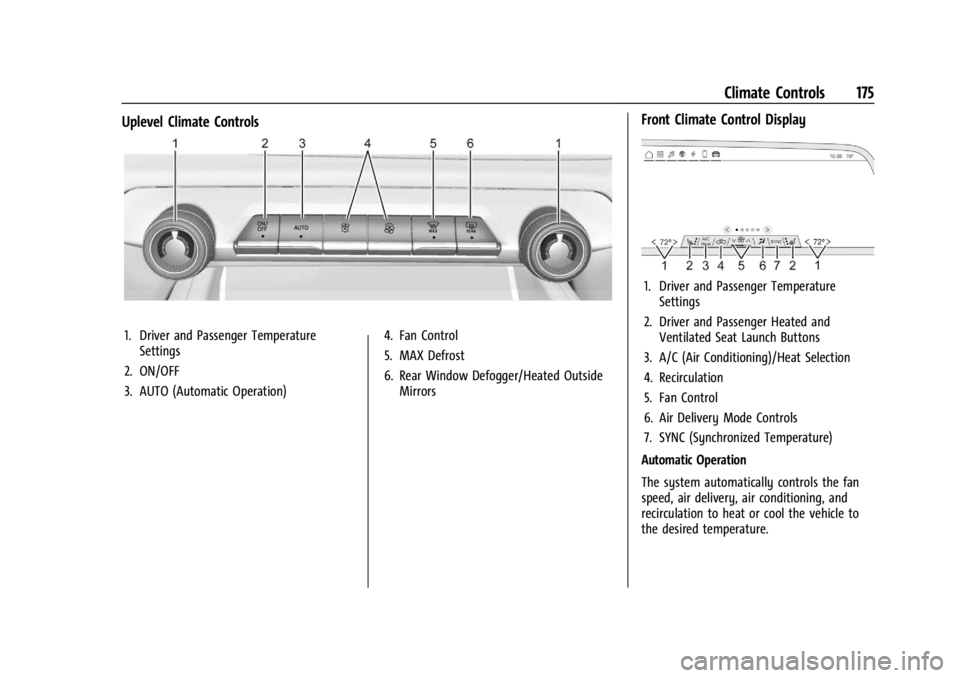
Uplevel Climate Controls
1. Driver and Passenger TemperatureSettings
2. ON/OFF
3. AUTO (Automatic Operation) 4. Fan Control
5. MAX Defrost
6. Rear Window Defogger/Heated Outside
Mirrors
Front Climate Control Display
1. Driver and Passenger TemperatureSettings
2. Driver and Passenger Heated and Ventilated Seat Launch Buttons
3. A/C (Air Conditioning)/Heat Selection
4. Recirculation
5. Fan Control
6. Air Delivery Mode Controls
7. SYNC (Synchronized Temperature)
Automatic Operation
The system automatically controls the fan
speed, air delivery, air conditioning, and
recirculation to heat or cool the vehicle to
the desired temperature.
Page 206 of 429
Chevrolet Silverado EV Owner Manual (GMNA-Localizing-U.S./Canada-
16702912) - 2024 - CRC - 1/17/23
Driving and Operating 205
Braking in Emergencies
ABS allows steering and braking at the same
time. In many emergencies, steering can
help even more than braking.
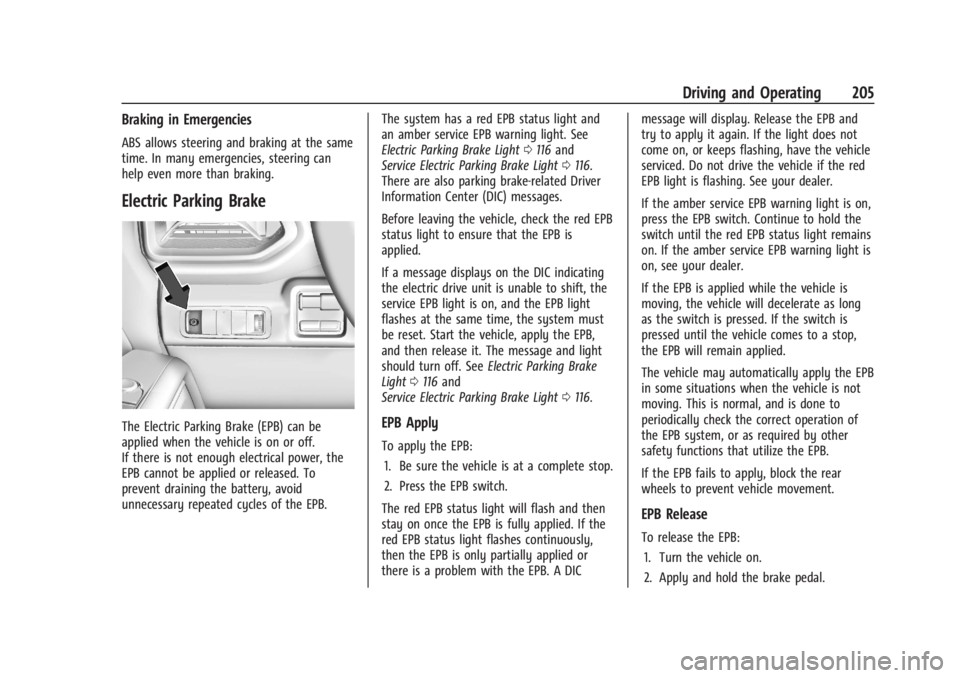
Electric Parking Brake
The Electric Parking Brake (EPB) can be
applied when the vehicle is on or off.
If there is not enough electrical power, the
EPB cannot be applied or released. To
prevent draining the battery, avoid
unnecessary repeated cycles of the EPB.The system has a red EPB status light and
an amber service EPB warning light. See
Electric Parking Brake Light
0116 and
Service Electric Parking Brake Light 0116.
There are also parking brake-related Driver
Information Center (DIC) messages.
Before leaving the vehicle, check the red EPB
status light to ensure that the EPB is
applied.
If a message displays on the DIC indicating
the electric drive unit is unable to shift, the
service EPB light is on, and the EPB light
flashes at the same time, the system must
be reset. Start the vehicle, apply the EPB,
and then release it. The message and light
should turn off. See Electric Parking Brake
Light 0116 and
Service Electric Parking Brake Light 0116.EPB Apply
To apply the EPB:
1. Be sure the vehicle is at a complete stop.
2. Press the EPB switch.
The red EPB status light will flash and then
stay on once the EPB is fully applied. If the
red EPB status light flashes continuously,
then the EPB is only partially applied or
there is a problem with the EPB. A DIC message will display. Release the EPB and
try to apply it again. If the light does not
come on, or keeps flashing, have the vehicle
serviced. Do not drive the vehicle if the red
EPB light is flashing. See your dealer.
If the amber service EPB warning light is on,
press the EPB switch. Continue to hold the
switch until the red EPB status light remains
on. If the amber service EPB warning light is
on, see your dealer.
If the EPB is applied while the vehicle is
moving, the vehicle will decelerate as long
as the switch is pressed. If the switch is
pressed until the vehicle comes to a stop,
the EPB will remain applied.
The vehicle may automatically apply the EPB
in some situations when the vehicle is not
moving. This is normal, and is done to
periodically check the correct operation of
the EPB system, or as required by other
safety functions that utilize the EPB.
If the EPB fails to apply, block the rear
wheels to prevent vehicle movement.
EPB Release
To release the EPB:
1. Turn the vehicle on.
2. Apply and hold the brake pedal.