reset CHEVROLET SILVERADO EV 2024 Owner's Manual
[x] Cancel search | Manufacturer: CHEVROLET, Model Year: 2024, Model line: SILVERADO EV, Model: CHEVROLET SILVERADO EV 2024Pages: 429, PDF Size: 8.98 MB
Page 211 of 429
Chevrolet Silverado EV Owner Manual (GMNA-Localizing-U.S./Canada-
16702912) - 2024 - CRC - 1/17/23
210 Driving and Operating
For more information on Tow/Haul mode,
seeTowing Equipment 0301.
Wide Open Watts : Use this mode for short
durations. It not intended for daily use.
Wide Open Watts provides maximum
propulsion. Engaging Wide Open Watts will
not change the currently active drive mode
but will provide additional propulsion torque
for maximum acceleration.
Wide Open Watts will not function when
the vehicle battery is low. Remaining in this
mode will reduce the range of the vehicle.
Wide Open Watts adjusts the acceleration
pedal map.
qMy Mode : Use this mode to
personalize everyday driving. This mode
allows the driver to configure the vehicle
subsystem settings to their driving
preferences. My mode remains active across
on/off cycles.
Through the infotainment display, the
following vehicle subsystems may be
available for customization in this mode:
Acceleration Pedal : Relaxed, Normal, Sport
Steering Effort : Low, Normal, High
Suspension : Soft, Normal, Firm Motor Sound :
Off, Refined, Engaging
For a more detailed description of each
selectable option, refer to “Drive Mode
Customization.”
Drive Mode Customization
The vehicle is equipped to modify the
following settings based on vehicle content.
Through the infotainment home screen,
select Settings > Vehicle > Drive Mode
Customization to personalize My mode.
These settings will be retained over each
on/off cycle, and do not have to be reset
each time the vehicle is started.
Acceleration Pedal : Choose how responsive
you want acceleration to feel. You can
adjust the accelerator pedal to provide
increased power.
Steering Effort : Choose how responsive you
want the steering to feel. You can set the
steering wheel to provide more feedback,
which requires more steering effort.
Suspension : Choose how responsive you
want the suspension to feel. You can make
the suspension stiffer or more comfortable. Motor Sound :
Customize how your vehicle
sounds when you are accelerating. Your
electric motor remains quiet outside but the
sound you hear inside changes as you drive
faster or slower.Four-Wheel Steering
This vehicle is equipped with four-wheel
steering. This feature steers the vehicle with
all four wheels, which reduces the vehicle
turn diameter and improves maneuverability
of the vehicle.
At slower speeds the front and rear wheels
will turn in opposite directions. This helps
the vehicle make tighter turns, such as
during parking, cornering and turning into
tight spaces. At higher speeds the front and
rear wheels will turn in the same direction.
This improves stability of the vehicle during
lane changes and wide turns
When the vehicle is shut-off, the rear
steering angle will automatically return to
the forward position.
Four-wheel steering is not operational when
Super Cruise is active. See Super Cruise
0 227.
Page 273 of 429
Chevrolet Silverado EV Owner Manual (GMNA-Localizing-U.S./Canada-
16702912) - 2024 - CRC - 1/17/23
272 Driving and Operating
Caution (Continued)
The system does not discern any signs
other than the conventional traffic signs
that might give or end a speed limit.
It may not detect some electronic speed
signs.
Depending on the weather conditions or
problems with traffic signs, a traffic sign
may not be recognized or a sign different
from the actual traffic sign may be
displayed.
Do not let this special feature tempt you
into taking risks when driving.
Always adapt vehicle speed to the road
conditions.
Driver assistance systems do not relieve
the driver from full responsibility for
vehicle operation.
Traffic signs that are detected are:
.Speed Limit
.Constraint Signs
Display Indication
The currently detected speed limit is
displayed in the DIC until the next speed
limit or end of speed limit sign is detected.
Depending on the vehicle, the current valid
speed limit is permanently displayed on the
DIC or in the upper left of the instrument
cluster.
A (–) symbol in a frame indicates there is a
sign detected which cannot be clearly
identified by the system.
A (/) symbol in a frame indicates that the
feature is turned off or has failed.
See Driver Information Center (DIC) (Base
Level) 0129 or
Driver Information Center (DIC) (Uplevel)
0 130.
Alert Function
If equipped, a chime may sound when you
have exceeded the indicated speed limit,
or if a new speed limit is detected.
The alert function can be turned on or off.
To view available settings from the
infotainment screen, touch Settings >
Vehicle > Collision/Detection Systems. Each time the vehicle is started, the
customization options will be turned on.
Exceeding Indicated Speed Limit
If the indicated traffic sign speed limit is
exceeded by 5 km/h (3 mph) or more, the
permanently displayed traffic sign symbol
will flash until the vehicle speed is reduced
to or below the indicated speed limit.
System Reset
The content of the traffic sign display can
be cleared. To view available settings from
the infotainment screen, touch Settings >
Vehicle > Collision/Detection Systems.
Upon successful reset, a
(–)symbol displays
until the next traffic sign is detected or
provided by the navigation system map
data. In some cases, traffic sign memory is
cleared automatically by the system.
Alert function will automatically be turned
on when the system is reset.
See Driver Information Center (DIC) (Base
Level) 0129 or
Driver Information Center (DIC) (Uplevel)
0 130.
Page 292 of 429
Chevrolet Silverado EV Owner Manual (GMNA-Localizing-U.S./Canada-
16702912) - 2024 - CRC - 1/17/23
Driving and Operating 291
Amber Blue RedReasonAction
On – – The charger is troubleshooting after
an error and requires a reboot. Try the following actions to restore the full
charging rate:
‐ Verify all components are connected properly.
Ensure the connectors are fully inserted into the
control box or the charge cord will not work
properly.
‐ Unplug and replug in the connector.
‐ If the charge cord is warm environment, try
charging in a cooler area.
‐ Try a different outlet or connector, if available.
If the error continues, contact your dealer.
– – Blinking There is a Ground Fault Circuit
Interruption (GFCI) fault. After 20 seconds, it will auto-reset. Try a different
connector, if available. If the error continues, contact
your dealer.
– – On There is a cordset internal fault. Immediately disconnect from the electrical outlet and
the vehicle. Contact your dealer for a replacement.
If the charge cord status indicator is not lit,
ensure the electrical outlet has power. Charge Cord Auto-Restart
Your charge cord set is equipped with the
auto-restart feature. When charging your
vehicle, if there is an error detected, the
auto-restart feature works to eliminate the
error and resume charging.If the error is caused by a Ground Fault
Circuit Interruption (GFCI) fault, the charger
attempts to restart after 20 seconds. After
the fourth attempt to restart, the charger
shuts down and the red indicator stays on.
Unplug and re-plug the charge cord to reset
Page 318 of 429
Chevrolet Silverado EV Owner Manual (GMNA-Localizing-U.S./Canada-
16702912) - 2024 - CRC - 1/17/23
Driving and Operating 317
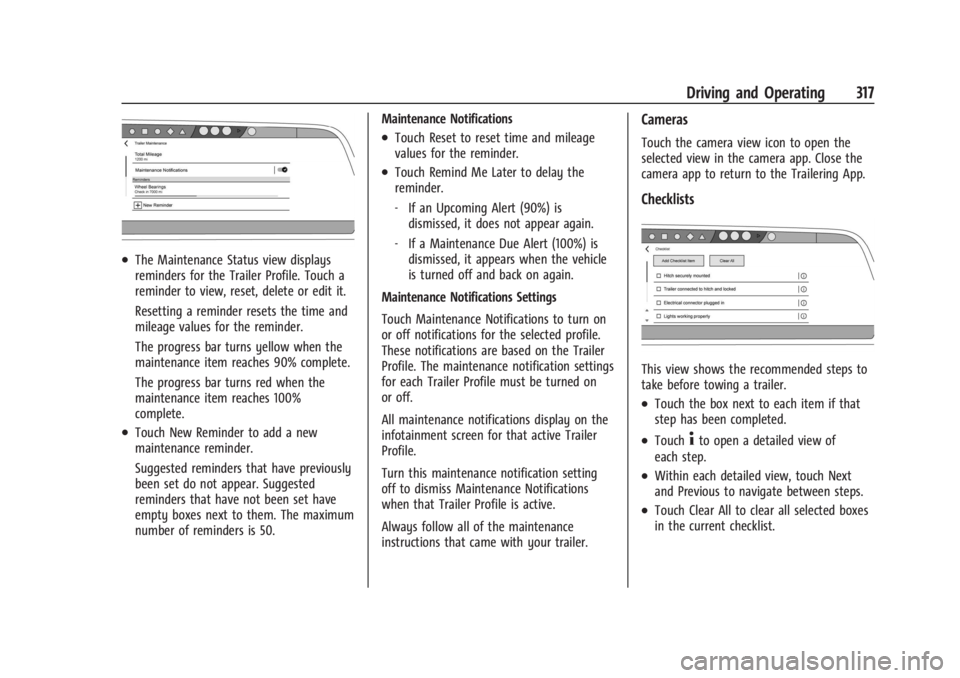
.The Maintenance Status view displays
reminders for the Trailer Profile. Touch a
reminder to view, reset, delete or edit it.
Resetting a reminder resets the time and
mileage values for the reminder.
The progress bar turns yellow when the
maintenance item reaches 90% complete.
The progress bar turns red when the
maintenance item reaches 100%
complete.
.Touch New Reminder to add a new
maintenance reminder.
Suggested reminders that have previously
been set do not appear. Suggested
reminders that have not been set have
empty boxes next to them. The maximum
number of reminders is 50.Maintenance Notifications
.Touch Reset to reset time and mileage
values for the reminder.
.Touch Remind Me Later to delay the
reminder.
‐
If an Upcoming Alert (90%) is
dismissed, it does not appear again.
‐ If a Maintenance Due Alert (100%) is
dismissed, it appears when the vehicle
is turned off and back on again.
Maintenance Notifications Settings
Touch Maintenance Notifications to turn on
or off notifications for the selected profile.
These notifications are based on the Trailer
Profile. The maintenance notification settings
for each Trailer Profile must be turned on
or off.
All maintenance notifications display on the
infotainment screen for that active Trailer
Profile.
Turn this maintenance notification setting
off to dismiss Maintenance Notifications
when that Trailer Profile is active.
Always follow all of the maintenance
instructions that came with your trailer.
Cameras
Touch the camera view icon to open the
selected view in the camera app. Close the
camera app to return to the Trailering App.
Checklists
This view shows the recommended steps to
take before towing a trailer.
.Touch the box next to each item if that
step has been completed.
.Touch4to open a detailed view of
each step.
.Within each detailed view, touch Next
and Previous to navigate between steps.
.Touch Clear All to clear all selected boxes
in the current checklist.
Page 319 of 429
Chevrolet Silverado EV Owner Manual (GMNA-Localizing-U.S./Canada-
16702912) - 2024 - CRC - 1/17/23
318 Driving and Operating
Custom Checklist Items
For each of the Trailer Profile checklists,
there is an option to create custom items to
view in the checklist. Custom checklist items
are displayed at the end of the default
checklist items.
Guest Trailer and No Trailer Connected
If a Guest Trailer Profile is active, or if no
trailer is connected, this view shows the
default checklist.
Weight
.Touch to turn on or off the GCW Alert.
.When on, an alert displays in the DIC
when the combined weight of the vehicle
and trailer exceed the vehicle's Gross
Combined Weight Raring (GCWR). For
more information on the Gross Combined
Weight (GCW) Alert, seeTrailer Towing
0 297.
Brakes
If equipped with Integrated Trailer Brake
Controller (ITBC) system and if the
connected trailer is equipped with electric
brakes or electric over hydraulic brakes, this
view displays the current state of the brakes
including brake gain setting and output.
If no electric brakes are detected or if no trailer is connected, this view displays the
last known brake gain setting and the
output shows dashed lines.
‐
Touch Add to Driver Display to show
trailer brake gain and output in the DIC.
‐ Touch How To Set Brake Gain to access
detailed steps to set trailer brake gain.
The Trailering App System shows any brake
issues reported by the trailer brake
controller in the Brakes view. Trailer
diagnosis and service may be required.
Repair your trailer brakes, if needed. Trailer
brake repairs are not covered by your GM
warranty.
See “Integrated Trailer Brake Control
System” section under Towing Equipment
0 301.
Guest Trailer Status View
If the Guest Trailer Profile is active, the
Status view shows:
.Lights
.Cameras
.Checklist
.Weight
.Brakes (if equipped) The Trailer Status view displays mileage
information. The mileage value resets when
the trailer is disconnected from the vehicle.
Accessory/No Trailer Status View
If the Accessory/No Trailer profile is active,
trailer status information is not available.
Trailers View
Touch the trailer profile icon in the Status
view to view, activate, create, edit, or delete
trailer profiles.
If a trailer is connected, touch the Trailer
Profile name to activate a Trailer Profile.
The Trailering App can save a maximum of
five trailer profiles
The Custom Trailer Profiles and Guest Trailer
are in order of the most frequently used.
The Accessory/No Trailer profile is shown
below the Custom Trailer Profiles and Guest
Trailer Profile.
Guest Trailer
If the Guest Trailer Profile is the active
Trailer Profile, trailer detection, lights/
connections status, theft, and the Tow/Haul
reminder alerts can be sent. The system
does not track total mileage, but the system
tracks trip mileage if the Guest Trailer
Page 320 of 429
Chevrolet Silverado EV Owner Manual (GMNA-Localizing-U.S./Canada-
16702912) - 2024 - CRC - 1/17/23
Driving and Operating 319
Profile is active. The Trailer Tire Pressure
Monitoring System or maintenance
reminders cannot be set up for a Guest
Trailer Profile. The Guest Trailer Profile
cannot be edited.
Accessory/No Trailer
If the Accessory/No Trailer Profile is active,
alerts are not sent and the system does not
track mileage. The Trailer Tire Pressure
Monitoring System or maintenance
reminders cannot be set up for the
Accessory/No Trailer Profile. The Accessory/
No Trailer profile cannot be edited.
No Trailer Connected
When there is no trailer connected, Trailer
Profiles cannot be activated but most
options can be edited.
Trailer Brake Gain Memory
The system can store the brake gain setting
of a Trailer Profile or a Guest Trailer Profile.
When a Trailer Profile or Guest Trailer Profile
is selected, and a brake gain setting is set
for that Trailer Profile, the system recalls the
stored brake gain value.If a Trailer Profile is already active and the
brake gain setting had been set for that
Trailer Profile, the system recalls the stored
brake gain value whenever the vehicle is
turned on.
If there was an error in setting the brake
gain for a Trailer Profile, there is a
notification. This pop-up does not appear if
the Guest Trailer Profile is active or if there
is no trailer connected.
Trailer brake gain should be set for a specific
trailering condition and must be adjusted
anytime vehicle loading, trailer loading,
or road surface conditions change.
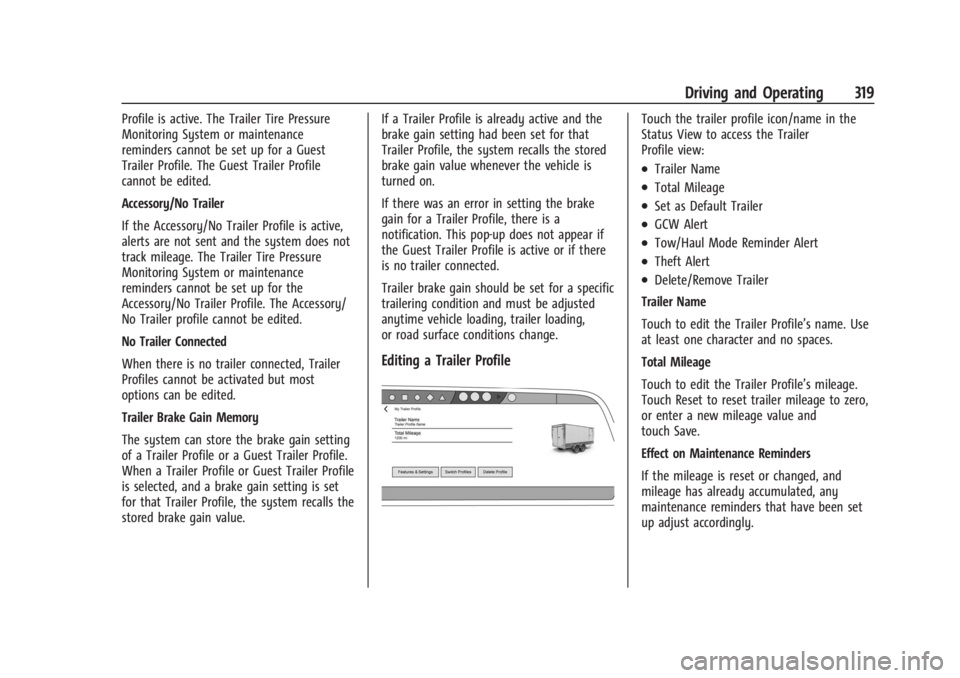
Editing a Trailer Profile
Touch the trailer profile icon/name in the
Status View to access the Trailer
Profile view:
.Trailer Name
.Total Mileage
.Set as Default Trailer
.GCW Alert
.Tow/Haul Mode Reminder Alert
.Theft Alert
.Delete/Remove Trailer
Trailer Name
Touch to edit the Trailer Profile’s name. Use
at least one character and no spaces.
Total Mileage
Touch to edit the Trailer Profile’s mileage.
Touch Reset to reset trailer mileage to zero,
or enter a new mileage value and
touch Save.
Effect on Maintenance Reminders
If the mileage is reset or changed, and
mileage has already accumulated, any
maintenance reminders that have been set
up adjust accordingly.
Page 336 of 429
Chevrolet Silverado EV Owner Manual (GMNA-Localizing-U.S./Canada-
16702912) - 2024 - CRC - 1/13/23
Vehicle Care 335
Headlamp Aiming
Front Headlamp Aiming
Headlamp aim has been preset and should
need no further adjustment.
If the vehicle is damaged in a crash, the
headlamp aim may be affected.
If adjustment to the headlamps is necessary,
see your dealer.
Bulb Replacement
LED Lighting
This vehicle has several LED lamps.
For replacement of any LED lighting
assembly, contact your dealer.
Electrical System
High Voltage Devices and Wiring
{Warning
Exposure to high voltage can cause shock,
burns, and even death. The high voltage
components in the vehicle can only be
serviced by technicians with special
training.
High voltage components are identified
by labels. Do not remove, open, take
apart, or modify these components. High
voltage cable or wiring has orange
covering or labels. Do not probe, tamper
with, cut, or modify high voltage cable or
wiring.
Electrical System Overload
The vehicle has fuses and circuit breakers to
protect against an electrical system
overload.
When the current electrical load is too
heavy, the circuit breaker opens and closes,
protecting the circuit until the current load
returns to normal or the problem is fixed.This greatly reduces the chance of circuit
overload and fire caused by electrical
problems.
Fuses and circuit breakers protect the wires
that provide the power to the devices in
your vehicle.
If there is a problem on the road and a fuse
needs to be replaced, the same amperage
fuse can be borrowed. Choose some feature
of the vehicle that is not needed to use and
replace it as soon as possible.
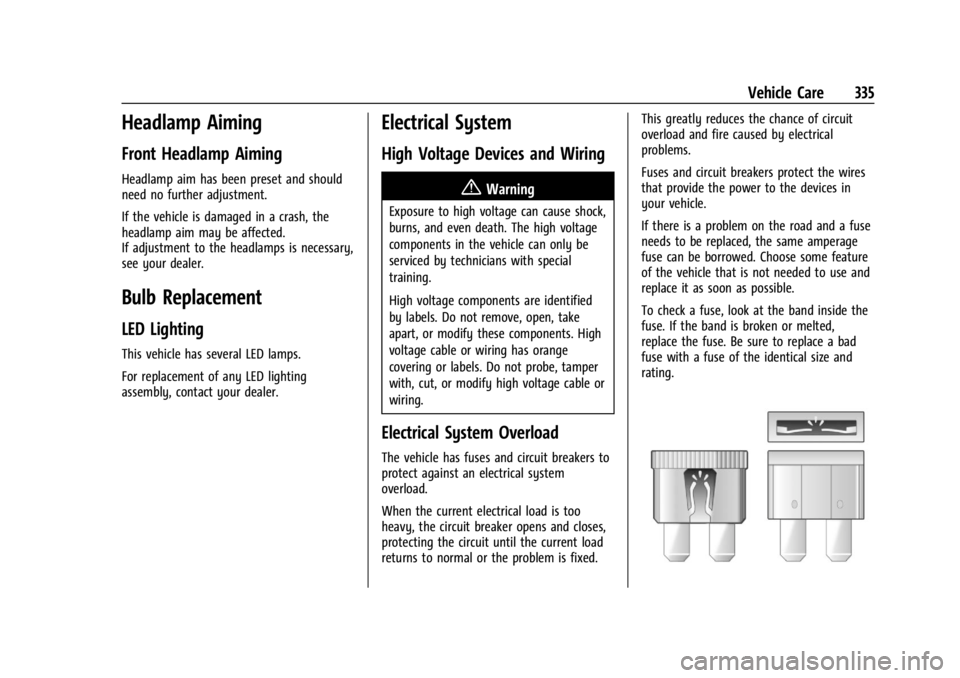
To check a fuse, look at the band inside the
fuse. If the band is broken or melted,
replace the fuse. Be sure to replace a bad
fuse with a fuse of the identical size and
rating.
Page 357 of 429
Chevrolet Silverado EV Owner Manual (GMNA-Localizing-U.S./Canada-
16702912) - 2024 - CRC - 1/13/23
356 Vehicle Care
.There is cord or fabric showing
through the tire's rubber.
.The tread or sidewall is cracked, cut,
or snagged deep enough to show
cord or fabric.
.The tire has a bump, bulge, or split.
.The tire has a puncture, cut, or other
damage that cannot be repaired well
because of the size or location of the
damage.
Tire Rotation
Tires should be rotated according to the
interval listed in the maintenance
schedule. SeeMaintenance Schedule
0 389.
Tires are rotated to achieve a more
uniform wear for all tires. The first
rotation is the most important.
Anytime unusual wear is noticed, rotate
the tires as soon as possible, check for
proper tire inflation pressure, and check
for damaged tires or wheels. If the
unusual wear continues after the
rotation, check the wheel alignment. See
When It Is Time for New Tires 0357
and
Wheel Replacement 0360.
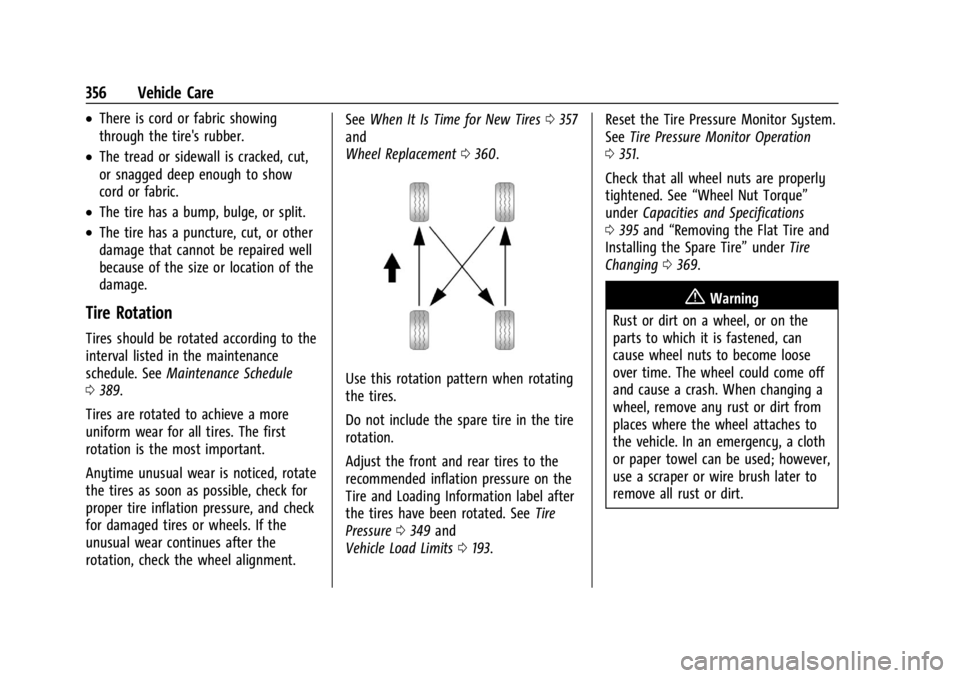
Use this rotation pattern when rotating
the tires.
Do not include the spare tire in the tire
rotation.
Adjust the front and rear tires to the
recommended inflation pressure on the
Tire and Loading Information label after
the tires have been rotated. See Tire
Pressure 0349 and
Vehicle Load Limits 0193. Reset the Tire Pressure Monitor System.
See
Tire Pressure Monitor Operation
0 351.
Check that all wheel nuts are properly
tightened. See “Wheel Nut Torque”
under Capacities and Specifications
0 395 and “Removing the Flat Tire and
Installing the Spare Tire” underTire
Changing 0369.
{Warning
Rust or dirt on a wheel, or on the
parts to which it is fastened, can
cause wheel nuts to become loose
over time. The wheel could come off
and cause a crash. When changing a
wheel, remove any rust or dirt from
places where the wheel attaches to
the vehicle. In an emergency, a cloth
or paper towel can be used; however,
use a scraper or wire brush later to
remove all rust or dirt.
Page 391 of 429
Chevrolet Silverado EV Owner Manual (GMNA-Localizing-U.S./Canada-
16702912) - 2024 - CRC - 1/13/23
390 Service and Maintenance
Owner Checks and Services
Every Five Years
.Replace brake fluid every five years. See
Brake Fluid0329.
Every Seven Years
.Replace Air Conditioning Desiccant every
seven years. The air conditioning system
requires maintenance every seven years.
This service requires replacement of the
desiccant to help the longevity and
efficient operation of the air conditioning
system. This service can be complex. See
your dealer.
Multi-Point Vehicle
Inspection (MPVI)
A Multi Point Vehicle Inspection (MPVI)
completed by a GM dealer technician is a
maintenance assessment of your vehicle.
The benefit of the MPVI is to identify and
inform the customer of service items that
require immediate attention and those that
may require attention in the future. The technician will perform the following
checks on your vehicle. For a complete list
of checks, inspections, and services, see your
dealer.
Some items may not apply to your vehicle
and/or region.
Diagnostics
.OnStar active, if equipped
.Service history/recall check
Exterior Lights
.Visual inspection
Windshield and Wipers
.Visual inspection
Battery
.Battery visual inspection
.Battery test results
.Battery cables and connections
Systems, Fluids, and Visible Leak
Inspection
.Electric Drive Unit
.Drive axle
.Transfer case
.Power electronics cooling system
.Windshield washer fluid
Tire Inspection
.Tire pressure, tread depth, and wear
.Rotation, if applicable
.Alignment check, optional
.Reset tire pressure monitor
.Check tire sealant expiration date,
if equipped
.Check spare tire, if equipped
Brakes
.Check brake system
Page 406 of 429
Chevrolet Silverado EV Owner Manual (GMNA-Localizing-U.S./Canada-
16702912) - 2024 - CRC - 1/13/23
Customer Information 405
and remedy campaign. However, NHTSA
cannot become involved in individual
problems between you, your dealer,
or General Motors.
To contact NHTSA, you may call the
Vehicle Safety Hotline toll-free at
1-888-327-4236 (TTY: 1-800-424-9153); go
to
https://www.safercar.gov;or write to:
Administrator, NHTSA
1200 New Jersey Avenue, S.E.
Washington, D.C. 20590
You can also obtain other information
about motor vehicle safety from
https://www.safercar.gov.
Reporting Safety Defects to the
Canadian Government
If you live in Canada, and you believe
that the vehicle has a safety defect,
notify Transport Canada immediately,
and notify General Motors of Canada
Company. Call Transport Canada at
1-800-333-0510; go to:
www.tc.gc.ca/recalls (English)
www.tc.gc.ca/rappels (French) or write to:
Transport Canada
Motor Vehicle Safety Directorate
Defect Investigations and Recalls
Division
80 Noel Street
Gatineau
,QC J8Z 0A1
Reporting Safety Defects to
General Motors
In addition to notifying NHTSA (or Transport
Canada) in a situation like this, notify
General Motors.
In the U.S., call 1-800-222-1020, or write:
Chevrolet Motor Division
Chevrolet Customer Assistance Center
P.O. Box 33170
Detroit, MI 48232-5170
In Canada, call 1-800-263-3777 (English) or
1-800-263-7854 (French), or write:
Customer Care Centre
General Motors of Canada Company
500 Wentworth Street W
Oshawa, ON L1J 0C5
In Mexico, call 800-466-0811 or
800-508-0000.In other Central America and Caribbean
Countries, call 52-555-901-2369.
Vehicle Data Recording and
Privacy
The vehicle has a number of computers that
record information about the vehicle’s
performance and how it is driven or used.
For example, the vehicle uses computer
modules to monitor and control electric
drive unit performance, to monitor the
conditions for airbag deployment and to
deploy them in a crash, and, if equipped, to
provide antilock braking to help the driver
control the vehicle. These modules may
store data to help the dealer technician
service the vehicle or to help GM improve
safety or features. Some modules may also
store data about how the vehicle is
operated, such as rate of energy
consumption or average speed. These
modules may retain personal preferences,
such as radio presets, seat positions, and
temperature settings.