steering CHEVROLET SILVERADO EV 2024 Repair Manual
[x] Cancel search | Manufacturer: CHEVROLET, Model Year: 2024, Model line: SILVERADO EV, Model: CHEVROLET SILVERADO EV 2024Pages: 429, PDF Size: 8.98 MB
Page 237 of 429
Chevrolet Silverado EV Owner Manual (GMNA-Localizing-U.S./Canada-
16702912) - 2024 - CRC - 1/17/23
236 Driving and Operating
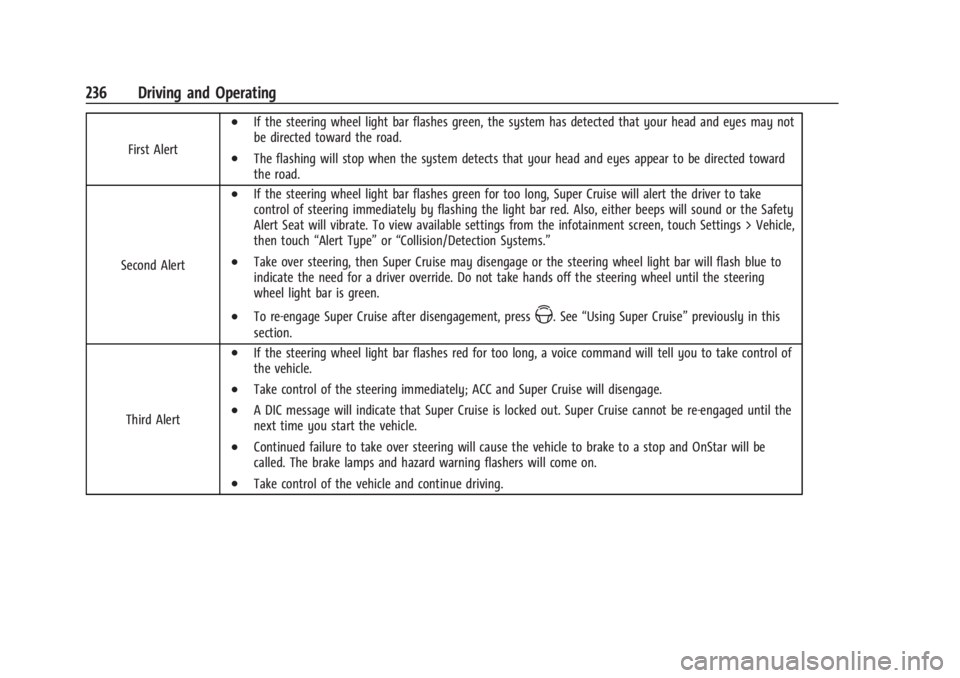
First Alert
.If the steering wheel light bar flashes green, the system has detected that your head and eyes may not
be directed toward the road.
.The flashing will stop when the system detects that your head and eyes appear to be directed toward
the road.
Second Alert
.If the steering wheel light bar flashes green for too long, Super Cruise will alert the driver to take
control of steering immediately by flashing the light bar red. Also, either beeps will sound or the Safety
Alert Seat will vibrate. To view available settings from the infotainment screen, touch Settings > Vehicle,
then touch “Alert Type” or“Collision/Detection Systems.”
.Take over steering, then Super Cruise may disengage or the steering wheel light bar will flash blue to
indicate the need for a driver override. Do not take hands off the steering wheel until the steering
wheel light bar is green.
.To re-engage Super Cruise after disengagement, pressZ. See “Using Super Cruise” previously in this
section.
Third Alert
.If the steering wheel light bar flashes red for too long, a voice command will tell you to take control of
the vehicle.
.Take control of the steering immediately; ACC and Super Cruise will disengage.
.A DIC message will indicate that Super Cruise is locked out. Super Cruise cannot be re-engaged until the
next time you start the vehicle.
.Continued failure to take over steering will cause the vehicle to brake to a stop and OnStar will be
called. The brake lamps and hazard warning flashers will come on.
.Take control of the vehicle and continue driving.
Page 238 of 429
Chevrolet Silverado EV Owner Manual (GMNA-Localizing-U.S./Canada-
16702912) - 2024 - CRC - 1/17/23
Driving and Operating 237
Stationary or Very Slow-Moving Objects;
Cross-Traffic
{Warning
Super Cruise is not a crash avoidance
system and will not steer or brake to
avoid a crash. Super Cruise does not steer
to prevent a crash with stopped or
slow-moving vehicles. You must supervise
the driving task and may need to steer
and brake to prevent a crash, especially
in stop-and-go traffic or when a vehicle
suddenly enters your lane. Always pay
attention when using Super Cruise.
Failure to do so could result in a crash
involving serious injury or death.
Curves in the Road
{Warning
The vehicle could drift out of your lane of
travel. To prevent crashes, always be
ready to manually steer. Super Cruise
may not detect your lane on curves in
the road. Super Cruise may not detect
the markings that show your lane. You
may not have time to react to a vehicle (Continued)
Warning (Continued)
in the lane next to your vehicle while on
curves in the road. Super Cruise may
hand control back to the driver more
often driving around a sharp curve while
towing a trailer.
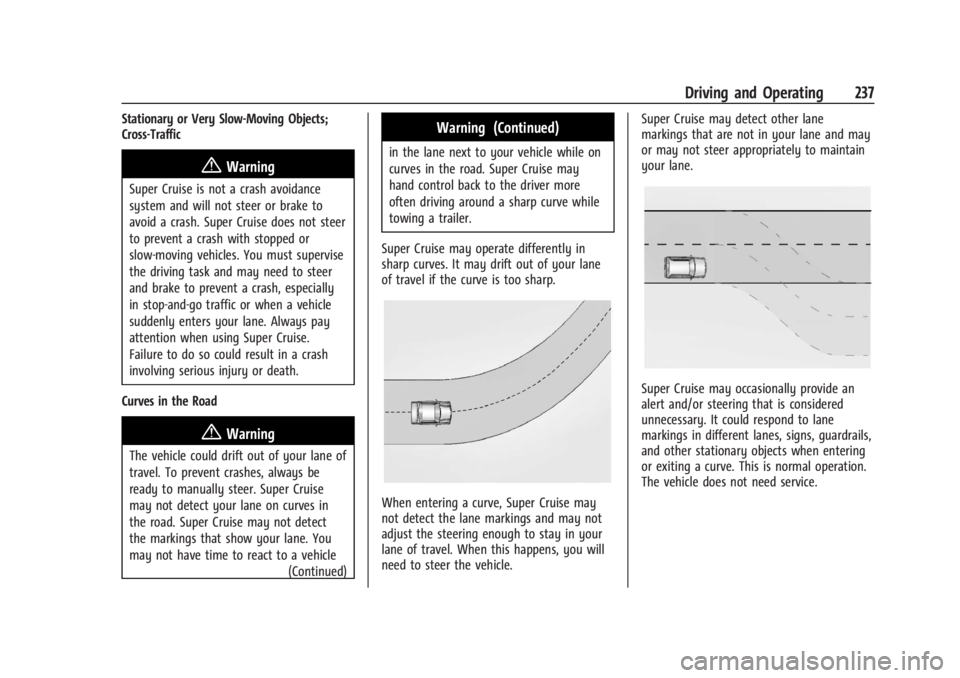
Super Cruise may operate differently in
sharp curves. It may drift out of your lane
of travel if the curve is too sharp.
When entering a curve, Super Cruise may
not detect the lane markings and may not
adjust the steering enough to stay in your
lane of travel. When this happens, you will
need to steer the vehicle. Super Cruise may detect other lane
markings that are not in your lane and may
or may not steer appropriately to maintain
your lane.
Super Cruise may occasionally provide an
alert and/or steering that is considered
unnecessary. It could respond to lane
markings in different lanes, signs, guardrails,
and other stationary objects when entering
or exiting a curve. This is normal operation.
The vehicle does not need service.
Page 239 of 429
Chevrolet Silverado EV Owner Manual (GMNA-Localizing-U.S./Canada-
16702912) - 2024 - CRC - 1/17/23
238 Driving and Operating
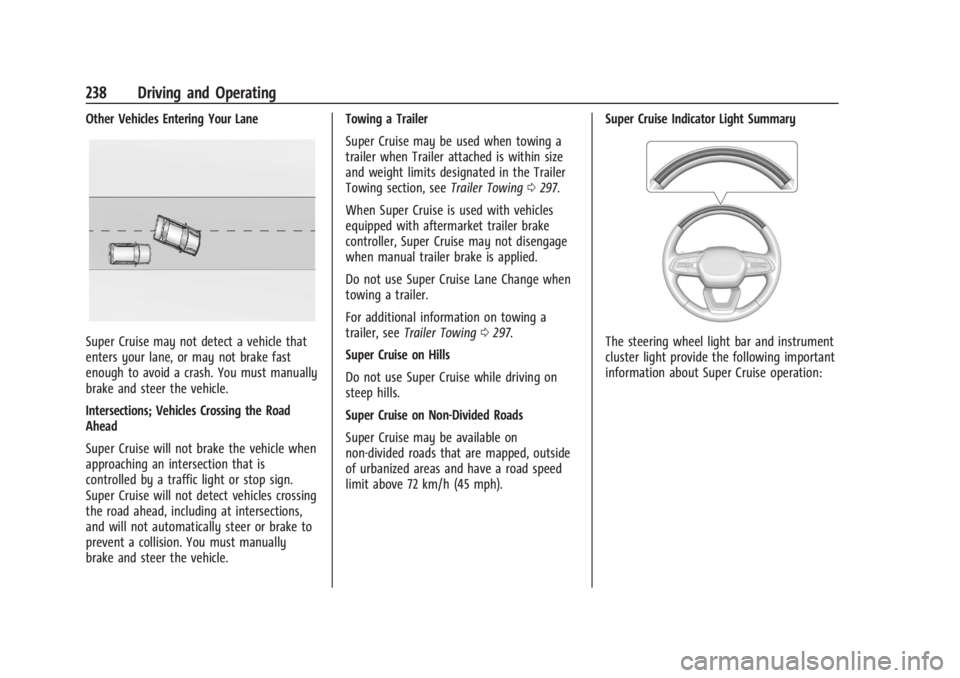
Other Vehicles Entering Your Lane
Super Cruise may not detect a vehicle that
enters your lane, or may not brake fast
enough to avoid a crash. You must manually
brake and steer the vehicle.
Intersections; Vehicles Crossing the Road
Ahead
Super Cruise will not brake the vehicle when
approaching an intersection that is
controlled by a traffic light or stop sign.
Super Cruise will not detect vehicles crossing
the road ahead, including at intersections,
and will not automatically steer or brake to
prevent a collision. You must manually
brake and steer the vehicle.Towing a Trailer
Super Cruise may be used when towing a
trailer when Trailer attached is within size
and weight limits designated in the Trailer
Towing section, see
Trailer Towing0297.
When Super Cruise is used with vehicles
equipped with aftermarket trailer brake
controller, Super Cruise may not disengage
when manual trailer brake is applied.
Do not use Super Cruise Lane Change when
towing a trailer.
For additional information on towing a
trailer, see Trailer Towing 0297.
Super Cruise on Hills
Do not use Super Cruise while driving on
steep hills.
Super Cruise on Non-Divided Roads
Super Cruise may be available on
non-divided roads that are mapped, outside
of urbanized areas and have a road speed
limit above 72 km/h (45 mph). Super Cruise Indicator Light SummaryThe steering wheel light bar and instrument
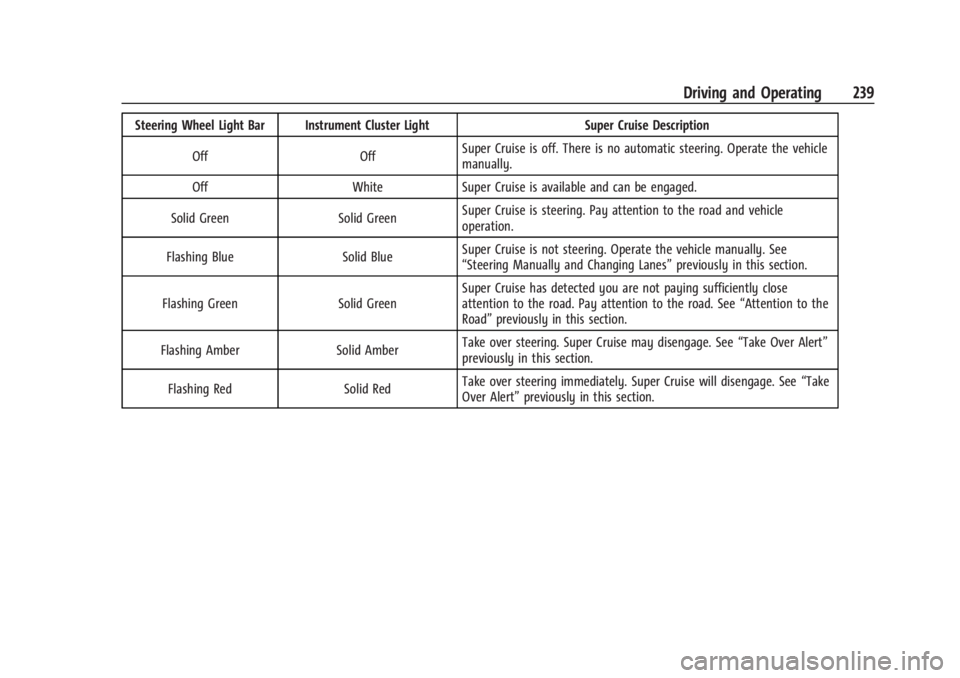
cluster light provide the following important
information about Super Cruise operation:
Page 240 of 429
Chevrolet Silverado EV Owner Manual (GMNA-Localizing-U.S./Canada-
16702912) - 2024 - CRC - 1/17/23
Driving and Operating 239
Steering Wheel Light Bar Instrument Cluster LightSuper Cruise Description
Off OffSuper Cruise is off. There is no automatic steering. Operate the vehicle
manually.
Off WhiteSuper Cruise is available and can be engaged.
Solid Green Solid GreenSuper Cruise is steering. Pay attention to the road and vehicle
operation.
Flashing Blue Solid BlueSuper Cruise is not steering. Operate the vehicle manually. See
“Steering Manually and Changing Lanes”
previously in this section.
Flashing Green Solid GreenSuper Cruise has detected you are not paying sufficiently close
attention to the road. Pay attention to the road. See
“Attention to the
Road” previously in this section.
Flashing Amber Solid AmberTake over steering. Super Cruise may disengage. See
“Take Over Alert”
previously in this section.
Flashing Red Solid RedTake over steering immediately. Super Cruise will disengage. See
“Take
Over Alert” previously in this section.
Page 241 of 429
Chevrolet Silverado EV Owner Manual (GMNA-Localizing-U.S./Canada-
16702912) - 2024 - CRC - 1/17/23
240 Driving and Operating
Disengaging Super Cruise
There are two ways to disengage Super
Cruise:
.PressZwhile your hands are on the
steering wheel. The Super Cruise steering
will disengage.
.Press the brake pedal or press the Regen
on Demand paddle, if equipped, while
your hands are on the steering wheel.
Both Super Cruise steering and Adaptive
Cruise Control will disengage.
Super Cruise Messages
If the Super Cruise indicator light does not
appear in the instrument cluster, press
Z
to display a DIC message that provides a
reason for the system’s unavailability.
Immediately after a disengagement,
pressing the
Zwithin 10 seconds will
display a DIC message with the reason for
Super Cruise disengagement.
Page 243 of 429
Chevrolet Silverado EV Owner Manual (GMNA-Localizing-U.S./Canada-
16702912) - 2024 - CRC - 1/17/23
242 Driving and Operating
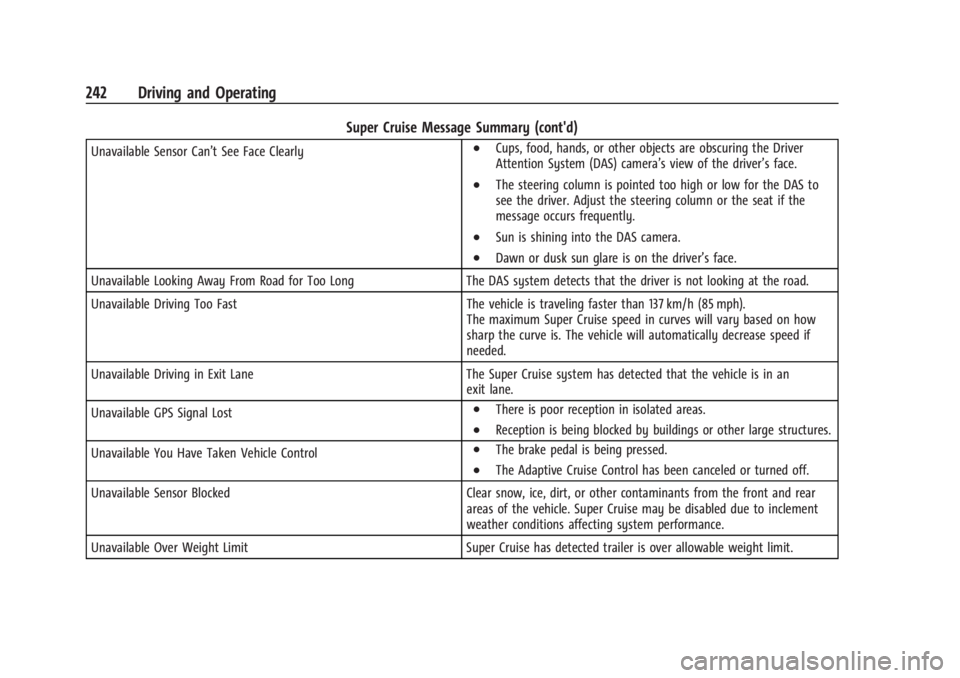
Super Cruise Message Summary (cont'd)
Unavailable Sensor Can’t See Face Clearly.Cups, food, hands, or other objects are obscuring the Driver
Attention System (DAS) camera’s view of the driver’s face.
.The steering column is pointed too high or low for the DAS to
see the driver. Adjust the steering column or the seat if the
message occurs frequently.
.Sun is shining into the DAS camera.
.Dawn or dusk sun glare is on the driver’s face.
Unavailable Looking Away From Road for Too Long The DAS system detects that the driver is not looking at the road.
Unavailable Driving Too Fast The vehicle is traveling faster than 137 km/h (85 mph).
The maximum Super Cruise speed in curves will vary based on how
sharp the curve is. The vehicle will automatically decrease speed if
needed.
Unavailable Driving in Exit Lane The Super Cruise system has detected that the vehicle is in an
exit lane.
Unavailable GPS Signal Lost
.There is poor reception in isolated areas.
.Reception is being blocked by buildings or other large structures.
Unavailable You Have Taken Vehicle Control
.The brake pedal is being pressed.
.The Adaptive Cruise Control has been canceled or turned off.
Unavailable Sensor Blocked Clear snow, ice, dirt, or other contaminants from the front and rear
areas of the vehicle. Super Cruise may be disabled due to inclement
weather conditions affecting system performance.
Unavailable Over Weight Limit Super Cruise has detected trailer is over allowable weight limit.
Page 245 of 429
Chevrolet Silverado EV Owner Manual (GMNA-Localizing-U.S./Canada-
16702912) - 2024 - CRC - 1/17/23
244 Driving and Operating
Map Updates
Super Cruise map information must be
periodically updated at least once every
seven months to determine whether Super
Cruise is available on certain roads. Turn on
the vehicle’s built-in Wi-Fi hotspot to receive
automatic updates via OnStar, or see your
dealer.
Disabling the vehicle's Wi-Fi, Share Hotspot
Data, or Location Services will disable
automatic map updates. Super Cruise will
stop functioning after seven months or less,
depending on the time of the last map
update.
Data Download
If the vehicle is equipped with OnStar and
has an active service plan, additional data
may be collected through the OnStar
system. This includes information about: the
vehicle’s operation; a crash involving the
vehicle; the use of the vehicle and its
features; and, in certain situations, the
location and approximate GPS speed of the
vehicle. Refer to the OnStar Terms and
Conditions and Privacy Statement on the
OnStar website.Location Services
This setting enables or disables sharing of
vehicle location outside the vehicle for
certain purposes. Even if the Location
Services setting is disabled, vehicle location
information will continue to be shared for
emergency services and Super Cruise.
System Care
The camera on the steering column has a
lens cover that may become dirty over time
and affect camera performance. Clean the
lens cover with a soft cloth sprayed with
glass cleaner. Wipe the lens gently, then dry
it. Never use abrasive cloths/cleaners or
corrosive chemicals of any kind on the lens
cover.
Super Cruise uses the front radar, front
camera, and 360 degree cameras for its
operation. Clean surfaces are required for
Super Cruise operation. See
Adaptive Cruise
Control (Advanced) 0217, “Surround Vision
Camera” underAssistance Systems for
Parking or Backing 0246, and Lane Keep
Assist (LKA) 0274 for care information.Caution
The Super Cruise system is a highly
sophisticated system and should only be
serviced by technicians with the proper
training, tools, and safety instructions,
which your dealer has. Without proper
training and tools the vehicle may
become damaged.
Advanced Driver Assistance
Systems
This vehicle may have features that work
together to help avoid crashes or reduce
crash damage while driving, backing, and
parking. Read this entire section before
using these systems.
{Warning
Do not rely on the Driver Assistance
Systems. These systems do not replace
the need for paying attention and driving
safely. You may not hear or feel alerts or
warnings provided by these systems.
Failure to use proper care when driving
may result in injury, death, or vehicle
damage. See Defensive Driving 0183.
(Continued)
Page 250 of 429
Chevrolet Silverado EV Owner Manual (GMNA-Localizing-U.S./Canada-
16702912) - 2024 - CRC - 1/17/23
Driving and Operating 249
Vehicle Guidance mode is selected.
Standard Guidance Lines show
current and intended vehicle path.
.Hitch Guidance Line is available in
Rear Standard View when the
Trailering Guidance mode is
selected. Hitch Guidance displays a
single centered guidance line on
the infotainment display to assist
with aligning the vehicle’s hitch
with a trailer coupler. Align the
Hitch Guidance Line with the
trailer coupler by continuously
steering the vehicle to keep the
guidance line centered on the
coupler when backing. Park Assist
overlays will not display when the
Hitch Guidance Line is active.
.Rear Trailer Guidance Lines are
available in the Rear Trailer View
when the Trailering Guidance
mode is selected and the rear
trailer camera calibration has been
successfully completed. Rear Trailer
Guidance Lines show the intended
path (yellow) and the current path
(blue) of the trailer. The current
path guidance lines will converge
with the intended path guidance
lines.
7. Camera App Guidance Lines
8. Transparent Trailer View
Displays a view that allows the driver
to virtually“see through” the trailer.
The feature is available when a
compatible trailer is connected, a valid
profile is selected and the vehicle is
not in R (Reverse). The feature
requires user installation of an
accessory trailer camera on the rear
exterior surface of the trailer per the
accessory trailer camera installation
instructions. See your dealer for
accessory trailer camera(s) and
information. To view, select
Transparent Trailer View on the
infotainment display when the camera
app is active. To access this view
when in a forward gear above
12 km/h (8 mph), select CAMERA on
the infotainment display and select
Transparent Trailer View. The view will
close after eight seconds and can be
closed early by selecting X, Home,
or Back.
To calibrate the system, a minimum
clearance of 61 cm (24 in) is required. When the system is calibrated and
trailer position is known, one of three
views will be shown; Transparent
Trailer View, Left Transparent Trailer
View, or Right Transparent Trailer
View. The Transparent Trailer View is
shown when the position of the trailer
is relatively straight behind the
vehicle. The Left or Right Transparent
Trailer view is shown when the
position of the trailer is too far to the
left or right. When the system is not
calibrated or trailer position is not
known, the Transparent Trailer
Picture-in-Picture View will be shown.
9. Rear Trailer Views
.Rear Trailer View
Displays a view of the area behind
the trailer when a trailer is
connected. The feature requires
user installation of an accessory
trailer camera on the rear exterior
surface of the trailer per the
accessory trailer camera
installation instructions. See your
dealer for accessory trailer
camera(s) and information. To
view, select Rear Trailer View on
the infotainment display when the
camera app is active. To access this
Page 253 of 429
Chevrolet Silverado EV Owner Manual (GMNA-Localizing-U.S./Canada-
16702912) - 2024 - CRC - 1/17/23
252 Driving and Operating
Certain trailer views require a compatible
trailer profile be configured and selected.
A compatible trailer is a box type trailer
(cargo, camper, etc.) with a conventional
hitch.
Available camera views:
.Front/Rear Standard View
.Front/Rear Top-Down View
.Rear Bowl View
.Front/Rear Side View
.Hitch View
.Rear Trailer View
.Rear Side View with Available Articulation
Functionality
.Picture-in-Picture Side View
.Interior Trailer View
.Transparent Trailer View
.Surround View
.Guidance Lines
.Hitch Guidance
Troubleshooting
The Trailer Camera calibration may take
longer than expected or not calibrate if:
.The vehicle is driven too fast during
calibration. Maintain speeds below
50 km/h (31 mph).
.The vehicle is not driven straight during
calibration. Steering should be maintained
as straight as possible. Excessive Steering
during calibration may extend
calibration time.
.The calibration is attempted in low light.
Calibration should be attempted when
there is enough light.
.The calibration is attempted during
adverse weather conditions. Calibration
during conditions such as snow or heavy
rain should be avoided.
.The road surface is not ideal for
calibration. Calibration should be
attempted on an alternate road surface.
.The accessory trailer cameras are
swapped at the hitch connector. Ensure
that the camera mounted to the rear of
the trailer is connected to the rear trailer
camera input.
.The accessory trailer camera is mounted,
angled, or rotated outside of the defined
mounting location (see camera
installation instructions).
.The vehicle or accessory trailer camera is
obstructed by dirt or debris. Check
cameras and clean as needed.
.The accessory trailer camera is mounted
such that obstructions are visible in the
view (spare tire, bike/cargo racks, etc.).
Calibration should be attempted with
obstruction temporarily removed.
Shadows resulting from driving toward
the sun may be perceived as obstructions.
Attempt to calibrate driving in an
alternate direction if possible.
.The entered trailer profile dimensions are
inaccurate. Measurements are expected to
be made to the nearest centimeter or
inch. Enter accurate measurements and
reattempt calibration.
Distortion may be observed in a rear trailer
camera view if:
.The accessory trailer camera is mounted,
angled or rotated outside of the defined
mounting location. See your dealer.
.The entered trailer profile dimensions are
inaccurate. Measurements are expected to
be made to the nearest centimeter or
inch. Enter accurate measurements and
reattempt calibration.
Page 256 of 429
Chevrolet Silverado EV Owner Manual (GMNA-Localizing-U.S./Canada-
16702912) - 2024 - CRC - 1/17/23
Driving and Operating 255
Turning the Features On or Off
PressXon the center stack to turn on or
off the Front and Rear Park Assist. The
indicator light next to the button comes on
when the features are on and turns off
when the features have been disabled.
Front and Rear Park Assist can be turned Off
or On. There is also a Park Assist Towbar
that can be turned Off or On. To view
available settings from the infotainment
screen, touch Settings > Vehicle >
Collision/Detection Systems > Park Assist.
If Park Assist is turned off through vehicle
personalization, the Park Assist button will
be disabled. To turn Park Assist on again,
select On in vehicle personalization. Setting
Park Assist Towbar to On allows Park Assist
to work properly with a trailer hitch. Some
larger trailer hitches may not be compatible.
Turn off Park Assist when towing a trailer.
Automatic Parking Assist (APA)
Enhanced Automatic Parking Assist (APA)
If equipped, under certain conditions APA
with Braking can use sensors based on sonar
technology along the vehicle’s front, rear
and sides to detect a parking spot, and
automatically park or unpark the vehicle
with some driver assistance. The vehicle will
automatically maneuver into a detected spot
moving at or near idle speed. It does this by
automatically steering, braking, accelerating,
and gear shifting. The driver must always be
prepared to apply braking or additional
acceleration, as needed. A display and
audible beeps help to guide the parking
maneuvers.
{Warning
APA may not always detect objects in the
parking space, objects that are not rigid
(e.g. shrubs and chain-link fences), objects
below the bumper, objects high off the
ground (e.g. flatbed trucks), hanging
objects, objects below ground level
(e.g. large potholes), or moving objects
(e.g. pedestrians, cyclists, vehicles).
Always verify that the parking space is
(Continued)
Warning (Continued)
appropriate for parking a vehicle. APA
may not respond to changes in the
parking space, such as movement of an
adjacent vehicle, or a person or object
entering the parking space. APA does not
detect or avoid traffic that is behind or
alongside of the vehicle. Always be
prepared to stop the vehicle during the
parking maneuver.
How to Activate Automatic Parking
To activate APA, press
Oon the
infotainment screen for the system to begin
searching for a parking space while driving
forward at no greater than
30 km/h (18 mph). APA searches for parking
spaces, to the left or right of the vehicle, up
to the sensors’ ranges of 1.5 m (5 ft). To
search for a parking space to the left, turn
on the left turn signal or, if available,
change the side selection in the
infotainment display. To choose or change
the parking mode, make a selection on the
infotainment display.