bluetooth CHEVROLET SILVERADO EV 2024 Owners Manual
[x] Cancel search | Manufacturer: CHEVROLET, Model Year: 2024, Model line: SILVERADO EV, Model: CHEVROLET SILVERADO EV 2024Pages: 429, PDF Size: 8.98 MB
Page 19 of 429
Chevrolet Silverado EV Owner Manual (GMNA-Localizing-U.S./Canada-
16702912) - 2024 - CRC - 1/23/23
18 Keys, Doors, and Windows
When the safety lock is enabled, adults and
older children will not be able to open the
rear door from the inside. Cancel the safety
locks to enable the doors to open from the
inside.
To cancel the safety lock:1. Unlock the door and open it from the outside.
2. Move the lever up to unlock. Do the same for the other door.
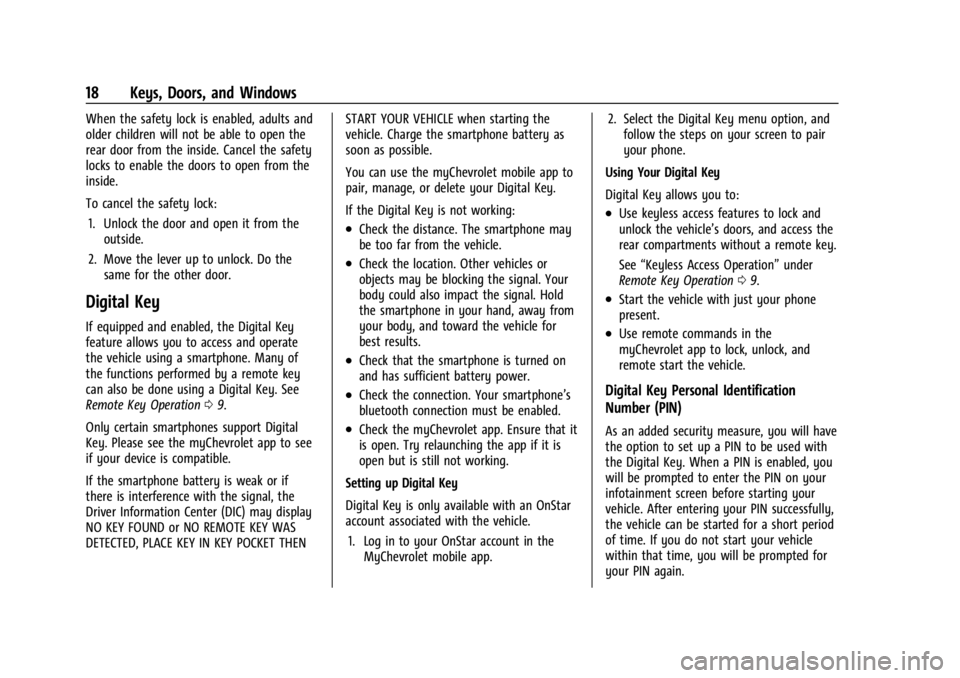
Digital Key
If equipped and enabled, the Digital Key
feature allows you to access and operate
the vehicle using a smartphone. Many of
the functions performed by a remote key
can also be done using a Digital Key. See
Remote Key Operation 09.
Only certain smartphones support Digital
Key. Please see the myChevrolet app to see
if your device is compatible.
If the smartphone battery is weak or if
there is interference with the signal, the
Driver Information Center (DIC) may display
NO KEY FOUND or NO REMOTE KEY WAS
DETECTED, PLACE KEY IN KEY POCKET THEN START YOUR VEHICLE when starting the
vehicle. Charge the smartphone battery as
soon as possible.
You can use the myChevrolet mobile app to
pair, manage, or delete your Digital Key.
If the Digital Key is not working:
.Check the distance. The smartphone may
be too far from the vehicle.
.Check the location. Other vehicles or
objects may be blocking the signal. Your
body could also impact the signal. Hold
the smartphone in your hand, away from
your body, and toward the vehicle for
best results.
.Check that the smartphone is turned on
and has sufficient battery power.
.Check the connection. Your smartphone’s
bluetooth connection must be enabled.
.Check the myChevrolet app. Ensure that it
is open. Try relaunching the app if it is
open but is still not working.
Setting up Digital Key
Digital Key is only available with an OnStar
account associated with the vehicle. 1. Log in to your OnStar account in the MyChevrolet mobile app. 2. Select the Digital Key menu option, and
follow the steps on your screen to pair
your phone.
Using Your Digital Key
Digital Key allows you to:
.Use keyless access features to lock and
unlock the vehicle’s doors, and access the
rear compartments without a remote key.
See “Keyless Access Operation” under
Remote Key Operation 09.
.Start the vehicle with just your phone
present.
.Use remote commands in the
myChevrolet app to lock, unlock, and
remote start the vehicle.
Digital Key Personal Identification
Number (PIN)
As an added security measure, you will have
the option to set up a PIN to be used with
the Digital Key. When a PIN is enabled, you
will be prompted to enter the PIN on your
infotainment screen before starting your
vehicle. After entering your PIN successfully,
the vehicle can be started for a short period
of time. If you do not start your vehicle
within that time, you will be prompted for
your PIN again.
Page 105 of 429
Chevrolet Silverado EV Owner Manual (GMNA-Localizing-U.S./Canada-
16702912) - 2024 - CRC - 1/13/23
104 Instruments and Controls
Troubleshooting
The power outlets will be momentarily
unavailable at the start and the end of a
350 kW DC Fast Charge. This is normal
operation.
For any error messages that can not be
resolved by resetting fault mode as
discussed earlier in this section, see your
dealer.
{Warning
The power outlets contain high-voltage
electrical equipment. Disassembling the
power outlets may result in electrical
shock causing personal injury or death.
Never attempt to disassemble a power
outlet.
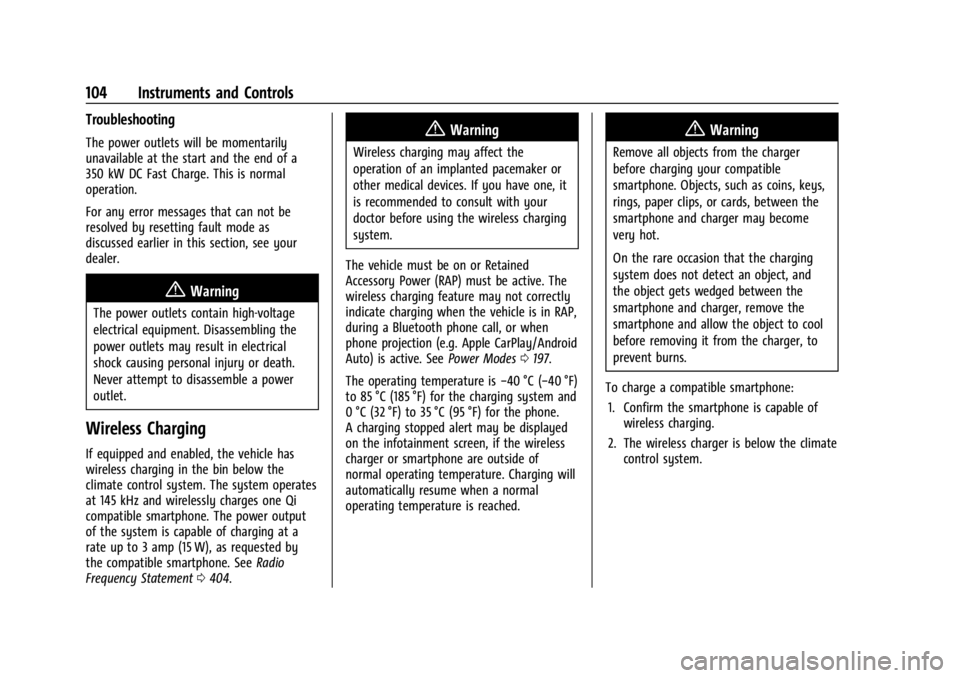
Wireless Charging
If equipped and enabled, the vehicle has
wireless charging in the bin below the
climate control system. The system operates
at 145 kHz and wirelessly charges one Qi
compatible smartphone. The power output
of the system is capable of charging at a
rate up to 3 amp (15 W), as requested by
the compatible smartphone. SeeRadio
Frequency Statement 0404.
{Warning
Wireless charging may affect the
operation of an implanted pacemaker or
other medical devices. If you have one, it
is recommended to consult with your
doctor before using the wireless charging
system.
The vehicle must be on or Retained
Accessory Power (RAP) must be active. The
wireless charging feature may not correctly
indicate charging when the vehicle is in RAP,
during a Bluetooth phone call, or when
phone projection (e.g. Apple CarPlay/Android
Auto) is active. See Power Modes0197.
The operating temperature is −40 °C (−40 °F)
to 85 °C (185 °F) for the charging system and
0 °C (32 °F) to 35 °C (95 °F) for the phone.
A charging stopped alert may be displayed
on the infotainment screen, if the wireless
charger or smartphone are outside of
normal operating temperature. Charging will
automatically resume when a normal
operating temperature is reached.
{Warning
Remove all objects from the charger
before charging your compatible
smartphone. Objects, such as coins, keys,
rings, paper clips, or cards, between the
smartphone and charger may become
very hot.
On the rare occasion that the charging
system does not detect an object, and
the object gets wedged between the
smartphone and charger, remove the
smartphone and allow the object to cool
before removing it from the charger, to
prevent burns.
To charge a compatible smartphone: 1. Confirm the smartphone is capable of wireless charging.
2. The wireless charger is below the climate control system.
Page 148 of 429

Chevrolet Silverado EV Owner Manual (GMNA-Localizing-U.S./Canada-
16702912) - 2024 - CRC - 1/13/23
Infotainment System 147
Infotainment System
Introduction
Introduction . . . . . . . . . . . . . . . . . . . . . . . . . . . 147
Overview . . . . . . . . . . . . . . . . . . . . . . . . . . . . . . 148
Steering Wheel Controls . . . . . . . . . . . . . . . 149
Using the System . . . . . . . . . . . . . . . . . . . . . 149
Software Updates . . . . . . . . . . . . . . . . . . . . . . 152
Radio
AM-FM Radio . . . . . . . . . . . . . . . . . . . . . . . . . . 152
Satellite Radio . . . . . . . . . . . . . . . . . . . . . . . . . 153
Radio Reception . . . . . . . . . . . . . . . . . . . . . . . . 153
Multi-Band Antenna . . . . . . . . . . . . . . . . . . . 154
Audio Players
Avoiding Untrusted Media Devices . . . . . 154
USB Port . . . . . . . . . . . . . . . . . . . . . . . . . . . . . . . 154
Bluetooth Audio . . . . . . . . . . . . . . . . . . . . . . . 155
Navigation
Using the Navigation System . . . . . . . . . . 155
Maps . . . . . . . . . . . . . . . . . . . . . . . . . . . . . . . . . . 156
Navigation Symbols . . . . . . . . . . . . . . . . . . . 156
Destination . . . . . . . . . . . . . . . . . . . . . . . . . . . . 157
Global Positioning System (GPS) . . . . . . . 157
Vehicle Positioning . . . . . . . . . . . . . . . . . . . . 158
Problems with Route Guidance . . . . . . . . 158
Voice Recognition
Voice Recognition . . . . . . . . . . . . . . . . . . . . . . 159
Phone
Bluetooth (Overview) . . . . . . . . . . . . . . . . . . 160
Bluetooth (Pairing and Using aPhone) . . . . . . . . . . . . . . . . . . . . . . . . . . . . . . . 161
Apple CarPlay and Android Auto . . . . . . . 165
Settings
Settings . . . . . . . . . . . . . . . . . . . . . . . . . . . . . . . 166
Teen Driver . . . . . . . . . . . . . . . . . . . . . . . . . . . . 168
Trademarks and License Agreements
Trademarks and License Agreements . . . 171
Introduction
Read the following pages to become familiar
with the features.
{Warning
Taking your eyes off the road for too
long or too often while using any
infotainment feature can cause a crash.
You or others could be injured or killed.
Do not give extended attention to
infotainment tasks while driving. Limit
your glances at the vehicle displays and
focus your attention on driving. Use voice
commands whenever possible.
The infotainment system has built-in
features intended to help avoid distraction
by disabling some features when driving.
These features may gray out when they are
unavailable. Many infotainment features are
also available through the instrument cluster
and steering wheel controls.
Before driving:
.Become familiar with the operation,
center stack controls, steering wheel
controls, and infotainment display.
Page 150 of 429

Chevrolet Silverado EV Owner Manual (GMNA-Localizing-U.S./Canada-
16702912) - 2024 - CRC - 1/13/23
Infotainment System 149
Steering Wheel Controls
If equipped, some audio controls can be
adjusted at the steering wheel.
g:Press to answer an incoming call or
start voice recognition. See Bluetooth
(Pairing and Using a Phone) 0161 or
Bluetooth (Overview) 0160.
e:Press show the audio sources list.
y:Press the control up to answer an
incoming call.
c: Press the control down to decline an
incoming call or end a current call.
The favorites and volume switches are on
the back of the steering wheel.
1. Favorite: When on a radio source, press to select the next or previous audio
broadcast favorite. When listening to a
media device, press to select the next or
previous track.
2. Volume: Press to increase or decrease the volume.
Using the System
Audio
Touch the Audio icon to display the active
audio source page. Examples of available
sources may include AM, FM, SXM (if
equipped), USB, AUX, and Bluetooth.
Phone
Touch the Phone icon to display the Phone
main page. See Bluetooth (Pairing and Using
a Phone) 0161 or
Bluetooth (Overview) 0160.
Maps
If equipped, touch the Maps icon to display
the navigation map. See Using the
Navigation System 0155.
Google Assistant
If equipped, touch the Google Assistant icon
to open the Google Assistant app. See Voice
Recognition 0159.
Google Play
If equipped, touch to download some of
your favorite apps in your vehicle.
Downloading apps on Google Play requires
you to sign into a Google Account and have
internet connectivity in your vehicle. Some
third-party apps require a separate account
and, in some cases, a paid subscription for
in-vehicle access.
Settings
Touch the Settings icon to display the
Settings menu. See Settings0166.
Page 156 of 429
Chevrolet Silverado EV Owner Manual (GMNA-Localizing-U.S./Canada-
16702912) - 2024 - CRC - 1/13/23
Infotainment System 155
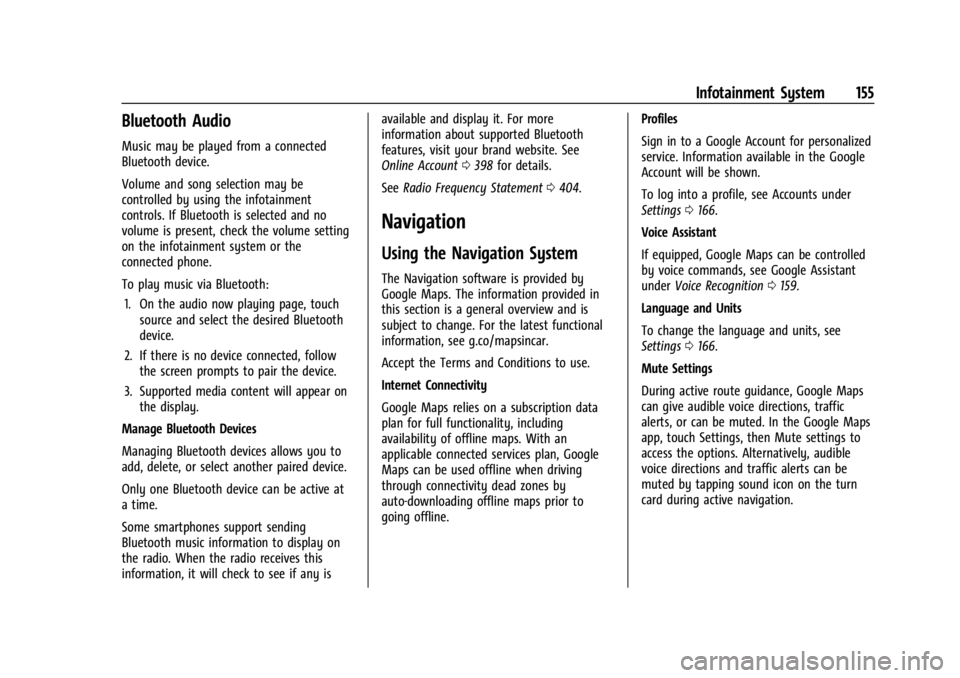
Bluetooth Audio
Music may be played from a connected
Bluetooth device.
Volume and song selection may be
controlled by using the infotainment
controls. If Bluetooth is selected and no
volume is present, check the volume setting
on the infotainment system or the
connected phone.
To play music via Bluetooth:1. On the audio now playing page, touch source and select the desired Bluetooth
device.
2. If there is no device connected, follow the screen prompts to pair the device.
3. Supported media content will appear on the display.
Manage Bluetooth Devices
Managing Bluetooth devices allows you to
add, delete, or select another paired device.
Only one Bluetooth device can be active at
a time.
Some smartphones support sending
Bluetooth music information to display on
the radio. When the radio receives this
information, it will check to see if any is available and display it. For more
information about supported Bluetooth
features, visit your brand website. See
Online Account
0398 for details.
See Radio Frequency Statement 0404.
Navigation
Using the Navigation System
The Navigation software is provided by
Google Maps. The information provided in
this section is a general overview and is
subject to change. For the latest functional
information, see g.co/mapsincar.
Accept the Terms and Conditions to use.
Internet Connectivity
Google Maps relies on a subscription data
plan for full functionality, including
availability of offline maps. With an
applicable connected services plan, Google
Maps can be used offline when driving
through connectivity dead zones by
auto-downloading offline maps prior to
going offline. Profiles
Sign in to a Google Account for personalized
service. Information available in the Google
Account will be shown.
To log into a profile, see Accounts under
Settings
0166.
Voice Assistant
If equipped, Google Maps can be controlled
by voice commands, see Google Assistant
under Voice Recognition 0159.
Language and Units
To change the language and units, see
Settings 0166.
Mute Settings
During active route guidance, Google Maps
can give audible voice directions, traffic
alerts, or can be muted. In the Google Maps
app, touch Settings, then Mute settings to
access the options. Alternatively, audible
voice directions and traffic alerts can be
muted by tapping sound icon on the turn
card during active navigation.
Page 161 of 429
Chevrolet Silverado EV Owner Manual (GMNA-Localizing-U.S./Canada-
16702912) - 2024 - CRC - 1/13/23
160 Infotainment System
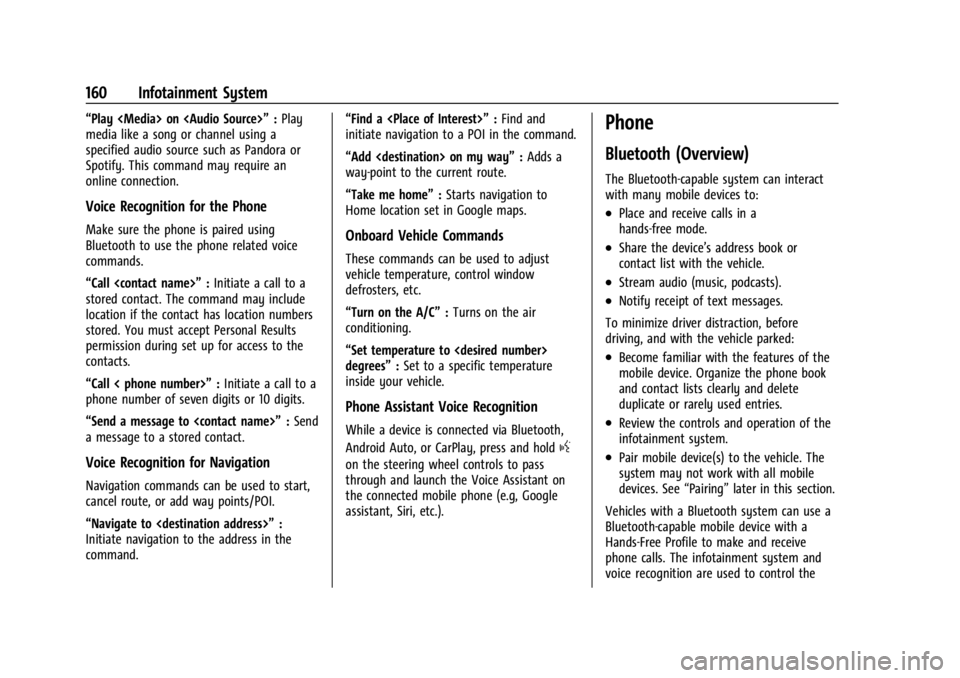
“Play
Page 162 of 429
Chevrolet Silverado EV Owner Manual (GMNA-Localizing-U.S./Canada-
16702912) - 2024 - CRC - 1/13/23
Infotainment System 161
system. The system can be used while the
vehicle is on . The range of the Bluetooth
system can be up to 9.1 m (30 ft). Not all
mobile devices support all functions and not
all mobile devices work with the Bluetooth
system. SeeOnline Account 0398 for more
information about compatible mobile
devices.
Controls
Use the controls on the infotainment display
and the steering wheel to operate the
Bluetooth system.
Steering Wheel Controls
g: Press and release to answer incoming
calls on your connected Bluetooth mobile
device. Press and hold for mobile device
assistant.
c: Press to end a call, decline a call,
or cancel an operation. Press to mute or
unmute the infotainment system when not
on a call.
Infotainment System Controls
For information about how to navigate the
menu system using the infotainment
controls, see Using the System 0149.
Audio System
When using the Bluetooth mobile device
system, sound comes through the vehicle's
front audio system speakers and overrides
the audio system. The volume level while on
a mobile device call can be adjusted by
pressing the steering wheel controls or the
volume controls for the infotainment
system. The adjusted volume level remains
in memory for later calls. The volume
cannot be lowered beyond a certain level.
Bluetooth (Pairing and Using a
Phone)
Pairing
A Bluetooth-enabled mobile device must be
paired to the Bluetooth system and then
connected to the vehicle before it can be
used. See the mobile device manufacturer's
user guide for Bluetooth functions before
pairing the device.
Pairing Information
.Touch the Phone icon on the home page
of the infotainment display.
.If no mobile device has been paired, a
message on the infotainment display will
show the Manage Phones option. Touch this option and the Phones screen will
display. See
“Pairing a Phone” later in this
section.
.A Bluetooth smartphone with music
capability can be paired to the vehicle as
a smartphone and a music player at the
same time.
.Up to 10 devices can be paired to the
Bluetooth system.
.The pairing process is disabled when the
vehicle is moving.
.Pairing only needs to be completed once,
unless the pairing information on the cell
phone changes or the cell phone is
deleted from the system.
.If multiple paired cell phones are within
range of the system, the system connects
to the paired cell phone that is set to
First to Connect. If there is no cell phone
set to First to Connect, it will link to the
cell phone which was used last. To link to
a different paired cell phone, see “Linking
to a Different Phone” later in this section.
Pairing a Phone 1. Make sure Bluetooth has been enabled on the cell phone before starting the
pairing process.
2. Touch the Phone icon on the Home Page.
Page 163 of 429

Chevrolet Silverado EV Owner Manual (GMNA-Localizing-U.S./Canada-
16702912) - 2024 - CRC - 1/13/23
162 Infotainment System
3. If no mobile device is connected, touchManage Phones and the Phones screen
will display.
If another mobile device is connected
already, touch Settings, Connections, and
then Phones.
4. Touch Add Phone. If a previously added phone is
disconnected, the “Add Phone”card will
just be a “+”card.
5. Follow the on-screen prompts to pair the cell phone.
6. Follow the instructions on the cell phone to confirm the six-digit code showing on
the infotainment display and touch Pair.
The code on the cell phone and
infotainment display needs to be
acknowledged for a successful pair.
7. Start the pairing process on the cell phone to be paired to the vehicle. See
the cell phone manufacturer's user guide
for information on this process. Once the
cell phone is paired, it will show as
Connected. 8. If the vehicle name does not appear on
your cell phone, there are a few ways to
start the pairing process over:
.Make sure there is not an entry for
the vehicle under the previously
connected list. If the vehicle and cell
phone were previously paired and
one still remembers the other, it will
not identify as a new device when
searching.
.Turn the Bluetooth off and on the
device.
.Go back to the beginning of the
Phone menus on the infotainment
display and restart the pairing
process.
.Turn the cell phone off and then
back on.
.Reset the cell phone, but this step
should be done as a last effort.
9. If the cell phone prompts to accept connection or allow phone book
download, touch Always Accept and
Allow. The phone book may not be
available if not accepted.
10. To pair additional cell phones, touch Settings, Connections, and then Phones. First to Connect Paired Phones
If multiple paired cell phones are within
range of the system, the system connects to
the paired cell phone that is set as First to
Connect. To enable a paired cell phone as
the First to Connect phone:
1. Make sure the cell phone is turned on.
2. Touch the Settings icon on the home page.
3. Touch Connections.
4. Touch Phone.
5. Touch Options under the connected phone.
6. Touch First to Connect from the cell phone’s settings menu. The settings will
be enabled for that device.
Cell phones and mobile devices can be
added, removed, connected, and
disconnected. A sub-menu will display
whenever a request is made to add or
manage cell phones and mobile devices.
Page 164 of 429

Chevrolet Silverado EV Owner Manual (GMNA-Localizing-U.S./Canada-
16702912) - 2024 - CRC - 1/13/23
Infotainment System 163
Accessing the Device List Screen
There are two ways to access the device list
screen:
Using the Settings Icon1. Touch the Settings icon on the Home Page or the Settings icon on the shortcut
tray near the left of the display.
2. Touch Connections.
3. Touch Phones.
Using the Phone Icon 1. Touch the Phone icon on the Home Page or the Phone icon on the shortcut tray
near the left of the display.
2. Touch
*on the top right of the Phones
screen.
3. Touch Connected Phone.
Disconnecting a Connected Phone
To disconnect a phone: 1. Open the Device List Screen. See “Accessing the Device List Screen”
previously in this section.
2. Touch Option on the phone card to show the cell phone’s or mobile device’s
settings.
3. Touch Disconnect. Deleting a Paired Phone
To delete a paired phone:
1. Open the Device List Screen. See “Accessing the Device List Screen”
previously in this section.
2. Touch Option on the phone card to show the cell phone’s or mobile device’s
settings.
3. Touch Forget Phone.
Linking to a Different Phone
To link to a different cell phone, the new
cell phone must be in the vehicle and paired
to the Bluetooth system.
To link to a different phone: 1. Open the Device List Screen. See “Accessing the Device List Screen”
previously in this section.
2. Touch the new cell phone to link to from the list of available phones. See “First to
Connect Paired Phones” previously in this
section.
Switching to Handset or
Hands-Free Mode
To switch between handset or
hands-free mode:
.While the active call is hands-free, touch
the Audio Output option, then touch
Phone to switch to the handset mode.
The mute icon will not be available or
functional while Handset mode is active.
.While the active call is on the handset,
touch the Audio Output option, then
touch Car Speakers to switch to the
hands-free mode.
Making a Call Using Contacts
Calls can be made through the Bluetooth
system using personal cell phone contact
information for all cell phones that support
the Phone Book feature. Become familiar
with the cell phone settings and operation
and that the phone is set to allow the
sharing of contacts over Bluetooth with the
vehicle. Verify the cell phone supports this
feature and that the phone is set to allow
the sharing of contacts over Bluetooth with
the vehicle.
The Contacts menu accesses the phone book
stored in the cell phone.
Page 165 of 429

Chevrolet Silverado EV Owner Manual (GMNA-Localizing-U.S./Canada-
16702912) - 2024 - CRC - 1/13/23
164 Infotainment System
To make a call using the Contacts menu:1. Touch the Phone icon on the Home Page or on the shortcut tray near the left of
the display.
2. Touch Contacts.
3. There are two methods to search for contacts:
.Search bar –Touch the search icon
on the top right of the Phones
window and type the name or
number of the contact on the
keyboard. Search results will be
displayed corresponding to the user
input. Touch the name to call.
.Scroll –Touch the list and scroll,
or use the scrollbar on the left side
of the Phones window. Touch the
name to call.
Making a Call Using the Recents Menu
The Recents menu accesses the recents call
list from your cell phone.
To make a call using the Recents menu:
1. Touch the Phone icon on the Home Page or on the shortcut tray near the left of
the display.
2. Touch Recents.
3. Touch the name or number to call.
Making a Call Using the Keypad
To make a call by dialing the numbers: 1. Touch the Phone icon on the Home Page or on the shortcut tray near the left of
the display.
2. Touch Keypad and enter a phone number.
3. Touch the phone icon on the infotainment display to start dialing the
number.
Searching Contacts Using the Keypad
To search for contacts using the keypad:
1. Touch the Phone icon on the Home Page.
2. Touch Keypad and enter partial phone numbers or contact names using the
digits on the keypad to search.
Results appear on the right side of the
display. Touch one to place a call.
Accepting or Declining a Call
When an incoming call is received, the
infotainment system mutes and a ring tone
is heard in the vehicle.
Accepting a Call
There are two ways to accept a call:
.Pressgon the steering wheel controls.
.Touch Answer on the infotainment
display.
Declining a Call
There are two ways to decline a call:
.Presscon the steering wheel controls.
.Touch Decline on the infotainment
display.
Call Waiting
Call waiting must be supported on the
Bluetooth cell phone and enabled by the
wireless service carrier to work.
Accepting a Call
Press
gto answer, then touch Switch on
the infotainment display.
Declining a Call
Press
cto decline, then touch Decline on
the infotainment display.
Switching Between Calls (Call Waiting
Calls Only)
To switch between calls, touch Phone on the
Home Page to display Call View. While in
Call View, touch the call information of the
call on hold to change calls.