service CHEVROLET SONIC 2020 Owner's Guide
[x] Cancel search | Manufacturer: CHEVROLET, Model Year: 2020, Model line: SONIC, Model: CHEVROLET SONIC 2020Pages: 329, PDF Size: 5.56 MB
Page 146 of 329
Chevrolet Sonic Owner Manual (GMNA-Localizing-U.S./Canada-13566834) -
2020 - CRC - 10/4/19
Infotainment System 145
Accepting or Declining a Call
When an incoming call is received,
the infotainment system mutes and
a ring tone is heard in the vehicle.
Accepting a Call
There are two ways to accept a call:
.Press
b/gon the steering
wheel controls.
. Touch Answer on the
infotainment display.
Declining a Call
There are two ways to decline
a call:
. Press
$/ion the steering
wheel controls.
. Touch Ignore on the infotainment
display.
Call Waiting
Call waiting must be supported on
the Bluetooth phone and enabled by
the wireless service carrier to work. Accepting a Call
There are two ways to accept a
call-waiting call:
.
Press
b/gon the steering
wheel controls.
. Touch Switch on the
infotainment display.
Declining a Call
There are two ways to decline a
call-waiting call:
. Press
$/ion the steering
wheel controls.
. Touch Ignore on the infotainment
display.
Switching Between Calls (Call
Waiting Calls Only)
To switch between calls, press the
Phone icon on the Home Page to
display Call View. While in Call
View, touch the call information of
the call on hold to change calls.
Three-Way Calling
Three-way calling must be
supported on the Bluetooth phone
and enabled by the wireless service
carrier to work.
To start a three-way call while in a
current call: 1. In the Call View, touch Add Call to add another call.
2. Initiate the second call by selecting from Recents,
Contacts, or Keypad.
3. When the second call is active, touch the merge icon to
conference the three-way call
together.
Ending a Call
.Press$/ion the steering
wheel controls.
. Touch
#on the infotainment
display, next to a call to end only
that call.
Page 149 of 329
Chevrolet Sonic Owner Manual (GMNA-Localizing-U.S./Canada-13566834) -
2020 - CRC - 10/4/19
148 Infotainment System
Phones
Touch to connect to a different cell
phone or mobile device source,
disconnect a cell phone or media
device, or delete a cell phone or
media device.
Wi-Fi Networks
This will show connected and
available Wi-Fi networks.
If a 4G LTE data package is not
active on the vehicle, the
infotainment system can be
connected to an external protected
Wi-Fi network, such as a mobile
device or home hotspot, to utilize
connected services.
Wi-Fi Hotspot
Touch and the following may
display:
.Wi-Fi Services: This allows
devices to use the vehicle
hotspot.
Touch the controls on the
infotainment display to disable or
enable. .
Wi-Fi Name: Touch to change
the vehicle Wi-Fi name.
. Wi-Fi Password: Touch to
change the vehicle Wi-Fi
password.
. Connected Devices: Touch to
show connected devices.
. Share Hotspot Data: Touch
Enable to allow devices to use
the vehicle hotspot and its data
or Touch Disable to allow
devices to only use the vehicle
hotspot.
Display
Touch and Turn Display Off
displays.
Touch to turn the display off. Touch
anywhere on the display area or any
infotainment control on the center
stack again to turn the display on.
Sounds
Touch and the following may
display:
. Maximum Startup Volume: This
feature adjusts the maximum
volume of the infotainment system when you start the
vehicle. Use the controls on the
infotainment display to set the
desired startup volume.
. Audible Touch Feedback: This
setting determines if sounds play
when you touch the infotainment
display or press any
infotainment control on the
center stack. This feature can be
turned off or on.
Favorites
Touch and the following may
display:
. Manage Favorites: Touch to
display a list of Audio or Mobile
Devices favorites.
Favorites can be moved,
renamed, or deleted.
To move, touch and hold on the
favorite, and then drag up or
down to rearrange the position.
. Set Number of Audio Favorites:
Touch to select how many
favorites pages can be viewed
from the audio application.
Select Auto for the system to
Page 152 of 329
Chevrolet Sonic Owner Manual (GMNA-Localizing-U.S./Canada-13566834) -
2020 - CRC - 10/4/19
Infotainment System 151
.Re-sync Device Contacts:
This allows the device contacts
to re-sync if you are having
difficulty accessing all of the
contacts on your cell phone.
. Delete All Vehicle Contacts:
Touch to delete all vehicle stored
contacts.
. OnStar Phone TTY Mode: This
enables OnStar cell phone
TTY mode.
Touch Disable or Enable.
Vehicle
This menu allows adjustment of
different vehicle features. See
Vehicle Personalization 0115.
Trademarks and
License Agreements
FCC Information
See Radio Frequency Statement
0 304.
Bluetooth
The Bluetooth word mark and logos
are owned by the Bluetooth
®SIG,
Inc. and any use of such marks by
General Motors is under license.
Other trademarks and trade names
are those of their respective owners.
"Made for iPod," and "Made for
iPhone," mean that an electronic
accessory has been designed to
connect specifically to iPod or
iPhone, respectively, and has been
certified by the developer to meet
Apple performance standards. Apple is not responsible for the
operation of this device or its
compliance with safety and
regulatory standards. Please note
that the use of this accessory with
iPod or iPhone may affect wireless
performance. iPhone, iPod, iPod
classic, iPod nano, iPod shuffle, and
iPod touch are trademarks of Apple
Inc., registered in the U.S. and other
countries.
Fees and Taxes: Subscription fee,
taxes, one time activation fee, and
other fees may apply. Subscription
fee is consumer only. All fees and
programming subject to change.
Subscriptions subject to Customer
Agreement available at
www.siriusxm.com or
www.siriusxm.ca. SiriusXM service
only available in the 48 contiguous
United States and Canada.
Page 153 of 329
Chevrolet Sonic Owner Manual (GMNA-Localizing-U.S./Canada-13566834) -
2020 - CRC - 10/4/19
152 Infotainment System
In Canada: Some deterioration of
service may occur in extreme
northern latitudes. This is beyond
the control of SiriusXM Satellite
Radio.
Explicit Language Notice: Channels
with frequent explicit language are
indicated with an“XL”preceding the
channel name. Channel blocking is
available for SiriusXM Satellite
Radio receivers by notifying
SiriusXM:
. USA Customers —See
www.siriusxm.com or call
1-888-601–6296.
. Canada Customers —See
www.siriusxm.ca or call
1-877-438-9677.
It is prohibited to copy, decompile,
disassemble, reverse engineer,
hack, manipulate, or otherwise
make available any technology or
software incorporated in receivers
compatible with the SiriusXM
Satellite Radio System or that
support the SiriusXM website, the
Online Service or any of its content.
Furthermore, the AMBER voice
compression software included in this product is protected by
intellectual property rights including
patent rights, copyrights, and trade
secrets of Digital Voice
Systems, Inc.
General Requirements:
1. A License Agreement from SiriusXM is required for any
product that incorporates
SiriusXM Technology and/or for
use of any of the SiriusXM
marks to be manufactured,
distributed, or marketed in the
SiriusXM Service Area.
2. For products to be distributed, marketed, and/or sold in
Canada, a separate agreement
is required with Canadian
Satellite Radio Inc. (operating
as SiriusXM Canada).
Page 154 of 329
Chevrolet Sonic Owner Manual (GMNA-Localizing-U.S./Canada-13566834) -
2020 - CRC - 10/4/19
Climate Controls 153
Climate Controls
Climate Control Systems
Climate Control Systems . . . . . 153
Air Vents
Air Vents . . . . . . . . . . . . . . . . . . . . . 155
Maintenance
Air Intake . . . . . . . . . . . . . . . . . . . . . 156
Passenger Compartment AirFilter . . . . . . . . . . . . . . . . . . . . . . . . 156
Service . . . . . . . . . . . . . . . . . . . . . . . 156
Climate Control
Systems
These climate control systems
control the heating, cooling, and
ventilation for the vehicle.
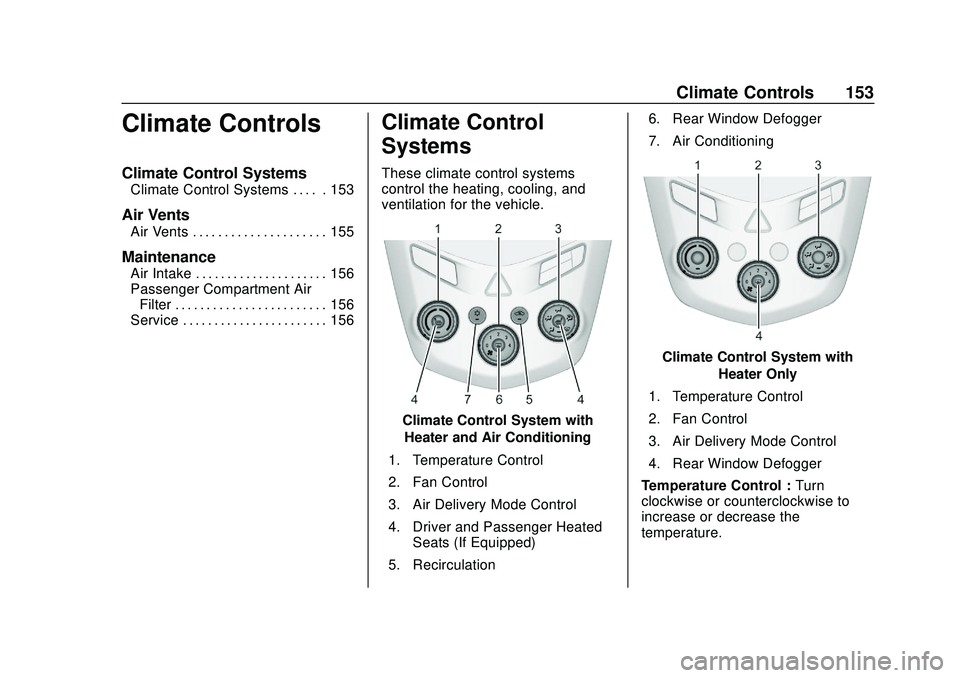
Climate Control System with
Heater and Air Conditioning
1. Temperature Control
2. Fan Control
3. Air Delivery Mode Control
4. Driver and Passenger Heated Seats (If Equipped)
5. Recirculation 6. Rear Window Defogger
7. Air Conditioning
Climate Control System with
Heater Only
1. Temperature Control
2. Fan Control
3. Air Delivery Mode Control
4. Rear Window Defogger
Temperature Control : Turn
clockwise or counterclockwise to
increase or decrease the
temperature.
Page 157 of 329
Chevrolet Sonic Owner Manual (GMNA-Localizing-U.S./Canada-13566834) -
2020 - CRC - 10/4/19
156 Climate Controls
Maintenance
Air Intake
Clear away any ice, snow, or leaves
from the air intake at the base of the
windshield that can block the flow of
air into the vehicle.
Passenger Compartment
Air Filter
The filter removes dust, pollen, and
other airborne irritants from outside
air that is pulled into the vehicle.
The filter should be replaced as part
of routine scheduled maintenance.
SeeMaintenance Schedule 0278.
To find out what type of filter to use,
see Maintenance Replacement
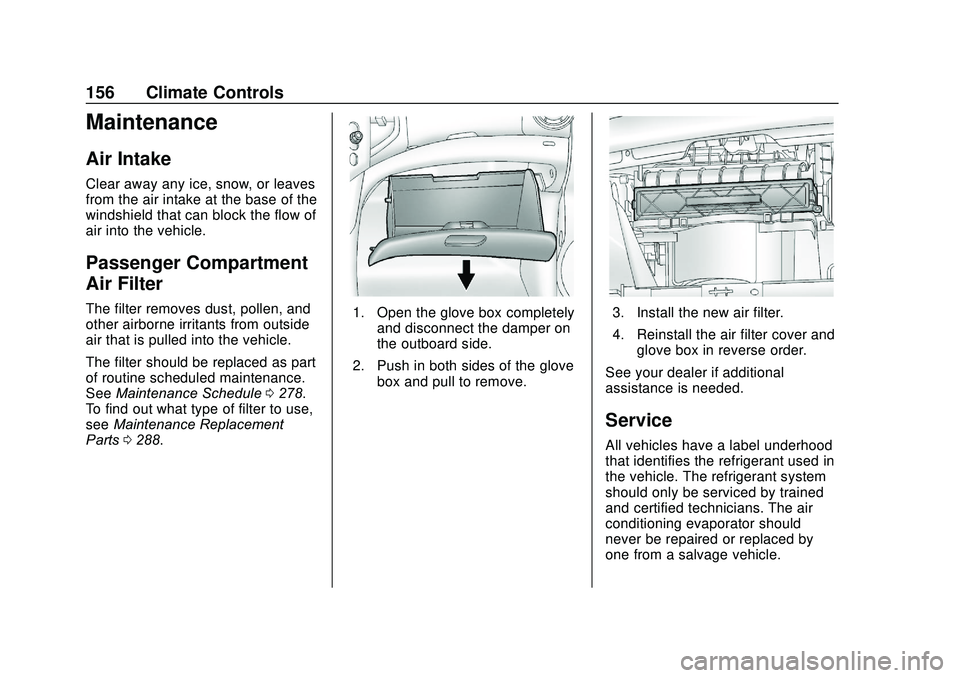
Parts 0288.1. Open the glove box completely
and disconnect the damper on
the outboard side.
2. Push in both sides of the glove box and pull to remove.3. Install the new air filter.
4. Reinstall the air filter cover andglove box in reverse order.
See your dealer if additional
assistance is needed.
Service
All vehicles have a label underhood
that identifies the refrigerant used in
the vehicle. The refrigerant system
should only be serviced by trained
and certified technicians. The air
conditioning evaporator should
never be repaired or replaced by
one from a salvage vehicle.
Page 158 of 329
Chevrolet Sonic Owner Manual (GMNA-Localizing-U.S./Canada-13566834) -
2020 - CRC - 10/4/19
Climate Controls 157
It should only be replaced by a new
evaporator to ensure proper and
safe operation.
During service, all refrigerants
should be reclaimed with proper
equipment. Venting refrigerants
directly to the atmosphere is harmful
to the environment and may also
create unsafe conditions based on
inhalation, combustion, frostbite,
or other health-based concerns.
The air conditioning system requires
periodic maintenance. See
Maintenance Schedule0278.
Page 164 of 329
Chevrolet Sonic Owner Manual (GMNA-Localizing-U.S./Canada-13566834) -
2020 - CRC - 10/4/19
Driving and Operating 163
by shifting to a lower gear. Any
sudden changes could cause
the tires to slide.
Remember: Antilock brakes help
avoid only the braking skid.
Driving on Wet Roads
Rain and wet roads can reduce
vehicle traction and affect your
ability to stop and accelerate.
Always drive slower in these types
of driving conditions and avoid
driving through large puddles and
deep-standing or flowing water.
{Warning
Wet brakes can cause crashes.
They might not work as well in a
quick stop and could cause
pulling to one side. You could
lose control of the vehicle. (Continued)
Warning (Continued)
After driving through a large
puddle of water or a car/vehicle
wash, lightly apply the brake
pedal until the brakes work
normally.
Flowing or rushing water creates
strong forces. Driving through
flowing water could cause the
vehicle to be carried away. If this
happens, you and other vehicle
occupants could drown. Do not
ignore police warnings and be
very cautious about trying to drive
through flowing water.
Hydroplaning
Hydroplaning is dangerous. Water
can build up under the vehicle's
tires so they actually ride on the
water. This can happen if the road is
wet enough and you are going fast
enough. When the vehicle is
hydroplaning, it has little or no
contact with the road. There is no hard and fast rule about
hydroplaning. The best advice is to
slow down when the road is wet.
Other Rainy Weather Tips
Besides slowing down, other wet
weather driving tips include:
.
Allow extra following distance.
. Pass with caution.
. Keep windshield wiping
equipment in good shape.
. Keep the windshield washer fluid
reservoir filled.
. Have good tires with proper
tread depth. See Tires0233.
. Turn off cruise control.
Hill and Mountain Roads
Driving on steep hills or through
mountains is different than driving
on flat or rolling terrain. Tips include:
.Keep the vehicle serviced and in
good shape.
. Check all fluid levels and brakes,
tires, cooling system, and
transmission.
Page 171 of 329
Chevrolet Sonic Owner Manual (GMNA-Localizing-U.S./Canada-13566834) -
2020 - CRC - 10/4/19
170 Driving and Operating
Starting and
Operating
New Vehicle Break-In
Caution
The vehicle does not need an
elaborate break-in. But it will
perform better in the long run if
you follow these guidelines:. Do not drive at any one
constant speed, fast or slow,
for the first 805 km (500 mi).
Do not make full-throttle
starts. Avoid downshifting to
brake or slow the vehicle.
. Avoid making hard stops for
the first 322 km (200 mi) or
so. During this time the new
brake linings are not yet
broken in. Hard stops with
new linings can mean
premature wear and earlier
replacement. Follow this
(Continued)
Caution (Continued)
breaking-in guideline every
time you get new brake
linings.
Following break-in, engine speed
and load can be gradually
increased.
Ignition Positions
(Keyless Access)
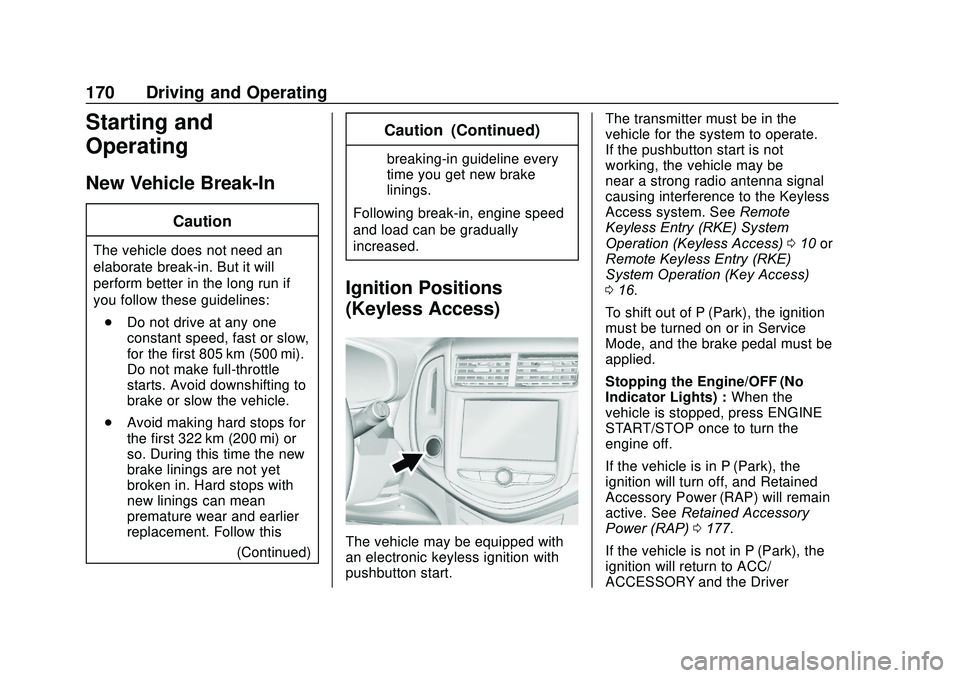
The vehicle may be equipped with
an electronic keyless ignition with
pushbutton start. The transmitter must be in the
vehicle for the system to operate.
If the pushbutton start is not
working, the vehicle may be
near a strong radio antenna signal
causing interference to the Keyless
Access system. See
Remote
Keyless Entry (RKE) System
Operation (Keyless Access) 010 or
Remote Keyless Entry (RKE)
System Operation (Key Access)
0 16.
To shift out of P (Park), the ignition
must be turned on or in Service
Mode, and the brake pedal must be
applied.
Stopping the Engine/OFF (No
Indicator Lights) : When the
vehicle is stopped, press ENGINE
START/STOP once to turn the
engine off.
If the vehicle is in P (Park), the
ignition will turn off, and Retained
Accessory Power (RAP) will remain
active. See Retained Accessory
Power (RAP) 0177.
If the vehicle is not in P (Park), the
ignition will return to ACC/
ACCESSORY and the Driver
Page 172 of 329
Chevrolet Sonic Owner Manual (GMNA-Localizing-U.S./Canada-13566834) -
2020 - CRC - 10/4/19
Driving and Operating 171
Information Center (DIC) will display
the message SHIFT TO PARK.
When the vehicle is shifted into
P (Park), the ignition system will
switch to OFF.
Do not turn the engine off when the
vehicle is moving. This will cause a
loss of power assist in the brake
and steering systems and disable
the airbags.
If the vehicle must be shut off in an
emergency:1. Brake using a firm and steady pressure. Do not pump the
brakes repeatedly. This may
deplete power assist, requiring
increased brake pedal force.
2. Shift the vehicle to N (Neutral). This can be done while the
vehicle is moving. After shifting
to N (Neutral), firmly apply the
brakes and steer the vehicle to
a safe location.
3. Come to a complete stop. Shift to P (Park).
4. Set the parking brake. See Parking Brake 0184.
{Warning
Turning off the vehicle while
moving may cause loss of power
assist in the brake and steering
systems and disable the airbags.
While driving, only shut the
vehicle off in an emergency.
If the vehicle cannot be pulled over,
and must be shut off while driving,
press and hold ENGINE START/
STOP for longer than two seconds,
or press twice in five seconds.
ACC/ACCESSORY (Amber
Indicator Light) : This mode allows
you to use some electrical
accessories when the engine is off.
With the ignition off, pressing the
button one time without the brake
pedal applied will place the ignition
system in ACC/ACCESSORY.
The ignition will switch from ACC/
ACCESSORY to OFF after
five minutes to prevent battery
rundown. ON/RUN/START (Green Indicator
Light) :
This mode is for driving and
starting. With the ignition off and the
brake pedal applied, pressing
ENGINE START/STOP once will
place the ignition system in ON/
RUN/START. Once engine cranking
begins, release the button. Engine
cranking will continue until the
engine starts. See Starting the
Engine 0174. The ignition will then
remain in ON/RUN.
Service Mode
This power mode is available for
service and diagnostics, and to
verify the proper operation of the
malfunction indicator lamp as may
be required for emission inspection
purposes. With the vehicle off, and
the brake pedal not applied,
pressing and holding ENGINE
START/STOP for more than
five seconds will place the vehicle in
Service Mode. The instruments and
audio systems will operate as they
do in ON/RUN, but the vehicle will
not be able to be driven. The engine