phone CHEVROLET SONIC 2020 Owner's Manual
[x] Cancel search | Manufacturer: CHEVROLET, Model Year: 2020, Model line: SONIC, Model: CHEVROLET SONIC 2020Pages: 329, PDF Size: 5.56 MB
Page 91 of 329
Chevrolet Sonic Owner Manual (GMNA-Localizing-U.S./Canada-13566834) -
2020 - CRC - 10/4/19
90 Instruments and Controls
Controls
Steering Wheel
Adjustment
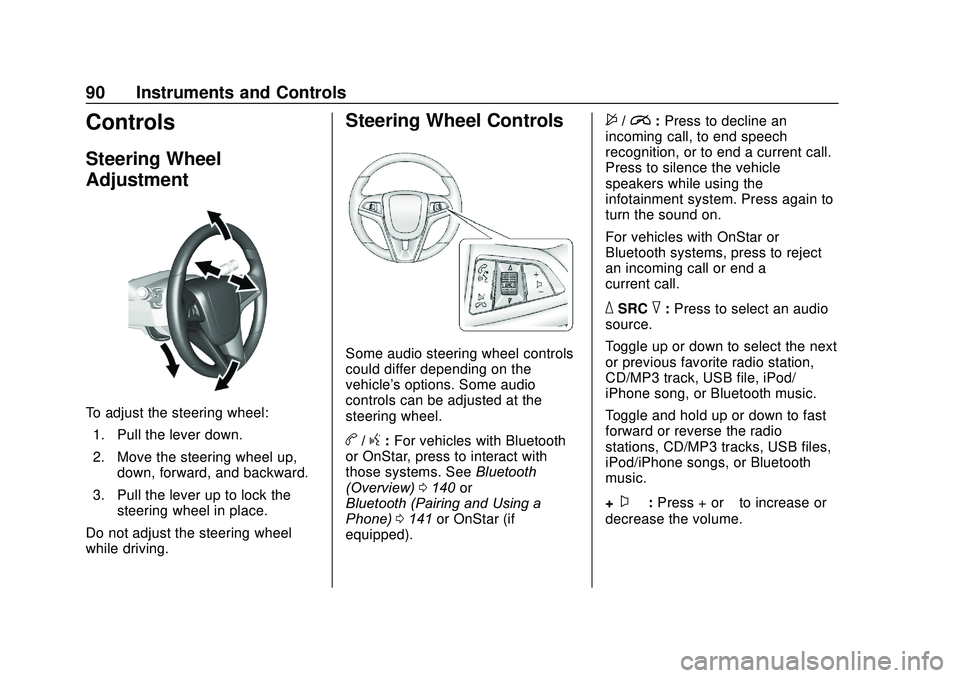
To adjust the steering wheel:1. Pull the lever down.
2. Move the steering wheel up, down, forward, and backward.
3. Pull the lever up to lock the steering wheel in place.
Do not adjust the steering wheel
while driving.
Steering Wheel Controls
Some audio steering wheel controls
could differ depending on the
vehicle's options. Some audio
controls can be adjusted at the
steering wheel.
b/g: For vehicles with Bluetooth
or OnStar, press to interact with
those systems. See Bluetooth
(Overview) 0140 or
Bluetooth (Pairing and Using a
Phone) 0141 or OnStar (if
equipped).
$/i: Press to decline an
incoming call, to end speech
recognition, or to end a current call.
Press to silence the vehicle
speakers while using the
infotainment system. Press again to
turn the sound on.
For vehicles with OnStar or
Bluetooth systems, press to reject
an incoming call or end a
current call.
_SRC^: Press to select an audio
source.
Toggle up or down to select the next
or previous favorite radio station,
CD/MP3 track, USB file, iPod/
iPhone song, or Bluetooth music.
Toggle and hold up or down to fast
forward or reverse the radio
stations, CD/MP3 tracks, USB files,
iPod/iPhone songs, or Bluetooth
music.
+
x− :Press + or −to increase or
decrease the volume.
Page 94 of 329
Chevrolet Sonic Owner Manual (GMNA-Localizing-U.S./Canada-13566834) -
2020 - CRC - 10/4/19
Instruments and Controls 93
very slow, the rear wiper will
automatically park under the rear
spoiler.
The wiper operations return to
normal when the transmission is no
longer in N (Neutral) or the vehicle
speed has increased.
Auto Wipe in Reverse Gear
If the rear wiper control is off, the
rear wiper will automatically operate
continuously when the shift lever is
in R (Reverse), and the front
windshield wiper is performing low
or high speed wipes. If the rear
wiper control is off, the shift lever is
in R (Reverse), and the front
windshield wiper is performing
interval wipes, then the rear wiper
automatically performs interval
wipes.
This feature can be changed. See
Vehicle Personalization0115.
The windshield washer reservoir is
used for the windshield and the rear
window. Check the fluid level in the
reservoir if either washer is not
working. See Washer Fluid 0217.Compass
The vehicle may have a compass
display in the Driver Information
Center (DIC). The compass receives
its heading and other information
from the Global Positioning
System (GPS) antenna, StabiliTrak/
Electronic Stability Control (ESC),
and vehicle speed information.
Avoid covering the GPS antenna,
located on the roof, for long periods
of time with objects that may
interfere with the antenna's ability to
receive a satellite signal. The
compass system is designed to
operate for a certain number of
miles or degrees of turn before
needing a signal from the GPS
satellites. When the compass
display shows CAL, drive the
vehicle for a short distance in an
open area where it can receive a
GPS signal. The compass system
will automatically determine when
the GPS signal is restored and
provide a heading again.
Clock
The clock can be set using the
infotainment system. See “System”
under Settings 0147.
Power Outlets
The accessory power outlets can be
used to plug in electrical equipment,
such as a cell phone or MP3 player.
The vehicle has an accessory
power outlet behind the cupholders
on the center console.
Remove the cover to access and
replace when not in use.
{Warning
Power is supplied to the outlets
when the ignition is on. When not
in use, do not leave electrical
equipment plugged in. The
vehicle could catch fire and cause
injury or death.
Page 95 of 329
Chevrolet Sonic Owner Manual (GMNA-Localizing-U.S./Canada-13566834) -
2020 - CRC - 10/4/19
94 Instruments and Controls
Caution
Leaving electrical equipment
plugged in for an extended period
of time while the vehicle is off will
drain the battery. Always unplug
electrical equipment when not in
use and do not plug in equipment
that exceeds the maximum
20 amp rating.
When the battery is low, the power
supply to the outlets will be
interrupted.
Certain accessory power plugs may
not be compatible with the
accessory power outlet and could
overload vehicle or adapter fuses.
If a problem is experienced, see
your dealer. When adding electrical equipment,
be sure to follow the proper
installation instructions included with
the equipment. See
Add-On
Electrical Equipment 0201.
Caution
Hanging heavy equipment from
the power outlet can cause
damage not covered by the
vehicle warranty. The power
outlets are designed for
accessory power plugs only, such
as cell phone charge cords.
Warning Lights,
Gauges, and
Indicators
Warning lights and gauges can
signal that something is wrong
before it becomes serious enough
to cause an expensive repair or
replacement. Paying attention to the
warning lights and gauges could
prevent injury.
Some warning lights come on briefly
when the engine is started to
indicate they are working. When
one of the warning lights comes on
and stays on while driving, or when
one of the gauges shows there may
be a problem, check the section that
explains what to do. Waiting to do
repairs can be costly and even
dangerous.
Page 127 of 329
Chevrolet Sonic Owner Manual (GMNA-Localizing-U.S./Canada-13566834) -
2020 - CRC - 10/4/19
126 Infotainment System
Infotainment
System
Introduction
Introduction . . . . . . . . . . . . . . . . . . . 126
Overview . . . . . . . . . . . . . . . . . . . . . 127
Using the System . . . . . . . . . . . . 129
Radio
AM-FM Radio . . . . . . . . . . . . . . . . 131
Satellite Radio . . . . . . . . . . . . . . . . 133
Radio Reception . . . . . . . . . . . . . . 133
Backglass Antenna . . . . . . . . . . . 133
Multi-Band Antenna . . . . . . . . . . 134
Audio Players
Avoiding Untrusted MediaDevices . . . . . . . . . . . . . . . . . . . . . 134
USB Port . . . . . . . . . . . . . . . . . . . . . 134
Auxiliary Jack . . . . . . . . . . . . . . . . 137
Bluetooth Audio . . . . . . . . . . . . . . 138
OnStar System
OnStar System . . . . . . . . . . . . . . . 139
Phone
Bluetooth (Overview) . . . . . . . . . 140
Bluetooth (Pairing and Using a Phone) . . . . . . . . . . . . . . . . . . . . . . 141
Apple CarPlay and Android Auto . . . . . . . . . . . . . . . . 146
Settings
Settings . . . . . . . . . . . . . . . . . . . . . . 147
Trademarks and License
Agreements
Trademarks and License
Agreements . . . . . . . . . . . . . . . . . 151
Introduction
Read the following pages to
become familiar with the features.
{Warning
Taking your eyes off the road for
too long or too often while using
any infotainment feature can
cause a crash. You or others
could be injured or killed. Do not
give extended attention to
infotainment tasks while driving.
Limit your glances at the vehicle
displays and focus your attention
on driving. Use voice commands
whenever possible.
The infotainment system has built-in
features intended to help avoid
distraction by disabling some
functions when driving. These
functions may gray out when they
are unavailable. Many infotainment
features are also available through
the instrument cluster and steering
wheel controls.
Page 128 of 329
Chevrolet Sonic Owner Manual (GMNA-Localizing-U.S./Canada-13566834) -
2020 - CRC - 10/4/19
Infotainment System 127
Before driving:
.Become familiar with the
operation, center stack controls,
and infotainment display
controls.
. Set up the audio by presetting
favorite stations, setting the
tone, and adjusting the
speakers.
. Set up phone numbers in
advance so they can be called
easily by pressing a single
control or by using a single voice
command if equipped with
Bluetooth phone capability. See
Defensive Driving 0160.
To play the infotainment system with
the ignition off, see Retained
Accessory Power (RAP) 0177.
Active Noise Cancellation (ANC)
If equipped, ANC reduces engine
noise in the vehicle’s interior. ANC
requires the factory-installed audio
system, radio, speakers, amplifier (if
equipped), induction system, and
exhaust system to work properly.
Deactivation is required by your
dealer if related aftermarket
equipment is installed.Overview
Customer Assistance
Assistance is available to help with
Bluetooth pairing, other mobile
device interface, and operation
support of the infotainment system.
See Customer Assistance Offices
0 296.
Page 130 of 329
Chevrolet Sonic Owner Manual (GMNA-Localizing-U.S./Canada-13566834) -
2020 - CRC - 10/4/19
Infotainment System 129
4.d
.Radio: Press and release to
go to the next strongest
station or channel. Press
and hold to fast seek the
next strongest station.
. USB/Music/Pictures: Press
to go to the next content.
Press and hold to fast
forward.
5.
5
. Press and release to
access the phone screen,
answer an incoming call,
or access the device home
screen.
Home Page
The Home Page is where
application icons are accessed.
Some features are disabled when
the vehicle is moving.
Slide a finger left/right across the
screen to access the pages of
icons. Managing Home Page Icons
1. Touch and hold any of the Home Page icons to edit
that icon.
2. Drag the icon to a new location on the Home Page.
Using the System
Infotainment Display Icons
Infotainment display icons show
when available. When a function is
unavailable, the icon may gray out.
When a function is selected, the
icon may highlight.
Audio
Touch the Audio icon to display the
active audio source page. Examples
of available sources are AM, FM,
SXM, MyMedia, USB, AUX, and
Bluetooth.
Phone
Touch the Phone icon to display the
Phone main page. See Bluetooth
(Overview) 0140 or
Bluetooth (Pairing and Using a
Phone) 0141.
Settings
Touch the Settings icon to display
the Settings menu. See Settings
0 147.
Apple CarPlay
Touch the Apple CarPlay icon to
activate Apple CarPlay (if equipped)
after a supported device is
connected. See Apple CarPlay and
Android Auto 0146.
Android Auto
Touch the Android Auto icon to
activate Android Auto (if equipped)
after a supported device is
connected. See Apple CarPlay and
Android Auto 0146.
OnStar Services
If equipped, touch the OnStar icon
to display the OnStar Services and
Account pages. See OnStar
Overview 0308.
Page 134 of 329
Chevrolet Sonic Owner Manual (GMNA-Localizing-U.S./Canada-13566834) -
2020 - CRC - 10/4/19
Infotainment System 133
channel as a favorite. Touch a
saved favorite to recall a favorite
station or channel.
Favorites can also be stored by
touching
Hin a station or channel
list. This will highlight indicating that
it is now stored as a favorite.
The number of favorites displayed is
automatically adjusted by default,
but can be manually adjusted in
Settings in the System tab under
Favorites and then Set Number of
Audio Favorites. It can also be
adjusted in Settings in the Apps tab
under Audio and then Set Number
of Audio Favorites.
Satellite Radio
If equipped, vehicles with a valid
SiriusXM satellite radio subscription
can receive SXM programming.
SiriusXM satellite radio has a wide
variety of programming and
commercial-free music, coast to
coast, and in digital-quality sound.
In the U.S., see www.siriusxm.com or call 1-888-601-6296. In Canada,
see www.siriusxm.ca or call
1-877-438-9677.
When SXM is active, the channel
name, number, song title, and artist
display on the screen.
Radio Reception
Unplug electronic devices from the
accessory power outlets if there is
interference or static in the radio.
FM
FM signals only reach about 16 to
65 km (10 to 40 mi). Although the
radio has a built-in electronic circuit
that automatically works to reduce
interference, some static can occur,
especially around tall buildings or
hills, causing the sound to fade in
and out.
AM
The range for most AM stations is
greater than for FM, especially at
night. The longer range can cause
station frequencies to interfere with
each other. Static can also occur
when things like storms and powerlines interfere with radio reception.
When this happens, try reducing the
treble on the radio.
SiriusXM Satellite Radio
Service
If equipped, SiriusXM Satellite
Radio Service provides digital radio
reception. Tall buildings or hills can
interfere with satellite radio signals,
causing the sound to fade in and
out. In addition, traveling or standing
under heavy foliage, bridges,
garages, or tunnels may cause loss
of the SiriusXM signal for a period
of time.
Cell Phone Usage
Cell phone usage, such as making
or receiving phone calls, charging,
or just having the phone on may
cause static interference in the
radio. Unplug the phone or turn it off
if this happens.
Backglass Antenna
The AM-FM antenna is integrated
with the rear window defogger in the
rear window. Do not scratch the
Page 135 of 329
Chevrolet Sonic Owner Manual (GMNA-Localizing-U.S./Canada-13566834) -
2020 - CRC - 10/4/19
134 Infotainment System
inside surface or damage the lines
in the glass. If the inside surface is
damaged, it could interfere with
radio reception. For proper radio
reception, the antenna connector
needs to be properly attached to the
post on the glass.
If attaching a cell phone antenna to
the glass, attach it between the grid
lines.
Caution
Using a razor blade or sharp
object to clear the inside rear
window can damage the rear
window antenna and/or the rear
window defogger. Repairs would
not be covered by the vehicle
warranty. Do not clear the inside
rear window with sharp objects.
Caution
Do not apply aftermarket glass
tinting with metallic film. The
metallic film in some tinting
materials will interfere with or
distort the incoming radio
reception. Any damage caused to
the backglass antenna due to
metallic tinting materials will not
be covered by the vehicle
warranty.
Multi-Band Antenna
The roof antenna is for OnStar,
SiriusXM Satellite Radio (U.S. and
Canada only), and GPS (Global
Positioning System). Keep clear of
obstructions for clear reception.
If the vehicle has a sunroof, and it is
open, reception can also be
affected.
Audio Players
Avoiding Untrusted Media
Devices
When using media devices such as
CDs, DVDs, Blu-ray Discs, SD
cards, USB devices, and mobile
devices, consider the source.
Untrusted media devices could
contain files that affect system
operation or performance. Avoid use
if the content or origin cannot be
trusted.
USB Port
Audio stored on a USB device may
be listened to.
This vehicle has two USB ports in
the center stack. These ports are for
data and charging.
Caution
To avoid vehicle damage, unplug
all accessories and disconnect all
accessory cables from the vehicle(Continued)
Page 137 of 329
Chevrolet Sonic Owner Manual (GMNA-Localizing-U.S./Canada-13566834) -
2020 - CRC - 10/4/19
136 Infotainment System
Select A-Z to view a screen that will
show all letters of the alphabet and
select the letter to go to.
Touch the up and down arrows to
move the list up and down.
Touch Browse and the following
may display:
Playlists:1. Touch to view the playlists stored on the USB.
2. Select a playlist to view the list of all songs in that playlist.
3. Select a song from the list to begin playback.
Supported Playlist extensions are:
m3u and pls.
Artists: 1. Touch to view the list of artists stored on the USB.
2. Select an artist name to view a list of all albums by the artist.
3. To select a song, touch All Songs or touch an album and
then select a song from the list. Songs:
1. Touch to display a list of all songs on the USB.
2. To begin playback, select a song from the list.
Albums: 1. Touch to view the albums on the USB.
2. Select the album to view a list of all songs on the album.
3. Select a song from the list to begin playback.
Genres: 1. Touch to view the genres on the USB.
2. Select a genre to view a list of artists.
3. Select an artist to view albums by that artist.
4. Select an album to view songs on the album.
5. Select a song to start playback.
iTunes Radio: Touch to view iTunes
Radio on the iPhone to get a list of
stations. Compilations:
Touch to view the
Compilations on the USB.
Composers:
1. Touch to view the composers on the USB.
2. Select a Composer to view a list of albums by that
composer.
3. Select an album or all songs to view a list of songs.
4. Select a song from the list to begin playback.
Folders: 1. Touch to view the directories on the USB.
2. Select a folder to view a list of all files.
3. Select a file from the list to begin playback.
Podcasts: Touch to view the
podcasts on the USB and get a list
of podcast episodes.
Audiobooks:
1. Touch to view the audiobooks stored on the device.
Page 139 of 329
Chevrolet Sonic Owner Manual (GMNA-Localizing-U.S./Canada-13566834) -
2020 - CRC - 10/4/19
138 Infotainment System
This jack is not an audio output. Do
not plug headphones into the
auxiliary input jack. Set up an
auxiliary device while the vehicle is
parked.
Connect a 3.5 mm (1/8 in) cable
from the auxiliary device to the
auxiliary input jack. When a device
is connected, the system can play
audio from the device over the
vehicle speakers.
If an auxiliary device has already
been connected, but a different
source is currently active, touch
More and select AUX to make the
source active.
Shuffle and Browse are not
available in the AUX source menu.
Bluetooth Audio
Music may be played from a paired
Bluetooth device. SeeBluetooth
(Overview) 0140 or
Bluetooth (Pairing and Using a
Phone) 0141.
Volume and song selection may be
controlled by using the infotainment
controls or the phone/device. If Bluetooth is selected and no
volume is present, check the
volume setting on both your phone/
device and the infotainment system.
Music can be launched by touching
Bluetooth from the recent sources
list on the left of the screen or by
touching More and then selecting
the Bluetooth device.
To play music via Bluetooth:
1. Power on the device, and pair to connect the device.
2. Once paired, touch Audio from the Home Page, then touch
Bluetooth from the recent
sources list on the left of the
display.
Bluetooth Sound Menu
See “Infotainment System Sound
Menu” underAM-FM Radio 0131.
Manage Bluetooth Devices
From the Home Page: 1. Touch Audio.
2. Touch More.
3. Touch Bluetooth. 4. Touch Devices to add or delete
devices.
When selecting Bluetooth, the radio
may not be able to launch the audio
player on the connected device to
start playing. When the vehicle is
not moving, use the phone to begin
playback.
All devices launch audio differently.
When selecting Bluetooth as a
source, the radio may show as
paused on the screen. Press play
on the device or touch
pon the
display to begin playback.
Browse functionality will be provided
where supported by the Bluetooth
device. This media content will not
be part of the MyMedia
source mode.
Some phones support sending
Bluetooth music information to
display on the radio. When the radio
receives this information, it will
check to see if any is available and
display it. For more information
about supported Bluetooth features,
see my.chevrolet.com/learn.