phone CHEVROLET SS 2014 User Guide
[x] Cancel search | Manufacturer: CHEVROLET, Model Year: 2014, Model line: SS, Model: CHEVROLET SS 2014Pages: 422, PDF Size: 6.18 MB
Page 144 of 422
Black plate (8,1)Chevrolet SS Sedan Owner Manual (GMNA-Localizing-U.S.-6014851) - 2014 -
1st Edition - 8/22/13
7-8 Infotainment System
Press the Phone screen button to
display the Phone main page. See
Bluetooth on page 7-75.
Press the Config screen button to
display the Config main page. From
this display, adjust features such as
time and date, radio, phone,
navigation, vehicle, and display. See
Configure Menu on page 7-60.
Press the Tone screen button to
display the Tone main page. Adjust
the tone and speakers by pressing
the screen buttons to change the
levels of sound for treble, midrange,
bass, fade, and balance. See
AM-FM Radio on page 7-11.
Press the Pictures screen button to
view pictures on your USB drive or
SD card. Pictures on the SD card
can only be viewed through a USB
adapter.
Press the FM screen button to
display the FM main page and play
the current or last tuned FM station.
SeeAM-FM Radio on page 7-11.
Press the AM screen button to
display the AM main page and play
the current or last tuned AM station.
SeeAM-FM Radio on page 7-11.
ProCarManuals.com
Page 146 of 422
Black plate (10,1)Chevrolet SS Sedan Owner Manual (GMNA-Localizing-U.S.-6014851) - 2014 -
1st Edition - 8/22/13
7-10 Infotainment System
Press the Weather screen button (if
equipped) to display the weather
main page. Select other
weather-related options from that
list. See“SiriusXM Travel Link
Weather” underSatellite Radio on
page 7-15.
Press the Fuel screen button (if
equipped) to display detailed
nationwide fuel price. See “SiriusXM
Travel Link Fuel Prices” under
Satellite Radio on page 7-15
Press the Movies screen button (if
equipped) to show detailed local
movie theater listings, start times,
and ratings if available. See
“SiriusXM Travel Link Movie
Listings” inSatellite Radio on
page 7-15.
Press the Quick Info screen button
to access information on Audio
playing. See Quick Info on
page 7-22.
Press the Messages screen button
(if equipped) to display the Text
Message Inbox. See Text
Messaging on page 7-82.
If equipped, this feature is available
through the Apps button on the
radio Home Page. Downloading and
using Apps requires a Wi-Fi Internet
connection as part of a smartphone
or other mobile device data service
plan. On most smartphones,
activation is in the Settings menu
under Mobile Network Sharing,
Personal Hotspot, Mobile Hotspot,
Wi-Fi Hotspot, or similar. After
ProCarManuals.com
Page 147 of 422
Black plate (11,1)Chevrolet SS Sedan Owner Manual (GMNA-Localizing-U.S.-6014851) - 2014 -
1st Edition - 8/22/13
Infotainment System 7-11
activation of Wi-Fi on the
smartphone, press the Apps button
on the radio Home Page. Follow the
prompts to configure the Internet
connection and set up an account.
See www.chevrolet.com/mylink
(U.S.) or www.mylink.chevrolet.ca
(Canada).
Cleaning High Gloss Surfaces
and Vehicle Information and
Radio Displays
For vehicles with high gloss
surfaces or vehicle displays, use a
microfiber cloth to wipe surfaces.
Before wiping the surface with the
microfiber cloth, use a soft bristle
brush to remove dirt that could
scratch the surface. Then use the
microfiber cloth by gently rubbing to
clean. Never use window cleaners
or solvents. Periodically hand wash
the microfiber cloth separately,
using mild soap. Do not use bleach
or fabric softener. Rinse thoroughly
and air dry before next use.
{Caution
Do not attach a device with a
suction cup to the display. This
may cause damage and would
not be covered by the warranty.
Software Updates
See the websites for more
information.
Website Information
In the U.S., see www.chevrolet.com
In Canada, see
www.chevrolet.gm.ca
Radio
AM-FM Radio
Playing the Radio
VOL/O(Volume/Power):
.Press to turn the radio on or off.
.Turn to increase or decrease the
volume of the active source.
The steering wheel controls can
also be used to adjust the volume.
See Steering Wheel Controls on
page 5-2.
Radio Operation
The radio will work when the key is
in ON/RUN or ACC/
ACCESSORY. When the key is
turned from ON/RUN to LOCK/OFF,
the radio will continue to work for
10 minutes or until the driver door is
opened.
The radio can be turned on by
pressing the power button on the
radio and will stay on for
ProCarManuals.com
Page 154 of 422
Black plate (18,1)Chevrolet SS Sedan Owner Manual (GMNA-Localizing-U.S.-6014851) - 2014 -
1st Edition - 8/22/13
7-18 Infotainment System
.Travel Link Weather: National
and Local Weather gives current
and forecasted weather.
For more detailed information and
coverage details on SiriusXM Travel
Link go to www.siriusxm.com.
SiriusXM Travel Link Fuel Prices
When SiriusXM Travel Link
information is available, the system
will display a list of fuel stations
close to the vehicle location. The list
will include fuel station name,
direction, distance and price. The
list can be sorted by distance or
price and there are four different
fuel types to choose from. As the
vehicle is moving, a direction arrow
and distance to fuel station will
update. The arrow represents the
direction to the gas station from the
current vehicle position. The
distance represents the straight line
distance between the vehicle
location and the fuel station.
From the Home Page, press the
Fuel button. To change the fuel information on
the screen press the Fuel Menu
Button to:
.Sort Fuel Stations By Price or By
Distance: The default sort
method is by distance.
.Choose Fuel Type: The
available fuel types are Regular
(unleaded), Mid-Range,
Premium, and Diesel.
For more information on the fuel
station, select the fuel station name.
The screen will show the fuel station
name, address, phone number,
distance, amenities, and the last
time the fuel price was updated. If a
fuel station does not appear in the
list, it may be new or the price may
not have been updated in the past
24 hours.
If equipped with Navigation when
the fuel station is selected, see
Destination on page 7-48 for more
information of navigation routing
features. Allow up to five minutes after turning
on the vehicle for the fuel
information to appear.
SiriusXM Travel Link Movie
Listings
When SiriusXM Travel Link
information is available the movie
feature provides movie showtimes
and theater information for movies
close to the vehicle location. The
Movie feature provides detailed
theater and movie information
including showtimes.
From the Home Page, press the
SiriusXM
®Movie button. The
system displays the Movie and
Theater search page.
To search movies:
.Select the Movie field to choose
a movie name.
.Select the Theater field to
choose a specific theater.
.Select the Date field to choose
which date to search movies
and/or theaters.
ProCarManuals.com
Page 155 of 422
Black plate (19,1)Chevrolet SS Sedan Owner Manual (GMNA-Localizing-U.S.-6014851) - 2014 -
1st Edition - 8/22/13
Infotainment System 7-19
.Press the Search button to view
a list of movies or theaters.
When searching by movie, a list will
display movies to select. When a
movie is selected, a theater list will
appear with a direction arrow and
distance from the current vehicle
location. The direction and distance
will update every 10 seconds as the
vehicle is moving. The direction
arrow represents the location of the
theater from the current vehicle
location. The distance represents
the straight line distance between
the vehicle location and the theater.
Movie details are available when a
movie is selected. The details
include Cast, Synopsis, and Theater
Information. Select the appropriate
button to display more information.
Cast and Synopsis:
.Playtime
.Rating (G, PG-13, R, etc.)
.Theater Name
.Showtimes Theater information includes
address, phone number, distance,
and amenities.
SiriusXM Travel Link Weather
Whether near home or on a long
road trip, detailed weather
information is available. SiriusXM
Travel Link Weather uses the same
sources that professional pilots and
mariners rely on.
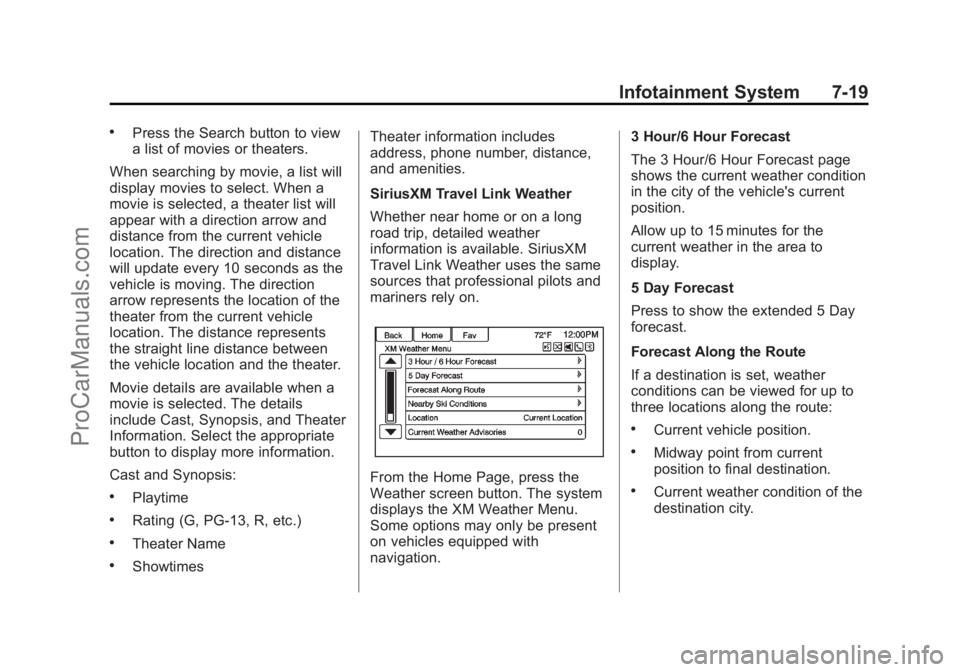
From the Home Page, press the
Weather screen button. The system
displays the XM Weather Menu.
Some options may only be present
on vehicles equipped with
navigation.
3 Hour/6 Hour Forecast
The 3 Hour/6 Hour Forecast page
shows the current weather condition
in the city of the vehicle's current
position.
Allow up to 15 minutes for the
current weather in the area to
display.
5 Day Forecast
Press to show the extended 5 Day
forecast.
Forecast Along the Route
If a destination is set, weather
conditions can be viewed for up to
three locations along the route:
.Current vehicle position.
.Midway point from current
position to final destination.
.Current weather condition of the
destination city.
ProCarManuals.com
Page 156 of 422
Black plate (20,1)Chevrolet SS Sedan Owner Manual (GMNA-Localizing-U.S.-6014851) - 2014 -
1st Edition - 8/22/13
7-20 Infotainment System
Nearby Ski Conditions
Select this option to view ski
conditions surrounding or nearby
the vehicle’s current location.
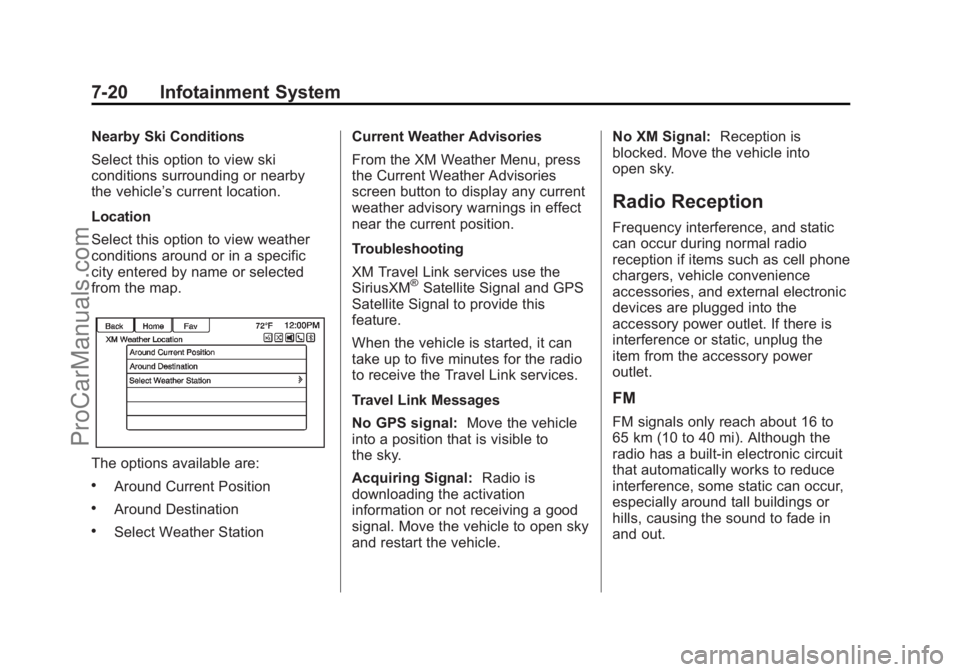
Location
Select this option to view weather
conditions around or in a specific
city entered by name or selected
from the map.
The options available are:
.Around Current Position
.Around Destination
.Select Weather Station Current Weather Advisories
From the XM Weather Menu, press
the Current Weather Advisories
screen button to display any current
weather advisory warnings in effect
near the current position.
Troubleshooting
XM Travel Link services use the
SiriusXM
®Satellite Signal and GPS
Satellite Signal to provide this
feature.
When the vehicle is started, it can
take up to five minutes for the radio
to receive the Travel Link services.
Travel Link Messages
No GPS signal: Move the vehicle
into a position that is visible to
the sky.
Acquiring Signal: Radio is
downloading the activation
information or not receiving a good
signal. Move the vehicle to open sky
and restart the vehicle. No XM Signal:
Reception is
blocked. Move the vehicle into
open sky.
Radio Reception
Frequency interference, and static
can occur during normal radio
reception if items such as cell phone
chargers, vehicle convenience
accessories, and external electronic
devices are plugged into the
accessory power outlet. If there is
interference or static, unplug the
item from the accessory power
outlet.
FM
FM signals only reach about 16 to
65 km (10 to 40 mi). Although the
radio has a built-in electronic circuit
that automatically works to reduce
interference, some static can occur,
especially around tall buildings or
hills, causing the sound to fade in
and out.
ProCarManuals.com
Page 157 of 422
Black plate (21,1)Chevrolet SS Sedan Owner Manual (GMNA-Localizing-U.S.-6014851) - 2014 -
1st Edition - 8/22/13
Infotainment System 7-21
AM
The range for most AM stations is
greater than for FM, especially at
night. The longer range can cause
station frequencies to interfere with
each other. Static can occur when
things like storms and power lines
interfere with radio reception. When
this happens, try reducing the treble
on the radio.
SiriusXM Satellite Radio
Service
SiriusXM Satellite Radio Service
gives digital radio reception from
coast to coast in the 48 contiguous
United States, and in Canada. Just
as with FM, tall buildings or hills can
interfere with satellite radio signals,
causing the sound to fade in and
out. In addition, traveling or standing
under heavy foliage, bridges,
garages, or tunnels may cause loss
of the SiriusXM signal for a period
of time.
Cellular Phone Usage
Cellular phone usage can cause
interference with the vehicle's radio.
Backglass Antenna
The AM-FM antenna is integrated
with the rear window defogger in the
rear window. Do not scratch the
inside surface or damage the lines
in the glass. If the inside surface is
damaged, it could interfere with
radio reception. For proper radio
reception, the antenna connector
needs to be properly attached to the
post on the glass.
If attaching a cell phone antenna to
the glass, attach it between the grid
lines.
{Caution
Using a razor blade or sharp
object to clear the inside rear
window can damage the rear
window antenna and/or the rear(Continued)
Caution (Continued)
window defogger. Repairs would
not be covered by the vehicle
warranty. Do not clear the inside
rear window with sharp objects.
{Caution
Do not apply aftermarket glass
tinting with metallic film. The
metallic film in some tinting
materials will interfere with or
distort the incoming radio
reception. Any damage caused to
the backglass antenna due to
metallic tinting materials will not
be covered by the vehicle
warranty.
Multi-Band Antenna
The roof antenna is for SiriusXM
Satellite Radio Service,OnStar®(if
equipped), and GPS (Global
Positioning System). Keep clear of
ProCarManuals.com
Page 158 of 422
Black plate (22,1)Chevrolet SS Sedan Owner Manual (GMNA-Localizing-U.S.-6014851) - 2014 -
1st Edition - 8/22/13
7-22 Infotainment System
obstructions for clear reception.
If the vehicle has a sunroof, and it is
open, reception can also be
affected.
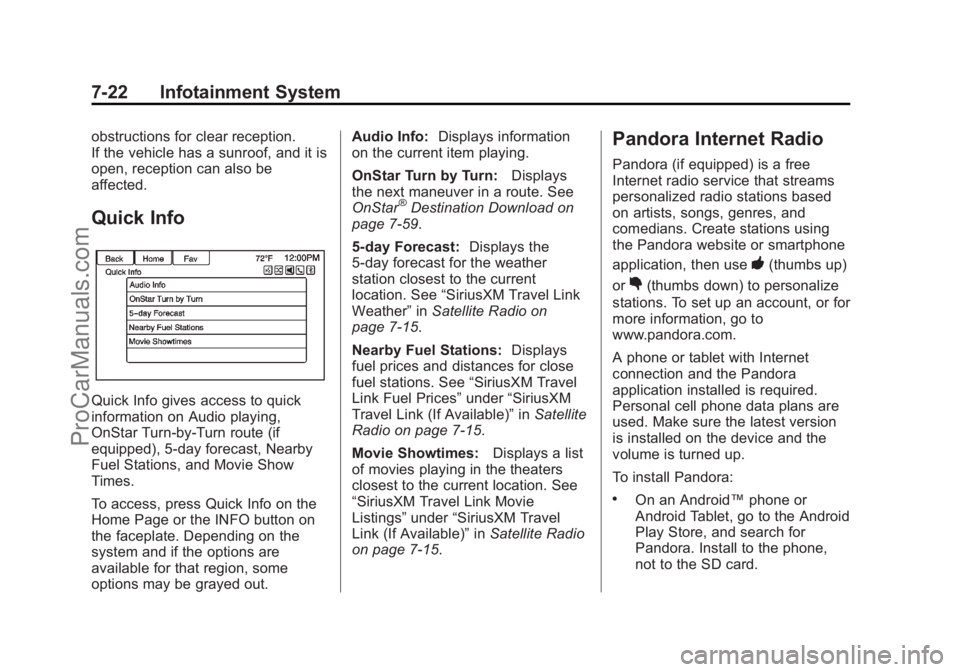
Quick Info
Quick Info gives access to quick
information on Audio playing,
OnStar Turn-by-Turn route (if
equipped), 5-day forecast, Nearby
Fuel Stations, and Movie Show
Times.
To access, press Quick Info on the
Home Page or the INFO button on
the faceplate. Depending on the
system and if the options are
available for that region, some
options may be grayed out.Audio Info:
Displays information
on the current item playing.
OnStar Turn by Turn: Displays
the next maneuver in a route. See
OnStar
®Destination Download on
page 7-59.
5-day Forecast: Displays the
5-day forecast for the weather
station closest to the current
location. See “SiriusXM Travel Link
Weather” inSatellite Radio on
page 7-15.
Nearby Fuel Stations: Displays
fuel prices and distances for close
fuel stations. See “SiriusXM Travel
Link Fuel Prices” under“SiriusXM
Travel Link (If Available)” inSatellite
Radio on page 7-15.
Movie Showtimes: Displays a list
of movies playing in the theaters
closest to the current location. See
“SiriusXM Travel Link Movie
Listings” under“SiriusXM Travel
Link (If Available)” inSatellite Radio
on page 7-15.
Pandora Internet Radio
Pandora (if equipped) is a free
Internet radio service that streams
personalized radio stations based
on artists, songs, genres, and
comedians. Create stations using
the Pandora website or smartphone
application, then use
-(thumbs up)
or
,(thumbs down) to personalize
stations. To set up an account, or for
more information, go to
www.pandora.com.
A phone or tablet with Internet
connection and the Pandora
application installed is required.
Personal cell phone data plans are
used. Make sure the latest version
is installed on the device and the
volume is turned up.
To install Pandora:
.On an Android™ phone or
Android Tablet, go to the Android
Play Store, and search for
Pandora. Install to the phone,
not to the SD card.
ProCarManuals.com
Page 159 of 422
Black plate (23,1)Chevrolet SS Sedan Owner Manual (GMNA-Localizing-U.S.-6014851) - 2014 -
1st Edition - 8/22/13
Infotainment System 7-23
.On a BlackBerry®phone, go to
the BlackBerry App World™ and
search for Pandora.
.On an iPhone®, iPad®, or iPod
touch®, go to the iTunes®Store
and search for Pandora.
Launching Pandora
Connect the iPhone, iPad, or iPod
touch to the USB port, or connect
an Android or BlackBerry through
Bluetooth. See Auxiliary Devices on
page 7-40 orBluetooth on
page 7-75. For first-time use, set up
stations before connecting to the
vehicle. The Pandora icon will be
available on the Home Page and
the source pop-up displays if the
latest application is installed on the
device.
Using the iPhone, iPod Touch,
or iPad
1. Plug the device into the USB
port. The phone screen must be
unlocked. 2. To launch, do one of the
following:
.Launch the application on
the device.
.Press Pandora on the
Home Page.
.Pressb/gand say
“Pandora” or“Tune
Pandora.”
.Accept any notification on
the screen of the device.
To relaunch Pandora, press SRCE
or SRC on the steering wheel
controls.
If nothing happens when the
available Pandora screen button is
pressed, download the latest
Pandora application and retry.
Pandora will always be highlighted
on the Home Page when an iPhone,
iPad, or iPod touch is connected
using the USB port. To use, log into
your account. If the
“Please See Device” message
is shown, the login screen may
display on the device.
If the “Please Unlock the Phone or
Restart the App and Try Again”
message is shown, then the phone
may be locked. Unlock the phone,
close the app, then restart the app
and make sure the Home Page is
visible on the phone/device.
If the vehicle is shut off while tuned
to Pandora and the iPhone, iPad,
or iPod touch is left connected to
the USB port before the next ignition
cycle, the radio will start playing
Pandora when the vehicle is started.
If Pandora is shut down on the
phone or another audio app is used,
Pandora may not start on the next
ignition cycle. If iPod source is
selected, it may show iPod and then
switch to Pandora.
Using an Android Phone
1. Pair the Android phone using Bluetooth.
ProCarManuals.com
Page 160 of 422
Black plate (24,1)Chevrolet SS Sedan Owner Manual (GMNA-Localizing-U.S.-6014851) - 2014 -
1st Edition - 8/22/13
7-24 Infotainment System
2. Use one of the following tolaunch:
.Launch the application on
the device.
.Press Pandora on the
Home Page.
.Pressb/gand say
“Pandora” or“Tune
Pandora.”
After Pandora has been launched,
press SRCE or SRC on the steering
wheel controls to access Pandora
features.
If nothing happens when the
available Pandora screen button is
pressed, download the latest
Pandora application and retry.
If the “Please See Device” message
is shown, the login screen may
display on the device.
If the "Please unlock your phone or
restart the app" message is shown,
then the phone may be locked. Unlock the phone, close the app,
then restart the app to ensure
proper communication.
Using a BlackBerry Phone
The phone must be unlocked. To
launch Pandora service:
1. Pair the BlackBerry phone using
Bluetooth.
2. Use one of the following to launch:
.Launch the application on
the device.
.Press Pandora on the
Home Page.
.Pressb/gand say
“Pandora” or“Tune
Pandora.”
After Pandora has been launched,
press SRCE or SRC on the steering
wheel controls to access Pandora
features. If nothing happens when the
available Pandora screen button is
pressed, download the latest
Pandora application and retry.
If the
“Please See Device” message
is shown, the login screen may
display on the device.
If the "Please unlock your phone or
restart the app" message is shown,
then the phone may be locked.
Unlock the phone, close the app,
and then restart the app to ensure
proper communication.
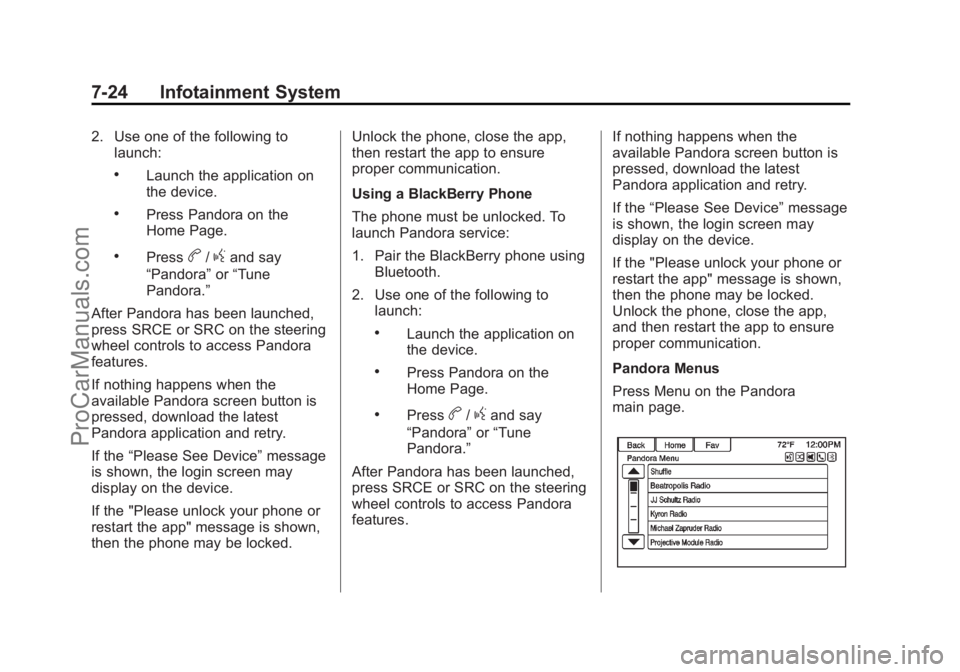
Pandora Menus
Press Menu on the Pandora
main page.
ProCarManuals.com