phone CHEVROLET SS 2014 Owner's Guide
[x] Cancel search | Manufacturer: CHEVROLET, Model Year: 2014, Model line: SS, Model: CHEVROLET SS 2014Pages: 422, PDF Size: 6.18 MB
Page 178 of 422

Black plate (42,1)Chevrolet SS Sedan Owner Manual (GMNA-Localizing-U.S.-6014851) - 2014 -
1st Edition - 8/22/13
7-42 Infotainment System
playback. This may happen
depending on how the device
communicates over Bluetooth.
Some phones support sending
Bluetooth music information to
display on the radio. When the radio
receives this information, it will
check to see if any album art is
available and display it.
When playing music on the radio
from a Bluetooth device, make sure
the Bluetooth device is unlocked
and the intended music application
is showing on the home screen.
For iPhone/iPod touch and iPad
devices, Bluetooth Audio will not
work if the device is connected
through the USB and Bluetooth at
the same time.Navigation
Using the Navigation
System
Use the NAV button on the
faceplate or Navigation on the
Home Page to access the
navigation map.
Press the NAV button again to
change between alternative views of
the normal split and full map views.
The Menu screen button at the
bottom right side of the display
accesses the Navigation Menu.
The touch-sensitive buttons
available are:
ProCarManuals.com
Page 187 of 422
Black plate (51,1)Chevrolet SS Sedan Owner Manual (GMNA-Localizing-U.S.-6014851) - 2014 -
1st Edition - 8/22/13
Infotainment System 7-51
Select the Country line option.
The available Country List
displays.
4. Select the desired country. For example, select Canada as a
default country.
5. Enter State/Province. For example, enter Ontario and
confirm the selection.
The destination in other countries
can also be changed using voice
recognition. See Voice Recognition
on page 7-68.
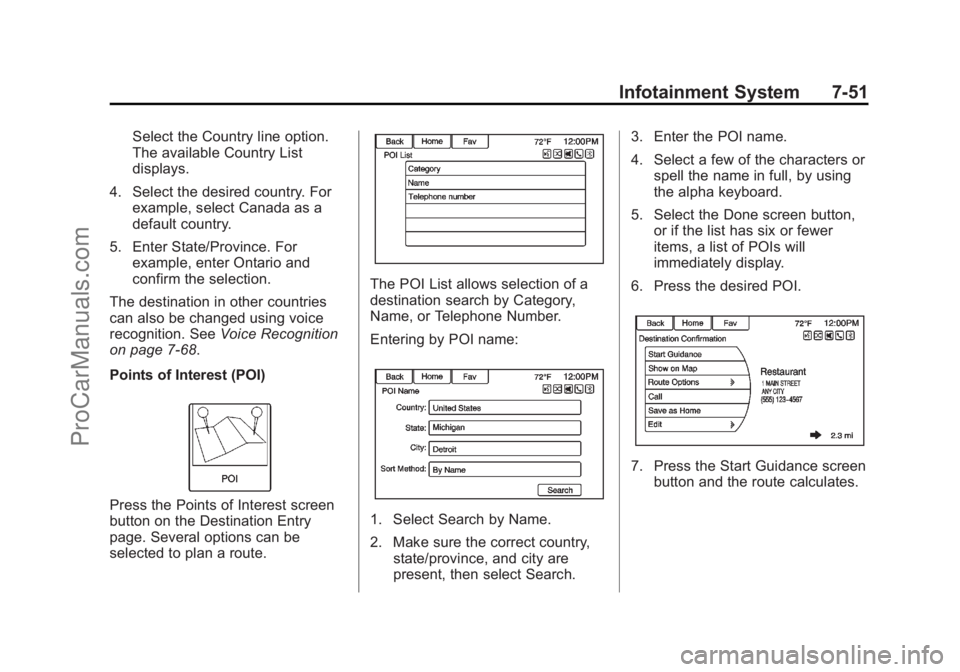
Points of Interest (POI)
Press the Points of Interest screen
button on the Destination Entry
page. Several options can be
selected to plan a route.
The POI List allows selection of a
destination search by Category,
Name, or Telephone Number.
Entering by POI name:
1. Select Search by Name.
2. Make sure the correct country,
state/province, and city are
present, then select Search. 3. Enter the POI name.
4. Select a few of the characters or
spell the name in full, by using
the alpha keyboard.
5. Select the Done screen button, or if the list has six or fewer
items, a list of POIs will
immediately display.
6. Press the desired POI.
7. Press the Start Guidance screen button and the route calculates.
ProCarManuals.com
Page 192 of 422

Black plate (56,1)Chevrolet SS Sedan Owner Manual (GMNA-Localizing-U.S.-6014851) - 2014 -
1st Edition - 8/22/13
7-56 Infotainment System
4. Select a few of the characters orspell the name in full, by using
the alpha keyboard.
5. Select the Done screen button, or if the list has six or fewer
items, a list of POIs will
immediately display.
6. Press the desired POI.
The Travel Guide POI will have
some detailed information about the
selection made. This information
may include:
.Brief Description
.Address
.Number
.Hours of Operation
.Price
.Website
Photos may not be available for
certain locations or countries.
Destination Confirmation
Multiple options are available on the
destination confirmation screen:
Start Guidance: Press to start a
route calculation to the displayed
destination.
Show on Map: Press to switch to
the map view with the displayed
destination centered on the map. Route Options:
Press to change
route options. See “Route Options”
following.
Call: Press to initiate a phone call
to the displayed phone number,
if phone capability is available.
Save as Home: Press to save the
displayed destination as your home
destination. The home destination
will be stored at the top of the list of
destinations in the address book.
Save/Edit: Press to save the
displayed destination into the
address book. If the displayed
destination is already stored in the
address book, Edit will show as the
menu item.
ProCarManuals.com
Page 196 of 422
Black plate (60,1)Chevrolet SS Sedan Owner Manual (GMNA-Localizing-U.S.-6014851) - 2014 -
1st Edition - 8/22/13
7-60 Infotainment System
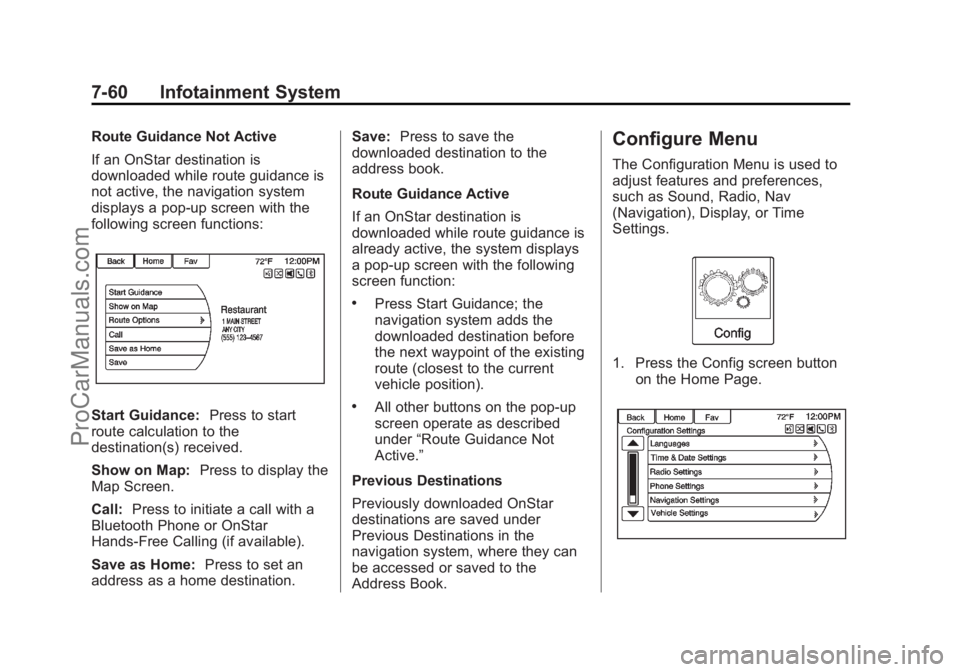
Route Guidance Not Active
If an OnStar destination is
downloaded while route guidance is
not active, the navigation system
displays a pop-up screen with the
following screen functions:
Start Guidance:Press to start
route calculation to the
destination(s) received.
Show on Map: Press to display the
Map Screen.
Call: Press to initiate a call with a
Bluetooth Phone or OnStar
Hands-Free Calling (if available).
Save as Home: Press to set an
address as a home destination. Save:
Press to save the
downloaded destination to the
address book.
Route Guidance Active
If an OnStar destination is
downloaded while route guidance is
already active, the system displays
a pop-up screen with the following
screen function:
.Press Start Guidance; the
navigation system adds the
downloaded destination before
the next waypoint of the existing
route (closest to the current
vehicle position).
.All other buttons on the pop-up
screen operate as described
under “Route Guidance Not
Active.”
Previous Destinations
Previously downloaded OnStar
destinations are saved under
Previous Destinations in the
navigation system, where they can
be accessed or saved to the
Address Book.
Configure Menu
The Configuration Menu is used to
adjust features and preferences,
such as Sound, Radio, Nav
(Navigation), Display, or Time
Settings.
1. Press the Config screen button on the Home Page.
ProCarManuals.com
Page 198 of 422
Black plate (62,1)Chevrolet SS Sedan Owner Manual (GMNA-Localizing-U.S.-6014851) - 2014 -
1st Edition - 8/22/13
7-62 Infotainment System
settings where background noise is
typically louder than the sound
system volume.
Gracenote Options:Press to
enable/disable Normalization used
to improve voice recognition and
media groupings. See USB on
page 7-34, Auxiliary Devices on
page 7-40, and Bluetooth Audio on
page 7-41.
XM Channel Graphics: Press to
enable/disable the XM Audio page
background on the XM Channel
display.
Max Startup Volume: Press to set
the maximum volume level for
startup that will be used even if a
higher volume had been set when
the radio was turned off.
Number of Favorite Pages: Press
to select the number of FAV pages
to be displayed.
XM Categories: Press to
customize which available XM
Categories are used and displayed. Software Version Information:
Press to display information about
the system and update software if
available.
Phone Settings
See
Bluetooth on page 7-75 in the
“Phone” section for more
information on phone settings.
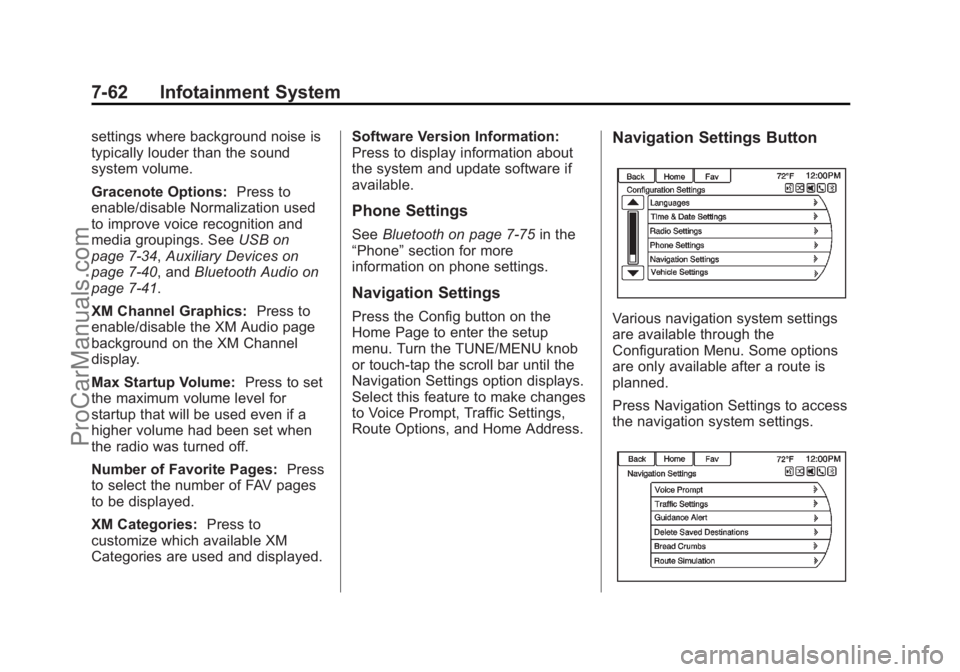
Navigation Settings
Press the Config button on the
Home Page to enter the setup
menu. Turn the TUNE/MENU knob
or touch-tap the scroll bar until the
Navigation Settings option displays.
Select this feature to make changes
to Voice Prompt, Traffic Settings,
Route Options, and Home Address.
Navigation Settings Button
Various navigation system settings
are available through the
Configuration Menu. Some options
are only available after a route is
planned.
Press Navigation Settings to access
the navigation system settings.
ProCarManuals.com
Page 201 of 422
Black plate (65,1)Chevrolet SS Sedan Owner Manual (GMNA-Localizing-U.S.-6014851) - 2014 -
1st Edition - 8/22/13
Infotainment System 7-65
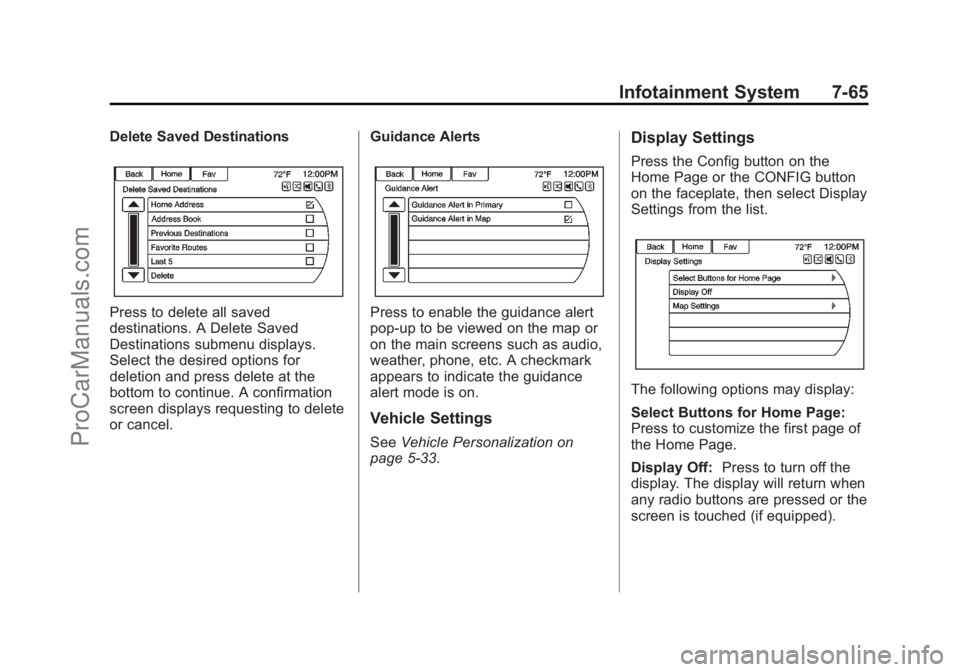
Delete Saved Destinations
Press to delete all saved
destinations. A Delete Saved
Destinations submenu displays.
Select the desired options for
deletion and press delete at the
bottom to continue. A confirmation
screen displays requesting to delete
or cancel.Guidance AlertsPress to enable the guidance alert
pop-up to be viewed on the map or
on the main screens such as audio,
weather, phone, etc. A checkmark
appears to indicate the guidance
alert mode is on.
Vehicle Settings
See
Vehicle Personalization on
page 5-33.
Display Settings
Press the Config button on the
Home Page or the CONFIG button
on the faceplate, then select Display
Settings from the list.
The following options may display:
Select Buttons for Home Page:
Press to customize the first page of
the Home Page.
Display Off: Press to turn off the
display. The display will return when
any radio buttons are pressed or the
screen is touched (if equipped).
ProCarManuals.com
Page 204 of 422
Black plate (68,1)Chevrolet SS Sedan Owner Manual (GMNA-Localizing-U.S.-6014851) - 2014 -
1st Edition - 8/22/13
7-68 Infotainment System
If the System Needs
Service
If the navigation system needs
service and the steps listed here
have been followed but there are
still problems, see your dealer for
assistance.
Map Data Updates
The map data provided in the
vehicle is the most up-to-date
information available when the
vehicle was produced. The map
data is updated periodically,
provided that the map information
has changed.
For questions about the operation of
the navigation system or the update
process, contact the GM Nav Disc
Center toll-free phone number,
1-877-NAV-DISC (1-877-628-3472)
or go to the center’s website,
www.gmnavdisc.com. If updates are
needed, call the GM Nav Disc
Center or order a new Map Update
online. To order map data, have the vehicle’s Vehicle Identification
Number (VIN) available. See
Vehicle Identification Number (VIN)
on page 12-1.
After receiving the updated map
data, see
Maps on page 7-46.
Database Coverage
Explanations
Coverage areas vary with respect to
the level of map detail available for
any given area. Some areas feature
greater levels of detail than others.
If this happens, it does not mean
there is a problem with the system.
As the map data is updated, more
detail can become available for
areas which previously had limited
detail. See Map Data Updates on
page 7-68 for more information.
Voice Recognition
Voice recognition allows for
hands-free operation of the
infotainment system features.
Voice recognition can be used when
the radio is on or when Retained
Accessory Power (RAP) is active.
SeeRetained Accessory Power
(RAP) on page 9-18. The system
maintains a minimum volume level.
Using Voice Recognition
1. Pressb/gon the steering
wheel. The audio system mutes.
A voice prompt states, “Please
say a command.” Wait until the
tone is heard before speaking.
If there is no tone, make sure
that the volume is turned up.
While voice recognition is active,
the system displays a
gsymbol
in the top right of the screen.
2. Clearly speak one of the commands listed later in this
section.
ProCarManuals.com
Page 206 of 422
Black plate (70,1)Chevrolet SS Sedan Owner Manual (GMNA-Localizing-U.S.-6014851) - 2014 -
1st Edition - 8/22/13
7-70 Infotainment System
.If the system provides
destination in another country on
several attempts, say the
“Change Country”command and
say the country of interest. The
country default is the United
States. To enter a destination in
Canada or Mexico, the country
will first have to be changed in
the system.
Voice Recognition Help
To enter the help playback session,
clearly speak one of the help
commands.
Help: The system plays back more
specific help commands such as
Radio Settings for the user to
choose from.
Radio: Use this command to learn
about how to select a band (AM,
FM, or XM), and how to change
radio stations by speaking
frequency numbers.
Phone: Use this command to learn
about how to dial, pair a device,
or delete a device. My Media:
Use this command to
learn how to play specific tracks,
artists, albums, devices connected
to the USB port, or to change
sources.
Settings: Use this command to
learn about how to turn Verbose on
or off, or set the language.
Voice Recognition Commands
The following list shows the voice
commands available for the
infotainment system with a brief
description of each. The commands
are listed with the optional words in
parentheses. To use the voice
commands, see the previous
instructions.
Radio Commands
Tune AM, Tune FM, Tune XM,
Tune Pandora, Tune Stitcher:
Instructs the system to go to the
specific band and the last channel. Tune AM (frequency), Tune FM
(frequency), Tune XM (channel
number), or Tune XM (channel
name):
Instructs the system to go
to the specific station.
Thumbs Up: Instructs the system
to give the current song or station a
thumbs up in Pandora or Stitcher.
Thumbs Down: Instructs the
system to give the current song or
station a thumbs down in Pandora
or Stitcher.
Phone Commands
Dial or Call (phone number or
contact): Instructs the system to
start a phone call. For example, say
“Dial 1 248 123 4567.” To call a
phone book contact, say “Dial”or
“Call,” say the name and location,
and then say “Dial.”For example,
say “Call John at Home” or“Call
John at Work.” If a number is not
recognized, the first number in the
list will be called.
Pair or Connect: Instructs the
system to begin pairing a device.
ProCarManuals.com
Page 207 of 422
Black plate (71,1)Chevrolet SS Sedan Owner Manual (GMNA-Localizing-U.S.-6014851) - 2014 -
1st Edition - 8/22/13
Infotainment System 7-71
Digit Dial:Instructs the system to
dial a phone number one digit at a
time. After saying the digits,
say “Dial.”
Redial or Redial Last Number:
Instructs the system to dial the last
phone number called.
Select Device or Change Phone:
Instructs the system to switch to a
different paired device. The device
must be selected from the screen or
using the TUNE/MENU knob.
Delete Device: Instructs the
system to delete a paired device.
Read Text Messages or Read SMS
Messages: Instructs the system to
begin reading text messages from
paired device.
Not all devices support text
messages. Applicable where
equipped.
My Media Commands
AUX, USB, or Bluetooth Audio:
Instructs the system to change the
source. The following commands only apply
to USB, iPod, and iPhone sources.
They are supported after the device
has been indexed.
Play Artist (artist name):
Instructs
the system to play songs by a
specific artist. For example, say
“Play Artist
Play Album (album title): Instructs
the system to play a specific album.
Play Song (song title): Instructs
the system to play a specific song.
Play Genre (genre name):
Instructs the system to play songs
of a particular genre.
Search Artist (artist name):
Instructs the system to show a list of
all songs by a specific artist. For
example, say "Search Artist
Search Composer (composer
name): Instructs the system to
show a list of all songs by a specific
composer. For example, say
"Search Composer
Instructs the system to show a list of
all songs by a specific album. For
example, say "Search Album
Search Genre (genre name):
Instructs the system to show a list of
all songs for a specific genre. For
example, say "Search Genre
Search Folder (folder name):
Instructs the system to show a list of
all songs in a specific folder. For
example, say "Search folder
Search Playlist (playlist name):
Instructs the system to show a list of
all songs in a specific playlist. For
example, say "Search playlist
Search Audio Book (audio book
name):
Instructs the system to
show a list of all tracks in a specific
audio book. For example, say
"Search audio book
⁐⁃⁍⁵
Page 208 of 422
Black plate (72,1)Chevrolet SS Sedan Owner Manual (GMNA-Localizing-U.S.-6014851) - 2014 -
1st Edition - 8/22/13
7-72 Infotainment System
Search Podcast (podcast name):
Instructs the system to show a list of
all tracks in a specific podcast. For
example, say "Search podcast
More Like This:Instructs the
system to create a playlist of tracks
similar to the current track playing.
Settings Commands
Verbose (set) on (mode), Verbose
(set) off (mode): Instructs the
system to turn voice prompts on or
off. When off, this feature turns off
voice prompts.
Language (language): Instructs
the system to set the language.
List Devices: Instructs the system
to give a list of devices to use.
Other Commands
Goodbye: Instructs the system to
end a phone call or voice
recognition.
Cancel: Instructs the system to
cancel an action. Go Back, Back, Previous:
Instructs the system to go back to a
prior menu.
Main Menu:
Instructs the system to
go to the main menu.
Yes, Yep, Yup, Ya, Sure, Right,
Correct, OK, Positive, You Got it,
Probably, You Bet: These can be
used to say “Yes.”
No, Nope, Na, No way, Wrong,
Incorrect, Negative, Not really, No
I said, No I Did Not, No I Do Not:
These can be used to say “No.”
Next Page, Page Down: Instructs
the system to scroll forward one
page in a list.
Previous Page, Page Up: Instructs
the system to scroll back one page
in a list.
Navigation Commands (If
Equipped)
To activate the navigation voice
recognition:
1. Press
b/gon the steering
wheel. The audio system mutes.
A voice prompt says, “Please
say a command.” Wait until the
tone is heard before speaking.
If there is no tone, make sure
the volume is turned up.
While voice recognition is active,
the system displays a symbol in
the top right of the screen.
2. Clearly speak the command “Navigation.”
3. Clearly speak one of the commands in this section.
The following commands only apply
once the Navigation command is
given.
ProCarManuals.com