lock CHEVROLET SS 2014 Service Manual
[x] Cancel search | Manufacturer: CHEVROLET, Model Year: 2014, Model line: SS, Model: CHEVROLET SS 2014Pages: 422, PDF Size: 6.18 MB
Page 122 of 422
Black plate (30,1)Chevrolet SS Sedan Owner Manual (GMNA-Localizing-U.S.-6014851) - 2014 -
1st Edition - 8/22/13
5-30 Instruments and Controls
when it is temporarily unavailable.
The LDW system does not need
service.
This message could be due to the
camera being blocked. Cleaning the
outside of the windshield behind the
rearview mirror may correct the
issue.
PARK ASSIST OFF
This message displays when the
Parking Assist system has been
turned off or when there is a
temporary condition causing the
system to be disabled.
REAR CROSS TRAFFIC
ALERT OFF
This message displays when the
Rear Cross Traffic Alert has been
turned off.
SERVICE FRONT CAMERA
If this message remains on after
continued driving, the vehicle needs
service. Do not use the Lane
Departure Warning (LDW) andForward Collision Alert (FCA)
features. Take the vehicle to your
dealer.
SERVICE PARKING ASSIST
This message displays if there is a
problem with the Parking Assist
system. Do not use this system to
help you park. See your dealer for
service.
SERVICE SIDE DETECTION
SYSTEM
If this message remains on after
continued driving, the vehicle needs
service. Side Blind Zone Alert
(SBZA) and Rear Cross Traffic Alert
(RCTA) features will not work. Take
the vehicle to your dealer.
SIDE BLIND ZONE ALERT OFF
This message indicates that the
driver has turned the Side Blind
Zone Alert (SBZA) system off.
SIDE DETECTION SYSTEM
UNAVAILABLE
This message indicates that Side
Blind Zone Alert (SBZA) and Rear
Cross Traffic Alert (RCTA) are
disabled either because the sensor
is blocked and cannot detect
vehicles in the blind zone, or the
vehicle is passing through an open
area, such as the desert, where
there is insufficient data for
operation. This message may also
activate during heavy rain or due to
road spray. The vehicle does not
need service. For cleaning, see
"Washing the Vehicle" under
Exterior Care on page 10-72.
ProCarManuals.com
Page 125 of 422
Black plate (33,1)Chevrolet SS Sedan Owner Manual (GMNA-Localizing-U.S.-6014851) - 2014 -
1st Edition - 8/22/13
Instruments and Controls 5-33
Vehicle
Personalization
Use the audio system controls to
access the personalization menus
for customizing vehicle features.
The following are all possible
personalization features. Depending
on the vehicle, some may not be
available.
HOME:Press to display the Home
Page screen.
TUNE/MENU: Press to enter
menus and select menu items. Turn
to scroll through the menus.
/BACK: Press to exit or move
backward in a menu.
Entering the Personalization
Menus
The ignition must be in the ON
position.
1. Press HOME.
2. Select the Config screen button. 3. Turn the TUNE/MENU knob to
highlight the desired setting.
4. Press the TUNE/MENU knob to select the desired setting menu.
The following list of menu items may
be available:
.Languages
.Time and Date
.Radio Settings
.Phone Settings
.Navigation Settings
.Display Settings
.Vehicle Settings
Each menu is detailed in the
following information. Alternatively,
the touch screen may be used to
select.
Languages
Select Languages, then select from
the available language(s).
Time and Date
To adjust the time and date settings,
see Clock on page 5-4.
Radio Settings
Select and the following may
display:
.Auto Volume
.Gracenote Options
.XM Channel Art
.Max Startup Volume
.Number of Favorite Pages
.XM Categories
.Software Version Menu
Auto Volume
When selected, this feature will
automatically adjust the volume to
minimize the effects of unwanted
background noise that can result
from changing road surfaces, driving
speeds, or open windows. This
feature works best at lower volume
ProCarManuals.com
Page 127 of 422
Black plate (35,1)Chevrolet SS Sedan Owner Manual (GMNA-Localizing-U.S.-6014851) - 2014 -
1st Edition - 8/22/13
Instruments and Controls 5-35
‐The Automatic setting adjusts
the screen background
automatically depending on
the exterior lighting conditions.
‐ The Day setting brightens the
map background.
‐ The Night setting darkens the
map background.
.Speed Limits: Select to display
the posted speed limit on the
map, when available.
Vehicle Settings
Select and the following may
display:
.Climate and Air Quality
.Comfort and Convenience
.Collision/Detection Systems
.Lighting
.Power Door Locks
.Remote Lock/Unlock/Start
.Return to Factory Settings? Climate and Air Quality
Select and the following may
display:
.Auto Fan Speed
.Remote Start Auto Cool Seat
.Remote Start Auto Heat Seat
Auto Fan Speed
This feature sets the climate control
fan speed to maintain the interior
temperature.
Select High, Medium, or Low.
Remote Start Auto Cool Seat
When on and it is hot outside, the
ventilated seats will turn on
automatically.
Select to turn on or off.
Remote Start Auto Heat Seat
When on and it is cold outside, the
heated seats will turn on
automatically.
Select to turn on or off. Comfort and Convenience
Select and the following may
display:
.Chime Volume
.Button Chime
.Reverse Mirror Tilt
Chime Volume
This allows the selection of the
chime volume level.
Select Normal or High.
Button Chime
This allows the button chimes to be
turned on or off.
Select On or Off.
Reverse Mirror Tilt
This allows the reverse mirror tilt to
be set to on or off.
Select On or Off.
ProCarManuals.com
Page 128 of 422
Black plate (36,1)Chevrolet SS Sedan Owner Manual (GMNA-Localizing-U.S.-6014851) - 2014 -
1st Edition - 8/22/13
5-36 Instruments and Controls
Collision/Detection Systems
Select and the following may
display, if equipped:
.Park Assist
.Side Blind Zone Alert
.Rear Cross Traffic Alert
Park Assist
This allows the Parking Assist
feature to be turned on or off. See
Driver Assistance Systems on
page 9-35.
Select On or Off.
Side Blind Zone Alert
This allows the Side Blind Zone
Alert feature to be turned on or off.
See Side Blind Zone Alert (SBZA)
on page 9-42.
Select On or Off.
Rear Cross Traffic Alert
This allows the Rear Cross Traffic
Alert feature to be turned on or off.
See Assistance Systems for Parking
or Backing on page 9-36. Select On or Off.
Lighting
Select and the following may
display:
.Vehicle Locator Lights
.Exit Lighting
Vehicle Locator Lights
When on, the headlamps and
back-up lamps will flash when
Kis
pressed.
Select On or Off.
Exit Lighting
This allows the selection of how
long the exterior lamps stay on
when leaving the vehicle when it is
dark outside.
Select Off, 30 Seconds, 1 Minute,
or 2 Minutes.
Power Door Locks
Select and the following may
display:
.Open Door Anti Lock Out
.Auto Door Unlock
.Delayed Door Lock
Open Door Anti Lock Out
When on, this feature will keep the
driver door from locking when the
door is open. If off, the Delayed
Door Lock menu will be available.
Select On or Off.
Auto Door Unlock
This allows the selection of which
doors will automatically unlock when
the vehicle is shifted into P (Park).
Select All Doors, Driver Door, or Off.
Delayed Door Lock
When on, this feature will delay the
locking of the doors. To override the
delay, press the power door lock
switch on the door.
Select On or Off.
Remote Lock/Unlock/Start
Select and the following may
display:
.Remote Unlock Feedback
ProCarManuals.com
Page 129 of 422
Black plate (37,1)Chevrolet SS Sedan Owner Manual (GMNA-Localizing-U.S.-6014851) - 2014 -
1st Edition - 8/22/13
Instruments and Controls 5-37
.Remote Lock Feedback
.Remote Door Unlock
.Passive Door Unlock
.Passive Door Lock
.Remote Left in Veh. Reminder
Remote Unlock Feedback
If equipped, this allows the selection
of what type of feedback is given
when unlocking the vehicle with the
RKE transmitter.
Select On or Off.
Remote Lock Feedback
This allows the selection of what
type of feedback is given when
locking the vehicle with the Remote
Keyless Entry (RKE) transmitter.
Select Lights and Horn, Lights Only,
Horn Only, or Off.
Remote Door Unlock
This allows the selection of which
doors will unlock when pressing
K
on the RKE transmitter. Select All Doors or Driver Door
Only. When set to Driver Door Only,
the driver door will unlock the first
time
Kis pressed and all doors will
unlock when
Kis pressed a second
time. When set to All Doors, all of
the doors will unlock with the first
press of
K.
Passive Door Unlock
This allows the selection of what
doors will unlock when using the
button on the driver door to unlock
the vehicle.
Select All Doors or Driver
Door Only.
Passive Door Lock
This allows passive locking to be
turned on or off and selects
feedback. See Remote Keyless
Entry (RKE) System Operation on
page 2-3.
Select On with Horn Chirp, On,
or OFF. Remote Left in Veh. Reminder
This feature sounds an alert when
the RKE transmitter is left in the
vehicle.
Select On or Off.
Return to Factory Settings?
Select to return all vehicle
personalization to the default
settings.
Select Yes or No.
ProCarManuals.com
Page 134 of 422
Black plate (4,1)Chevrolet SS Sedan Owner Manual (GMNA-Localizing-U.S.-6014851) - 2014 -
1st Edition - 8/22/13
6-4 Lighting
Interior Lighting
Instrument Panel
Illumination Control
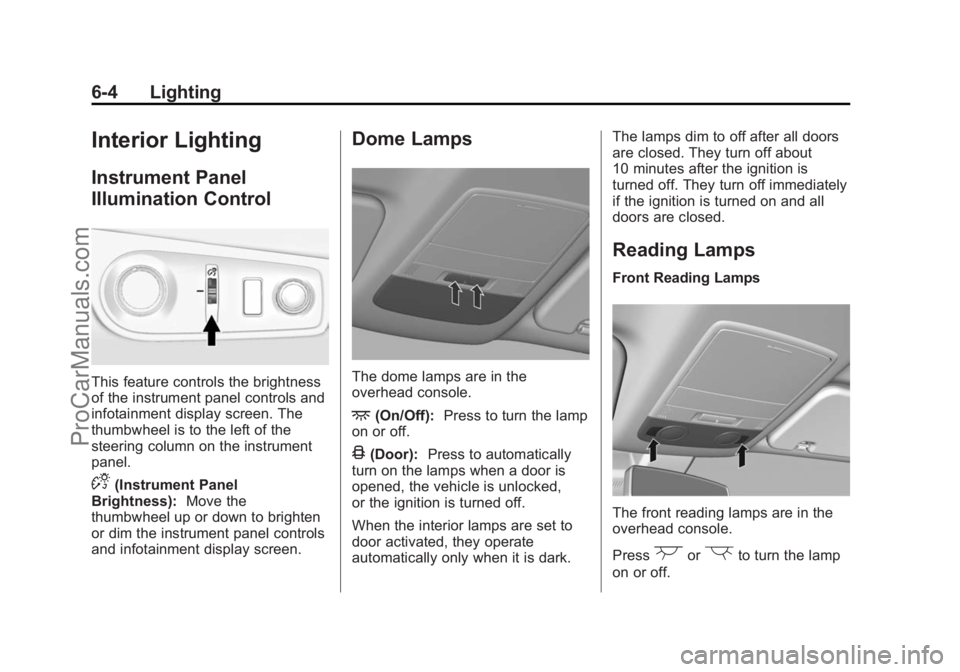
This feature controls the brightness
of the instrument panel controls and
infotainment display screen. The
thumbwheel is to the left of the
steering column on the instrument
panel.
D(Instrument Panel
Brightness): Move the
thumbwheel up or down to brighten
or dim the instrument panel controls
and infotainment display screen.
Dome Lamps
The dome lamps are in the
overhead console.
+(On/Off): Press to turn the lamp
on or off.
4(Door): Press to automatically
turn on the lamps when a door is
opened, the vehicle is unlocked,
or the ignition is turned off.
When the interior lamps are set to
door activated, they operate
automatically only when it is dark. The lamps dim to off after all doors
are closed. They turn off about
10 minutes after the ignition is
turned off. They turn off immediately
if the ignition is turned on and all
doors are closed.
Reading Lamps
Front Reading Lamps
The front reading lamps are in the
overhead console.
Press
(or)to turn the lamp
on or off.
ProCarManuals.com
Page 135 of 422
Black plate (5,1)Chevrolet SS Sedan Owner Manual (GMNA-Localizing-U.S.-6014851) - 2014 -
1st Edition - 8/22/13
Lighting 6-5
Rear Reading Lamps
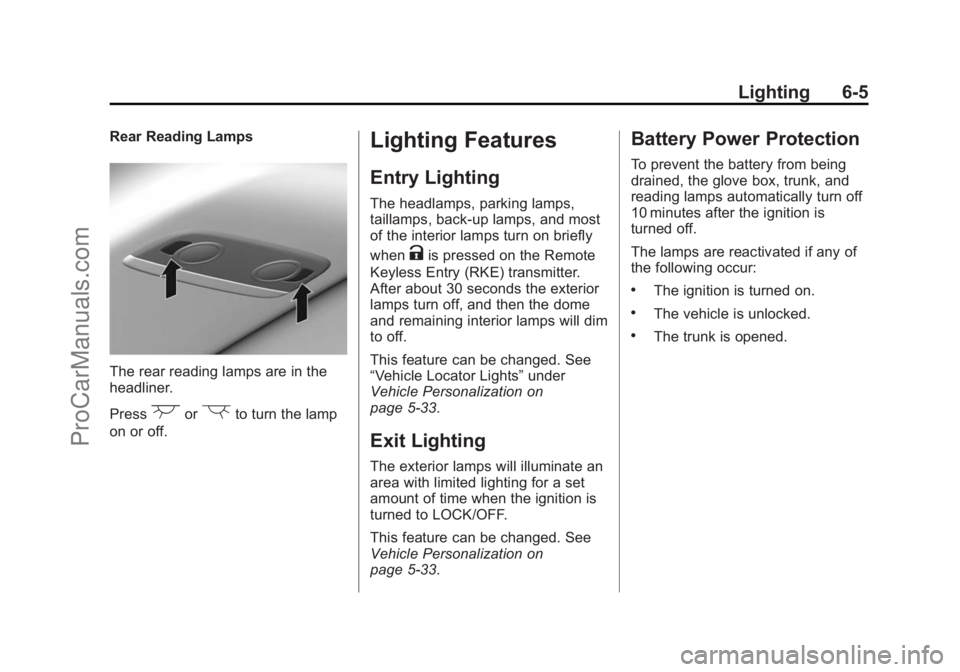
The rear reading lamps are in the
headliner.
Press
(or)to turn the lamp
on or off.
Lighting Features
Entry Lighting
The headlamps, parking lamps,
taillamps, back-up lamps, and most
of the interior lamps turn on briefly
when
Kis pressed on the Remote
Keyless Entry (RKE) transmitter.
After about 30 seconds the exterior
lamps turn off, and then the dome
and remaining interior lamps will dim
to off.
This feature can be changed. See
“Vehicle Locator Lights” under
Vehicle Personalization on
page 5-33.
Exit Lighting
The exterior lamps will illuminate an
area with limited lighting for a set
amount of time when the ignition is
turned to LOCK/OFF.
This feature can be changed. See
Vehicle Personalization on
page 5-33.
Battery Power Protection
To prevent the battery from being
drained, the glove box, trunk, and
reading lamps automatically turn off
10 minutes after the ignition is
turned off.
The lamps are reactivated if any of
the following occur:
.The ignition is turned on.
.The vehicle is unlocked.
.The trunk is opened.
ProCarManuals.com
Page 147 of 422
Black plate (11,1)Chevrolet SS Sedan Owner Manual (GMNA-Localizing-U.S.-6014851) - 2014 -
1st Edition - 8/22/13
Infotainment System 7-11
activation of Wi-Fi on the
smartphone, press the Apps button
on the radio Home Page. Follow the
prompts to configure the Internet
connection and set up an account.
See www.chevrolet.com/mylink
(U.S.) or www.mylink.chevrolet.ca
(Canada).
Cleaning High Gloss Surfaces
and Vehicle Information and
Radio Displays
For vehicles with high gloss
surfaces or vehicle displays, use a
microfiber cloth to wipe surfaces.
Before wiping the surface with the
microfiber cloth, use a soft bristle
brush to remove dirt that could
scratch the surface. Then use the
microfiber cloth by gently rubbing to
clean. Never use window cleaners
or solvents. Periodically hand wash
the microfiber cloth separately,
using mild soap. Do not use bleach
or fabric softener. Rinse thoroughly
and air dry before next use.
{Caution
Do not attach a device with a
suction cup to the display. This
may cause damage and would
not be covered by the warranty.
Software Updates
See the websites for more
information.
Website Information
In the U.S., see www.chevrolet.com
In Canada, see
www.chevrolet.gm.ca
Radio
AM-FM Radio
Playing the Radio
VOL/O(Volume/Power):
.Press to turn the radio on or off.
.Turn to increase or decrease the
volume of the active source.
The steering wheel controls can
also be used to adjust the volume.
See Steering Wheel Controls on
page 5-2.
Radio Operation
The radio will work when the key is
in ON/RUN or ACC/
ACCESSORY. When the key is
turned from ON/RUN to LOCK/OFF,
the radio will continue to work for
10 minutes or until the driver door is
opened.
The radio can be turned on by
pressing the power button on the
radio and will stay on for
ProCarManuals.com
Page 156 of 422
Black plate (20,1)Chevrolet SS Sedan Owner Manual (GMNA-Localizing-U.S.-6014851) - 2014 -
1st Edition - 8/22/13
7-20 Infotainment System
Nearby Ski Conditions
Select this option to view ski
conditions surrounding or nearby
the vehicle’s current location.
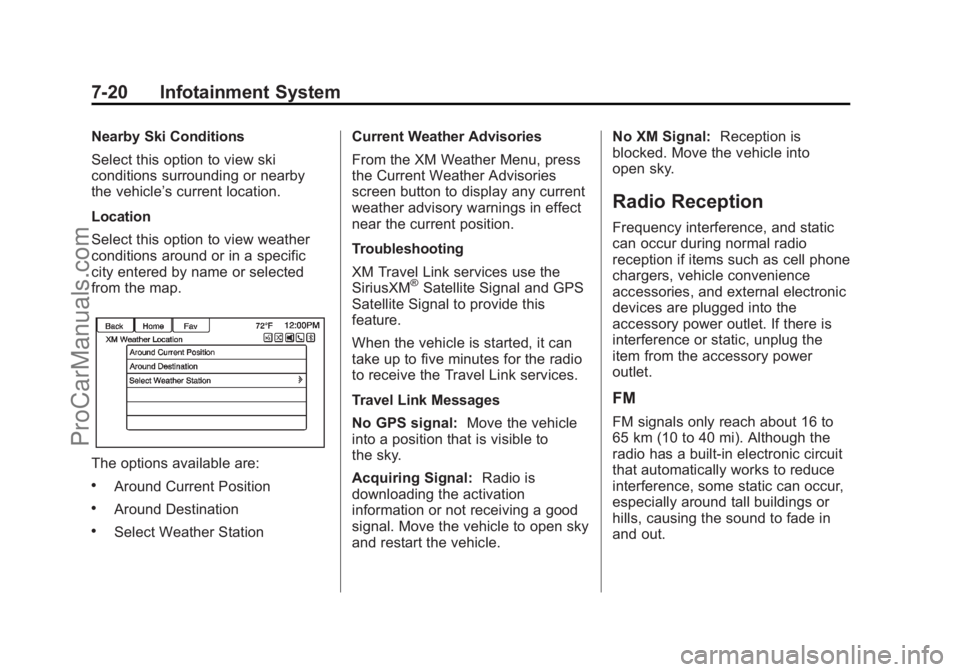
Location
Select this option to view weather
conditions around or in a specific
city entered by name or selected
from the map.
The options available are:
.Around Current Position
.Around Destination
.Select Weather Station Current Weather Advisories
From the XM Weather Menu, press
the Current Weather Advisories
screen button to display any current
weather advisory warnings in effect
near the current position.
Troubleshooting
XM Travel Link services use the
SiriusXM
®Satellite Signal and GPS
Satellite Signal to provide this
feature.
When the vehicle is started, it can
take up to five minutes for the radio
to receive the Travel Link services.
Travel Link Messages
No GPS signal: Move the vehicle
into a position that is visible to
the sky.
Acquiring Signal: Radio is
downloading the activation
information or not receiving a good
signal. Move the vehicle to open sky
and restart the vehicle. No XM Signal:
Reception is
blocked. Move the vehicle into
open sky.
Radio Reception
Frequency interference, and static
can occur during normal radio
reception if items such as cell phone
chargers, vehicle convenience
accessories, and external electronic
devices are plugged into the
accessory power outlet. If there is
interference or static, unplug the
item from the accessory power
outlet.
FM
FM signals only reach about 16 to
65 km (10 to 40 mi). Although the
radio has a built-in electronic circuit
that automatically works to reduce
interference, some static can occur,
especially around tall buildings or
hills, causing the sound to fade in
and out.
ProCarManuals.com
Page 159 of 422
Black plate (23,1)Chevrolet SS Sedan Owner Manual (GMNA-Localizing-U.S.-6014851) - 2014 -
1st Edition - 8/22/13
Infotainment System 7-23
.On a BlackBerry®phone, go to
the BlackBerry App World™ and
search for Pandora.
.On an iPhone®, iPad®, or iPod
touch®, go to the iTunes®Store
and search for Pandora.
Launching Pandora
Connect the iPhone, iPad, or iPod
touch to the USB port, or connect
an Android or BlackBerry through
Bluetooth. See Auxiliary Devices on
page 7-40 orBluetooth on
page 7-75. For first-time use, set up
stations before connecting to the
vehicle. The Pandora icon will be
available on the Home Page and
the source pop-up displays if the
latest application is installed on the
device.
Using the iPhone, iPod Touch,
or iPad
1. Plug the device into the USB
port. The phone screen must be
unlocked. 2. To launch, do one of the
following:
.Launch the application on
the device.
.Press Pandora on the
Home Page.
.Pressb/gand say
“Pandora” or“Tune
Pandora.”
.Accept any notification on
the screen of the device.
To relaunch Pandora, press SRCE
or SRC on the steering wheel
controls.
If nothing happens when the
available Pandora screen button is
pressed, download the latest
Pandora application and retry.
Pandora will always be highlighted
on the Home Page when an iPhone,
iPad, or iPod touch is connected
using the USB port. To use, log into
your account. If the
“Please See Device” message
is shown, the login screen may
display on the device.
If the “Please Unlock the Phone or
Restart the App and Try Again”
message is shown, then the phone
may be locked. Unlock the phone,
close the app, then restart the app
and make sure the Home Page is
visible on the phone/device.
If the vehicle is shut off while tuned
to Pandora and the iPhone, iPad,
or iPod touch is left connected to
the USB port before the next ignition
cycle, the radio will start playing
Pandora when the vehicle is started.
If Pandora is shut down on the
phone or another audio app is used,
Pandora may not start on the next
ignition cycle. If iPod source is
selected, it may show iPod and then
switch to Pandora.
Using an Android Phone
1. Pair the Android phone using Bluetooth.
ProCarManuals.com