ECO mode CHEVROLET SS 2017 1.G User Guide
[x] Cancel search | Manufacturer: CHEVROLET, Model Year: 2017, Model line: SS, Model: CHEVROLET SS 2017 1.GPages: 400, PDF Size: 7.31 MB
Page 122 of 400
Chevrolet SS Sedan Owner Manual (GMNA-Localizing-U.S.-10122752) -2017 - crc - 8/31/16
Instruments and Controls 121
4. Press the TUNE/MENU knob toselect the desiredsetting menu.
The following list of menu items maybe available:
.Languages
.Time and Date
.Radio Settings
.Phone Settings
.Navigation Settings
.Display Settings
.Vehicle Settings
Each menu is detailed in thefollowing information. Alternatively,the touch screen may be used toselect.
Languages
Select Languages, then select fromthe available language(s).
Time and Date
To a d j u s t t h e t i m e a n d d a t e s e t t i n g s ,seeClock093.
Radio Settings
Select and the following maydisplay:
.Auto Volume
.Gracenote Options
.XM Channel Art
.Max Startup Volume
.Number of Favorite Pages
.XM Categories
.Software Versions Menu
Auto Volume
When selected, this feature willautomatically adjust the volume tominimize the effects of unwantedbackground noise that can resultfrom changing road surfaces, drivingspeeds, or open windows. Thisfeature works best at lower volumesettings where background noise istypically louder than the soundsystem volume.
Select Off, Low, Medium, or High.
Gracenote Options
Select to improve voice recognitionand media groupings.
Select to enable or disable.SeeUSB0158andBluetoothAudio0163.
XM Channel Art
When on, the radio willautomatically update the XM screenand background graphics.
Select On or Off.
Max Startup Volume
Select the maximum volume level atstartup even if a higher volume hadbeen set when the radio wasturned off.
Number of Favorite Pages
Select to set the number of FAVpages to be displayed.
XM Categories
Select or deselect any category tobe used in XM mode.
Software Version Menu
Select to display information aboutthe system and software.
Page 144 of 400
Chevrolet SS Sedan Owner Manual (GMNA-Localizing-U.S.-10122752) -2017 - crc - 8/31/16
Infotainment System 143
Adding or Removing SiriusXM
Categories
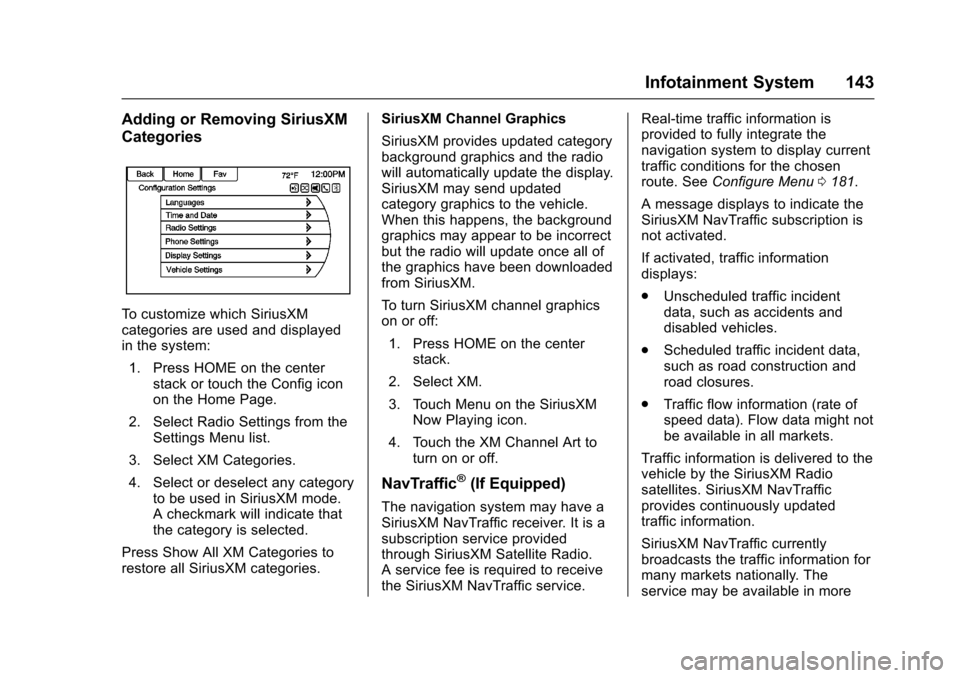
To c u s t o m i z e w h i c h S i r i u s X Mcategories are used and displayedin the system:
1. Press HOME on the centerstack or touch the Config iconon the Home Page.
2. Select Radio Settings from theSettings Menu list.
3. Select XM Categories.
4. Select or deselect any categoryto be used in SiriusXM mode.Acheckmarkwillindicatethatthe category is selected.
Press Show All XM Categories torestore all SiriusXM categories.
SiriusXM Channel Graphics
SiriusXM provides updated categorybackground graphics and the radiowill automatically update the display.SiriusXM may send updatedcategory graphics to the vehicle.When this happens, the backgroundgraphics may appear to be incorrectbut the radio will update once all ofthe graphics have been downloadedfrom SiriusXM.
To t u r n S i r i u s X M c h a n n e l g r a p h i c son or off:
1. Press HOME on the centerstack.
2. Select XM.
3. Touch Menu on the SiriusXMNow Playing icon.
4. Touch the XM Channel Art toturn on or off.
NavTraffic®(If Equipped)
The navigation system may have aSiriusXM NavTraffic receiver. It is asubscription service providedthrough SiriusXM Satellite Radio.Aservicefeeisrequiredtoreceivethe SiriusXM NavTraffic service.
Real-time traffic information isprovided to fully integrate thenavigation system to display currenttraffic conditions for the chosenroute. SeeConfigure Menu0181.
AmessagedisplaystoindicatetheSiriusXM NavTraffic subscription isnot activated.
If activated, traffic informationdisplays:
.Unscheduled traffic incidentdata, such as accidents anddisabled vehicles.
.Scheduled traffic incident data,such as road construction androad closures.
.Traffic flow information (rate ofspeed data). Flow data might notbe available in all markets.
Traffic information is delivered to thevehicle by the SiriusXM Radiosatellites. SiriusXM NavTrafficprovides continuously updatedtraffic information.
SiriusXM NavTraffic currentlybroadcasts the traffic information formany markets nationally. Theservice may be available in more
Page 158 of 400
Chevrolet SS Sedan Owner Manual (GMNA-Localizing-U.S.-10122752) -2017 - crc - 8/31/16
Infotainment System 157
Please Choose a New Station :The end of the station has beenreached and there is no morecontent to play. Select a new stationthrough the Stitcher menu.
Please Unlock Your Phone orRestart Phone App and TryAgain :Communication failurebetween the radio and the phoneapplication or the device is locked.
See www.stitcher.com/help for moreinformation. If the service will notwork, send an e-mail [email protected] or see yourdealer for assistance.
Pictures
Pictures can only be viewed usingUSB devices. If pictures are on anSD card, transfer to a USB deviceor use a USB-SD adapter.Amaximum5Mbuncompressedphoto size is supported, however toachieve this, use a 4 Megapixel orlower resolution camera setting.Only jpeg, bmp, gif, and png filesare supported.
1. Touch the Pictures icon on theHome Page.
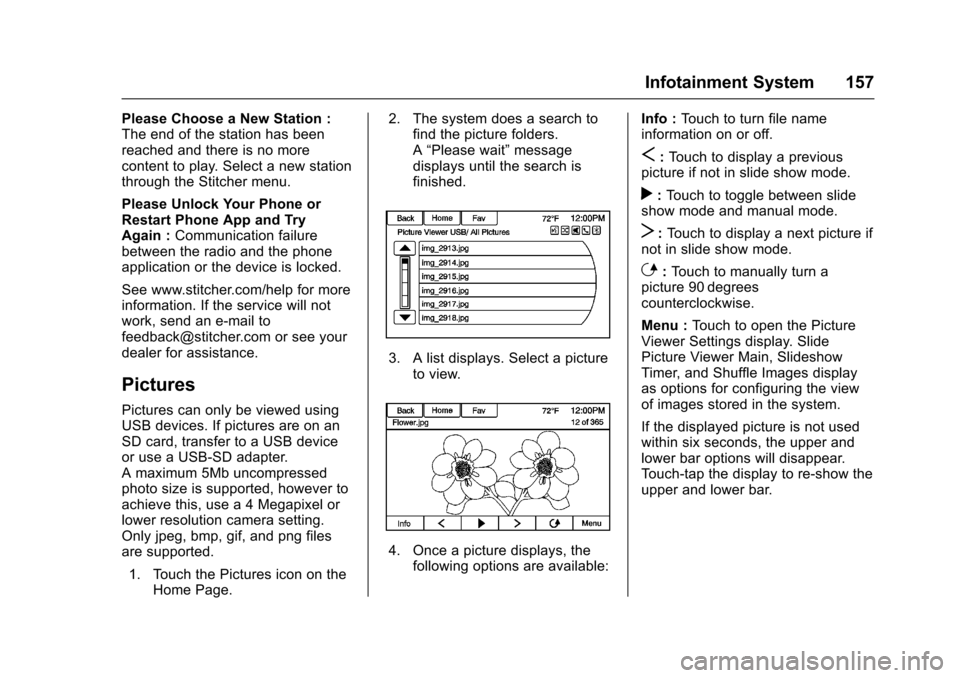
2. The system does a search tofind the picture folders.A“Please wait”messagedisplays until the search isfinished.
3. A list displays. Select a pictureto view.
4. Once a picture displays, thefollowing options are available:
Info :To u c h t o t u r n f i l e n a m einformation on or off.
S:To u c h t o d i s p l a y a p r e v i o u spicture if not in slide show mode.
r:To u c h t o t o g g l e b e t w e e n s l i d eshow mode and manual mode.
T:To u c h t o d i s p l a y a n e x t p i c t u r e i fnot in slide show mode.
E:To u c h t o m a n u a l l y t u r n apicture 90 degreescounterclockwise.
Menu :To u c h t o o p e n t h e P i c t u r eViewer Settings display. SlidePicture Viewer Main, SlideshowTimer, and Shuffle Images displayas options for configuring the viewof images stored in the system.
If the displayed picture is not usedwithin six seconds, the upper andlower bar options will disappear.To u c h - t a p t h e d i s p l a y t o r e - s h o w t h eupper and lower bar.
Page 164 of 400
Chevrolet SS Sedan Owner Manual (GMNA-Localizing-U.S.-10122752) -2017 - crc - 8/31/16
Infotainment System 163
Composers:
1. Touch to view the composerson the iPod.
2. Select the composer to view alist of songs by that composer.
3. Select a song from the list tobegin playback.
Audiobooks:
1. Touch to view the audiobookson the iPod.
2. Select the audiobook from thelist to begin playback.
Playing from an iPhone or iPad
This feature supports the followingiPhone or iPad models:
.iPhone®(2G, 3G, 3GS, 4, 4S,and 5)
.iPad®(1G, 2G)
Follow the same instructions asstated earlier for using an iPod. Touse voice recognition to play music,say“Play USB,”“Play Artist,”“PlayAlbum,”“Play Song,”or“PlayGenre.”SeeVoice Recognition0189.
iPhone, iPod touch and iPadTroubleshooting
When an iPhone, iPod touch,or iPad are connected through USBand Bluetooth, the audio may not beheard when the iPod source on theradio is selected. If a phone call isreceived while listening to the iPodsource and there is no audio for theiPod after the source, then go to theAirplay icon on the device andselect dock connector or disconnectand reconnect the dock connectoron the device.
Some functionality may differ basedon operating system version ondevice.
USB Troubleshooting
If the device is not being recognizedor the music is missing displayinformation, restore the radiodefaults:
1. Touch Config.
2. Touch Radio Settings.
3. Touch SoftwareVersions Menu.
4. Touch Clear and Reset Radio.
5. Touch Yes.
Pair the phone again and the devicewill have to index again.
Bluetooth Audio and VoiceRecognition
SeeBluetooth Audio0163andVoice Recognition0189forinformation using voice recognitionwith Bluetooth audio.
Make sure all devices have thelatest software downloaded.
Bluetooth Audio
If equipped, music may be playedfrom a paired Bluetooth device. See“Pairing a Phone/Device”underBluetooth0195.
To p l a y m u s i c t h r o u g h a B l u e t o o t hdevice:
1. Power on the device, pair, andconnect the device.
2. Music can be launched bydoing one of the following:
.To u c h t h e B l u e t o o t h i c o n o nthe Home Page.
Page 193 of 400
Chevrolet SS Sedan Owner Manual (GMNA-Localizing-U.S.-10122752) -2017 - crc - 8/31/16
192 Infotainment System
Search Playlist (playlist name) :Instructs the system to show a list ofall songs in a specific playlist. Forexample, say "Search playlist
Search Audiobook (audiobookname) :Instructs the system toshow a list of all tracks in a specificaudiobook. For example, say"Search audiobook
Search Playlist (playlist name) :Instructs the system to show a list ofall songs in a specific playlist. Forexample, say "Search playlist
Search Podcast (podcast name) :Instructs the system to show a list ofall tracks in a specific podcast. Forexample, say "Search podcast
More Like This :Instructs thesystem to create a playlist of trackssimilar to the current track playing.
Settings Commands
Verbose (set) on (mode), Verbose(set) off (mode) :Instructs thesystem to turn voice prompts on oroff. When off, this feature turns offvoice prompts.
Language (language) :Instructsthe system to set the language.
List Devices :Instructs the systemto give a list of devices to use.
Other Commands
Goodbye :Instructs the system toend a phone call or voicerecognition.
Cancel :Instructs the system tocancel an action.
Go Back, Back, Previous :Instructs the system to go back to aprior menu.
Main Menu :Instructs the system togo to the main menu.
Yes, Yep, Yup, Ya, Sure, Right,Correct, OK, Positive, You Got it,Probably, You Bet :These can beused to say“Ye s .”
No, Nope, Na, No way, Wrong,Incorrect, Negative, Not really, NoIsaid,NoIDidNot,NoIDoNot:These can be used to say“No.”
Next Page, Page Down :Instructsthe system to scroll forward onepage in a list.
Previous Page, Page Up :Instructsthe system to scroll back one pagein a list.
Navigation Commands (If
Equipped)
To a c t i v a t e t h e n a v i g a t i o n v o i c erecognition:
1. Pressb/gon the steering
wheel. The audio systemmutes. A voice prompt says,“Please say a command.”Waituntil the tone is heard beforespeaking.
If there is no tone, make surethe volume is turned up.
While voice recognition isactive, the system shows asymbol in the top right of thedisplay.
Page 198 of 400
Chevrolet SS Sedan Owner Manual (GMNA-Localizing-U.S.-10122752) -2017 - crc - 8/31/16
Infotainment System 197
Identification Number (PIN), itwill display. The PIN is used inStep 5.
4. Start the pairing process on thecell phone to be paired to thevehicle. See the cell phonemanufacturer's user guide.
5. Locate and select the devicenamed after the vehicle makeand model in the list on the cellphone. Follow the instructionson the cell phone to enter thePIN provided in Step 3, or toconfirm the six-digit codematches. The systemrecognizes the new connectedphone after the pairing processis complete.
6. If the phone prompts to acceptconnection or allow phonebook download, select alwaysaccept and allow. The phonebook may not be available ifnot accepted. Some phoneswill put connection request orphonebook request in a pulldown task bar at the top of the
display. Drag down the task barand look for connection/phonebook request and accept.
7. Repeat to pair additionalphones.
Listing All Paired and ConnectedPhones/Devices
1. Press CONFIG on the centerstack.
2. Select Phone Settings.
3. Select Device List.
Deleting a Paired Phone/Device
1. Press CONFIG on the centerstack.
2. Select Phone Settings.
3. Select Device List.
4. Select the phone to delete andfollow the display prompts.
Connecting to a Different Phone
To c o n n e c t t o a d i f f e r e n t p h o n e , t h enew phone must be in the vehicleand available to be connected to theBluetooth system before theprocess is started.
1. Press CONFIG on the centerstack.
2. Select Phone Settings.
3. Select Device List.
4. Select the new phone toconnect to and follow thedisplay prompts.
Pairing with Voice Recognition
ABluetooth-enabledcellphonemust be paired and then connectedto the vehicle before it can be used.See the cell phone manufacturer'suser guide for Bluetooth functionsbefore pairing the cell phone. If aBluetooth phone is not connected,calls will be made using OnStarHands-Free Calling, if available.SeeOnStar Overview0378.
Pairing a Phone
1. Pressb/g.Thesystem
responds“Please say acommand,”followed by a tone.
2. Say“Pair.”The systemresponds with“Please searchfor Bluetooth devices on your
Page 211 of 400
Chevrolet SS Sedan Owner Manual (GMNA-Localizing-U.S.-10122752) -2017 - crc - 8/31/16
210 Climate Controls
Climate Controls
Climate Control Systems
Dual Automatic ClimateControl System . . . . . . . . . . . . . 210
Air Vents
Air Vents . . . . . . . . . . . . . . . . . . . . . 214
Maintenance
Passenger Compartment AirFilter . . . . . . . . . . . . . . . . . . . . . . . . 215Service . . . . . . . . . . . . . . . . . . . . . . . 215
Climate Control Systems
Dual Automatic Climate Control System
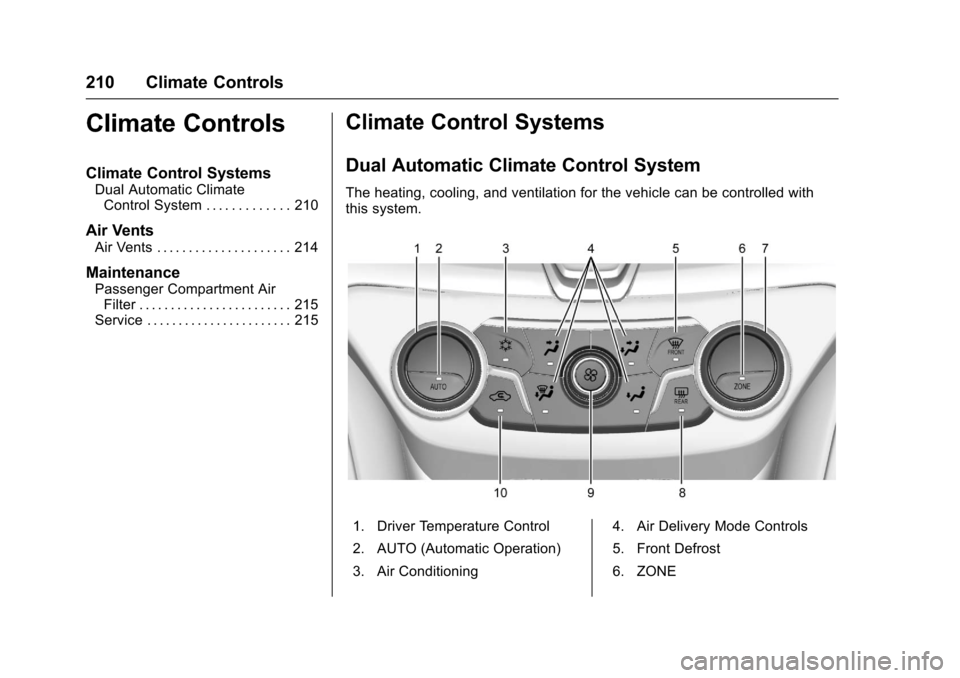
The heating, cooling, and ventilation for the vehicle can be controlled withthis system.
1. Driver Temperature Control
2. AUTO (Automatic Operation)
3. Air Conditioning
4. Air Delivery Mode Controls
5. Front Defrost
6. ZONE
Page 212 of 400
Chevrolet SS Sedan Owner Manual (GMNA-Localizing-U.S.-10122752) -2017 - crc - 8/31/16
Climate Controls 211
7. Passenger TemperatureControl
8. Rear Window Defogger
9. Fan Control
10. Recirculation
Automatic Operation
AUTO :The system automaticallycontrols the fan speed, air delivery,air conditioning, and recirculation inorder to heat or cool the vehicle tothe desired temperature. WhenAUTO appears in the display, thesystem is in full automatic operation.
If the air delivery mode, fan speed,recirculation or air conditioningsetting is adjusted, the AUTOindicator turns off and the selectedsettings will be displayed. Functionsthat were not manually set willcontinue to be automaticallycontrolled even though the AUTOindicator light is unlit.
1. Press AUTO, if the AUTOindicator does not appear onthe display.
2. Adjust the temperature to acomfortable setting.
3. Adjust the air outlets asdesired.
4. Let the system stabilize for afew minutes.
In cold weather, the system will limitthe blower speed until the enginehas warmed up.
Do not cover the solar sensor in thecenter of the instrument panel, nearthe windshield. See“Sensors”laterin this section.
The automatic climate controlsystem may not work as desired ifone or more of the instrument paneloutlets are closed.
Manual Operation
On/Off :Press9to turn the
system on or off.
9:Turn clockwise orcounterclockwise to increase ordecrease the fan speed. The fanspeed appears on the infotainmentdisplay.
Press AUTO to return to fullautomatic operation.
Driver and PassengerTe m p e r a t u r e C o n t r o l s :Thetemperature can be adjustedseparately for the driver and thepassenger. Turn the temperaturecontrols clockwise orcounterclockwise to increase ordecrease the temperature.
The temperature setting between 21°C (70 °F) and 23 °C (74 °F) isrecommended.
The temperature settings for eachside are shown in the temperaturecontrol knob displays and theinfotainment display. If thetemperature control is past 30 °C(86 °F), the display shows HI(hottest). Turning it past 16 °C (61 °F), shows LO (coolest).
ZONE :Press to synchronize thedriver and passenger temperatures.
Single-Zone Mode :All zones areset to the same temperature.“Driverhas control”will be displayed on theinfotainment display. Turn the drivertemperature control to adjust thesystem temperature.
Page 213 of 400
Chevrolet SS Sedan Owner Manual (GMNA-Localizing-U.S.-10122752) -2017 - crc - 8/31/16
212 Climate Controls
Dual-Zone Mode :Allows differenttemperatures to be set for the driverand passenger sides.
Enter Dual-Zone mode by adjustingthe passenger side temperaturewhen in Single-Zone mode.
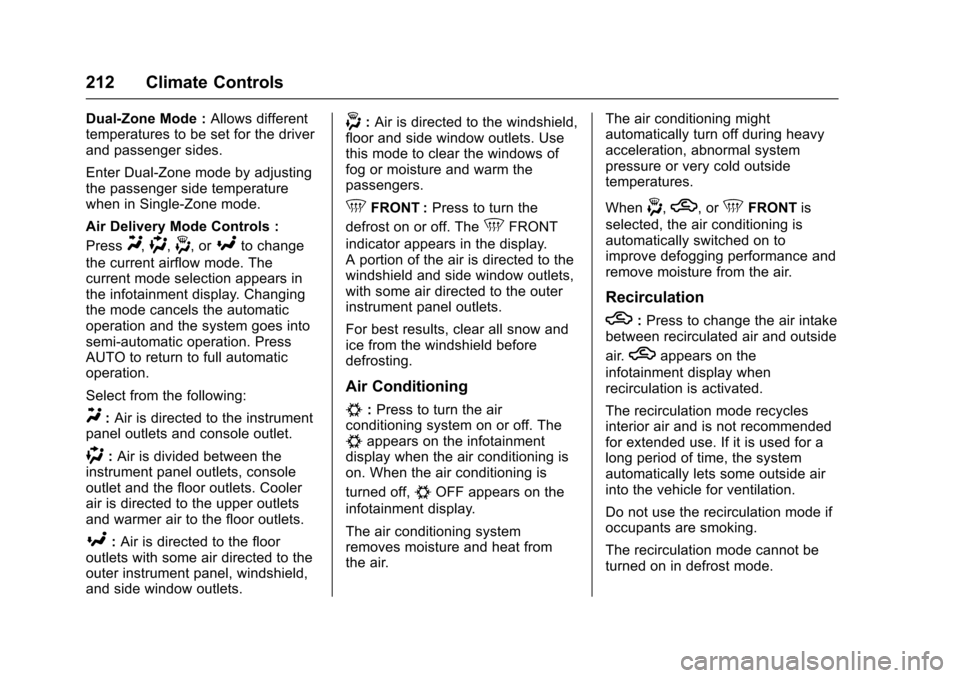
Air Delivery Mode Controls :
PressY,),-,or[to change
the current airflow mode. Thecurrent mode selection appears inthe infotainment display. Changingthe mode cancels the automaticoperation and the system goes intosemi-automatic operation. PressAUTO to return to full automaticoperation.
Select from the following:
Y:Air is directed to the instrumentpanel outlets and console outlet.
):Air is divided between theinstrument panel outlets, consoleoutlet and the floor outlets. Coolerair is directed to the upper outletsand warmer air to the floor outlets.
[:Air is directed to the flooroutlets with some air directed to theouter instrument panel, windshield,and side window outlets.
-:Air is directed to the windshield,floor and side window outlets. Usethis mode to clear the windows offog or moisture and warm thepassengers.
5FRONT :Press to turn the
defrost on or off. The5FRONT
indicator appears in the display.Aportionoftheairisdirectedtothewindshield and side window outlets,with some air directed to the outerinstrument panel outlets.
For best results, clear all snow andice from the windshield beforedefrosting.
Air Conditioning
#:Press to turn the airconditioning system on or off. The#appears on the infotainmentdisplay when the air conditioning ison. When the air conditioning is
turned off,#OFF appears on the
infotainment display.
The air conditioning systemremoves moisture and heat fromthe air.
The air conditioning mightautomatically turn off during heavyacceleration, abnormal systempressure or very cold outsidetemperatures.
When-,h,or5FRONTis
selected, the air conditioning isautomatically switched on toimprove defogging performance andremove moisture from the air.
Recirculation
h:Press to change the air intakebetween recirculated air and outside
air.happears on the
infotainment display whenrecirculation is activated.
The recirculation mode recyclesinterior air and is not recommendedfor extended use. If it is used for along period of time, the systemautomatically lets some outside airinto the vehicle for ventilation.
Do not use the recirculation mode ifoccupants are smoking.
The recirculation mode cannot beturned on in defrost mode.
Page 217 of 400
Chevrolet SS Sedan Owner Manual (GMNA-Localizing-U.S.-10122752) -2017 - crc - 8/31/16
216 Driving and Operating
Driving and
Operating
Driving Information
Distracted Driving . . . . . . . . . . . . 217Defensive Driving . . . . . . . . . . . . . 217Drunk Driving . . . . . . . . . . . . . . . . . 218Control of a Vehicle . . . . . . . . . . . 218Braking . . . . . . . . . . . . . . . . . . . . . . . 218Steering . . . . . . . . . . . . . . . . . . . . . . 218Off-Road Recovery . . . . . . . . . . . 219Loss of Control . . . . . . . . . . . . . . . 219Track Events and CompetitiveDriving . . . . . . . . . . . . . . . . . . . . . . 220Driving on Wet Roads . . . . . . . . 222Hill and Mountain Roads . . . . . 223Winter Driving . . . . . . . . . . . . . . . . 224If the Vehicle Is Stuck . . . . . . . . 225Vehicle Load Limits . . . . . . . . . . . 226
Starting and Operating
New Vehicle Break-In . . . . . . . . . 229Ignition Positions . . . . . . . . . . . . . 229Starting the Engine . . . . . . . . . . . 231Retained AccessoryPower (RAP) . . . . . . . . . . . . . . . . 232Shifting Into Park (AutomaticTransmission) . . . . . . . . . . . . . . . 232Shifting out of Park . . . . . . . . . . . 233
Parking . . . . . . . . . . . . . . . . . . . . . . . 234Parking over ThingsThat Burn . . . . . . . . . . . . . . . . . . . 234Extended Parking . . . . . . . . . . . . 235
Engine Exhaust
Engine Exhaust . . . . . . . . . . . . . . 235Running the Vehicle WhileParked . . . . . . . . . . . . . . . . . . . . . . 236
Automatic Transmission
Automatic Transmission . . . . . . 236Manual Mode . . . . . . . . . . . . . . . . . 238
Manual Transmission
Manual Transmission . . . . . . . . . 240
Brakes
Antilock BrakeSystem (ABS) . . . . . . . . . . . . . . . 241Electric Parking Brake . . . . . . . . 242Brake Assist . . . . . . . . . . . . . . . . . . 244Hill Start Assist (HSA) . . . . . . . . 244
Ride Control Systems
Traction Control/ElectronicStability Control . . . . . . . . . . . . . 245Driver Mode Control . . . . . . . . . . 247Track Driver Mode . . . . . . . . . . . . 249Limited-Slip Rear Axle . . . . . . . . 251
Cruise Control
Cruise Control . . . . . . . . . . . . . . . . 251
Driver Assistance Systems
Driver Assistance Systems . . . 253Assistance Systems forParking or Backing . . . . . . . . . . 254Assistance Systems forDriving . . . . . . . . . . . . . . . . . . . . . . 259Forward Collision Alert (FCA)System . . . . . . . . . . . . . . . . . . . . . . 259Side Blind ZoneAlert (SBZA) . . . . . . . . . . . . . . . . 261Lane DepartureWarning (LDW) . . . . . . . . . . . . . 263
Fuel
Fuel . . . . . . . . . . . . . . . . . . . . . . . . . . 264California FuelRequirements . . . . . . . . . . . . . . . 265Fuels in Foreign Countries . . . 266Fuel Additives . . . . . . . . . . . . . . . . 266Filling the Tank . . . . . . . . . . . . . . . 266Filling a Portable FuelContainer . . . . . . . . . . . . . . . . . . . 267
Trailer Towing
Trailer Towing . . . . . . . . . . . . . . . . 268
Conversions and Add-Ons
Add-On ElectricalEquipment . . . . . . . . . . . . . . . . . . 268