change time CHEVROLET SS 2017 1.G User Guide
[x] Cancel search | Manufacturer: CHEVROLET, Model Year: 2017, Model line: SS, Model: CHEVROLET SS 2017 1.GPages: 400, PDF Size: 7.31 MB
Page 137 of 400
Chevrolet SS Sedan Owner Manual (GMNA-Localizing-U.S.-10122752) -2017 - crc - 8/31/16
136 Infotainment System
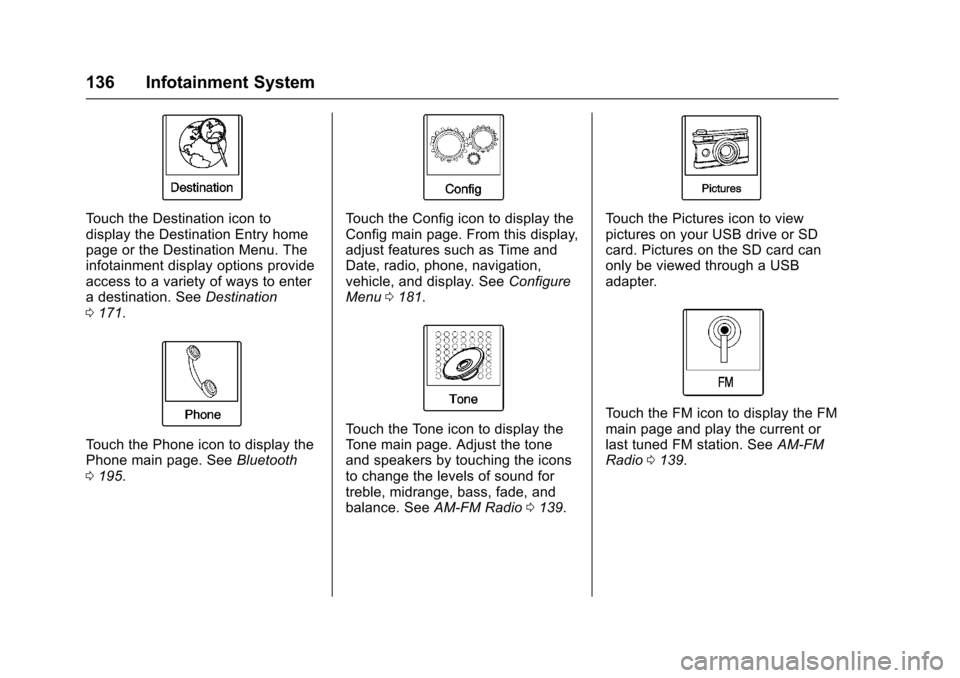
To u c h t h e D e s t i n a t i o n i c o n t odisplay the Destination Entry homepage or the Destination Menu. Theinfotainment display options provideaccess to a variety of ways to enteradestination.SeeDestination0171.
To u c h t h e P h o n e i c o n t o d i s p l a y t h ePhone main page. SeeBluetooth0195.
To u c h t h e C o n f i g i c o n t o d i s p l a y t h eConfig main page. From this display,adjust features such as Time andDate, radio, phone, navigation,vehicle, and display. SeeConfigureMenu0181.
To u c h t h e To n e i c o n t o d i s p l a y t h eTo n e m a i n p a g e . A d j u s t t h e t o n eand speakers by touching the iconsto change the levels of sound fortreble, midrange, bass, fade, andbalance. SeeAM-FM Radio0139.
To u c h t h e P i c t u r e s i c o n t o v i e wpictures on your USB drive or SDcard. Pictures on the SD card canonly be viewed through a USBadapter.
To u c h t h e F M i c o n t o d i s p l a y t h e F Mmain page and play the current orlast tuned FM station. SeeAM-FMRadio0139.
Page 152 of 400
Chevrolet SS Sedan Owner Manual (GMNA-Localizing-U.S.-10122752) -2017 - crc - 8/31/16
Infotainment System 151
If the "Please unlock your phone orrestart the app" message is shown,then the phone may be locked.Unlock the phone, close the app,and then restart the app to ensureproper communication.
Pandora Menus
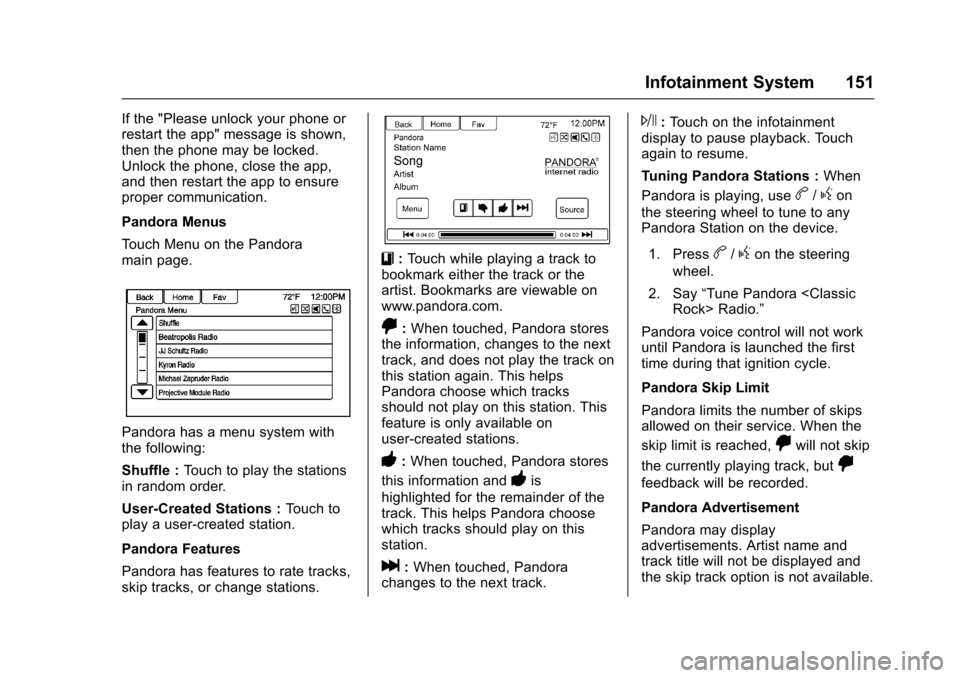
To u c h M e n u o n t h e P a n d o r amain page.
Pandora has a menu system withthe following:
Shuffle :To u c h t o p l a y t h e s t a t i o n sin random order.
User-Created Stations :To u c h t oplay a user-created station.
Pandora Features
Pandora has features to rate tracks,skip tracks, or change stations.
}:To u c h w h i l e p l a y i n g a t r a c k t obookmark either the track or theartist. Bookmarks are viewable onwww.pandora.com.
,:When touched, Pandora storesthe information, changes to the nexttrack, and does not play the track onthis station again. This helpsPandora choose which tracksshould not play on this station. Thisfeature is only available onuser-created stations.
-:When touched, Pandora stores
this information and-is
highlighted for the remainder of thetrack. This helps Pandora choosewhich tracks should play on thisstation.
l:When touched, Pandorachanges to the next track.
J:To u c h o n t h e i n f o t a i n m e n tdisplay to pause playback. Touchagain to resume.
Tu n i n g P a n d o r a S t a t i o n s :When
Pandora is playing, useb/gon
the steering wheel to tune to anyPandora Station on the device.
1. Pressb/gon the steering
wheel.
2. Say“Tune Pandora
Pandora voice control will not workuntil Pandora is launched the firsttime during that ignition cycle.
Pandora Skip Limit
Pandora limits the number of skipsallowed on their service. When the
skip limit is reached,,will not skip
the currently playing track, but,
feedback will be recorded.
Pandora Advertisement
Pandora may displayadvertisements. Artist name andtrack title will not be displayed andthe skip track option is not available.
Page 160 of 400
Chevrolet SS Sedan Owner Manual (GMNA-Localizing-U.S.-10122752) -2017 - crc - 8/31/16
Infotainment System 159
on the radio. User predefined coverart will always be used first. If nocover art is found Gracenote willuse generic genre graphics orimages of artists.
More Like This
The Gracenote database containsattributes for Music, such as genre,era of music, region, artist type,mood, etc. Use this to create aplaylist of up to 30 songs "more like"currently listened to song. Thisplaylist will be stored in the Playlistmenu when the device isreconnected. If songs are removedfrom the device, the system willsimply skip over those songs andplay the next available song.
Use the infotainment display orvoice recognition to create a MoreLike This Playlist. See“VoiceRecognition Commands”inVoiceRecognition0189.
Gracenote Indexing
While Gracenote is indexing,infotainment features are availableincluding selecting music from themenu. Voice recognition music will
not be available until the radio hascompleted indexing the device.Devices with more music may takelonger to index. The device willindex when plugged into the radiofor the first time. When Indexing isremoved from the display, the radiois ready to support music search.On the next connection or ignitioncycle, Indexing will show briefly onthe display. The radio is searchingfor changes to the device andpreparing the music list. If there areno changes, the voice recognitionmusic search will be available. Theradio will index and store twodevices with up to 10,000 songs oneach device.
USB MP3 Player and USB Drives
.The USB MP3 players and USBdrives connected must complywith the USB Mass StorageClass specification (USB MSC).
.Hard disk drives are notsupported.
.The radio will not be able to playback write-protected music.
.File systems supported: FAT32,NTFS, Linux, and HFS+.
.The following restrictions applyfor the data stored on a USBMP3 player or USB device:
⇣Maximum folder structuredepth: eight levels.
⇣Maximum number of MP3/WMA files that can bedisplayed: 10,000.
⇣Playlist entries must be in theform of relative paths.
⇣The system attribute forfolders/files that contain audiodata must not be set.
To p l a y a U S B d e v i c e , d o o n e o f t h efollowing:
.Connect the USB and it beginsto play.
.To u c h t h e N o w P l a y i n g i c o n o nthe Home Page.
.Press SRCE on the center stackto scroll until the USB sourcedisplay is available.
Page 169 of 400
Chevrolet SS Sedan Owner Manual (GMNA-Localizing-U.S.-10122752) -2017 - crc - 8/31/16
168 Infotainment System
Map Scales
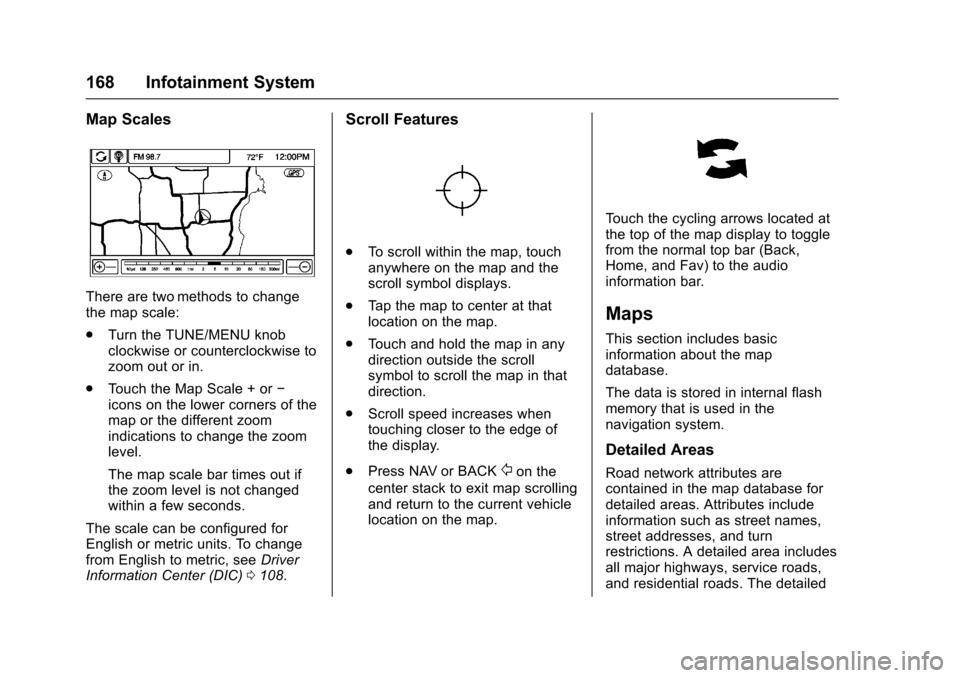
There are two methods to changethe map scale:
.Turn the TUNE/MENU knobclockwise or counterclockwise tozoom out or in.
.To u c h t h e M a p S c a l e + o r✓icons on the lower corners of themap or the different zoomindications to change the zoomlevel.
The map scale bar times out ifthe zoom level is not changedwithin a few seconds.
The scale can be configured forEnglish or metric units. To changefrom English to metric, seeDriverInformation Center (DIC)0108.
Scroll Features
.To s c r o l l w i t h i n t h e m a p , t o u c hanywhere on the map and thescroll symbol displays.
.Ta p t h e m a p t o c e n t e r a t t h a tlocation on the map.
.To u c h a n d h o l d t h e m a p i n a n ydirection outside the scrollsymbol to scroll the map in thatdirection.
.Scroll speed increases whentouching closer to the edge ofthe display.
.Press NAV or BACK/on the
center stack to exit map scrollingand return to the current vehiclelocation on the map.
To u c h t h e c y c l i n g a r r o w s l o c a t e d a tthe top of the map display to togglefrom the normal top bar (Back,Home, and Fav) to the audioinformation bar.
Maps
This section includes basicinformation about the mapdatabase.
The data is stored in internal flashmemory that is used in thenavigation system.
Detailed Areas
Road network attributes arecontained in the map database fordetailed areas. Attributes includeinformation such as street names,street addresses, and turnrestrictions. A detailed area includesall major highways, service roads,and residential roads. The detailed
Page 173 of 400
Chevrolet SS Sedan Owner Manual (GMNA-Localizing-U.S.-10122752) -2017 - crc - 8/31/16
172 Infotainment System
House No. :Enter a valid addressnumber.
Junction :Enter a street name thatintersects with the selected street.
Entering the city name first:
1. Enter the city name.
2. Enter the street name. TouchDelete to delete an incorrectlyentered character.
Alistdisplaysifsixorfewernames are available. If thereare more than six, there is amatch counter with a numberof available streets. Touch Listto view the list and select thestreet.
3. Enter the house number.
4. Touch Done at any time andthe system tries to resolve adestination based on theentered information, thenshows it on the display.
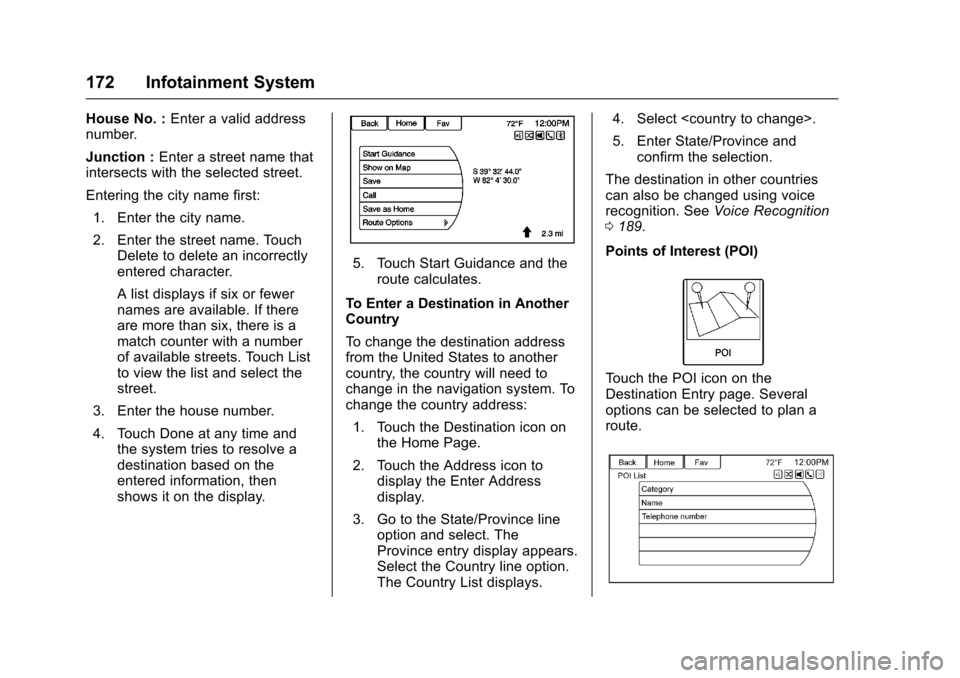
5. Touch Start Guidance and theroute calculates.
To Enter a Destination in AnotherCountry
To c h a n g e t h e d e s t i n a t i o n a d d r e s sfrom the United States to anothercountry, the country will need tochange in the navigation system. Tochange the country address:
1. Touch the Destination icon onthe Home Page.
2. Touch the Address icon todisplay the Enter Addressdisplay.
3. Go to the State/Province lineoption and select. TheProvince entry display appears.Select the Country line option.The Country List displays.
4. Select
5. Enter State/Province andconfirm the selection.
The destination in other countriescan also be changed using voicerecognition. SeeVoice Recognition0189.
Points of Interest (POI)
To u c h t h e P O I i c o n o n t h eDestination Entry page. Severaloptions can be selected to plan aroute.
Page 183 of 400
Chevrolet SS Sedan Owner Manual (GMNA-Localizing-U.S.-10122752) -2017 - crc - 8/31/16
182 Infotainment System
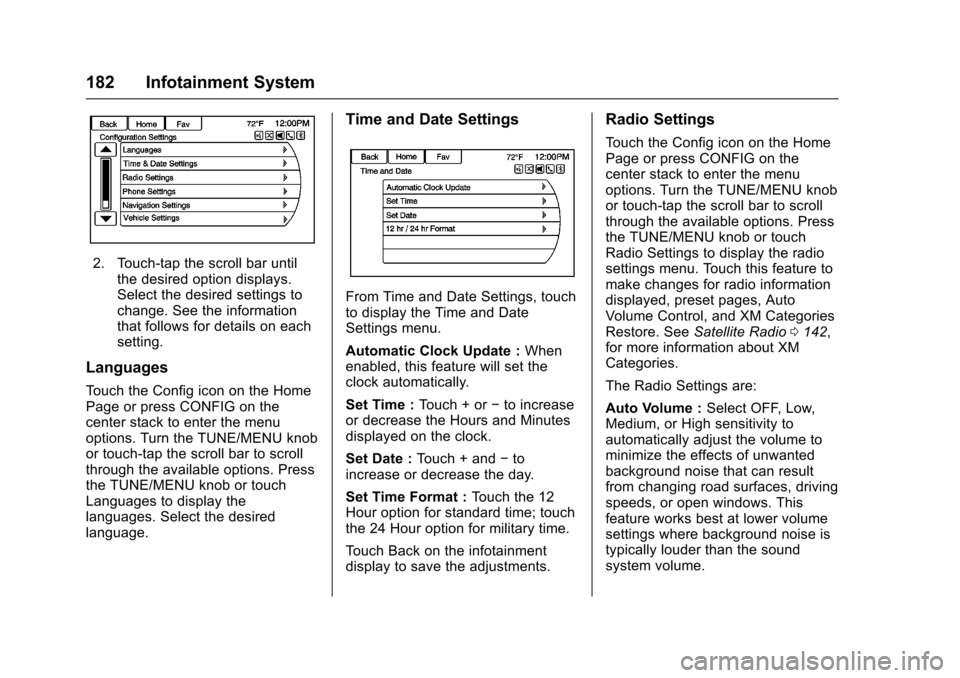
2. Touch-tap the scroll bar untilthe desired option displays.Select the desired settings tochange. See the informationthat follows for details on eachsetting.
Languages
To u c h t h e C o n f i g i c o n o n t h e H o m ePage or press CONFIG on thecenter stack to enter the menuoptions. Turn the TUNE/MENU knobor touch-tap the scroll bar to scrollthrough the available options. Pressthe TUNE/MENU knob or touchLanguages to display thelanguages. Select the desiredlanguage.
Time and Date Settings
From Time and Date Settings, touchto display the Time and DateSettings menu.
Automatic Clock Update :Whenenabled, this feature will set theclock automatically.
Set Time :To u c h + o r✓to increaseor decrease the Hours and Minutesdisplayed on the clock.
Set Date :To u c h + a n d✓toincrease or decrease the day.
Set Time Format :To u c h t h e 1 2Hour option for standard time; touchthe 24 Hour option for military time.
To u c h B a c k o n t h e i n f o t a i n m e n tdisplay to save the adjustments.
Radio Settings
To u c h t h e C o n f i g i c o n o n t h e H o m ePage or press CONFIG on thecenter stack to enter the menuoptions. Turn the TUNE/MENU knobor touch-tap the scroll bar to scrollthrough the available options. Pressthe TUNE/MENU knob or touchRadio Settings to display the radiosettings menu. Touch this feature tomake changes for radio informationdisplayed, preset pages, AutoVolume Control, and XM CategoriesRestore. SeeSatellite Radio0142,for more information about XMCategories.
The Radio Settings are:
Auto Volume :Select OFF, Low,Medium, or High sensitivity toautomatically adjust the volume tominimize the effects of unwantedbackground noise that can resultfrom changing road surfaces, drivingspeeds, or open windows. Thisfeature works best at lower volumesettings where background noise istypically louder than the soundsystem volume.
Page 187 of 400
Chevrolet SS Sedan Owner Manual (GMNA-Localizing-U.S.-10122752) -2017 - crc - 8/31/16
186 Infotainment System
To u c h t o d e l e t e a l l s a v e ddestinations. A Delete SavedDestinations submenu displays.Select the desired options fordeletion and touch Delete at thebottom to continue. A confirmationdisplays requesting to delete orcancel.
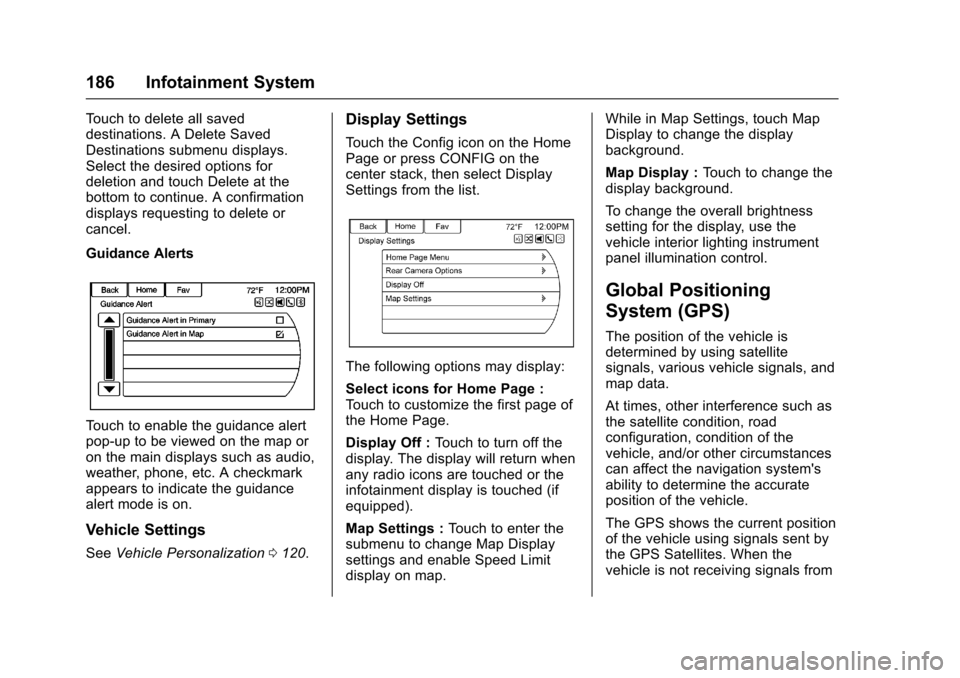
Guidance Alerts
To u c h t o e n a b l e t h e g u i d a n c e a l e r tpop-up to be viewed on the map oron the main displays such as audio,weather, phone, etc. A checkmarkappears to indicate the guidancealert mode is on.
Vehicle Settings
SeeVehicle Personalization0120.
Display Settings
To u c h t h e C o n f i g i c o n o n t h e H o m ePage or press CONFIG on thecenter stack, then select DisplaySettings from the list.
The following options may display:
Select icons for Home Page :To u c h t o c u s t o m i z e t h e f i r s t p a g e o fthe Home Page.
Display Off :To u c h t o t u r n o f f t h edisplay. The display will return whenany radio icons are touched or theinfotainment display is touched (ifequipped).
Map Settings :To u c h t o e n t e r t h esubmenu to change Map Displaysettings and enable Speed Limitdisplay on map.
While in Map Settings, touch MapDisplay to change the displaybackground.
Map Display :To u c h t o c h a n g e t h edisplay background.
To c h a n g e t h e o v e r a l l b r i g h t n e s ssetting for the display, use thevehicle interior lighting instrumentpanel illumination control.
Global Positioning
System (GPS)
The position of the vehicle isdetermined by using satellitesignals, various vehicle signals, andmap data.
At times, other interference such asthe satellite condition, roadconfiguration, condition of thevehicle, and/or other circumstancescan affect the navigation system'sability to determine the accurateposition of the vehicle.
The GPS shows the current positionof the vehicle using signals sent bythe GPS Satellites. When thevehicle is not receiving signals from
Page 188 of 400
Chevrolet SS Sedan Owner Manual (GMNA-Localizing-U.S.-10122752) -2017 - crc - 8/31/16
Infotainment System 187
the satellites, a symbol appears onthe map display. SeeNavigationSymbols0169.
This system might not be availableor interference can occur if any ofthe following are true:
.Signals are obstructed by tallbuildings, trees, large trucks,or a tunnel.
.Satellites are being repaired orimproved.
For more information if the GPS isnot functioning properly, seeProblems with Route Guidance0187andIf the System NeedsService0188.
Vehicle Positioning
At times, the position of the vehicleon the map could be inaccurate dueto one or more of the followingreasons:
.The road system has changed.
.The vehicle is driving on slipperyroad surfaces such as sand,gravel, or snow.
.The vehicle is traveling onwinding roads or long straightroads.
.The vehicle is approaching a tallbuilding or a large vehicle.
.The surface streets run parallelto a freeway.
.The vehicle has been transferredby a vehicle carrier or a ferry.
.The current position calibrationis set incorrectly.
.The vehicle is traveling at highspeed.
.The vehicle changes directionsmore than once, or the vehicle isturning on a turn table in aparking lot.
.The vehicle is entering and/orexiting a parking lot, garage, or alot with a roof.
.The GPS signal is not received.
.Aroofcarrierisinstalledonthevehicle.
.Tire chains have been installed.
.The tires are replaced or worn.
.The tire pressure for the tires isincorrect.
.This is the first navigation useafter the map data is updated.
.The 12-volt battery isdisconnected for several days.
.The vehicle is driving in heavytraffic where driving is at lowspeeds, and the vehicle isstopped and started repeatedly.
Problems with Route
Guidance
Inappropriate route guidance canoccur under one or more of thefollowing conditions:
.The turn was not made on theroad indicated.
.Route guidance might not beavailable when using automaticrerouting for the next right orleft turn.
.The route might not be changedwhen using automatic rerouting.
.There is no route guidance whenturning at an intersection.
Page 189 of 400
Chevrolet SS Sedan Owner Manual (GMNA-Localizing-U.S.-10122752) -2017 - crc - 8/31/16
188 Infotainment System
.Plural names of places might beannounced occasionally.
.It could take a long time tooperate automatic reroutingduring high-speed driving.
.Automatic rerouting mightdisplay a route returning to theset waypoint if heading for adestination without passingthrough a set waypoint.
.The route prohibits the entry of avehicle due to a regulation bytime or season or any otherregulation which may be given.
.Some routes might not besearched.
.The route to the destinationmight not be shown if there arenew roads, if roads haverecently changed, or if certainroads are not listed in the mapdata. SeeMaps0168.
To r e c a l i b r a t e t h e v e h i c l e ' s p o s i t i o non the map, park with the vehiclerunning for two to five minutes, untilthe vehicle position updates. Makesure the vehicle is parked in a
location that is safe and has a clearview of the sky and away from largeobstruction.
If the System Needs
Service
If the navigation system needsservice and the steps listed herehave been followed but there arestill problems, see your dealer forassistance.
Map Data Updates
The map data provided in thevehicle is the most up-to-dateinformation available when thevehicle was produced. The mapdata is updated periodically,provided that the map informationhas changed.
For questions about the operation ofthe navigation system or the updateprocess, contact the GM Nav DiscCenter toll-free phone number,1-877-NAV-DISC (1-877-628-3472)or go to the center’swebsite,www.gmnavdisc.com. If updates areneeded, call the GM Nav DiscCenter or order a new Map Update
online. To order map data, have thevehicle’sVehicleIdentificationNumber (VIN) available. SeeVehicle Identification Number (VIN)0361.
After receiving the updated mapdata, seeMaps0168.
Database Coverage
Explanations
Coverage areas vary with respect tothe level of map detail available forany given area. Some areas featuregreater levels of detail than others.If this happens, it does not meanthere is a problem with the system.As the map data is updated, moredetail can become available forareas which previously had limiteddetail. SeeMap Data Updates0188for more information.
Page 191 of 400
Chevrolet SS Sedan Owner Manual (GMNA-Localizing-U.S.-10122752) -2017 - crc - 8/31/16
190 Infotainment System
adjusted during a voicerecognition session, a Volumebar appears on the displayshowing the voice volume levelas it is being adjusted. This alsochanges the volume of theguidance prompts.
.When using navigationcommands, take the time tobecome familiar with theaddress. Long delays whengiving the address can result inthe system not recognizing theaddress or routing to differentlocation than intended.
.When providing the housenumber portion of the address,the system recognizes both digitformat and numerical text. Anexample would be to say,“3-0-0-0-1”or“ThirtyThousand One.”
.If the system providesdestination in another country onseveral attempts, say the“Change Country”command andsay the country of interest. Thecountry default is the UnitedStates. To enter a destination in
Canada or Mexico, the countrywill first have to be changed inthe system.
Voice Recognition Help
To e n t e r t h e h e l p p l a y b a c k s e s s i o n ,clearly speak one of the helpcommands.
Help :The system plays back morespecific help commands such asRadio Settings for the user tochoose from.
Radio :Use this command to learnabout how to select a band (AM,FM, or XM), and how to changeradio stations by speakingfrequency numbers.
Phone :Use this command to learnabout how to dial, pair a device,or delete a device.
My Media :Use this command tolearn how to play specific tracks,artists, albums, devices connectedto the USB port, or to changesources.
Settings :Use this command tolearn about how to turn Verbose onor off, or set the language.
Voice Recognition Commands
The following list shows the voicecommands available for theinfotainment system with a briefdescription of each. The commandsare listed with the optional words inparentheses. To use the voicecommands, see the previousinstructions.
Radio Commands
Tu n e A M , Tu n e F M , Tu n e X M ,Tu n e P a n d o r a , Tu n e S t i t c h e r :Instructs the system to go to thespecific band and the last channel.
Tu n e A M ( f r e q u e n c y ) , Tu n e F M(frequency), Tune XM (channelnumber), or Tune XM (channelname) :Instructs the system to goto the specific station.
Thumbs Up :Instructs the systemto give the current song or station athumbs up in Pandora or Stitcher.
Thumbs Down :Instructs thesystem to give the current song orstation a thumbs down in Pandoraor Stitcher.