bluetooth CHEVROLET SS 2017 1.G Owner's Manual
[x] Cancel search | Manufacturer: CHEVROLET, Model Year: 2017, Model line: SS, Model: CHEVROLET SS 2017 1.GPages: 400, PDF Size: 7.31 MB
Page 164 of 400
Chevrolet SS Sedan Owner Manual (GMNA-Localizing-U.S.-10122752) -2017 - crc - 8/31/16
Infotainment System 163
Composers:
1. Touch to view the composerson the iPod.
2. Select the composer to view alist of songs by that composer.
3. Select a song from the list tobegin playback.
Audiobooks:
1. Touch to view the audiobookson the iPod.
2. Select the audiobook from thelist to begin playback.
Playing from an iPhone or iPad
This feature supports the followingiPhone or iPad models:
.iPhone®(2G, 3G, 3GS, 4, 4S,and 5)
.iPad®(1G, 2G)
Follow the same instructions asstated earlier for using an iPod. Touse voice recognition to play music,say“Play USB,”“Play Artist,”“PlayAlbum,”“Play Song,”or“PlayGenre.”SeeVoice Recognition0189.
iPhone, iPod touch and iPadTroubleshooting
When an iPhone, iPod touch,or iPad are connected through USBand Bluetooth, the audio may not beheard when the iPod source on theradio is selected. If a phone call isreceived while listening to the iPodsource and there is no audio for theiPod after the source, then go to theAirplay icon on the device andselect dock connector or disconnectand reconnect the dock connectoron the device.
Some functionality may differ basedon operating system version ondevice.
USB Troubleshooting
If the device is not being recognizedor the music is missing displayinformation, restore the radiodefaults:
1. Touch Config.
2. Touch Radio Settings.
3. Touch SoftwareVersions Menu.
4. Touch Clear and Reset Radio.
5. Touch Yes.
Pair the phone again and the devicewill have to index again.
Bluetooth Audio and VoiceRecognition
SeeBluetooth Audio0163andVoice Recognition0189forinformation using voice recognitionwith Bluetooth audio.
Make sure all devices have thelatest software downloaded.
Bluetooth Audio
If equipped, music may be playedfrom a paired Bluetooth device. See“Pairing a Phone/Device”underBluetooth0195.
To p l a y m u s i c t h r o u g h a B l u e t o o t hdevice:
1. Power on the device, pair, andconnect the device.
2. Music can be launched bydoing one of the following:
.To u c h t h e B l u e t o o t h i c o n o nthe Home Page.
Page 165 of 400
Chevrolet SS Sedan Owner Manual (GMNA-Localizing-U.S.-10122752) -2017 - crc - 8/31/16
164 Infotainment System
.Press SRCE until BluetoothAudio is selected.
.Press SRC on the steeringwheel controls untilBluetooth Audio is selected.SeeSteering WheelControls0134.
.Use voice recognition. SeeVoice Recognition0189.
The music can be controlled byeither the infotainment controls orthe controls on the device.
When a phone is connected to thesystem through Bluetooth Audio thephone notifications and sounds maynot be heard on the phone untilBluetooth is disconnected.Notification features may vary basedon the phone. Check the phone’smanufacture information fornotification support.
Bluetooth Audio Menu
To u c h M e n u o n t h e i n f o t a i n m e n tdisplay and the following maydisplay:
Shuffle :Press the TUNE/MENUknob to turn shuffle on or off. Not alldevices support the shuffle feature.
When selecting Bluetooth audio, theBluetooth device internal musicplayer may not open depending onthe status of the device. All deviceslaunch and play back audiodifferently. Make sure the correctaudio source is playing on thedevice for Bluetooth audio playbackon the radio. When the vehicle isnot moving, use the device to beginplayback.
When selecting Bluetooth audio asasource,theradiomaysourcetoBluetooth Audio Paused display andno audio playing. Touch play on the
device or touchJto begin
playback. This may happendepending on how the devicecommunicates over Bluetooth.
Some phones support sendingBluetooth music information todisplay on the radio. When the radioreceives this information, it willcheck to see if any album art isavailable and display it.
When playing music on the radiofrom a Bluetooth device, make surethe Bluetooth device is unlockedand the intended music applicationis showing on the home page.
For iPhone/iPod touch and iPaddevices, Bluetooth Audio will notwork if the device is connectedthrough the USB and Bluetooth atthe same time.
Page 182 of 400
Chevrolet SS Sedan Owner Manual (GMNA-Localizing-U.S.-10122752) -2017 - crc - 8/31/16
Infotainment System 181
If the address is not found within themap database, the system may uselatitude and longitude coordinates tolocate the destination.
If the system is unable to locate theaddress, the Destination Not Foundmessage displays.
Route Guidance Not Active
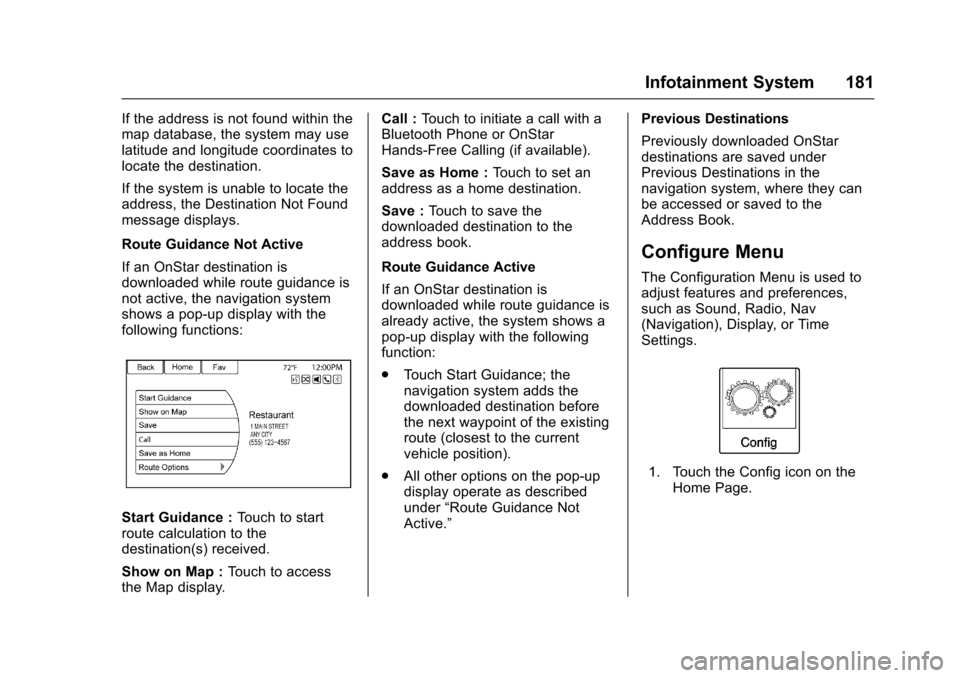
If an OnStar destination isdownloaded while route guidance isnot active, the navigation systemshows a pop-up display with thefollowing functions:
Start Guidance :To u c h t o s t a r troute calculation to thedestination(s) received.
Show on Map :To u c h t o a c c e s sthe Map display.
Call :To u c h t o i n i t i a t e a c a l l w i t h aBluetooth Phone or OnStarHands-Free Calling (if available).
Save as Home :To u c h t o s e t a naddress as a home destination.
Save :To u c h t o s a v e t h edownloaded destination to theaddress book.
Route Guidance Active
If an OnStar destination isdownloaded while route guidance isalready active, the system shows apop-up display with the followingfunction:
.To u c h S t a r t G u i d a n c e ; t h enavigation system adds thedownloaded destination beforethe next waypoint of the existingroute (closest to the currentvehicle position).
.All other options on the pop-updisplay operate as describedunder“Route Guidance NotActive.”
Previous Destinations
Previously downloaded OnStardestinations are saved underPrevious Destinations in thenavigation system, where they canbe accessed or saved to theAddress Book.
Configure Menu
The Configuration Menu is used toadjust features and preferences,such as Sound, Radio, Nav(Navigation), Display, or TimeSettings.
1. Touch the Config icon on theHome Page.
Page 184 of 400
Chevrolet SS Sedan Owner Manual (GMNA-Localizing-U.S.-10122752) -2017 - crc - 8/31/16
Infotainment System 183
Gracenote Options :To u c h t oenable/disable Normalization usedto improve voice recognition andmedia groupings. SeeUSB0158andBluetooth Audio0163.
XM Channel Graphics :To u c h t oenable/disable the XM Audio pagebackground on the XM Channeldisplay.
Startup Volume :To u c h t o s e t t h emaximum volume level for startupthat will be used even if a highervolume had been set when the radiowas turned off.
Number of Favorite Pages :To u c hto select the number of FAV pagesto be displayed.
XM Categories :To u c h t ocustomize which available XMCategories are used and displayed.
Software Version Information :To u c h t o d i s p l a y i n f o r m a t i o n a b o u tthe system and update software ifavailable.
Phone Settings
SeeBluetooth0195in the“Phone”section for more information onphone settings.
Navigation Settings
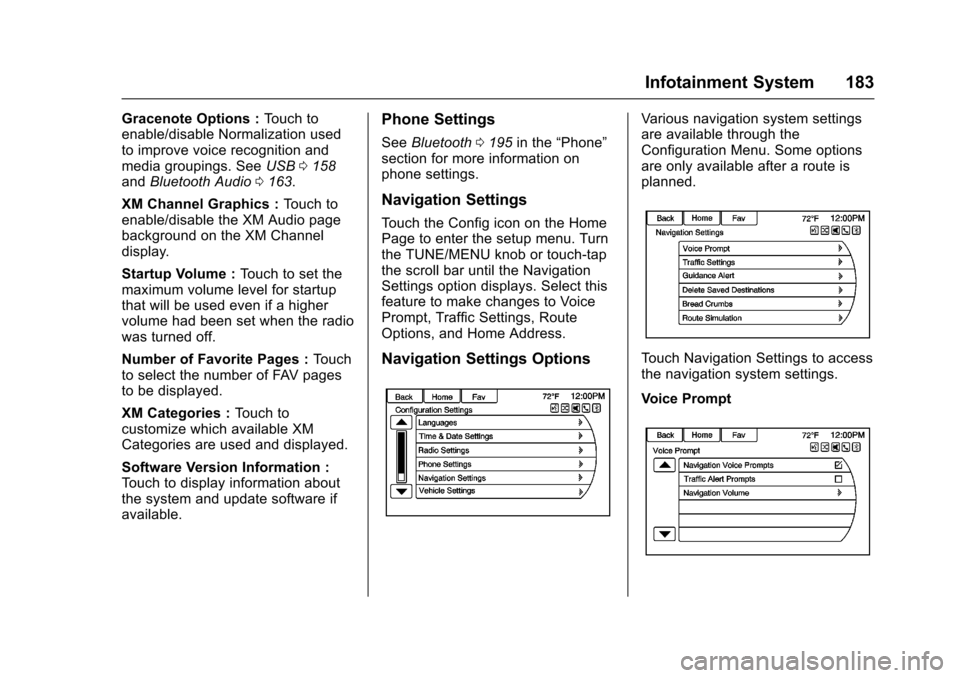
To u c h t h e C o n f i g i c o n o n t h e H o m ePage to enter the setup menu. Turnthe TUNE/MENU knob or touch-tapthe scroll bar until the NavigationSettings option displays. Select thisfeature to make changes to VoicePrompt, Traffic Settings, RouteOptions, and Home Address.
Navigation Settings Options
Va r i o u s n a v i g a t i o n s y s t e m s e t t i n g sare available through theConfiguration Menu. Some optionsare only available after a route isplanned.
To u c h N a v i g a t i o n S e t t i n g s t o a c c e s sthe navigation system settings.
Voice Prompt
Page 192 of 400
Chevrolet SS Sedan Owner Manual (GMNA-Localizing-U.S.-10122752) -2017 - crc - 8/31/16
Infotainment System 191
Phone Commands
Dial or Call (phone number orcontact) :Instructs the system tostart a phone call. For example, say“Dial 1 248 123 4567.”To c a l l aphone book contact, say“Dial”or“Call,”say the name and location,and then say“Dial.”For example,say“Call John at Home”or“CallJohn at Work.”If a number is notrecognized, the first number in thelist will be called.
Pair or Connect :Instructs thesystem to begin pairing a device.
Digit Dial :Instructs the system todial a phone number one digit at atime. After saying the digits,say“Dial.”
Redial or Redial Last Number :Instructs the system to dial the lastphone number called.
Select Device or Change Phone :Instructs the system to switch to adifferent paired device. The devicemust be selected from the display orusing the TUNE/MENU knob.
Delete Device :Instructs thesystem to delete a paired device.
Read Text Messages or Read SMSMessages :Instructs the system tobegin reading text messages frompaired device.
Not all devices support textmessages. Applicable whereequipped.
My Media Commands
USB or Bluetooth Audio :Instructsthe system to change the source.
The following commands only applyto USB, iPod, and iPhone sources.They are supported after the devicehas been indexed.
Play Artist (artist name) :Instructsthe system to play songs by aspecific artist. For example, say“Play Artist
Play Album (album title) :Instructsthe system to play a specific album.
Play Song (song title) :Instructsthe system to play a specific song.
Play Genre (genre name) :Instructs the system to play songsof a particular genre.
Search Artist (artist name) :Instructs the system to show a list ofall songs by a specific artist. Forexample, say "Search Artist
Search Composer (composername) :Instructs the system toshow a list of all songs by a specificcomposer. For example, say"Search Composer
Search Album (album name) :Instructs the system to show a list ofall songs by a specific album. Forexample, say "Search Album
Search Genre (genre name) :Instructs the system to show a list ofall songs for a specific genre. Forexample, say "Search Genre
Search Folder (folder name) :Instructs the system to show a list ofall songs in a specific folder. Forexample, say "Search folder
Page 196 of 400
Chevrolet SS Sedan Owner Manual (GMNA-Localizing-U.S.-10122752) -2017 - crc - 8/31/16
Infotainment System 195
Voice Pass-Thru
Voice pass-thru allows access to thevoice recognition commands on thecell phone, i.e. Siri or VoiceCommand. See the cell phonemanufacturer's user guide to see ifthe cell phone supports this feature.
To a c t i v a t e p h o n e v o i c e r e c o g n i t i o n
system, press and holdb/gon
the steering wheel for approximatelytwo seconds.
Bluetooth Phone/
Devices
Bluetooth
Overview
For vehicles equipped withBluetooth capability, the system caninteract with many cell phones anddevices, allowing:
.Placing and receiving hands-freecalls.
.Sharing of the cell phone’saddress book or contact list withthe vehicle. The phone book willonly display when that phone isconnected.
.Placing outgoing calls by voicerecognition.
The system can be used while inON/RUN, ACC/ACCESSORY,or Retained Accessory Power(RAP). The range of the Bluetoothsystem can be up to 9.1 m (30 ft).The radio can connect to most
Bluetooth-enabled phones.Available features and functionsmay be dependent on the device.
On a current phone call display, animage of the contact from yourphone's contact list can bedisplayed. Not all phones arecompatible with this feature.
Bluetooth Controls
Use the controls on the infotainmentsystem and the steering wheel tooperate the Bluetooth system.
Steering Wheel Controls
b/g:Press to answer incomingcalls and start voice recognition.
$/i:Press to end a call,decline an incoming call, or cancelvoice recognition.
+x✓:Press + or✓to increase or
decrease the volume.
Infotainment System Controls
For information about how tonavigate the menu system using theinfotainment controls, seeOverview0132.
Page 197 of 400
Chevrolet SS Sedan Owner Manual (GMNA-Localizing-U.S.-10122752) -2017 - crc - 8/31/16
196 Infotainment System
5/>:Press to enter the Phonemain menu. Press and hold to muteor unmute.
Voice Recognition
The voice recognition system usescommands to control the systemand dial phone numbers.
When using voice recognition:
.The system may not recognizevoice commands if there is toomuch background noise.
.Atonesoundstoindicatethatthe system is ready for a voicecommand. Wait for the tone andthen speak.
.Speak clearly in a calm andnatural voice.
SeeVoice Recognition0189.
Audio System
Sound comes through the vehicle'sfront audio system speakers andoverrides the audio system. Use the
VOL/Oknob during a call to change
the volume level. The adjusted
volume level remains in memory forlater calls. The system maintains aminimum volume level.
SeeVoice Recognition0189.
Bluetooth Audio
SeeBluetooth Audio0163.
Pairing with Infotainment
Controls
ABluetooth-enabledcellphonemust be paired and then connectedto the vehicle before it can be used.See your cell phone manufacturer'suser guide for Bluetooth functionsbefore pairing the cell phone. If aBluetooth phone is not connected,calls will be made using OnStarHands-Free Calling, if available.SeeOnStar Overview0378.
Pairing Information
.ABluetooth-enabledphoneandan audio playback device can bepaired to the system at thesame time.
.Up to five devices can be pairedto the Bluetooth system.
.The pairing process is disabledwhen the vehicle is moving.
.Pairing only needs to becompleted once, unless thepairing information on the cellphone changes or the cell phoneis deleted from the system.
.Only one paired cell phone canbe connected to the Bluetoothsystem at a time.
.If multiple paired cell phones arewithin range of the system, theradio will connect to the firstphone in the list or to the phonethat was previously connected.
Pairing a Phone/Device
1. Press CONFIG on the center
stack or press5/>on the
steering wheel controls.
2. Select Phone Settings.
3. Select Pair Device (Phone).The radio displays“Pleasestart Bluetooth search on yourphone. Confirm or enternumber:.”If the devicesupports a four-digit Personal
Page 198 of 400
Chevrolet SS Sedan Owner Manual (GMNA-Localizing-U.S.-10122752) -2017 - crc - 8/31/16
Infotainment System 197
Identification Number (PIN), itwill display. The PIN is used inStep 5.
4. Start the pairing process on thecell phone to be paired to thevehicle. See the cell phonemanufacturer's user guide.
5. Locate and select the devicenamed after the vehicle makeand model in the list on the cellphone. Follow the instructionson the cell phone to enter thePIN provided in Step 3, or toconfirm the six-digit codematches. The systemrecognizes the new connectedphone after the pairing processis complete.
6. If the phone prompts to acceptconnection or allow phonebook download, select alwaysaccept and allow. The phonebook may not be available ifnot accepted. Some phoneswill put connection request orphonebook request in a pulldown task bar at the top of the
display. Drag down the task barand look for connection/phonebook request and accept.
7. Repeat to pair additionalphones.
Listing All Paired and ConnectedPhones/Devices
1. Press CONFIG on the centerstack.
2. Select Phone Settings.
3. Select Device List.
Deleting a Paired Phone/Device
1. Press CONFIG on the centerstack.
2. Select Phone Settings.
3. Select Device List.
4. Select the phone to delete andfollow the display prompts.
Connecting to a Different Phone
To c o n n e c t t o a d i f f e r e n t p h o n e , t h enew phone must be in the vehicleand available to be connected to theBluetooth system before theprocess is started.
1. Press CONFIG on the centerstack.
2. Select Phone Settings.
3. Select Device List.
4. Select the new phone toconnect to and follow thedisplay prompts.
Pairing with Voice Recognition
ABluetooth-enabledcellphonemust be paired and then connectedto the vehicle before it can be used.See the cell phone manufacturer'suser guide for Bluetooth functionsbefore pairing the cell phone. If aBluetooth phone is not connected,calls will be made using OnStarHands-Free Calling, if available.SeeOnStar Overview0378.
Pairing a Phone
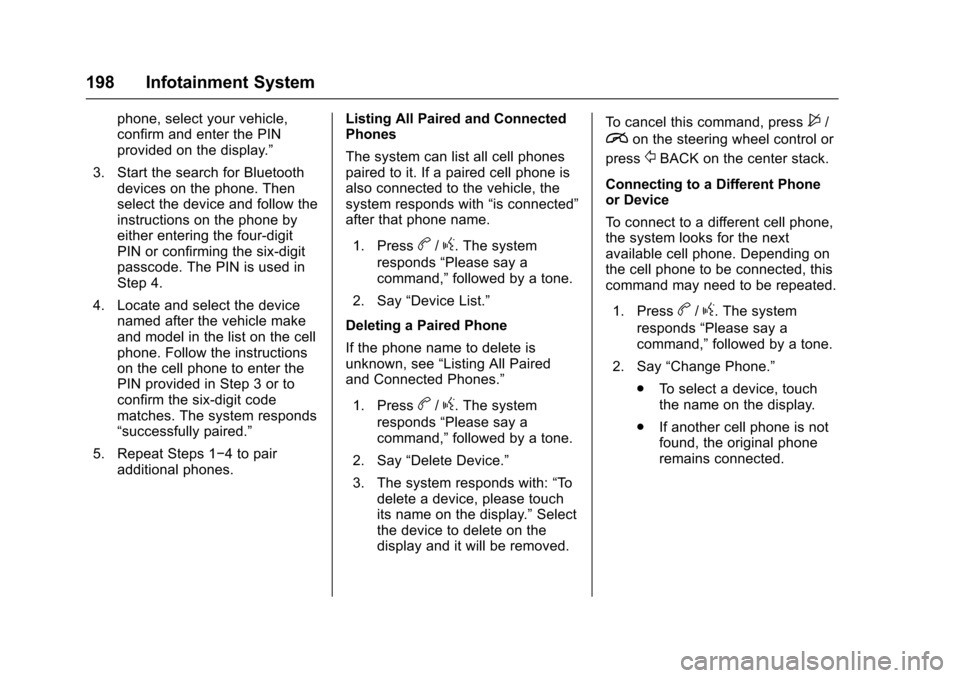
1. Pressb/g.Thesystem
responds“Please say acommand,”followed by a tone.
2. Say“Pair.”The systemresponds with“Please searchfor Bluetooth devices on your
Page 199 of 400
Chevrolet SS Sedan Owner Manual (GMNA-Localizing-U.S.-10122752) -2017 - crc - 8/31/16
198 Infotainment System
phone, select your vehicle,confirm and enter the PINprovided on the display.”
3. Start the search for Bluetoothdevices on the phone. Thenselect the device and follow theinstructions on the phone byeither entering the four-digitPIN or confirming the six-digitpasscode. The PIN is used inStep 4.
4. Locate and select the devicenamed after the vehicle makeand model in the list on the cellphone. Follow the instructionson the cell phone to enter thePIN provided in Step 3 or toconfirm the six-digit codematches. The system responds“successfully paired.”
5. Repeat Steps 1✓4topairadditional phones.
Listing All Paired and ConnectedPhones
The system can list all cell phonespaired to it. If a paired cell phone isalso connected to the vehicle, thesystem responds with“is connected”after that phone name.
1. Pressb/g.Thesystem
responds“Please say acommand,”followed by a tone.
2. Say“Device List.”
Deleting a Paired Phone
If the phone name to delete isunknown, see“Listing All Pairedand Connected Phones.”
1. Pressb/g.Thesystem
responds“Please say acommand,”followed by a tone.
2. Say“Delete Device.”
3. The system responds with:“Todelete a device, please touchits name on the display.”Selectthe device to delete on thedisplay and it will be removed.
To c a n c e l t h i s c o m m a n d , p r e s s$/
ion the steering wheel control or
press/BACK on the center stack.
Connecting to a Different Phoneor Device
To c o n n e c t t o a d i f f e r e n t c e l l p h o n e ,the system looks for the nextavailable cell phone. Depending onthe cell phone to be connected, thiscommand may need to be repeated.
1. Pressb/g.Thesystem
responds“Please say acommand,”followed by a tone.
2. Say“Change Phone.”
.To s e l e c t a d e v i c e , t o u c hthe name on the display.
.If another cell phone is notfound, the original phoneremains connected.
Page 200 of 400
Chevrolet SS Sedan Owner Manual (GMNA-Localizing-U.S.-10122752) -2017 - crc - 8/31/16
Infotainment System 199
Making a Call Using Phone
Book and Infotainment
Controls
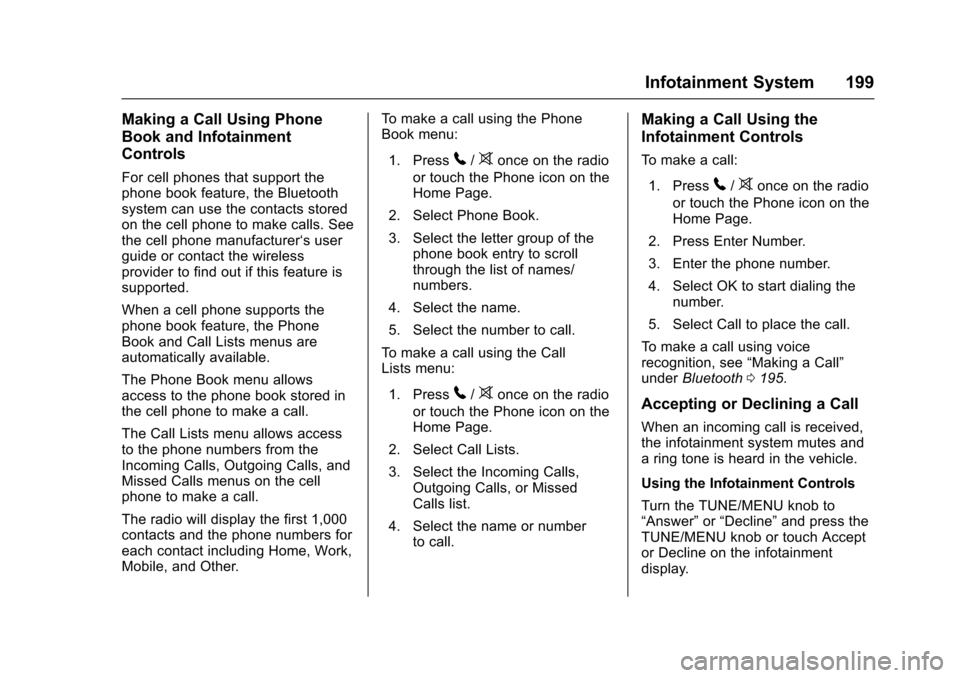
For cell phones that support thephone book feature, the Bluetoothsystem can use the contacts storedon the cell phone to make calls. Seethe cell phone manufacturer‘suserguide or contact the wirelessprovider to find out if this feature issupported.
When a cell phone supports thephone book feature, the PhoneBook and Call Lists menus areautomatically available.
The Phone Book menu allowsaccess to the phone book stored inthe cell phone to make a call.
The Call Lists menu allows accessto the phone numbers from theIncoming Calls, Outgoing Calls, andMissed Calls menus on the cellphone to make a call.
The radio will display the first 1,000contacts and the phone numbers foreach contact including Home, Work,Mobile, and Other.
To m a k e a c a l l u s i n g t h e P h o n eBook menu:
1. Press5/>once on the radio
or touch the Phone icon on theHome Page.
2. Select Phone Book.
3. Select the letter group of thephone book entry to scrollthrough the list of names/numbers.
4. Select the name.
5. Select the number to call.
To m a k e a c a l l u s i n g t h e C a l lLists menu:
1. Press5/>once on the radio
or touch the Phone icon on theHome Page.
2. Select Call Lists.
3. Select the Incoming Calls,Outgoing Calls, or MissedCalls list.
4. Select the name or numberto call.
Making a Call Using the
Infotainment Controls
To m a k e a c a l l :
1. Press5/>once on the radio
or touch the Phone icon on theHome Page.
2. Press Enter Number.
3. Enter the phone number.
4. Select OK to start dialing thenumber.
5. Select Call to place the call.
To m a k e a c a l l u s i n g v o i c erecognition, see“Making a Call”underBluetooth0195.
Accepting or Declining a Call
When an incoming call is received,the infotainment system mutes andaringtoneisheardinthevehicle.
Using the Infotainment Controls
Turn the TUNE/MENU knob to“Answer”or“Decline”and press theTUNE/MENU knob or touch Acceptor Decline on the infotainmentdisplay.