phone CHEVROLET SS 2017 1.G Owner's Manual
[x] Cancel search | Manufacturer: CHEVROLET, Model Year: 2017, Model line: SS, Model: CHEVROLET SS 2017 1.GPages: 400, PDF Size: 7.31 MB
Page 164 of 400
Chevrolet SS Sedan Owner Manual (GMNA-Localizing-U.S.-10122752) -2017 - crc - 8/31/16
Infotainment System 163
Composers:
1. Touch to view the composerson the iPod.
2. Select the composer to view alist of songs by that composer.
3. Select a song from the list tobegin playback.
Audiobooks:
1. Touch to view the audiobookson the iPod.
2. Select the audiobook from thelist to begin playback.
Playing from an iPhone or iPad
This feature supports the followingiPhone or iPad models:
.iPhone®(2G, 3G, 3GS, 4, 4S,and 5)
.iPad®(1G, 2G)
Follow the same instructions asstated earlier for using an iPod. Touse voice recognition to play music,say“Play USB,”“Play Artist,”“PlayAlbum,”“Play Song,”or“PlayGenre.”SeeVoice Recognition0189.
iPhone, iPod touch and iPadTroubleshooting
When an iPhone, iPod touch,or iPad are connected through USBand Bluetooth, the audio may not beheard when the iPod source on theradio is selected. If a phone call isreceived while listening to the iPodsource and there is no audio for theiPod after the source, then go to theAirplay icon on the device andselect dock connector or disconnectand reconnect the dock connectoron the device.
Some functionality may differ basedon operating system version ondevice.
USB Troubleshooting
If the device is not being recognizedor the music is missing displayinformation, restore the radiodefaults:
1. Touch Config.
2. Touch Radio Settings.
3. Touch SoftwareVersions Menu.
4. Touch Clear and Reset Radio.
5. Touch Yes.
Pair the phone again and the devicewill have to index again.
Bluetooth Audio and VoiceRecognition
SeeBluetooth Audio0163andVoice Recognition0189forinformation using voice recognitionwith Bluetooth audio.
Make sure all devices have thelatest software downloaded.
Bluetooth Audio
If equipped, music may be playedfrom a paired Bluetooth device. See“Pairing a Phone/Device”underBluetooth0195.
To p l a y m u s i c t h r o u g h a B l u e t o o t hdevice:
1. Power on the device, pair, andconnect the device.
2. Music can be launched bydoing one of the following:
.To u c h t h e B l u e t o o t h i c o n o nthe Home Page.
Page 165 of 400
Chevrolet SS Sedan Owner Manual (GMNA-Localizing-U.S.-10122752) -2017 - crc - 8/31/16
164 Infotainment System
.Press SRCE until BluetoothAudio is selected.
.Press SRC on the steeringwheel controls untilBluetooth Audio is selected.SeeSteering WheelControls0134.
.Use voice recognition. SeeVoice Recognition0189.
The music can be controlled byeither the infotainment controls orthe controls on the device.
When a phone is connected to thesystem through Bluetooth Audio thephone notifications and sounds maynot be heard on the phone untilBluetooth is disconnected.Notification features may vary basedon the phone. Check the phone’smanufacture information fornotification support.
Bluetooth Audio Menu
To u c h M e n u o n t h e i n f o t a i n m e n tdisplay and the following maydisplay:
Shuffle :Press the TUNE/MENUknob to turn shuffle on or off. Not alldevices support the shuffle feature.
When selecting Bluetooth audio, theBluetooth device internal musicplayer may not open depending onthe status of the device. All deviceslaunch and play back audiodifferently. Make sure the correctaudio source is playing on thedevice for Bluetooth audio playbackon the radio. When the vehicle isnot moving, use the device to beginplayback.
When selecting Bluetooth audio asasource,theradiomaysourcetoBluetooth Audio Paused display andno audio playing. Touch play on the
device or touchJto begin
playback. This may happendepending on how the devicecommunicates over Bluetooth.
Some phones support sendingBluetooth music information todisplay on the radio. When the radioreceives this information, it willcheck to see if any album art isavailable and display it.
When playing music on the radiofrom a Bluetooth device, make surethe Bluetooth device is unlockedand the intended music applicationis showing on the home page.
For iPhone/iPod touch and iPaddevices, Bluetooth Audio will notwork if the device is connectedthrough the USB and Bluetooth atthe same time.
Page 166 of 400
Chevrolet SS Sedan Owner Manual (GMNA-Localizing-U.S.-10122752) -2017 - crc - 8/31/16
Infotainment System 165
OnStar System
OnStar 4G LTE
If equipped with OnStar 4G LTE, upto seven devices, such assmartphones, tablets, and laptops,can be connected to high-speedInternet through the vehicle’sbuilt-inWi-Fi hotspot.
Call 1-888-4ONSTAR(1-888-466-7827) to connect to anOnStar Advisor for assistance. Seewww.onstar.com for vehicleavailability, details, and systemlimitations. Service and connectivitymay vary by make, model, year,carrier, availability, and conditions.4G LTE service is available in selectmarkets. 4G LTE performance isbased on industry averages andvehicle systems design. Someservices require a data plan.
Navigation
Using the Navigation
System
Press NAV on the center stack ortouch the Navigation icon on theHome Page to access thenavigation map.
Press NAV again to changebetween alternative views of thenormal split and full map.
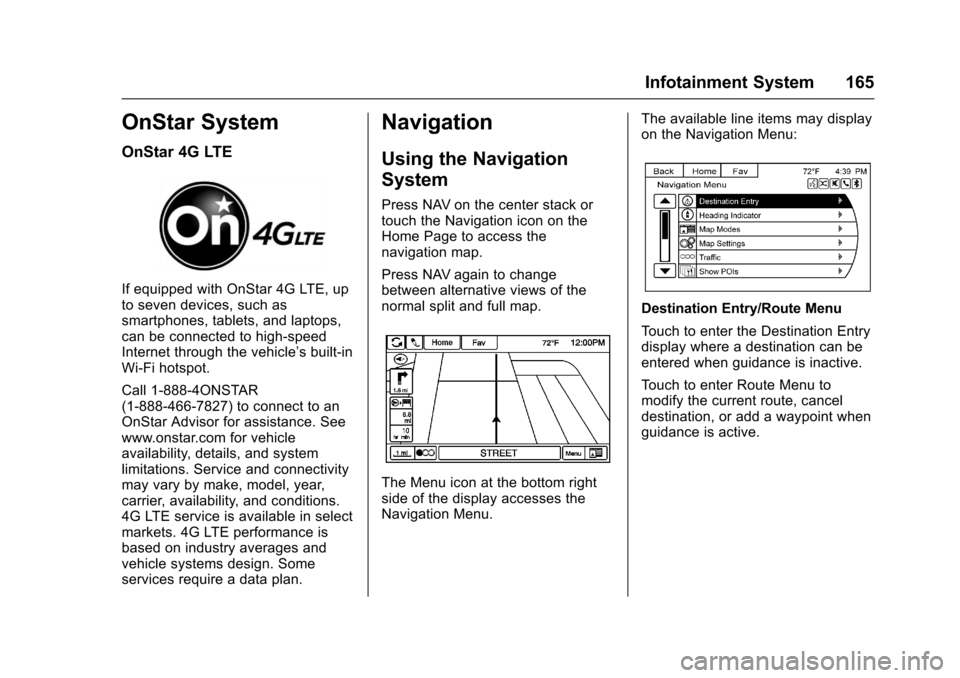
The Menu icon at the bottom rightside of the display accesses theNavigation Menu.
The available line items may displayon the Navigation Menu:
Destination Entry/Route Menu
To u c h t o e n t e r t h e D e s t i n a t i o n E n t r ydisplay where a destination can beentered when guidance is inactive.
To u c h t o e n t e r R o u t e M e n u t omodify the current route, canceldestination, or add a waypoint whenguidance is active.
Page 174 of 400
Chevrolet SS Sedan Owner Manual (GMNA-Localizing-U.S.-10122752) -2017 - crc - 8/31/16
Infotainment System 173
The POI List allows selection of adestination search by Category,Name, or Telephone Number.
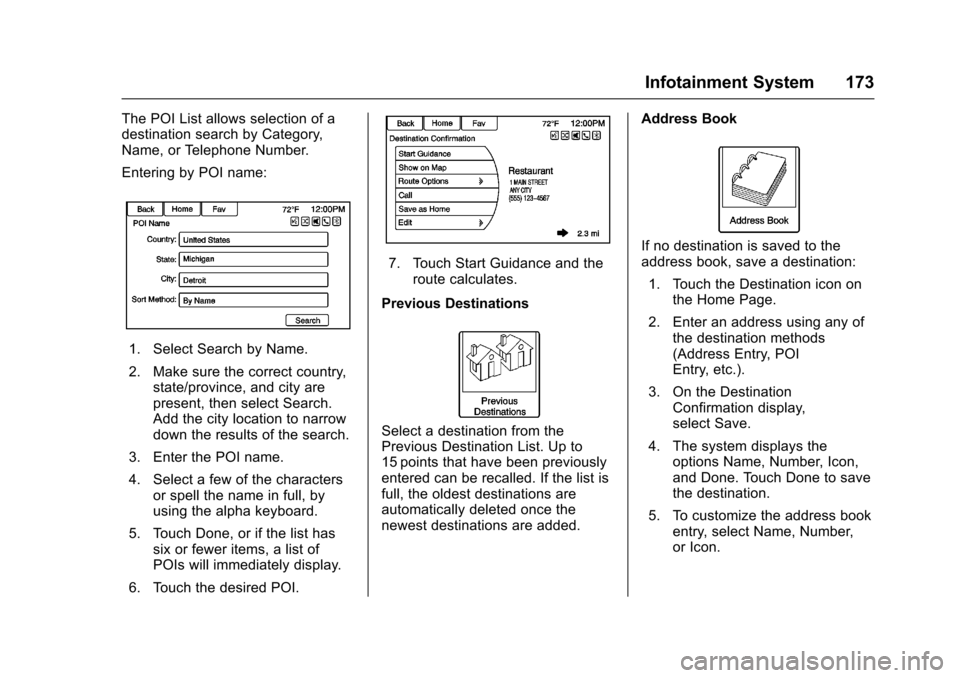
Entering by POI name:
1. Select Search by Name.
2. Make sure the correct country,state/province, and city arepresent, then select Search.Add the city location to narrowdown the results of the search.
3. Enter the POI name.
4. Select a few of the charactersor spell the name in full, byusing the alpha keyboard.
5. Touch Done, or if the list hassix or fewer items, a list ofPOIs will immediately display.
6. Touch the desired POI.
7. Touch Start Guidance and theroute calculates.
Previous Destinations
Select a destination from thePrevious Destination List. Up to15 points that have been previouslyentered can be recalled. If the list isfull, the oldest destinations areautomatically deleted once thenewest destinations are added.
Address Book
If no destination is saved to theaddress book, save a destination:
1. Touch the Destination icon onthe Home Page.
2. Enter an address using any ofthe destination methods(Address Entry, POIEntry, etc.).
3. On the DestinationConfirmation display,select Save.
4. The system displays theoptions Name, Number, Icon,and Done. Touch Done to savethe destination.
5. To customize the address bookentry, select Name, Number,or Icon.
Page 179 of 400
Chevrolet SS Sedan Owner Manual (GMNA-Localizing-U.S.-10122752) -2017 - crc - 8/31/16
178 Infotainment System
Destination Confirmation
Multiple options are available on theDestination Confirmation display:
Start Guidance :To u c h t o s t a r t aroute calculation to the displayeddestination.
Show on Map :To u c h t o s w i t c h t othe map view with the displayeddestination centered on the map.
Route Options :To u c h t o c h a n g eroute options. See“Route Options”following.
Call :To u c h t o i n i t i a t e a p h o n e c a l lto the displayed phone number,if phone capability is available.
Save as Home :To u c h t o s a v e t h edisplayed destination as your homedestination. The home destinationwill be stored at the top of the list ofdestinations in the address book.
Save/Edit :To u c h t o s a v e t h edisplayed destination into theaddress book. If the displayeddestination is already stored in theaddress book, Edit will show as themenu item.
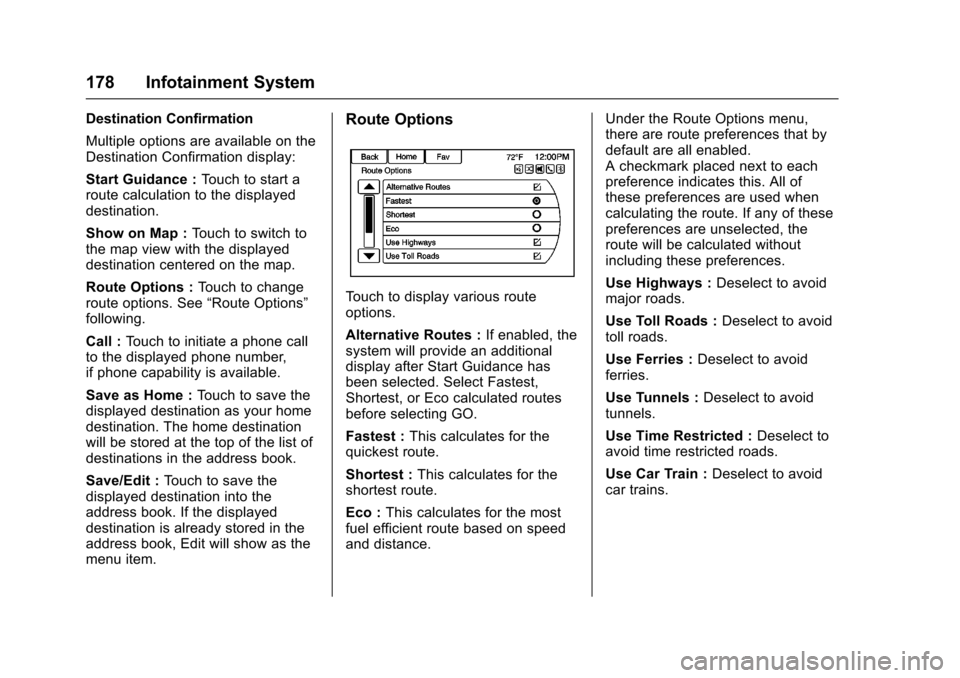
Route Options
To u c h t o d i s p l a y v a r i o u s r o u t eoptions.
Alternative Routes :If enabled, thesystem will provide an additionaldisplay after Start Guidance hasbeen selected. Select Fastest,Shortest, or Eco calculated routesbefore selecting GO.
Fastest :This calculates for thequickest route.
Shortest :This calculates for theshortest route.
Eco :This calculates for the mostfuel efficient route based on speedand distance.
Under the Route Options menu,there are route preferences that bydefault are all enabled.Acheckmarkplacednexttoeachpreference indicates this. All ofthese preferences are used whencalculating the route. If any of thesepreferences are unselected, theroute will be calculated withoutincluding these preferences.
Use Highways :Deselect to avoidmajor roads.
Use Toll Roads :Deselect to avoidtoll roads.
Use Ferries :Deselect to avoidferries.
Use Tunnels :Deselect to avoidtunnels.
Use Time Restricted :Deselect toavoid time restricted roads.
Use Car Train :Deselect to avoidcar trains.
Page 182 of 400
Chevrolet SS Sedan Owner Manual (GMNA-Localizing-U.S.-10122752) -2017 - crc - 8/31/16
Infotainment System 181
If the address is not found within themap database, the system may uselatitude and longitude coordinates tolocate the destination.
If the system is unable to locate theaddress, the Destination Not Foundmessage displays.
Route Guidance Not Active
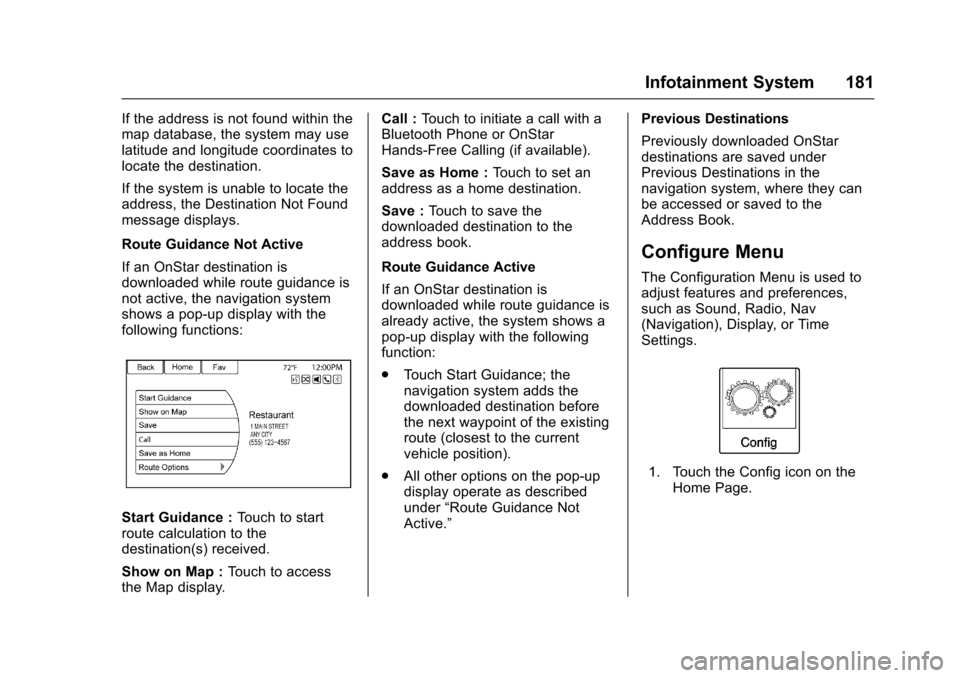
If an OnStar destination isdownloaded while route guidance isnot active, the navigation systemshows a pop-up display with thefollowing functions:
Start Guidance :To u c h t o s t a r troute calculation to thedestination(s) received.
Show on Map :To u c h t o a c c e s sthe Map display.
Call :To u c h t o i n i t i a t e a c a l l w i t h aBluetooth Phone or OnStarHands-Free Calling (if available).
Save as Home :To u c h t o s e t a naddress as a home destination.
Save :To u c h t o s a v e t h edownloaded destination to theaddress book.
Route Guidance Active
If an OnStar destination isdownloaded while route guidance isalready active, the system shows apop-up display with the followingfunction:
.To u c h S t a r t G u i d a n c e ; t h enavigation system adds thedownloaded destination beforethe next waypoint of the existingroute (closest to the currentvehicle position).
.All other options on the pop-updisplay operate as describedunder“Route Guidance NotActive.”
Previous Destinations
Previously downloaded OnStardestinations are saved underPrevious Destinations in thenavigation system, where they canbe accessed or saved to theAddress Book.
Configure Menu
The Configuration Menu is used toadjust features and preferences,such as Sound, Radio, Nav(Navigation), Display, or TimeSettings.
1. Touch the Config icon on theHome Page.
Page 184 of 400
Chevrolet SS Sedan Owner Manual (GMNA-Localizing-U.S.-10122752) -2017 - crc - 8/31/16
Infotainment System 183
Gracenote Options :To u c h t oenable/disable Normalization usedto improve voice recognition andmedia groupings. SeeUSB0158andBluetooth Audio0163.
XM Channel Graphics :To u c h t oenable/disable the XM Audio pagebackground on the XM Channeldisplay.
Startup Volume :To u c h t o s e t t h emaximum volume level for startupthat will be used even if a highervolume had been set when the radiowas turned off.
Number of Favorite Pages :To u c hto select the number of FAV pagesto be displayed.
XM Categories :To u c h t ocustomize which available XMCategories are used and displayed.
Software Version Information :To u c h t o d i s p l a y i n f o r m a t i o n a b o u tthe system and update software ifavailable.
Phone Settings
SeeBluetooth0195in the“Phone”section for more information onphone settings.
Navigation Settings
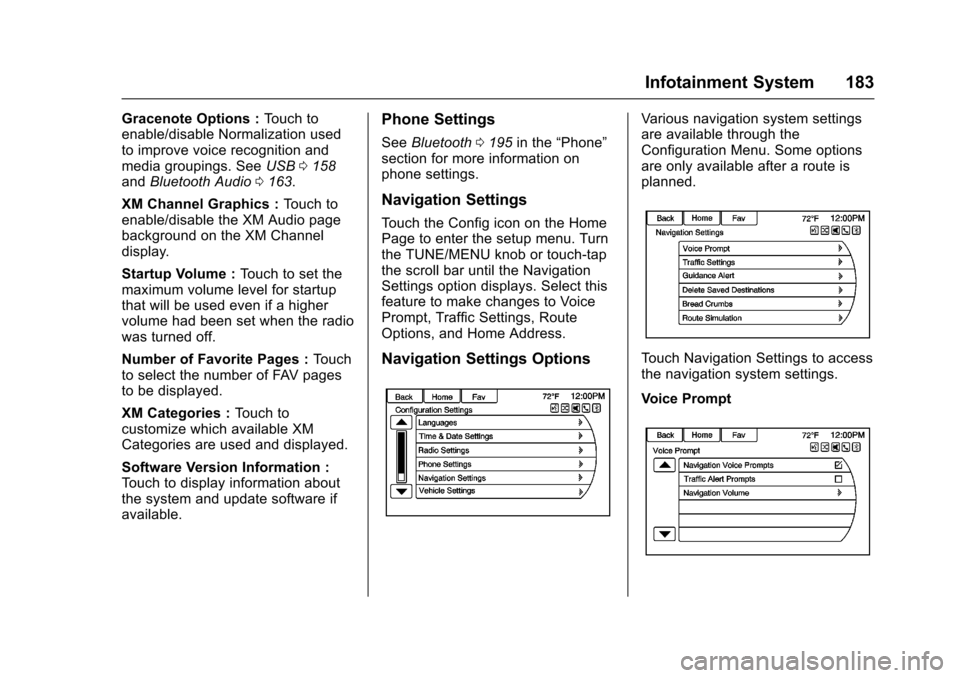
To u c h t h e C o n f i g i c o n o n t h e H o m ePage to enter the setup menu. Turnthe TUNE/MENU knob or touch-tapthe scroll bar until the NavigationSettings option displays. Select thisfeature to make changes to VoicePrompt, Traffic Settings, RouteOptions, and Home Address.
Navigation Settings Options
Va r i o u s n a v i g a t i o n s y s t e m s e t t i n g sare available through theConfiguration Menu. Some optionsare only available after a route isplanned.
To u c h N a v i g a t i o n S e t t i n g s t o a c c e s sthe navigation system settings.
Voice Prompt
Page 187 of 400
Chevrolet SS Sedan Owner Manual (GMNA-Localizing-U.S.-10122752) -2017 - crc - 8/31/16
186 Infotainment System
To u c h t o d e l e t e a l l s a v e ddestinations. A Delete SavedDestinations submenu displays.Select the desired options fordeletion and touch Delete at thebottom to continue. A confirmationdisplays requesting to delete orcancel.
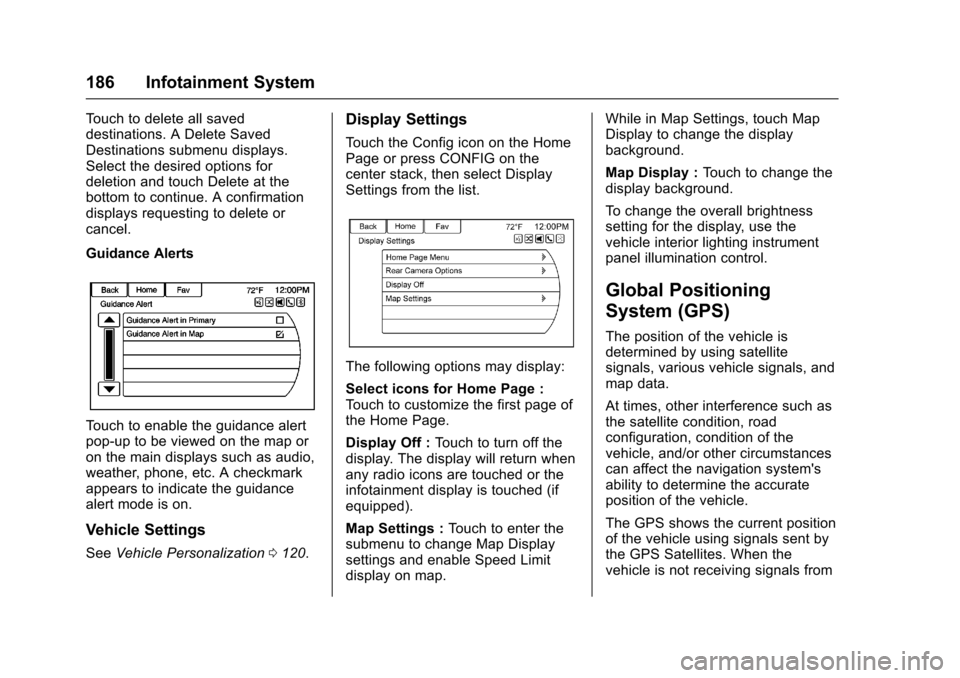
Guidance Alerts
To u c h t o e n a b l e t h e g u i d a n c e a l e r tpop-up to be viewed on the map oron the main displays such as audio,weather, phone, etc. A checkmarkappears to indicate the guidancealert mode is on.
Vehicle Settings
SeeVehicle Personalization0120.
Display Settings
To u c h t h e C o n f i g i c o n o n t h e H o m ePage or press CONFIG on thecenter stack, then select DisplaySettings from the list.
The following options may display:
Select icons for Home Page :To u c h t o c u s t o m i z e t h e f i r s t p a g e o fthe Home Page.
Display Off :To u c h t o t u r n o f f t h edisplay. The display will return whenany radio icons are touched or theinfotainment display is touched (ifequipped).
Map Settings :To u c h t o e n t e r t h esubmenu to change Map Displaysettings and enable Speed Limitdisplay on map.
While in Map Settings, touch MapDisplay to change the displaybackground.
Map Display :To u c h t o c h a n g e t h edisplay background.
To c h a n g e t h e o v e r a l l b r i g h t n e s ssetting for the display, use thevehicle interior lighting instrumentpanel illumination control.
Global Positioning
System (GPS)
The position of the vehicle isdetermined by using satellitesignals, various vehicle signals, andmap data.
At times, other interference such asthe satellite condition, roadconfiguration, condition of thevehicle, and/or other circumstancescan affect the navigation system'sability to determine the accurateposition of the vehicle.
The GPS shows the current positionof the vehicle using signals sent bythe GPS Satellites. When thevehicle is not receiving signals from
Page 189 of 400
Chevrolet SS Sedan Owner Manual (GMNA-Localizing-U.S.-10122752) -2017 - crc - 8/31/16
188 Infotainment System
.Plural names of places might beannounced occasionally.
.It could take a long time tooperate automatic reroutingduring high-speed driving.
.Automatic rerouting mightdisplay a route returning to theset waypoint if heading for adestination without passingthrough a set waypoint.
.The route prohibits the entry of avehicle due to a regulation bytime or season or any otherregulation which may be given.
.Some routes might not besearched.
.The route to the destinationmight not be shown if there arenew roads, if roads haverecently changed, or if certainroads are not listed in the mapdata. SeeMaps0168.
To r e c a l i b r a t e t h e v e h i c l e ' s p o s i t i o non the map, park with the vehiclerunning for two to five minutes, untilthe vehicle position updates. Makesure the vehicle is parked in a
location that is safe and has a clearview of the sky and away from largeobstruction.
If the System Needs
Service
If the navigation system needsservice and the steps listed herehave been followed but there arestill problems, see your dealer forassistance.
Map Data Updates
The map data provided in thevehicle is the most up-to-dateinformation available when thevehicle was produced. The mapdata is updated periodically,provided that the map informationhas changed.
For questions about the operation ofthe navigation system or the updateprocess, contact the GM Nav DiscCenter toll-free phone number,1-877-NAV-DISC (1-877-628-3472)or go to the center’swebsite,www.gmnavdisc.com. If updates areneeded, call the GM Nav DiscCenter or order a new Map Update
online. To order map data, have thevehicle’sVehicleIdentificationNumber (VIN) available. SeeVehicle Identification Number (VIN)0361.
After receiving the updated mapdata, seeMaps0168.
Database Coverage
Explanations
Coverage areas vary with respect tothe level of map detail available forany given area. Some areas featuregreater levels of detail than others.If this happens, it does not meanthere is a problem with the system.As the map data is updated, moredetail can become available forareas which previously had limiteddetail. SeeMap Data Updates0188for more information.
Page 191 of 400
Chevrolet SS Sedan Owner Manual (GMNA-Localizing-U.S.-10122752) -2017 - crc - 8/31/16
190 Infotainment System
adjusted during a voicerecognition session, a Volumebar appears on the displayshowing the voice volume levelas it is being adjusted. This alsochanges the volume of theguidance prompts.
.When using navigationcommands, take the time tobecome familiar with theaddress. Long delays whengiving the address can result inthe system not recognizing theaddress or routing to differentlocation than intended.
.When providing the housenumber portion of the address,the system recognizes both digitformat and numerical text. Anexample would be to say,“3-0-0-0-1”or“ThirtyThousand One.”
.If the system providesdestination in another country onseveral attempts, say the“Change Country”command andsay the country of interest. Thecountry default is the UnitedStates. To enter a destination in
Canada or Mexico, the countrywill first have to be changed inthe system.
Voice Recognition Help
To e n t e r t h e h e l p p l a y b a c k s e s s i o n ,clearly speak one of the helpcommands.
Help :The system plays back morespecific help commands such asRadio Settings for the user tochoose from.
Radio :Use this command to learnabout how to select a band (AM,FM, or XM), and how to changeradio stations by speakingfrequency numbers.
Phone :Use this command to learnabout how to dial, pair a device,or delete a device.
My Media :Use this command tolearn how to play specific tracks,artists, albums, devices connectedto the USB port, or to changesources.
Settings :Use this command tolearn about how to turn Verbose onor off, or set the language.
Voice Recognition Commands
The following list shows the voicecommands available for theinfotainment system with a briefdescription of each. The commandsare listed with the optional words inparentheses. To use the voicecommands, see the previousinstructions.
Radio Commands
Tu n e A M , Tu n e F M , Tu n e X M ,Tu n e P a n d o r a , Tu n e S t i t c h e r :Instructs the system to go to thespecific band and the last channel.
Tu n e A M ( f r e q u e n c y ) , Tu n e F M(frequency), Tune XM (channelnumber), or Tune XM (channelname) :Instructs the system to goto the specific station.
Thumbs Up :Instructs the systemto give the current song or station athumbs up in Pandora or Stitcher.
Thumbs Down :Instructs thesystem to give the current song orstation a thumbs down in Pandoraor Stitcher.