infotainment CHEVROLET SS 2017 1.G Workshop Manual
[x] Cancel search | Manufacturer: CHEVROLET, Model Year: 2017, Model line: SS, Model: CHEVROLET SS 2017 1.GPages: 400, PDF Size: 7.31 MB
Page 176 of 400
Chevrolet SS Sedan Owner Manual (GMNA-Localizing-U.S.-10122752) -2017 - crc - 8/31/16
Infotainment System 175
2. Touch the Favorite Routesoption to display Add FavoriteRoute.
3. Select Add Favorite Route andenter a favorite route name.
4. Touch OK and the displayreturns to the favoriteroutes list.
5. Select the favorite route andadd a waypoint using any ofthe destination methods, suchas address entry, POIentry, etc.
Selecting a Favorite Route:
1. Touch the Destination icon onthe Home Page to displayFavorite Routes.
2. Touch the Favorite Routesoption to display a list ofavailable favorite routes.
3. Scroll and select a favoriteroute.
4. Touch the Start Guidanceoption. The route calculates.
Deleting a Favorite Route:
1. Touch the Destination icon onthe Home Page to display theFavorite Routes option. Touchthis option to display the list ofavailable favorite routes.
2. Scroll and select the route tobe deleted.
3. Touch Edit.
4. Touch Delete Favorite Route.
Changing the route name:
1. Touch the Destination icon onthe Home Page to display theFavorite Routes option. Touchthis option to display the list ofavailable favorite routes.
2. Touch the Edit option.
3. Select Edit Name.
4. Using the keypad, enterthe name.
5. Touch Done. The new namewill be in the FavoriteRoutes Menu.
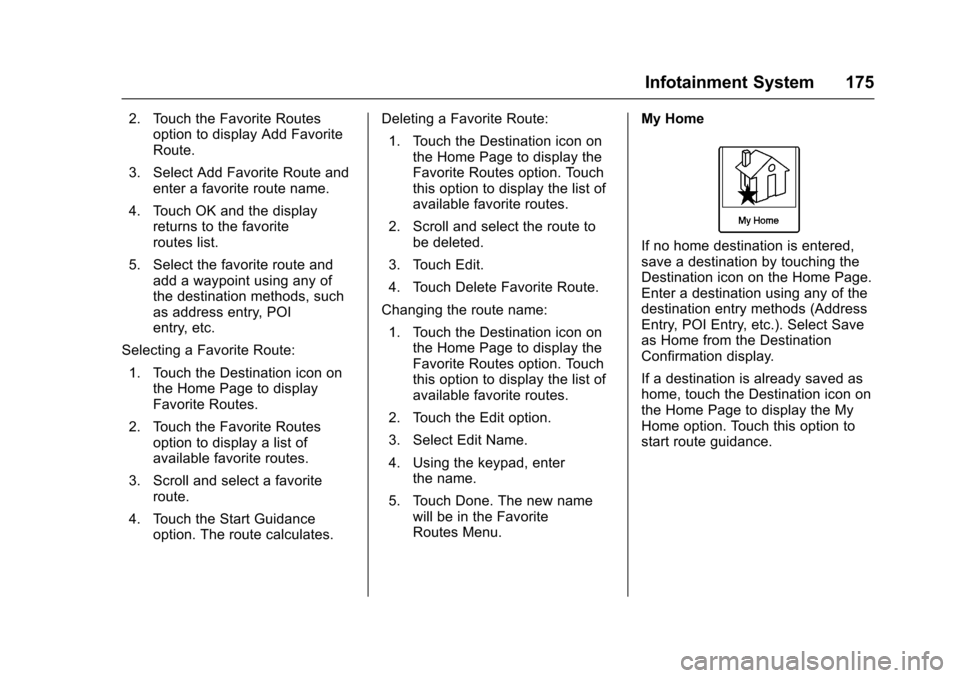
My Home
If no home destination is entered,save a destination by touching theDestination icon on the Home Page.Enter a destination using any of thedestination entry methods (AddressEntry, POI Entry, etc.). Select Saveas Home from the DestinationConfirmation display.
If a destination is already saved ashome, touch the Destination icon onthe Home Page to display the MyHome option. Touch this option tostart route guidance.
Page 177 of 400
Chevrolet SS Sedan Owner Manual (GMNA-Localizing-U.S.-10122752) -2017 - crc - 8/31/16
176 Infotainment System
Select from Map
.To u c h t h e D e s t i n a t i o n i c o n o nthe Home Page to display theSelect from Map option. Touchthis option to access the mapdisplay with a scroll symbolcentered on the map.
.To u c h Z o o m i n / o u t o n t h edisplay and touch the map tolocate the destination to select.To u c h a n d h o l d a f i n g e r o n t h emap to activate fast scrolling.
.To u c h G o o n t h e b o t t o m o f t h edisplay access the DestinationConfirmation display.
.To u c h S t a r t G u i d a n c e . T h e r o u t ecalculates.
Travel Guide
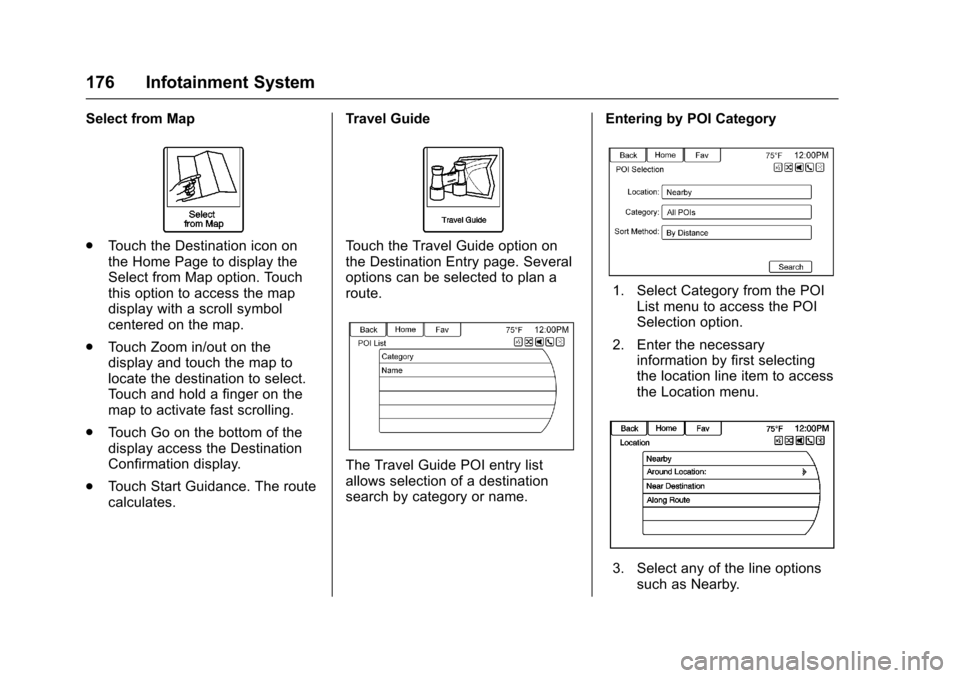
To u c h t h e T r a v e l G u i d e o p t i o n o nthe Destination Entry page. Severaloptions can be selected to plan aroute.
The Travel Guide POI entry listallows selection of a destinationsearch by category or name.
Entering by POI Category
1. Select Category from the POIList menu to access the POISelection option.
2. Enter the necessaryinformation by first selectingthe location line item to accessthe Location menu.
3. Select any of the line optionssuch as Nearby.
Page 178 of 400
Chevrolet SS Sedan Owner Manual (GMNA-Localizing-U.S.-10122752) -2017 - crc - 8/31/16
Infotainment System 177
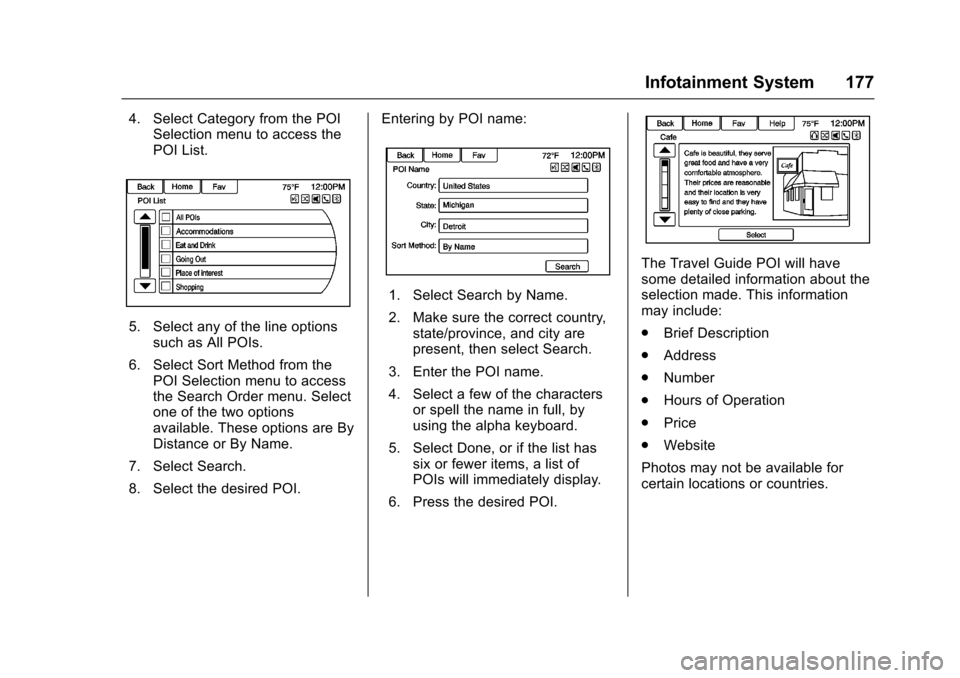
4. Select Category from the POISelection menu to access thePOI List.
5. Select any of the line optionssuch as All POIs.
6. Select Sort Method from thePOI Selection menu to accessthe Search Order menu. Selectone of the two optionsavailable. These options are ByDistance or By Name.
7. Select Search.
8. Select the desired POI.
Entering by POI name:
1. Select Search by Name.
2. Make sure the correct country,state/province, and city arepresent, then select Search.
3. Enter the POI name.
4. Select a few of the charactersor spell the name in full, byusing the alpha keyboard.
5. Select Done, or if the list hassix or fewer items, a list ofPOIs will immediately display.
6. Press the desired POI.
The Travel Guide POI will havesome detailed information about theselection made. This informationmay include:
.Brief Description
.Address
.Number
.Hours of Operation
.Price
.Website
Photos may not be available forcertain locations or countries.
Page 179 of 400
Chevrolet SS Sedan Owner Manual (GMNA-Localizing-U.S.-10122752) -2017 - crc - 8/31/16
178 Infotainment System
Destination Confirmation
Multiple options are available on theDestination Confirmation display:
Start Guidance :To u c h t o s t a r t aroute calculation to the displayeddestination.
Show on Map :To u c h t o s w i t c h t othe map view with the displayeddestination centered on the map.
Route Options :To u c h t o c h a n g eroute options. See“Route Options”following.
Call :To u c h t o i n i t i a t e a p h o n e c a l lto the displayed phone number,if phone capability is available.
Save as Home :To u c h t o s a v e t h edisplayed destination as your homedestination. The home destinationwill be stored at the top of the list ofdestinations in the address book.
Save/Edit :To u c h t o s a v e t h edisplayed destination into theaddress book. If the displayeddestination is already stored in theaddress book, Edit will show as themenu item.
Route Options
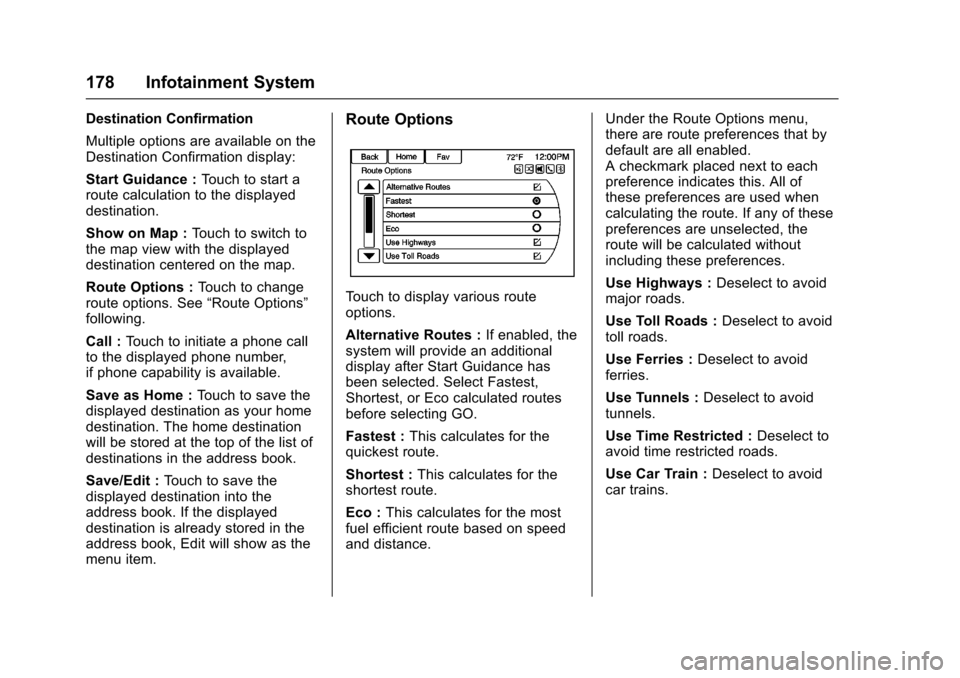
To u c h t o d i s p l a y v a r i o u s r o u t eoptions.
Alternative Routes :If enabled, thesystem will provide an additionaldisplay after Start Guidance hasbeen selected. Select Fastest,Shortest, or Eco calculated routesbefore selecting GO.
Fastest :This calculates for thequickest route.
Shortest :This calculates for theshortest route.
Eco :This calculates for the mostfuel efficient route based on speedand distance.
Under the Route Options menu,there are route preferences that bydefault are all enabled.Acheckmarkplacednexttoeachpreference indicates this. All ofthese preferences are used whencalculating the route. If any of thesepreferences are unselected, theroute will be calculated withoutincluding these preferences.
Use Highways :Deselect to avoidmajor roads.
Use Toll Roads :Deselect to avoidtoll roads.
Use Ferries :Deselect to avoidferries.
Use Tunnels :Deselect to avoidtunnels.
Use Time Restricted :Deselect toavoid time restricted roads.
Use Car Train :Deselect to avoidcar trains.
Page 180 of 400
Chevrolet SS Sedan Owner Manual (GMNA-Localizing-U.S.-10122752) -2017 - crc - 8/31/16
Infotainment System 179
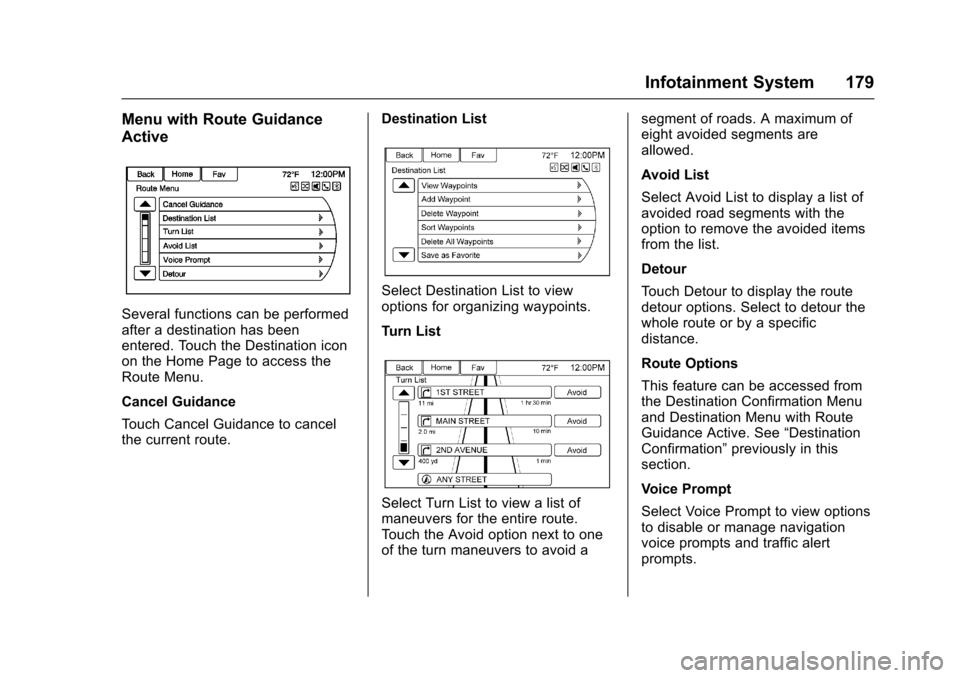
Menu with Route Guidance
Active
Several functions can be performedafter a destination has beenentered. Touch the Destination iconon the Home Page to access theRoute Menu.
Cancel Guidance
To u c h C a n c e l G u i d a n c e t o c a n c e lthe current route.
Destination List
Select Destination List to viewoptions for organizing waypoints.
Turn List
Select Turn List to view a list ofmaneuvers for the entire route.To u c h t h e A v o i d o p t i o n n e x t t o o n eof the turn maneuvers to avoid a
segment of roads. A maximum ofeight avoided segments areallowed.
Avoid List
Select Avoid List to display a list ofavoided road segments with theoption to remove the avoided itemsfrom the list.
Detour
To u c h D e t o u r t o d i s p l a y t h e r o u t edetour options. Select to detour thewhole route or by a specificdistance.
Route Options
This feature can be accessed fromthe Destination Confirmation Menuand Destination Menu with RouteGuidance Active. See“DestinationConfirmation”previously in thissection.
Voice Prompt
Select Voice Prompt to view optionsto disable or manage navigationvoice prompts and traffic alertprompts.
Page 181 of 400
Chevrolet SS Sedan Owner Manual (GMNA-Localizing-U.S.-10122752) -2017 - crc - 8/31/16
180 Infotainment System
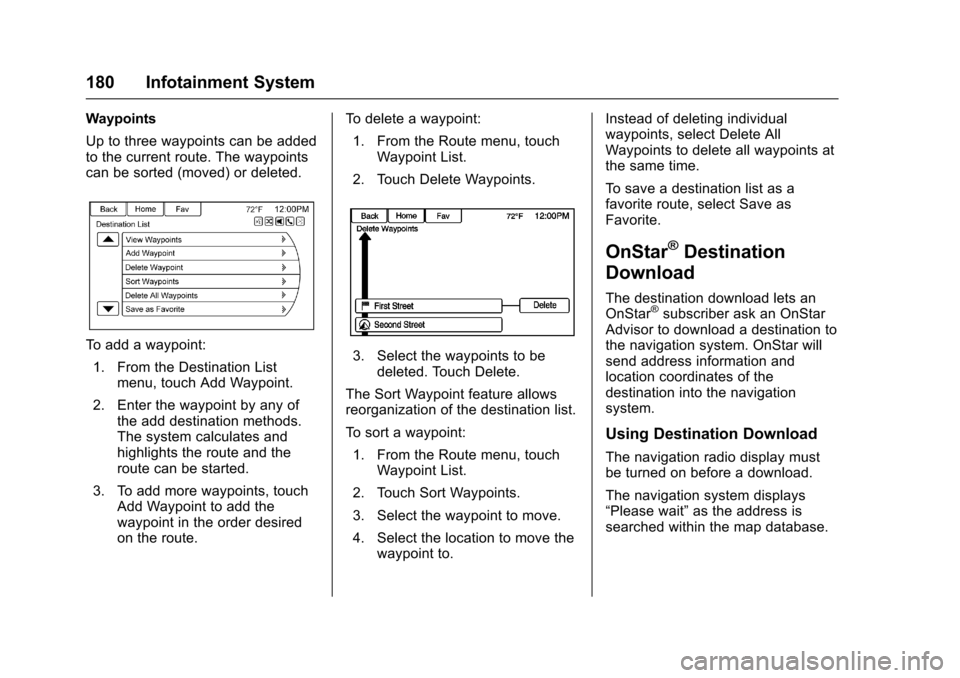
Waypoints
Up to three waypoints can be addedto the current route. The waypointscan be sorted (moved) or deleted.
To a d d a w a y p o i n t :
1. From the Destination Listmenu, touch Add Waypoint.
2. Enter the waypoint by any ofthe add destination methods.The system calculates andhighlights the route and theroute can be started.
3. To add more waypoints, touchAdd Waypoint to add thewaypoint in the order desiredon the route.
To d e l e t e a w a y p o i n t :
1. From the Route menu, touchWaypoint List.
2. Touch Delete Waypoints.
3. Select the waypoints to bedeleted. Touch Delete.
The Sort Waypoint feature allowsreorganization of the destination list.
To s o r t a w a y p o i n t :
1. From the Route menu, touchWaypoint List.
2. Touch Sort Waypoints.
3. Select the waypoint to move.
4. Select the location to move thewaypoint to.
Instead of deleting individualwaypoints, select Delete AllWaypoints to delete all waypoints atthe same time.
To s a v e a d e s t i n a t i o n l i s t a s afavorite route, select Save asFavorite.
OnStar®Destination
Download
The destination download lets anOnStar®subscriber ask an OnStarAdvisor to download a destination tothe navigation system. OnStar willsend address information andlocation coordinates of thedestination into the navigationsystem.
Using Destination Download
The navigation radio display mustbe turned on before a download.
The navigation system displays“Please wait”as the address issearched within the map database.
Page 182 of 400
Chevrolet SS Sedan Owner Manual (GMNA-Localizing-U.S.-10122752) -2017 - crc - 8/31/16
Infotainment System 181
If the address is not found within themap database, the system may uselatitude and longitude coordinates tolocate the destination.
If the system is unable to locate theaddress, the Destination Not Foundmessage displays.
Route Guidance Not Active
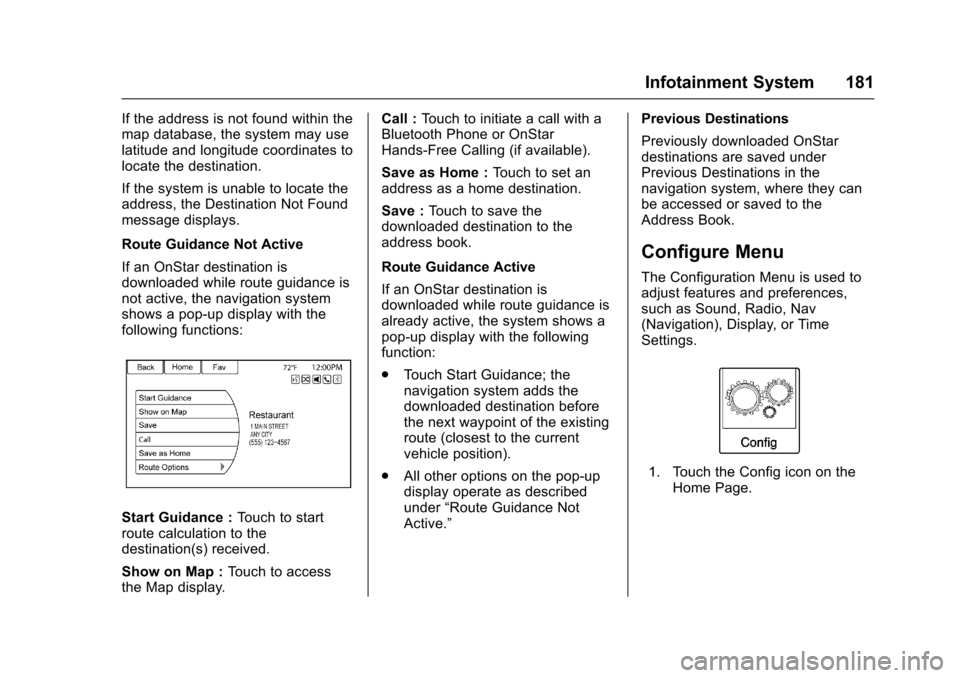
If an OnStar destination isdownloaded while route guidance isnot active, the navigation systemshows a pop-up display with thefollowing functions:
Start Guidance :To u c h t o s t a r troute calculation to thedestination(s) received.
Show on Map :To u c h t o a c c e s sthe Map display.
Call :To u c h t o i n i t i a t e a c a l l w i t h aBluetooth Phone or OnStarHands-Free Calling (if available).
Save as Home :To u c h t o s e t a naddress as a home destination.
Save :To u c h t o s a v e t h edownloaded destination to theaddress book.
Route Guidance Active
If an OnStar destination isdownloaded while route guidance isalready active, the system shows apop-up display with the followingfunction:
.To u c h S t a r t G u i d a n c e ; t h enavigation system adds thedownloaded destination beforethe next waypoint of the existingroute (closest to the currentvehicle position).
.All other options on the pop-updisplay operate as describedunder“Route Guidance NotActive.”
Previous Destinations
Previously downloaded OnStardestinations are saved underPrevious Destinations in thenavigation system, where they canbe accessed or saved to theAddress Book.
Configure Menu
The Configuration Menu is used toadjust features and preferences,such as Sound, Radio, Nav(Navigation), Display, or TimeSettings.
1. Touch the Config icon on theHome Page.
Page 183 of 400
Chevrolet SS Sedan Owner Manual (GMNA-Localizing-U.S.-10122752) -2017 - crc - 8/31/16
182 Infotainment System
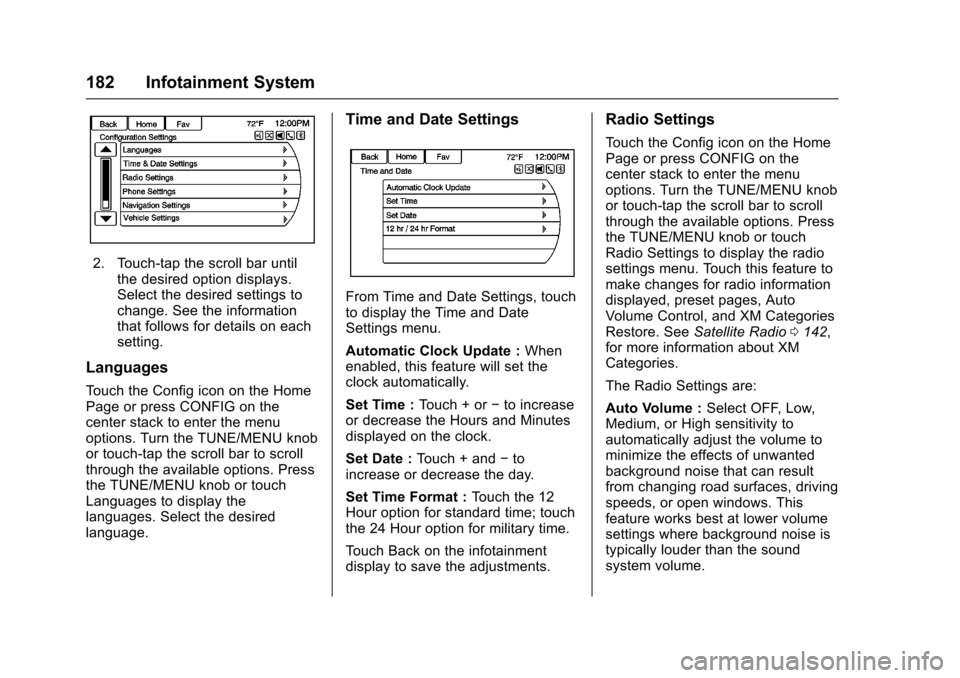
2. Touch-tap the scroll bar untilthe desired option displays.Select the desired settings tochange. See the informationthat follows for details on eachsetting.
Languages
To u c h t h e C o n f i g i c o n o n t h e H o m ePage or press CONFIG on thecenter stack to enter the menuoptions. Turn the TUNE/MENU knobor touch-tap the scroll bar to scrollthrough the available options. Pressthe TUNE/MENU knob or touchLanguages to display thelanguages. Select the desiredlanguage.
Time and Date Settings
From Time and Date Settings, touchto display the Time and DateSettings menu.
Automatic Clock Update :Whenenabled, this feature will set theclock automatically.
Set Time :To u c h + o r✓to increaseor decrease the Hours and Minutesdisplayed on the clock.
Set Date :To u c h + a n d✓toincrease or decrease the day.
Set Time Format :To u c h t h e 1 2Hour option for standard time; touchthe 24 Hour option for military time.
To u c h B a c k o n t h e i n f o t a i n m e n tdisplay to save the adjustments.
Radio Settings
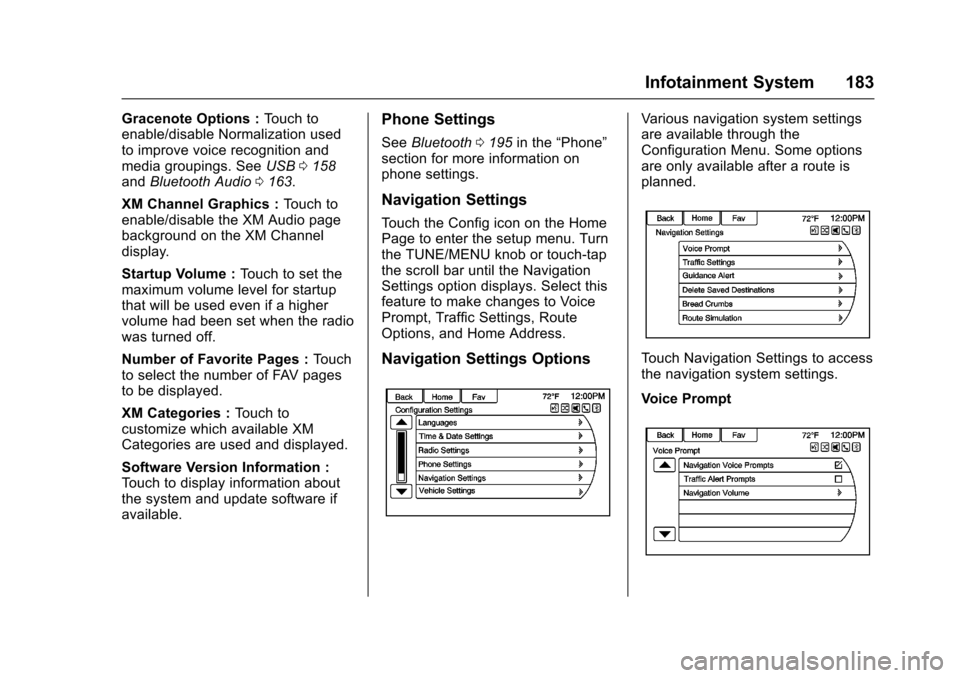
To u c h t h e C o n f i g i c o n o n t h e H o m ePage or press CONFIG on thecenter stack to enter the menuoptions. Turn the TUNE/MENU knobor touch-tap the scroll bar to scrollthrough the available options. Pressthe TUNE/MENU knob or touchRadio Settings to display the radiosettings menu. Touch this feature tomake changes for radio informationdisplayed, preset pages, AutoVolume Control, and XM CategoriesRestore. SeeSatellite Radio0142,for more information about XMCategories.
The Radio Settings are:
Auto Volume :Select OFF, Low,Medium, or High sensitivity toautomatically adjust the volume tominimize the effects of unwantedbackground noise that can resultfrom changing road surfaces, drivingspeeds, or open windows. Thisfeature works best at lower volumesettings where background noise istypically louder than the soundsystem volume.
Page 184 of 400
Chevrolet SS Sedan Owner Manual (GMNA-Localizing-U.S.-10122752) -2017 - crc - 8/31/16
Infotainment System 183
Gracenote Options :To u c h t oenable/disable Normalization usedto improve voice recognition andmedia groupings. SeeUSB0158andBluetooth Audio0163.
XM Channel Graphics :To u c h t oenable/disable the XM Audio pagebackground on the XM Channeldisplay.
Startup Volume :To u c h t o s e t t h emaximum volume level for startupthat will be used even if a highervolume had been set when the radiowas turned off.
Number of Favorite Pages :To u c hto select the number of FAV pagesto be displayed.
XM Categories :To u c h t ocustomize which available XMCategories are used and displayed.
Software Version Information :To u c h t o d i s p l a y i n f o r m a t i o n a b o u tthe system and update software ifavailable.
Phone Settings
SeeBluetooth0195in the“Phone”section for more information onphone settings.
Navigation Settings
To u c h t h e C o n f i g i c o n o n t h e H o m ePage to enter the setup menu. Turnthe TUNE/MENU knob or touch-tapthe scroll bar until the NavigationSettings option displays. Select thisfeature to make changes to VoicePrompt, Traffic Settings, RouteOptions, and Home Address.
Navigation Settings Options
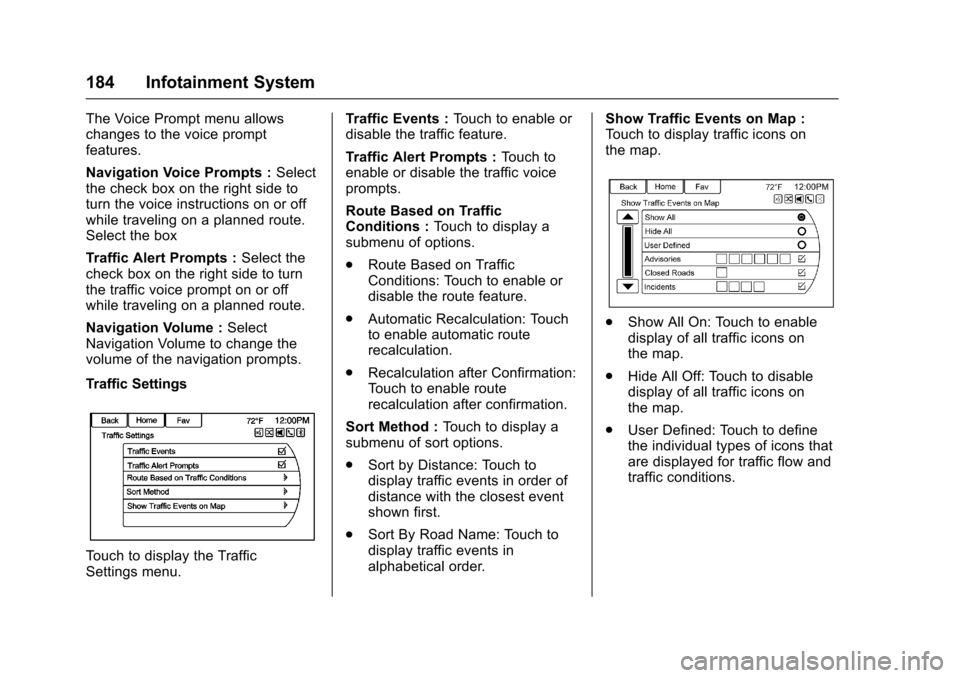
Va r i o u s n a v i g a t i o n s y s t e m s e t t i n g sare available through theConfiguration Menu. Some optionsare only available after a route isplanned.
To u c h N a v i g a t i o n S e t t i n g s t o a c c e s sthe navigation system settings.
Voice Prompt
Page 185 of 400
Chevrolet SS Sedan Owner Manual (GMNA-Localizing-U.S.-10122752) -2017 - crc - 8/31/16
184 Infotainment System
The Voice Prompt menu allowschanges to the voice promptfeatures.
Navigation Voice Prompts :Selectthe check box on the right side toturn the voice instructions on or offwhile traveling on a planned route.Select the box
Tr a f f i c A l e r t P r o m p t s :Select thecheck box on the right side to turnthe traffic voice prompt on or offwhile traveling on a planned route.
Navigation Volume :SelectNavigation Volume to change thevolume of the navigation prompts.
Traffic Settings
To u c h t o d i s p l a y t h e T r a f f i cSettings menu.
Tr a f f i c E v e n t s :To u c h t o e n a b l e o rdisable the traffic feature.
Tr a f f i c A l e r t P r o m p t s :To u c h t oenable or disable the traffic voiceprompts.
Route Based on TrafficConditions :To u c h t o d i s p l a y asubmenu of options.
.Route Based on TrafficConditions: Touch to enable ordisable the route feature.
.Automatic Recalculation: Touchto enable automatic routerecalculation.
.Recalculation after Confirmation:To u c h t o e n a b l e r o u t erecalculation after confirmation.
Sort Method :To u c h t o d i s p l a y asubmenu of sort options.
.Sort by Distance: Touch todisplay traffic events in order ofdistance with the closest eventshown first.
.Sort By Road Name: Touch todisplay traffic events inalphabetical order.
Show Traffic Events on Map :To u c h t o d i s p l a y t r a f f i c i c o n s o nthe map.
.Show All On: Touch to enabledisplay of all traffic icons onthe map.
.Hide All Off: Touch to disabledisplay of all traffic icons onthe map.
.User Defined: Touch to definethe individual types of icons thatare displayed for traffic flow andtraffic conditions.