navigation system CHEVROLET SS 2017 1.G Owners Manual
[x] Cancel search | Manufacturer: CHEVROLET, Model Year: 2017, Model line: SS, Model: CHEVROLET SS 2017 1.GPages: 400, PDF Size: 7.31 MB
Page 122 of 400
Chevrolet SS Sedan Owner Manual (GMNA-Localizing-U.S.-10122752) -2017 - crc - 8/31/16
Instruments and Controls 121
4. Press the TUNE/MENU knob toselect the desiredsetting menu.
The following list of menu items maybe available:
.Languages
.Time and Date
.Radio Settings
.Phone Settings
.Navigation Settings
.Display Settings
.Vehicle Settings
Each menu is detailed in thefollowing information. Alternatively,the touch screen may be used toselect.
Languages
Select Languages, then select fromthe available language(s).
Time and Date
To a d j u s t t h e t i m e a n d d a t e s e t t i n g s ,seeClock093.
Radio Settings
Select and the following maydisplay:
.Auto Volume
.Gracenote Options
.XM Channel Art
.Max Startup Volume
.Number of Favorite Pages
.XM Categories
.Software Versions Menu
Auto Volume
When selected, this feature willautomatically adjust the volume tominimize the effects of unwantedbackground noise that can resultfrom changing road surfaces, drivingspeeds, or open windows. Thisfeature works best at lower volumesettings where background noise istypically louder than the soundsystem volume.
Select Off, Low, Medium, or High.
Gracenote Options
Select to improve voice recognitionand media groupings.
Select to enable or disable.SeeUSB0158andBluetoothAudio0163.
XM Channel Art
When on, the radio willautomatically update the XM screenand background graphics.
Select On or Off.
Max Startup Volume
Select the maximum volume level atstartup even if a higher volume hadbeen set when the radio wasturned off.
Number of Favorite Pages
Select to set the number of FAVpages to be displayed.
XM Categories
Select or deselect any category tobe used in XM mode.
Software Version Menu
Select to display information aboutthe system and software.
Page 123 of 400
Chevrolet SS Sedan Owner Manual (GMNA-Localizing-U.S.-10122752) -2017 - crc - 8/31/16
122 Instruments and Controls
Phone Settings
See“Phone”inConfigure Menu0181.
Navigation Settings
SeeConfigure Menu0181.
Display Settings
Select and the following maydisplay:
.Home Page Menu
.Rear Camera Options
.Display Off
.Map Settings
Home Page Menu
Select to customize the first page ofthe Home Page.
Rear Camera Options
Select and the following maydisplay:
.Camera
.Symbols
.Guide Lines
Select to turn an option on and off.
SeeAssistance Systems for Parkingor Backing0254.
Display Off
Select to turn off the display. Thedisplay will return when any buttonis pressed or the screen is touched.
Map Settings
Select to enter the submenu tochange Automatic Zoom, enableSpeed Limit to display on the map,and change Map Display settings.
.Map Display:Select to changethe screen background.
To c h a n g e t h e o v e r a l l b r i g h t n e s ssetting for the display, use thevehicle interior lightinginstrument panel illuminationcontrol.
⇣The Automatic setting adjuststhe screen backgroundautomatically depending onthe exterior lighting conditions.
⇣The Day setting brightens themap background.
⇣The Night setting darkens themap background.
.Speed Limits:Select to displaythe posted speed limit on themap, when available.
Vehicle Settings
Select and the following maydisplay:
.Climate and Air Quality
.Comfort and Convenience
.Collision/Detection Systems
.Lighting
.Power Door Locks
.Remote Lock/Unlock/Start
.Return to Factory Settings?
Climate and Air Quality
Select and the following maydisplay:
.Auto Fan Speed
.Remote Start Auto Cool Seat
.Remote Start Auto Heat Seat
Auto Fan Speed
This feature sets the climate controlfan speed to maintain the interiortemperature.
Page 132 of 400
Chevrolet SS Sedan Owner Manual (GMNA-Localizing-U.S.-10122752) -2017 - crc - 8/31/16
Infotainment System 131
Infotainment
System
Introduction
Infotainment . . . . . . . . . . . . . . . . . . 131Overview . . . . . . . . . . . . . . . . . . . . . 132Steering Wheel Controls . . . . . . 134Using the System . . . . . . . . . . . . 134Software Updates . . . . . . . . . . . . 139
Radio
AM-FM Radio . . . . . . . . . . . . . . . . 139Radio Data System (RDS) . . . . 141Satellite Radio . . . . . . . . . . . . . . . . 142Radio Reception . . . . . . . . . . . . . . 147Backglass Antenna . . . . . . . . . . . 147Multi-Band Antenna . . . . . . . . . . 148Quick Info . . . . . . . . . . . . . . . . . . . . 148Pandora Internet Radio . . . . . . . 149Stitcher Internet Radio . . . . . . . . 153Pictures . . . . . . . . . . . . . . . . . . . . . . 157
Audio Players
USB . . . . . . . . . . . . . . . . . . . . . . . . . . 158Bluetooth Audio . . . . . . . . . . . . . . 163
OnStar System
OnStar System . . . . . . . . . . . . . . . 165
Navigation
Using the NavigationSystem . . . . . . . . . . . . . . . . . . . . . . 165Maps . . . . . . . . . . . . . . . . . . . . . . . . . 168Navigation Symbols . . . . . . . . . . 169Destination . . . . . . . . . . . . . . . . . . . 171OnStar®DestinationDownload . . . . . . . . . . . . . . . . . . . 180Configure Menu . . . . . . . . . . . . . . 181Global PositioningSystem (GPS) . . . . . . . . . . . . . . 186Vehicle Positioning . . . . . . . . . . . 187Problems with RouteGuidance . . . . . . . . . . . . . . . . . . . 187If the System NeedsService . . . . . . . . . . . . . . . . . . . . . 188Map Data Updates . . . . . . . . . . . 188Database CoverageExplanations . . . . . . . . . . . . . . . . 188
Voice Recognition
Voice Recognition . . . . . . . . . . . . 189
Bluetooth Phone/Devices
Bluetooth . . . . . . . . . . . . . . . . . . . . . 195Te x t M e s s a g i n g . . . . . . . . . . . . . . . 2 0 2
Trademarks and License
Agreements
Trademarks and LicenseAgreements . . . . . . . . . . . . . . . . . 205
Introduction
Infotainment
Read the following pages tobecome familiar with these features.
{Warning
Ta k i n g y o u r e y e s o f f t h e r o a d f o r
too long or too often while using
any infotainment feature can
cause a crash. You or others
could be injured or killed. Do not
give extended attention to
infotainment tasks while driving.
Limit your glances at the vehicle
displays and focus your attention
on driving. Use voice commands
whenever possible.
The infotainment system has built-infeatures intended to help avoiddistraction by disabling somefunctions when driving. Thesefunctions may gray out when theyare unavailable. Many infotainment
Page 133 of 400
Chevrolet SS Sedan Owner Manual (GMNA-Localizing-U.S.-10122752) -2017 - crc - 8/31/16
132 Infotainment System
features are also available throughthe instrument cluster and steeringwheel controls.
Before driving:
.Become familiar with theoperation, center stack controls,and infotainment display options.
.Set up the audio by presettingfavorite stations, setting thetone, and adjusting thespeakers.
.Set up phone numbers inadvance so they can be calledeasily by pressing a singlecontrol or by using a single voicecommand if equipped withBluetooth phone capability.
SeeDefensive Driving0217.
To p l a y t h e i n f o t a i n m e n t s y s t e m w i t hthe ignition off, seeRetainedAccessory Power (RAP)0232.
Overview
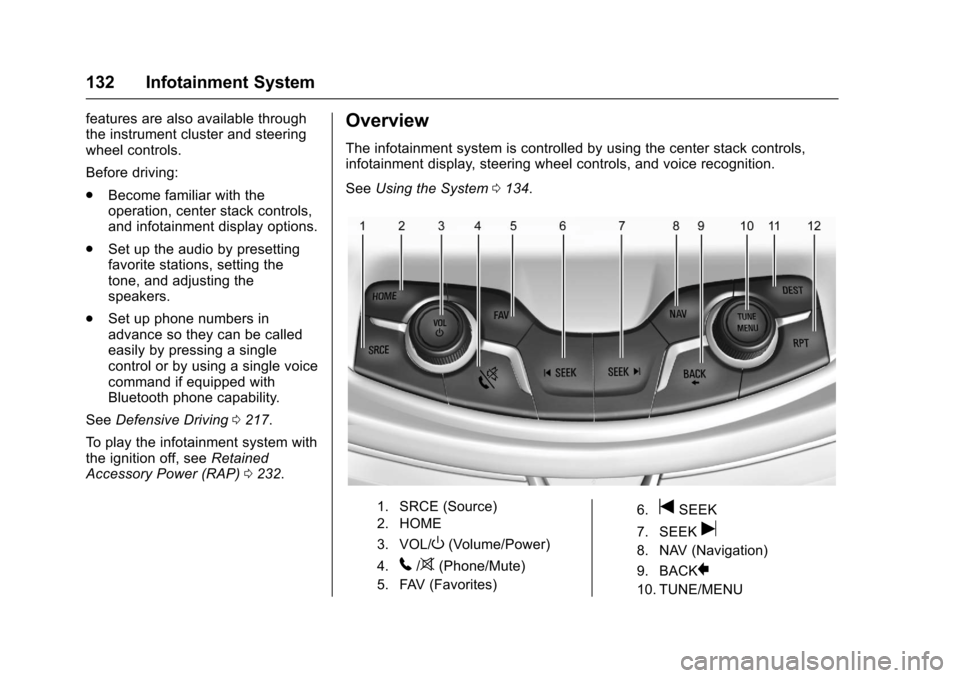
The infotainment system is controlled by using the center stack controls,infotainment display, steering wheel controls, and voice recognition.
SeeUsing the System0134.
1. SRCE (Source)
2. HOME
3. VOL/O(Volume/Power)
4.5/>(Phone/Mute)
5. FAV (Favorites)
6.tSEEK
7. SEEKu
8. NAV (Navigation)
9. BACK}
10. TUNE/MENU
Page 136 of 400
Chevrolet SS Sedan Owner Manual (GMNA-Localizing-U.S.-10122752) -2017 - crc - 8/31/16
Infotainment System 135
qPrevious :Press to go to theprevious page.
Nextr:Press to go to the
next page.
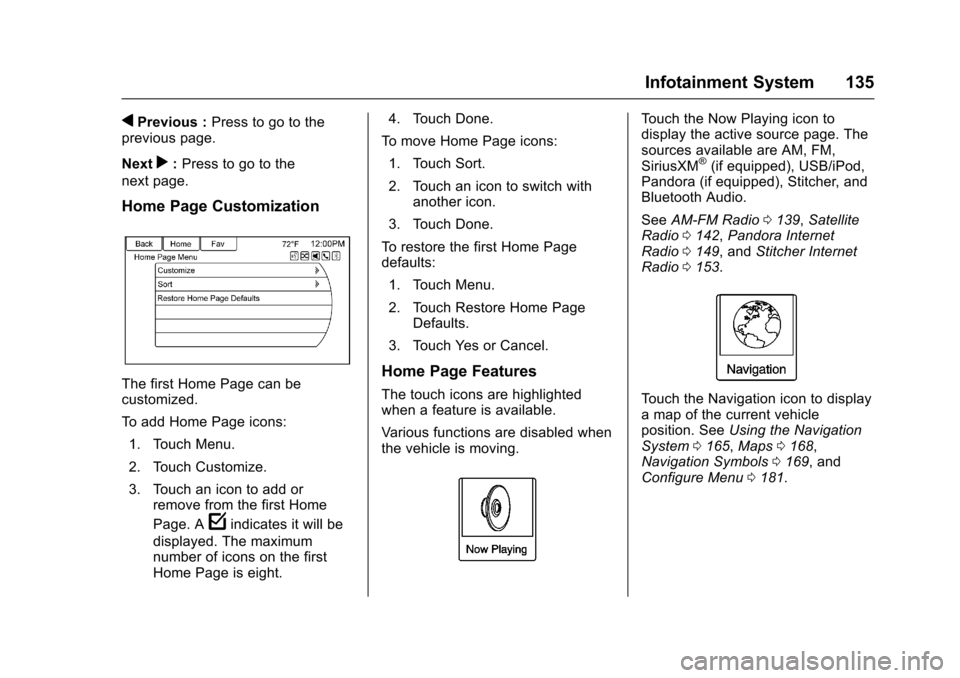
Home Page Customization
The first Home Page can becustomized.
To a d d H o m e P a g e i c o n s :
1. Touch Menu.
2. Touch Customize.
3. Touch an icon to add orremove from the first Home
Page. Afindicates it will be
displayed. The maximumnumber of icons on the firstHome Page is eight.
4. Touch Done.
To m o v e H o m e P a g e i c o n s :
1. Touch Sort.
2. Touch an icon to switch withanother icon.
3. Touch Done.
To r e s t o r e t h e f i r s t H o m e P a g edefaults:
1. Touch Menu.
2. Touch Restore Home PageDefaults.
3. Touch Yes or Cancel.
Home Page Features
The touch icons are highlightedwhen a feature is available.
Va r i o u s f u n c t i o n s a r e d i s a b l e d w h e nthe vehicle is moving.
To u c h t h e N o w P l a y i n g i c o n t odisplay the active source page. Thesources available are AM, FM,SiriusXM®(if equipped), USB/iPod,Pandora (if equipped), Stitcher, andBluetooth Audio.
SeeAM-FM Radio0139,SatelliteRadio0142,Pandora InternetRadio0149,andStitcher InternetRadio0153.
To u c h t h e N a v i g a t i o n i c o n t o d i s p l a yamapofthecurrentvehicleposition. SeeUsing the NavigationSystem0165,Maps0168,Navigation Symbols0169,andConfigure Menu0181.
Page 137 of 400
Chevrolet SS Sedan Owner Manual (GMNA-Localizing-U.S.-10122752) -2017 - crc - 8/31/16
136 Infotainment System
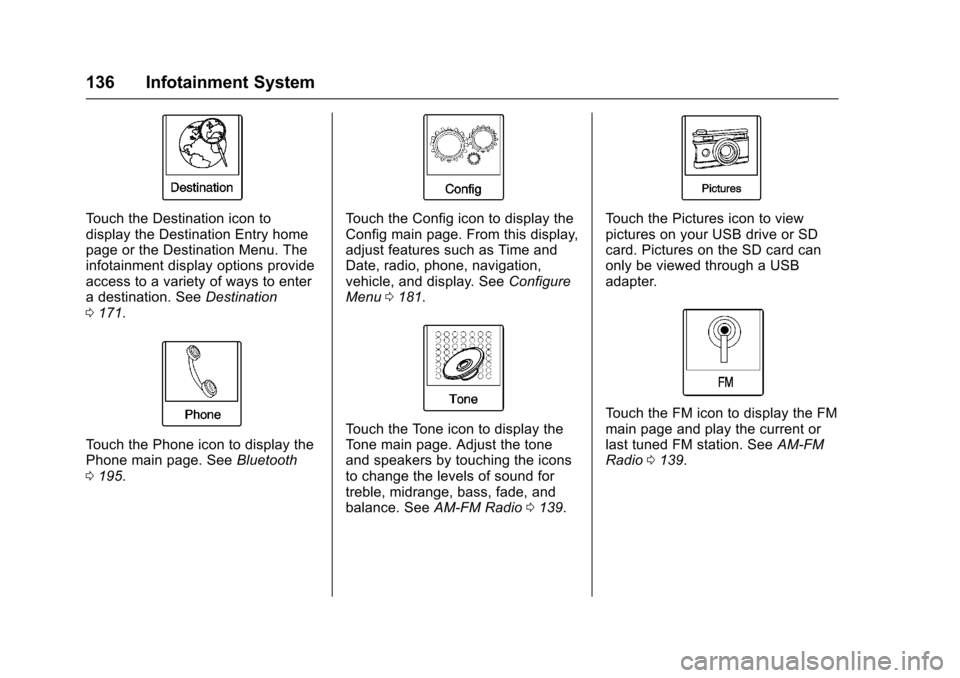
To u c h t h e D e s t i n a t i o n i c o n t odisplay the Destination Entry homepage or the Destination Menu. Theinfotainment display options provideaccess to a variety of ways to enteradestination.SeeDestination0171.
To u c h t h e P h o n e i c o n t o d i s p l a y t h ePhone main page. SeeBluetooth0195.
To u c h t h e C o n f i g i c o n t o d i s p l a y t h eConfig main page. From this display,adjust features such as Time andDate, radio, phone, navigation,vehicle, and display. SeeConfigureMenu0181.
To u c h t h e To n e i c o n t o d i s p l a y t h eTo n e m a i n p a g e . A d j u s t t h e t o n eand speakers by touching the iconsto change the levels of sound fortreble, midrange, bass, fade, andbalance. SeeAM-FM Radio0139.
To u c h t h e P i c t u r e s i c o n t o v i e wpictures on your USB drive or SDcard. Pictures on the SD card canonly be viewed through a USBadapter.
To u c h t h e F M i c o n t o d i s p l a y t h e F Mmain page and play the current orlast tuned FM station. SeeAM-FMRadio0139.
Page 144 of 400
Chevrolet SS Sedan Owner Manual (GMNA-Localizing-U.S.-10122752) -2017 - crc - 8/31/16
Infotainment System 143
Adding or Removing SiriusXM
Categories
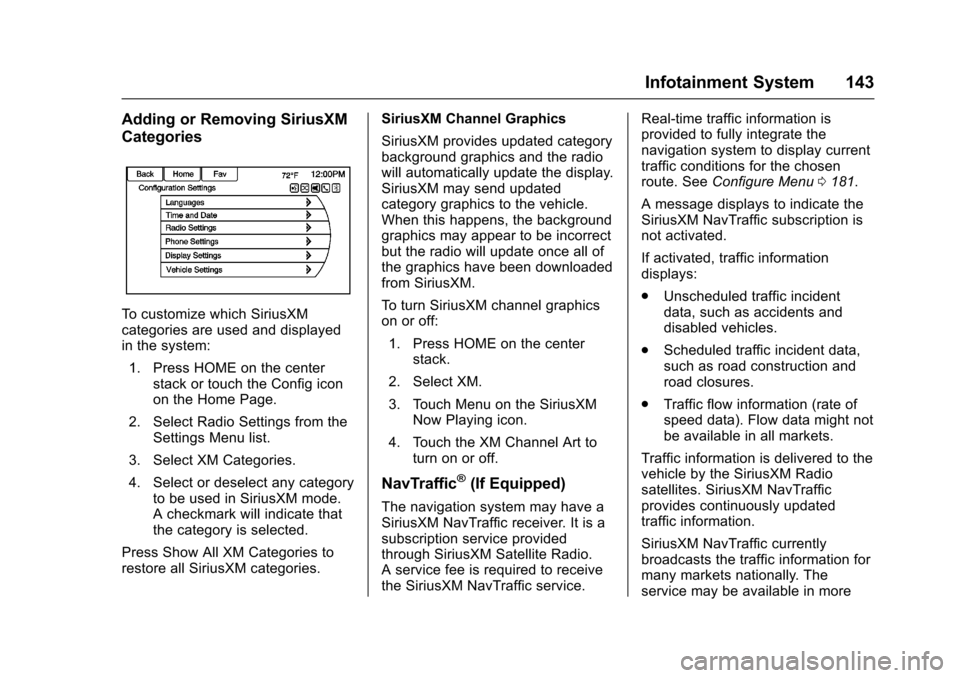
To c u s t o m i z e w h i c h S i r i u s X Mcategories are used and displayedin the system:
1. Press HOME on the centerstack or touch the Config iconon the Home Page.
2. Select Radio Settings from theSettings Menu list.
3. Select XM Categories.
4. Select or deselect any categoryto be used in SiriusXM mode.Acheckmarkwillindicatethatthe category is selected.
Press Show All XM Categories torestore all SiriusXM categories.
SiriusXM Channel Graphics
SiriusXM provides updated categorybackground graphics and the radiowill automatically update the display.SiriusXM may send updatedcategory graphics to the vehicle.When this happens, the backgroundgraphics may appear to be incorrectbut the radio will update once all ofthe graphics have been downloadedfrom SiriusXM.
To t u r n S i r i u s X M c h a n n e l g r a p h i c son or off:
1. Press HOME on the centerstack.
2. Select XM.
3. Touch Menu on the SiriusXMNow Playing icon.
4. Touch the XM Channel Art toturn on or off.
NavTraffic®(If Equipped)
The navigation system may have aSiriusXM NavTraffic receiver. It is asubscription service providedthrough SiriusXM Satellite Radio.Aservicefeeisrequiredtoreceivethe SiriusXM NavTraffic service.
Real-time traffic information isprovided to fully integrate thenavigation system to display currenttraffic conditions for the chosenroute. SeeConfigure Menu0181.
AmessagedisplaystoindicatetheSiriusXM NavTraffic subscription isnot activated.
If activated, traffic informationdisplays:
.Unscheduled traffic incidentdata, such as accidents anddisabled vehicles.
.Scheduled traffic incident data,such as road construction androad closures.
.Traffic flow information (rate ofspeed data). Flow data might notbe available in all markets.
Traffic information is delivered to thevehicle by the SiriusXM Radiosatellites. SiriusXM NavTrafficprovides continuously updatedtraffic information.
SiriusXM NavTraffic currentlybroadcasts the traffic information formany markets nationally. Theservice may be available in more
Page 145 of 400
Chevrolet SS Sedan Owner Manual (GMNA-Localizing-U.S.-10122752) -2017 - crc - 8/31/16
144 Infotainment System
cities in the future. Seewww.siriusxm.com for more detailson local coverage.
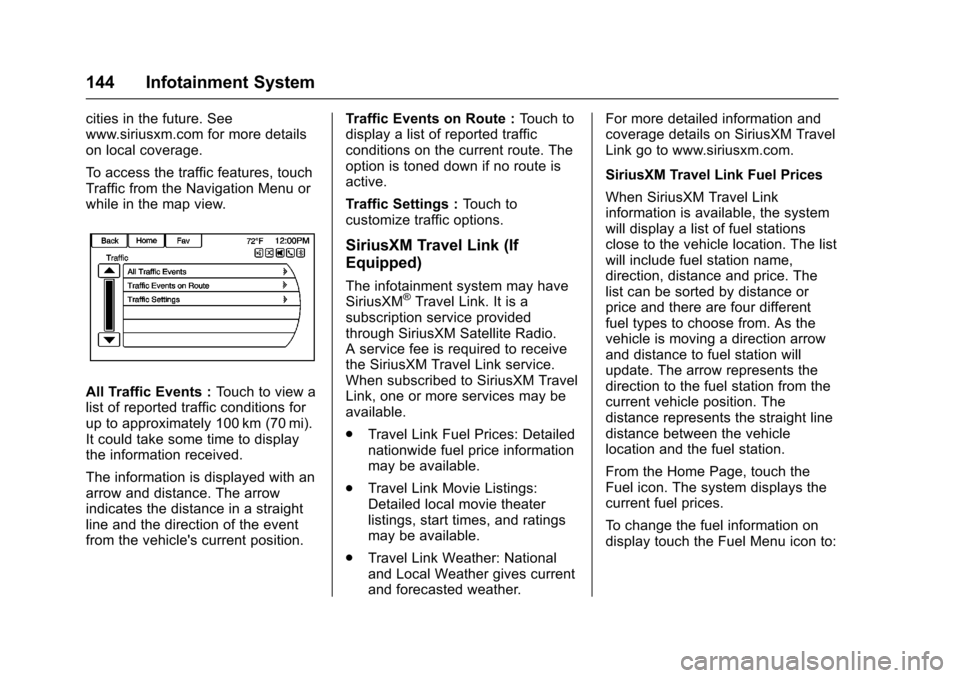
To a c c e s s t h e t r a f f i c f e a t u r e s , t o u c hTraffic from the Navigation Menu orwhile in the map view.
All Traffic Events :To u c h t o v i e w alist of reported traffic conditions forup to approximately 100 km (70 mi).It could take some time to displaythe information received.
The information is displayed with anarrow and distance. The arrowindicates the distance in a straightline and the direction of the eventfrom the vehicle's current position.
Tr a f f i c E v e n t s o n R o u t e :To u c h t odisplay a list of reported trafficconditions on the current route. Theoption is toned down if no route isactive.
Tr a f f i c S e t t i n g s :To u c h t ocustomize traffic options.
SiriusXM Travel Link (If
Equipped)
The infotainment system may haveSiriusXM®Travel Link. It is asubscription service providedthrough SiriusXM Satellite Radio.Aservicefeeisrequiredtoreceivethe SiriusXM Travel Link service.When subscribed to SiriusXM TravelLink, one or more services may beavailable.
.Travel Link Fuel Prices: Detailednationwide fuel price informationmay be available.
.Travel Link Movie Listings:Detailed local movie theaterlistings, start times, and ratingsmay be available.
.Travel Link Weather: Nationaland Local Weather gives currentand forecasted weather.
For more detailed information andcoverage details on SiriusXM TravelLink go to www.siriusxm.com.
SiriusXM Travel Link Fuel Prices
When SiriusXM Travel Linkinformation is available, the systemwill display a list of fuel stationsclose to the vehicle location. The listwill include fuel station name,direction, distance and price. Thelist can be sorted by distance orprice and there are four differentfuel types to choose from. As thevehicle is moving a direction arrowand distance to fuel station willupdate. The arrow represents thedirection to the fuel station from thecurrent vehicle position. Thedistance represents the straight linedistance between the vehiclelocation and the fuel station.
From the Home Page, touch theFuel icon. The system displays thecurrent fuel prices.
To c h a n g e t h e f u e l i n f o r m a t i o n o ndisplay touch the Fuel Menu icon to:
Page 146 of 400
Chevrolet SS Sedan Owner Manual (GMNA-Localizing-U.S.-10122752) -2017 - crc - 8/31/16
Infotainment System 145
.Sort Fuel Stations By Price or ByDistance: The default sortmethod is by distance.
.Choose Fuel Type: The fuelavailable fuel types are Regular(unleaded), Mid-Range,Premium, and Diesel.
For more information on the fuelstation, select the fuel station name.The display will show the fuelstation name, address, phonenumber, distance, amenities and thelast time the fuel price was updated.If a fuel station does not appear inthe list it may be new or the pricemay not have been updated in thepast 24 hours.
If equipped with Navigation, seeDestination0171for moreinformation on navigation routingfeatures.
Allow up to five minutes after turningon the vehicle for the fuelinformation to appear.
SiriusXM Travel Link MovieListings
When SiriusXM Travel Linkinformation is available the moviefeature provides movie showtimesand theater information for moviesclose to the vehicle location. TheMovie feature provides detailedtheater and movie informationincluding showtimes.
From the Home Page, touch theMovies icon. The system displaysthe Movie and Theater search page.
To s e a r c h m o v i e s :
.Select the Movie field to chooseamoviename.
.Select the Theater field tochoose a specific theater.
.Select the Date field to choosewhich date to search movie and/or theaters.
.To u c h S e a r c h t o v i e w a l i s t o fmovies or theaters.
When searching by movie, a list willdisplay movies to select. When amovie is selected a theater list willappear with a direction arrow and
distance from the current vehiclelocation. The direction and distancewill update every 10 seconds as thevehicle is moving. The directionarrow represents the location of thetheater from the current vehiclelocation. The distance representsthe straight line distance betweenthe vehicle location and the theater.
Movie details are available when amovie is selected. The detailsinclude Cast, Synopsis, and TheaterInformation. Select the appropriateoption to display more information.
Cast and Synopsis:
.Playtime
.Rating (G, PG-13, R, etc.)
.Theater Name
.Showtimes
Theater information includesaddress, phone number, distance,and amenities.
SiriusXM Travel Link Weather
Whether near home or on a longroad trip, detailed weatherinformation is available.
Page 147 of 400
Chevrolet SS Sedan Owner Manual (GMNA-Localizing-U.S.-10122752) -2017 - crc - 8/31/16
146 Infotainment System
From the Home Page, touch theWeather icon. The system displaysthe current weather page.
Current Condition
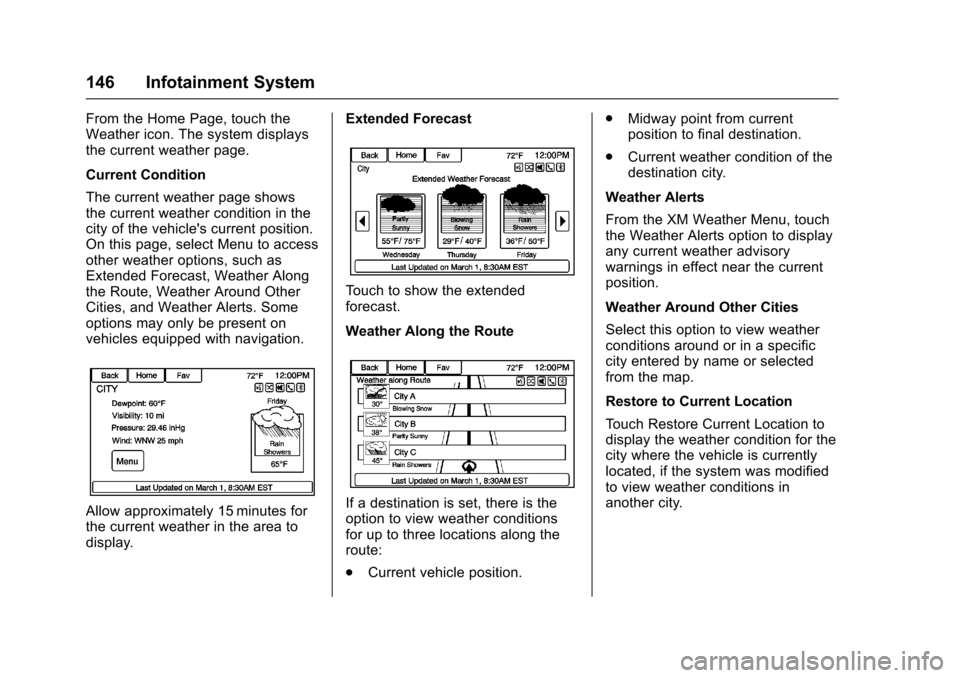
The current weather page showsthe current weather condition in thecity of the vehicle's current position.On this page, select Menu to accessother weather options, such asExtended Forecast, Weather Alongthe Route, Weather Around OtherCities, and Weather Alerts. Someoptions may only be present onvehicles equipped with navigation.
Allow approximately 15 minutes forthe current weather in the area todisplay.
Extended Forecast
To u c h t o s h o w t h e e x t e n d e dforecast.
Weather Along the Route
If a destination is set, there is theoption to view weather conditionsfor up to three locations along theroute:
.Current vehicle position.
.Midway point from currentposition to final destination.
.Current weather condition of thedestination city.
Weather Alerts
From the XM Weather Menu, touchthe Weather Alerts option to displayany current weather advisorywarnings in effect near the currentposition.
Weather Around Other Cities
Select this option to view weatherconditions around or in a specificcity entered by name or selectedfrom the map.
Restore to Current Location
To u c h R e s t o r e C u r r e n t L o c a t i o n t odisplay the weather condition for thecity where the vehicle is currentlylocated, if the system was modifiedto view weather conditions inanother city.