navigation system CHEVROLET SS 2017 1.G User Guide
[x] Cancel search | Manufacturer: CHEVROLET, Model Year: 2017, Model line: SS, Model: CHEVROLET SS 2017 1.GPages: 400, PDF Size: 7.31 MB
Page 159 of 400
Chevrolet SS Sedan Owner Manual (GMNA-Localizing-U.S.-10122752) -2017 - crc - 8/31/16
158 Infotainment System
Audio Players
USB
Playing from a USB
AUSBmassstorageorCertifiedWindows Vista®/Media TransferProtocol (MTP) device can beconnected to the USB port.
The USB port is in the centerconsole under the armrest.
The USB icon displays when a USBdevice is connected.
USB Media Formats
The USB port will support thefollowing media formats:
.MP3
.Unprotected WMA
.Unprotected AAC
Other formats may be supported.
Gracenote®
Gracenote technology embeddedinto the radio helps manage andnavigate the USB device musiccollection. When a USB device is
connected to the radio, Gracenoteidentifies the music collection anddelivers the correct album, artistname, genres, and cover art on thedisplay. If information is missing,Gracenote will fill it in.
Searching Music Library UsingVoice Recognition
Vo i c e R e c o g n i t i o n :Gracenoteimproves music search andnavigation by identifying bands,artists, and albums names that maybe hard to pronounce, irregularspellings, and nicknames. Forexample, Gracenote helps thesystem understand artist names like“INXS”or“Mötley Crüe.”It alsoallows the use of names like:“TheBoss,”“G.N.R,”“The Fab Four,”andthousands of other famous artistnicknames as voice commands toaccess music. SeeVoiceRecognition0189.
Normalization :Normalizationhelps to improve the voicerecognition accuracy for titles thatsound similar. It also helps grouplong lists of genres into 10 commongenres. For example, there may be
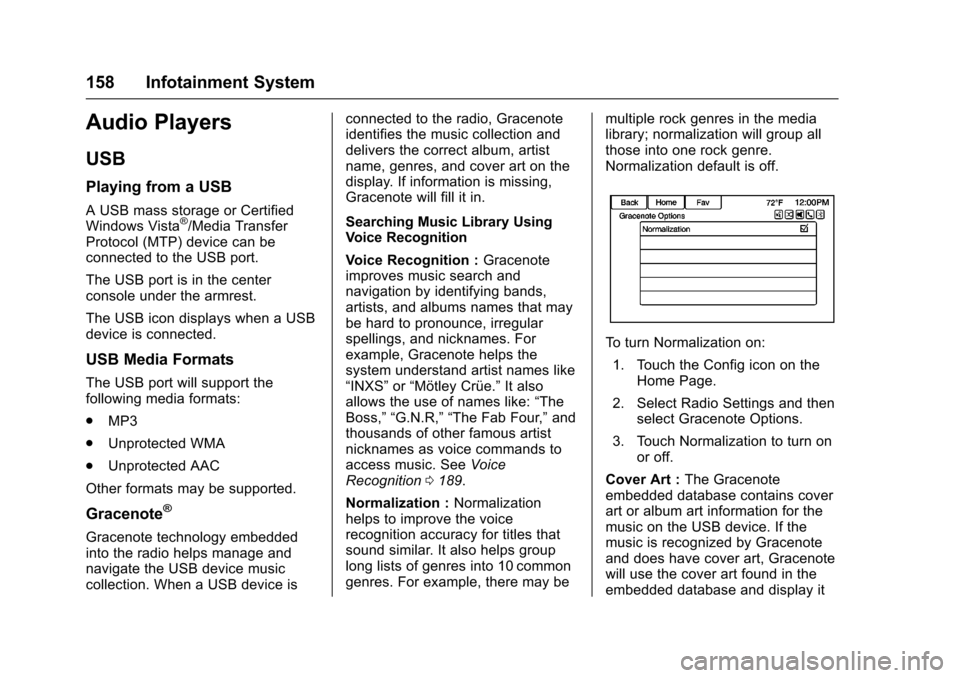
multiple rock genres in the medialibrary; normalization will group allthose into one rock genre.Normalization default is off.
To t u r n N o r m a l i z a t i o n o n :
1. Touch the Config icon on theHome Page.
2. Select Radio Settings and thenselect Gracenote Options.
3. Touch Normalization to turn onor off.
Cover Art :The Gracenoteembedded database contains coverart or album art information for themusic on the USB device. If themusic is recognized by Gracenoteand does have cover art, Gracenotewill use the cover art found in theembedded database and display it
Page 166 of 400
Chevrolet SS Sedan Owner Manual (GMNA-Localizing-U.S.-10122752) -2017 - crc - 8/31/16
Infotainment System 165
OnStar System
OnStar 4G LTE
If equipped with OnStar 4G LTE, upto seven devices, such assmartphones, tablets, and laptops,can be connected to high-speedInternet through the vehicle’sbuilt-inWi-Fi hotspot.
Call 1-888-4ONSTAR(1-888-466-7827) to connect to anOnStar Advisor for assistance. Seewww.onstar.com for vehicleavailability, details, and systemlimitations. Service and connectivitymay vary by make, model, year,carrier, availability, and conditions.4G LTE service is available in selectmarkets. 4G LTE performance isbased on industry averages andvehicle systems design. Someservices require a data plan.
Navigation
Using the Navigation
System
Press NAV on the center stack ortouch the Navigation icon on theHome Page to access thenavigation map.
Press NAV again to changebetween alternative views of thenormal split and full map.
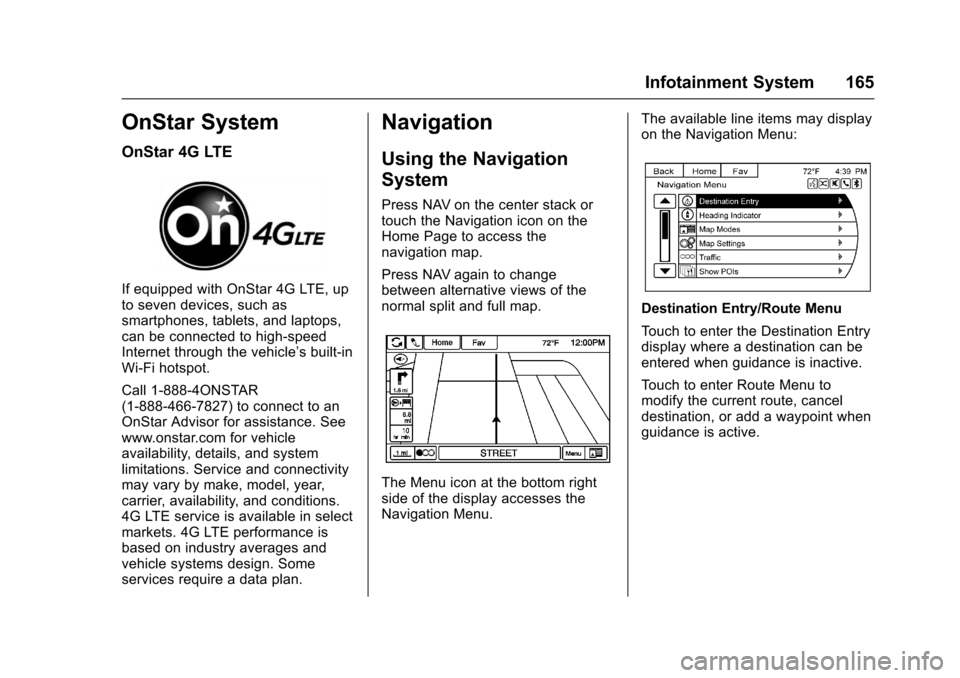
The Menu icon at the bottom rightside of the display accesses theNavigation Menu.
The available line items may displayon the Navigation Menu:
Destination Entry/Route Menu
To u c h t o e n t e r t h e D e s t i n a t i o n E n t r ydisplay where a destination can beentered when guidance is inactive.
To u c h t o e n t e r R o u t e M e n u t omodify the current route, canceldestination, or add a waypoint whenguidance is active.
Page 167 of 400
Chevrolet SS Sedan Owner Manual (GMNA-Localizing-U.S.-10122752) -2017 - crc - 8/31/16
166 Infotainment System
Heading Indicator
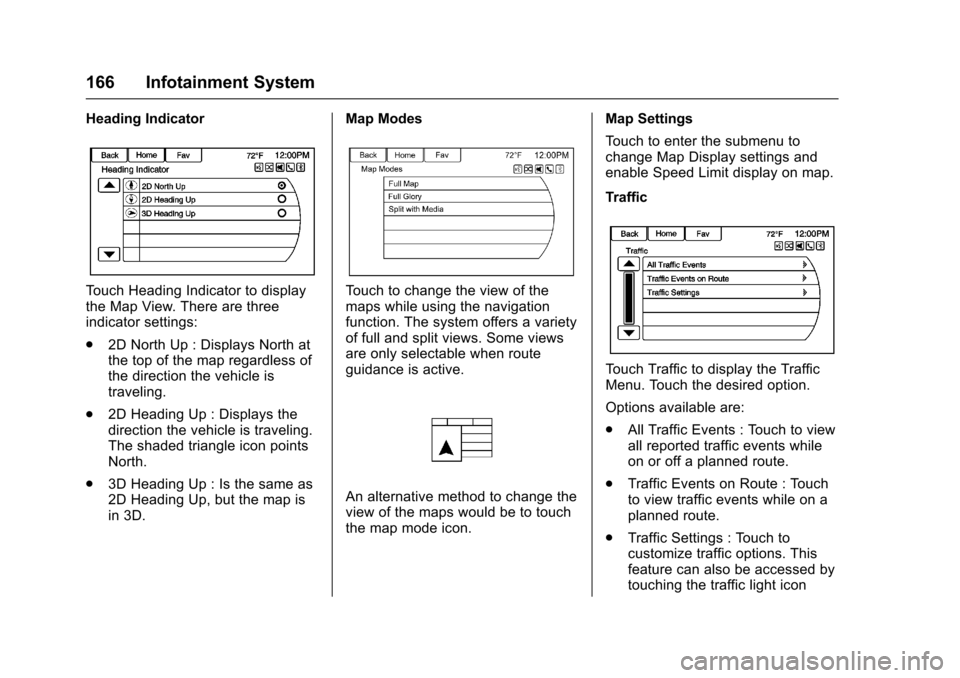
To u c h H e a d i n g I n d i c a t o r t o d i s p l a ythe Map View. There are threeindicator settings:
.2D North Up : Displays North atthe top of the map regardless ofthe direction the vehicle istraveling.
.2D Heading Up : Displays thedirection the vehicle is traveling.The shaded triangle icon pointsNorth.
.3D Heading Up : Is the same as2D Heading Up, but the map isin 3D.
Map Modes
To u c h t o c h a n g e t h e v i e w o f t h emaps while using the navigationfunction. The system offers a varietyof full and split views. Some viewsare only selectable when routeguidance is active.
An alternative method to change theview of the maps would be to touchthe map mode icon.
Map Settings
To u c h t o e n t e r t h e s u b m e n u t ochange Map Display settings andenable Speed Limit display on map.
Traffic
To u c h T r a f f i c t o d i s p l a y t h e T r a f f i cMenu. Touch the desired option.
Options available are:
.All Traffic Events : Touch to viewall reported traffic events whileon or off a planned route.
.Traffic Events on Route : Touchto view traffic events while on aplanned route.
.Traffic Settings : Touch tocustomize traffic options. Thisfeature can also be accessed bytouching the traffic light icon
Page 169 of 400
Chevrolet SS Sedan Owner Manual (GMNA-Localizing-U.S.-10122752) -2017 - crc - 8/31/16
168 Infotainment System
Map Scales
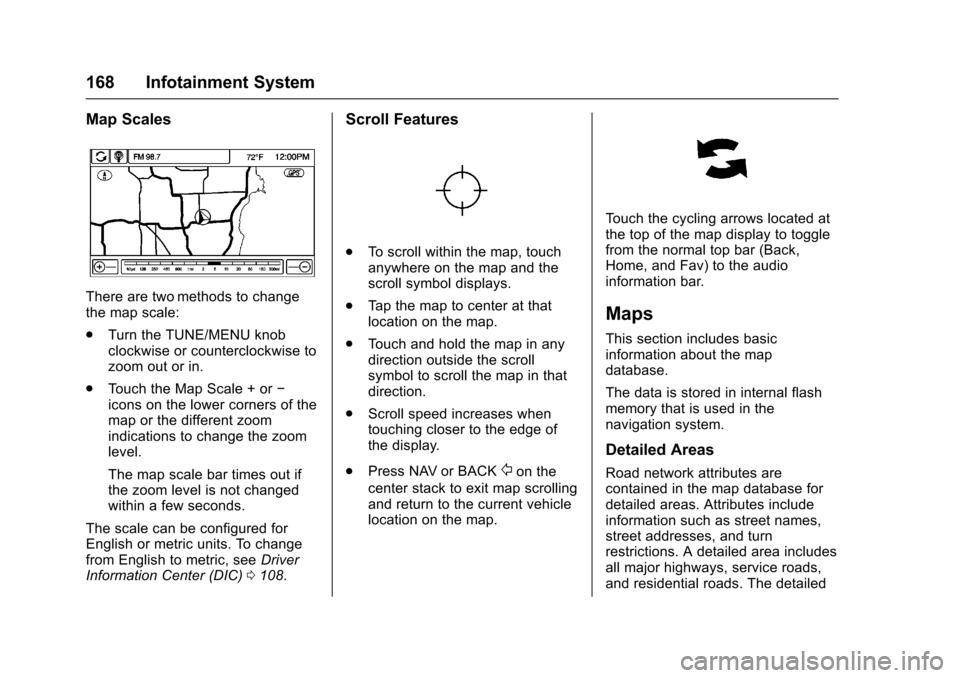
There are two methods to changethe map scale:
.Turn the TUNE/MENU knobclockwise or counterclockwise tozoom out or in.
.To u c h t h e M a p S c a l e + o r✓icons on the lower corners of themap or the different zoomindications to change the zoomlevel.
The map scale bar times out ifthe zoom level is not changedwithin a few seconds.
The scale can be configured forEnglish or metric units. To changefrom English to metric, seeDriverInformation Center (DIC)0108.
Scroll Features
.To s c r o l l w i t h i n t h e m a p , t o u c hanywhere on the map and thescroll symbol displays.
.Ta p t h e m a p t o c e n t e r a t t h a tlocation on the map.
.To u c h a n d h o l d t h e m a p i n a n ydirection outside the scrollsymbol to scroll the map in thatdirection.
.Scroll speed increases whentouching closer to the edge ofthe display.
.Press NAV or BACK/on the
center stack to exit map scrollingand return to the current vehiclelocation on the map.
To u c h t h e c y c l i n g a r r o w s l o c a t e d a tthe top of the map display to togglefrom the normal top bar (Back,Home, and Fav) to the audioinformation bar.
Maps
This section includes basicinformation about the mapdatabase.
The data is stored in internal flashmemory that is used in thenavigation system.
Detailed Areas
Road network attributes arecontained in the map database fordetailed areas. Attributes includeinformation such as street names,street addresses, and turnrestrictions. A detailed area includesall major highways, service roads,and residential roads. The detailed
Page 170 of 400
Chevrolet SS Sedan Owner Manual (GMNA-Localizing-U.S.-10122752) -2017 - crc - 8/31/16
Infotainment System 169
areas include points of interest(POIs) such as restaurants, airports,banks, hospitals, police stations,gas stations, tourist attractions, andhistorical monuments. Thenavigation system provides fullroute guidance in the detailed mapareas.
The map database may not includedata for newly constructed areas,map database corrections, or longterm construction projects.
Navigation Symbols
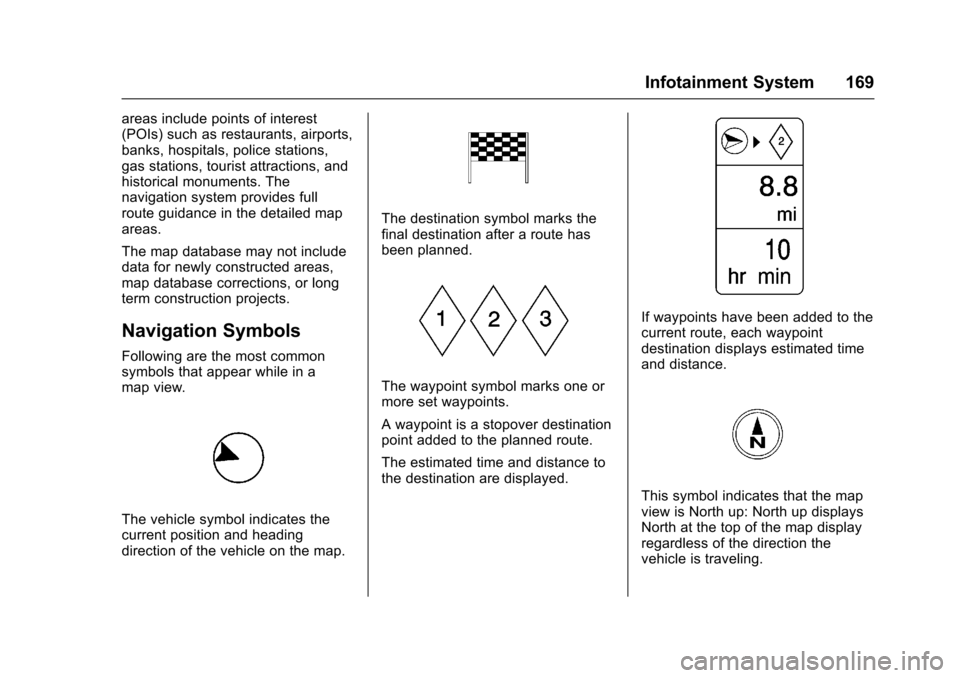
Following are the most commonsymbols that appear while in amap view.
The vehicle symbol indicates thecurrent position and headingdirection of the vehicle on the map.
The destination symbol marks thefinal destination after a route hasbeen planned.
The waypoint symbol marks one ormore set waypoints.
Awaypointisastopoverdestinationpoint added to the planned route.
The estimated time and distance tothe destination are displayed.
If waypoints have been added to thecurrent route, each waypointdestination displays estimated timeand distance.
This symbol indicates that the mapview is North up: North up displaysNorth at the top of the map displayregardless of the direction thevehicle is traveling.
Page 172 of 400
Chevrolet SS Sedan Owner Manual (GMNA-Localizing-U.S.-10122752) -2017 - crc - 8/31/16
Infotainment System 171
Destination
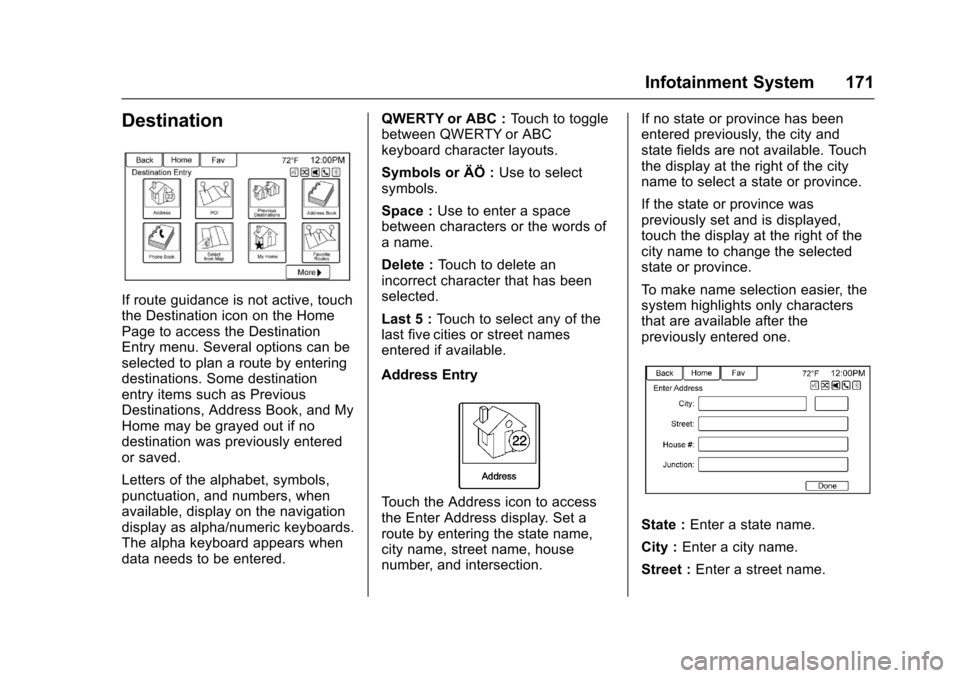
If route guidance is not active, touchthe Destination icon on the HomePage to access the DestinationEntry menu. Several options can beselected to plan a route by enteringdestinations. Some destinationentry items such as PreviousDestinations, Address Book, and MyHome may be grayed out if nodestination was previously enteredor saved.
Letters of the alphabet, symbols,punctuation, and numbers, whenavailable, display on the navigationdisplay as alpha/numeric keyboards.The alpha keyboard appears whendata needs to be entered.
QWERTY or ABC :To u c h t o t o g g l ebetween QWERTY or ABCkeyboard character layouts.
Symbols or ÄÖ :Use to selectsymbols.
Space :Use to enter a spacebetween characters or the words ofaname.
Delete :To u c h t o d e l e t e a nincorrect character that has beenselected.
Last 5 :To u c h t o s e l e c t a n y o f t h elast five cities or street namesentered if available.
Address Entry
To u c h t h e A d d r e s s i c o n t o a c c e s sthe Enter Address display. Set aroute by entering the state name,city name, street name, housenumber, and intersection.
If no state or province has beenentered previously, the city andstate fields are not available. Touchthe display at the right of the cityname to select a state or province.
If the state or province waspreviously set and is displayed,touch the display at the right of thecity name to change the selectedstate or province.
To m a k e n a m e s e l e c t i o n e a s i e r , t h esystem highlights only charactersthat are available after thepreviously entered one.
State :Enter a state name.
City :Enter a city name.
Street :Enter a street name.
Page 173 of 400
Chevrolet SS Sedan Owner Manual (GMNA-Localizing-U.S.-10122752) -2017 - crc - 8/31/16
172 Infotainment System
House No. :Enter a valid addressnumber.
Junction :Enter a street name thatintersects with the selected street.
Entering the city name first:
1. Enter the city name.
2. Enter the street name. TouchDelete to delete an incorrectlyentered character.
Alistdisplaysifsixorfewernames are available. If thereare more than six, there is amatch counter with a numberof available streets. Touch Listto view the list and select thestreet.
3. Enter the house number.
4. Touch Done at any time andthe system tries to resolve adestination based on theentered information, thenshows it on the display.
5. Touch Start Guidance and theroute calculates.
To Enter a Destination in AnotherCountry
To c h a n g e t h e d e s t i n a t i o n a d d r e s sfrom the United States to anothercountry, the country will need tochange in the navigation system. Tochange the country address:
1. Touch the Destination icon onthe Home Page.
2. Touch the Address icon todisplay the Enter Addressdisplay.
3. Go to the State/Province lineoption and select. TheProvince entry display appears.Select the Country line option.The Country List displays.
4. Select
5. Enter State/Province andconfirm the selection.
The destination in other countriescan also be changed using voicerecognition. SeeVoice Recognition0189.
Points of Interest (POI)
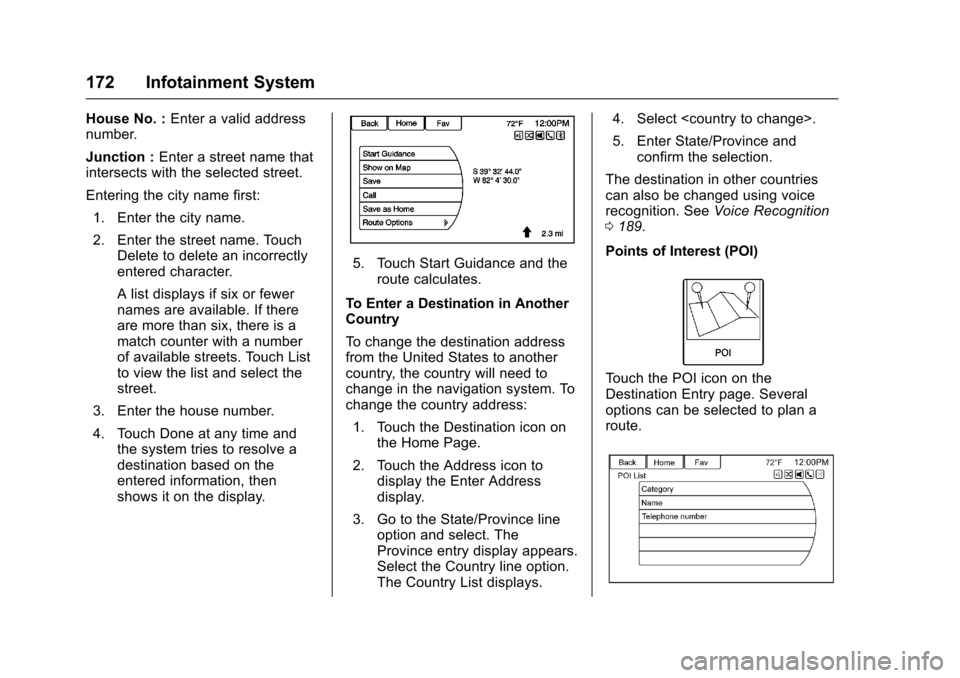
To u c h t h e P O I i c o n o n t h eDestination Entry page. Severaloptions can be selected to plan aroute.
Page 180 of 400
Chevrolet SS Sedan Owner Manual (GMNA-Localizing-U.S.-10122752) -2017 - crc - 8/31/16
Infotainment System 179
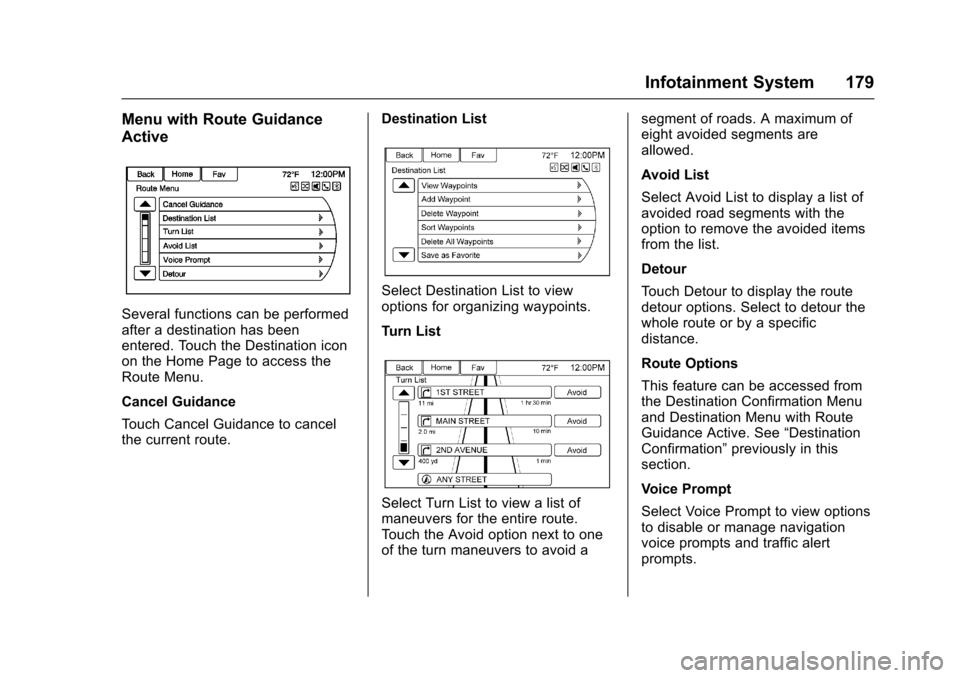
Menu with Route Guidance
Active
Several functions can be performedafter a destination has beenentered. Touch the Destination iconon the Home Page to access theRoute Menu.
Cancel Guidance
To u c h C a n c e l G u i d a n c e t o c a n c e lthe current route.
Destination List
Select Destination List to viewoptions for organizing waypoints.
Turn List
Select Turn List to view a list ofmaneuvers for the entire route.To u c h t h e A v o i d o p t i o n n e x t t o o n eof the turn maneuvers to avoid a
segment of roads. A maximum ofeight avoided segments areallowed.
Avoid List
Select Avoid List to display a list ofavoided road segments with theoption to remove the avoided itemsfrom the list.
Detour
To u c h D e t o u r t o d i s p l a y t h e r o u t edetour options. Select to detour thewhole route or by a specificdistance.
Route Options
This feature can be accessed fromthe Destination Confirmation Menuand Destination Menu with RouteGuidance Active. See“DestinationConfirmation”previously in thissection.
Voice Prompt
Select Voice Prompt to view optionsto disable or manage navigationvoice prompts and traffic alertprompts.
Page 181 of 400
Chevrolet SS Sedan Owner Manual (GMNA-Localizing-U.S.-10122752) -2017 - crc - 8/31/16
180 Infotainment System
Waypoints
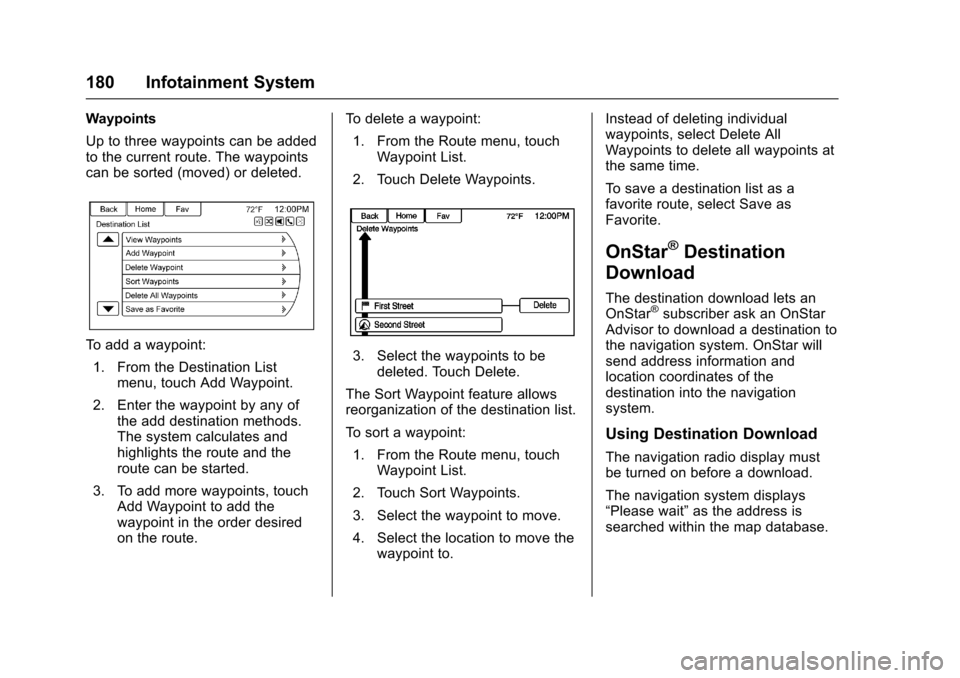
Up to three waypoints can be addedto the current route. The waypointscan be sorted (moved) or deleted.
To a d d a w a y p o i n t :
1. From the Destination Listmenu, touch Add Waypoint.
2. Enter the waypoint by any ofthe add destination methods.The system calculates andhighlights the route and theroute can be started.
3. To add more waypoints, touchAdd Waypoint to add thewaypoint in the order desiredon the route.
To d e l e t e a w a y p o i n t :
1. From the Route menu, touchWaypoint List.
2. Touch Delete Waypoints.
3. Select the waypoints to bedeleted. Touch Delete.
The Sort Waypoint feature allowsreorganization of the destination list.
To s o r t a w a y p o i n t :
1. From the Route menu, touchWaypoint List.
2. Touch Sort Waypoints.
3. Select the waypoint to move.
4. Select the location to move thewaypoint to.
Instead of deleting individualwaypoints, select Delete AllWaypoints to delete all waypoints atthe same time.
To s a v e a d e s t i n a t i o n l i s t a s afavorite route, select Save asFavorite.
OnStar®Destination
Download
The destination download lets anOnStar®subscriber ask an OnStarAdvisor to download a destination tothe navigation system. OnStar willsend address information andlocation coordinates of thedestination into the navigationsystem.
Using Destination Download
The navigation radio display mustbe turned on before a download.
The navigation system displays“Please wait”as the address issearched within the map database.
Page 182 of 400
Chevrolet SS Sedan Owner Manual (GMNA-Localizing-U.S.-10122752) -2017 - crc - 8/31/16
Infotainment System 181
If the address is not found within themap database, the system may uselatitude and longitude coordinates tolocate the destination.
If the system is unable to locate theaddress, the Destination Not Foundmessage displays.
Route Guidance Not Active
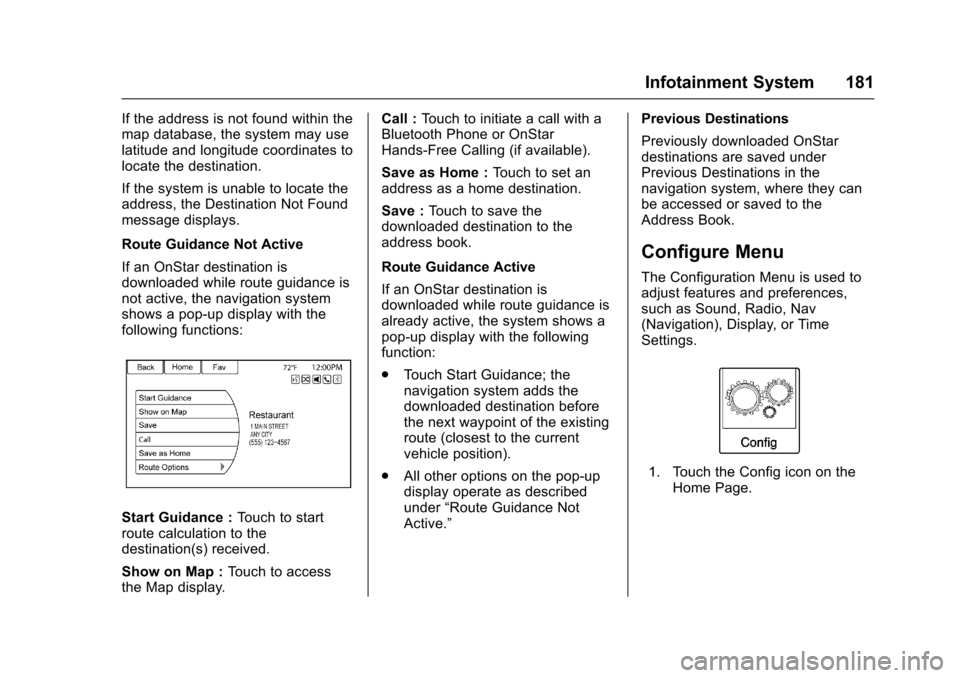
If an OnStar destination isdownloaded while route guidance isnot active, the navigation systemshows a pop-up display with thefollowing functions:
Start Guidance :To u c h t o s t a r troute calculation to thedestination(s) received.
Show on Map :To u c h t o a c c e s sthe Map display.
Call :To u c h t o i n i t i a t e a c a l l w i t h aBluetooth Phone or OnStarHands-Free Calling (if available).
Save as Home :To u c h t o s e t a naddress as a home destination.
Save :To u c h t o s a v e t h edownloaded destination to theaddress book.
Route Guidance Active
If an OnStar destination isdownloaded while route guidance isalready active, the system shows apop-up display with the followingfunction:
.To u c h S t a r t G u i d a n c e ; t h enavigation system adds thedownloaded destination beforethe next waypoint of the existingroute (closest to the currentvehicle position).
.All other options on the pop-updisplay operate as describedunder“Route Guidance NotActive.”
Previous Destinations
Previously downloaded OnStardestinations are saved underPrevious Destinations in thenavigation system, where they canbe accessed or saved to theAddress Book.
Configure Menu
The Configuration Menu is used toadjust features and preferences,such as Sound, Radio, Nav(Navigation), Display, or TimeSettings.
1. Touch the Config icon on theHome Page.