navigation update CHEVROLET SS 2017 1.G Owners Manual
[x] Cancel search | Manufacturer: CHEVROLET, Model Year: 2017, Model line: SS, Model: CHEVROLET SS 2017 1.GPages: 400, PDF Size: 7.31 MB
Page 122 of 400
Chevrolet SS Sedan Owner Manual (GMNA-Localizing-U.S.-10122752) -2017 - crc - 8/31/16
Instruments and Controls 121
4. Press the TUNE/MENU knob toselect the desiredsetting menu.
The following list of menu items maybe available:
.Languages
.Time and Date
.Radio Settings
.Phone Settings
.Navigation Settings
.Display Settings
.Vehicle Settings
Each menu is detailed in thefollowing information. Alternatively,the touch screen may be used toselect.
Languages
Select Languages, then select fromthe available language(s).
Time and Date
To a d j u s t t h e t i m e a n d d a t e s e t t i n g s ,seeClock093.
Radio Settings
Select and the following maydisplay:
.Auto Volume
.Gracenote Options
.XM Channel Art
.Max Startup Volume
.Number of Favorite Pages
.XM Categories
.Software Versions Menu
Auto Volume
When selected, this feature willautomatically adjust the volume tominimize the effects of unwantedbackground noise that can resultfrom changing road surfaces, drivingspeeds, or open windows. Thisfeature works best at lower volumesettings where background noise istypically louder than the soundsystem volume.
Select Off, Low, Medium, or High.
Gracenote Options
Select to improve voice recognitionand media groupings.
Select to enable or disable.SeeUSB0158andBluetoothAudio0163.
XM Channel Art
When on, the radio willautomatically update the XM screenand background graphics.
Select On or Off.
Max Startup Volume
Select the maximum volume level atstartup even if a higher volume hadbeen set when the radio wasturned off.
Number of Favorite Pages
Select to set the number of FAVpages to be displayed.
XM Categories
Select or deselect any category tobe used in XM mode.
Software Version Menu
Select to display information aboutthe system and software.
Page 132 of 400
Chevrolet SS Sedan Owner Manual (GMNA-Localizing-U.S.-10122752) -2017 - crc - 8/31/16
Infotainment System 131
Infotainment
System
Introduction
Infotainment . . . . . . . . . . . . . . . . . . 131Overview . . . . . . . . . . . . . . . . . . . . . 132Steering Wheel Controls . . . . . . 134Using the System . . . . . . . . . . . . 134Software Updates . . . . . . . . . . . . 139
Radio
AM-FM Radio . . . . . . . . . . . . . . . . 139Radio Data System (RDS) . . . . 141Satellite Radio . . . . . . . . . . . . . . . . 142Radio Reception . . . . . . . . . . . . . . 147Backglass Antenna . . . . . . . . . . . 147Multi-Band Antenna . . . . . . . . . . 148Quick Info . . . . . . . . . . . . . . . . . . . . 148Pandora Internet Radio . . . . . . . 149Stitcher Internet Radio . . . . . . . . 153Pictures . . . . . . . . . . . . . . . . . . . . . . 157
Audio Players
USB . . . . . . . . . . . . . . . . . . . . . . . . . . 158Bluetooth Audio . . . . . . . . . . . . . . 163
OnStar System
OnStar System . . . . . . . . . . . . . . . 165
Navigation
Using the NavigationSystem . . . . . . . . . . . . . . . . . . . . . . 165Maps . . . . . . . . . . . . . . . . . . . . . . . . . 168Navigation Symbols . . . . . . . . . . 169Destination . . . . . . . . . . . . . . . . . . . 171OnStar®DestinationDownload . . . . . . . . . . . . . . . . . . . 180Configure Menu . . . . . . . . . . . . . . 181Global PositioningSystem (GPS) . . . . . . . . . . . . . . 186Vehicle Positioning . . . . . . . . . . . 187Problems with RouteGuidance . . . . . . . . . . . . . . . . . . . 187If the System NeedsService . . . . . . . . . . . . . . . . . . . . . 188Map Data Updates . . . . . . . . . . . 188Database CoverageExplanations . . . . . . . . . . . . . . . . 188
Voice Recognition
Voice Recognition . . . . . . . . . . . . 189
Bluetooth Phone/Devices
Bluetooth . . . . . . . . . . . . . . . . . . . . . 195Te x t M e s s a g i n g . . . . . . . . . . . . . . . 2 0 2
Trademarks and License
Agreements
Trademarks and LicenseAgreements . . . . . . . . . . . . . . . . . 205
Introduction
Infotainment
Read the following pages tobecome familiar with these features.
{Warning
Ta k i n g y o u r e y e s o f f t h e r o a d f o r
too long or too often while using
any infotainment feature can
cause a crash. You or others
could be injured or killed. Do not
give extended attention to
infotainment tasks while driving.
Limit your glances at the vehicle
displays and focus your attention
on driving. Use voice commands
whenever possible.
The infotainment system has built-infeatures intended to help avoiddistraction by disabling somefunctions when driving. Thesefunctions may gray out when theyare unavailable. Many infotainment
Page 144 of 400
Chevrolet SS Sedan Owner Manual (GMNA-Localizing-U.S.-10122752) -2017 - crc - 8/31/16
Infotainment System 143
Adding or Removing SiriusXM
Categories
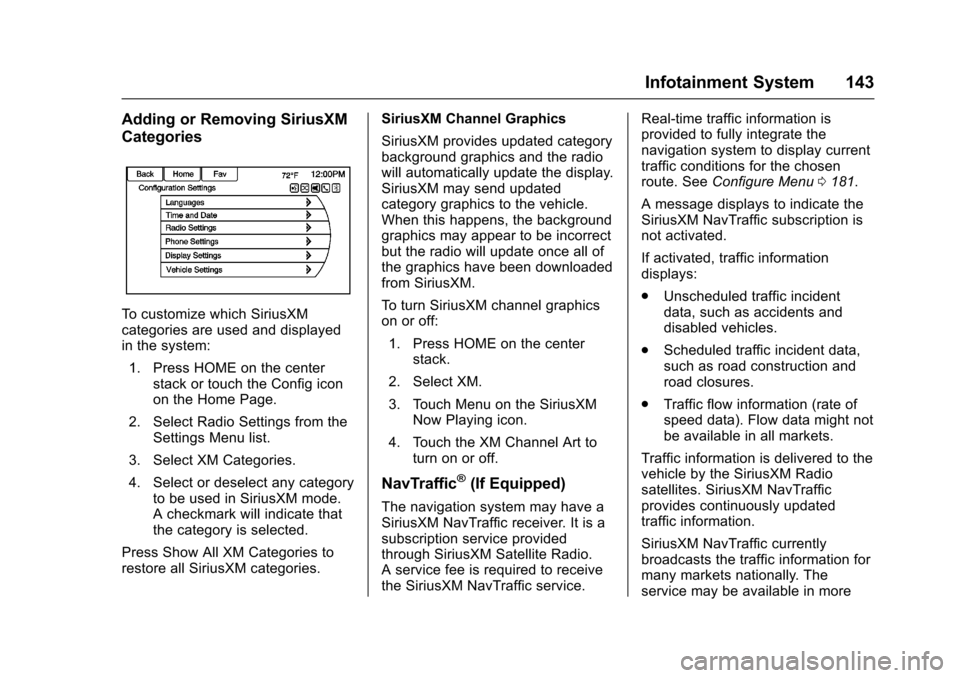
To c u s t o m i z e w h i c h S i r i u s X Mcategories are used and displayedin the system:
1. Press HOME on the centerstack or touch the Config iconon the Home Page.
2. Select Radio Settings from theSettings Menu list.
3. Select XM Categories.
4. Select or deselect any categoryto be used in SiriusXM mode.Acheckmarkwillindicatethatthe category is selected.
Press Show All XM Categories torestore all SiriusXM categories.
SiriusXM Channel Graphics
SiriusXM provides updated categorybackground graphics and the radiowill automatically update the display.SiriusXM may send updatedcategory graphics to the vehicle.When this happens, the backgroundgraphics may appear to be incorrectbut the radio will update once all ofthe graphics have been downloadedfrom SiriusXM.
To t u r n S i r i u s X M c h a n n e l g r a p h i c son or off:
1. Press HOME on the centerstack.
2. Select XM.
3. Touch Menu on the SiriusXMNow Playing icon.
4. Touch the XM Channel Art toturn on or off.
NavTraffic®(If Equipped)
The navigation system may have aSiriusXM NavTraffic receiver. It is asubscription service providedthrough SiriusXM Satellite Radio.Aservicefeeisrequiredtoreceivethe SiriusXM NavTraffic service.
Real-time traffic information isprovided to fully integrate thenavigation system to display currenttraffic conditions for the chosenroute. SeeConfigure Menu0181.
AmessagedisplaystoindicatetheSiriusXM NavTraffic subscription isnot activated.
If activated, traffic informationdisplays:
.Unscheduled traffic incidentdata, such as accidents anddisabled vehicles.
.Scheduled traffic incident data,such as road construction androad closures.
.Traffic flow information (rate ofspeed data). Flow data might notbe available in all markets.
Traffic information is delivered to thevehicle by the SiriusXM Radiosatellites. SiriusXM NavTrafficprovides continuously updatedtraffic information.
SiriusXM NavTraffic currentlybroadcasts the traffic information formany markets nationally. Theservice may be available in more
Page 145 of 400
Chevrolet SS Sedan Owner Manual (GMNA-Localizing-U.S.-10122752) -2017 - crc - 8/31/16
144 Infotainment System
cities in the future. Seewww.siriusxm.com for more detailson local coverage.
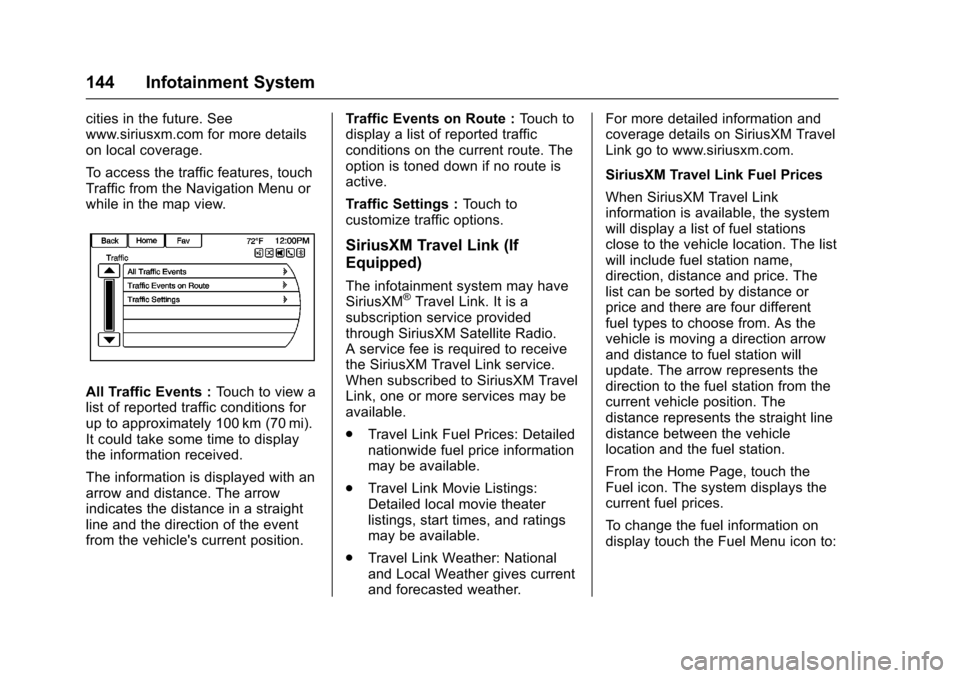
To a c c e s s t h e t r a f f i c f e a t u r e s , t o u c hTraffic from the Navigation Menu orwhile in the map view.
All Traffic Events :To u c h t o v i e w alist of reported traffic conditions forup to approximately 100 km (70 mi).It could take some time to displaythe information received.
The information is displayed with anarrow and distance. The arrowindicates the distance in a straightline and the direction of the eventfrom the vehicle's current position.
Tr a f f i c E v e n t s o n R o u t e :To u c h t odisplay a list of reported trafficconditions on the current route. Theoption is toned down if no route isactive.
Tr a f f i c S e t t i n g s :To u c h t ocustomize traffic options.
SiriusXM Travel Link (If
Equipped)
The infotainment system may haveSiriusXM®Travel Link. It is asubscription service providedthrough SiriusXM Satellite Radio.Aservicefeeisrequiredtoreceivethe SiriusXM Travel Link service.When subscribed to SiriusXM TravelLink, one or more services may beavailable.
.Travel Link Fuel Prices: Detailednationwide fuel price informationmay be available.
.Travel Link Movie Listings:Detailed local movie theaterlistings, start times, and ratingsmay be available.
.Travel Link Weather: Nationaland Local Weather gives currentand forecasted weather.
For more detailed information andcoverage details on SiriusXM TravelLink go to www.siriusxm.com.
SiriusXM Travel Link Fuel Prices
When SiriusXM Travel Linkinformation is available, the systemwill display a list of fuel stationsclose to the vehicle location. The listwill include fuel station name,direction, distance and price. Thelist can be sorted by distance orprice and there are four differentfuel types to choose from. As thevehicle is moving a direction arrowand distance to fuel station willupdate. The arrow represents thedirection to the fuel station from thecurrent vehicle position. Thedistance represents the straight linedistance between the vehiclelocation and the fuel station.
From the Home Page, touch theFuel icon. The system displays thecurrent fuel prices.
To c h a n g e t h e f u e l i n f o r m a t i o n o ndisplay touch the Fuel Menu icon to:
Page 146 of 400
Chevrolet SS Sedan Owner Manual (GMNA-Localizing-U.S.-10122752) -2017 - crc - 8/31/16
Infotainment System 145
.Sort Fuel Stations By Price or ByDistance: The default sortmethod is by distance.
.Choose Fuel Type: The fuelavailable fuel types are Regular(unleaded), Mid-Range,Premium, and Diesel.
For more information on the fuelstation, select the fuel station name.The display will show the fuelstation name, address, phonenumber, distance, amenities and thelast time the fuel price was updated.If a fuel station does not appear inthe list it may be new or the pricemay not have been updated in thepast 24 hours.
If equipped with Navigation, seeDestination0171for moreinformation on navigation routingfeatures.
Allow up to five minutes after turningon the vehicle for the fuelinformation to appear.
SiriusXM Travel Link MovieListings
When SiriusXM Travel Linkinformation is available the moviefeature provides movie showtimesand theater information for moviesclose to the vehicle location. TheMovie feature provides detailedtheater and movie informationincluding showtimes.
From the Home Page, touch theMovies icon. The system displaysthe Movie and Theater search page.
To s e a r c h m o v i e s :
.Select the Movie field to chooseamoviename.
.Select the Theater field tochoose a specific theater.
.Select the Date field to choosewhich date to search movie and/or theaters.
.To u c h S e a r c h t o v i e w a l i s t o fmovies or theaters.
When searching by movie, a list willdisplay movies to select. When amovie is selected a theater list willappear with a direction arrow and
distance from the current vehiclelocation. The direction and distancewill update every 10 seconds as thevehicle is moving. The directionarrow represents the location of thetheater from the current vehiclelocation. The distance representsthe straight line distance betweenthe vehicle location and the theater.
Movie details are available when amovie is selected. The detailsinclude Cast, Synopsis, and TheaterInformation. Select the appropriateoption to display more information.
Cast and Synopsis:
.Playtime
.Rating (G, PG-13, R, etc.)
.Theater Name
.Showtimes
Theater information includesaddress, phone number, distance,and amenities.
SiriusXM Travel Link Weather
Whether near home or on a longroad trip, detailed weatherinformation is available.
Page 184 of 400
Chevrolet SS Sedan Owner Manual (GMNA-Localizing-U.S.-10122752) -2017 - crc - 8/31/16
Infotainment System 183
Gracenote Options :To u c h t oenable/disable Normalization usedto improve voice recognition andmedia groupings. SeeUSB0158andBluetooth Audio0163.
XM Channel Graphics :To u c h t oenable/disable the XM Audio pagebackground on the XM Channeldisplay.
Startup Volume :To u c h t o s e t t h emaximum volume level for startupthat will be used even if a highervolume had been set when the radiowas turned off.
Number of Favorite Pages :To u c hto select the number of FAV pagesto be displayed.
XM Categories :To u c h t ocustomize which available XMCategories are used and displayed.
Software Version Information :To u c h t o d i s p l a y i n f o r m a t i o n a b o u tthe system and update software ifavailable.
Phone Settings
SeeBluetooth0195in the“Phone”section for more information onphone settings.
Navigation Settings
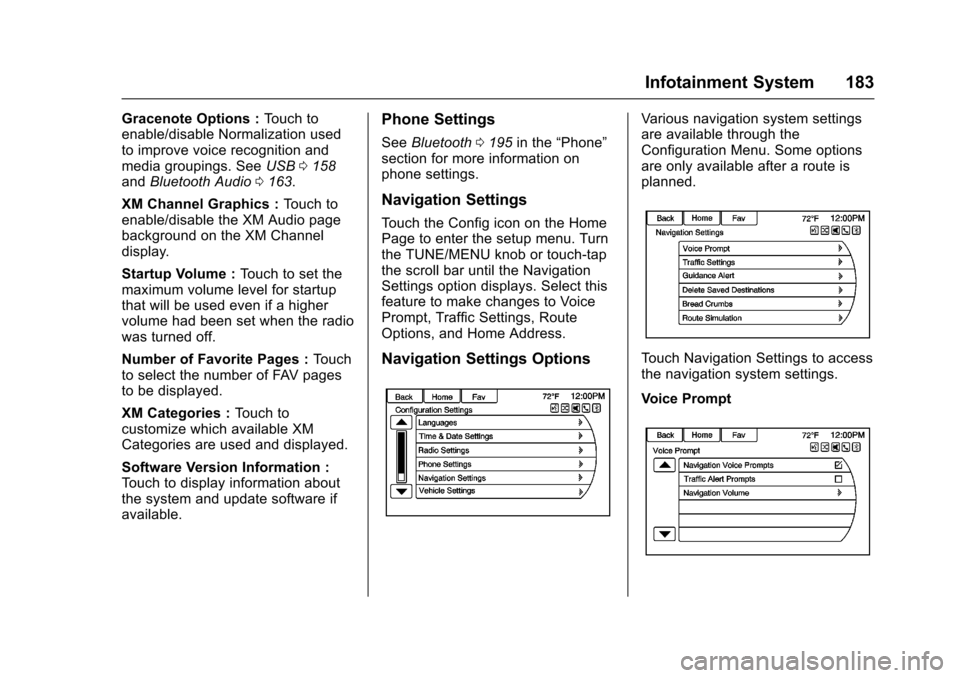
To u c h t h e C o n f i g i c o n o n t h e H o m ePage to enter the setup menu. Turnthe TUNE/MENU knob or touch-tapthe scroll bar until the NavigationSettings option displays. Select thisfeature to make changes to VoicePrompt, Traffic Settings, RouteOptions, and Home Address.
Navigation Settings Options
Va r i o u s n a v i g a t i o n s y s t e m s e t t i n g sare available through theConfiguration Menu. Some optionsare only available after a route isplanned.
To u c h N a v i g a t i o n S e t t i n g s t o a c c e s sthe navigation system settings.
Voice Prompt
Page 188 of 400
Chevrolet SS Sedan Owner Manual (GMNA-Localizing-U.S.-10122752) -2017 - crc - 8/31/16
Infotainment System 187
the satellites, a symbol appears onthe map display. SeeNavigationSymbols0169.
This system might not be availableor interference can occur if any ofthe following are true:
.Signals are obstructed by tallbuildings, trees, large trucks,or a tunnel.
.Satellites are being repaired orimproved.
For more information if the GPS isnot functioning properly, seeProblems with Route Guidance0187andIf the System NeedsService0188.
Vehicle Positioning
At times, the position of the vehicleon the map could be inaccurate dueto one or more of the followingreasons:
.The road system has changed.
.The vehicle is driving on slipperyroad surfaces such as sand,gravel, or snow.
.The vehicle is traveling onwinding roads or long straightroads.
.The vehicle is approaching a tallbuilding or a large vehicle.
.The surface streets run parallelto a freeway.
.The vehicle has been transferredby a vehicle carrier or a ferry.
.The current position calibrationis set incorrectly.
.The vehicle is traveling at highspeed.
.The vehicle changes directionsmore than once, or the vehicle isturning on a turn table in aparking lot.
.The vehicle is entering and/orexiting a parking lot, garage, or alot with a roof.
.The GPS signal is not received.
.Aroofcarrierisinstalledonthevehicle.
.Tire chains have been installed.
.The tires are replaced or worn.
.The tire pressure for the tires isincorrect.
.This is the first navigation useafter the map data is updated.
.The 12-volt battery isdisconnected for several days.
.The vehicle is driving in heavytraffic where driving is at lowspeeds, and the vehicle isstopped and started repeatedly.
Problems with Route
Guidance
Inappropriate route guidance canoccur under one or more of thefollowing conditions:
.The turn was not made on theroad indicated.
.Route guidance might not beavailable when using automaticrerouting for the next right orleft turn.
.The route might not be changedwhen using automatic rerouting.
.There is no route guidance whenturning at an intersection.
Page 189 of 400
Chevrolet SS Sedan Owner Manual (GMNA-Localizing-U.S.-10122752) -2017 - crc - 8/31/16
188 Infotainment System
.Plural names of places might beannounced occasionally.
.It could take a long time tooperate automatic reroutingduring high-speed driving.
.Automatic rerouting mightdisplay a route returning to theset waypoint if heading for adestination without passingthrough a set waypoint.
.The route prohibits the entry of avehicle due to a regulation bytime or season or any otherregulation which may be given.
.Some routes might not besearched.
.The route to the destinationmight not be shown if there arenew roads, if roads haverecently changed, or if certainroads are not listed in the mapdata. SeeMaps0168.
To r e c a l i b r a t e t h e v e h i c l e ' s p o s i t i o non the map, park with the vehiclerunning for two to five minutes, untilthe vehicle position updates. Makesure the vehicle is parked in a
location that is safe and has a clearview of the sky and away from largeobstruction.
If the System Needs
Service
If the navigation system needsservice and the steps listed herehave been followed but there arestill problems, see your dealer forassistance.
Map Data Updates
The map data provided in thevehicle is the most up-to-dateinformation available when thevehicle was produced. The mapdata is updated periodically,provided that the map informationhas changed.
For questions about the operation ofthe navigation system or the updateprocess, contact the GM Nav DiscCenter toll-free phone number,1-877-NAV-DISC (1-877-628-3472)or go to the center’swebsite,www.gmnavdisc.com. If updates areneeded, call the GM Nav DiscCenter or order a new Map Update
online. To order map data, have thevehicle’sVehicleIdentificationNumber (VIN) available. SeeVehicle Identification Number (VIN)0361.
After receiving the updated mapdata, seeMaps0168.
Database Coverage
Explanations
Coverage areas vary with respect tothe level of map detail available forany given area. Some areas featuregreater levels of detail than others.If this happens, it does not meanthere is a problem with the system.As the map data is updated, moredetail can become available forareas which previously had limiteddetail. SeeMap Data Updates0188for more information.
Page 384 of 400
Chevrolet SS Sedan Owner Manual (GMNA-Localizing-U.S.-10122752) -2017 - crc - 8/31/16
OnStar 383
OnStar Additional
Information
In-Vehicle Audio Messages
Audio messages may play importantinformation at the following times:
.Prior to vehicle purchase.
PressQto set up an account.
.With the OnStar Basic Plan,every 60 days.
.After change in ownership andat 90 days.
Transferring Service
PressQto request account transfer
eligibility information. The Advisorcan cancel or change accountinformation.
Selling/Transferring the
Vehicle
Call 1-888-4ONSTAR(1-888-466-7827) immediately toterminate your OnStar services ifthe vehicle is disposed of, sold,transferred, or if the lease ends.
Reactivation for Subsequent
Owners
PressQand follow the prompts to
speak to an Advisor as soon aspossible. The Advisor will updatevehicle records and explain OnStarservice options.
How OnStar Service Works
Automatic Crash Response,Emergency Services, Crisis Assist,Stolen Vehicle Assistance,Advanced Vehicle Diagnostics,Remote Services, RoadsideAssistance, Turn-by-TurnNavigation, and Hands-Free Callingare available on most vehicles. Notall OnStar services are availableeverywhere or on all vehicles. Formore information, a full descriptionof OnStar services, systemlimitations, and OnStar User Terms,Privacy Statement, and SoftwareTe r m s :
.Call 1-888-4ONSTAR(1-888-466-7827).
.See www.onstar.com (U.S.).
.See www.onstar.ca (Canada).
.Call TTY 1-877-248-2080.
.PressQto speak with an
Advisor.
OnStar services cannot work unlessthe vehicle is in a place whereOnStar has an agreement with awireless service provider for servicein that area. The wireless serviceprovider must also have coverage,network capacity, reception, andtechnology compatible with OnStarservices. Service involving locationinformation about the vehicle cannotwork unless GPS signals areavailable, unobstructed, andcompatible with the OnStarhardware. OnStar services may notwork if the OnStar equipment is notproperly installed or it has not beenproperly maintained. If equipment orsoftware is added, connected,or modified, OnStar services maynot work. Other problems beyondthe control of OnStar—such ashills, tall buildings, tunnels, weather,electrical system design andarchitecture of the vehicle, damage
Page 386 of 400
Chevrolet SS Sedan Owner Manual (GMNA-Localizing-U.S.-10122752) -2017 - crc - 8/31/16
OnStar 385
AtemporarylossofGPScancauseloss of the ability to send aTurn-by-Turn Navigation route. TheAdvisor may give a verbal route ormay ask for a call back after thevehicle is driven into an open area.
Cellular and GPS Antennas
Cellular reception is required forOnStar to send remote signals tothe vehicle. Do not place items overor near the antenna to preventblocking cellular and GPS signalreception.
Unable to Connect to OnStar
Message
If there is limited cellular coverageor the cellular network has reachedmaximum capacity, this message
may come on. PressQto try the
call again or try again after driving afew miles into another cellular area.
Vehicle and Power Issues
OnStar services require a vehicleelectrical system, wireless service,and GPS satellite technologies to beavailable and operating for features
to function properly. These systemsmay not operate if the battery isdischarged or disconnected.
Add-on Electrical Equipment
The OnStar system is integratedinto the electrical architecture of thevehicle. Do not add any electricalequipment. SeeAdd-On ElectricalEquipment0268.Addedelectricalequipment may interfere with theoperation of the OnStar system andcause it to not operate.
Vehicle Software Updates
OnStar or GM may remotely deliversoftware updates or changes to thevehicle without further notice orconsent. These updates or changesmay enhance or maintain safety,security, or the operation of thevehicle or the vehicle systems.Software updates or changes mayaffect or erase data or settings thatare stored in the vehicle, such asOnStar Hands-Free Calling nametags, saved navigation destinations,or pre-set radio stations. NeitherOnStar nor GM is responsible forany affected or erased data or
settings. These updates or changesmay also collect personalinformation. Such collection isdescribed in the OnStar privacystatement or separately disclosed atthe time of installation. Theseupdates or changes may also causeasystemtoautomaticallycommunicate with GM servers tocollect information about vehiclesystem status, identify whetherupdates or changes are available,or deliver updates or changes. Anactive OnStar agreement constitutesconsent to these software updatesor changes and agreement thateither OnStar or GM may remotelydeliver them to the vehicle.
Privacy
The complete OnStar PrivacyStatement may be found atwww.onstar.com (U.S.),or www.onstar.ca (Canada). Werecommend that you review it. If youhave any questions, call1-888-4ONSTAR (1-888-466-7827)
or pressQto speak with an
Advisor. Users of wirelesscommunications are cautioned that