lock CHEVROLET SSR 2005 1.G Workshop Manual
[x] Cancel search | Manufacturer: CHEVROLET, Model Year: 2005, Model line: SSR, Model: CHEVROLET SSR 2005 1.GPages: 388, PDF Size: 2.5 MB
Page 172 of 388
Scroll through the list of modes. When the mode you
want is displayed on the DIC, press the personalization
button to set your choice, return to the personalization
menu, and advance to the next programmable feature.
For more information on automatic door locks, see
Programmable Automatic Door Locks on page 2-10.
Remote Lock Feedback
This feature allows you to choose whether or not the
horn chirps and the parking lamps ¯ash when you lock
the vehicle with the remote keyless entry transmitter.
Press the personalization button until REMOTE
LOCK FEEDBACK appears in the display. To access
the modes for REMOTE LOCK FEEDBACK, press
the select button. Once REMOTE LOCK FEEDBACK is
selected, press the select button to scroll through the
following modes:
Mode 1:LOCK FEEDBACK: BOTH
Mode 2: LOCK FEEDBACK: OFF
Mode 3: LOCK FEEDBACK: HORN
Mode 4: LOCK FEEDBACK: LAMPS If you choose Mode 1, the parking lamps will ¯ash each
time you press the lock button on the remote keyless
entry transmitter and the horn will chirp the second time
you press the lock button.
If you choose Mode 2, there will be no feedback when
locking the vehicle.
If you choose Mode 3, the horn will chirp the second
time you press the button with the lock symbol on
the remote keyless entry transmitter.
If you choose Mode 4, the parking lamps will ¯ash each
time you press the button with the lock symbol on
the remote keyless entry transmitter.
Scroll through the list of modes. When the mode you
want is displayed on the DIC, press the personalization
button to set your choice, return to the personalization
menu, and advance to the next programmable feature.
Remote Unlock Feedback
This feature allows you to choose whether or not the
parking lamps ¯ash and the horn chirps when you
unlock the vehicle with the remote keyless entry
transmitter. Press the personalization button until
REMOTE UNLOCK FEEDBACK appears in the display.
3-54
Page 173 of 388
To access the modes for REMOTE UNLOCK
FEEDBACK, press the select button. Once REMOTE
UNLOCK FEEDBACK is selected, press the select
button to scroll through the following modes:
Mode 1:UNLOCK FEEDBACK: BOTH
Mode 2: UNLOCK FEEDBACK: OFF
Mode 3: UNLOCK FEEDBACK: HORN
Mode 4: UNLOCK FEEDBACK: LAMPS
If you choose Mode 1, the parking lamps will ¯ash each
time you press the button with the unlock symbol on
the remote keyless entry transmitter. The horn will chirp
the second time you press the unlock button.
If you choose Mode 2, there will be no feedback when
unlocking the vehicle.
If you choose Mode 3, the horn will chirp the second
time you press the button with the unlock symbol on the
remote keyless entry transmitter.
If you choose Mode 4, the parking lamps will ¯ash each
time you press the button with the unlock symbol on
the remote keyless entry transmitter.
Scroll through the list of modes. When the mode you
want is displayed on the DIC, press the personalization
button to set your choice, return to the personalization
menu, and advance to the next programmable feature.Headlamps on at Exit
This feature allows you to set the amount of time you
want the headlamps to remain on after you exit the
vehicle. Press the personalization button until
HEADLAMPS ON AT EXIT appears in the display.
To access the modes for HEADLAMPS ON AT EXIT,
press the select button. Once HEADLAMPS ON
AT EXIT is selected, press the select button to scroll
through the following modes:
Mode 1: HEADLAMP DELAY 10 SEC
Mode 2: HEADLAMP DELAY 20 SEC
Mode 3: HEADLAMP DELAY 40 SEC
Mode 4: HEADLAMP DELAY 60 SEC
Mode 5: HEADLAMP DELAY 120 SEC
Mode 6: HEADLAMP DELAY 180 SEC
Mode 7: HEADLAMP DELAY OFF
If you choose Mode 7, the headlamps will turn off as
soon as you turn off the vehicle.
Scroll through the list of modes. When the mode you
want is displayed on the DIC, press the personalization
button to set your choice, return to the personalization
menu, and advance to the next programmable feature.
3-55
Page 174 of 388
Perimeter Lighting
This feature allows you to choose whether or not certain
exterior lamps turn on when the unlock button on the
remote keyless entry transmitter is pressed. Press
the personalization button until PERIMETER LIGHTING
appears in the display. To access the modes for
PERIMETER LIGHTING, press the select button. Once
PERIMETER LIGHTING is selected, press the select
button to scroll through the following modes:
Mode 1:PERIMETER LIGHTING ON
Mode 2: PERIMETER LIGHTING OFF
If you choose Mode 1, the headlamps and back-up
lamps will come on for 40 seconds, if it is dark enough
outside, when you unlock the vehicle with the remote
keyless entry transmitter.
Scroll through the list of modes. When the mode you
want is displayed on the DIC, press the personalization
button to set your choice, return to the personalization
menu, and advance to the next programmable feature.
Seat Position Recall
This feature allows you to choose how any previously
programmed seat position is recalled. Press the
personalization button until SEAT POSITION RECALL
appears in the display. To access the modes for
SEAT POSITION RECALL, press the select button.
Once SEAT POSITION RECALL is selected, press the
select button to scroll through the following modes:
Mode 1: SEAT RECALL: OFF
Mode 2: SEAT RECALL: AT KEY IN
Mode 3: SEAT RECALL: ON REMOTE
If you choose Mode 1, the memory seat position
you saved will only be recalled when the memory
button 1 or 2 is pressed.
If you choose Mode 2, the memory seat position you
saved will be recalled when you put the key in the
ignition.
If you choose Mode 3, the memory seat position you
saved will be recalled when you unlock the vehicle with
the remote keyless entry transmitter.
Scroll through the list of modes. When the mode you
want is displayed on the DIC, press the personalization
button to set your choice, return to the personalization
menu, and advance to the next programmable feature.
See
Memory Seat on page 2-59for more information.
3-56
Page 177 of 388
Setting the Time
The radio may have a button marked with an H or HR to
represent hours and an M or MN to represent minutes.
Press and hold the hour button until the correct hour
appears on the display. AM or PM will appear on
the display for morning or evening hours. Press and
hold the minute button until the correct minute appears
on the display. The time can be set with the ignition
on or off.
To synchronize the time with an FM station broadcasting
Radio Data System (RDS) information, press and
hold the hour and minute buttons at the same time for
two seconds until UPDATED and the clock symbol
appear on the display. If the time is not available from
the station, NO UPDAT will appear on the display.
RDS time is broadcast once a minute. After tuning to
an RDS broadcast station, it may take a few minutes for
the time to update.
Radio with CD
Playing the Radio
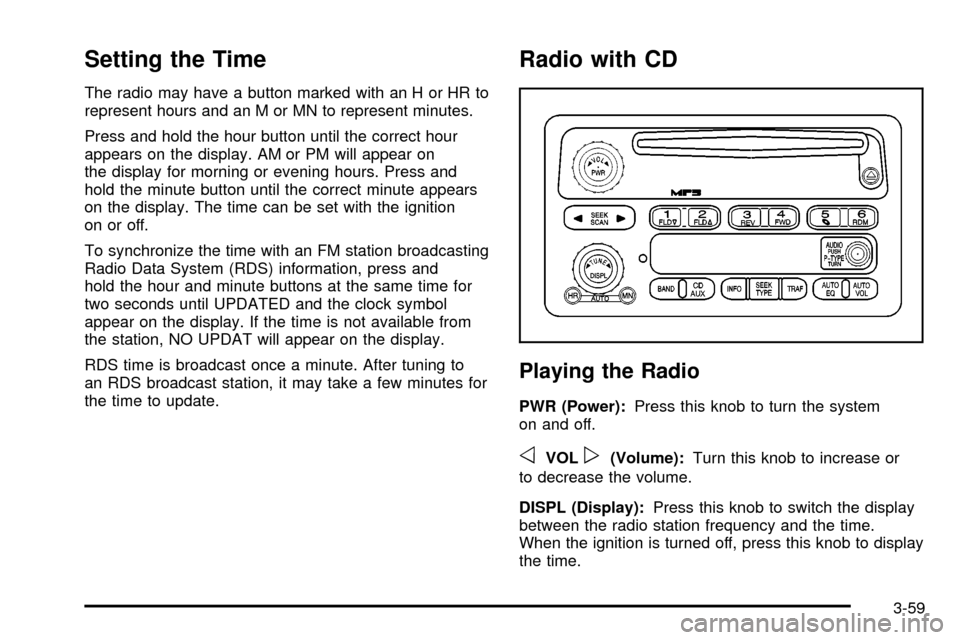
PWR (Power):Press this knob to turn the system
on and off.
oVOLp(Volume): Turn this knob to increase or
to decrease the volume.
DISPL (Display): Press this knob to switch the display
between the radio station frequency and the time.
When the ignition is turned off, press this knob to display
the time.
3-59
Page 182 of 388
If TRAF is on the display, press the TRAF button to turn
of the traffic announcements.
The radio will play the traffic announcement if the
volume is low. The radio will interrupt the play of a CD if
the last tuned station broadcasts traffic announcements.
Radio Messages
CAL ERR (Calibration Error):The audio system
has been calibrated for your vehicle from the factory.
If CAL ERR appears on the display it means that
the radio has not been con®gured properly for your
vehicle and it must be returned to your GM dealer for
service.
LOCKED: This message is displayed when the
THEFTLOCK
žsystem has locked up. Take your
vehicle to your GM dealer for service.
If any error occurs repeatedly or if an error cannot
be corrected, contact your GM dealer.
Playing a CD
Insert a CD partway into the slot, label side up. The
player will pull it in, and READING will appear on
the display. The CD should begin playing. If you want
to insert a CD with the ignition off, ®rst press the
EJT button or the DISPL knob. If the ignition or radio is turned off with a CD in the
player it will stay in the player. When the ignition or radio
is turned on, the CD will start to play where it stopped,
if it was the last selected audio source.
When the CD is inserted, the CD symbol will appear on
the display. As each new track starts to play, the
track number will appear on the display.
The CD player can play the smaller 3 inch (8 cm) single
CDs with an adapter ring. Full-size CDs and the
smaller CDs are loaded in the same manner.
If playing a CD-R the sound quality may be reduced
due to CD-R quality, the method of recording, the quality
of the music that has been recorded, and the way the
CD-R has been handled. There may be an increase
in skipping, difficulty in ®nding tracks, and/or difficulty in
loading and ejecting. If these problems occur try a
known good CD.
Do not add paper labels to CDs, they could get caught
in the CD player.
If an error appears on the display, see ªCD Messagesº
later in this section.
1 FLDx(Previous):
Press this pushbutton to go to
the start of the current track if more than eight seconds
have played. TRACK and the track number will
appear on the display. If this pushbutton is held or
pressed more than once, the player will continue moving
backward through the CD.
3-64
Page 194 of 388
Setting Preset PTYs (RDS Only)
These pushbuttons have factory PTY presets. Up to
12 PTYs (six FM1 and six FM2), can be programmed
on the six numbered pushbuttons, by performing
the following steps:1. Press BAND to select FM1 or FM2.
2. Press the TYPE button to activate program type select mode. P-TYPE and the last selected PTY
will appear on the display.
3. Turn the TYPE knob or press and release the TYPE button to select a PTY.
4. Press and hold one of the six numbered pushbuttons until you hear a beep. Whenever that
numbered pushbutton is pressed, the PTY that
was set will return.
5. Repeat the steps for each pushbutton.
RDS Messages
INFO (Information): If the current station has a
message, INFO will appear on the display. Press this
button to see the message. The message may display
the artist, song title, call in phone numbers, etc. If the entire message is not displayed, parts of the
message will appear every three seconds. To scroll
through the message, press and release the INFO
button. A new group of words will appear on the display
after every press of this button. Once the complete
message has been displayed, INFO will disappear from
the display until another new message is received.
The last message can be displayed by pressing
the INFO button. You can view the last message until
a new message is received or a different station is
tuned to.
Radio Messages
CAL ERR (Calibration Error):
The audio system has
been calibrated for your vehicle from the factory. If
CAL ERR appears on the display, it means that the radio
has not been con®gured properly for the vehicle and
must be returned to your GM dealer for service.
LOCKED: This message is displayed when the
THEFTLOCK
žsystem has locked up. Take the vehicle
to your GM dealer for service.
If any error occurs repeatedly, or if an error cannot be
corrected, contact your GM dealer.
3-76
Page 200 of 388

If any error occurs repeatedly or if an error cannot be
corrected, contact your GM dealer. If the radio displays
an error message, write it down and provide it to
your GM dealer when reporting the problem.
Theft-Deterrent Feature
THEFTLOCKžis designed to discourage theft of your
vehicle's radio. The feature works automatically by
learning a portion of the Vehicle Identi®cation Number
(VIN). If the radio is moved to a different vehicle, it
will not operate and LOCKED will appear on the display.
When the radio and vehicle are turned off, the blinking
red light indicates that THEFTLOCK
žis armed.
With THEFTLOCK
žactivated, the radio will not operate
if stolen.
Audio Steering Wheel Controls
Some audio controls can be adjusted at the steering
wheel. They include the following:
QSEEKR: Press the up or the down arrow to go to
the next or to the previous radio station and stay
there. The radio will only seek stations with a strong
signal that are in the selected band.
When a CD is playing, press the up or the down arrow
to fast forward or reverse.
Q u R(Volume): Press the up or the down arrow
to increase or to decrease the volume.
3-82
Page 203 of 388

Your Driving, the Road, and Your Vehicle..........4-2
Defensive Driving...........................................4-2
Drunken Driving.............................................4-3
Control of a Vehicle........................................4-5
Braking.........................................................4-6
Anti-Lock Brake System (ABS).........................4-6
Braking in Emergencies...................................4-8
Traction Control System (TCS)
(Automatic Transmission).............................4-8
Steering......................................................4-10
Off-Road Recovery.......................................4-12
Passing.......................................................4-12
Loss of Control.............................................4-13
Driving at Night............................................4-15
Driving in Rain and on Wet Roads..................4-16
City Driving..................................................4-19Freeway Driving...........................................4-20
Before Leaving on a Long Trip.......................4-21
Highway Hypnosis........................................4-21
Hill and Mountain Roads................................4-22
Winter Driving..............................................4-24
If You Are Stuck: In Sand, Mud,
Ice or Snow..............................................4-28
Rocking Your Vehicle to Get It Out.................4-28
Loading Your Vehicle....................................4-29
Towing..........................................................4-34
Towing Your Vehicle.....................................4-34
Recreational Vehicle Towing...........................4-34
Trailer Recommendations...............................4-35
Towing a Trailer...........................................4-35
Section 4 Driving Your Vehicle
4-1
Page 208 of 388

Braking
Braking action involves perception time and
reaction time.
First, you have to decide to push on the brake pedal.
That is perception time. Then you have to bring up your
foot and do it. That is reaction time.
Average reaction time is about three-fourths of a
second. But that is only an average. It might be less
with one driver and as long as two or three seconds or
more with another. Age, physical condition, alertness,
coordination and eyesight all play a part. So do alcohol,
drugs and frustration. But even in three-fourths of a
second, a vehicle moving at 60 mph (100 km/h) travels
66 feet (20 m). That could be a lot of distance in an
emergency, so keeping enough space between
your vehicle and others is important.
And, of course, actual stopping distances vary greatly
with the surface of the road (whether it is pavement
or gravel); the condition of the road (wet, dry, icy); tire
tread; the condition of your brakes; the weight of
the vehicle and the amount of brake force applied.
Avoid needless heavy braking. Some people drive
in spurts — heavy acceleration followed by heavy
braking — rather than keeping pace with traffic.
This is a mistake. Your brakes may not have time
to cool between hard stops. Your brakes will wear
out much faster if you do a lot of heavy braking.If you keep pace with the traffic and allow realistic
following distances, you will eliminate a lot of
unnecessary braking. That means better braking and
longer brake life.
If your engine ever stops while you are driving, brake
normally but do not pump your brakes. If you do,
the pedal may get harder to push down. If your engine
stops, you will still have some power brake assist.
But you will use it when you brake. Once the power
assist is used up, it may take longer to stop and
the brake pedal will be harder to push.
Anti-Lock Brake System (ABS)
Your vehicle has anti-lock brakes. ABS is an advanced
electronic braking system that will help prevent a
braking skid.
When you start your engine and begin to drive away,
your anti-lock brake system will check itself. You
may hear a momentary motor or clicking noise while
this test is going on. This is normal.
If there is a problem with
the anti-lock brake system,
this warning light will
stay on. SeeAnti-Lock
Brake System Warning
Light on page 3-31.
4-6
Page 209 of 388
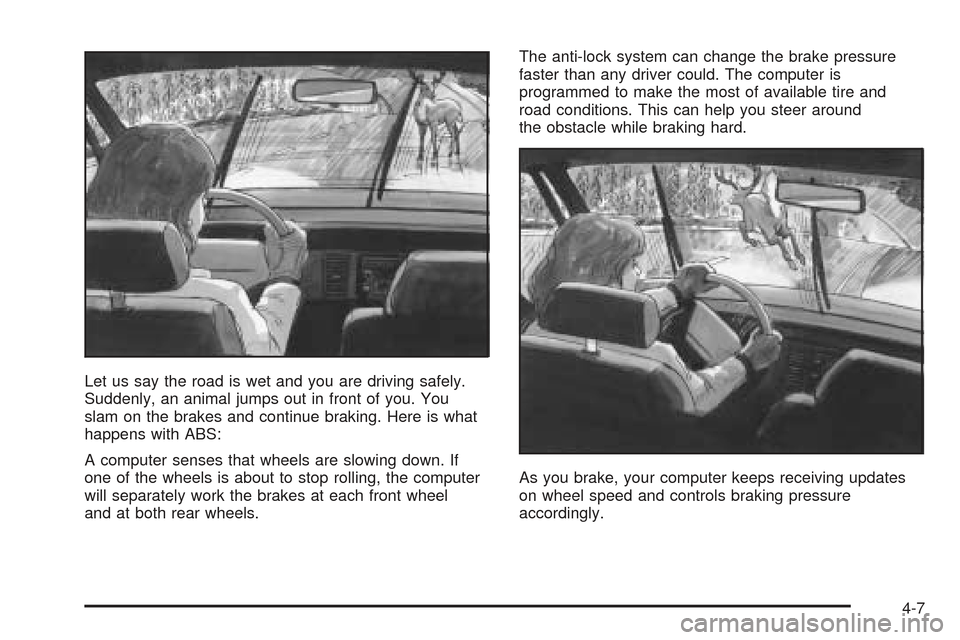
Let us say the road is wet and you are driving safely.
Suddenly, an animal jumps out in front of you. You
slam on the brakes and continue braking. Here is what
happens with ABS:
A computer senses that wheels are slowing down. If
one of the wheels is about to stop rolling, the computer
will separately work the brakes at each front wheel
and at both rear wheels.The anti-lock system can change the brake pressure
faster than any driver could. The computer is
programmed to make the most of available tire and
road conditions. This can help you steer around
the obstacle while braking hard.
As you brake, your computer keeps receiving updates
on wheel speed and controls braking pressure
accordingly.
4-7